

StarWind Virtual SAN:
Configuration Guide for Microsoft Windows Server, StarWind NVMe-oF/TCP Deployed as a Controller VM
- May 28, 2026
- 26 min read
- Download as PDF
Annotation
Relevant products
This guide applies to StarWind Virtual SAN NVMe-oF/TCP HA starting from V8 build 20089
Purpose
This document outlines how to configure a Microsoft Hyper-V Failover Cluster using StarWind Virtual SAN (VSAN), with VSAN running as a Controller Virtual Machine (CVM). The guide includes steps to prepare Hyper-V hosts for clustering, configure physical and virtual networking, and set up the Virtual SAN Controller Virtual Machine.
For more information about StarWind VSAN architecture and available installation options, please refer to the:
StarWind Virtual (VSAN) Getting Started Guide.
Audience
This technical guide is intended for storage and virtualization architects, system administrators, and partners designing virtualized environments using StarWind Virtual SAN (VSAN).
Expected result
Following this guide will result in a fully configured, highly available Windows Failover Cluster with virtual machine shared storage provided by StarWind VSAN.
NOTE: This guide applies to clusters with 2 nodes. Be sure to follow the notes within each configuration step to ensure you perform the actions appropriate for your specific cluster size.
Prerequisites
StarWind Virtual SAN system requirements
Prior to installing StarWind Virtual SAN, please make sure that the system meets the requirements, which are available via the following link:
https://www.starwindsoftware.com/system-requirements
Recommended RAID settings for HDD and SSD disks:
https://knowledgebase.starwindsoftware.com/guidance/recommended-raid-settings-for-hdd-and-ssd-disks/
Please read StarWind Virtual SAN Best Practices document for additional information:
https://www.starwindsoftware.com/resource-library/starwind-virtual-san-best-practices
Solution diagram
The diagrams below illustrate the network and storage configuration of the solution:
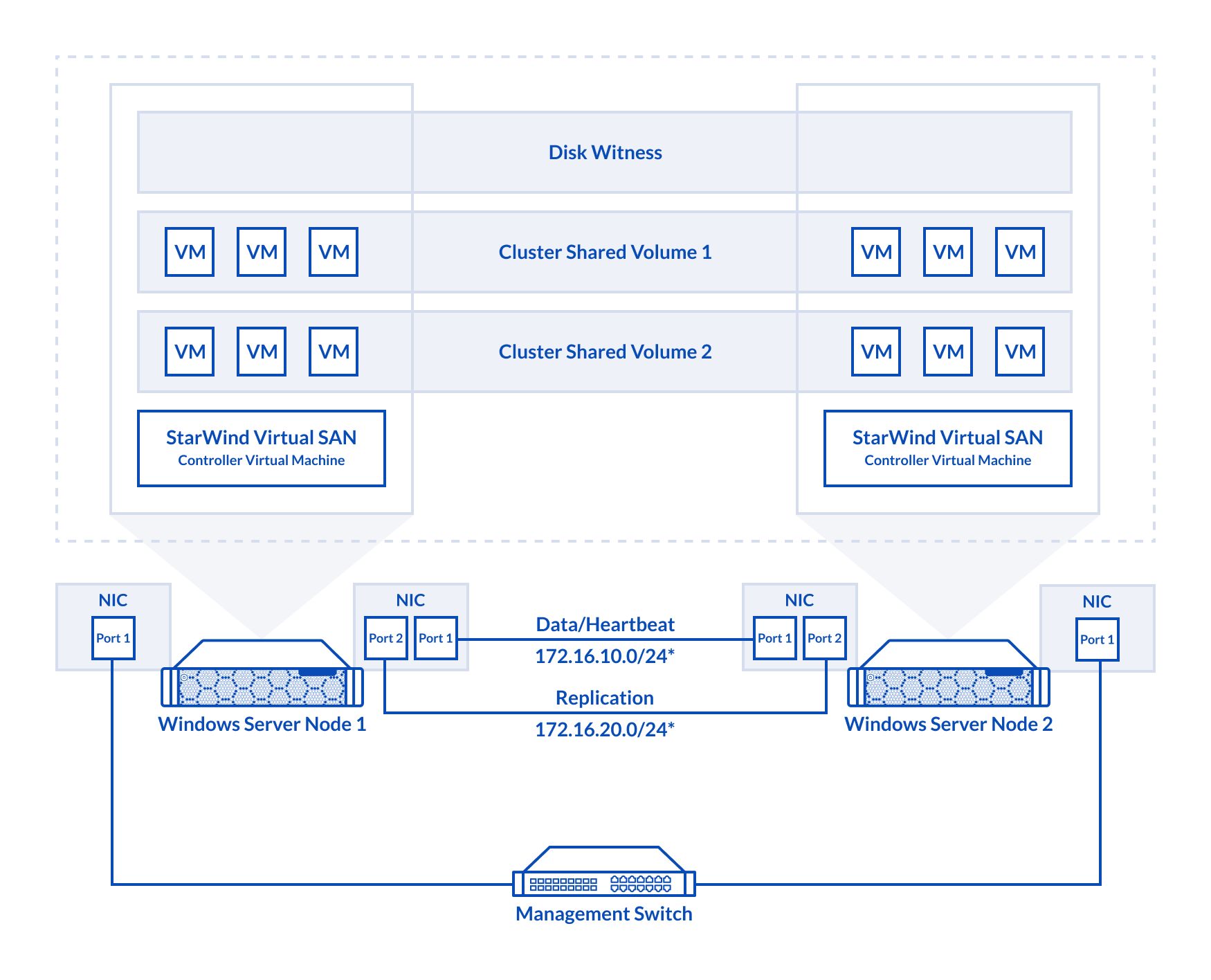 2-node cluster
Preconfiguring cluster nodes
1. Make sure that a domain controller is configured and the servers are added to the domain.
NOTE: Please follow the recommendation in KB article on how to place a DC in case of StarWind Virtual SAN usage.
2. Deploy Windows Server on each server and install Failover Clustering and Multipath I/O features, as well as the Hyper-V role on both servers. This can be done through Server Manager (Add Roles and Features menu item).
3. Define at least 2x network interfaces (2 node scenario) or 4x network interfaces (3 node scenario) on each node that will be used for the Synchronization and Data/StarWind heartbeat traffic. Do not use Data/Heartbeat and Synchronization channels over the same physical link. Synchronization and Data/Heartbeat links can be connected either via redundant switches or directly between the nodes (see diagram above).
4. Separate external Virtual Switches should be created for Data and Synchronization traffic based on the selected before Data and Synchronization interfaces. Using Hyper-V Manager open Virtual Switch Manager and create two external Virtual Switches: one for the Data/StarWind Heartbeat channel (Data) and another one for the Synchronization channel (Sync).
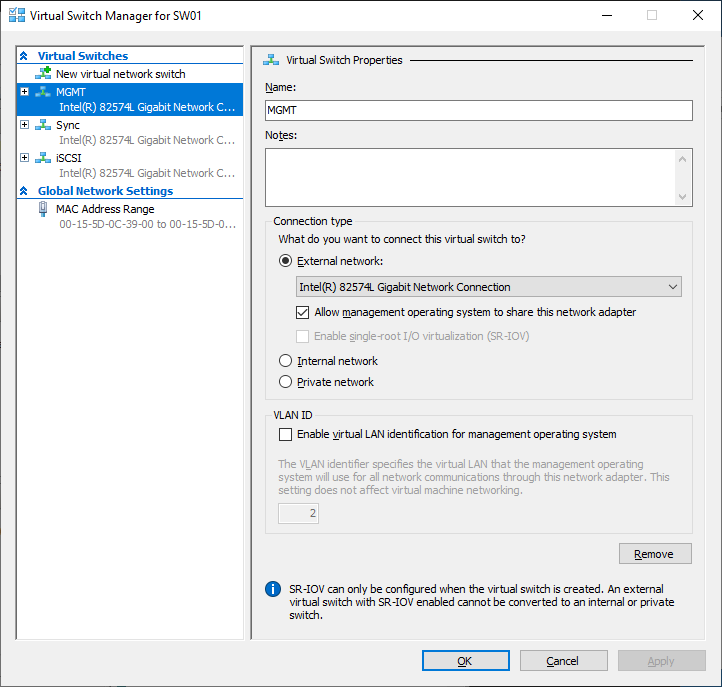
5. Configure and set the IP address on each virtual switch interface. In this document, 172.16.1x.x subnets are used for Data/StarWind heartbeat traffic, while 172.16.2x.x subnets are used for the Synchronization traffic.
NOTE: In case NIC supports SR-IOV, enable it for the best performance. An additional internal switch is required for Data Connection. Contact support for additional details.
6. Set MTU size to 9000 on iSCSI and Sync interfaces using the following Powershell script.
$Data = (Get-NetAdapter -Name "*Data*").Name
$Syncs = (Get-NetAdapter -Name "*Sync*").Name
foreach ($Data in $Data) {
Set-NetAdapterAdvancedProperty -Name “$Data” -RegistryKeyword “*JumboPacket” -Registryvalue 9014
Get-NetAdapterAdvancedProperty -Name "$Data" -RegistryKeyword “*JumboPacket”
}
foreach ($Sync in $Syncs) {
Set-NetAdapterAdvancedProperty -Name “$Sync” -RegistryKeyword “*JumboPacket” -Registryvalue 9014
Get-NetAdapterAdvancedProperty -Name "$Sync" -RegistryKeyword “*JumboPacket”
}
It will apply MTU 9000 to all Data and Sync interfaces if they have Data or Sync as part of their name.
NOTE: MTU setting should be applied on the adapters only if there is no live production running through the NICs.
7. Install and configure StarWind NVMe-oF Initiator. Check the following guide for more information.
https://www.starwindsoftware.com/resource-library/starwind-nvme-over-fabrics-nvme-of-initiator/
8. Open the MPIO Properties manager: Start -> Windows Administrative Tools -> MPIO. Alternatively, run the following PowerShell command :
mpiocpl
9. In the Discover Multi-Paths tab, select StarWind NVMe device and click Add.
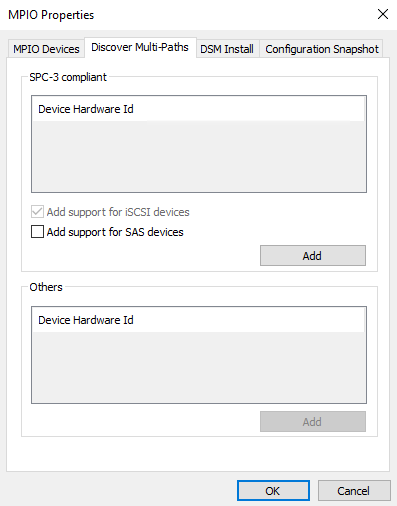
10. When prompted to restart the server, click Yes to proceed.
11. Repeat the same procedure on the other server.
Deploying StarWind Virtual SAN CVM
1. Download the zip archive containing StarWind Virtual SAN CVM from
https://www.starwindsoftware.com/vsan#download
2. Extract the virtual machine files on the server where StarWind Virtual SAN CVM will be deployed.
3. Open Hyper-V Manager and launch the Import Virtual Machine wizard.
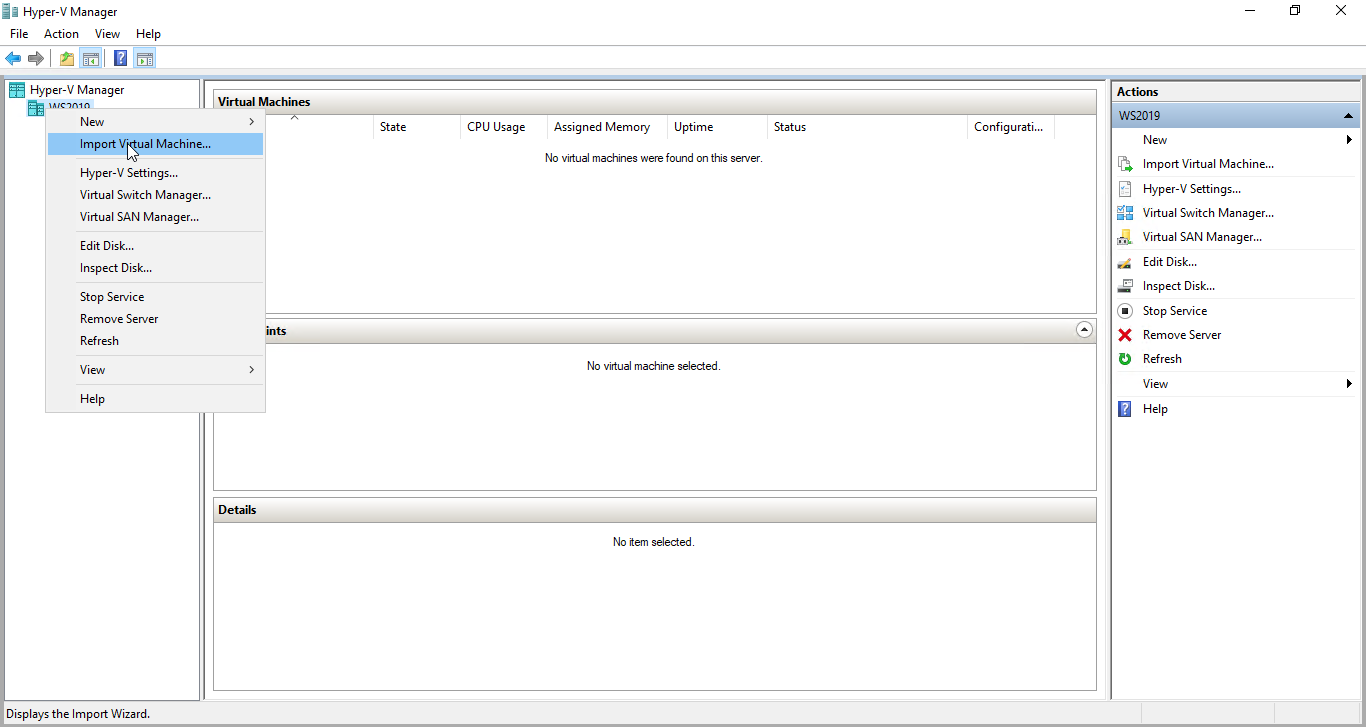
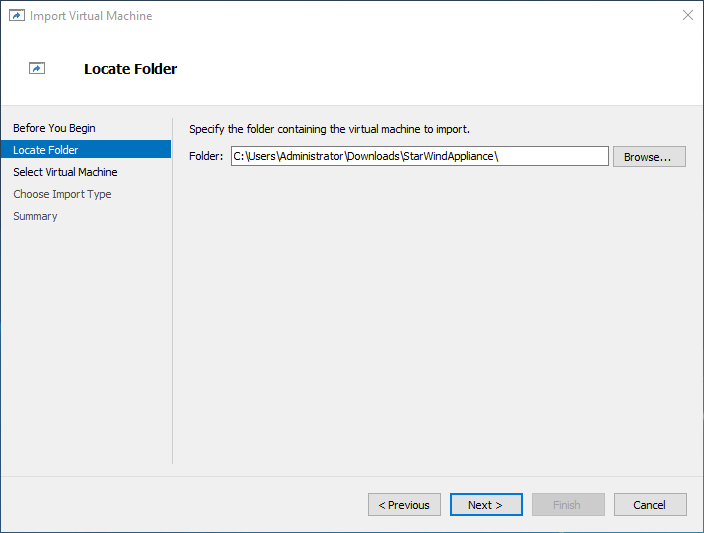
4. On the Locate Folder step of the wizard, navigate to the location of the StarWind Virtual SAN CVM template folder, select the folder, and then click Next.
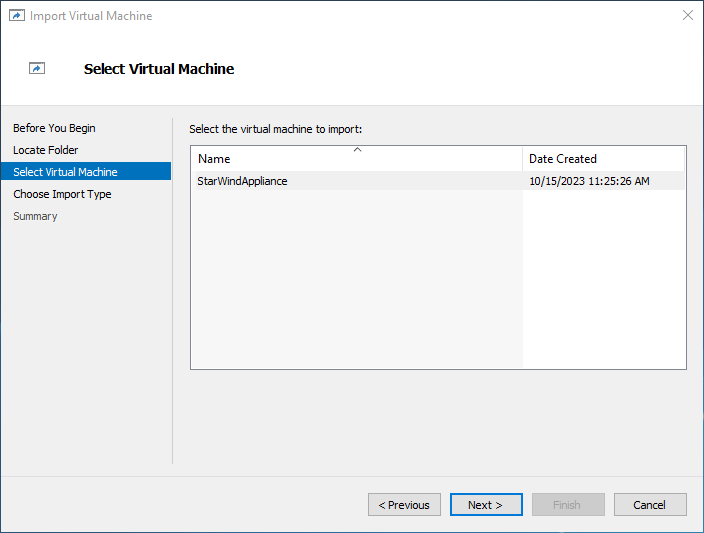
5. On the Select Virtual Machine step, click Next.
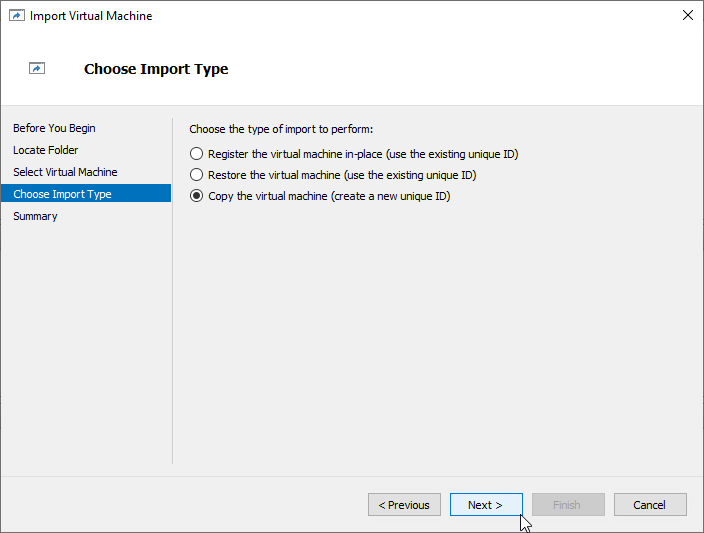
6. On the Choose Import Type step, select the Copy the virtual machine import type and click Next.
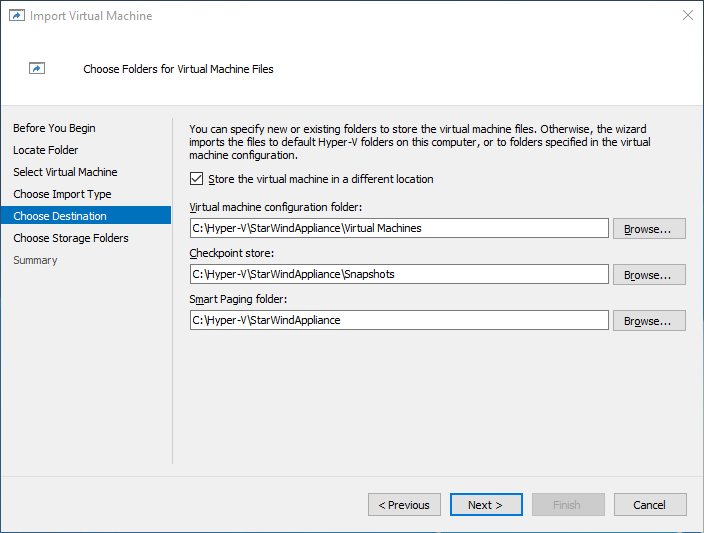
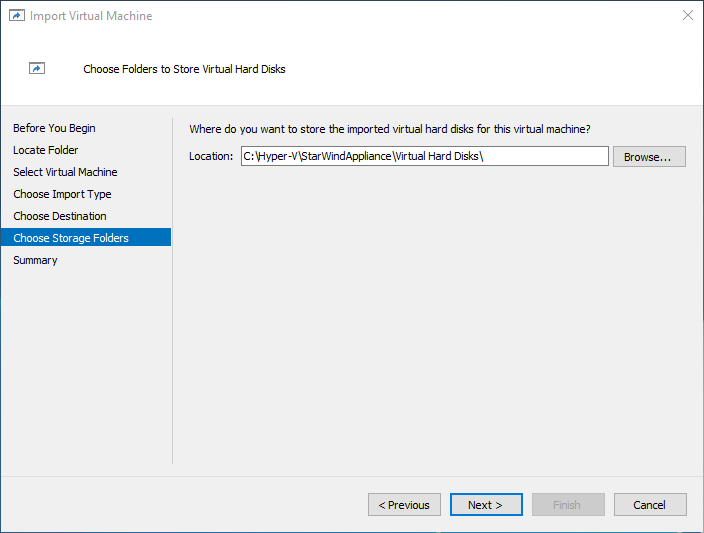
7. On the Choose Destination and Choose Storage Folders steps, specify folders to store virtual machine files, such as configuration, snapshots, smart paging, and virtual disks. Then, click Next.
NOTE: It’s recommended to deploy StarWind Virtual SAN CVM on a separate storage device accessible to the hypervisor host, e.g., a BOSS card, etc.
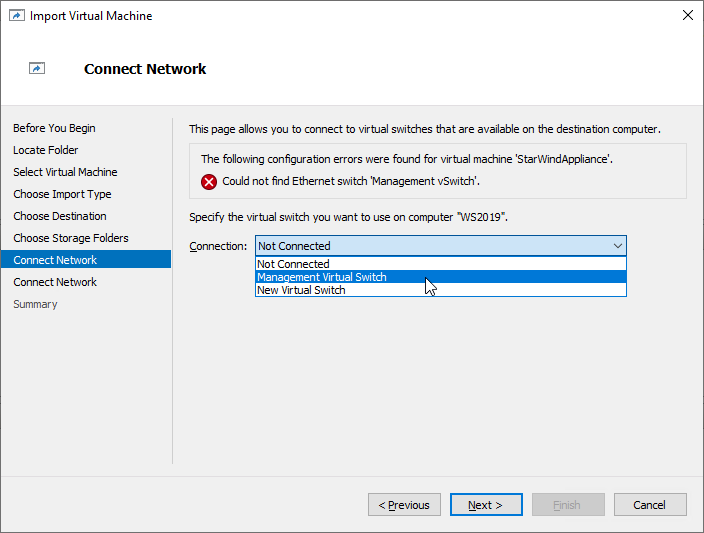
8. On the Connect Network step, the wizard will validate the network settings.
Below are the default names for virtual switches:
- The Management network virtual switch is named “Management vSwitch”
- The Data/Heartbeat network virtual switch is named “Data/iSCSI vSwitch”
- The Replication network virtual switch is named “Replication/Sync vSwitch”
If the existing virtual switches have different names, manually select the appropriate ones from the drop-down list. Then, click Next.

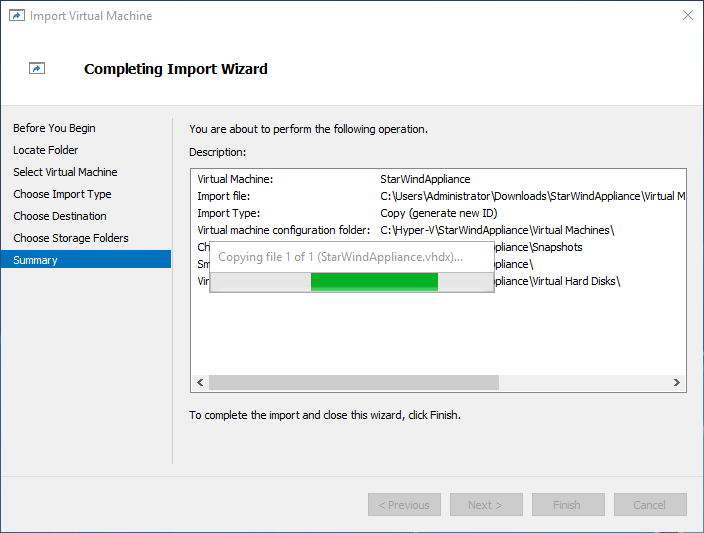
9. On the Summary step, review the configuration settings and click Finish to begin the import process.

10. Repeat steps 1 through 9 on each host where StarWind CVM should be deployed.
Initial Configuration Wizard
1. Start the StarWind Virtual SAN Controller Virtual Machine.
2. Launch the VM console to view the VM boot process and obtain the IPv4 address of the Management network interface.
NOTE: If the VM does not acquire an IPv4 address from a DHCP server, use the Text-based User Interface (TUI) to set up the Management network manually.
Default credentials for TUI: user/rds123RDS
3. Using a web browser, open a new tab and enter the VM’s IPv4 address to access the StarWind VSAN Web Interface. On the Your connection is not private screen, click Advanced and then select Continue to…

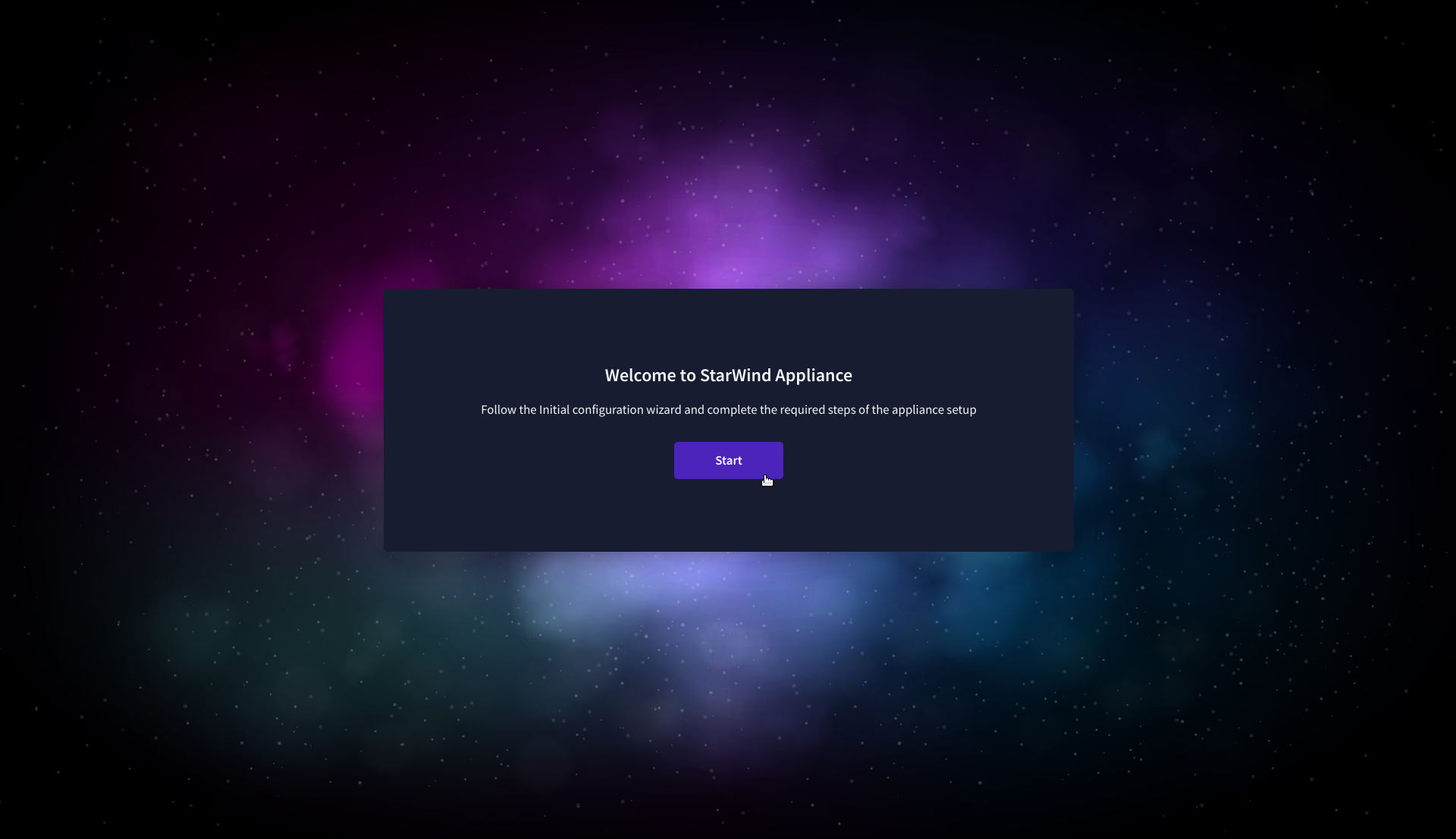
4. On the Welcome to StarWind Appliance screen, click Start to launch the Initial Configuration Wizard.
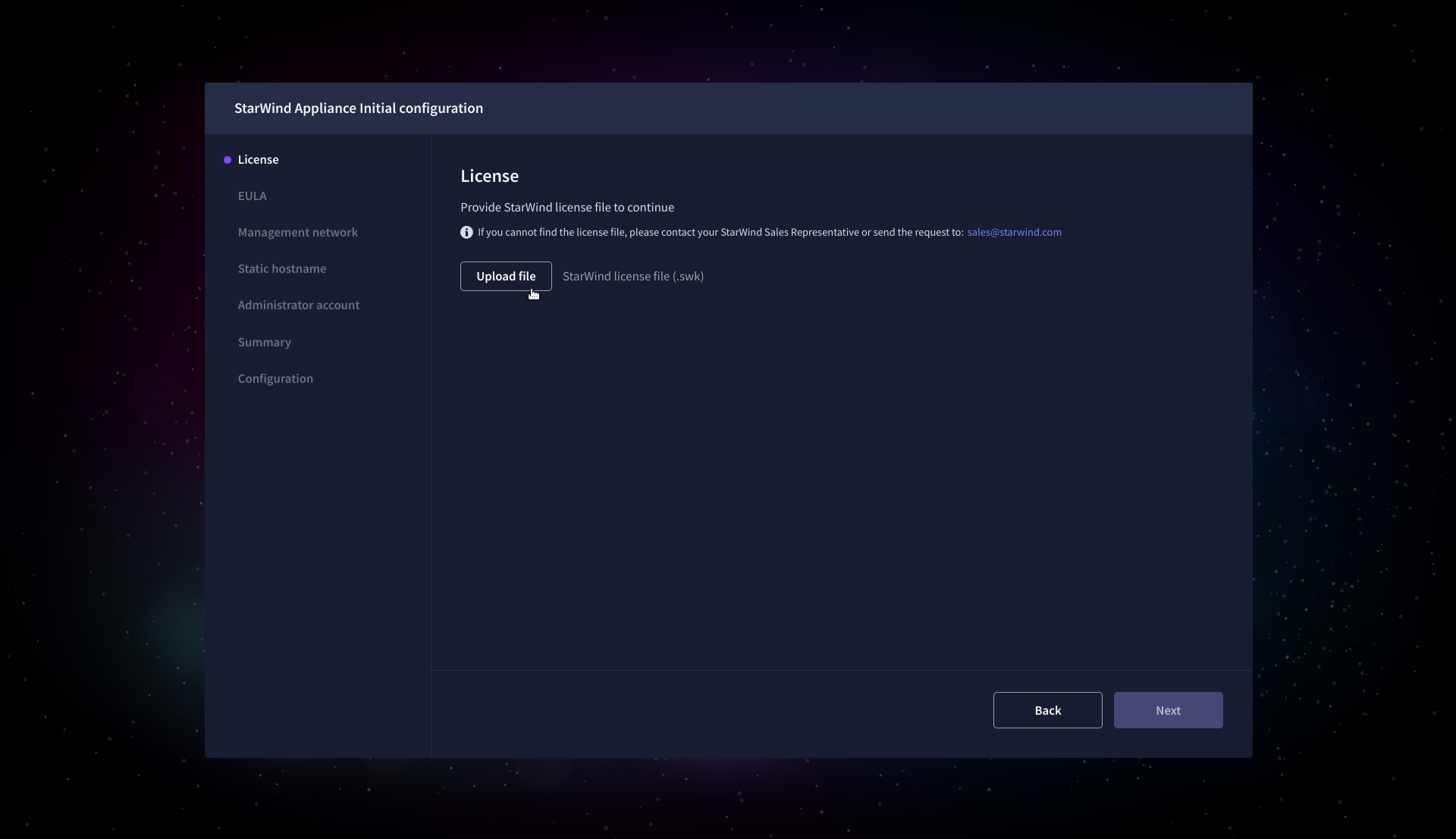
5. On the License step, upload the StarWind Virtual SAN license file.
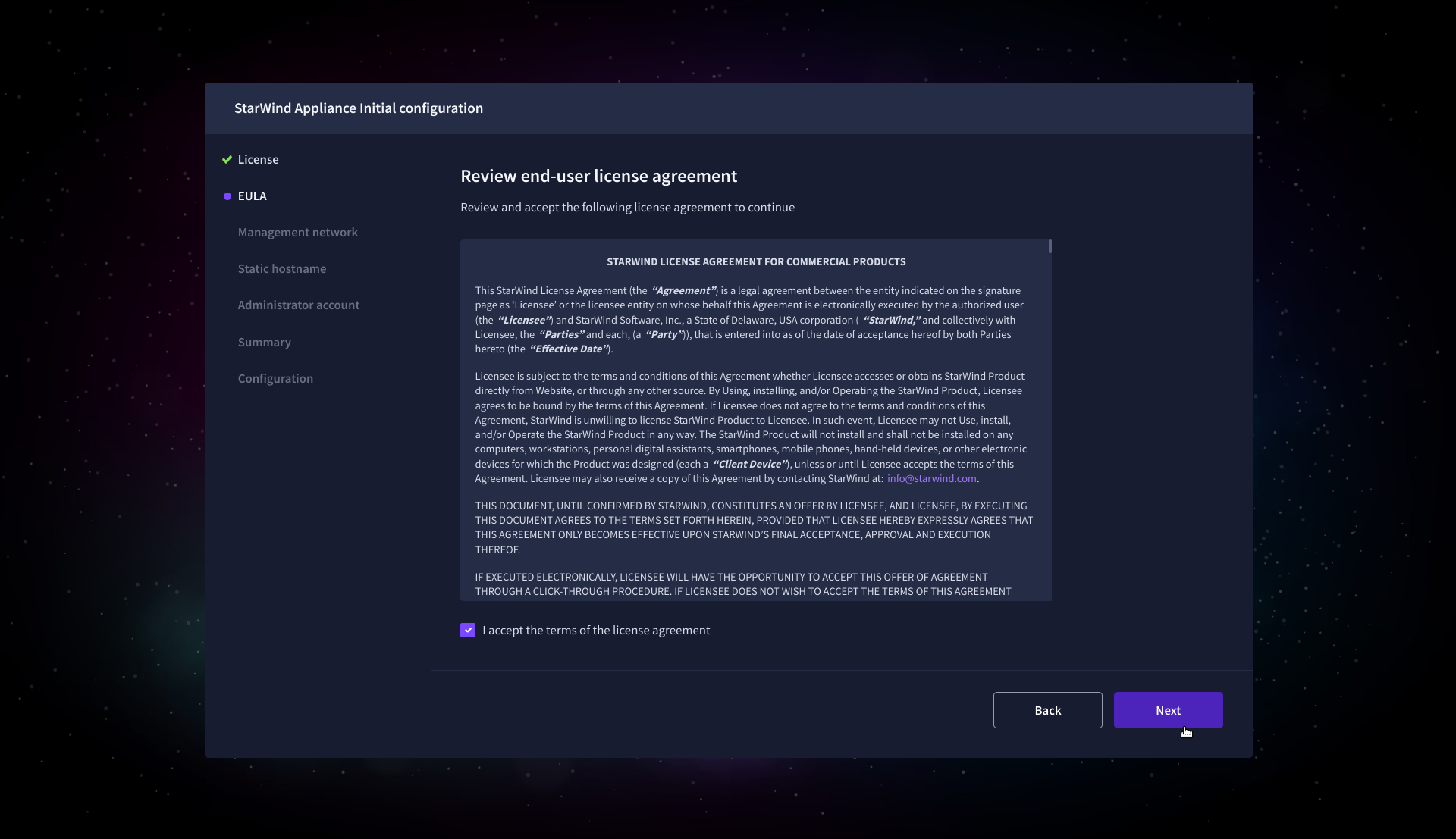
6. On the EULA step, read and accept the End User License Agreement to continue.
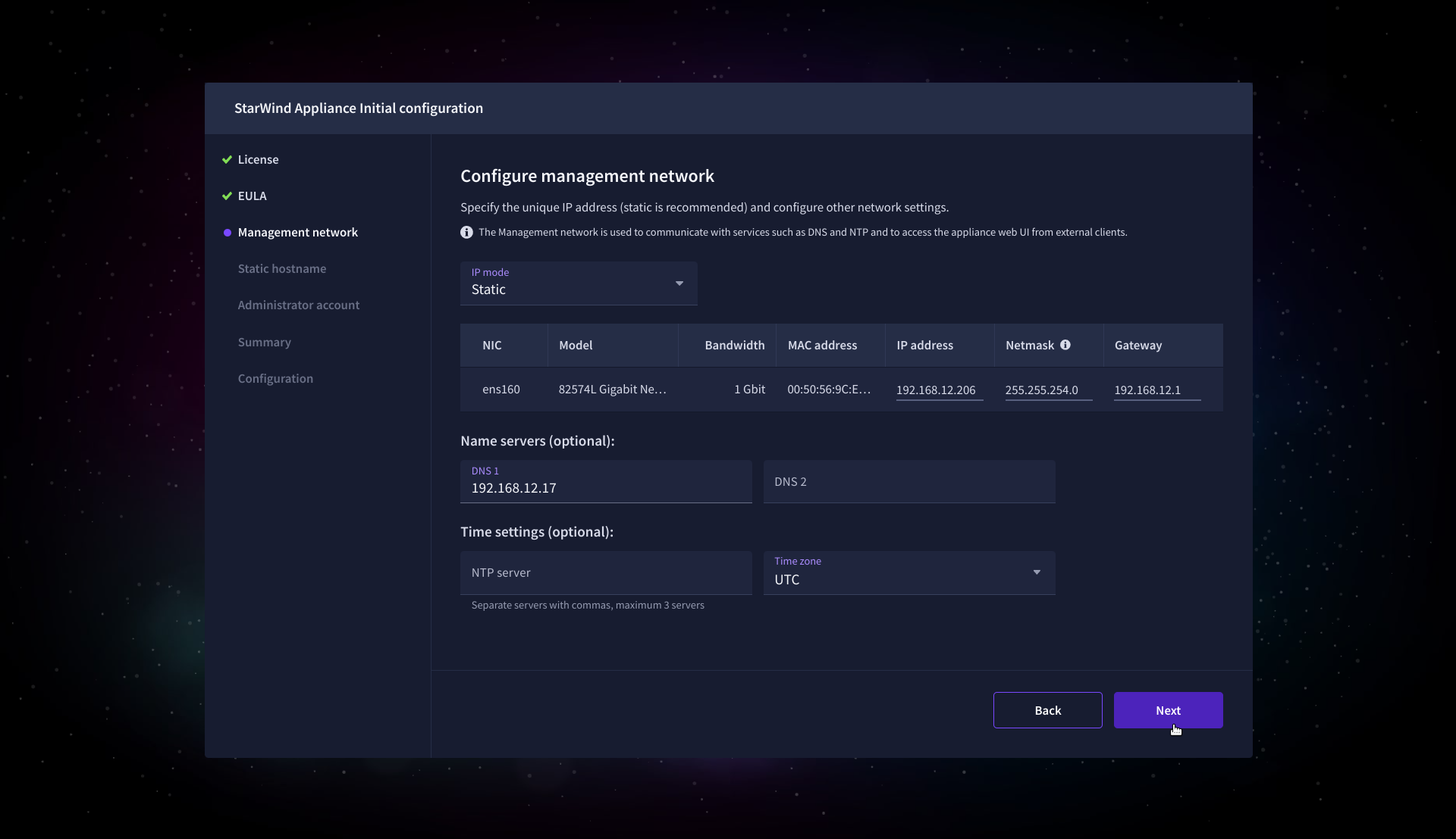
7. On the Management network step, review or edit the network settings and click Next.
IMPORTANT: The use of Static IP mode is highly recommended.
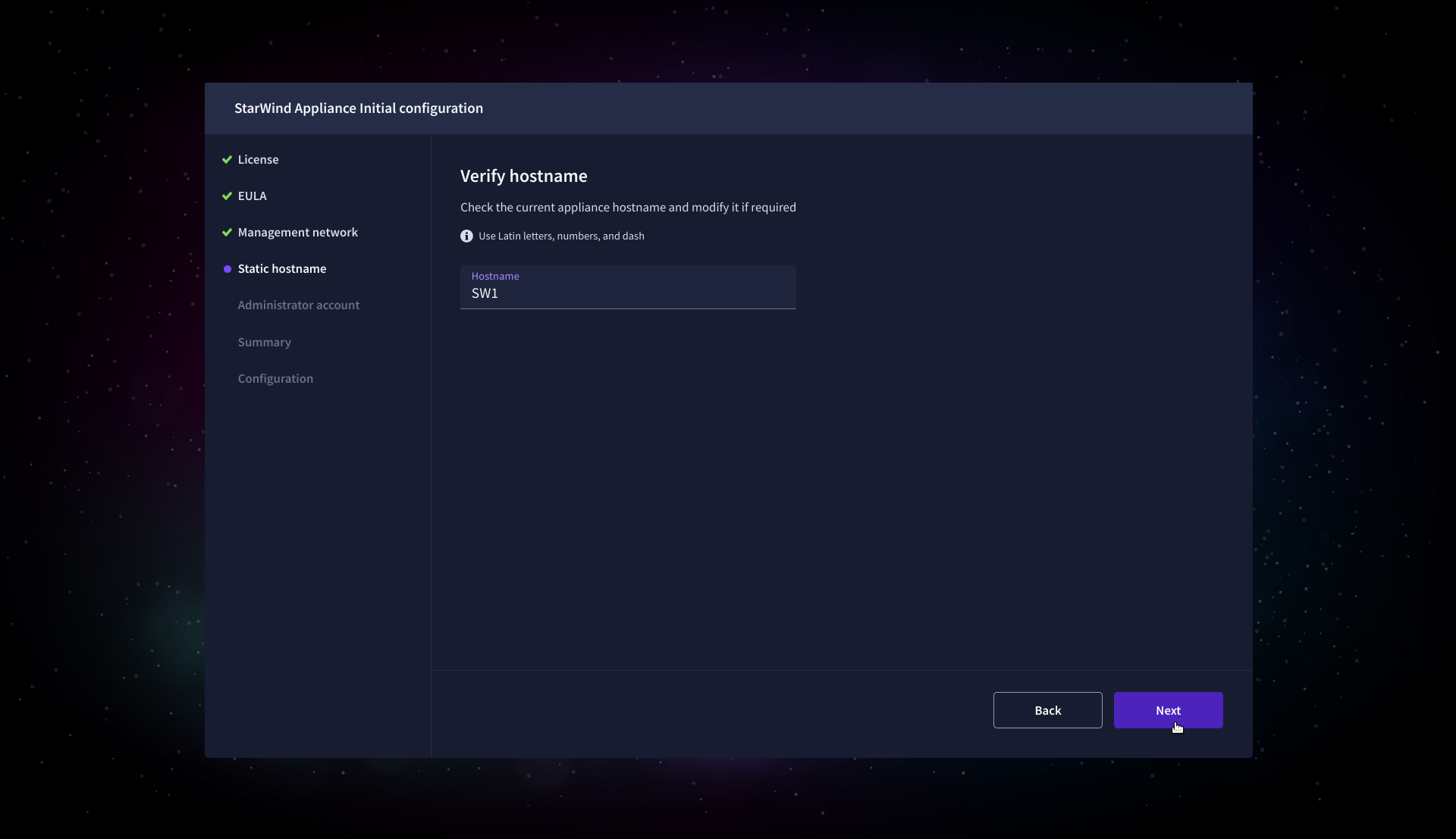
8. On the Static hostname, specify the hostname for the virtual machine and click Next.
9. On the Administrator account step, specify the credentials for the new StarWind Virtual SAN administrator account and click Next.
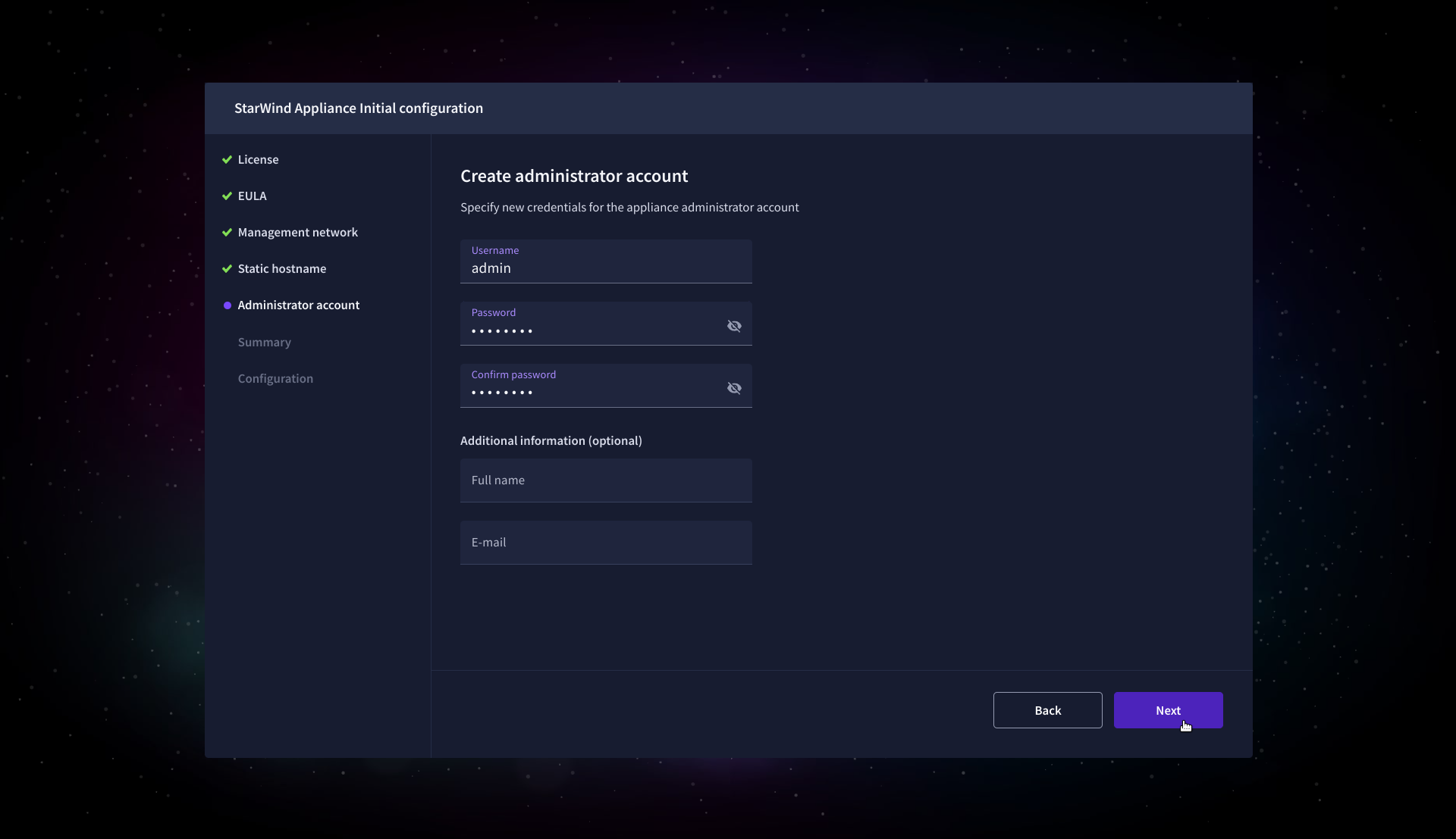
10. Wait until the Initial Configuration Wizard configures StarWind Virtual SAN for you.
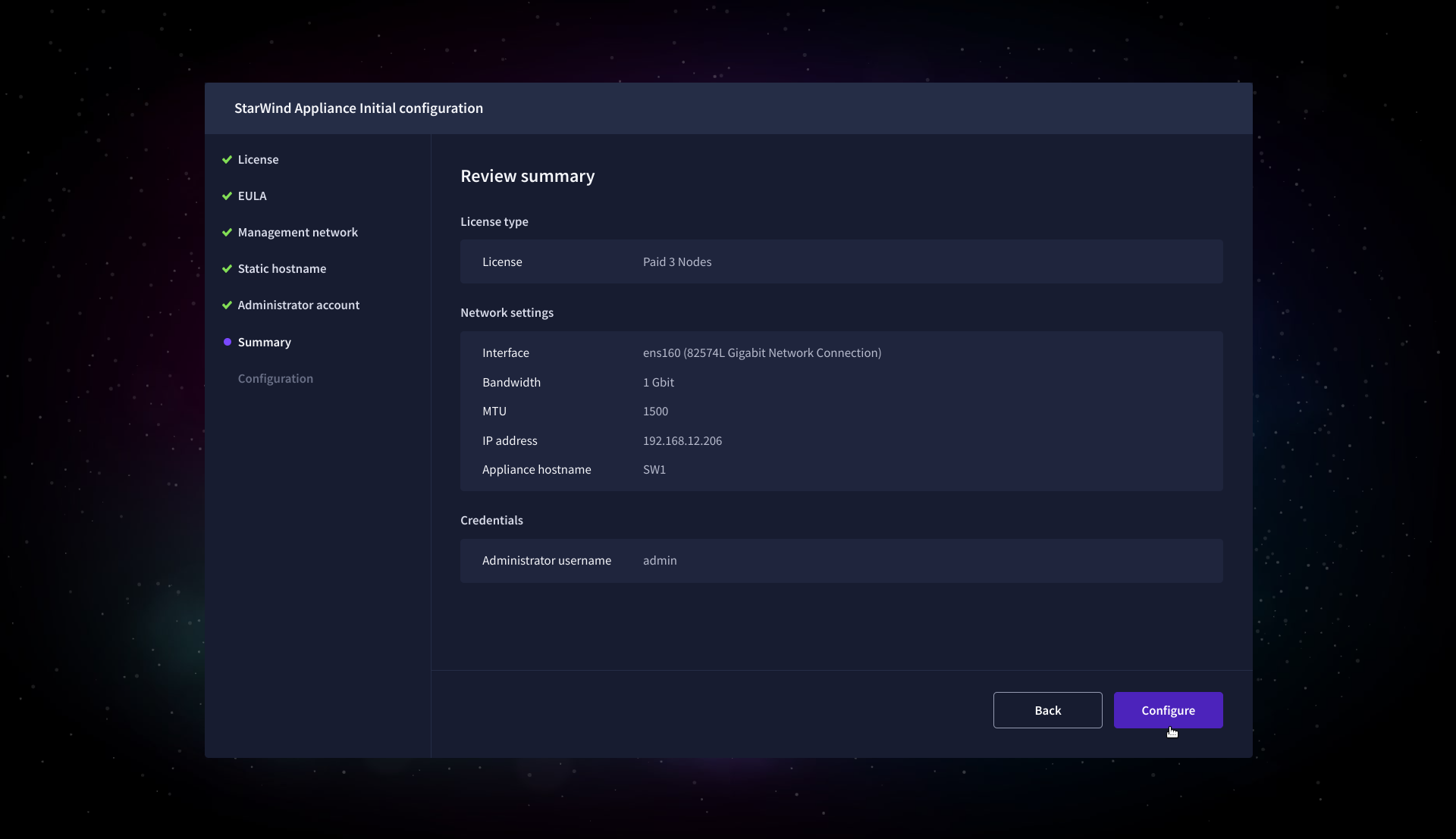
11. Please standby until the Initial Configuration Wizard configures StarWind VSAN for you.
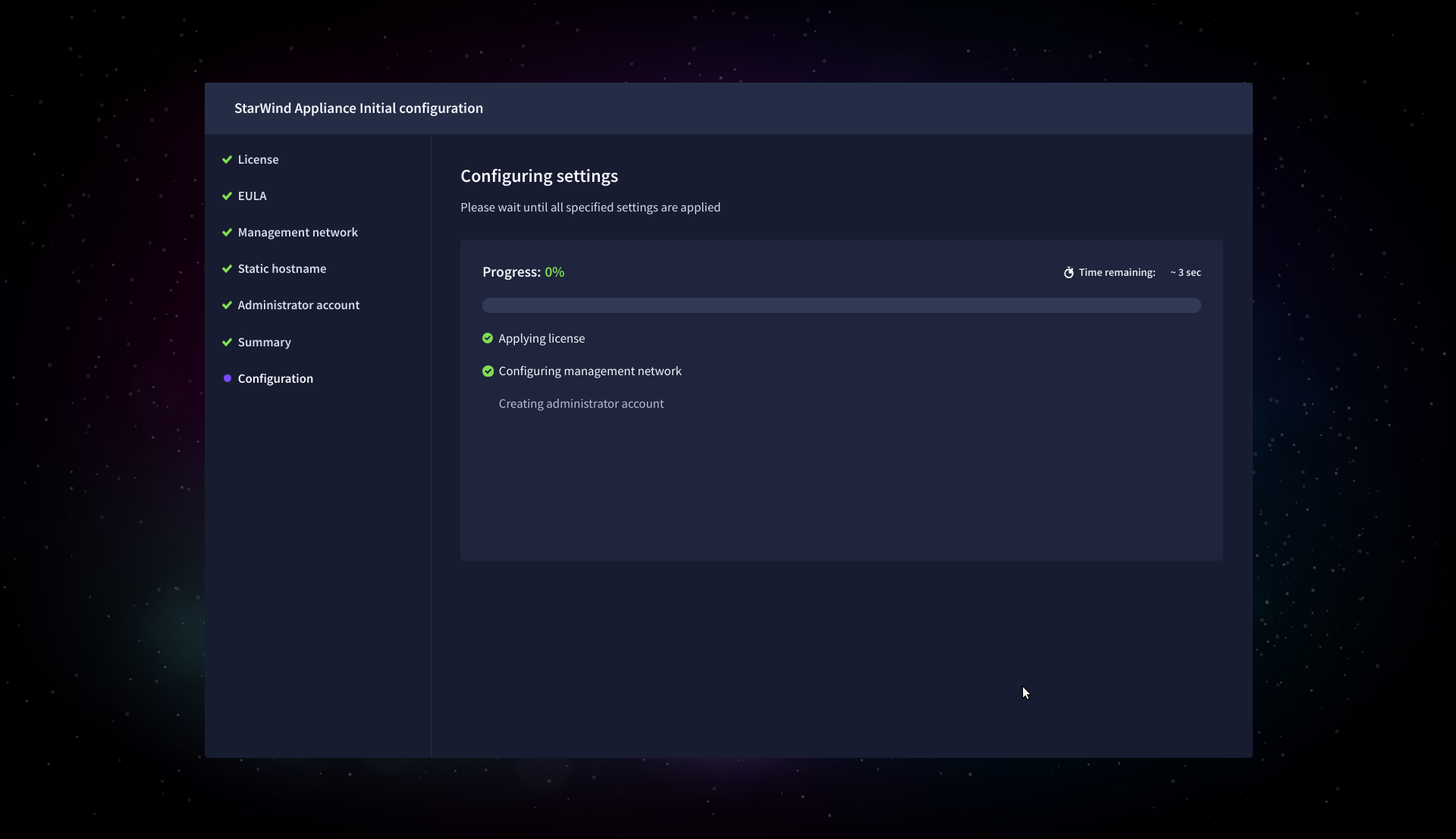
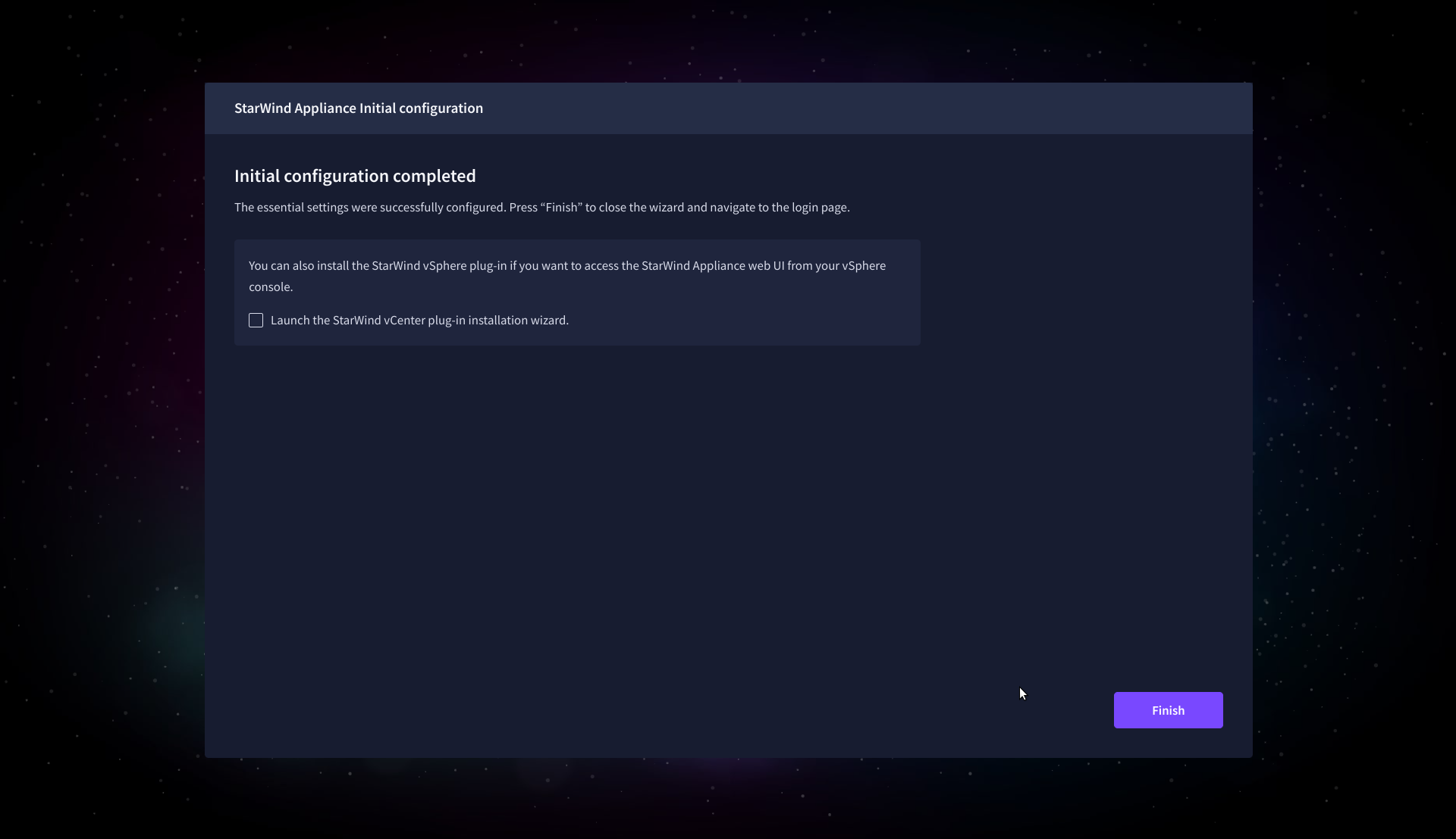
12. After the configuration process is completed, click Finish to install the StarWind vCenter Plugin immediately, or uncheck the checkbox to skip this step and proceed to the Login page.
13. Repeat steps 1 through 12 on each Windows Server host.
Add Appliance
To create replicated, highly available storage, add partner appliances that use the same StarWind Virtual SAN license key.
1. Navigate to the Appliances page and click Add to open the Add appliance wizard.
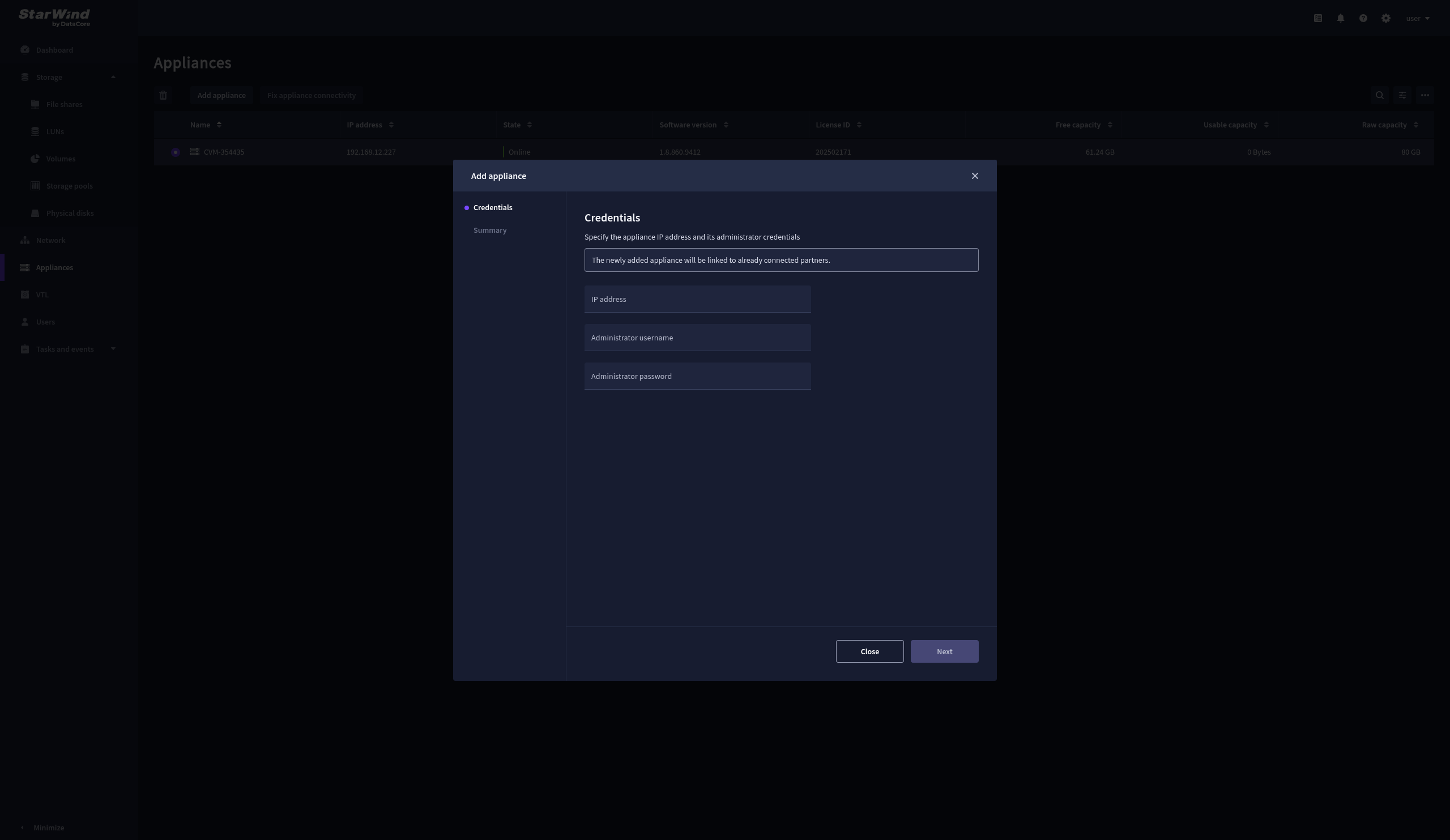
2. On the Credentials step, enter the IP address and credentials for the partner StarWind Virtual SAN appliance, then click Next.
3. Wait for the connection to be established and the settings to be validated
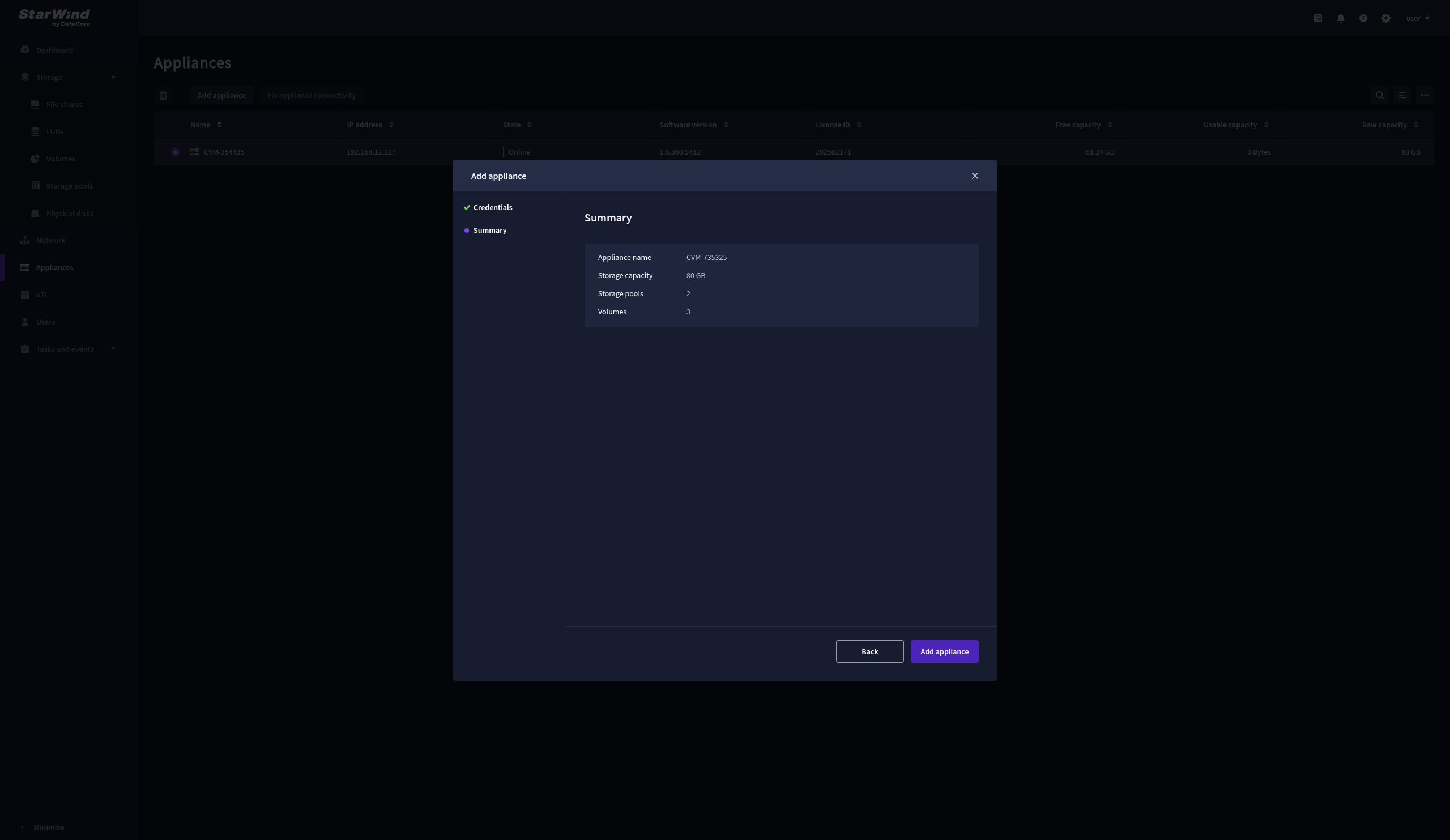
4. On the Summary step, review the properties of the partner appliance, then click Add Appliance.
Configure HA networking
1. Navigate to the Network page and open the Configure HA networking wizard.
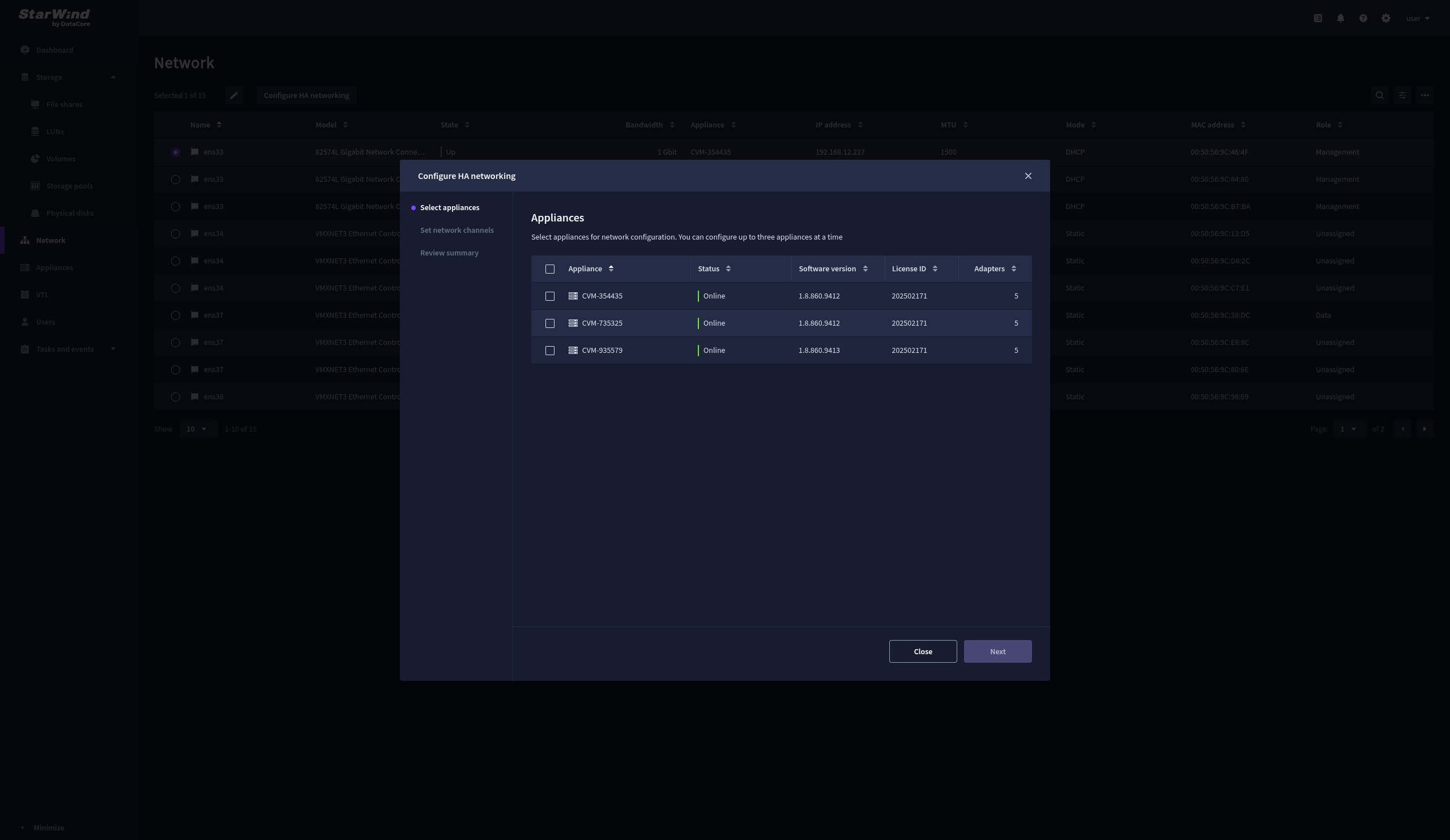
2. On the Appliances step, select either 2 partner appliances to configure two-way replication or 3 appliances for three-way replication, then click Next.
NOTE: The number of appliances in the cluster is limited by your StarWind Virtual SAN license.
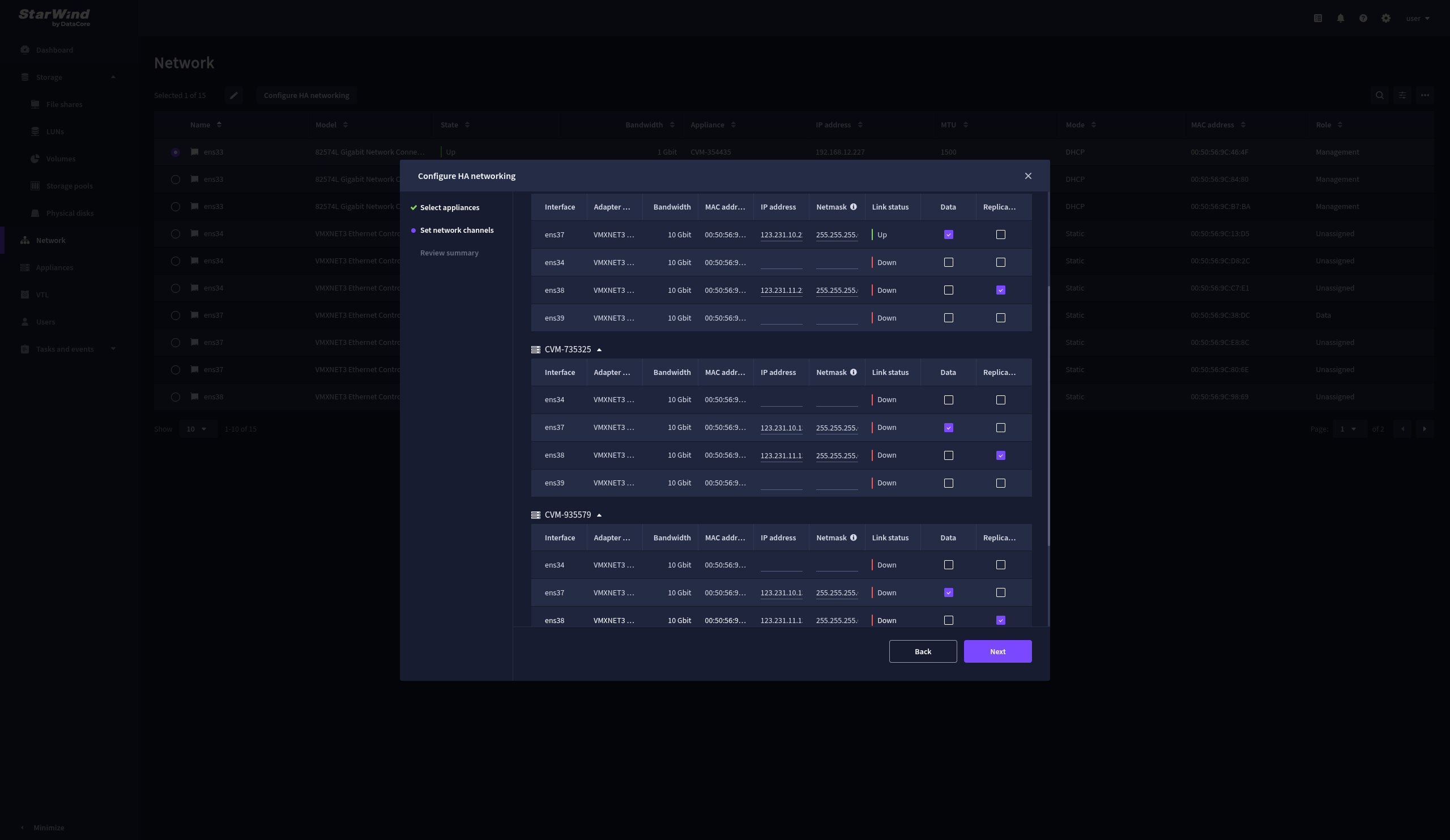
3. Set Network Channels step combines configuration of Data and Replication Networks. Select the network interfaces designated to carry iSCSI or NVMe-oF storage traffic. Assign and configure at least one interface on each appliance with a static IP address in a unique network (subnet), specify the subnet mask and Cluster MTU size.
4. Select the network interfaces designated to carry the traffic for synchronous replication. Assign and configure at least one interface on each appliance with a static IP address in a unique network (subnet), specify the subnet mask and Cluster MTU size.
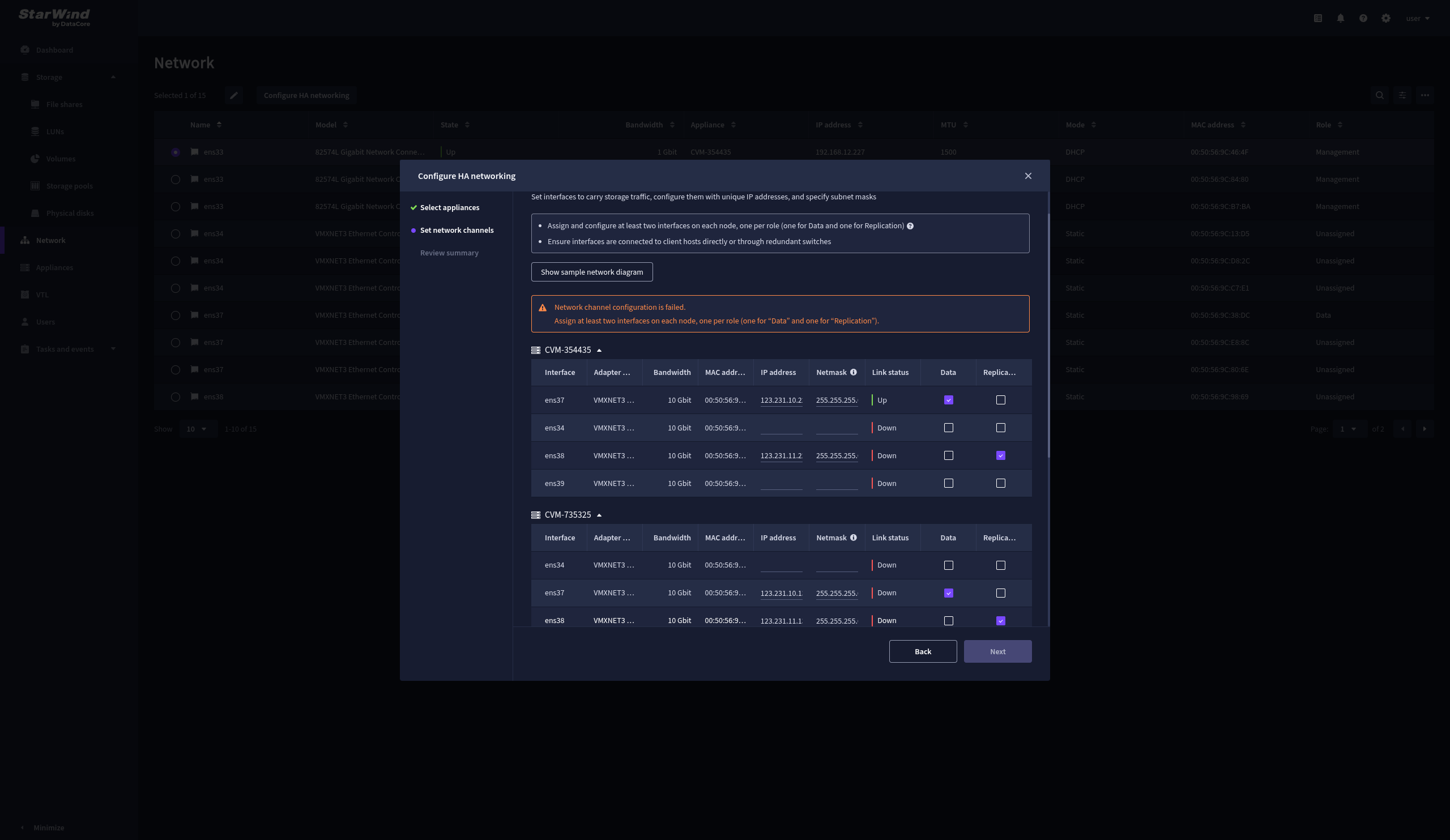
IMPORTANT: For a redundant, high-availability configuration, configure at least 2 network interfaces on each appliance. Ensure that the Data Network interfaces are interconnected between appliances through multiple direct links or via redundant switches.
5. Assign an MTU value on all selected network adapters, e.g., 1500 or 9000 bytes. If you are using network switches with the selected Data Network adapters, ensure that they are configured with the same MTU size value. In case of an MTU settings mismatch, stability and performance issues might occur on the whole setup.
NOTE: Setting MTU to 9000 bytes on some physical adapters (like Intel Ethernet Network Adapter X710, Broadcom network adapters, etc.) might cause stability and performance issues depending on the installed network driver. To avoid them, use 1500 bytes MTU size or install the stable version of the driver.
6. Once configured, click Next to validate network settings.
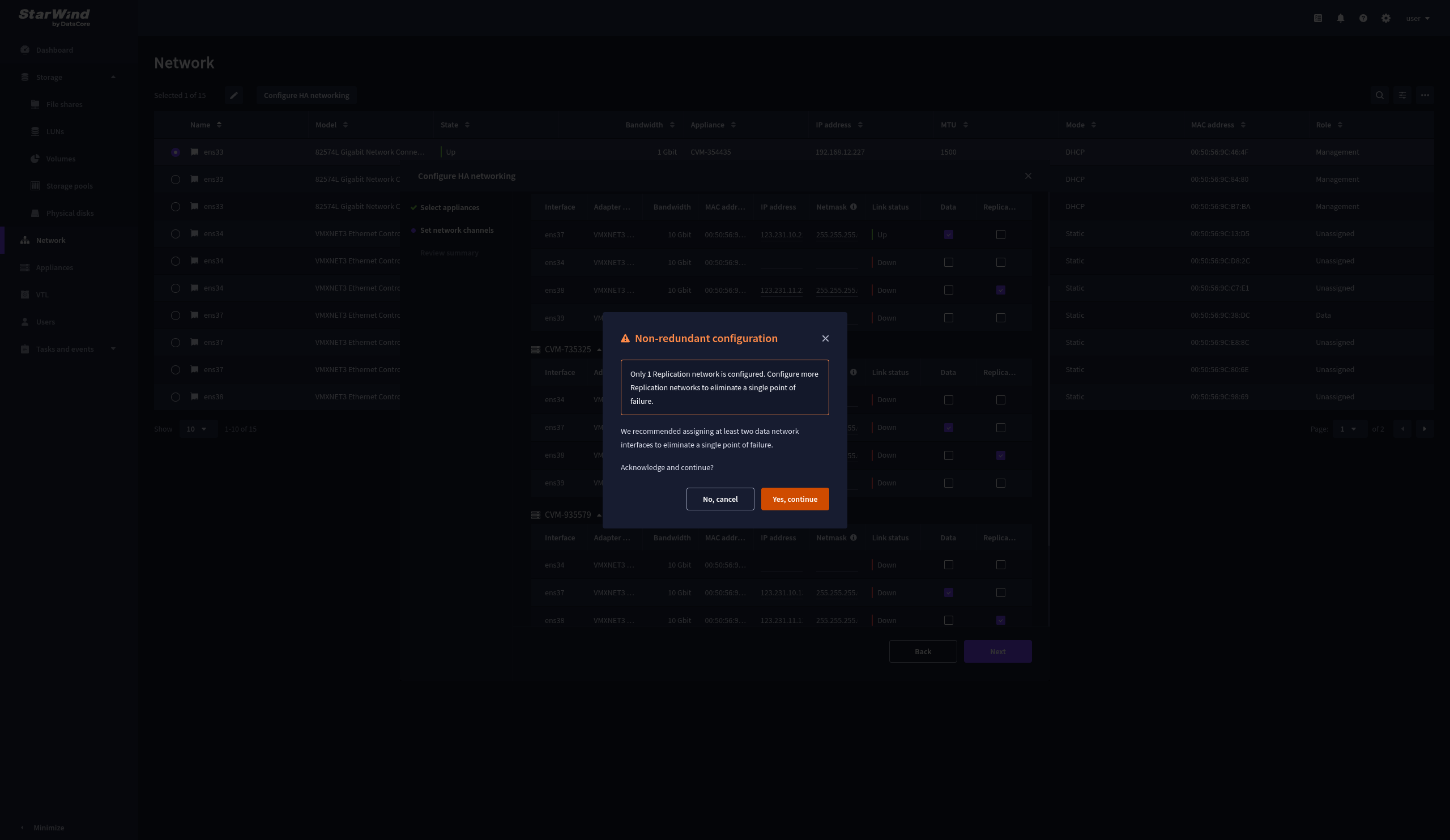
7. The warning might appear if a single data interface is configured. Click Yes, continue to proceed with the configuration.
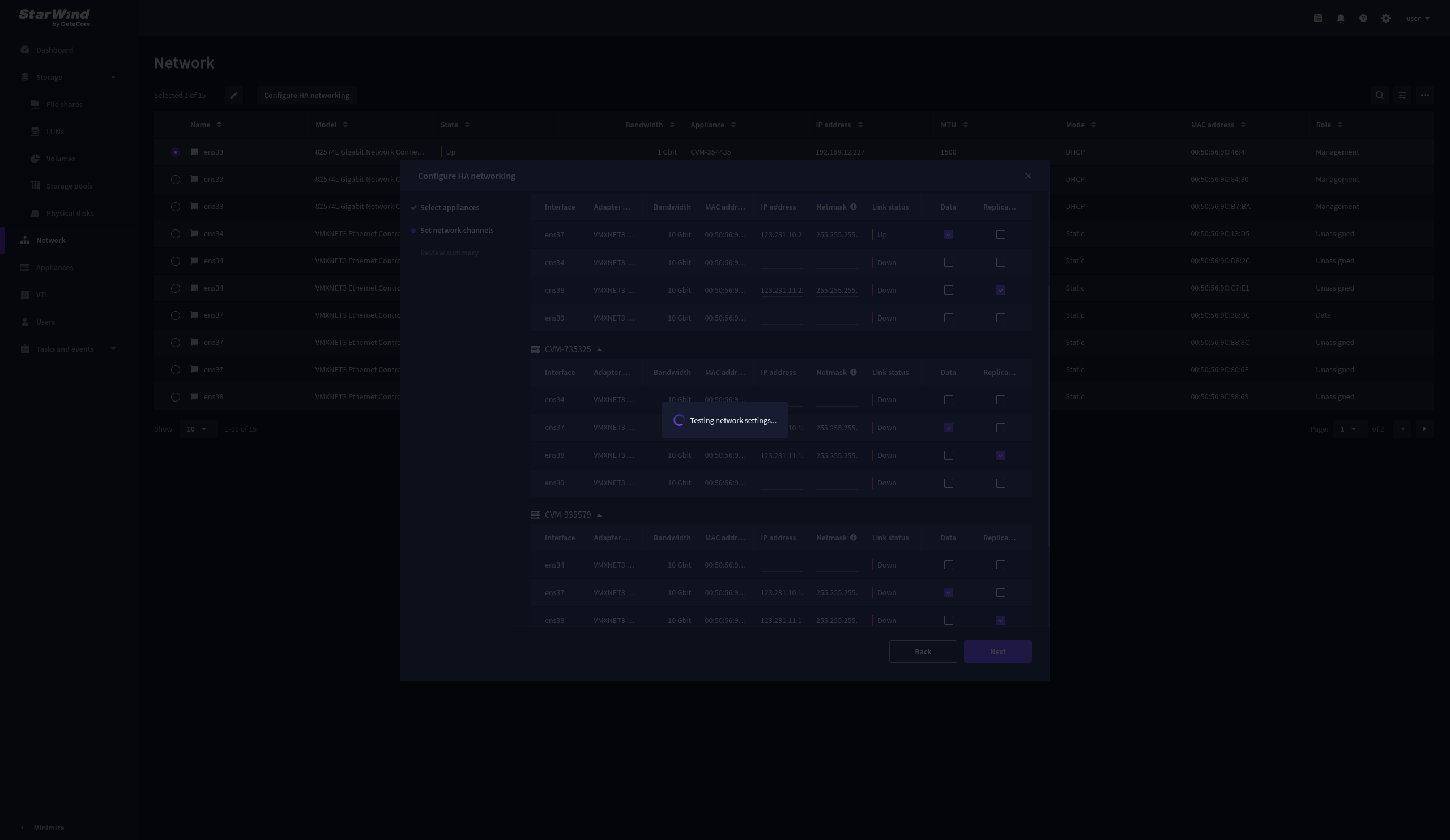
8. Wait for the configuration to complete.
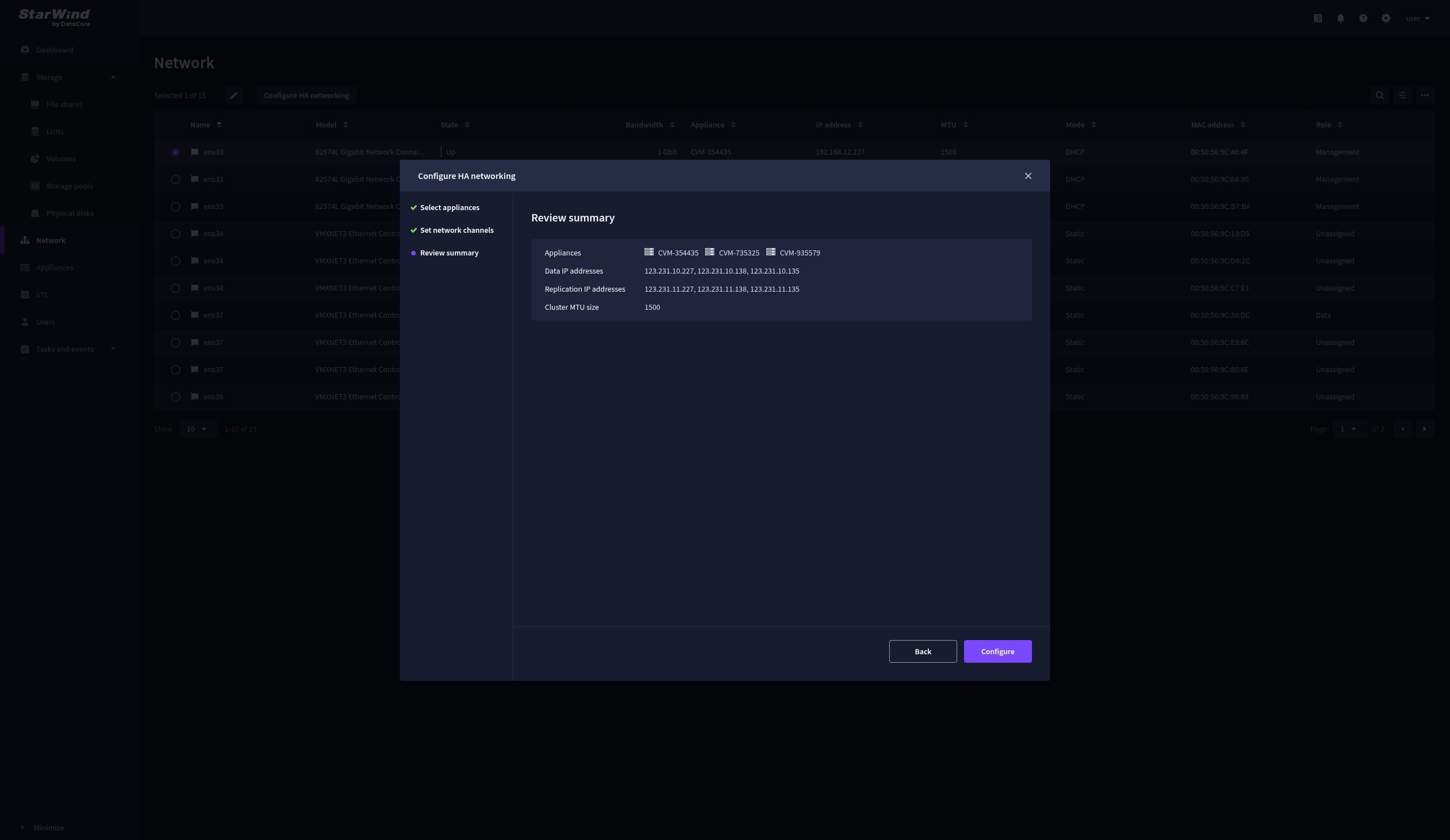
9. On the Summary step, review the specified network settings and click Configure to apply the changes.
Add physical disks
Attach physical storage to StarWind Virtual SAN Controller VM:
- Ensure that all physical drives are connected through an HBA or RAID controller.
- To get optimal storage performance, add HBA, RAID controllers, or NVMe SSD drives to StarWind CVM via a passthrough device.
For detailed instructions, refer to Microsoft’s documentation on DDA. Also, find the storage provisioning guidelines in the KB article.
Create Storage Pool
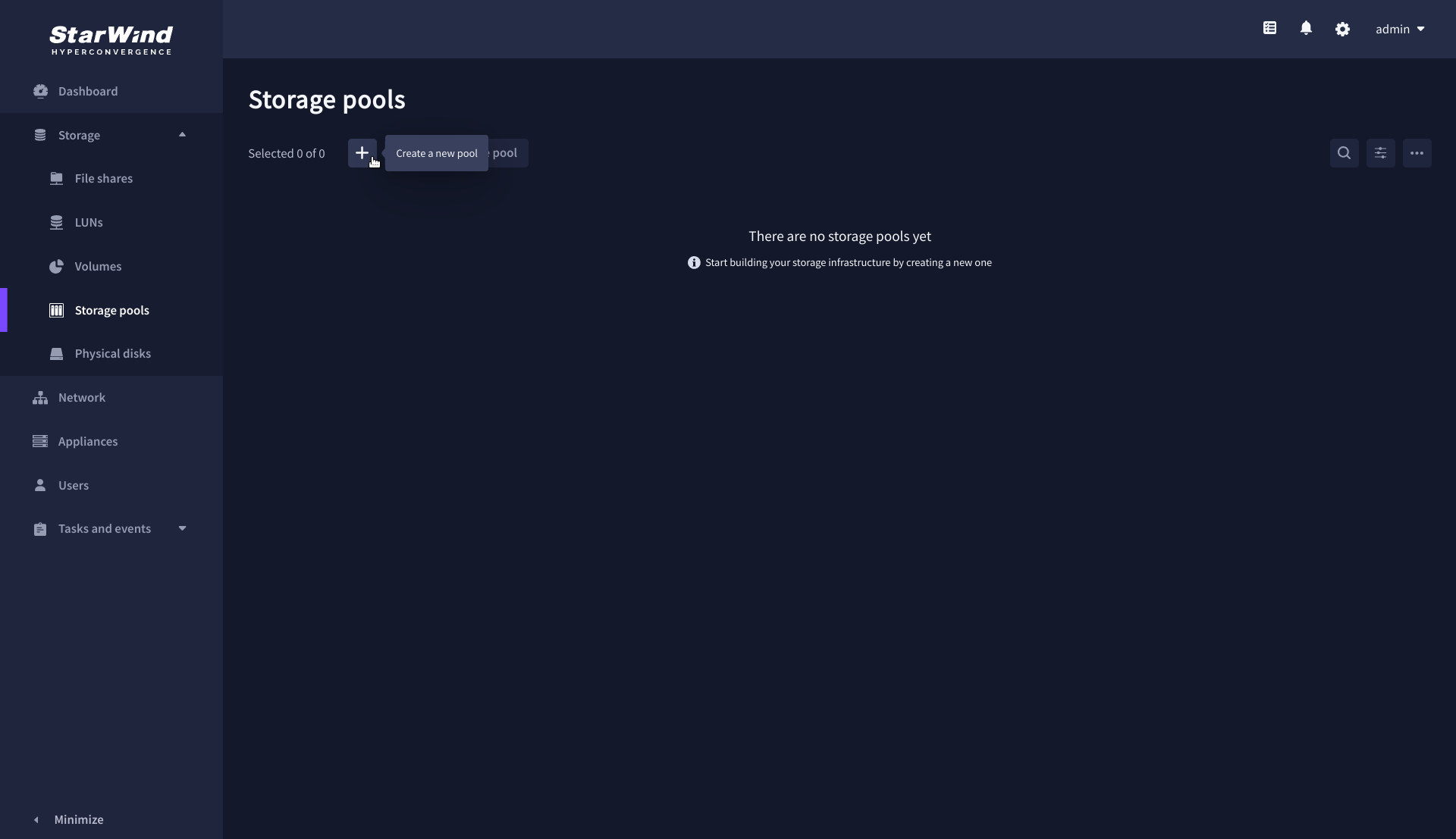
1. Navigate to the Storage pools page and click the + button to open the Create storage pool wizard .
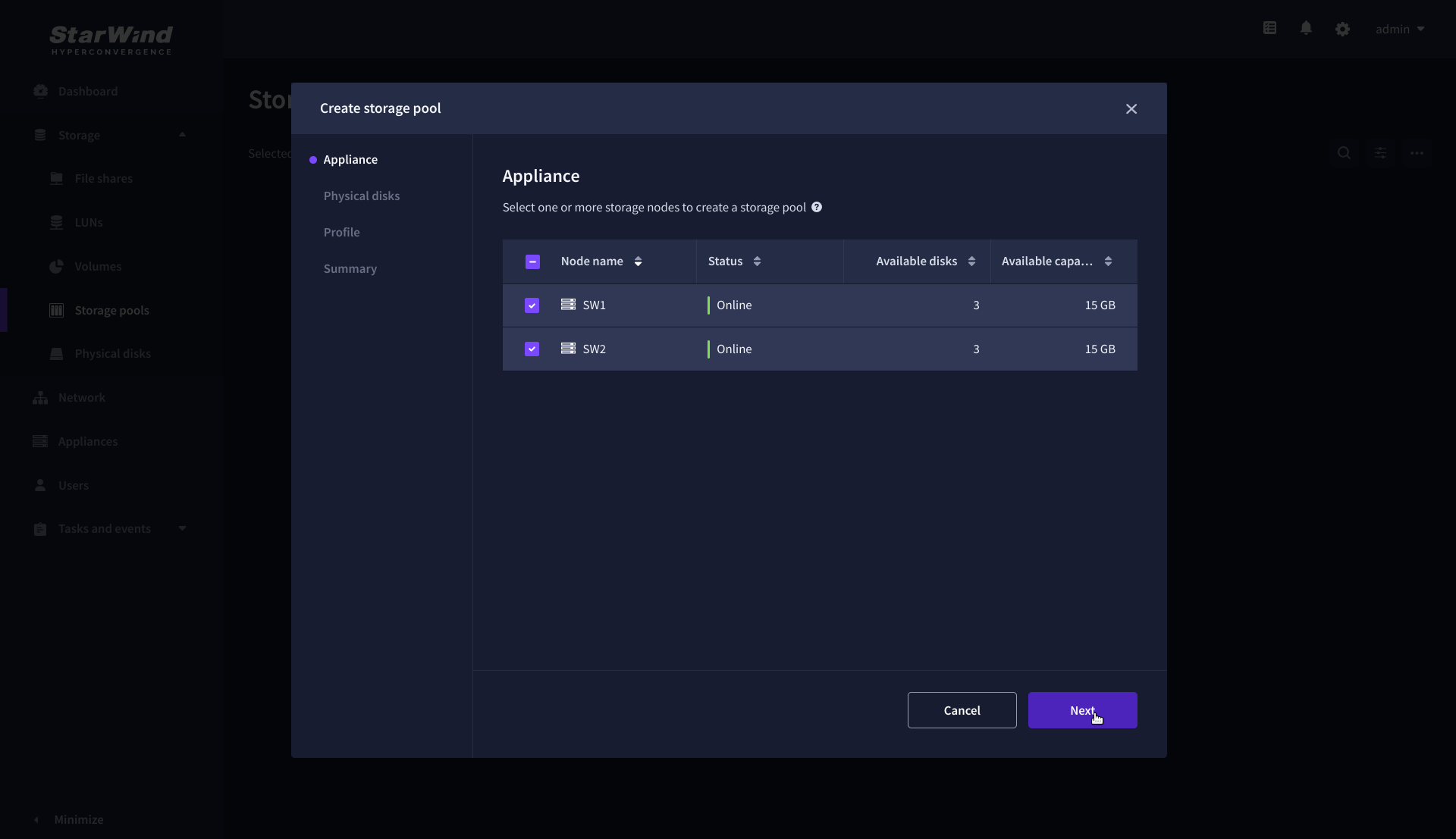
2. On the Appliance step, select partner appliances on which to create new storage pools, then click Next.
NOTE: Select 2 appliances for configuring storage pools if you are deploying a two-node cluster with two-way replication, or select 3 appliances for configuring a three-node cluster with a three-way mirror.
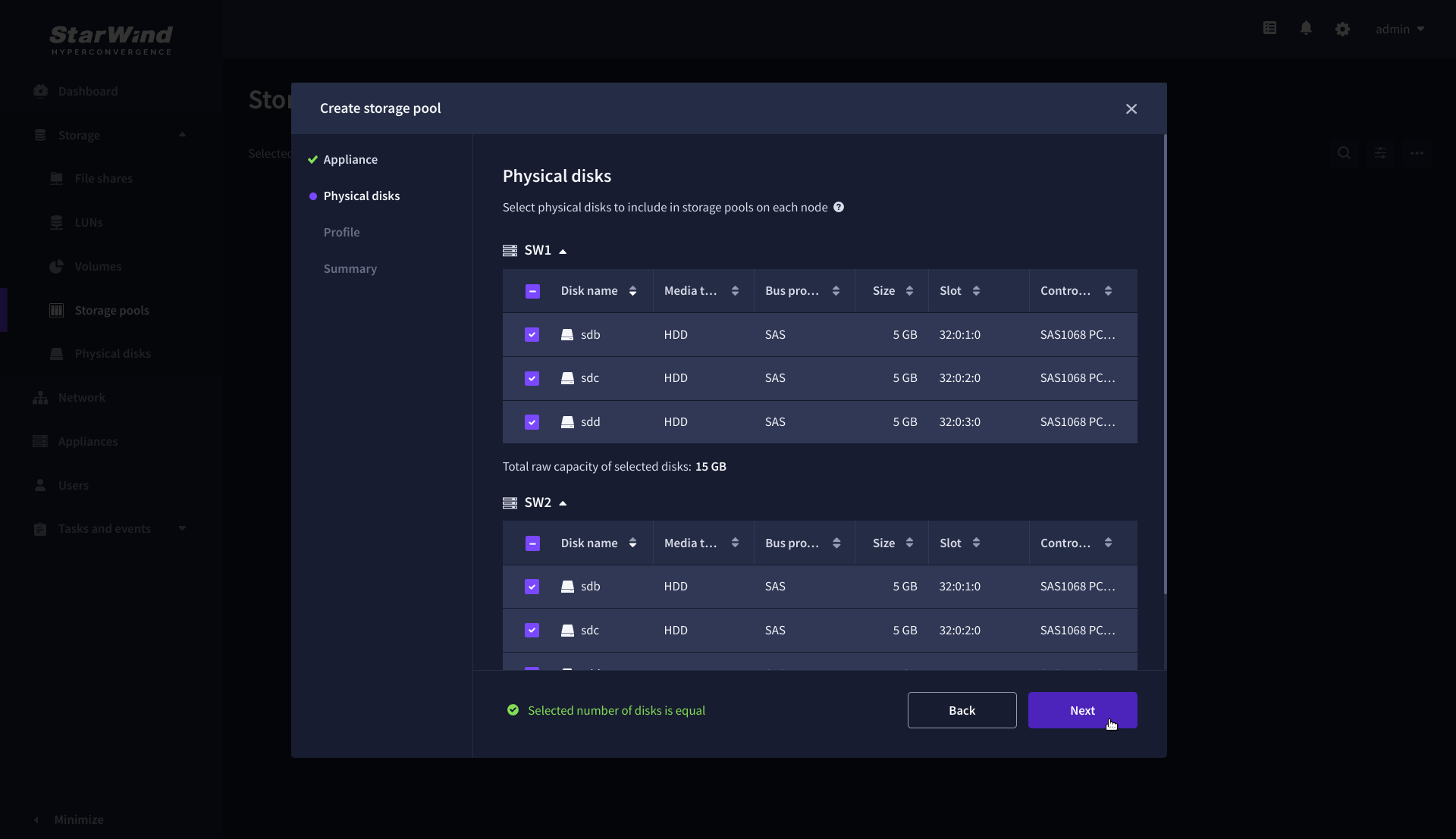
3. On the Physical disks step, select physical disks to be pooled on each node, then click Next.
IMPORTANT: Select an identical type and number of disks on each appliance to create storage pools with a uniform configuration.
4. On the Profile step, select one of the preconfigured storage profiles, or choose Manual to configure the storage pool manually based on your redundancy, capacity, and performance requirements, then click Next.
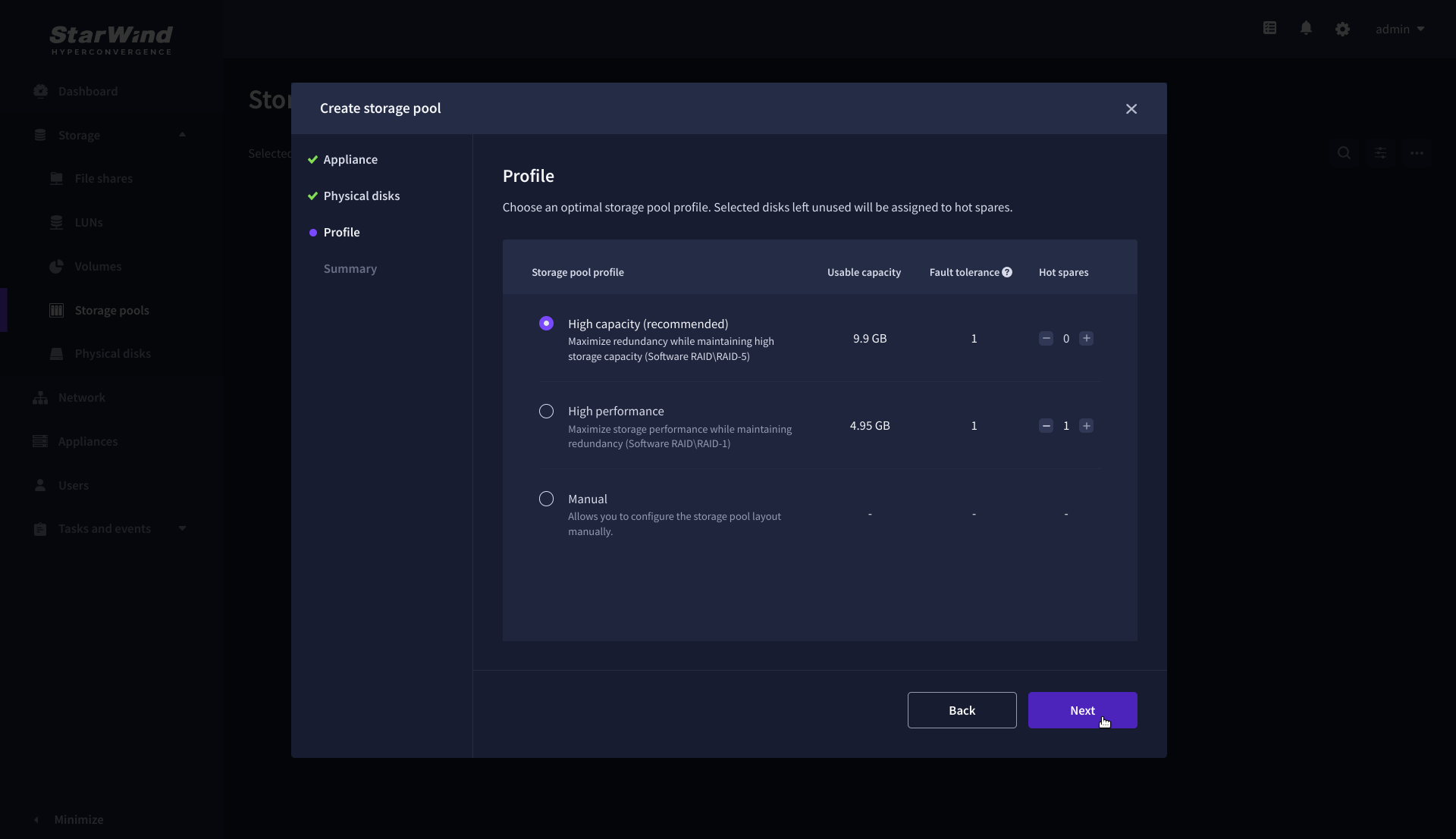
NOTE: Hardware RAID, Linux Software RAID, and ZFS storage pools are supported. To simplify the configuration of storage pools, preconfigured storage profiles are provided. These profiles recommend a pool type and layout based on the attached storage:
- High capacity – creates Linux Software RAID-5 to maximize storage capacity while maintaining redundancy.
- High performance – creates Linux Software RAID-10 to maximize storage performance while maintaining redundancy.
- Hardware RAID – configures a hardware RAID virtual disk as a storage pool. This option is available only if a hardware RAID controller is passed through to the StarWind Virtual SAN.
- Better redundancy – creates ZFS Striped RAID-Z2 (RAID 60) to maximize redundancy while maintaining high storage capacity.
- Manual – allows users to configure any storage pool type and layout with the attached storage.
5. On the Summary step, review the storage pool settings and click Create to configure new storage pools on the selected appliances.
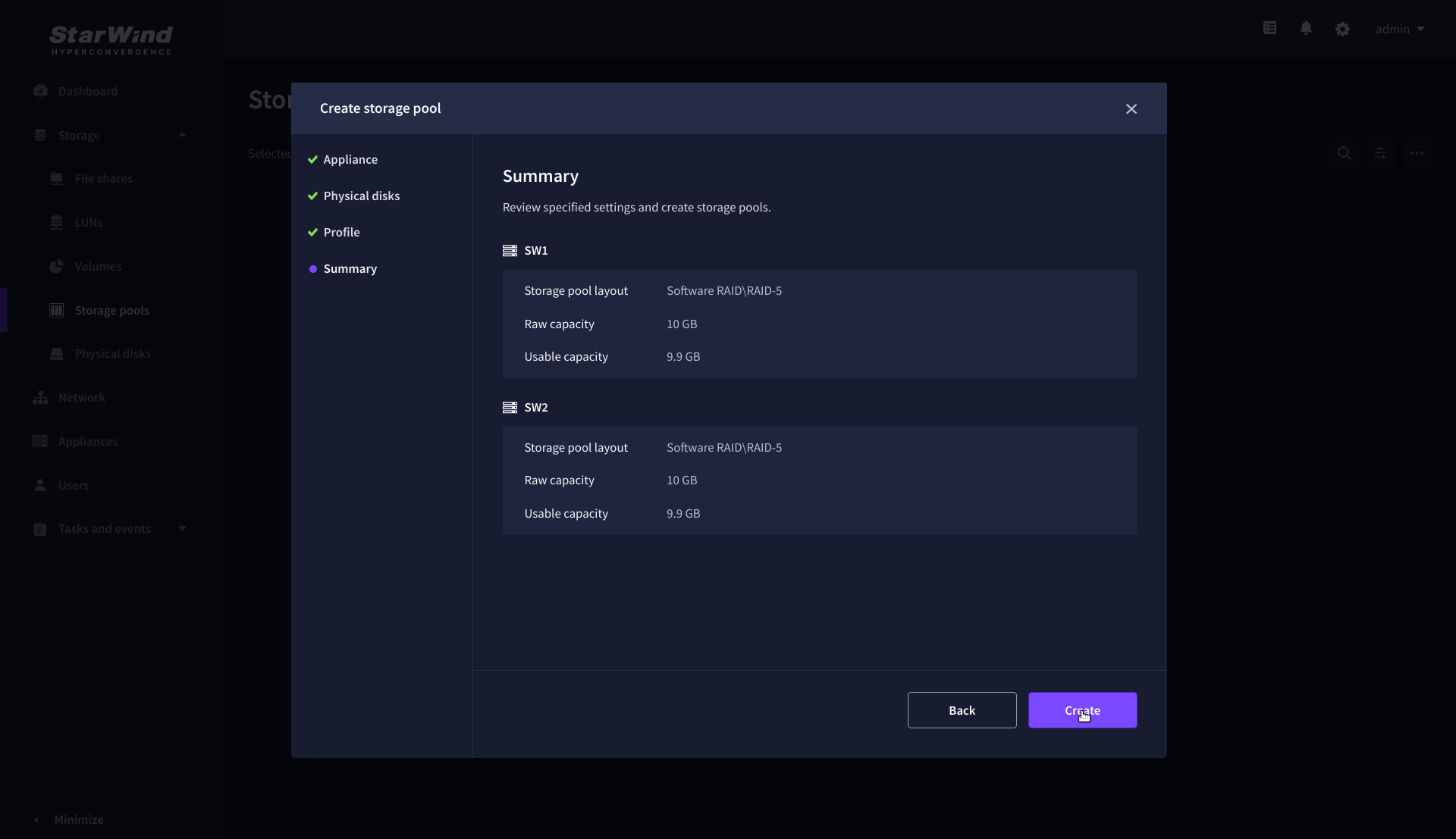
NOTE: The storage pool configuration may take some time, depending on the type of pooled storage and the total storage capacity. Once the pools are created, a notification will appear in the upper right corner of the Web UI.
IMPORTANT for CVM only: In some cases, additional tweaks are required to optimize the storage performance of the disks added to the Controller Virtual Machine. Please follow the steps in this KB to change the scheduler type depending on the disks type: https://knowledgebase.starwindsoftware.com/guidance/starwind-vsan-for-vsphere-changing-linux-i-o-scheduler-to-optimize-storage-performance/
Create Volume
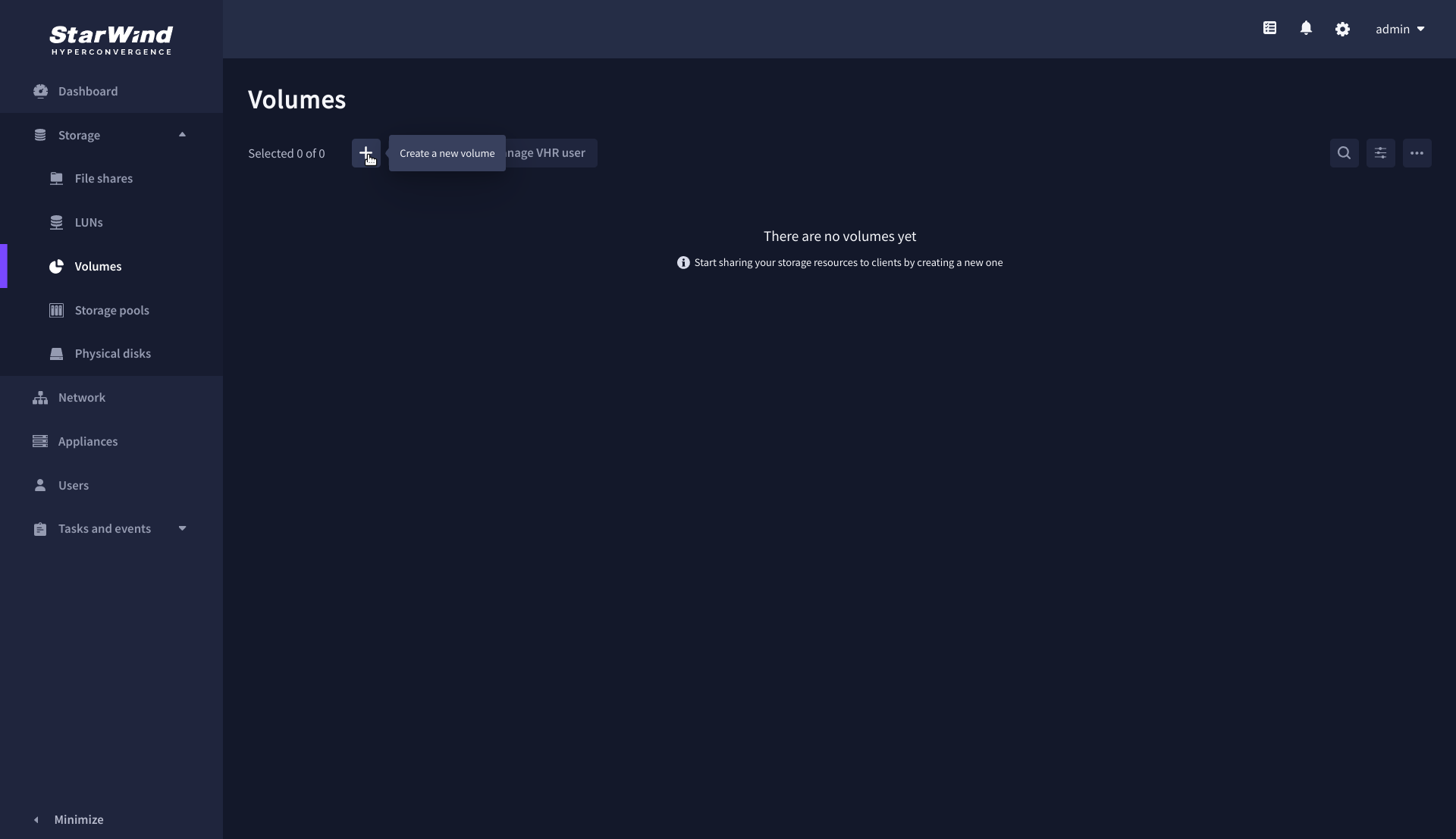
1. Navigate to the Volumes page and click the + button to open the Create volume wizard.
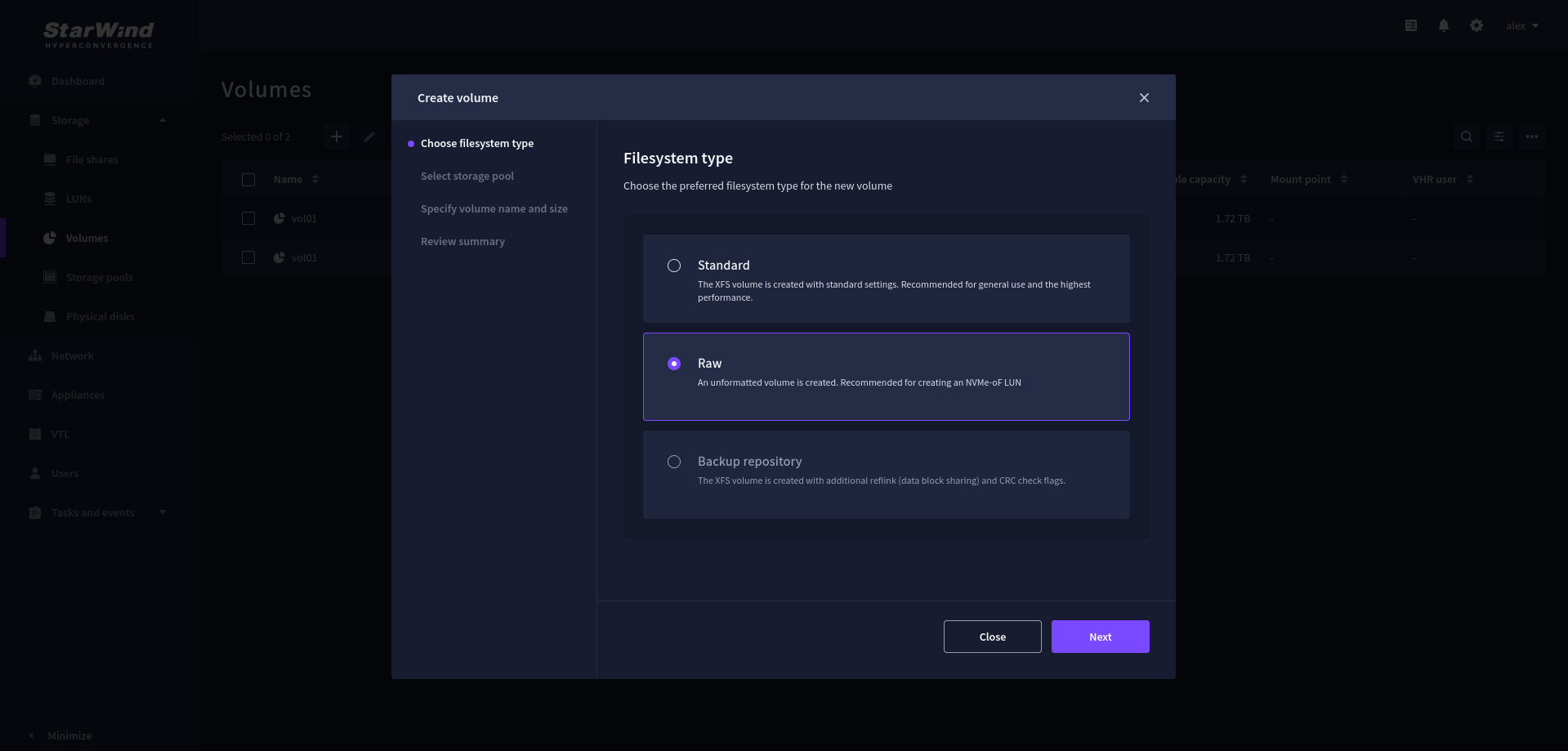
2. On the Filesystem type step, select Standard, then click Next.
NOTE: Select 2 appliances for configuring volumes if you are deploying a two-node cluster with two-way replication, or select 3 appliances for configuring a three-node cluster with a three-way mirror.
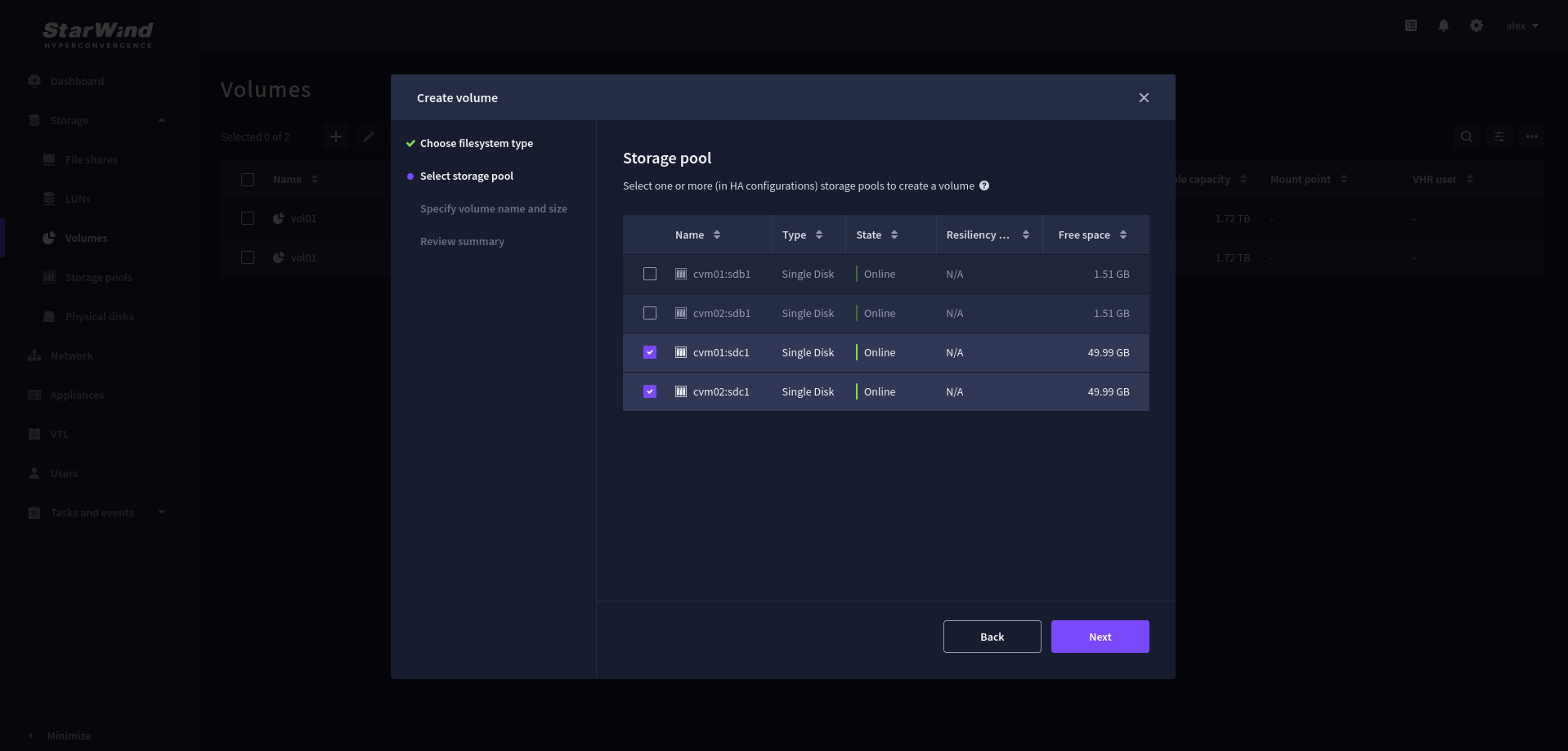
3. On the Storage pool step, select partner appliances on which to create new volumes, then click Next.
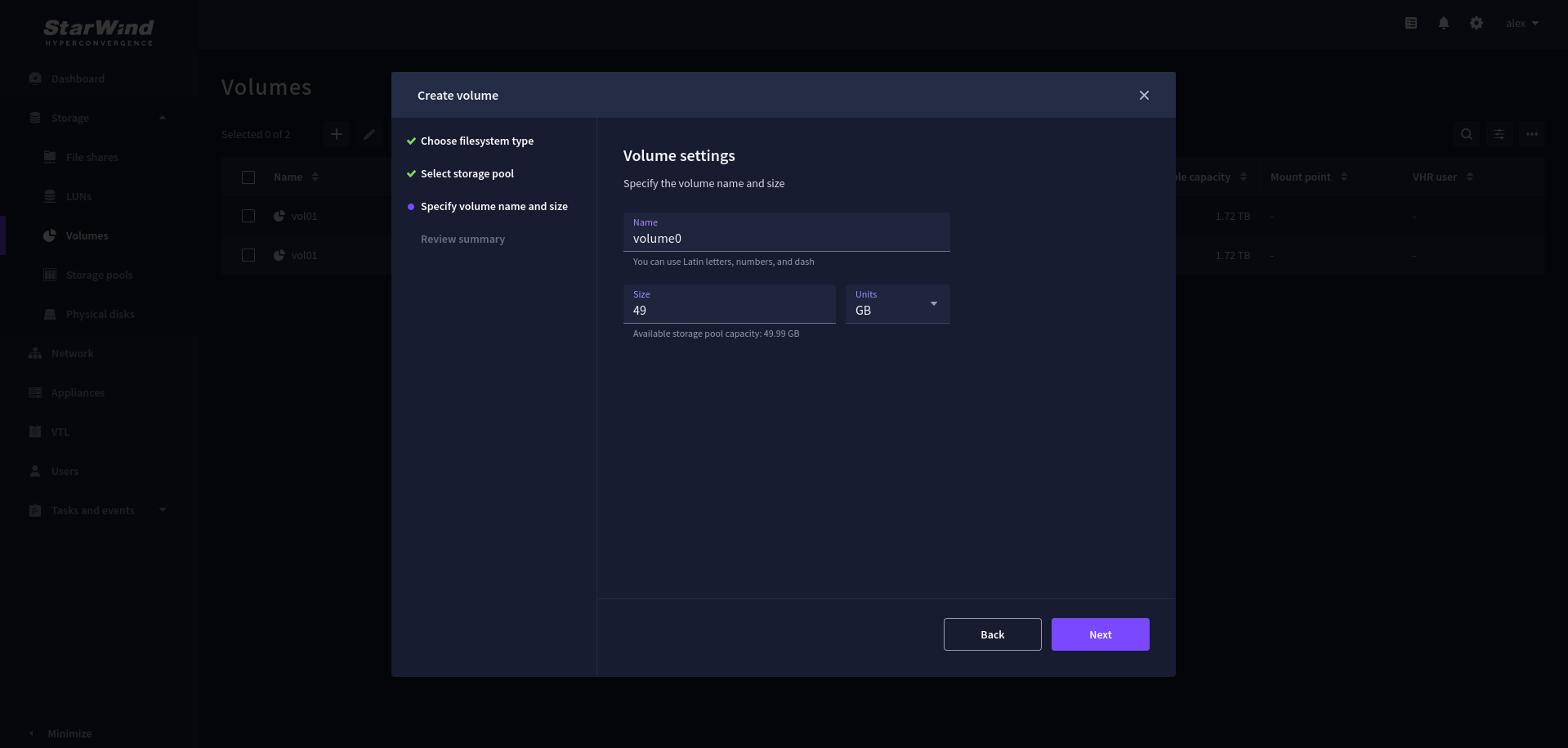
4. On the Settings step, specify the volume name and size, then click Next.
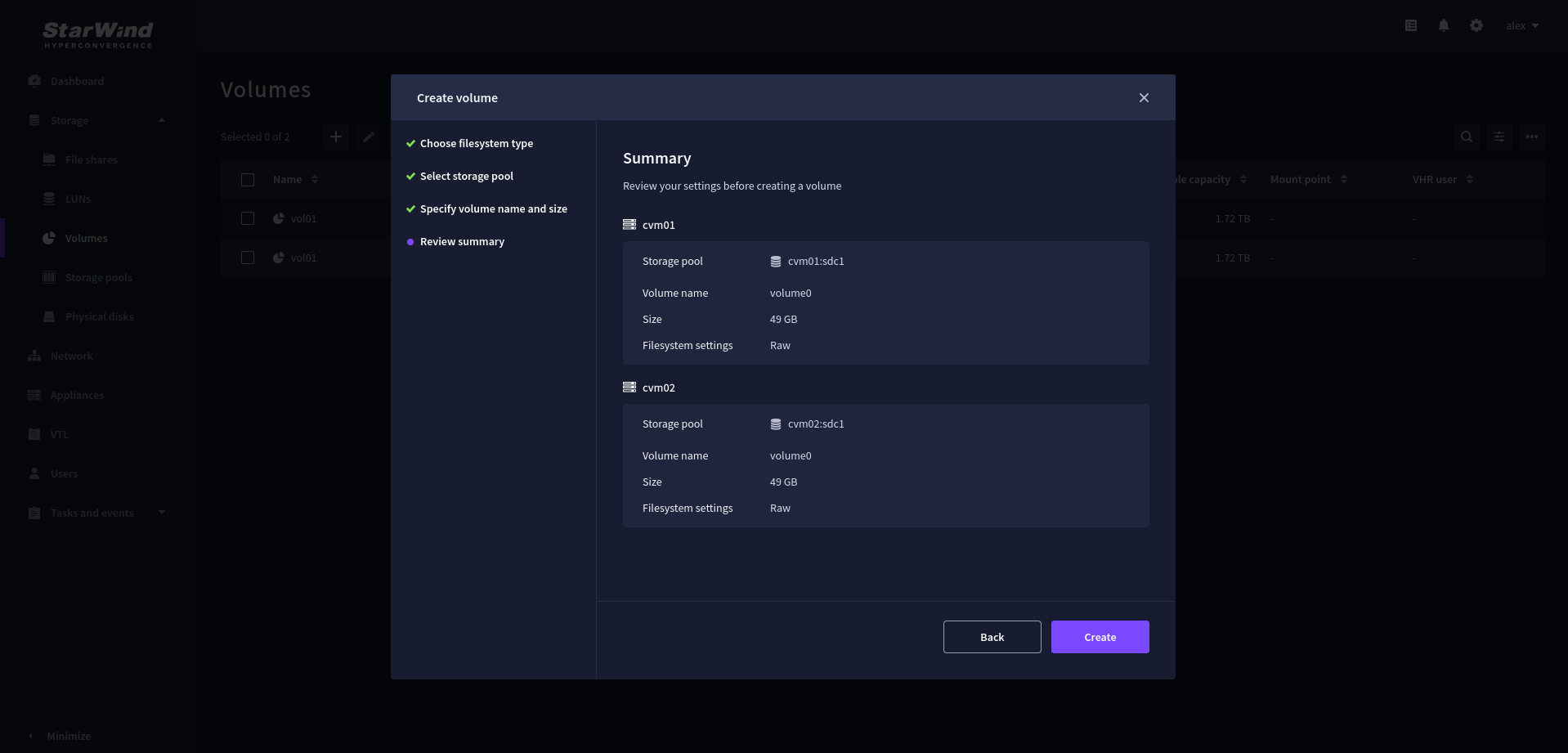
5. Review Summary and click the Create button to create the pool.
Create HA LUN using WebUI
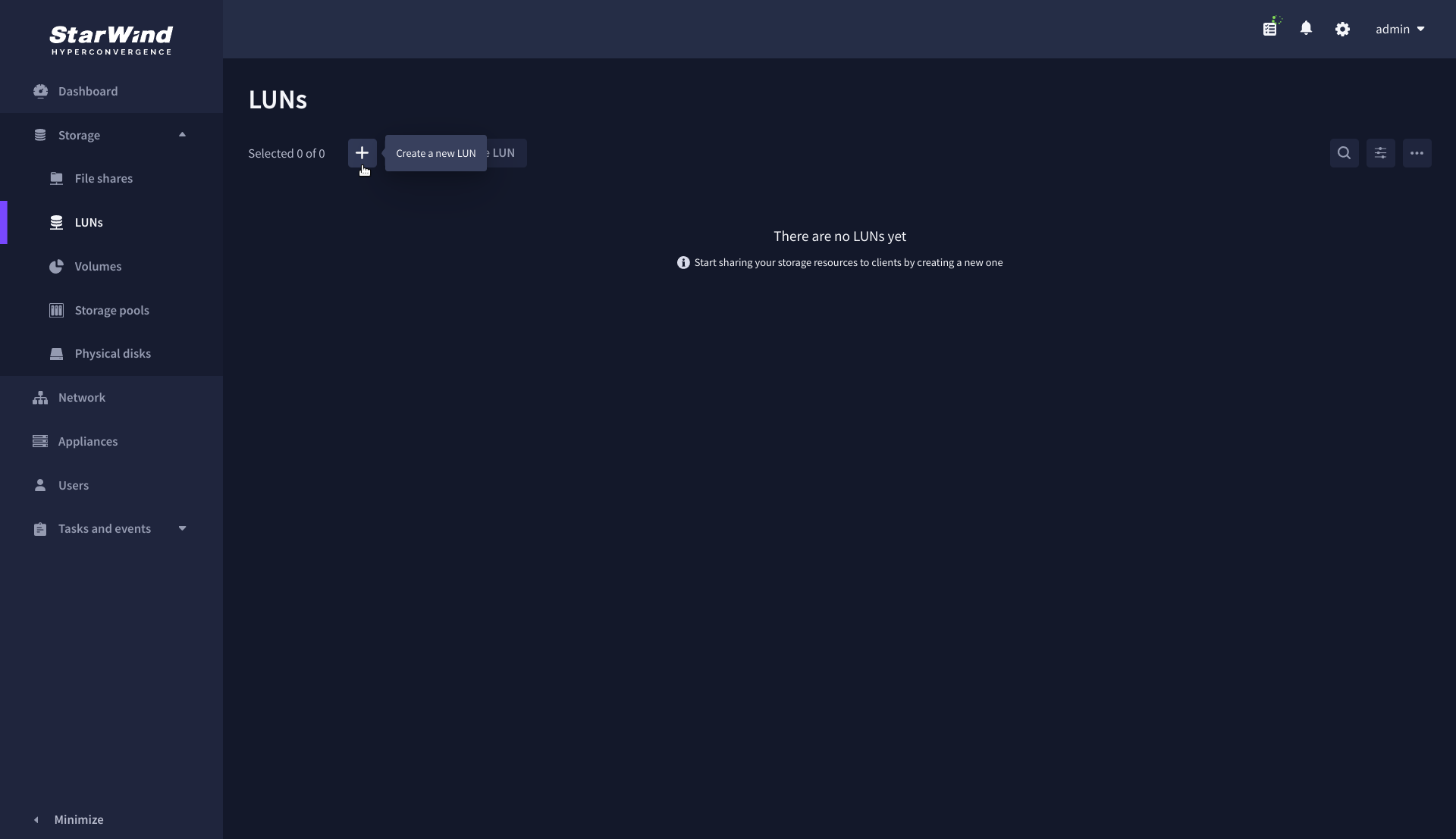
1. Navigate to the LUNs page and click the + button to open the Create LUN wizard.
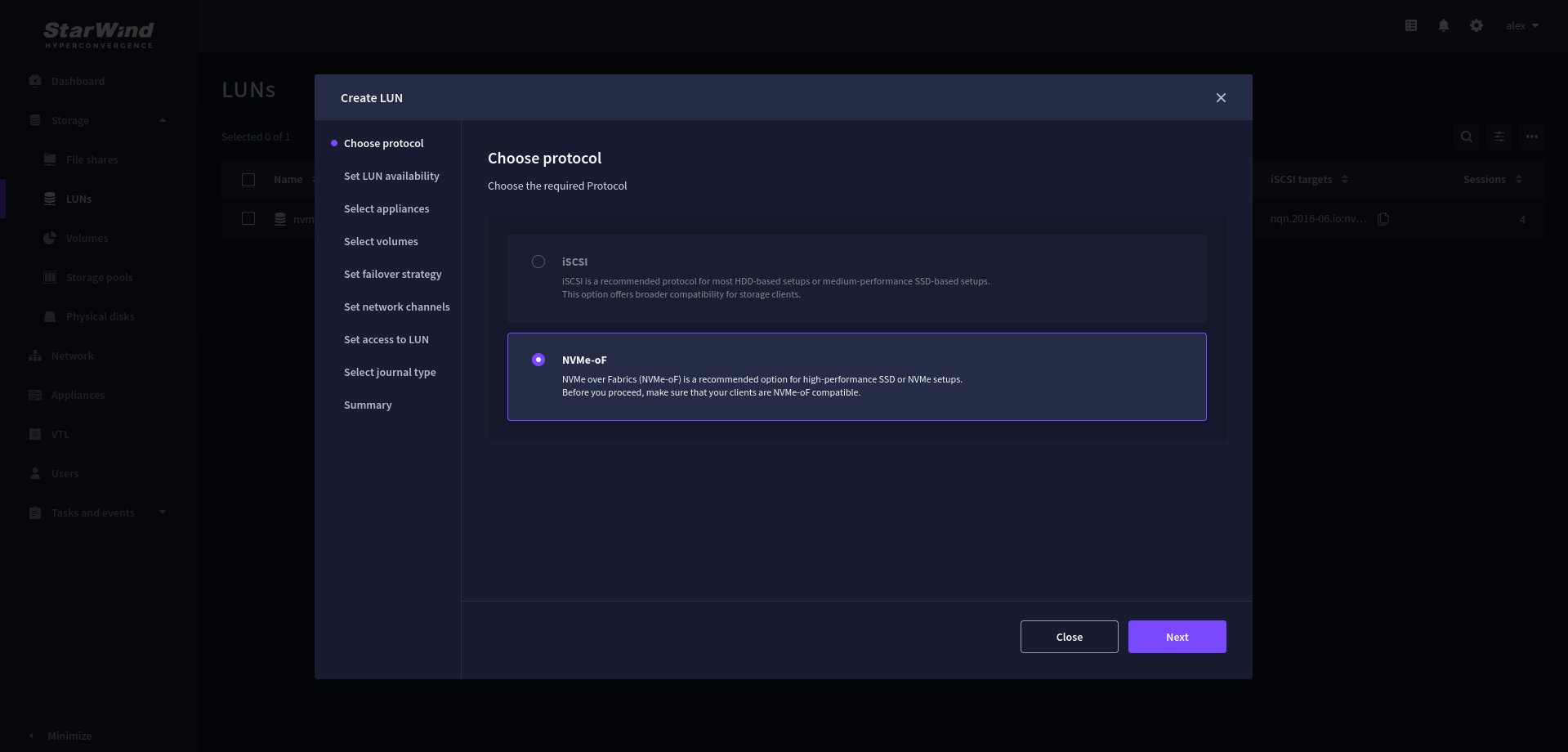
2. On the Choose protocol, select the preferred storage protocol and click Next.
3. On the LUN availability step, select the High availability and click Next.
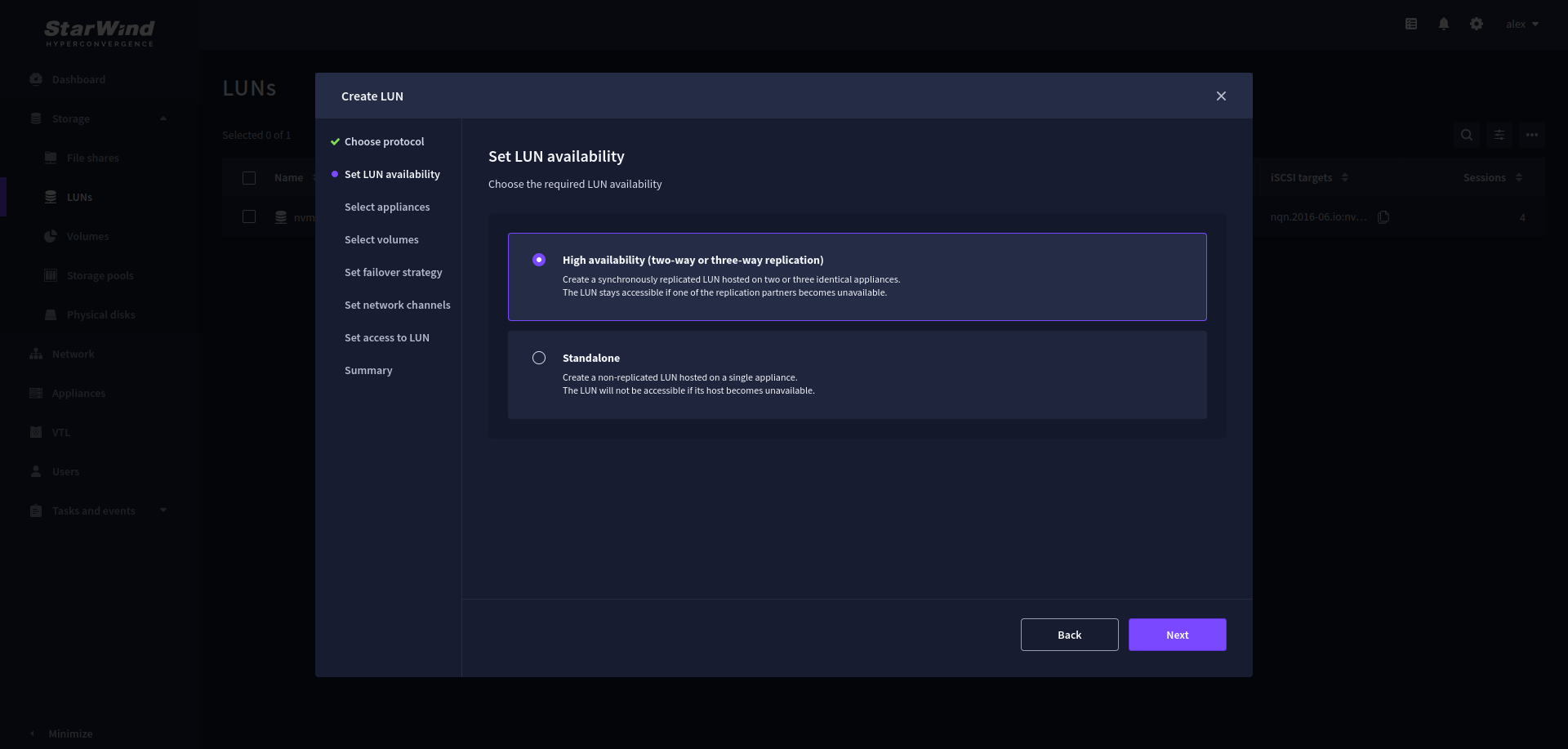 NOTE: The availability options for a LUN can be Standalone (without replication) or High Availability (with 2-way or 3-way replication), and are determined by the StarWind Virtual SAN license.
Below are the steps for creating a high-availability NVMe-oF LUN.
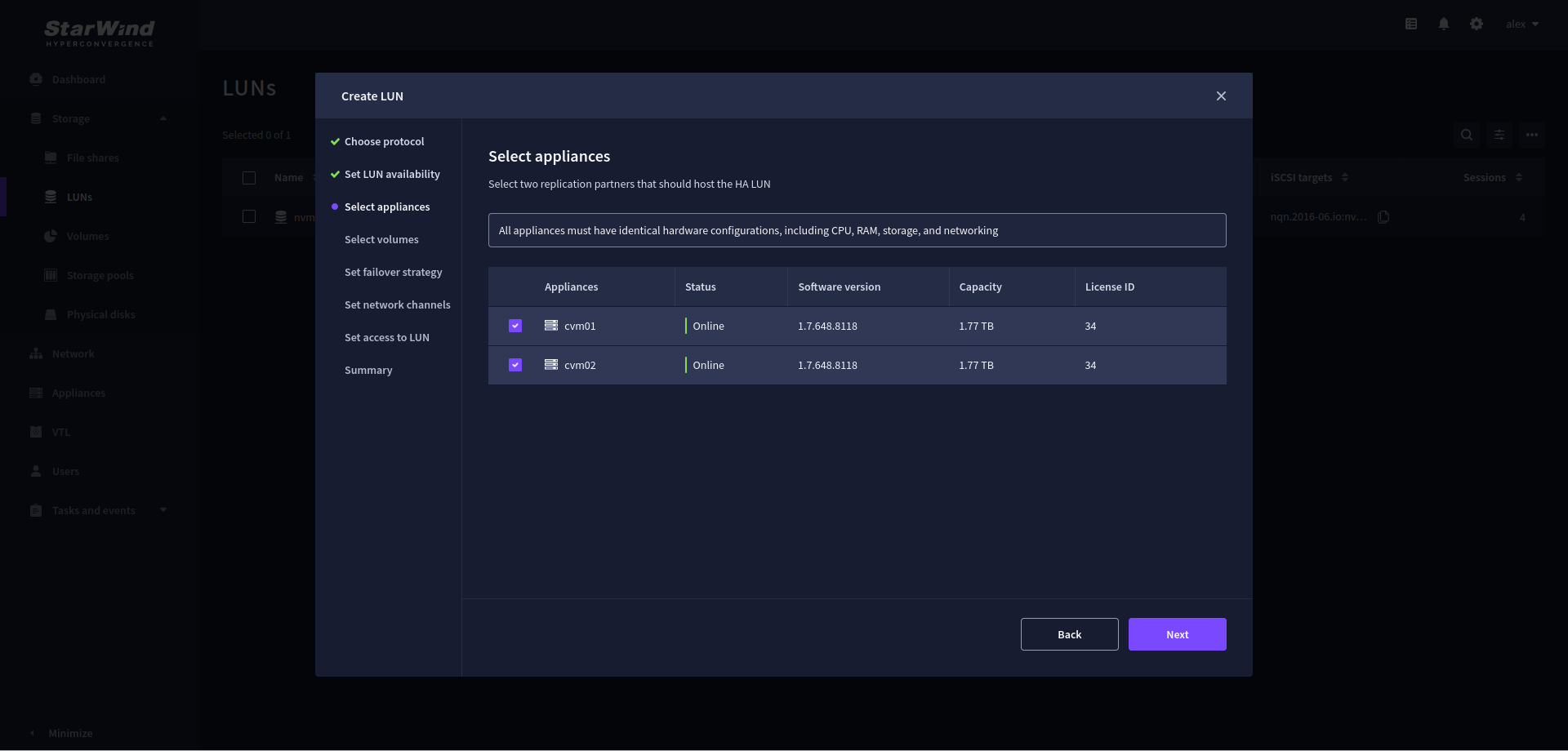
4. On the Appliances step, select partner appliances that will host new LUNs and click Next.
IMPORTANT: Selected partner appliances must have identical hardware configurations, including CPU, RAM, storage, and networking.
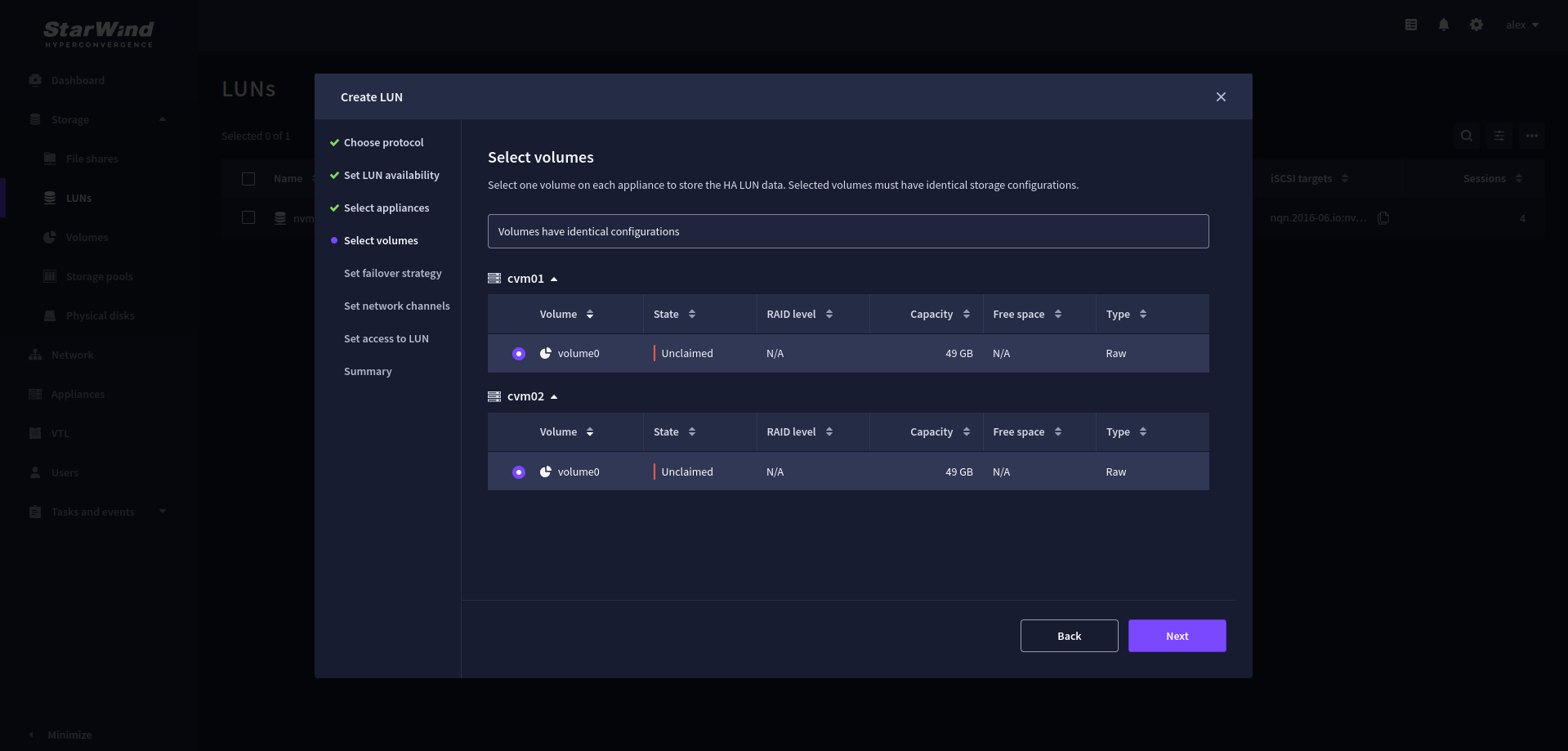
5. On the Volumes step, select the volumes for storing data on the partner appliances and click Next.
IMPORTANT: For optimal performance, the selected volumes must have identical underlying storage configurations.
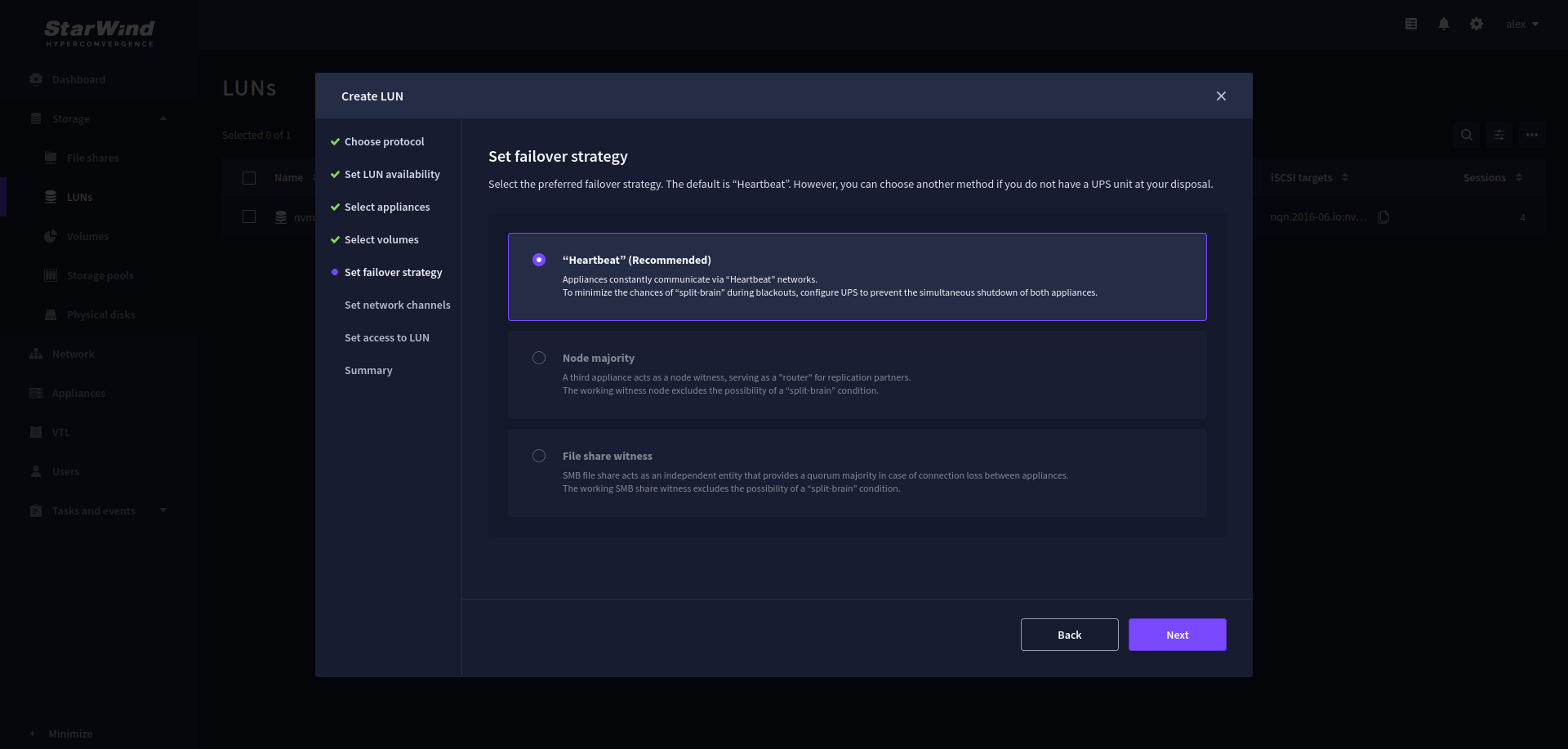
6. On the Failover strategy step, select the preferred failover strategy and click Next.
NOTE: The failover strategies for a LUN can be Heartbeat or Node Majority. In case of 2-nodes setup and None Majority failover strategy, Node witness (requires an additional third witness node), or File share witness (requires an external file share) should be configured. These options are determined by StarWind Virtual SAN license and setup configuration. Below are the steps for configuring the Heartbeat failover strategy in a two-node cluster.
7. On the Network channels step, specify the Networks for Data and Replication, then click Next.
NOTE: Assign and configure at least two interface on each node, one per role (Data and Replication).
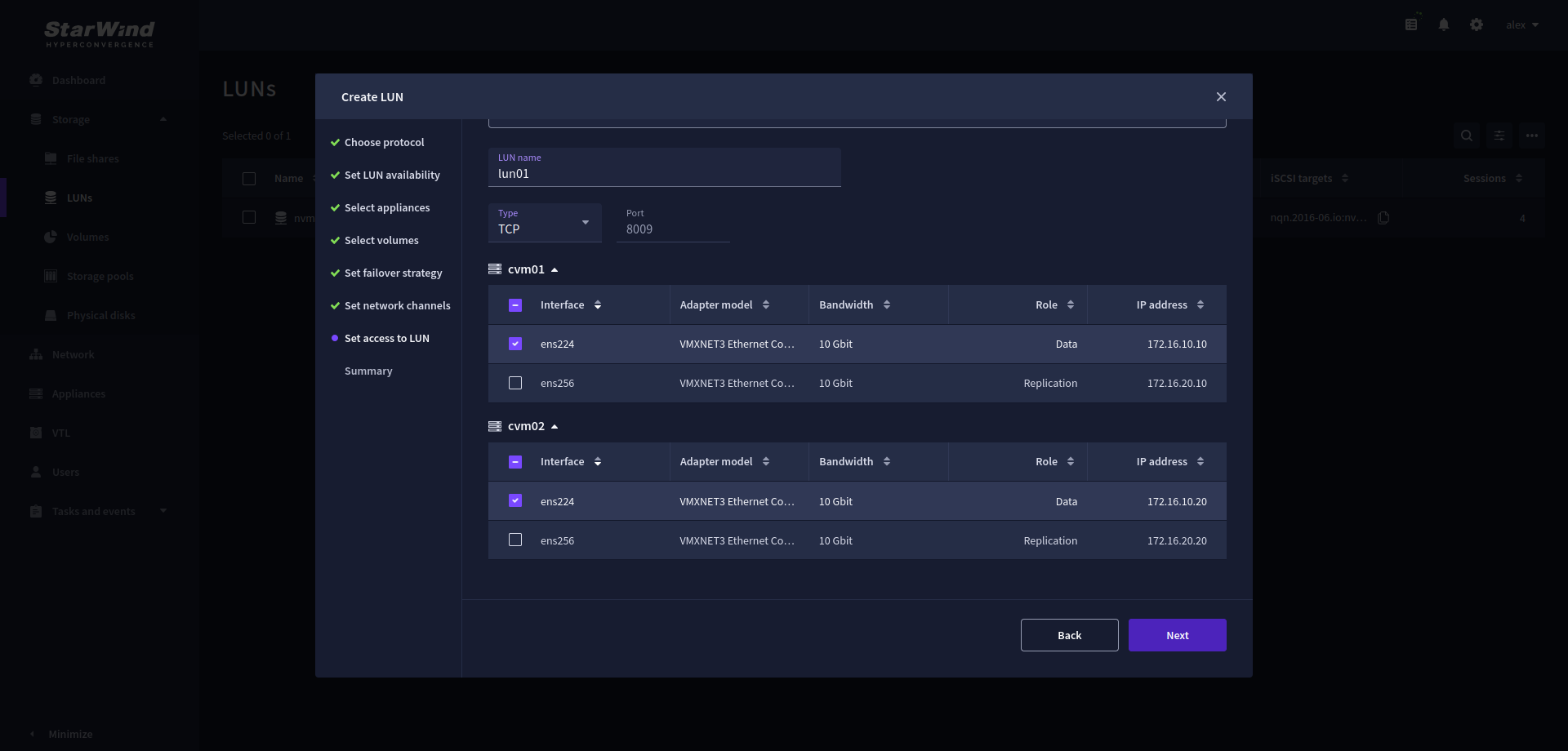
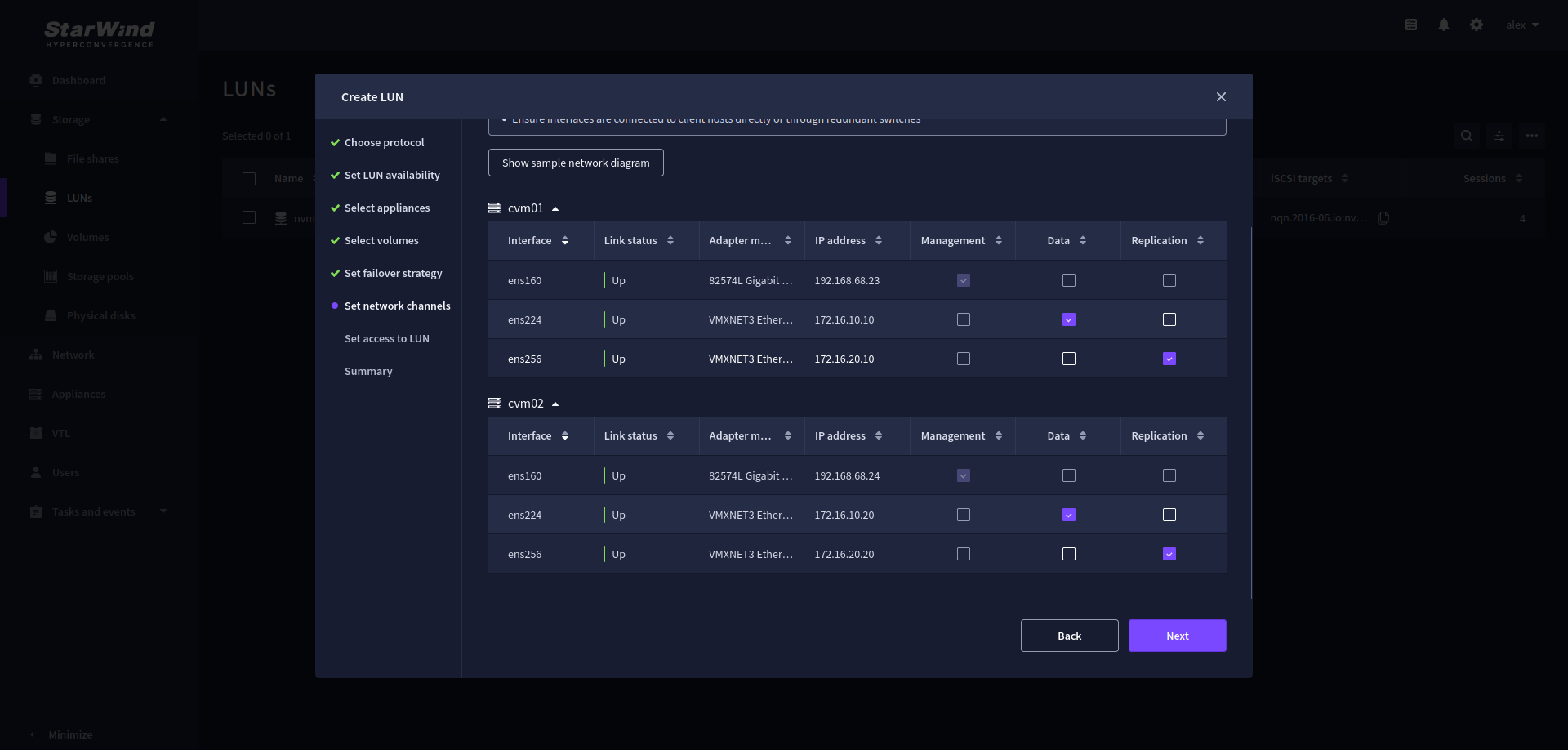 8. On the Access to LUN step, set LUN name and choose network interfaces to create NVMe-oF listeners, then click Next.
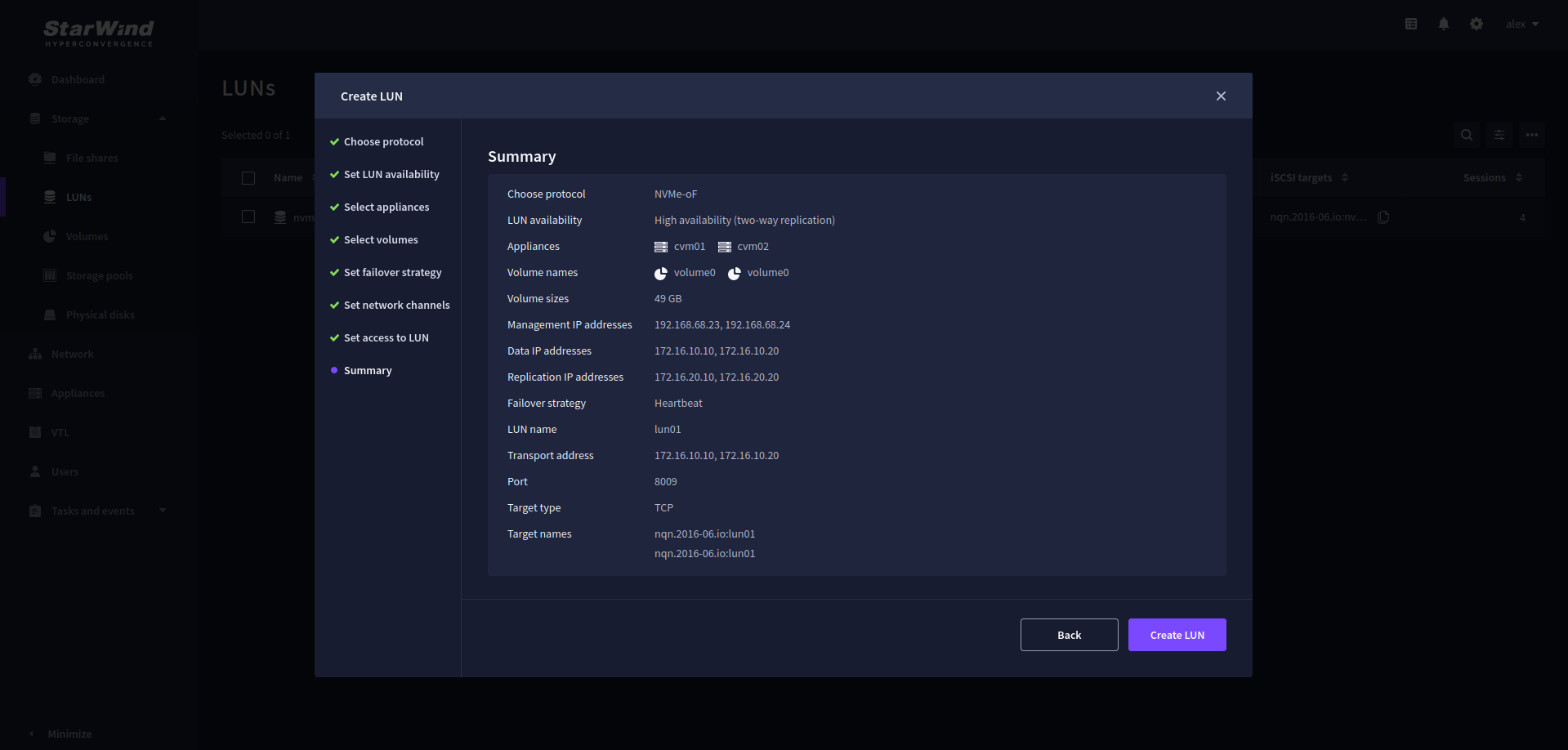
 9. On the Summary step, review the LUN settings and click Create to configure new LUNs on the selected volumes.
Connecting StarWind virtual disk to Hyper-V servers
Enabling Multipath Support on Hyper-V Servers
1. Install the Multipath I/O feature by executing the following command in the PowerShell window:
dism /online /enable-feature:MultipathIo
2. Open MPIO Properties by executing the following command in the CMD window:
mpioctl
3. In the Discover Multi-Paths tab, select StarWind NVMe device and click Add.
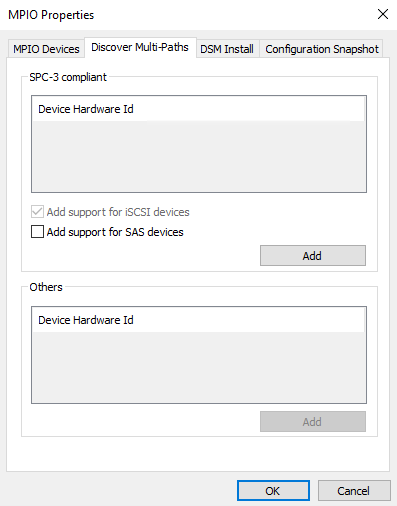
4. When prompted to restart the server, click Yes to proceed.
5. Repeat the same procedure on the other compute server that will be connected to SAN & NAS appliance.
Provisioning StarWind VSAN Storage to Hyper-V Server Hosts
1. Launch Powershell as administrator.
2. Connect to NVMe-oF LUNs using the following script.
Note. Change Initiator and Target names according to the ones created.
Node 1
cd "C:\Program Files\StarWind Software\StarNVMeoF"

.\StarNVMeoF_Ctrl.exe insert_tcp 172.16.10.10:8009 172.16.10.1 nqn.2016-06.io:nvme-lun nqn.2016-06.io.spdk:init 128 128 1 0

sleep 5

.\StarNVMeoF_Ctrl.exe insert_tcp 172.16.10.20:8009 172.16.10.1 nqn.2016-06.io:nvme-lun nqn.2016-06.io.spdk:init 128 128 1 0

sleep 5

.\StarNVMeoF_Ctrl.exe insert_tcp 172.16.10.10:8009 172.16.10.1 nqn.2016-06.io:witness-lun nqn.2016-06.io.spdk:init 128 128 1 0

sleep 5

.\StarNVMeoF_Ctrl.exe insert_tcp 172.16.10.20:8009 172.16.10.1 nqn.2016-06.io:witness-lun nqn.2016-06.io.spdk:init 128 128 1 0
Node 2
cd "C:\Program Files\StarWind Software\StarNVMeoF"

.\StarNVMeoF_Ctrl.exe insert_tcp 172.16.10.20:8009 172.16.10.2 nqn.2016-06.io:nvme-lun nqn.2016-06.io.spdk:init 128 128 1 0

sleep 5

.\StarNVMeoF_Ctrl.exe insert_tcp 172.16.10.10:8009 172.16.10.2 nqn.2016-06.io:nvme-lun nqn.2016-06.io.spdk:init 128 128 1 0

sleep 5

.\StarNVMeoF_Ctrl.exe insert_tcp 172.16.10.10:8009 172.16.10.2 nqn.2016-06.io:witness-lun nqn.2016-06.io.spdk:init 128 128 1 0

sleep 5

.\StarNVMeoF_Ctrl.exe insert_tcp 172.16.10.20:8009 172.16.10.2 nqn.2016-06.io:witness-lun nqn.2016-06.io.spdk:init 128 128 1 0
Connecting Disks to Servers
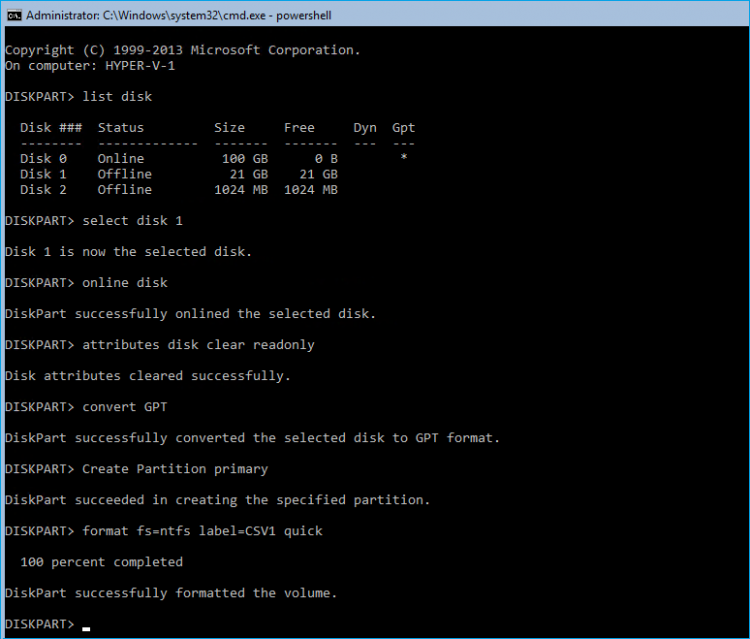
To initialize the connected NVMe-oF disks and create the partitions on them use DISKPART.
1. Run diskpart in the CMD window:
List disk

Select disk X //where X is the number of the disk to be processed

Online disk

Clean

Attributes disk clear readonly

Convert GPT

Create Partition Primary

Format fs=ntfs label=X quick //where X is the name of the Volume
NOTE: It is recommended to initialize the disks as GPT.
2. Perform the steps above on other compute servers.
Connecting Disks to Servers
1. Open the Disk Management snap-in. The StarWind disks will appear as unallocated and offline.
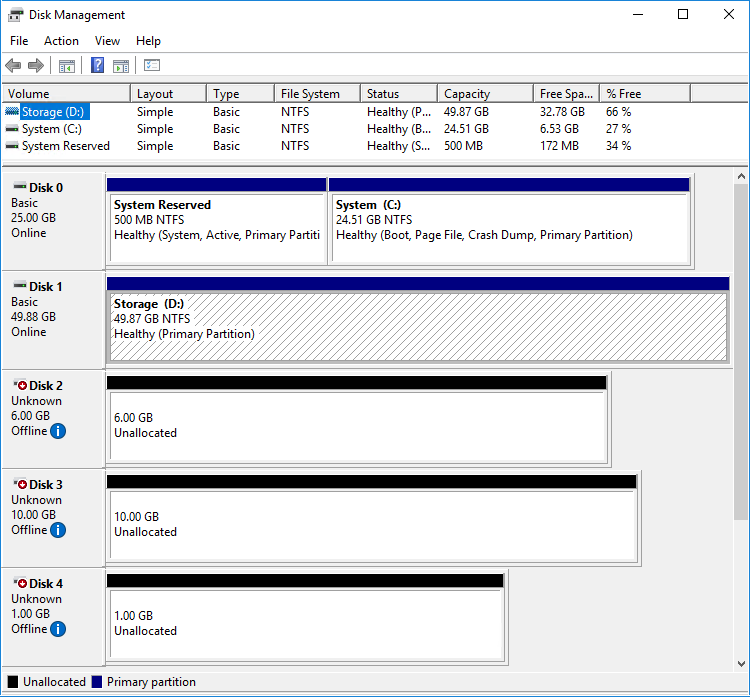
2. Bring the disks online by right-clicking on them and selecting the Online menu option.
3. Select the CSV disk (check the disk size to be sure) and right-click on it to initialize.
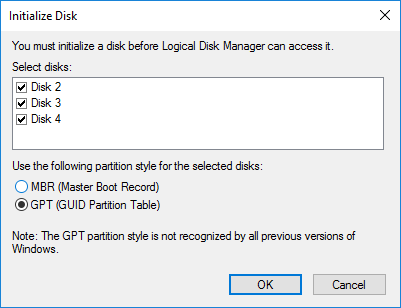
4. By default, the system will offer to initialize all non-initialized disks. Use the Select Disks area to choose the disks. Select GPT (GUID Partition Style) for the partition style to be applied to the disks. Press OK to confirm.
5. Right-click on the selected disk and choose New Simple Volume.
6. In New Simple Volume Wizard, indicate the volume size. Click Next.
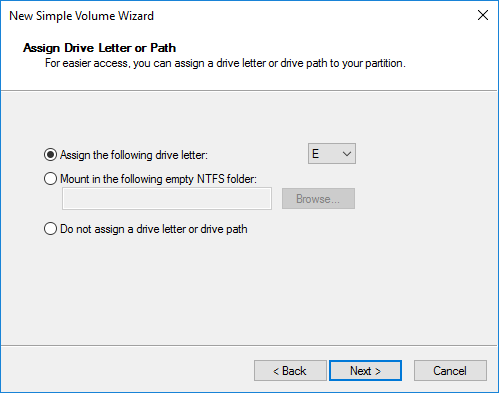
7. Assign a drive letter to the disk. Click Next.
8. Select NTFS in the File System dropdown menu. Keep Allocation unit size as Default. Set the Volume Label of choice. Click Next.
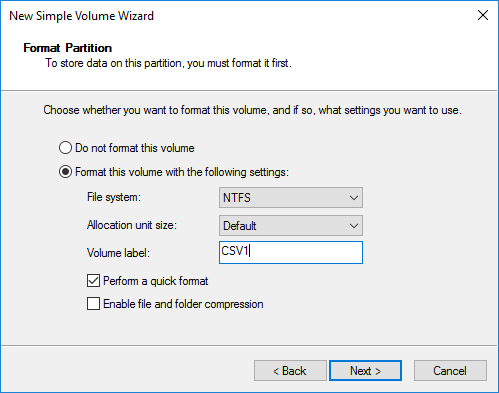
9. Press Finish to complete.
10. Complete the steps 1-9 for the Witness disk. Do not assign any drive letter or drive path for it.
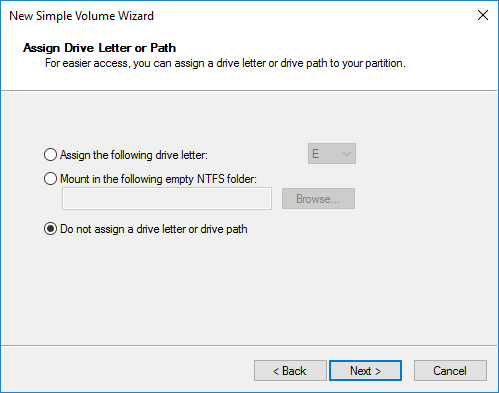
11. On the partner node, open the Disk Management snap-in. All StarWind disks will appear offline. If the status is different from the one shown below, click Action->Refresh in the top menu to update the information about the disks.
12. Repeat steps from the 2nd to bring all the remaining StarWind disks online.
Creating a Failover Cluster in Windows Server
NOTE: To avoid issues during the cluster validation configuration, it is recommended to install the latest Microsoft updates on each node.
NOTE: Server Manager can be opened on the server with desktop experience enabled (necessary features should be installed). Alternatively, the Failover cluster can be managed with Remote Server Administration Tools:
https://docs.microsoft.com/en-us/windows-server/remote/remote-server-administration-tools
NOTE: For converged deployment (SAN & NAS running as a dedicated storage cluster) the Microsoft Failover Cluster is deployed on separate computing nodes. Additionally, for the converged deployment scenario, the storage nodes that host StarWind SAN & NAS as CVM or bare metal do not require a domain controller and Failover Cluster to operate.
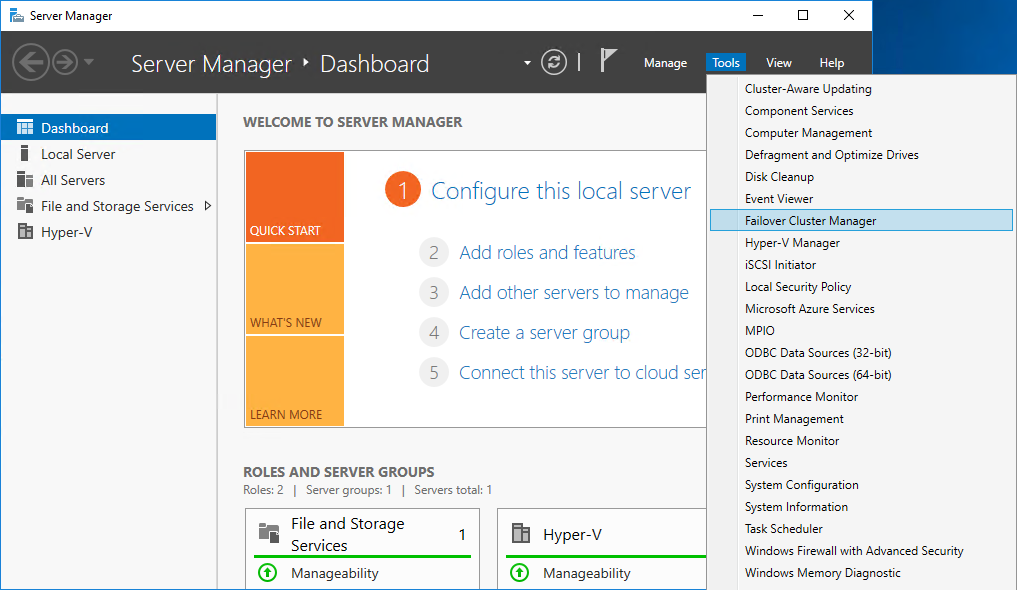
1. Open Server Manager. Select the Failover Cluster Manager item from the Tools menu.
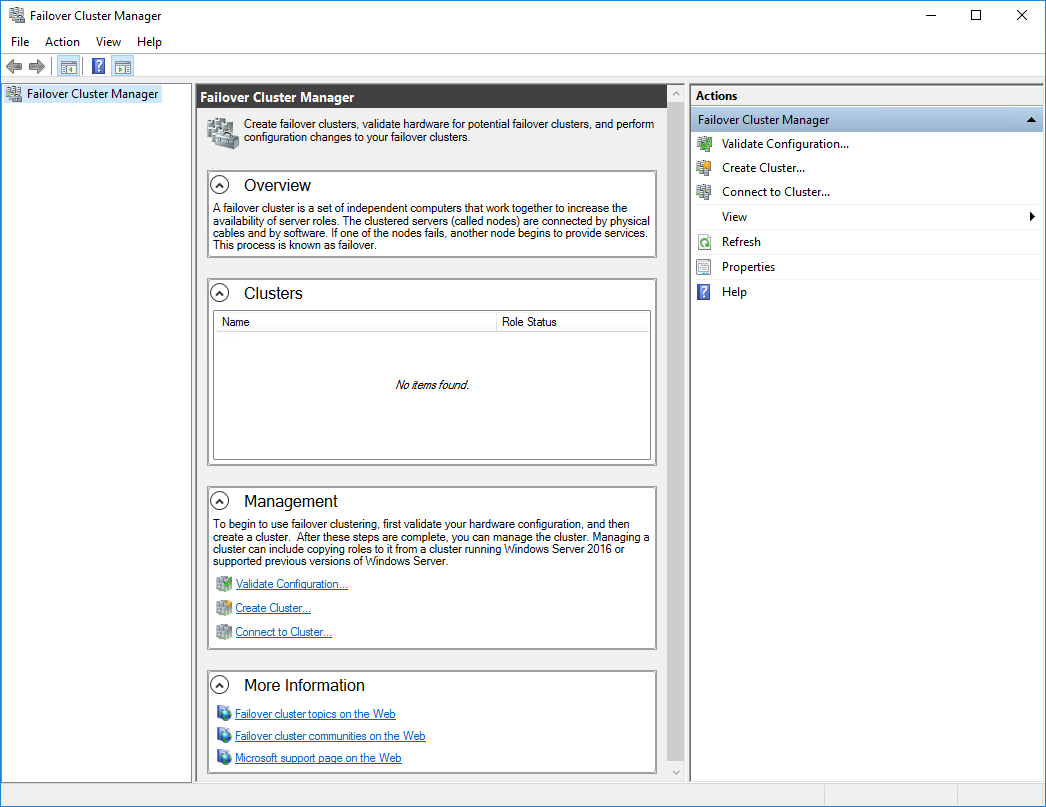
2. Click the Create Cluster link in the Actions section of Failover Cluster Manager.
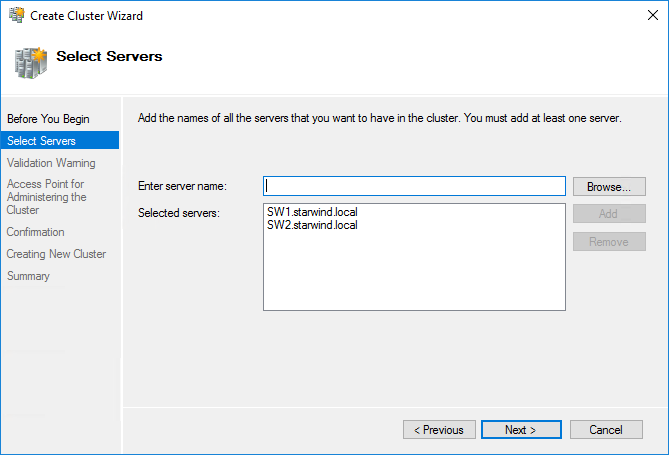
3. Specify the servers to be added to the cluster. Click Next to continue.
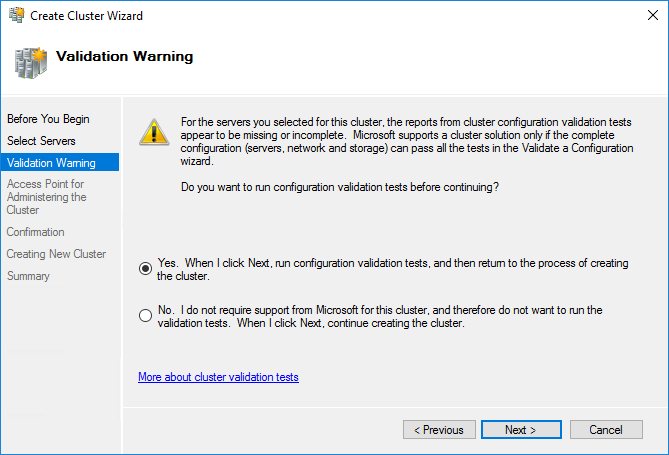
4. Validate the configuration by running the cluster validation tests: select Yes… and click Next to continue.
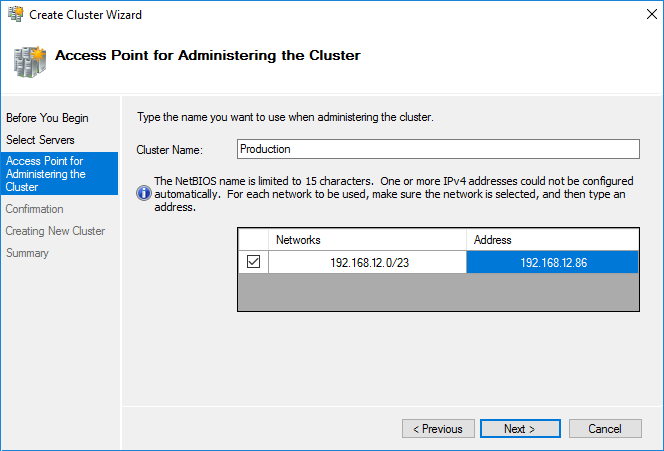
5. Specify the cluster name.
NOTE: If the cluster servers get IP addresses over DHCP, the cluster also gets its IP address over DHCP. If the IP addresses are set statically, set the cluster IP address manually.
6. Make sure that all settings are correct. Click Previous to make any changes or Next to proceed.
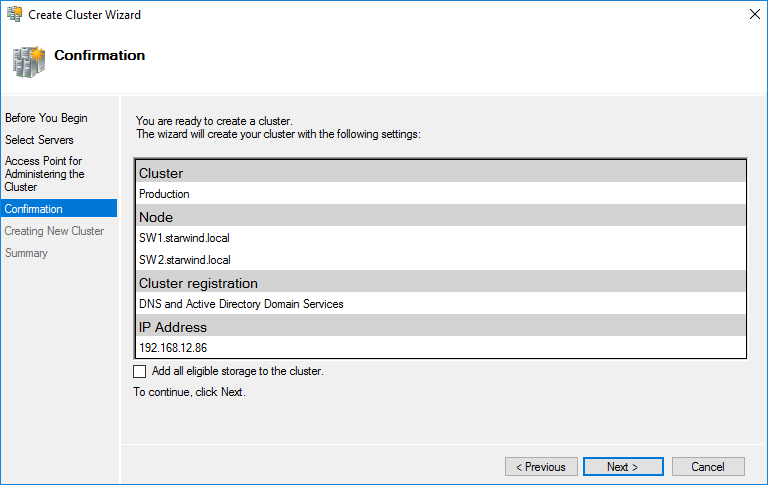
NOTE: If checkbox Add all eligible storage to the cluster is selected, the wizard will add all disks to the cluster automatically. The device with the smallest storage volume will be assigned as a Witness. It is recommended to uncheck this option before clicking Next and add cluster disks and the Witness drive manually.
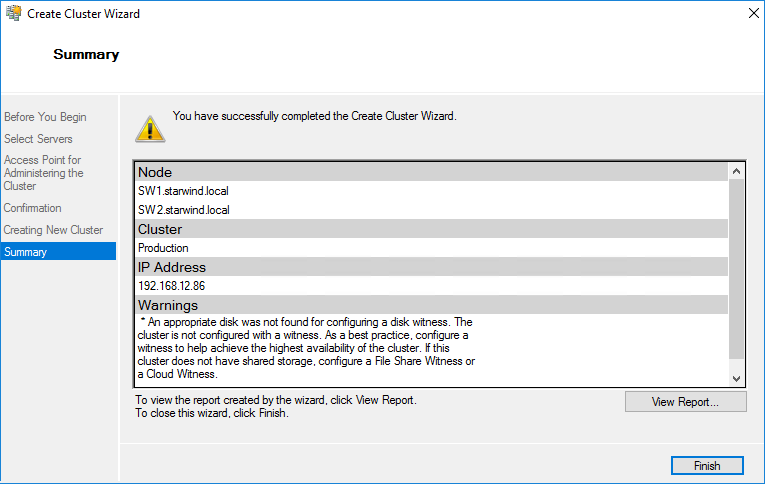
7. The process of the cluster creation starts. Upon the completion, the system displays the summary with the detailed information. Click Finish to close the wizard.
Adding Storage to the Cluster
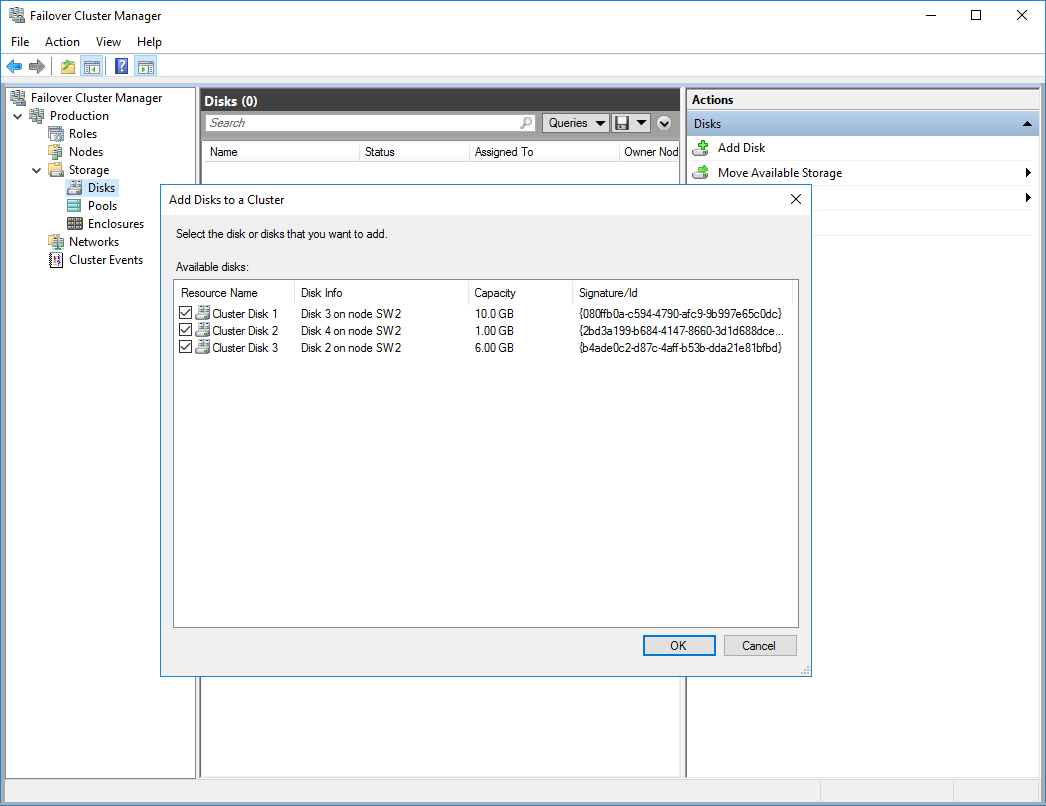
1. In Failover Cluster Manager, navigate to Cluster -> Storage -> Disks. Click Add Disk in the Actions panel, choose StarWind disks from the list and confirm the selection.
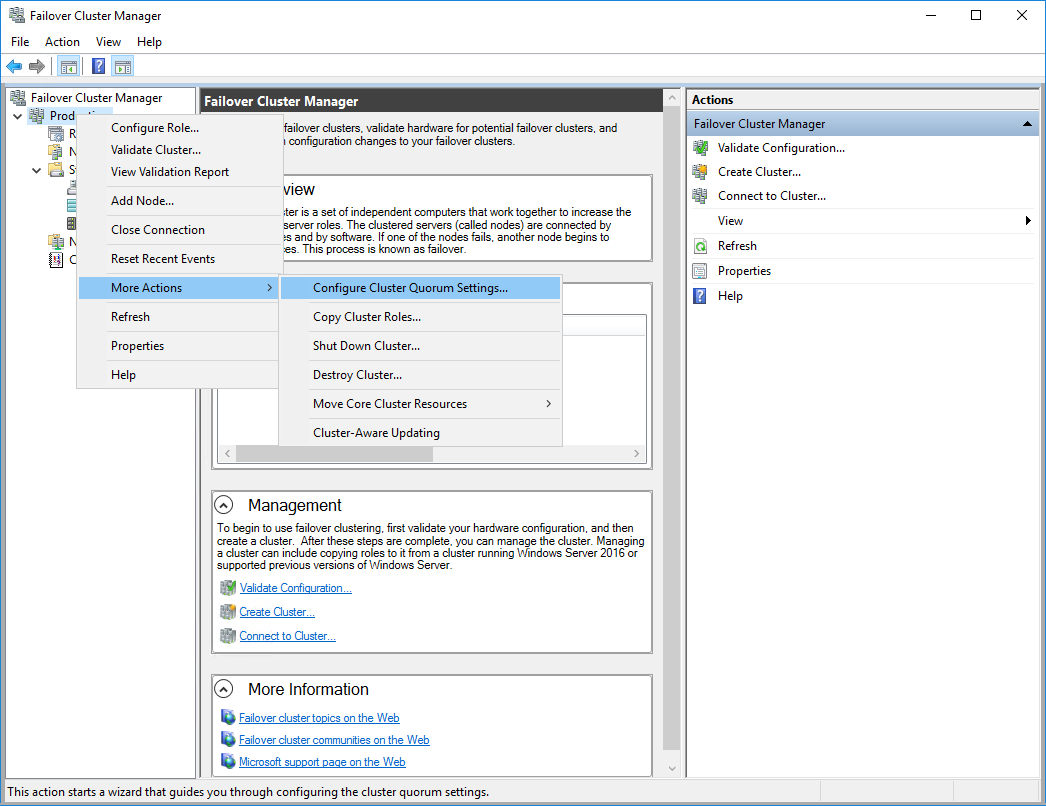
2. To configure the cluster witness disk, right-click on Cluster and proceed to More Actions -> Configure Cluster Quorum Settings.
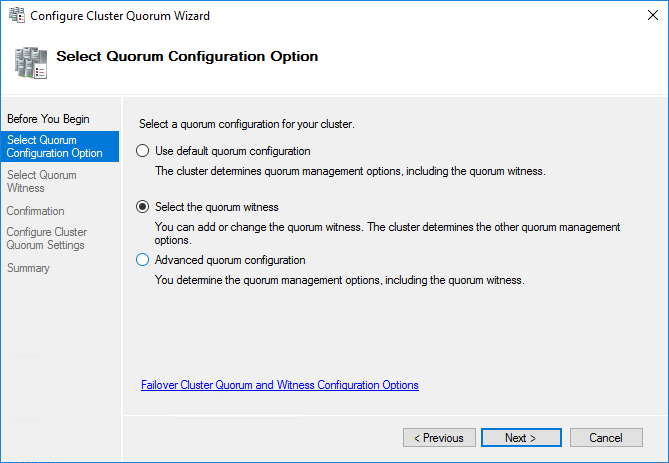
3. Follow the wizard and use the Select the quorum witness option. Click Next.
4. Select Configure a disk witness. Click Next.
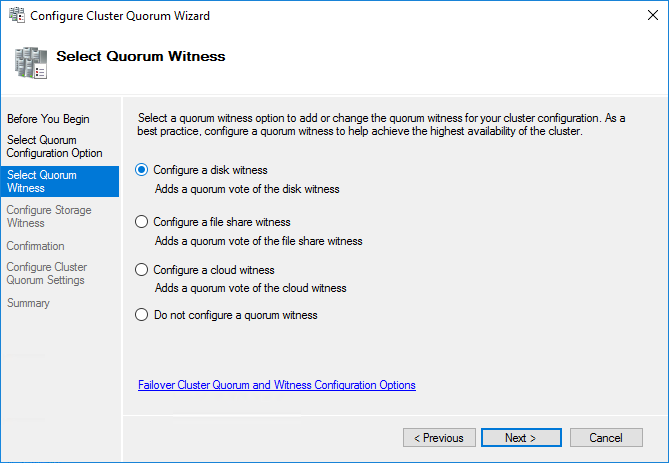
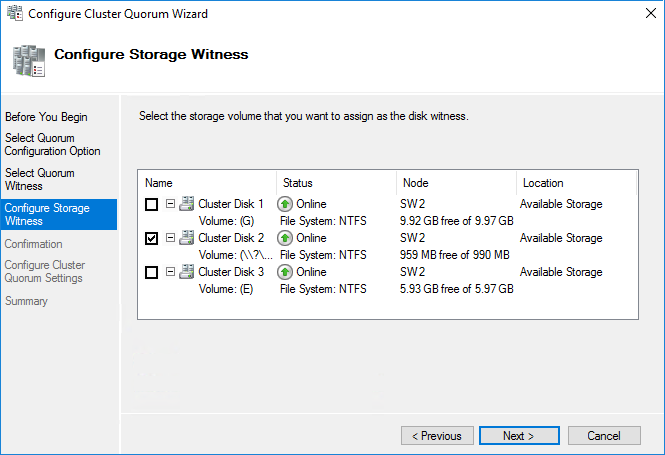
5. Select the Witness disk to be assigned as the cluster witness disk. Click Next and press Finish to complete the operation.
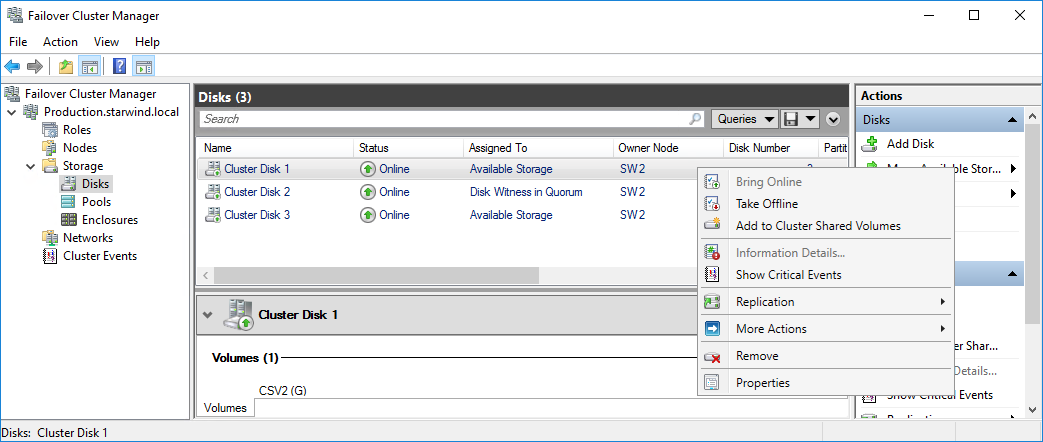
6. In Failover Cluster Manager, Right-click the disk and select Add to Cluster Shared Volumes.
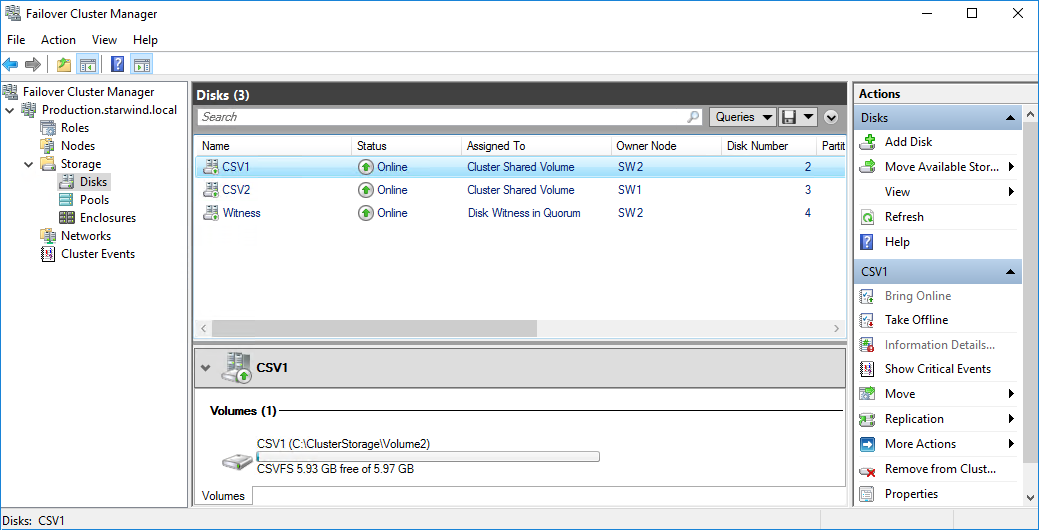
7. If renaming of the cluster shared volume is required, right-click on the disk and select Properties. Type the new name for the disk and click Apply followed by OK.
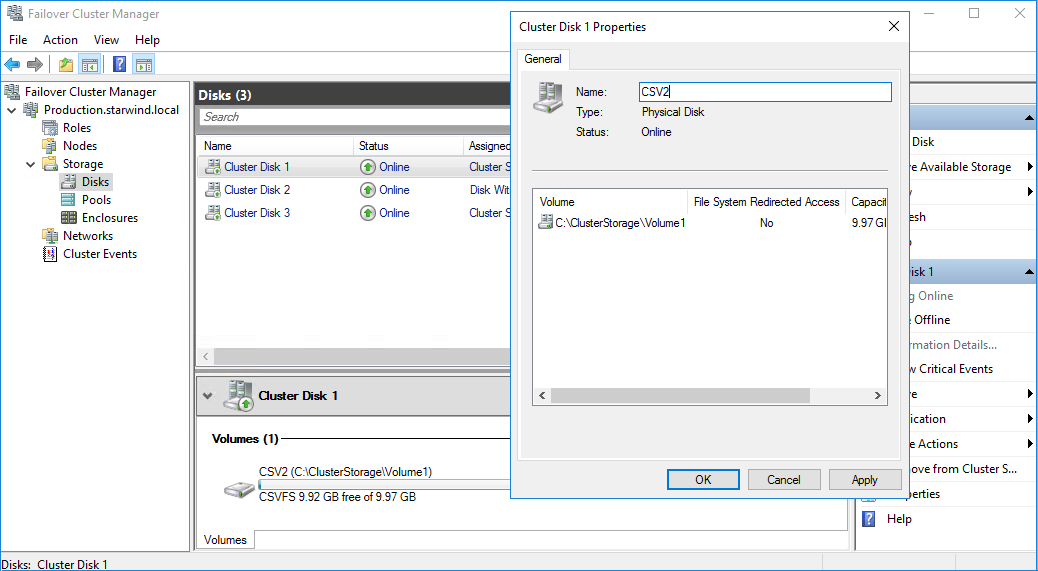
8. Perform the steps 6-7 for any other disk in Failover Cluster Manager. The resulting list of disks will look similar to the screenshot below.
Configuring Cluster Network Preferences
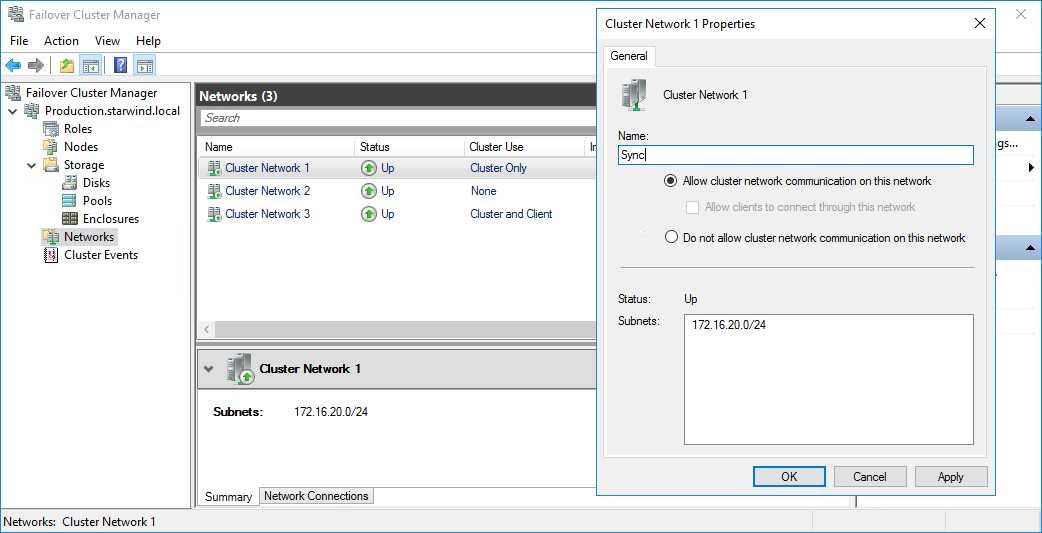
1. In the Networks section of the Failover Cluster Manager, right-click on the network from the list. Set its new name if required to identify the network by its subnet. Apply the change and press OK.
NOTE: Double-check that cluster communication is configured with redundant networks:
https://docs.microsoft.com/en-us/windows-server/failover-clustering/smb-multichannel
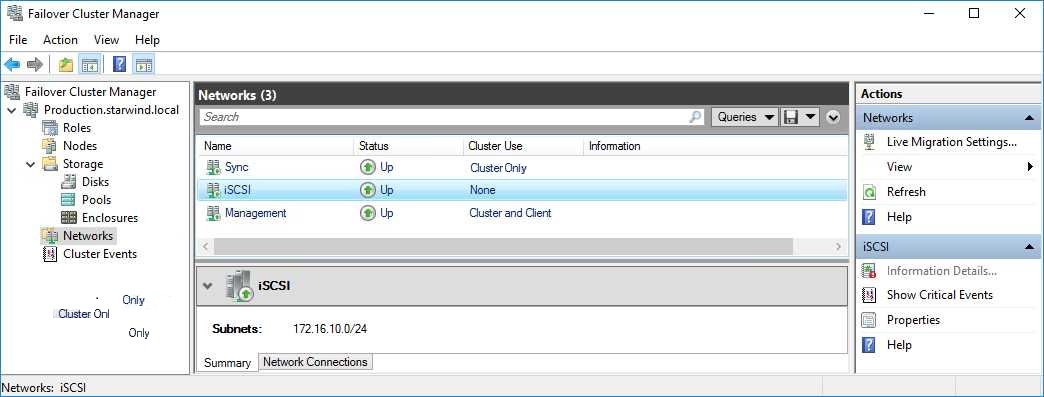
2. Rename other networks as described above, if required.
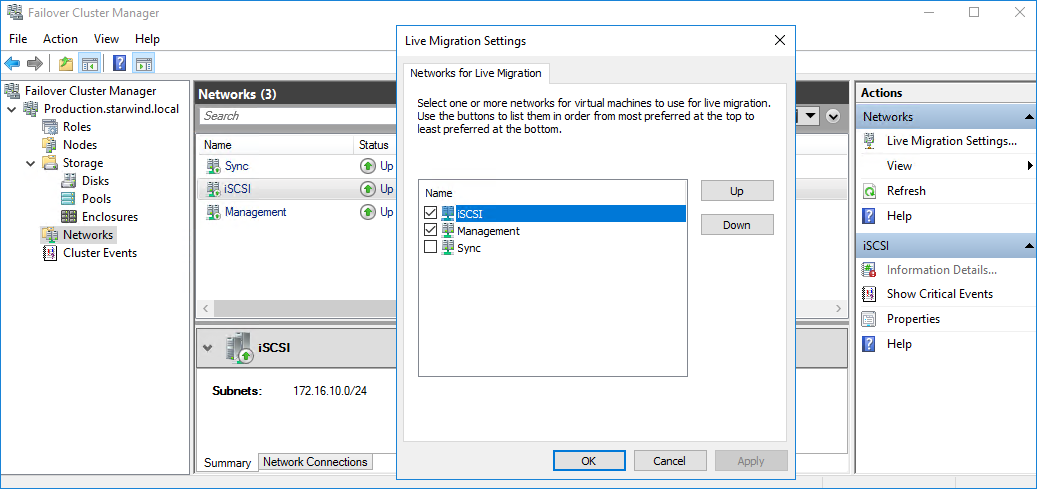
3. In the Actions tab, click Live Migration Settings. Uncheck the synchronization network, while the iSCSI network can be used if it is 10+ Gbps. Apply the changes and click OK.
The cluster configuration is completed and it is ready for virtual machines deployment. Select Roles and in the Action tab, click Virtual Machines -> New Virtual Machine. Complete the wizard.
Conclusion
Following this guide, a 2-node Failover Cluster was deployed and configured with StarWind Virtual SAN (VSAN) running in a CVM on each host. As a result, a virtual shared storage “pool” accessible by all cluster nodes was created for storing highly available virtual machines.
