
In Part 1, we installed App Volumes Manager and prepared the SQL database and file share. Part 2 configured Active Directory, VHD In-Guest Services, and storage templates. This third guide shows how to create, assign, and verify an Omnissa App Volumes Writable Volume for an entitled user in a nonpersistent VDI environment.
Before proceeding, confirm that the file share has enough free capacity for the number and maximum size of the Writable Volumes you plan to create. If the supplied templates do not match your sizing policy, create a larger Writable Volume template before assigning users.
Create and assign an Omnissa Writable Volume
Open a browser and go to https://<IP_AppVolumesManager>. Enter your administrator credentials and click Login.
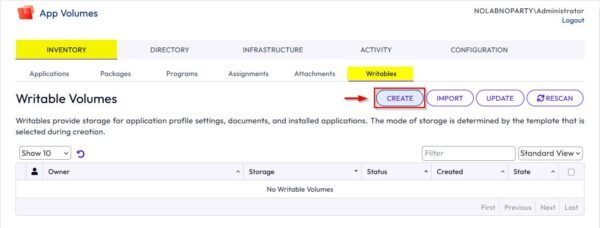
Go to Inventory > Writables and click Create.
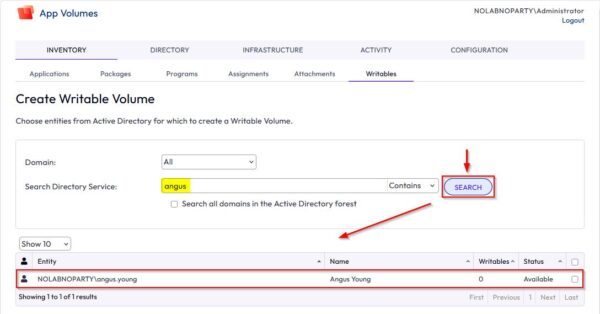
In the Search Directory Service field, enter the name of the user who will receive the Writable Volume, then click Search.
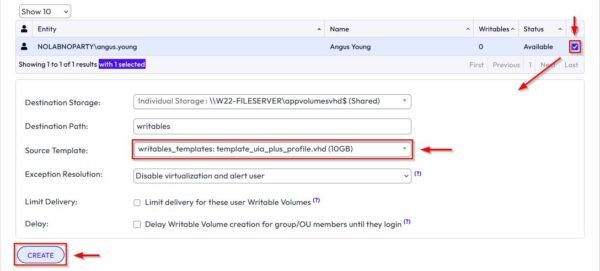
Select the checkbox next to the user. Choose the appropriate Source Template – template_uia_plus_profile.vhd (10 GB) in this example – then click Create.
The template determines what persists. UIA-only retains user-installed applications, UIA plus profile retains those applications and the local user profile, and profile-only retains profile data without user-installed applications. Template names and available sizes can vary by App Volumes version.
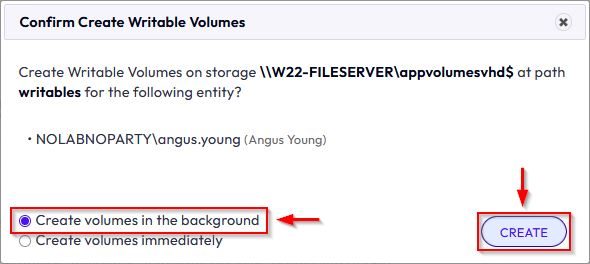
In the confirmation dialog, select Create volumes in the background as shown, then click Create. For a single user, you can choose immediate creation when you need to wait for completion in the current session.
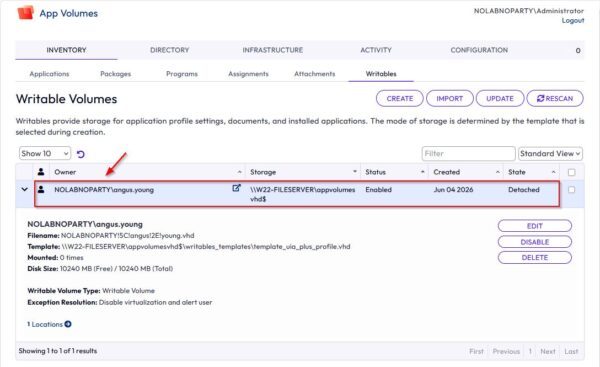
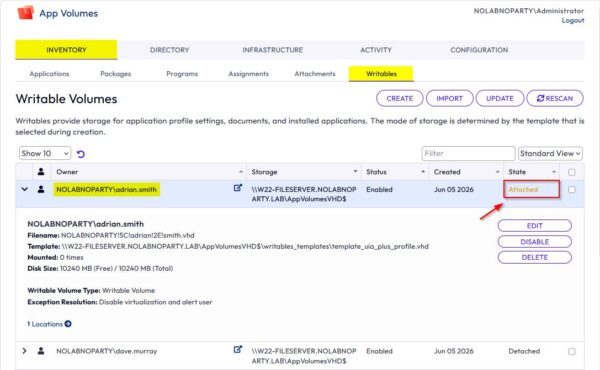
After a few seconds, the Writable Volume appears in the Writables inventory. Its state remains Detached until the entitled user signs in and the App Volumes Agent attaches it.
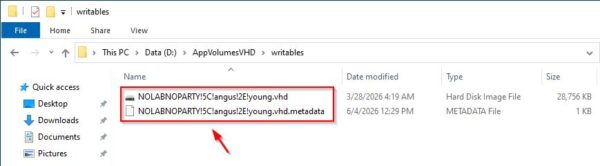
On the file server, confirm that the new VHD file appears in the configured writables path. This confirms that the disk was created; it does not yet confirm that the volume is attached to a desktop.
Sign in to the entitled desktop pool with the same user account that you selected in App Volumes Manager.
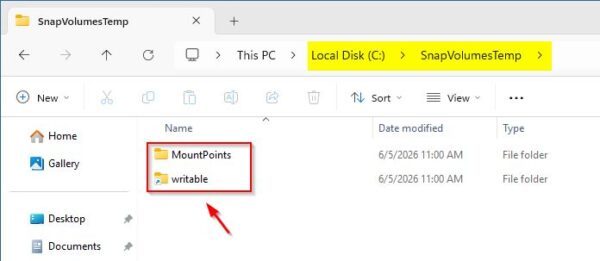
Inside the VDI session, open File Explorer and inspect C:\SnapVolumesTemp. In this deployment, the presence of the MountPoints and writable directories indicates that the App Volumes Agent mounted the Writable Volume in the guest operating system.
Return to App Volumes Manager and confirm that the volume state for the user has changed to Attached. This console check corroborates the endpoint-side verification.
Conclusion
The Writable Volume is now created on the configured file share and attached to the entitled user’s desktop at sign-in. Depending on the selected template, App Volumes can retain user-installed applications, local profile data, or both across nonpersistent sessions.
Part 4 will cover the deployment of Omnissa application packages through In-Guest VHD.
FAQ
What is an Omnissa Writable Volume?
A Writable Volume is a user-assigned read-write container that persists selected changes outside a nonpersistent desktop. Depending on the source template, it can retain user-installed applications, local profile data, or both.
Which source template should I select?
Use UIA-only when another profile solution manages user settings. Use UIA plus profile when App Volumes must retain both user-installed applications and the local profile. Use profile-only when you need profile persistence without user-installed applications. If you use FSLogix with App Volumes, UIA-only is often the cleaner division of responsibilities.
Can I assign Writable Volumes to a group or OU?
Yes. For a group or organizational unit, select the option to delay Writable Volume creation until each member signs in. This avoids generating a large batch of volume-creation requests at once.
How can I verify that a Writable Volume is attached?
Check three points: the VHD exists on the file share, the expected SnapVolumesTemp directories appear in the user session, and App Volumes Manager reports the volume state as Attached. The file on the share confirms creation; the endpoint and Manager checks confirm attachment.
What happens if the file share runs out of capacity?
Writable Volume creation, attachment, or write operations can fail when the file share cannot accommodate the configured volumes. Monitor free space and growth against the maximum size of each template, and expand or replace the template before users reach the limit.