
Omnissa App Volumes In-guest VHD is a solution designed to ensure a permanent storage area for Instant Clone VDIs using a deployment method that differs from typical storage-based vSphere deployments. Working with In-guest VHDs allows administrators to maintain a portable environment that does not depend on specific vSphere storage, offering the major benefit of enabling easier user profile migrations across different supported environments.
MS-SQL database creation
Omnissa App Volumes requires either an embedded or an external MS-SQL database to store its information. Before proceeding with the installation of the App Volumes Manager, a new database must be created if an external SQL Server is used.
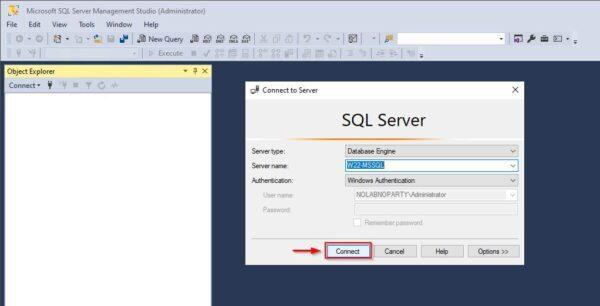
Connect to your SQL Server and open Microsoft SQL Server Management Studio. Enter the credentials and click Connect.
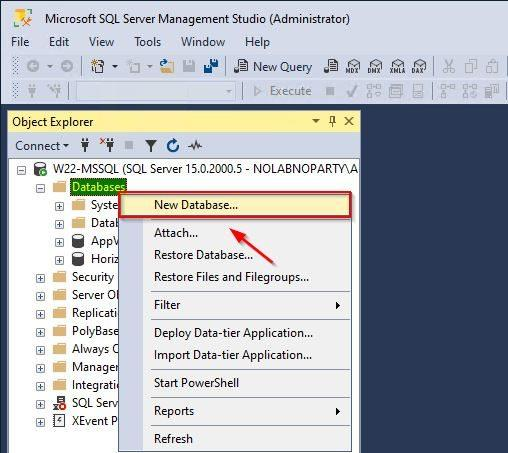
Right click Databases and select New Database.
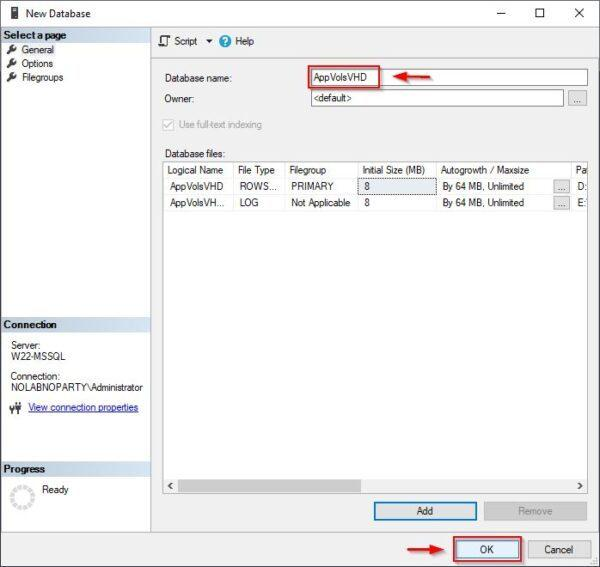
Enter the Database name then click OK.
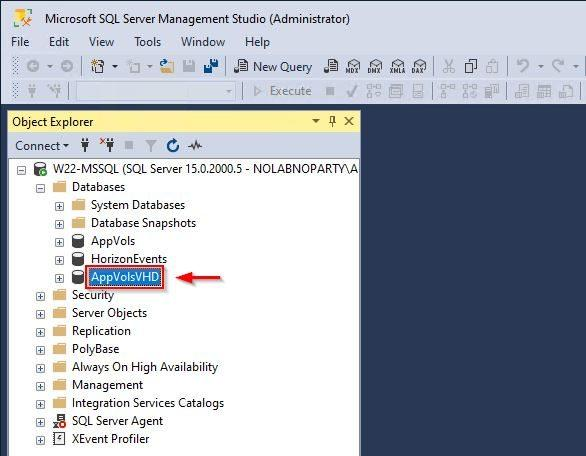
The new database has been created successfully.
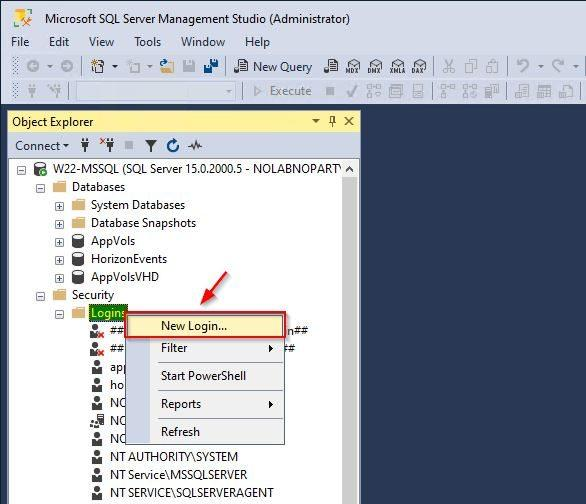
Create the account used to connect the database. Right click Logins and select New Login.
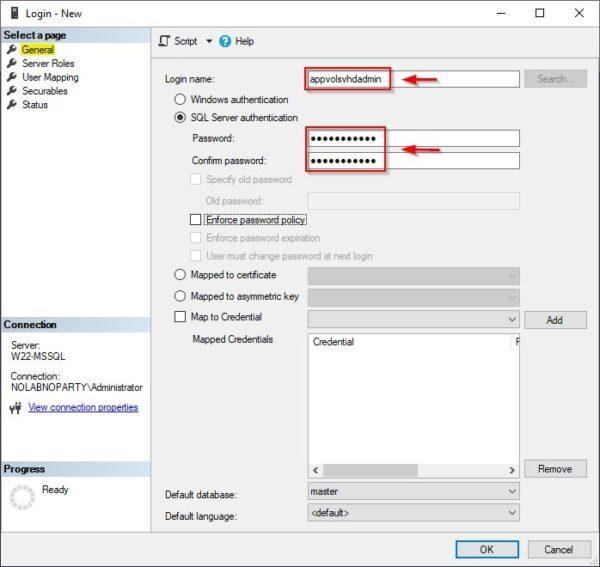
In the General section, specify the Login name and configure the Password for SQL Server authentication. If not required by your security policy, disable the Enforce password policy.
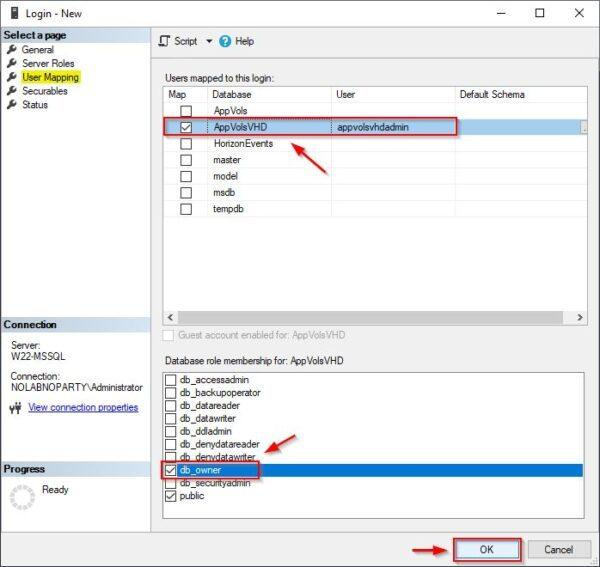
Go to the User Mapping section. Select the newly created database and assign the db_owner permission to the account being created. Click OK.
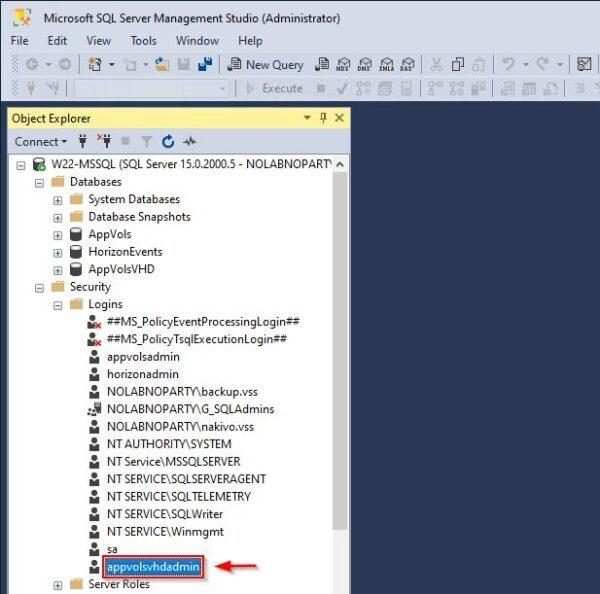
The account is now created.
NTFS permissions for the share
Previous versions of App Volumes use to store virtual disks directly on the storage configured within the App Volumes Manager, whereas the In-guest VHD option available in newer versions requires a CIFS share to store the data.
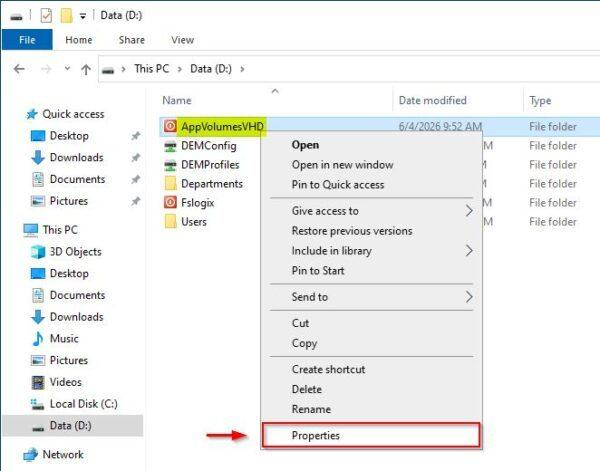
On the File Server designated to store the VHD disks, create a new folder (for example, AppVolumesVHD) and assign the required permissions. Right-click the folder and select Properties.
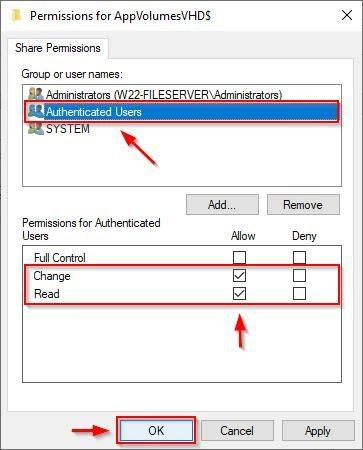
In Share Permissions, assign the following:
- Administrators – Full Control
- SYSTEM – Full Control
- Authenticated Users – Change, Read
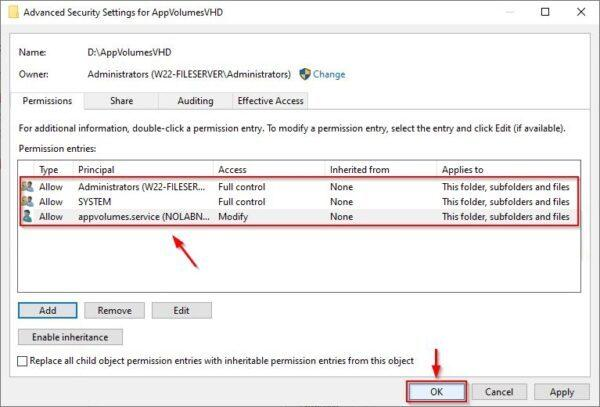
In Security, assign the following permissions:
- Administrators – Full Control (This folder, subfolders and files)
- SYSTEM – Full Control (This folder, subfolders and files)
- Service account – Modify (This folder, subfolders and files)
Install the App Volumes Manager
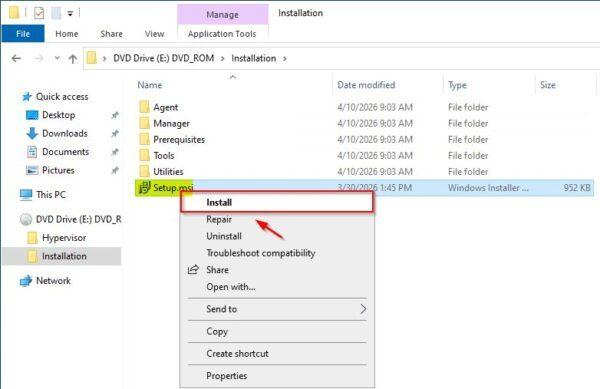
After downloading the ISO file (currently Omnissa_App_Volumes_v4.21.0_10042026.ISO) from the Omnissa software portal, mount the ISO on your computer, right-click the Setup.msi file and select Install to begin the installation.
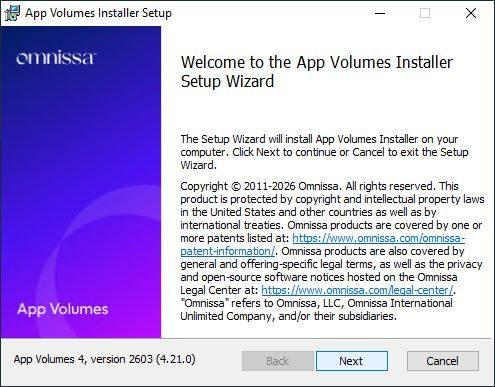
Click Next.
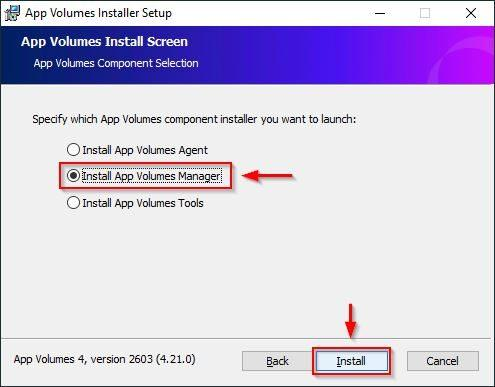
Select Install App Volumes Manager and click Install.
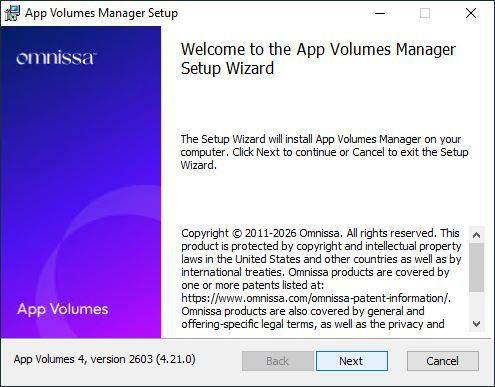
When the App Volumes Manager Wizard opens, click Next to continue.
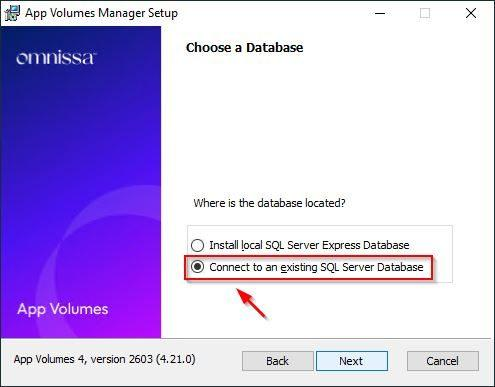
Since the database was created on an external SQL Server, select the option Connect to an existing SQL Server Database and click Next.
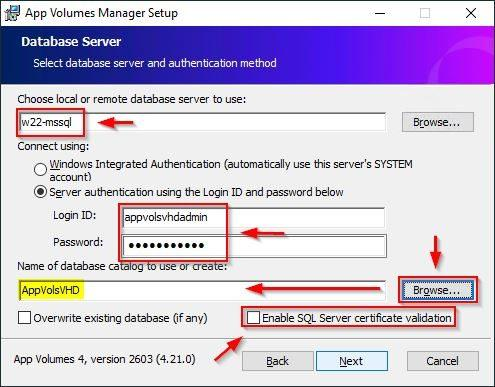
Specify the Remote server to use along with the Login ID and Password required to connect. Click Browse and select the database created earlier (AppVolsVHD in the example). Uncheck the Enable SQL Server certificate validation checkbox and click Next.
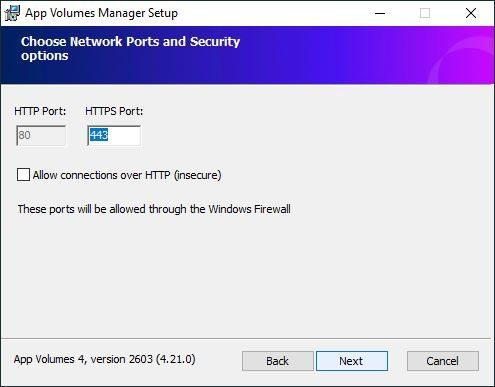
Leave default values and click Next.
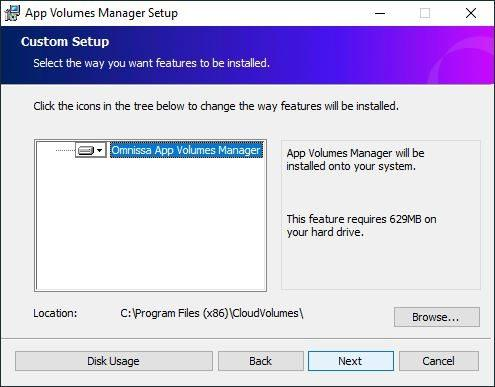
Click Next.
Click Next.
For the deployment type, select General from the drop-down menu and click Next.
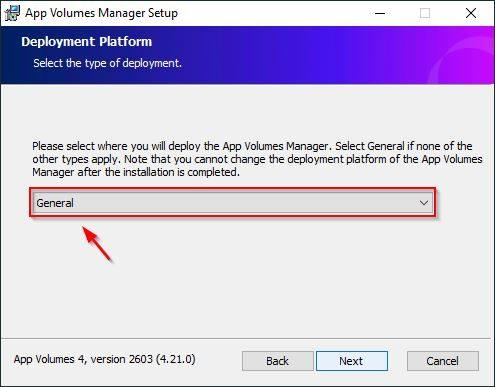
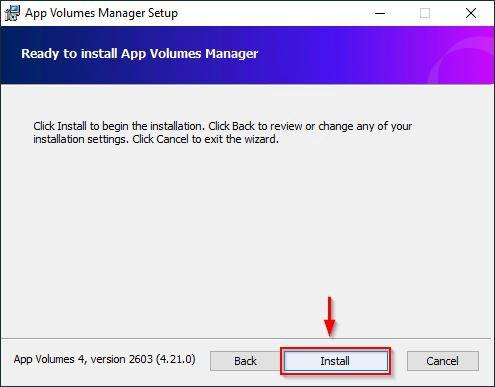
Click Install to proceed.
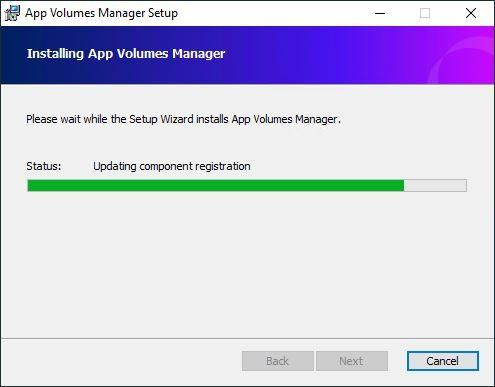
App Volumes Manager is now being installed.
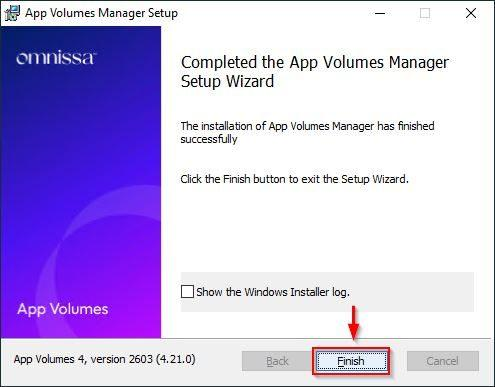
When the installation is complete, click Finish to exit the wizard.
Open your preferred browser and type the address https://<App_Volume_Manager_IP> to access the initial web page. Enter the credentials and click Login.
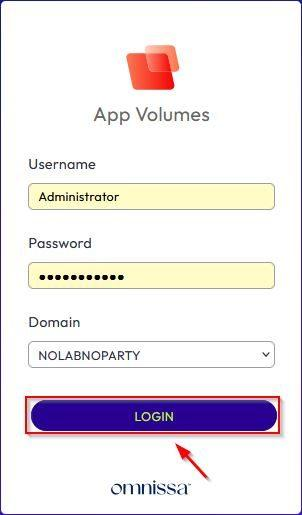
The initial web page.
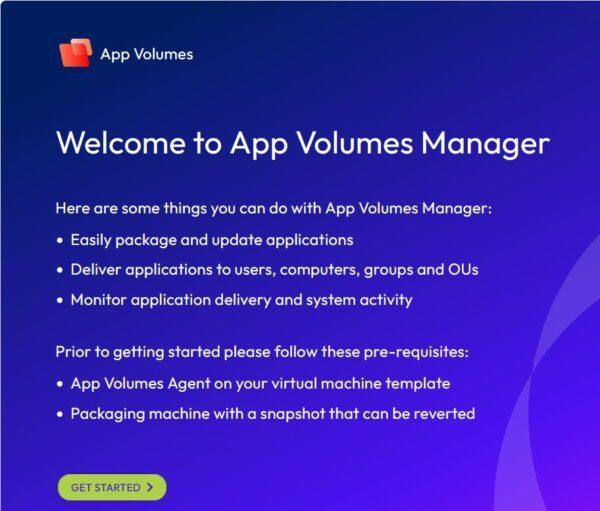
Part 2 will cover the procedure for configuring the App Volumes In-guest VHD to fit the production environment.
Conclusion
The App Volumes Manager is now installed and ready for the next configuration stage. The external SQL database stores the App Volumes data, and the CIFS share provides the storage location required for In-Guest VHD files.
At this point, the environment is not yet ready to deliver applications or writable volumes to users. Part 2 will cover the App Volumes Manager configuration, including the machine manager, storage, and production settings required for In-Guest VHD operation.
FAQ
What is Omnissa App Volumes In-Guest VHD?
In-Guest VHD is an App Volumes operating mode that attaches VHD files directly inside the guest operating system. It uses an SMB or CIFS file share instead of storing virtual disks on a vSphere datastore.
Does App Volumes In-Guest VHD require VMware vSphere storage?
No. In-Guest VHD stores application packages and writable volumes on a network file share, reducing the dependency on vSphere storage. The surrounding VDI environment may still use VMware Horizon or vSphere.
Is an external SQL Server required?
No. App Volumes supports embedded and external SQL databases. An external SQL Server is commonly selected for production environments that need centralized database management, backups, or high availability.
What permissions are required for the VHD file share?
Administrators and SYSTEM need Full Control. Authenticated Users need Change and Read permissions at the share level. The App Volumes service account needs Modify permissions for the folder, subfolders, and files.
Should SQL Server certificate validation be disabled?
Certificate validation should remain enabled when the SQL Server is configured with a trusted certificate. Disable it only when the SQL environment does not support certificate validation, such as in some lab or proof-of-concept deployments.