
DFS Replication is one of those Windows Server features that’s everywhere and half-understood. It keeps file shares in sync across servers and sites, for free and without much fuss, and it’s regularly pushed into jobs it was never built for: replicating live databases, or standing in for backup.
Every Active Directory domain runs on it, whether anyone chose to or not. DFSR replicates SYSVOL between every domain controller, which means it’s already live in nearly every Windows Server shop on the planet. Plenty of teams also use it on purpose, for branch-office file shares and departmental drives, even as Azure File Sync, OneDrive, and SharePoint pull newer workloads toward the cloud. On-prem AD isn’t disappearing, so DFSR keeps earning its keep.
However, a lot of admins who cut their teeth on SharePoint or OneDrive have never touched DFSR directly. So they mix it up with DFS Namespace, assume it can handle a database or a running VM because it “just replicates files,” and only discover the “last-writer-wins” conflict rule, or the fact that it replicates deletions and corruption as faithfully as good changes, when something breaks.
This article sorts the good fits from the expensive mistakes: how DFSR works, how to deploy it on Windows Server 2022 and 2025, and when a different tool wins.
What is DFS Replication?
DFS Replication is an asynchronous, multi-master file replication engine built into Windows Server. Multi-master means every server holds a writable copy, so a change on any member replicates out to the rest. Asynchronous means it happens shortly after a change, not in lockstep, so there’s always a brief window where copies can differ.
Here’s the everyday version. A user saves a spreadsheet in a shared folder on SW-NODE1 and closes it. DFSR spots the closed file, uses Remote Differential Compression (RDC) to ship only the changed blocks rather than the entire workbook, and moments later SW-NODE2 has an identical copy. Do that across thousands of files on a constrained WAN link and the payoff is obvious: every site works locally at LAN speed while the copies stay in sync on their own.
A few terms before you start configuring. A replication group is the set of servers that keep one or more replicated folders in sync. Remote Differential Compression (RDC) is the part that keeps WAN traffic small by sending only changed blocks. The staging folder is a holding area DFSR uses before and after each transfer. Size it too small and replication stalls, which is one of the most common support cases in the field. And because DFSR stores its configuration in Active Directory and relies on the domain for authentication, every member has to be domain-joined in the same forest.
Simultaneous edits get a simple rule: last writer wins. The losing copy goes to a hidden Conflict and Deleted folder rather than being silently destroyed.
DFS Replication vs. DFS Namespace
These two are shipped together and get confused constantly. DFS Namespace (DFSN) gives users a single logical path, like \\company.com\shares\finance, no matter which server actually holds the data. DFS Replication keeps the copies behind that path in sync. They pair up nicely, but neither needs the other. You can run DFSR with no namespace at all, or publish a namespace with nothing replicating behind it. Put them together, and a user reaches the nearest copy while the rest stay identical.
Common DFS Replication use cases
This model pays off in a specific set of situations: file-based data, non-constant changes, and files that are closed between edits. A handful of scenarios fit that profile nicely.
Multi-site branch offices in hybrid AD environments
This is the case DFSR was built for, and it still delivers on it better than most people give it credit for. Think of a manufacturer with plants in four cities, an engineering firm with studios across three time zones, or a healthcare network with satellite clinics. These organizations need every site working off the same project files, drawings, or patient documentation. They need this without waiting on a WAN link every time someone opens a file. DFSR solves that by keeping a full local copy live at every site. Users open files at LAN speed. Remote Differential Compression only ships the changed blocks, not the whole file. So a 200 MB CAD drawing with a five-line edit might cost a few kilobytes on the wire instead of the full file. Bandwidth throttling and scheduling mean this can run quietly during business hours without competing with VoIP or other WAN traffic. It costs nothing beyond the Windows Server license you already own. For a company that’s already AD-bound, that’s a meaningful advantage over anything that bills monthly per gigabyte or per site.
It also keeps working when the internet doesn’t. A site-to-site link going down doesn’t take file access offline the way a cloud-dependent sync tool would. Local copies stay fully usable. DFSR just catches up once connectivity returns. That offline-tolerant local copy is the core reason to choose DFSR over a cloud-sync tool for these sites.
SYSVOL replication
This is the case nobody chooses and everybody depends on. Every Group Policy Object (GPO), every logon script, every startup/shutdown script in the domain lives in SYSVOL. DFSR is the mechanism that keeps a GPO edited on one domain controller live on every other one, typically within minutes. That’s core AD health. It replaced File Replication Service (FRS) specifically because FRS couldn’t be trusted to do this reliably at scale. DFSR’s RDC-based, multi-master design has been the standard for over a decade now and holds up under real production load without babysitting. Any organization running on-prem or IaaS-hosted domain controllers is already a DFSR customer, whether that was a deliberate decision or not. The reliability of that replication is quietly load-bearing for the entire domain’s security and policy posture.
Content distribution to read-only branch locations
This is the pattern for software installers, image files, or nightly reports. One server holds the master copy. Dozens of others just need it to appear locally. DFSR pushes it out, and RDC keeps every transfer small since only changed blocks move over the wire. DFSR also supports read-only replicated folders on the receiving members. That means branch staff can look at the content but can’t edit it. No accidental changes, no conflicts to clean up later. For an IT team pushing the same installer or catalog update to fifty retail locations overnight, this is a low-effort way to do it without standing up a separate distribution tool.
Warm standby for a file server
Point a second server at the same replicated folder, and it becomes a live backup target. If the primary server dies, the secondary already has (almost) everything on it. You bring it online and users are back to work fast. This isn’t true high availability. There’s always some replication lag, so a server crash mid-write can lose the last few changes. But for a lot of small and mid-size shops, “down for ten minutes instead of a full day restoring from backup” is a real win, even with that caveat. The honest way to frame it is DFSR gives you a fast recovery path, not a zero-data-loss guarantee.
Retail chain store-to-HQ sync
Retail is still one of the more common places you’ll find DFSR. Store-level data like local inventory counts, staff schedules, or point-of-sale exports needs to land at HQ reliably, and HQ often needs to push pricing updates or promotional material back out to every store. DFSR handles both directions well because the data is file-based, changes at a predictable pace, and files get closed between edits. That’s exactly the profile it was built for. The tradeoff is worth naming: this only works cleanly if each store’s data stays logically separate. If two stores are editing the same shared file, DFSR’s last-writer-wins rule can quietly drop one store’s changes.
DFS Replication requirements
If one of those use cases fits, the next question is whether your environment can actually run DFSR, because most failed deployments trace back to a missing fundamental. You need Windows Server 2022 or 2025. DFSR behaves the same across both versions, so you can mix versions during an upgrade. One caveat for Server 2025: recent RPC and SMB hardening changes in that release have occasionally affected legacy replication setups, so test thoroughly before rolling DFSR out on newly upgraded 2025 members.
Every server has to be domain-joined to a single Active Directory forest. Replicated folders and staging must sit on NTFS, because ReFS, FAT, and Cluster Shared Volumes aren’t supported. DNS, Kerberos, and RPC all have to work between members, or replication never establishes. The DFS Replication role goes on every member. And leave room on disk for the data, the staging area, and the Conflict and Deleted folders.
How to configure DFS Replication
With the prerequisites in place, setup is straightforward. The example replicates a single folder between two servers, SW-NODE1 and SW-NODE2, through the DFS Management console, and the workflow is identical whether you’ve got two members or twenty.
First, install the role on both servers. In Server Manager, add the DFS Replication role service under File and Storage Services, or use the PowerShell below. Then walk through the New Replication Group wizard:
1. Install the DFS Replication role on SW-NODE1 and SW-NODE2, plus the management tools where you’ll administer it.
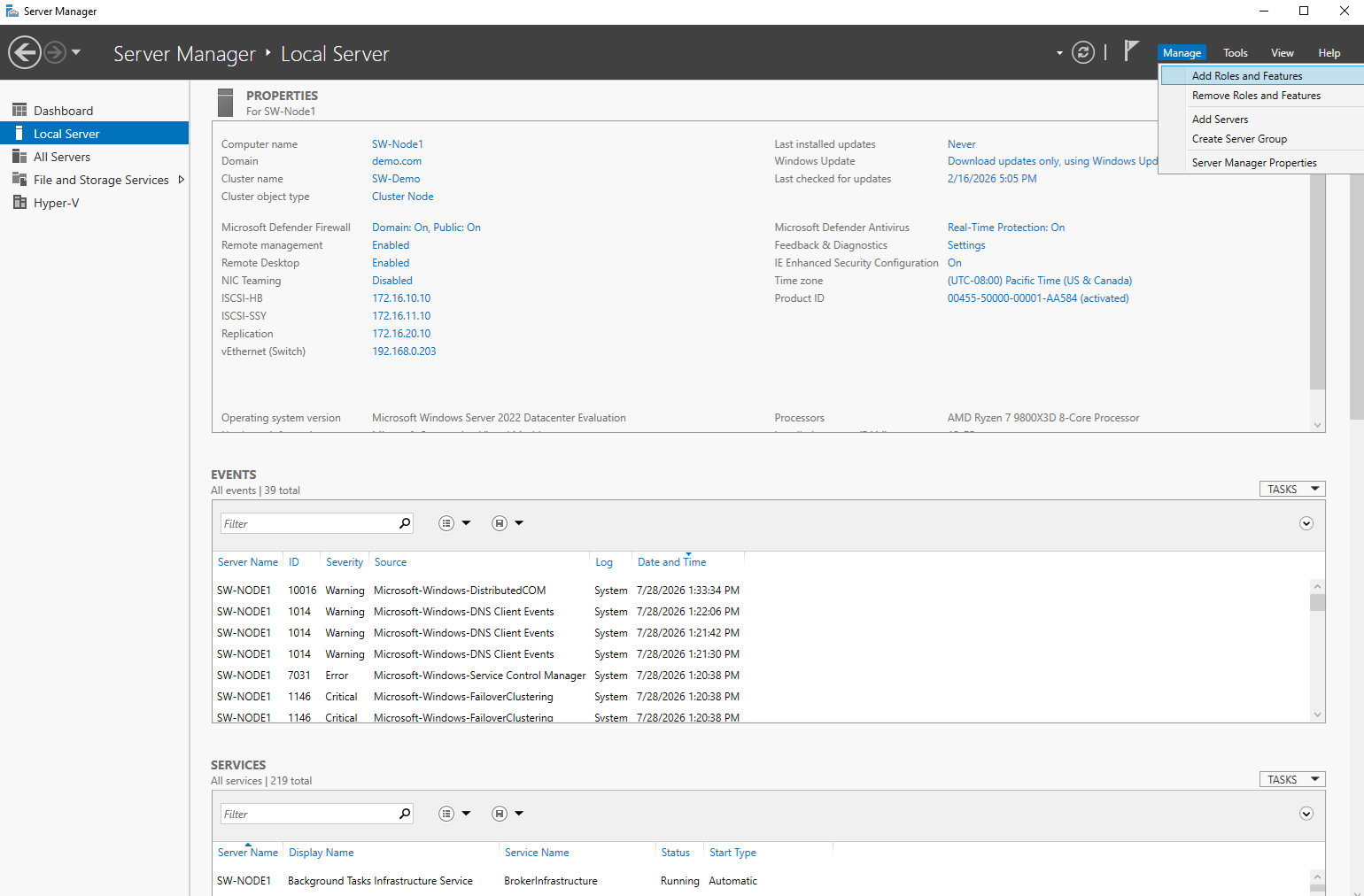
First, go to Server Manager and navigate Manage->Add Roles and Features:
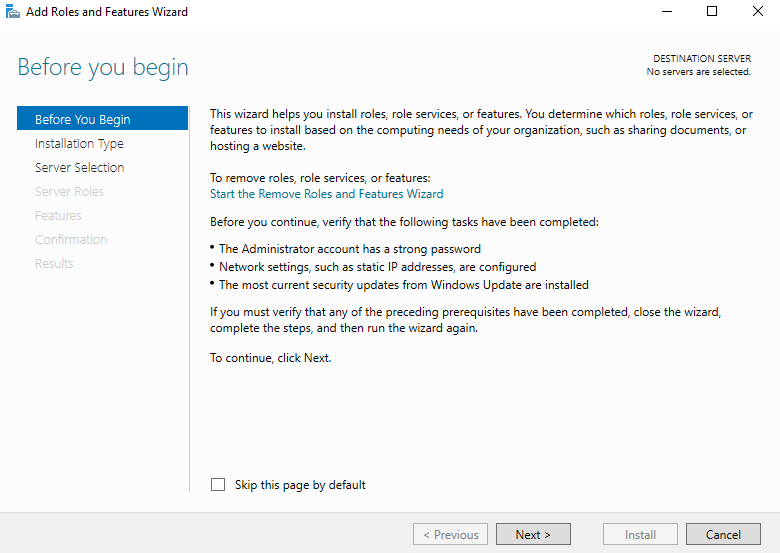
Next, start the installation process.
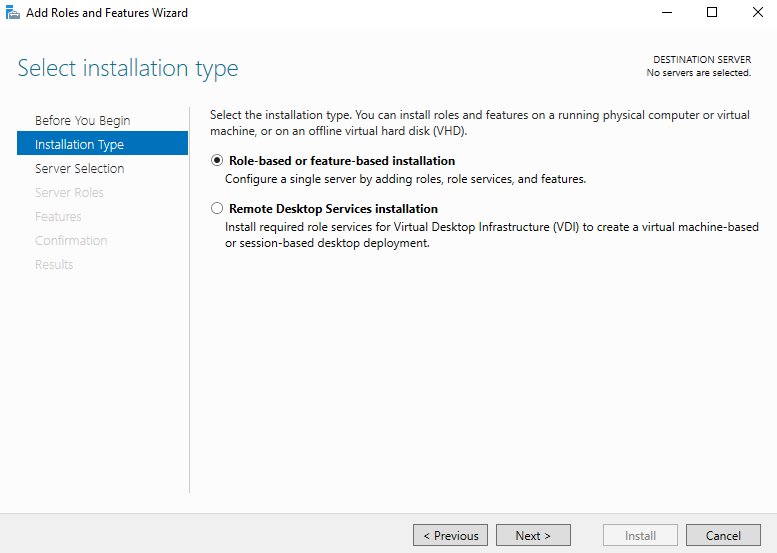
Select the installation type.
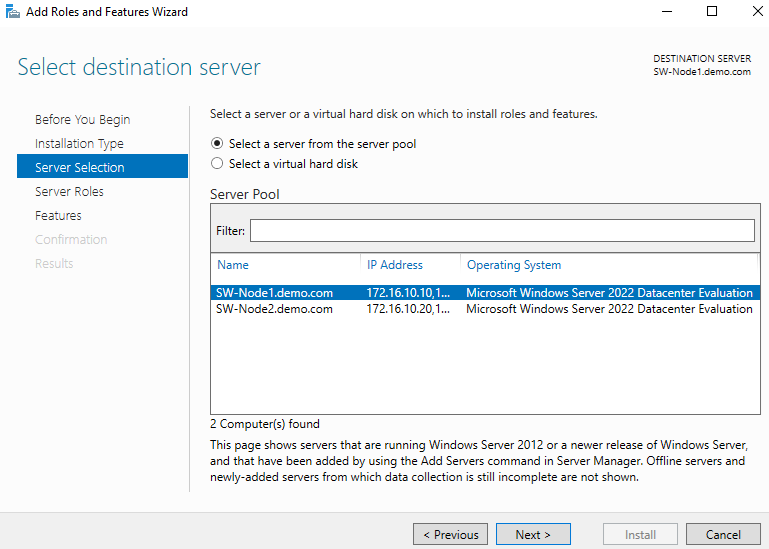
Now, select the server.
Select the DFSR role.
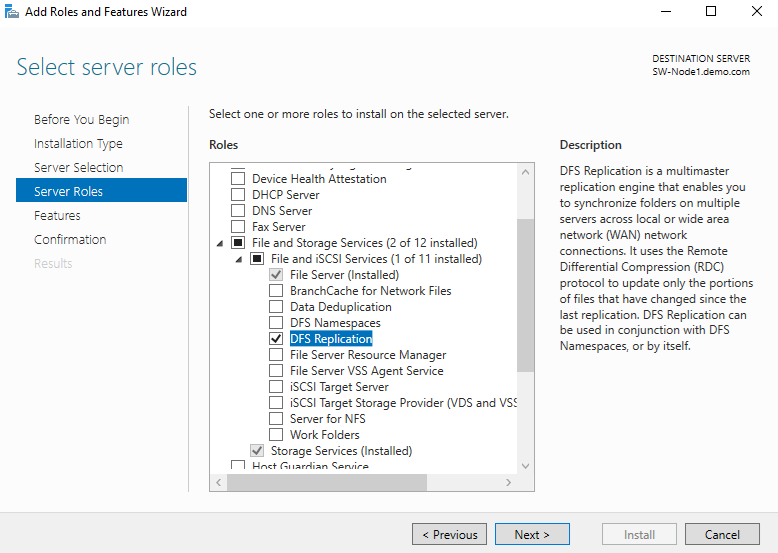
Skip the Features step and start the installation.
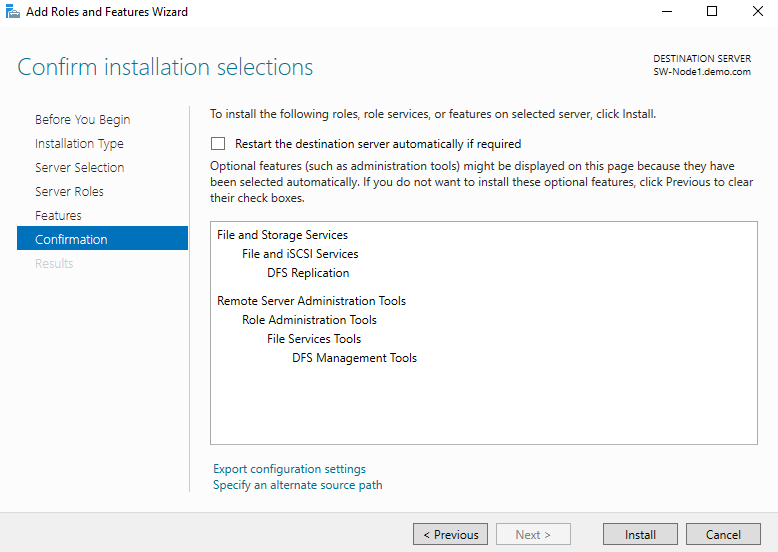
Wait for the installation to complete and repeat all the steps on the second node.
2. Open Server Manager and navigate to Tools->DFS Management. In the opened window, navigate to Replication->New Replication Group.
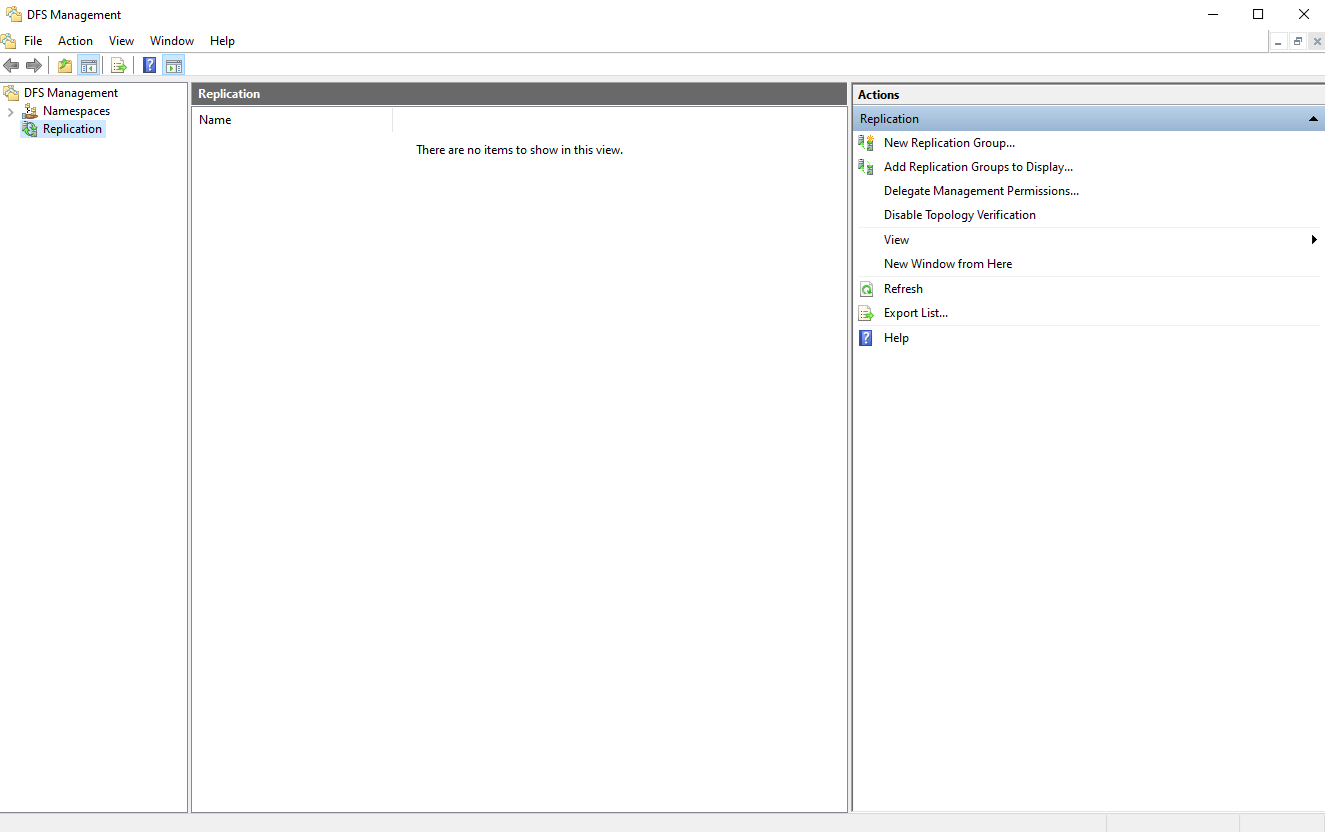
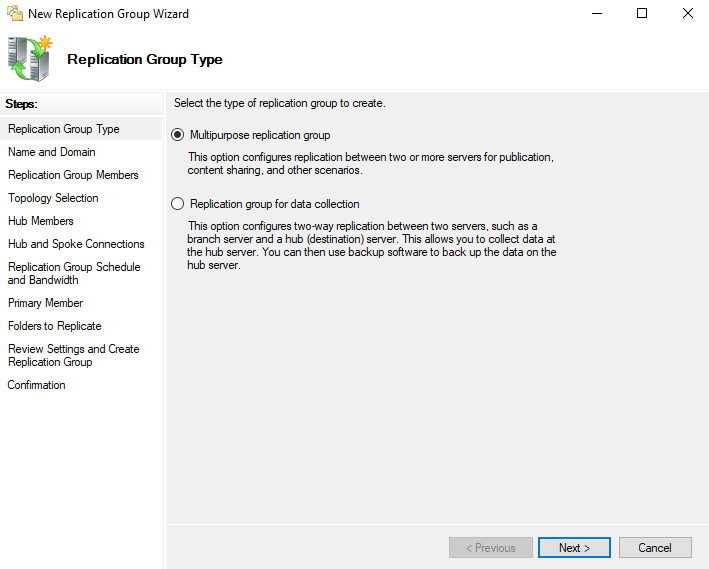
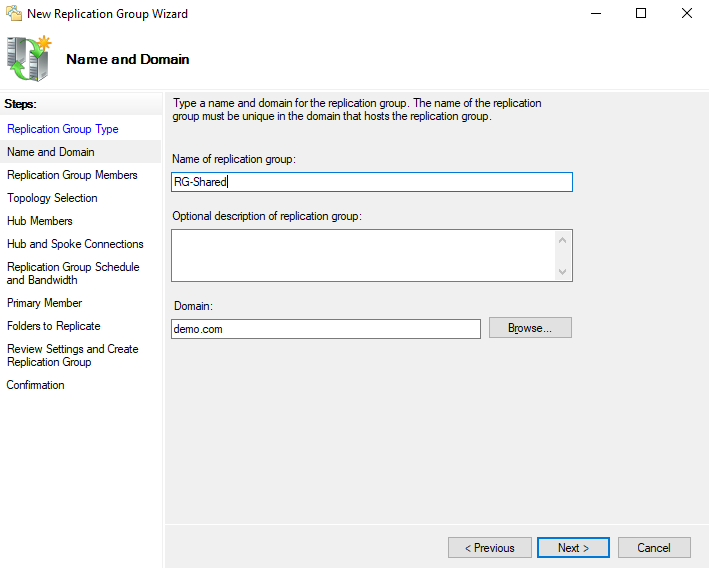
3. Create a multipurpose replication group and give it a clear name, for example, RG-Shared.
First, select the group type.
Next, assign a name to your replication group.
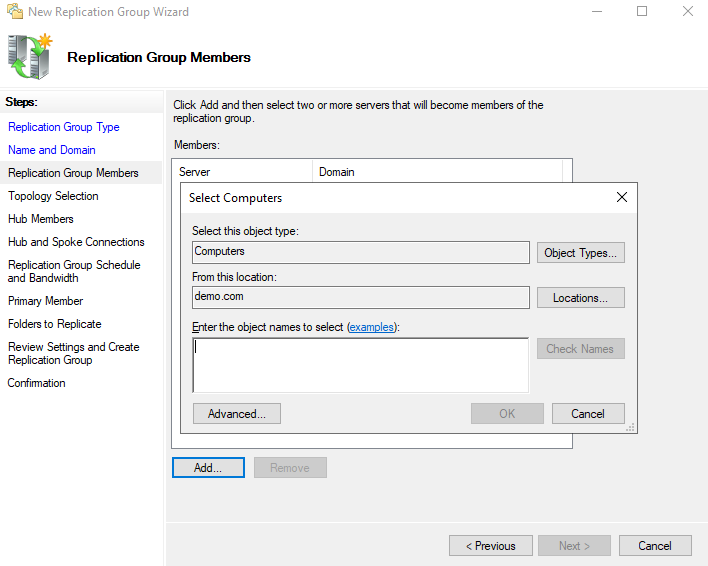
4. Add the group members.
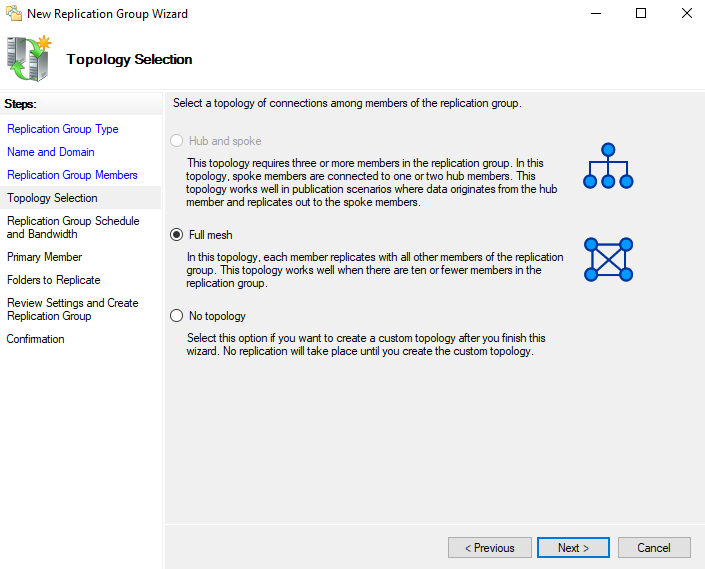
5. Select the topology. For two servers, choose Full mesh; for many sites, Hub and spoke usually scales better.
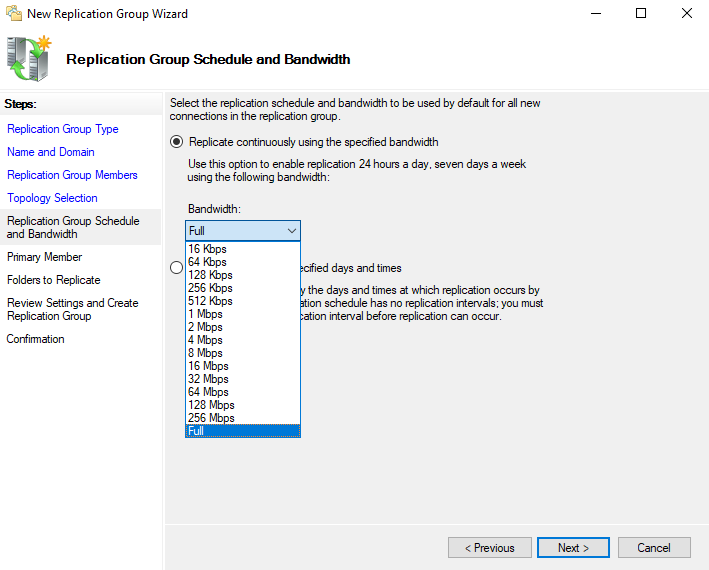
6. Set bandwidth throttling and a replication schedule so replication doesn’t saturate a WAN link during business hours.
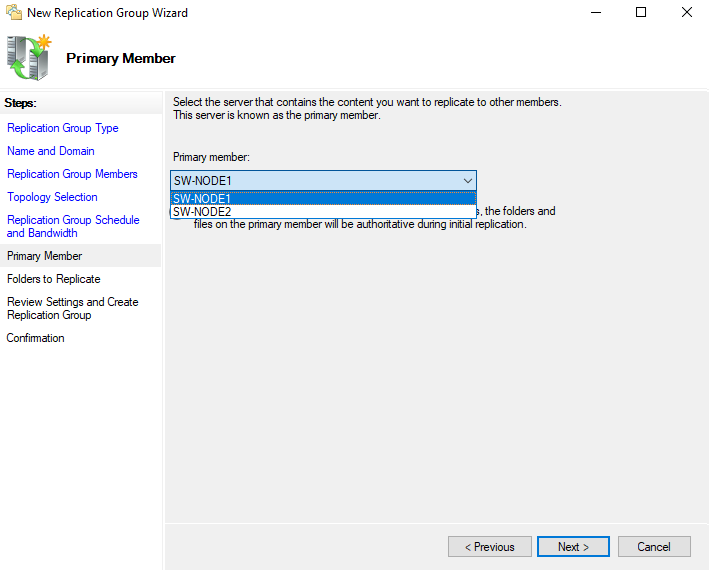
7. Select the primary member, which will be the authoritative source for the initial sync.
8. Assign the local folder path on each member, for example, E:\Shared on both SW-NODE1 and SW-NODE2.
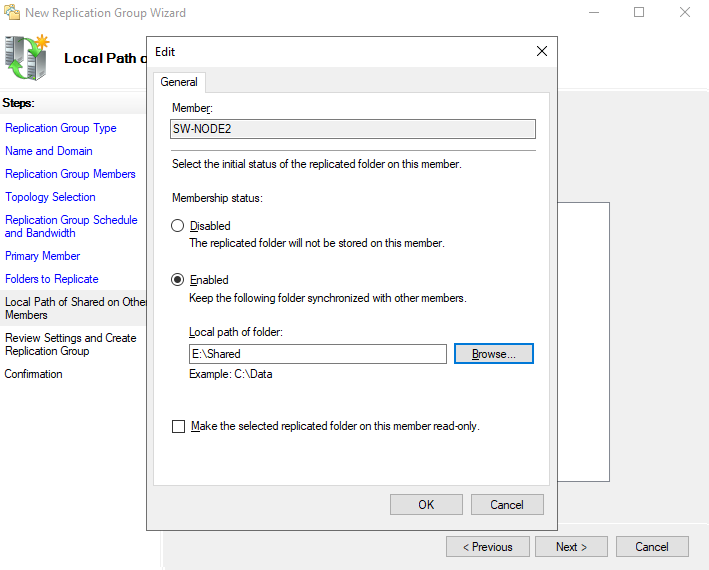
IMPORTANT NOTE: You need to create the folder before completing this step.
9. Create the group, then test it by adding a file on one member and confirming that it appears on the other.
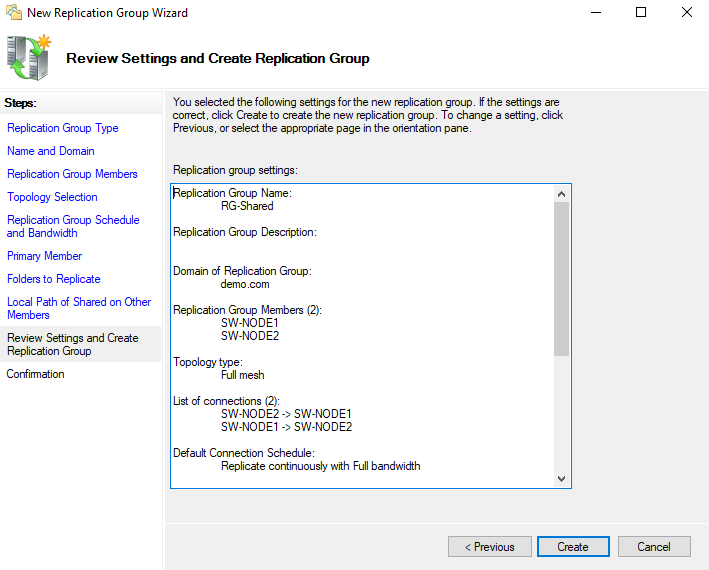
The primary member choice matters more than it looks. During the first sync, files on the primary server are authoritative, so if both servers already hold data, anything unique to the non-primary member is moved to Conflict and Deleted instead of being merged. The node that has the real data set should be made primary.
PowerShell alternative
The same setup is faster to script with the DFSR module. Install the role on each server, then build the group from an admin PowerShell session.
# Step 1 - install the role on both nodes
 Install-WindowsFeature -Name FS-DFS-Replication -IncludeManagementTools

# Step 2 - create the replication group and its replicated folder
 New-DfsReplicationGroup -GroupName "Your group name"
New-DfsReplicatedFolder -GroupName "Your group name" -FolderName "Your folder name"

# Step 3 - add both servers as members
 Add-DfsrMember -GroupName "Your group name" -ComputerName "First node name","Second node name"

# Step 4 - topology: one bidirectional connection is Full mesh for two servers

Add-DfsrConnection -GroupName "Your group name" `
-SourceComputerName "First node name" -DestinationComputerName "Second node name"

# Steps 6-7 - set local paths and make the first node the primary member for the first sync
 Set-DfsrMembership -GroupName "Your group name" -FolderName "Your folder name" `
-ComputerName "First node name" -ContentPath "Your folder path" -PrimaryMember $true -Force
Set-DfsrMembership -GroupName "Your group name" -FolderName "Your folder name" `
-ComputerName "Second node name" -ContentPath "Your folder path" -Force

# Step 5 (optional) - configure bandwidth/schedule via Set-DfsrConnectionSchedule; Step 8 – the group is now live
How to test and monitor DFS Replication
Don’t assume it’s replicating. Test it before putting actual data on it. Start with a round trip: drop a file called replication-test.txt on the primary node, confirm that it appears on the second node, then change a file on the second node and watch the edit come back. Both directions working means the connection and topology are healthy.
For live status, two cmdlets do most of the work:
# Current replication activity/state on a server
 Get-DfsrState -ComputerName Your server name

# Backlog: how many updates are queued from one member to another
 Get-DfsrBacklog -GroupName "Your group name" -FolderName "Your folder name" `
-SourceComputerName First/second node name -DestinationComputerName Second/first node name
Keep an eye on the backlog. If it’s climbing (say, 12,000 files and still growing), that points to a problem with bandwidth, staging space, or connectivity. If it’s shrinking toward zero, that means the members are catching up and syncing fine.
To check the history and any errors, open the DFS Replication event log (found under Applications and Services Logs -> DFS Replication), or pull it up with the Get-WinEvent PowerShell command.
For a complete overview in one place, right-click the replication group in DFS Management and generate a Health Report. It will show you the backlog, errors, and replication efficiency for each member.
For ongoing monitoring at scale, most admins don’t rely on manually clicking through the console. The dfsrdiag ReplicationState command-line tool and scheduled Health Report generation via PowerShell or Task Scheduler let you automate these checks instead, so a growing backlog gets flagged before it becomes a support ticket.
DFS Replication limitations
Start with the most important: no distributed file locking. Two users open the same document on different servers, both save, and DFSR keeps one version and drops the other into Conflict and Deleted. No error, no warning. The second person’s changes are simply gone. Design your workflows so a file is normally edited in one place at a time.
DFSR is asynchronous and replicates files after they’re no longer locked for writing, which rules out anything that stays continuously open. SQL and Exchange databases aren’t appropriate workloads. VHD or VHDX virtual disks are another example. They’re open and changing constantly, so DFSR can’t replicate them safely, and using it for these workloads can result in inconsistent or corrupted data. This is one of the most common ways people misuse DFSR, and you should avoid it
It also replicates both the bad and the good. Delete a folder and the deletion appears on every member within minutes. The same applies to corruption and ransomware-encrypted files. DFSR is not a backup. That’s why you should keep real, point-in-time backups no matter how many replicas you run. It’s not high availability either. There’s always replication lag, so copies are eventually consistent rather than identical, and DFSR can’t promise zero data loss if a server dies mid-write.
A few hard limits round out the picture. NTFS is required, so ReFS, FAT, or Cluster Shared Volumes can’t be used for replicated folders. Native DFSR replication groups also need members in the same Active Directory forest. Cross-forest isn’t supported. If you’ve got data in separate forests, you’ll need other mechanisms or separate DFSR deployments – this isn’t the same as creating a single cross-forest DFSR replication group.
DFS Replication alternatives
Those limits are exactly why DFSR is one option among several rather than the default answer for every replication need. The right pick depends on what you’re actually trying to do:
| Method | Type | Best for |
|---|---|---|
| DFS Replication | Asynchronous, file-level, multi-master | Multi-site file shares and content distribution |
| Azure File Sync | Asynchronous, cloud tiering | Hybrid file services and centralizing branch data in Azure |
| SharePoint | Cloud, versioned, file-locked | Collaborative documents with version history and real file locking, not large binaries or legacy UNC-path apps |
| OneDrive | Cloud, per-user sync | Individual user files and small-team sharing, not centralized branch file servers or line-of-business apps |
| Storage Replication | Synchronous or asynchronous, block-level | Disaster recovery and stretch clusters between volumes, highly available shared storage for VMs and databases |
| Backup | Point-in-time copies | Recovering from deletion, corruption, and ransomware |
| NAS/SAN replication | Vendor-specific | NAS-to-NAS or SAN-to-SAN replication within one vendor ecosystem |
| Linux tools (rsync, DRBD) | File- or block-level | Replication in Linux environments (not DFSR-compatible) |
Azure File Sync is worth a serious look for any organization already leaning into Microsoft’s cloud stack. It keeps the same basic replication model as DFSR but adds cloud tiering. A branch office server can present a full folder structure locally while only keeping actively used files on local disk. Cold data sits in Azure and gets pulled down on demand. This solves a real DFSR problem where branch servers run out of local storage as data grows. Monitorinfg is better integrated, too. Instead of parsing Get-DfsrBacklog output, you get a dashboard in the Azure portal showing sync health across every site at a glance. If you’re already paying for Azure, or planning to consolidate infrastructure there, Azure File Sync removes a layer of manual babysitting that DFSR still requires.
SharePoint wins the moment the workload is really about collaboration, not just file access. Multiple people editing the same document, needing to see who changed what and when, or rolling back to an earlier version – these are scenarios SharePoint handles natively that DFSR simply can’t. DFSR’s last-writer-wins rule means two people editing the same file independently can end up with one version replacing the other, with the losing version moved to Conflict and Deleted. SharePoint gives you version history and file locking/check-out capabilities. It also removes the need for VPN or WAN access to an on-premises file server, since users hit content through a browser. The tradeoff: it isn’t a direct replacement for large binary workloads or legacy line-of-business applications that expect a mapped drive. So SharePoint replaces DFSR cleanly for office documents and knowledge work, not for CAD files or industrial software.
OneDrive fits a narrower but common case: individual users or small teams who need their files synced across devices, not a shared departmental drive replicated across servers. It’s simple to set up, needs no on-prem infrastructure, and gives users automatic version history plus easy sharing links without IT managing a replication topology. Where it falls short of DFSR is scale and control. OneDrive is built around per-user storage, not a centralized file server that multiple people and applications depend on. So it’s a poor substitute for the branch-office or departmental-share use cases DFSR was built for. It earns its place for individual productivity, not infrastructure.
One licensing note on Storage Replica: Windows Server Standard edition has limitations on the scope of Storage Replica compared with Datacenter edition, including a single-volume replication limit of up to 2 TB. Full multi-volume replication without that 2 TB cap needs Datacenter edition. This is a restriction DFSR doesn’t carry.
File-level vs. block-level, in one line: DFSR is built to replicate ordinary files, not to maintain application-consistent copies of continuously open databases or running virtual disks. Those workloads couldn’t be served by file-level replication alone – they need block-level or application-aware replication.
As for the block-level replication – StarWind Virtual SAN is a mature storage solution that provides synchronous, active-active replication across nodes. Combined with a properly configured HA cluster, it keeps storage available to virtual machines and applications even after a disk or a node failure. It’s not a drop-in replacement for DFSR. However, it can sit alongside DFSR so each task is covered by the appropriate tool. StarWind VSAN handles these latency-sensitive, highly available workloads well, while DFSR remains the simpler choice for multi-site file distribution and branch-office shares.
DFS Replication best practices
Assuming DFSR is the right fit, a few habits keep it predictable. The big one is pre-seeding: before you enable replication for a large folder, copy the data to the other members using something like Robocopy so DFSR only has to reconcile differences instead of sending, say, 5 TB across a WAN link over a long weekend.
Size the staging quota generously – at least as large as the 32 largest files in the replicated folder -because an undersized staging area is the most common reason for replication stalls. There’s a practical ceiling too: an oversized staging area on spinning disk can slow replication, so busy replication groups are often better served by putting staging on SSD-backed storage.
Before you touch anything, check the current staging path and quota (in MB) for each member:
# Show staging path and quota per member of a group

Get-DfsrMembership -GroupName ">Your group name" |

Select-Object ComputerName, StagingPath, StagingPathQuotaInMB
After that, it’s mostly monitoring. You’ll want to watch the backlog with Get-DfsrBacklog and the Health Report so a growing queue is caught before users notice, and filter out the temp files and other noise so they never replicate in the first place. Match the topology to your scale – full mesh for a handful of servers, hub-and-spoke once you’ve got many branches to manage.
And don’t skip the safety bits. Keep independent backups, because DFSR is a sync tool, not a recovery tool. Steer people away from editing the same file in two places at once. You won’t be able to merge those changes reliably with DFSR – that’s not what it was built for.
Conclusion
DFSR does one thing well: it keeps copies of files in sync across servers and locations. That’s it. It’s a good fit for branch offices, content distribution, or department file shares, especially when you pair it with a namespace. It’s free, it’s already in Windows, and it works.
Problems show up when you try to use it for things it wasn’t built for. It’s asynchronous and only replicates files once they’re closed, so it’s not the right tool for protecting live databases or running virtual machines. It won’t give you zero-data-loss failover, and it won’t replace your backups.
Use DFSR for what it’s good at – file sync. If you need HA shared storage that’s always live and in sync (for VMs or databases), reach for a block-level solution like StarWind VSAN, which replicates in real time at the block level. And yes, keep real backups no matter what.
Match DFSR to the workload, and it’ll quietly do its job for years.
FAQ
Does DFS Replication require DFS Namespace?
No. DFSR and DFS Namespace are independent. You can replicate folders with DFSR and never create a namespace, or publish a namespace with nothing replicating behind it. They get combined a lot, but neither one needs the other.
Can DFS Replication work with Linux?
Linux and macOS clients can read and write the replicated data over SMB, because to them it’s just a file share. They can’t be DFSR members, though – replication membership is a Windows Server role.
How do I check whether DFS Replication is working?
Do a two-way file test, then run Get-DfsrState for current activity and Get-DfsrBacklog for queued updates. Read the DFS Replication event log and generate a Health Report in DFS Management if you want the full picture.
Is DFS Replication synchronous?
No. DFSR is asynchronous, so there’s always a small replication lag, and copies are eventually consistent rather than identical at every moment. If you need synchronous replication, use a block-level solution such as Storage Replica or StarWind Virtual SAN instead.
Does DFS Replication replace backup?
No. DFSR replicates deletions, corruption, and ransomware changes to every member, and it has a replication lag. Keep independent backups. Replication and backup solve different problems.