

StarWind Virtual HCI Appliance: Configuration Guide for Oracle Linux Virtualization Manager [KVM]
- November 13, 2024
- 20 min read
- Download as PDF
Annotation
Relevant products
StarWind Virtual HCI Appliance (VHCA)
Purpose
This document outlines how to configure a StarWind Virtual HCI Appliance Free (VHCA Free) based on Oracle Linux Virtualization Manager (OLVM), with VSAN running as a Controller Virtual Machine (CVM). The guide includes steps to prepare Oracle Linux hosts for clustering, configure physical and virtual networking, and set up the Virtual SAN Controller Virtual Machine.
Audience
This technical guide is intended for storage and virtualization architects, system administrators, and partners designing virtualized environments using StarWind Virtual HCI Appliance Free (VHCA Free).
Expected result
The end result of following this guide will be a fully configured high-availability StarWind Virtual HCI Appliance Free (VHCA Free) powered by Oracle Linux Virtualization Manager that includes virtual machine shared storage provided by StarWind VSAN.
Prerequisites
StarWind Virtual HCI Appliance (VHCA) system requirements
Prior to configuring StarWind Virtual HCI Appliance (VHCA), please make sure that the system meets the requirements, which are available via the following link:
https://www.starwindsoftware.com/system-requirements
Recommended RAID settings for HDD and SSD disks:
https://knowledgebase.starwindsoftware.com/guidance/recommended-raid-settings-for-hdd-and-ssd-disks/
Please read StarWind Virtual SAN Best Practices document for additional information:
https://www.starwindsoftware.com/resource-library/starwind-virtual-san-best-practices
Solution diagram

Prerequisites:
1. 2 servers with local storage, which have direct network connections for Synchronization and iSCSI/StarWind heartbeat traffic.
2. Servers should have local storage available for OS installation and StarWind VSAN Controller Virtual Machine. CVM utilizes local storage to create replicated shared storage connected to oVirt nodes via iSCSI.
3. DNS records of the Oracle Linux Nodes and OLVM Engine should be added to DNS Server. It is required to use static IP addresses for the Oracle Linux nodes and the OLVM Engine.
4. StarWind HA devices require at least 2 separate network links between the nodes. The first one is used for iSCSI traffic, the second one is used for Synchronization traffic.
Note. The network interfaces on each node for Synchronization and iSCSI/StarWind heartbeat interfaces should be in different subnets and connected directly according to the network diagram above. Here, the 172.16.10.x subnet is used for the iSCSI/StarWind heartbeat traffic, while the 172.16.20.x subnet is used for the Synchronization traffic.
Deploying Oracle Linux node
1. Download Oracle Linux 8 iso.
https://yum.oracle.com/ISOS/OracleLinux/OL8/u10/x86_64/OracleLinux-R8-U10-x86_64-dvd.iso
2. Boot from the downloaded ISO.
3. Choose “Installation Destination” and choose drive, which will be used for OS installation. Choose “Custom” storage configuration.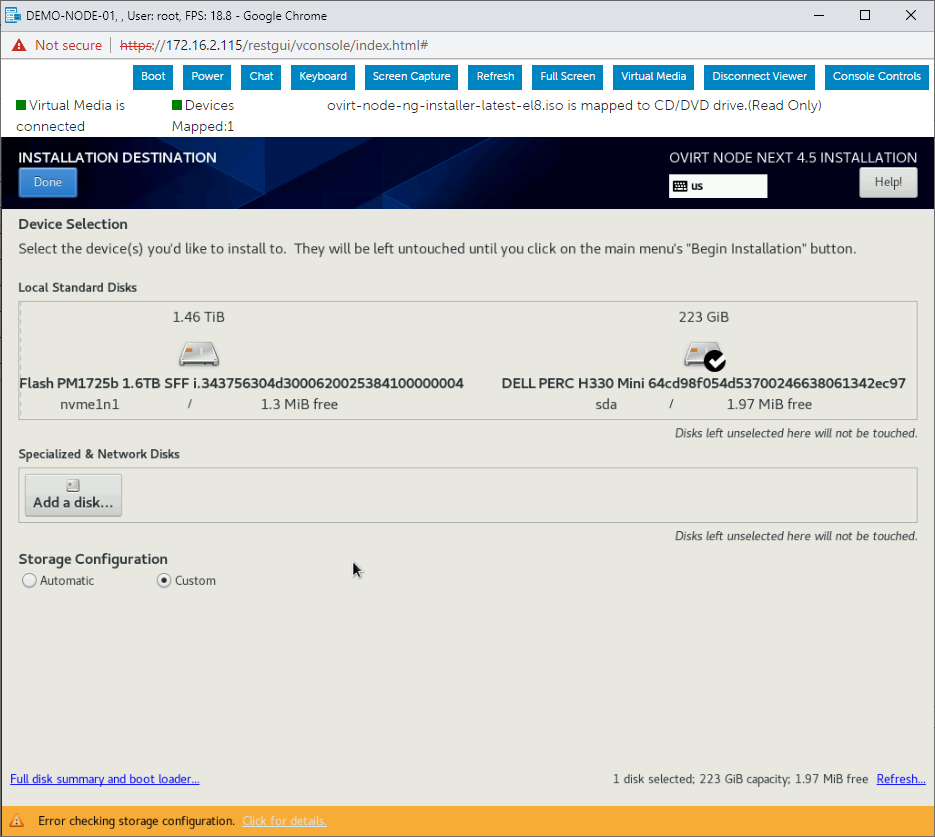
4. Click “Done” and partition your drive. At least 70 GiB should be left assigned for the “/” partition. It will be used for StarWind VSAN Controller VM deployment.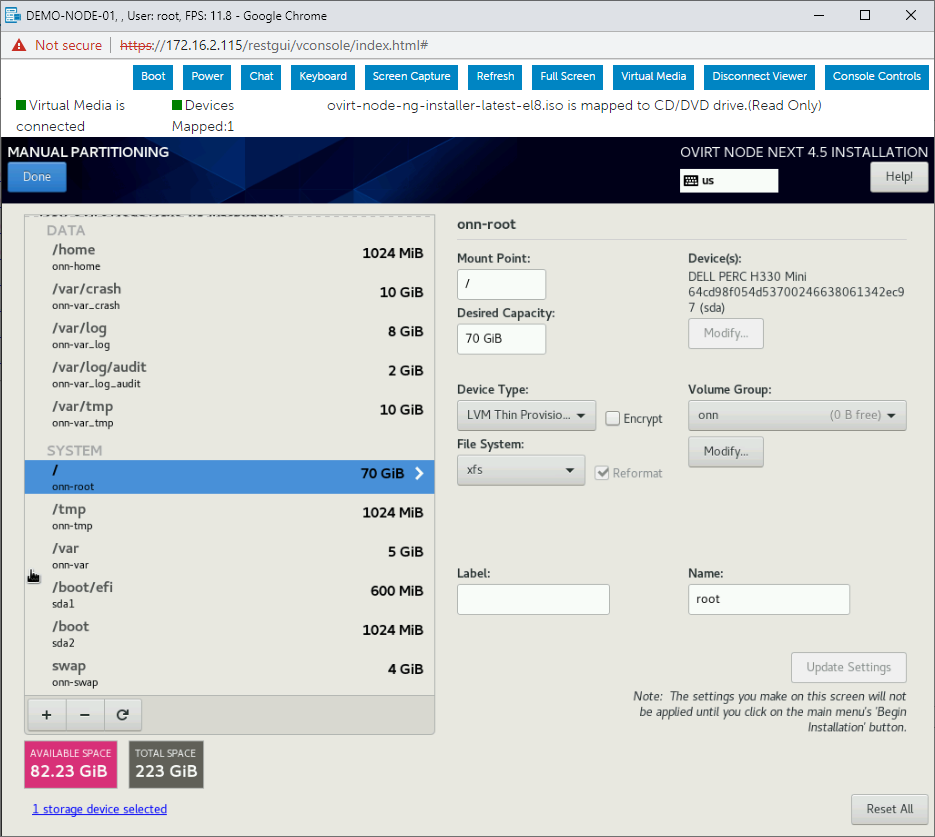
5. Install Oracle Linux on your host.
Preparing Environment for StarWind VHCA Free Deployment
Preconfiguring Oracle Linux hosts
1. Connect to the node via SSH or to a local console.
2. Download vHCI archive with StarWind CVM and configuration files to the Oracle Linux node.
curl -k -O https://tmplink.starwind.com/StarWind_vHCI_KVM_scripts.zip
3. Unzip the archive.
mkdir StarWind_vHCI_KVM_scripts
unzip StarWind_vHCI_KVM_scripts.zip -d StarWind_vHCI_KVM_scripts
3. Run node_predeploy.sh script.
cd ./StarWind_vHCI_KVM_scripts/
chmod +x node_predeploy.sh
./node_predeploy.sh
4. Type node number (01 or 02). Press Enter.

5. Type the name of the Management interface. Press Enter.
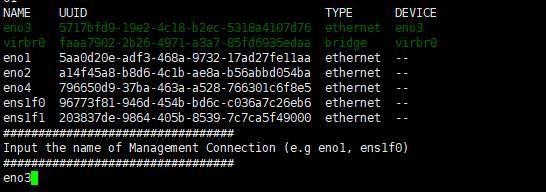 6. Type the name of the Data interface. Press Enter.
 7. Type the name of the Replication interface. Press Enter.
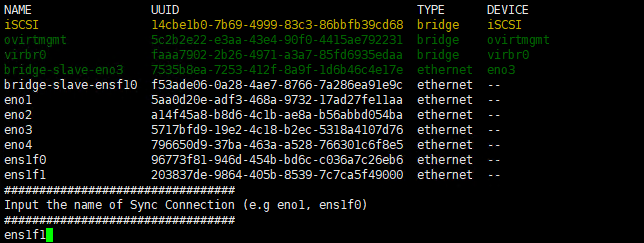 8. If DHCP server is available on the network, IP of the StarWind CVM will be displayed in the script out put.
 Note. If DHCP is not available, static IP address should be configured.
9. Repeat steps 1-8 on every node.
Deploying StarWind VSAN Controller VM
1. Login to node via SSH.
2. Check VM display using the following command.
virsh -c qemu:///system?authfile=/etc/ovirt-hosted-engine/virsh_auth.conf domdisplay CVM01

NOTE. Depending on the output you should connect to the VM display via Spice or VNC console.
3. Create tunnel to the host using the following command using SSH client.
ssh -L 5906:127.0.0.1:5906 root@%hostipaddress%
4. Connect to VM using Virt-Viewer and login using the following credentials.
• Username: user
• Password: rds123RDS
Note. Virt-Manager can be downloaded here:
https://virt-manager.org/download.html
Initial Configuration Wizard
1. Start the StarWind Virtual SAN Controller Virtual Machine.
2. Launch the VM console to view the VM boot process and obtain the IPv4 address of the Management network interface.
NOTE: If the VM does not acquire an IPv4 address from a DHCP server, use the Text-based User Interface (TUI) to set up the Management network manually.
Default credentials for TUI: user/rds123RDS
3. Using a web browser, open a new tab and enter the VM’s IPv4 address to access the StarWind VSAN Web Interface. On the Your connection is not private screen, click Advanced and then select Continue to…

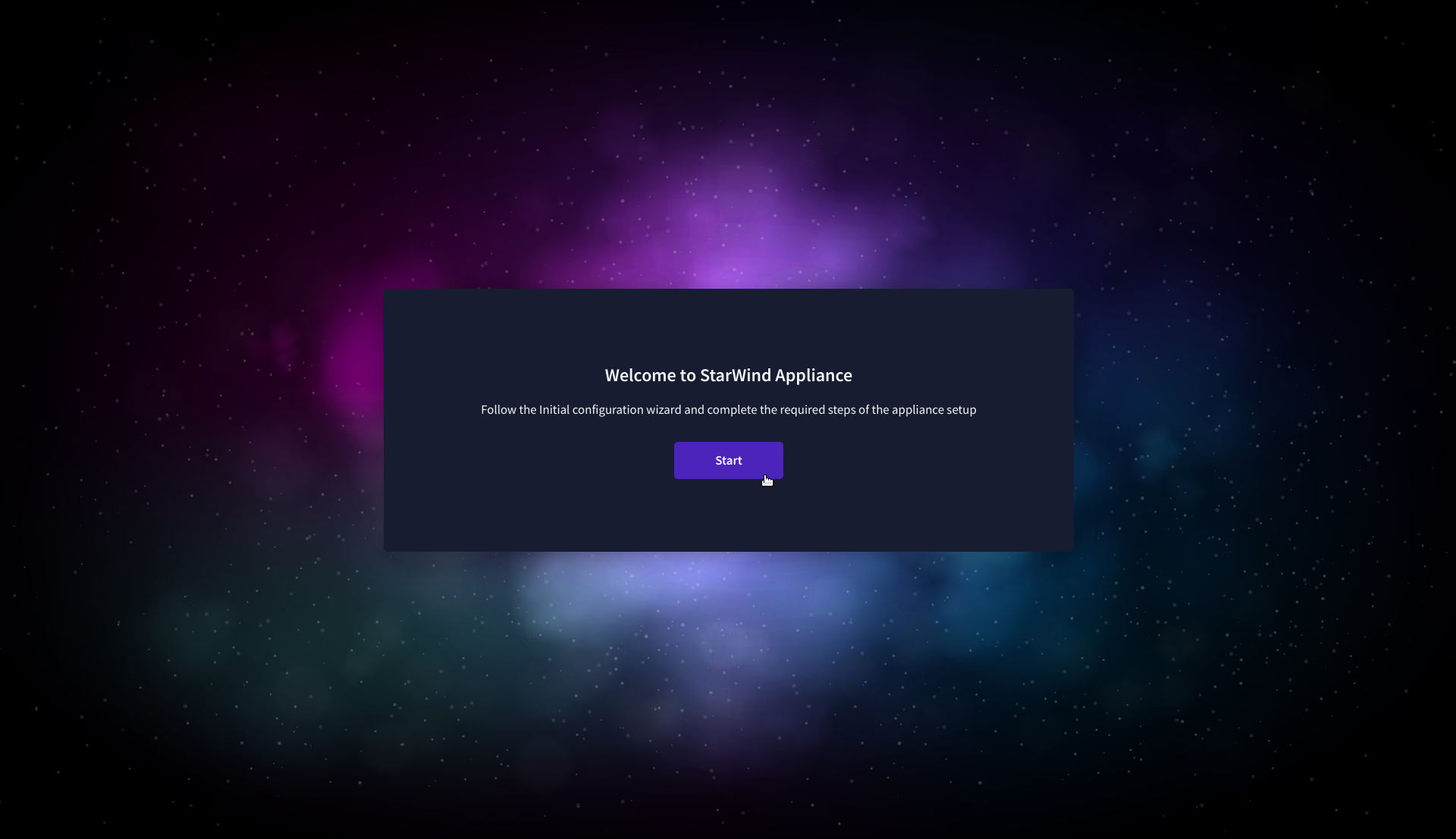
4. On the Welcome to StarWind Appliance screen, click Start to launch the Initial Configuration Wizard.
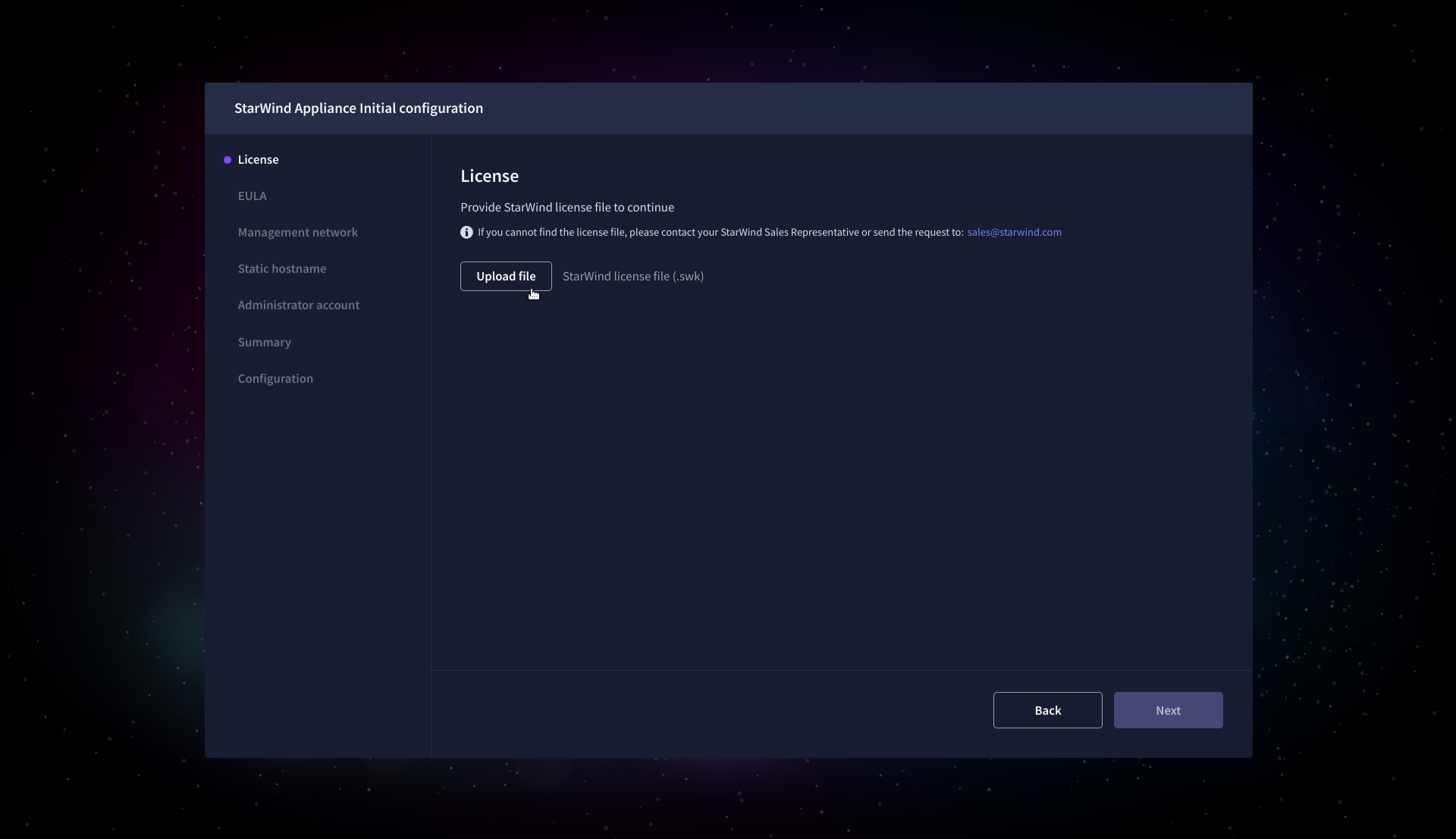
5. On the License step, upload the StarWind Virtual SAN license file.
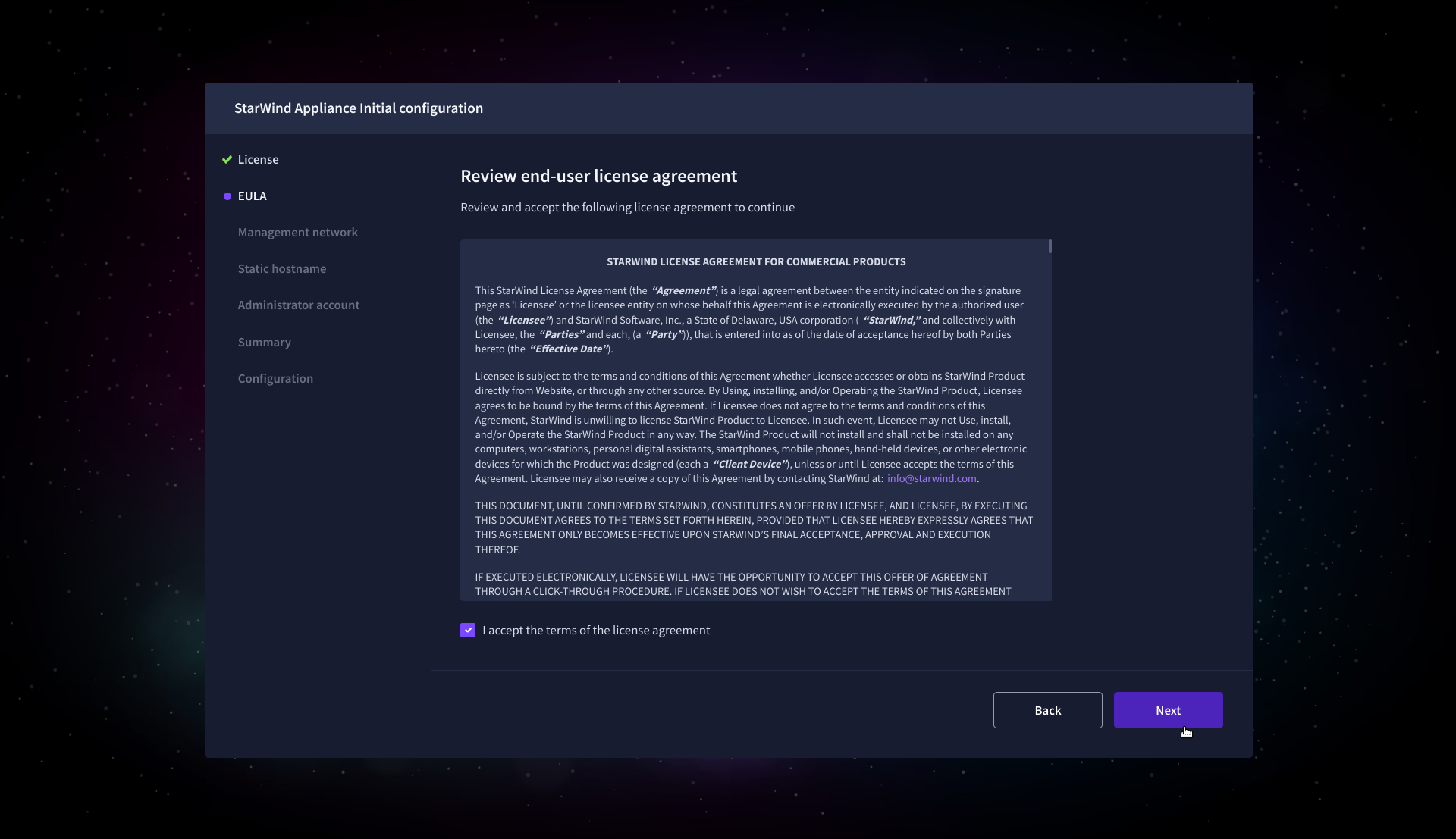
6. On the EULA step, read and accept the End User License Agreement to continue.
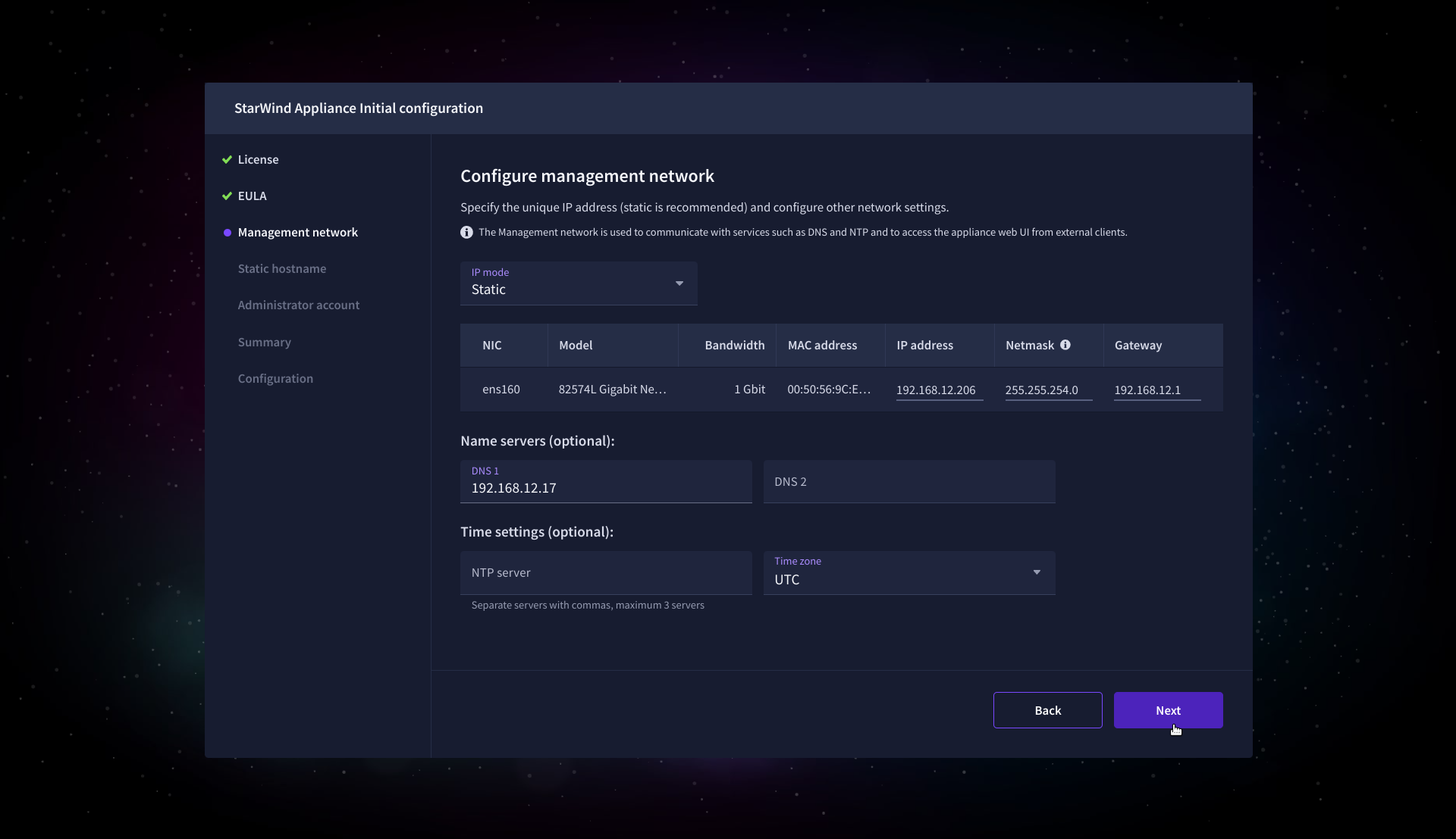
7. On the Management network step, review or edit the network settings and click Next.
IMPORTANT: The use of Static IP mode is highly recommended.
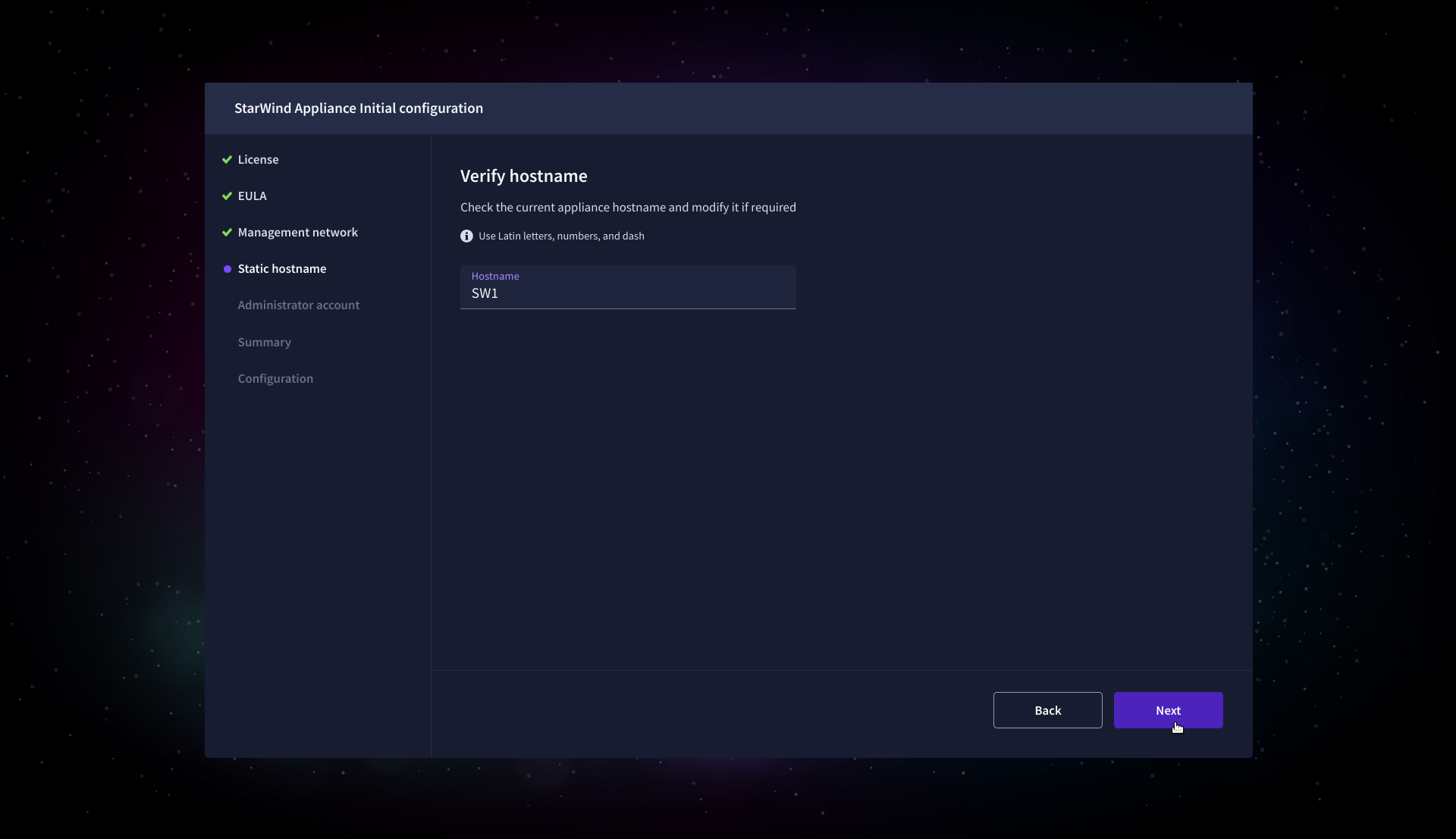
8. On the Static hostname, specify the hostname for the virtual machine and click Next.
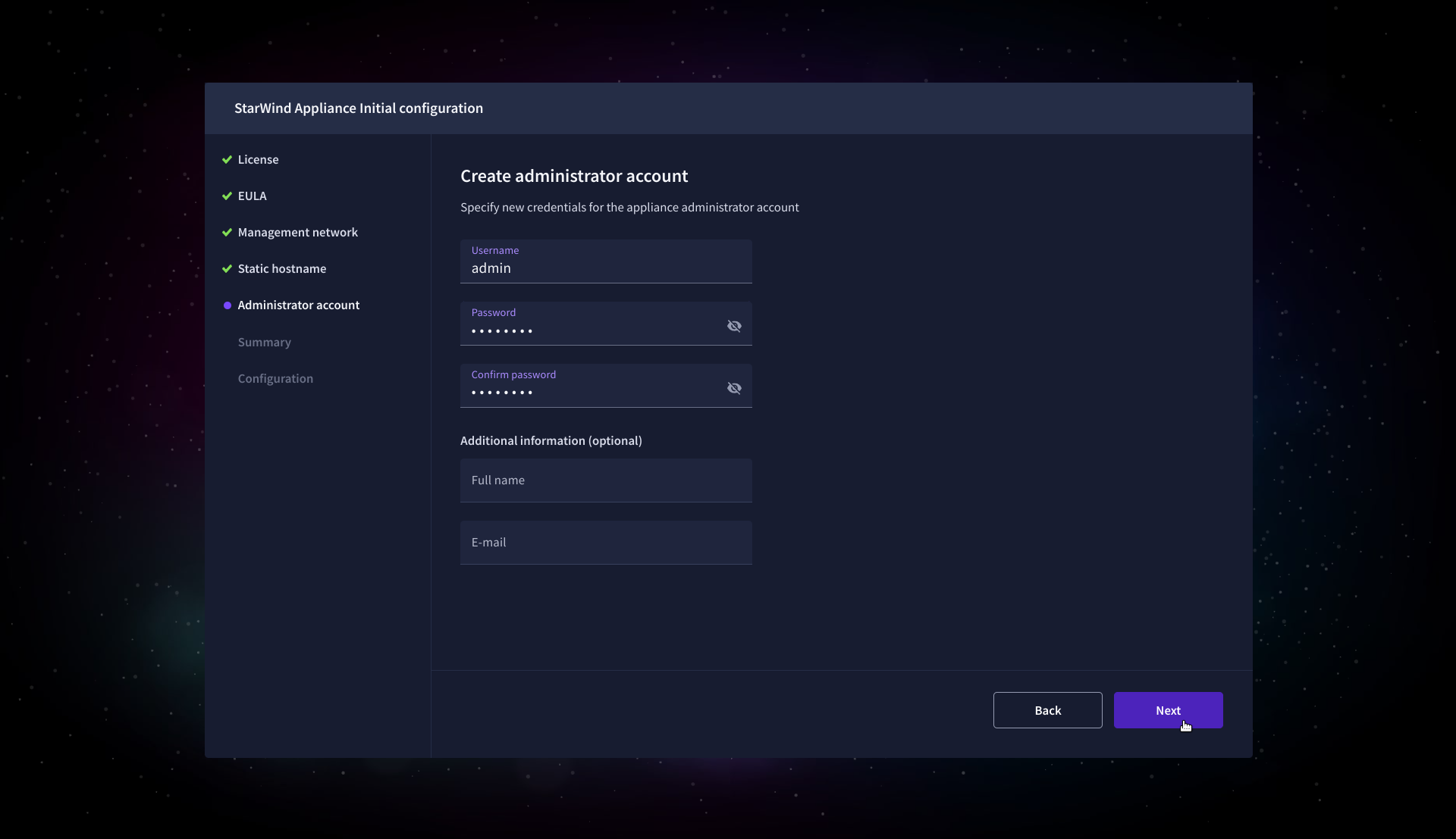
9. On the Administrator account step, specify the credentials for the new StarWind Virtual SAN administrator account and click Next.
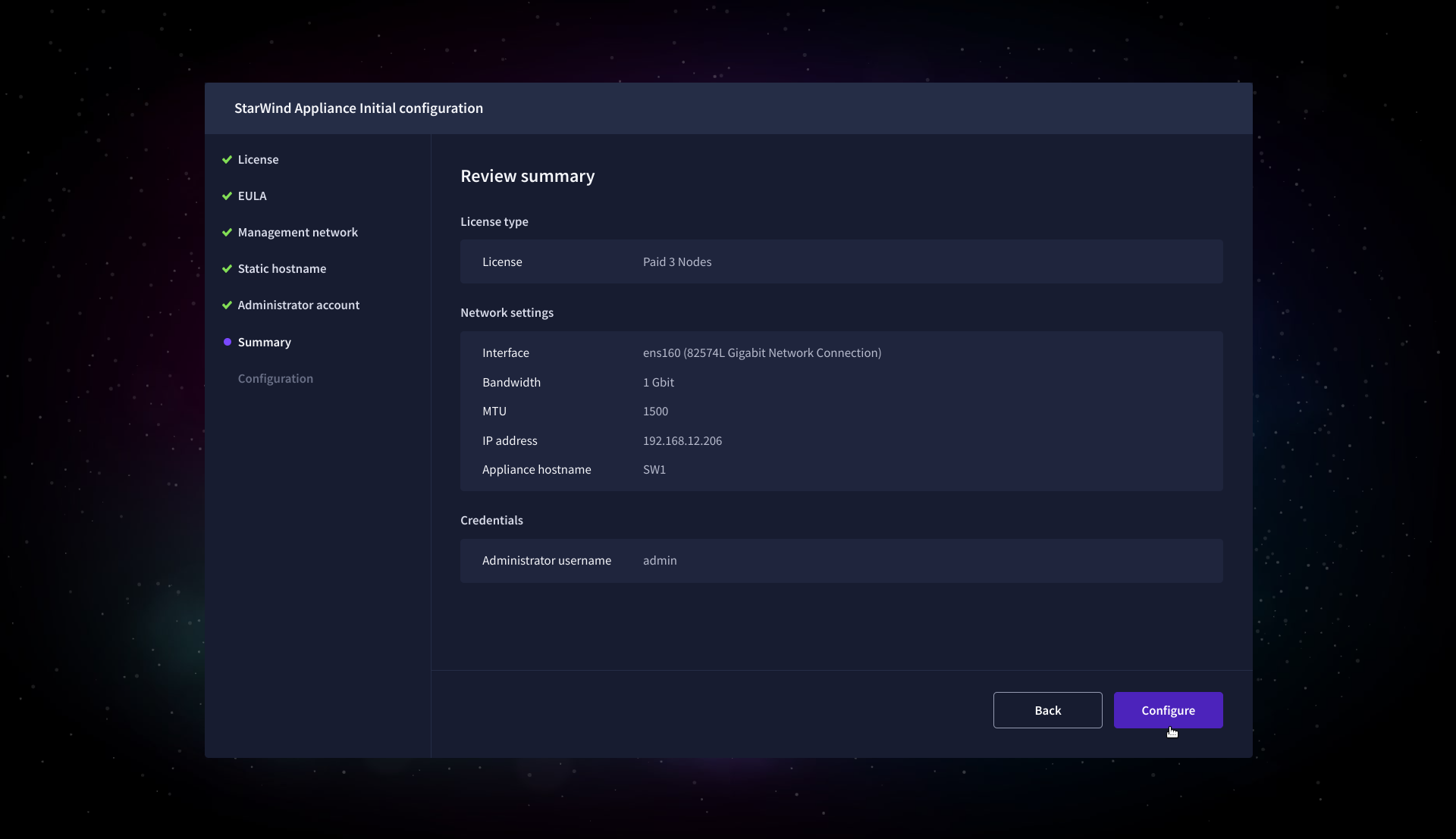
10. Wait until the Initial Configuration Wizard configures StarWind Virtual SAN for you.
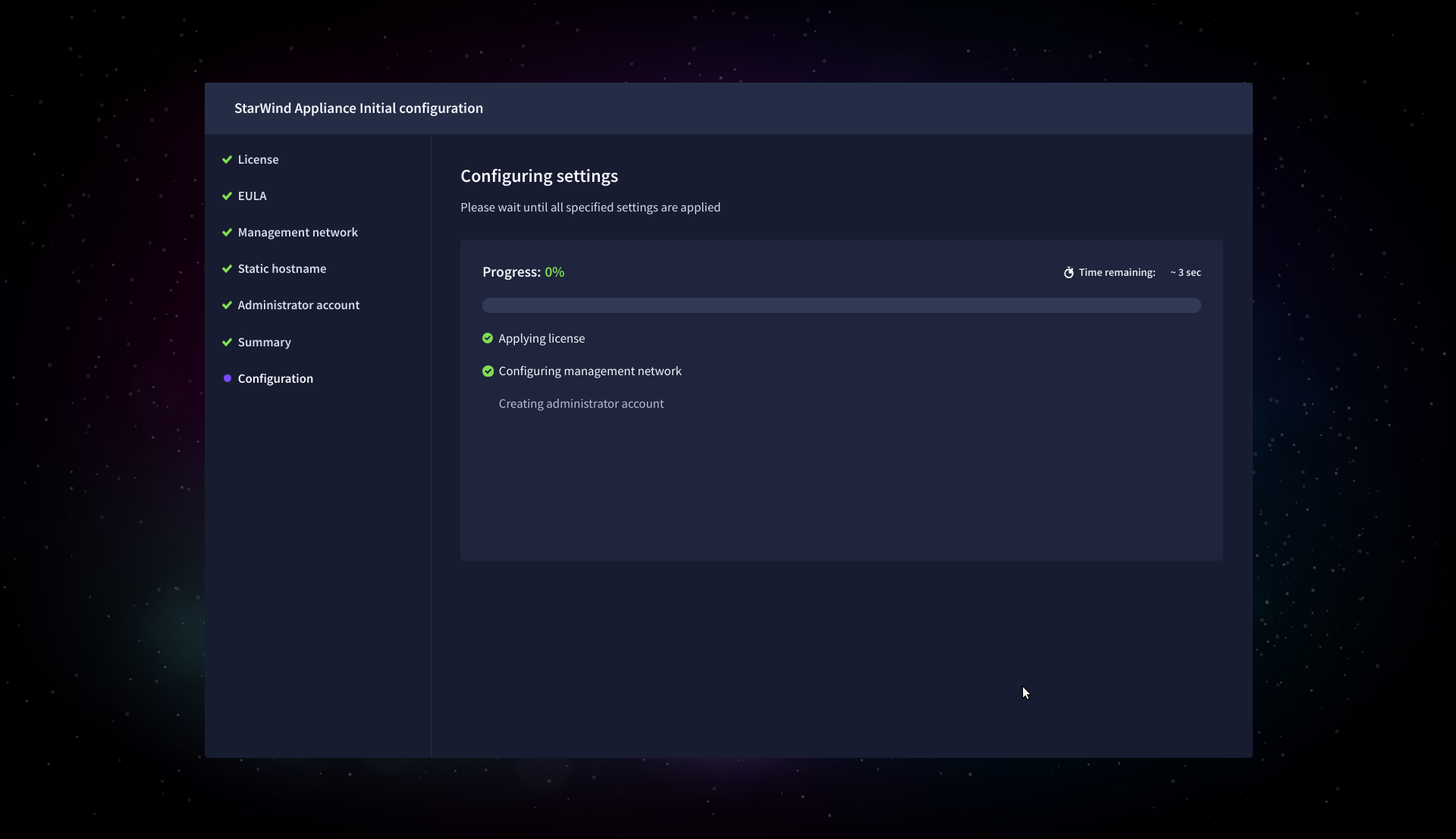
11. Please standby until the Initial Configuration Wizard configures StarWind VSAN for you.
12. After the configuration process is completed, click Finish to install the StarWind vCenter Plugin immediately, or uncheck the checkbox to skip this step and proceed to the Login page.
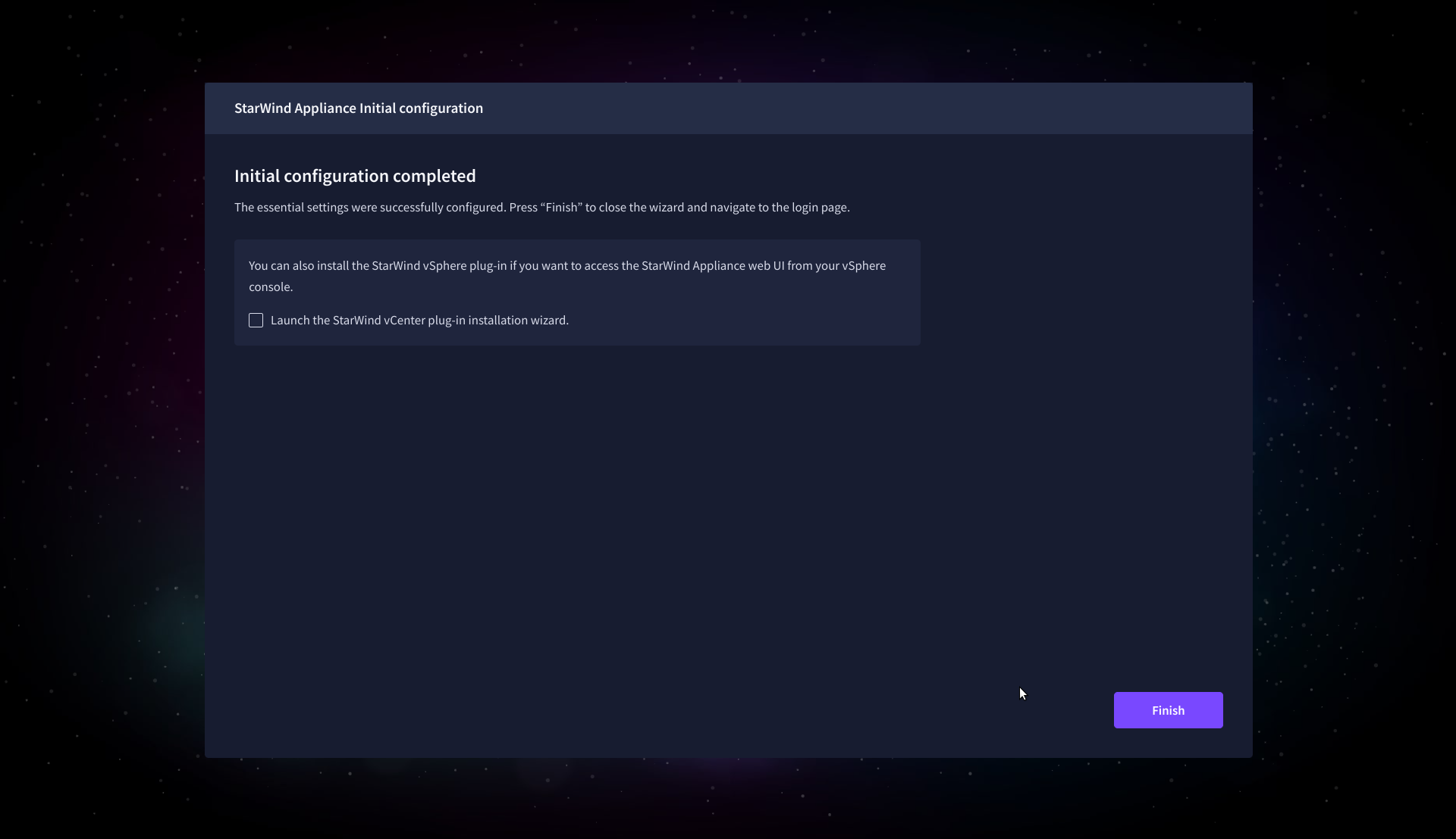
13. Repeat steps 1 through 12 on each Windows Server host.
Add Appliance
To create replicated, highly available storage, add partner appliances that use the same StarWind Virtual SAN license key.
1. Navigate to the Appliances page and click Add to open the Add appliance wizard.
2. On the Credentials step, enter the IP address and credentials for the partner StarWind Virtual SAN appliance, then click Next.
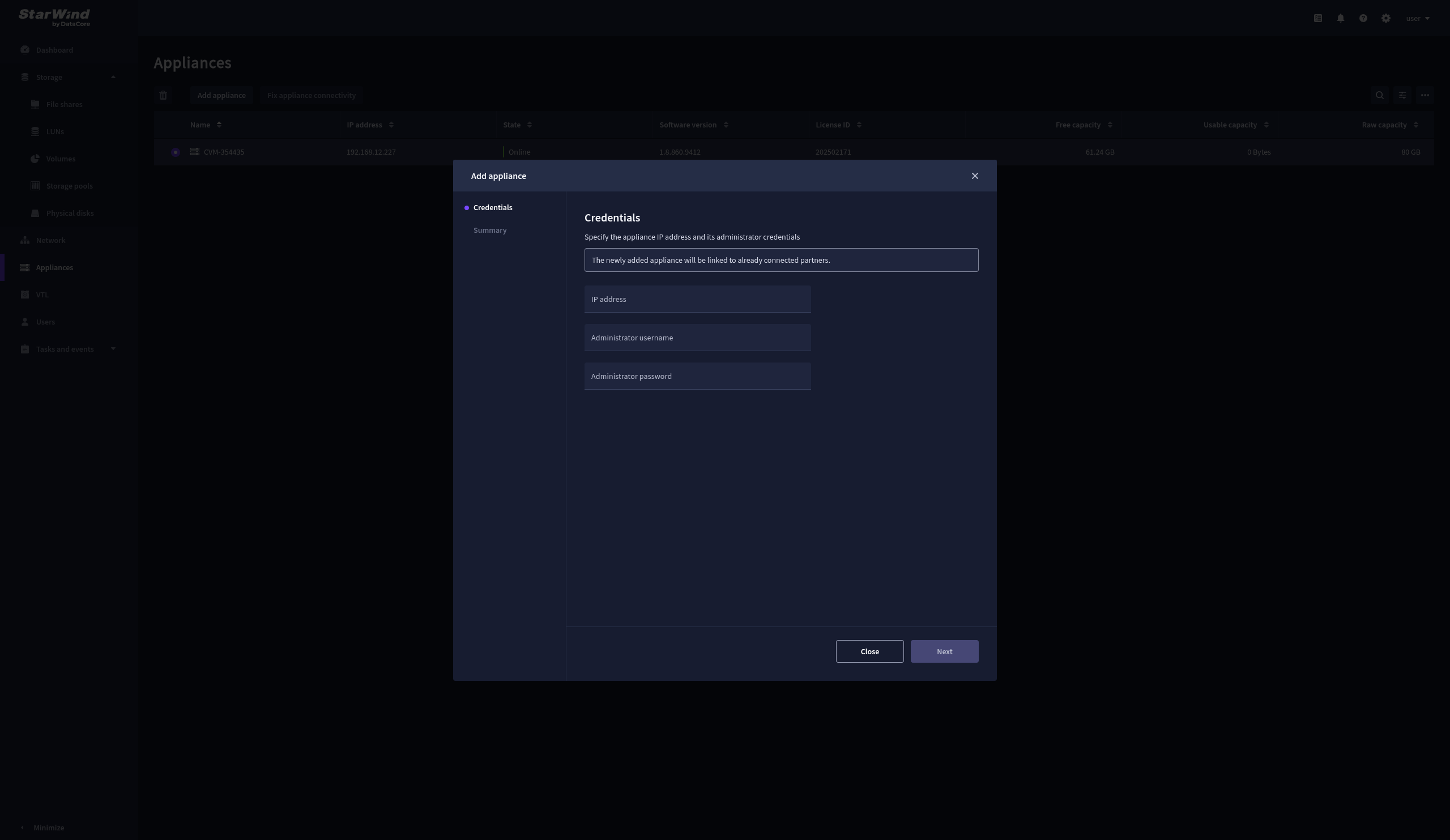
3. Wait for the connection to be established and the settings to be validated
4. On the Summary step, review the properties of the partner appliance, then click Add Appliance.
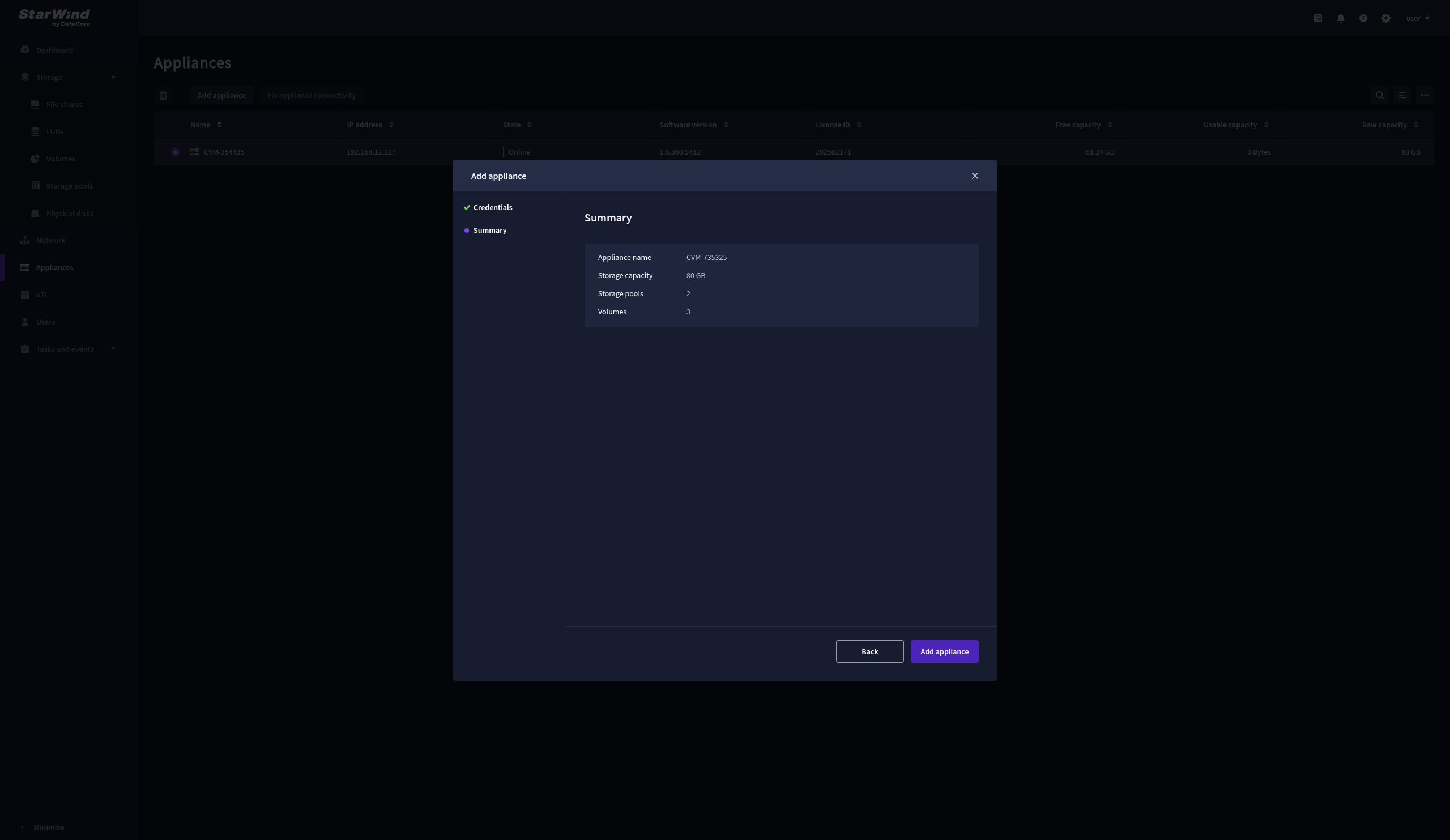
Configure HA networking
1. Navigate to the Network page and open the Configure HA networking wizard.
2. On the Appliances step, select either 2 partner appliances to configure two-way replication or 3 appliances for three-way replication, then click Next.
NOTE: The number of appliances in the cluster is limited by your StarWind Virtual SAN license.
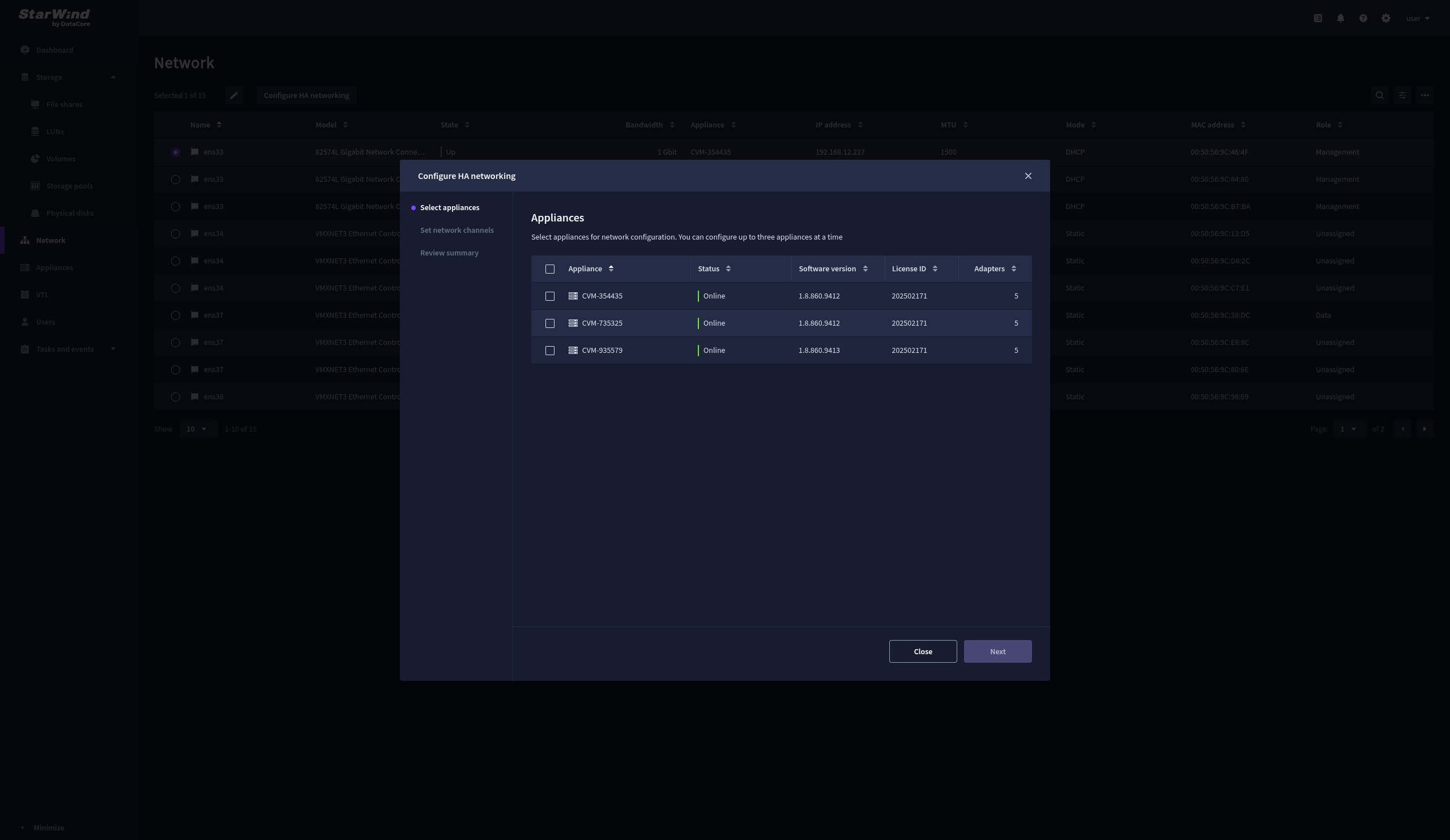
3. Set Network Channels step combines configuration of Data and Replication Networks. Select the network interfaces designated to carry iSCSI or NVMe-oF storage traffic. Assign and configure at least one interface on each appliance with a static IP address in a unique network (subnet), specify the subnet mask and Cluster MTU size.
4. Select the network interfaces designated to carry the traffic for synchronous replication. Assign and configure at least one interface on each appliance with a static IP address in a unique network (subnet), specify the subnet mask and Cluster MTU size.
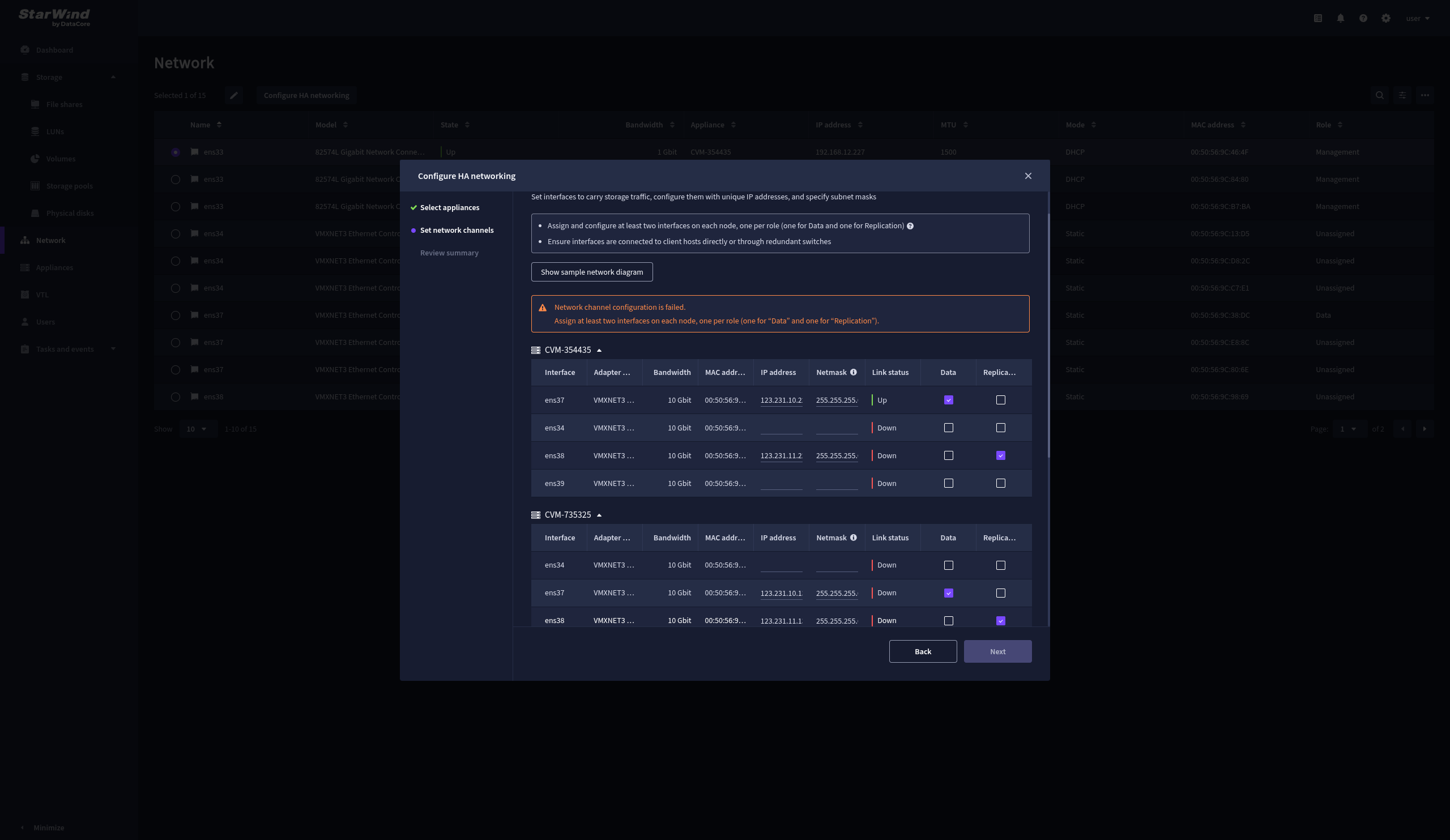
IMPORTANT: For a redundant, high-availability configuration, configure at least 2 network interfaces on each appliance. Ensure that the Data Network interfaces are interconnected between appliances through multiple direct links or via redundant switches.
5. Assign an MTU value on all selected network adapters, e.g., 1500 or 9000 bytes. If you are using network switches with the selected Data Network adapters, ensure that they are configured with the same MTU size value. In case of an MTU settings mismatch, stability and performance issues might occur on the whole setup.
NOTE: Setting MTU to 9000 bytes on some physical adapters (like Intel Ethernet Network Adapter X710, Broadcom network adapters, etc.) might cause stability and performance issues depending on the installed network driver. To avoid them, use 1500 bytes MTU size or install the stable version of the driver.
6. Once configured, click Next to validate network settings.
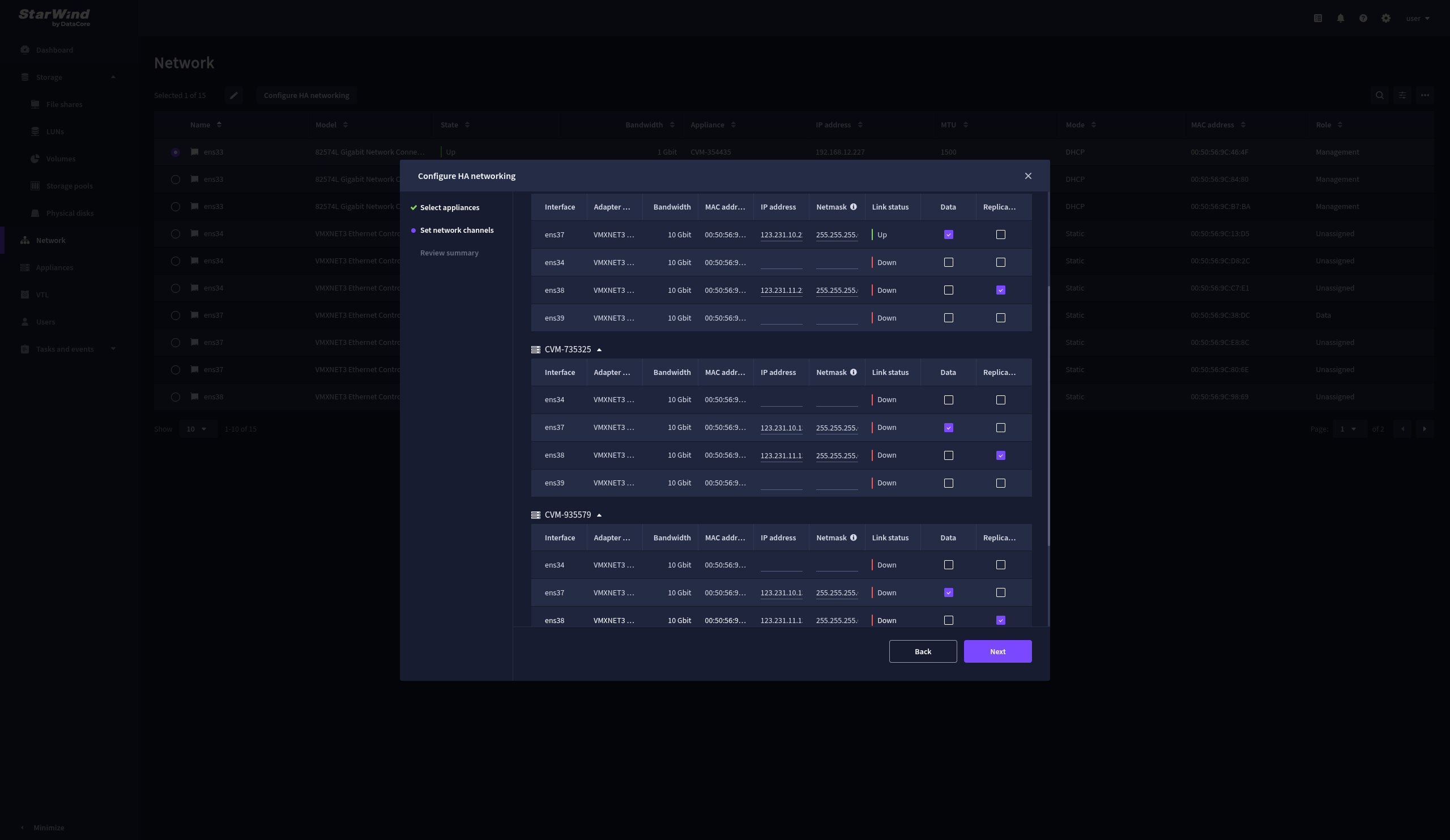
7. The warning might appear if a single data interface is configured. Click Yes, continue to proceed with the configuration.
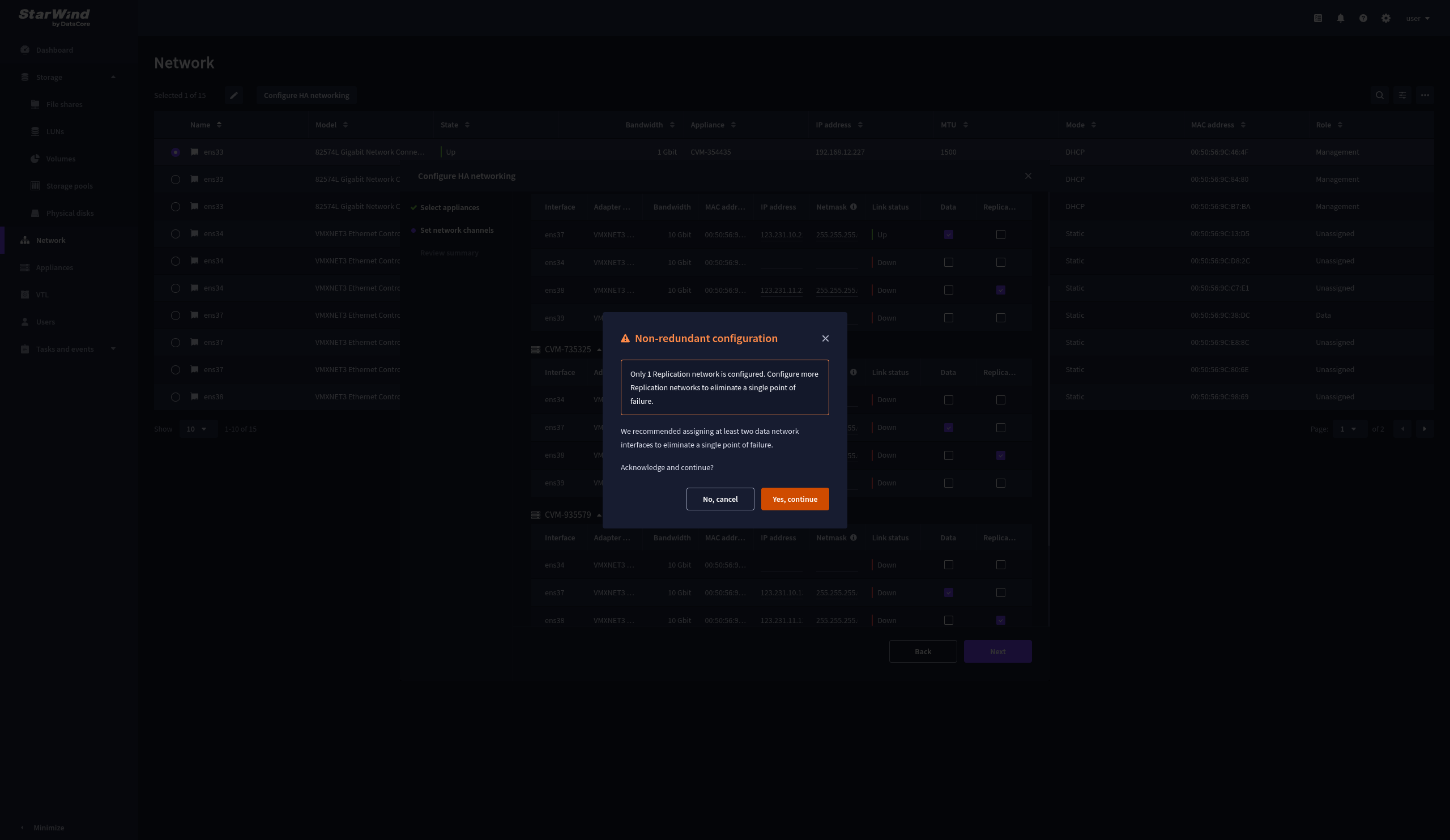
8. Wait for the configuration to complete.
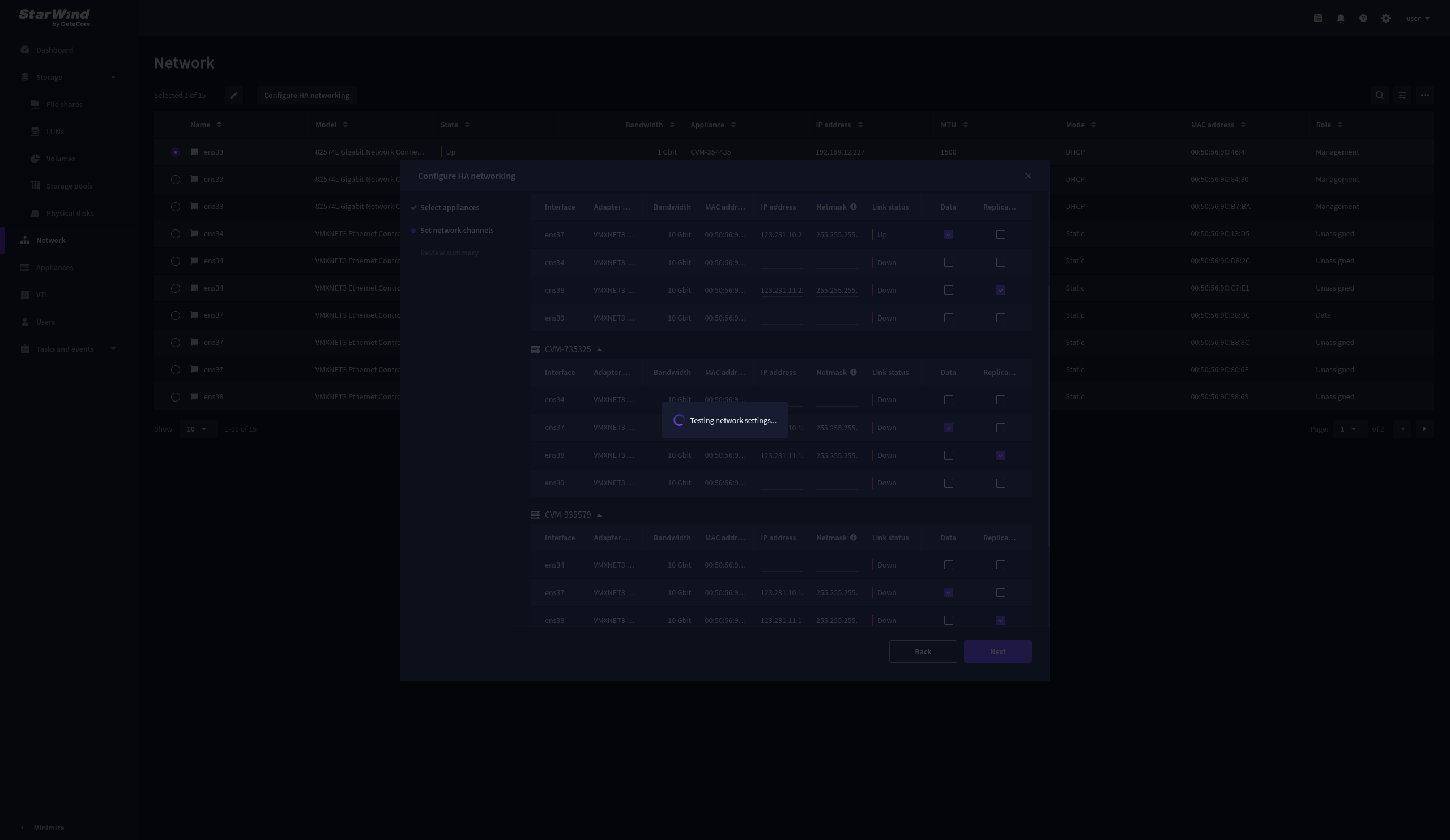
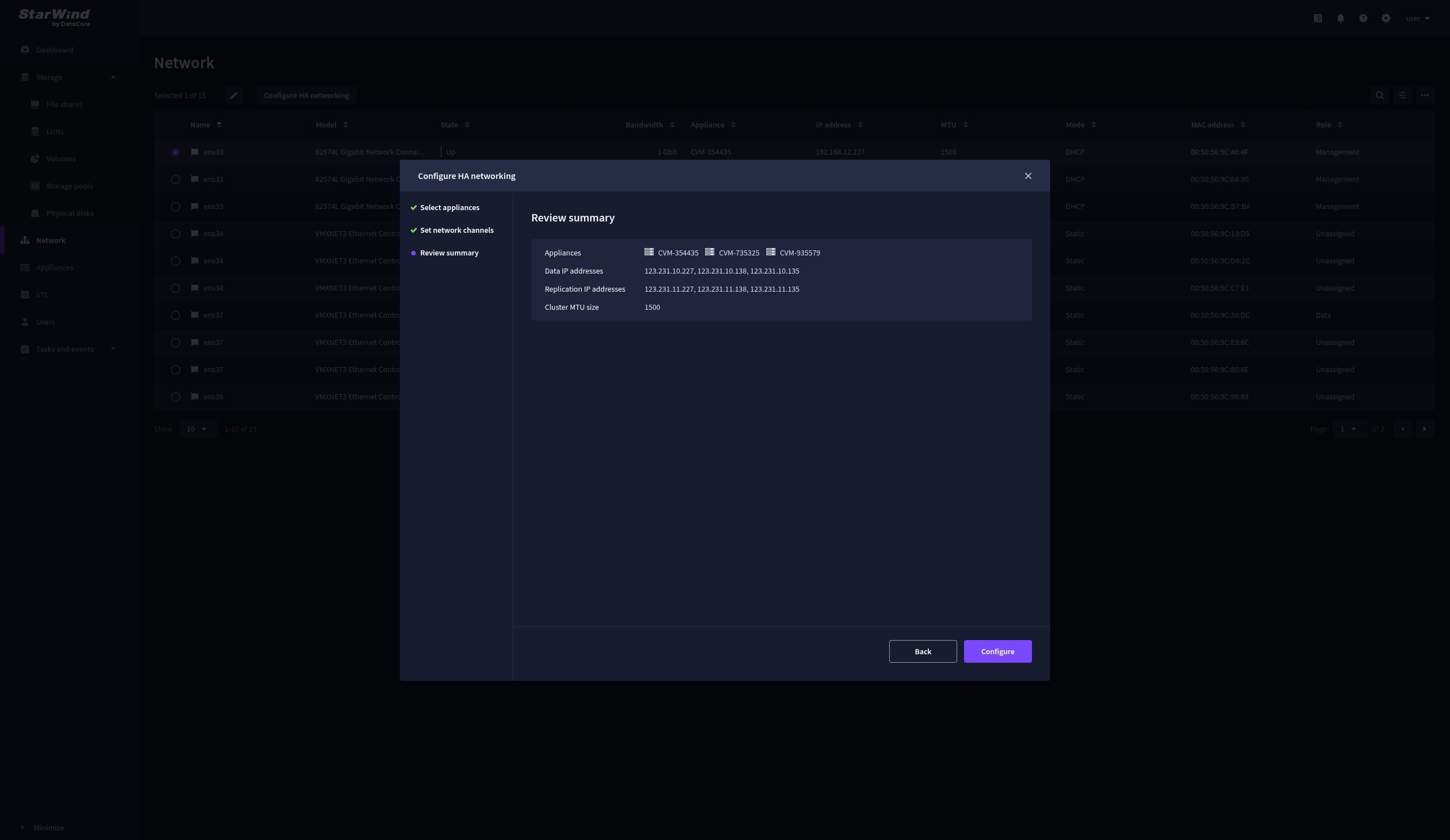
9. On the Summary step, review the specified network settings and click Configure to apply the changes.
Add physical disks
Attach physical storage to StarWind Virtual SAN Controller VM:
- Ensure that all physical drives are connected through an HBA or RAID controller.
- To get optimal storage performance, add HBA, RAID controllers, or NVMe SSD drives to StarWind CVM via a passthrough device.
For detailed instructions, refer to Microsoft’s documentation on DDA. Also, find the storage provisioning guidelines in the KB article.
Create Storage Pool
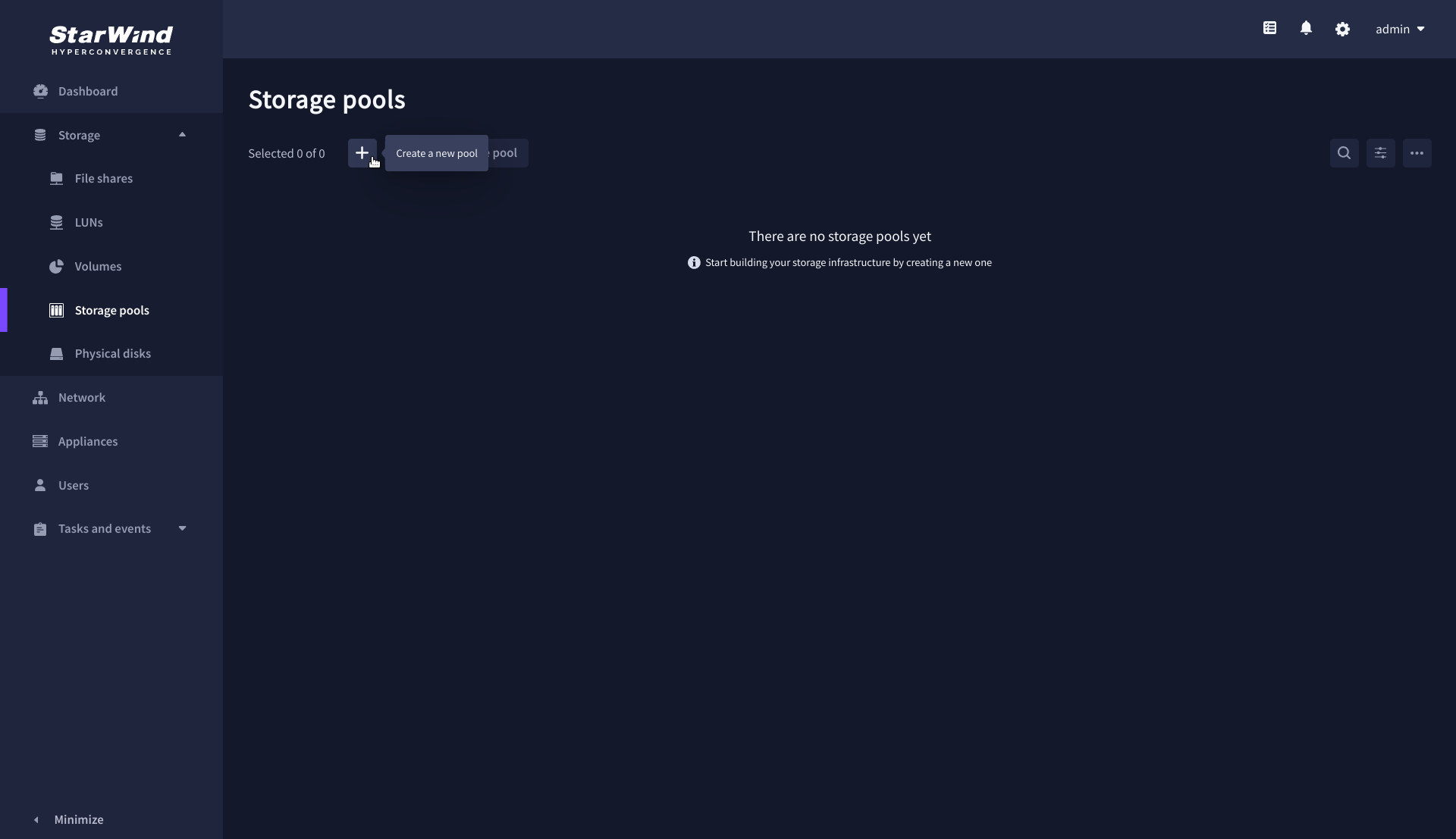
1. Navigate to the Storage pools page and click the + button to open the Create storage pool wizard .
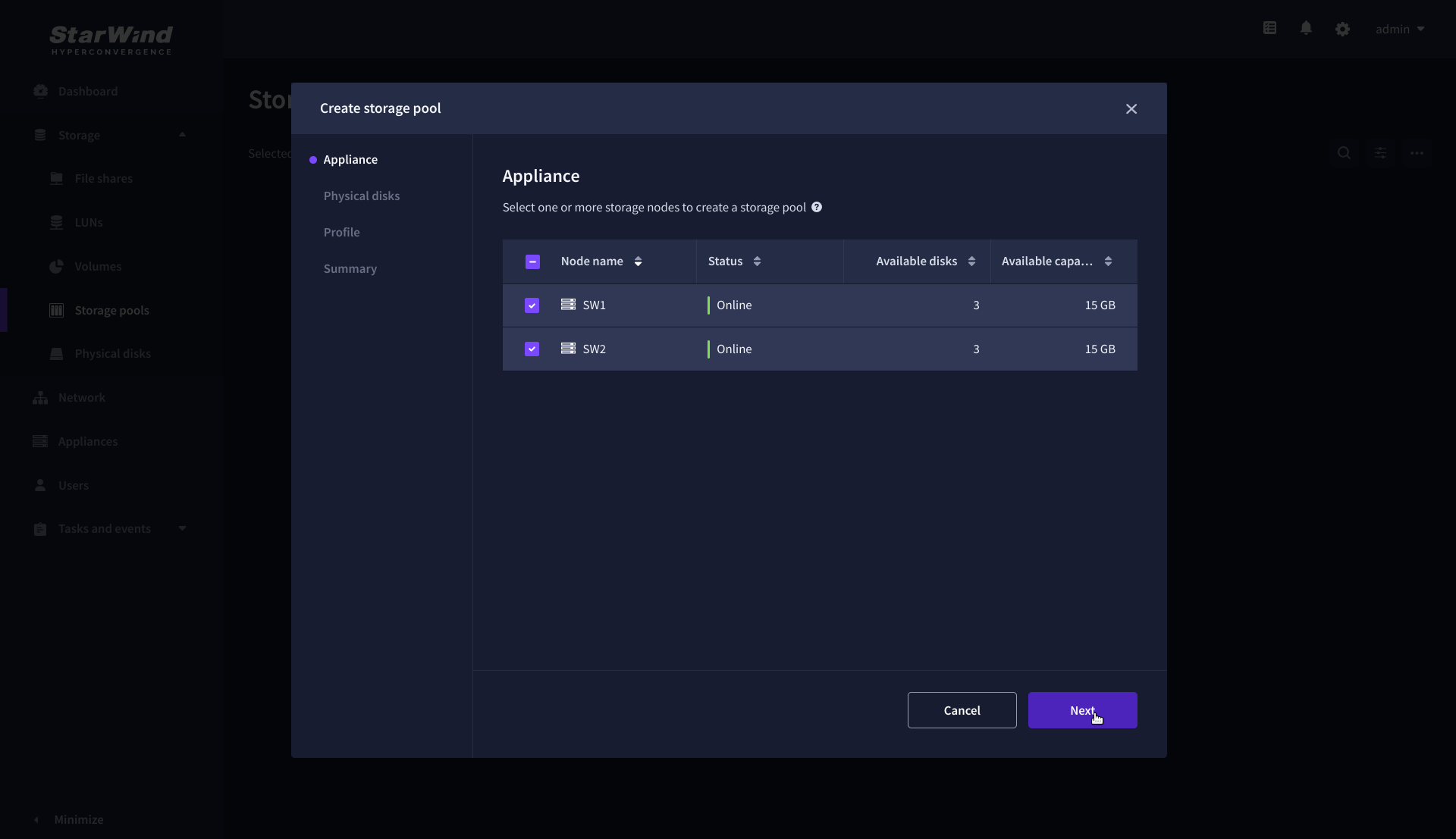
2. On the Appliance step, select partner appliances on which to create new storage pools, then click Next.
NOTE: Select 2 appliances for configuring storage pools if you are deploying a two-node cluster with two-way replication, or select 3 appliances for configuring a three-node cluster with a three-way mirror.
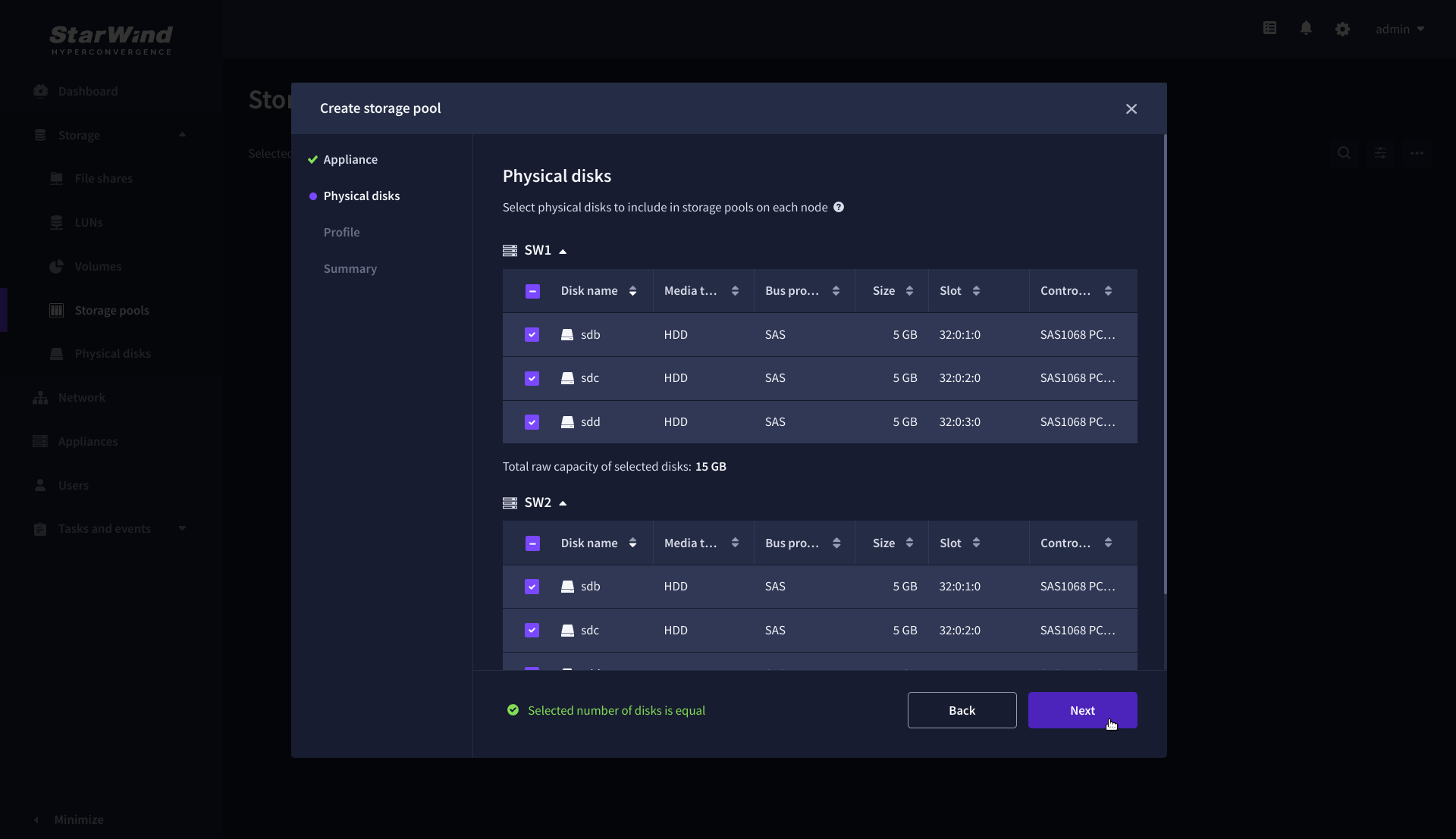
3. On the Physical disks step, select physical disks to be pooled on each node, then click Next.
IMPORTANT: Select an identical type and number of disks on each appliance to create storage pools with a uniform configuration.
4. On the Profile step, select one of the preconfigured storage profiles, or choose Manual to configure the storage pool manually based on your redundancy, capacity, and performance requirements, then click Next.
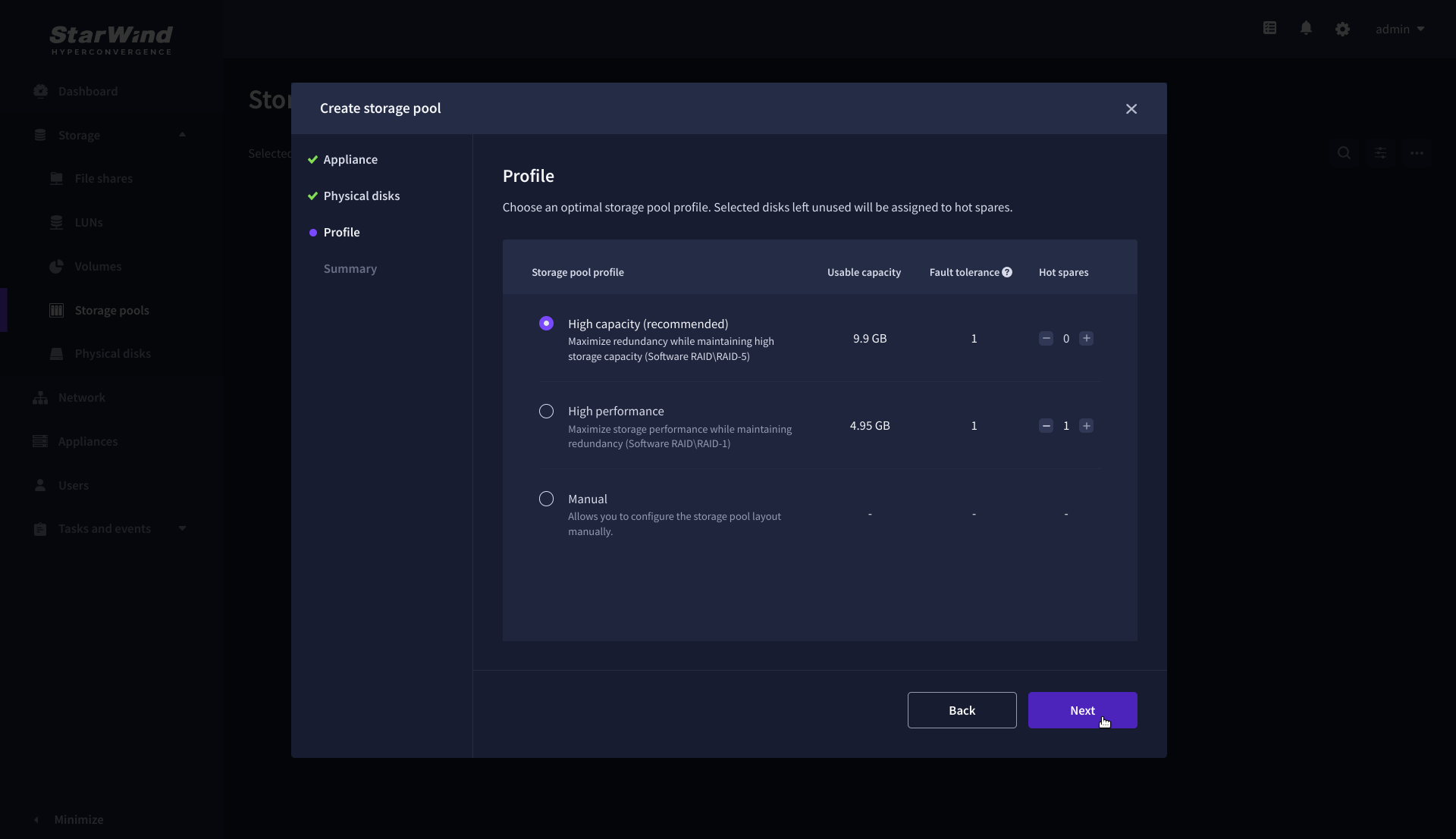
NOTE: Hardware RAID, Linux Software RAID, and ZFS storage pools are supported. To simplify the configuration of storage pools, preconfigured storage profiles are provided. These profiles recommend a pool type and layout based on the attached storage:
- High capacity – creates Linux Software RAID-5 to maximize storage capacity while maintaining redundancy.
- High performance – creates Linux Software RAID-10 to maximize storage performance while maintaining redundancy.
- Hardware RAID – configures a hardware RAID virtual disk as a storage pool. This option is available only if a hardware RAID controller is passed through to the StarWind Virtual SAN.
- Better redundancy – creates ZFS Striped RAID-Z2 (RAID 60) to maximize redundancy while maintaining high storage capacity.
- Manual – allows users to configure any storage pool type and layout with the attached storage.
5. On the Summary step, review the storage pool settings and click Create to configure new storage pools on the selected appliances.
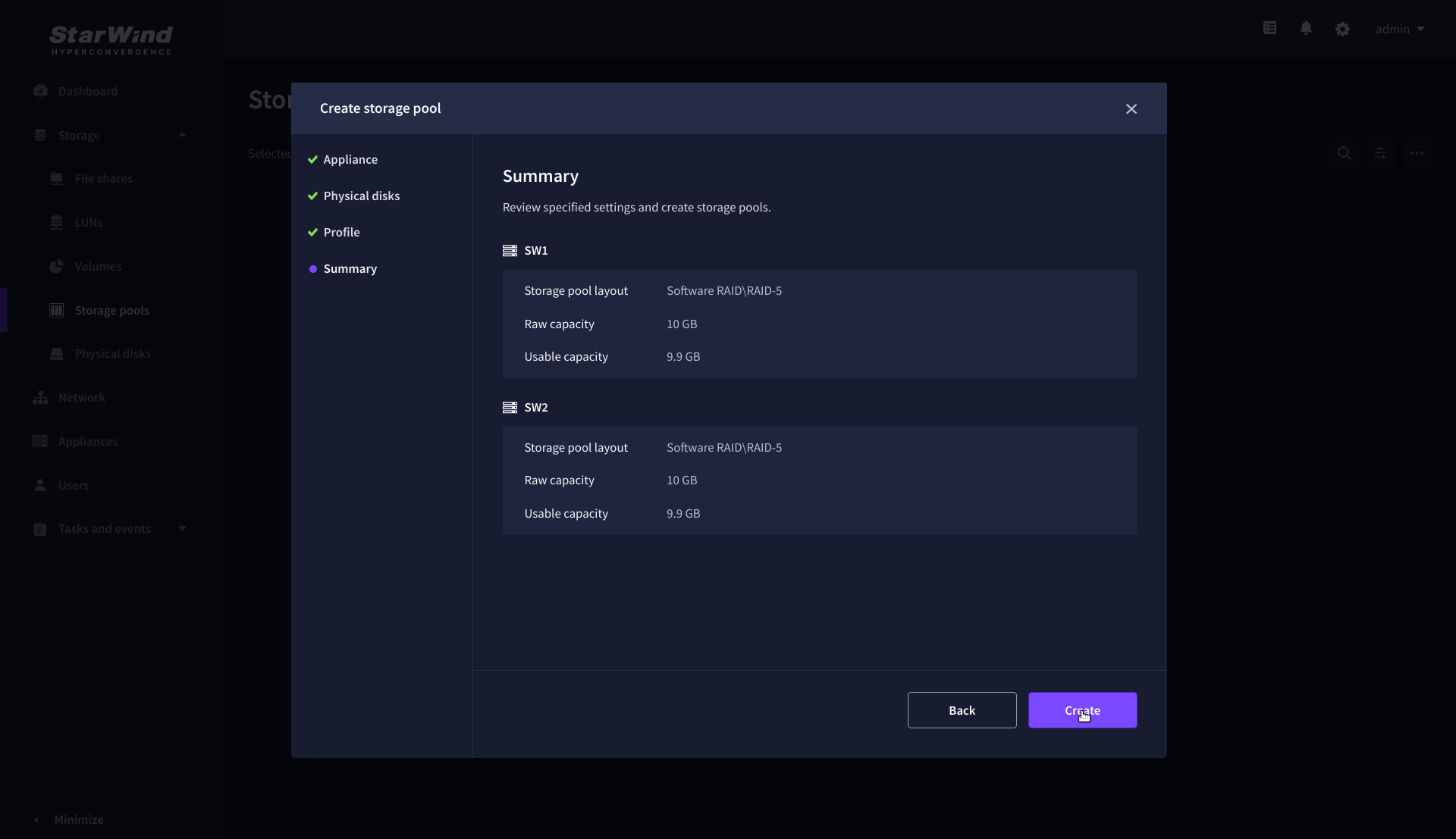
NOTE: The storage pool configuration may take some time, depending on the type of pooled storage and the total storage capacity. Once the pools are created, a notification will appear in the upper right corner of the Web UI.
IMPORTANT for CVM only: In some cases, additional tweaks are required to optimize the storage performance of the disks added to the Controller Virtual Machine. Please follow the steps in this KB to change the scheduler type depending on the disks type: https://knowledgebase.starwindsoftware.com/guidance/starwind-vsan-for-vsphere-changing-linux-i-o-scheduler-to-optimize-storage-performance/
Create Volume
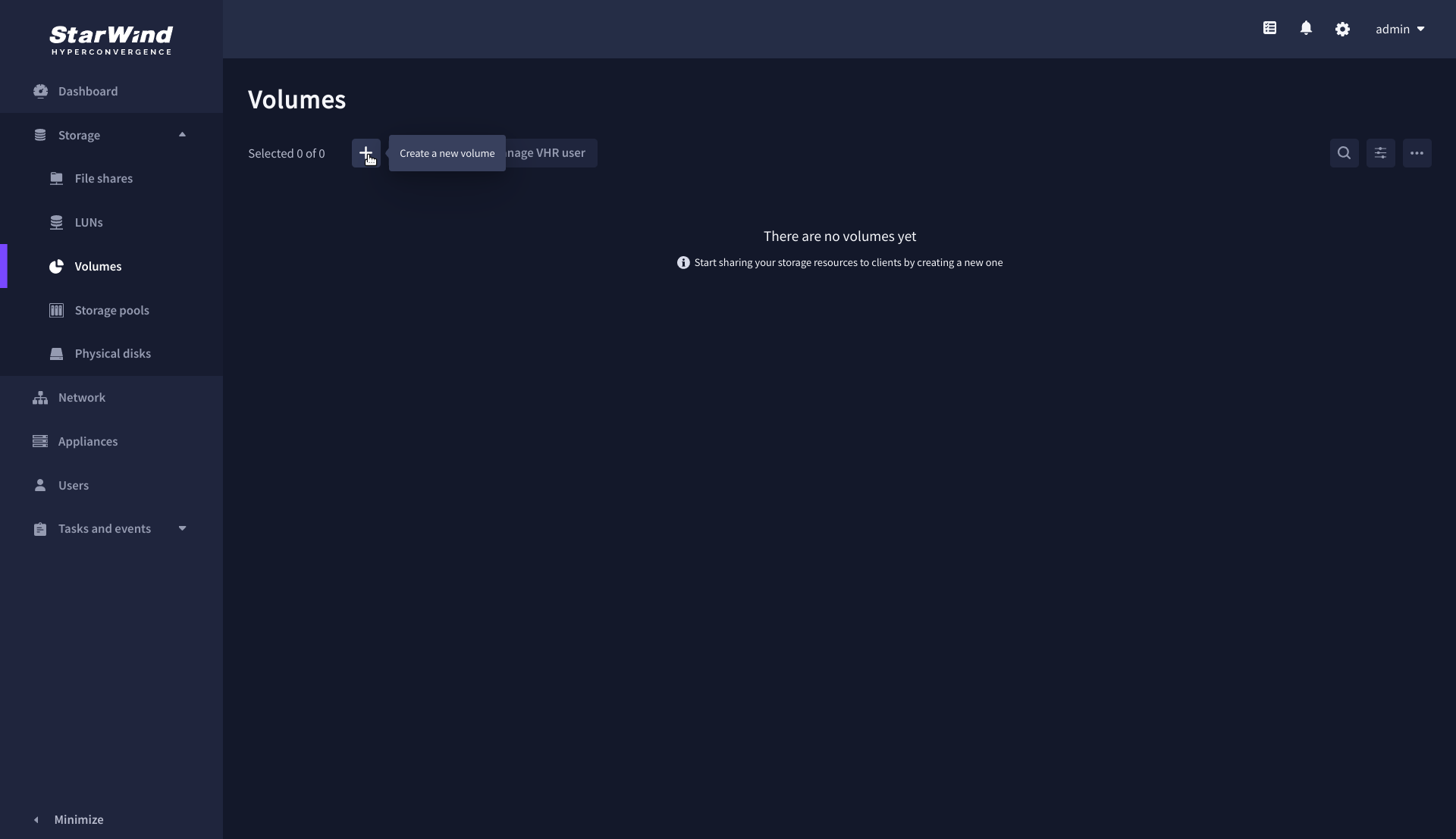
1. Navigate to the Volumes page and click the + button to open the Create volume wizard.
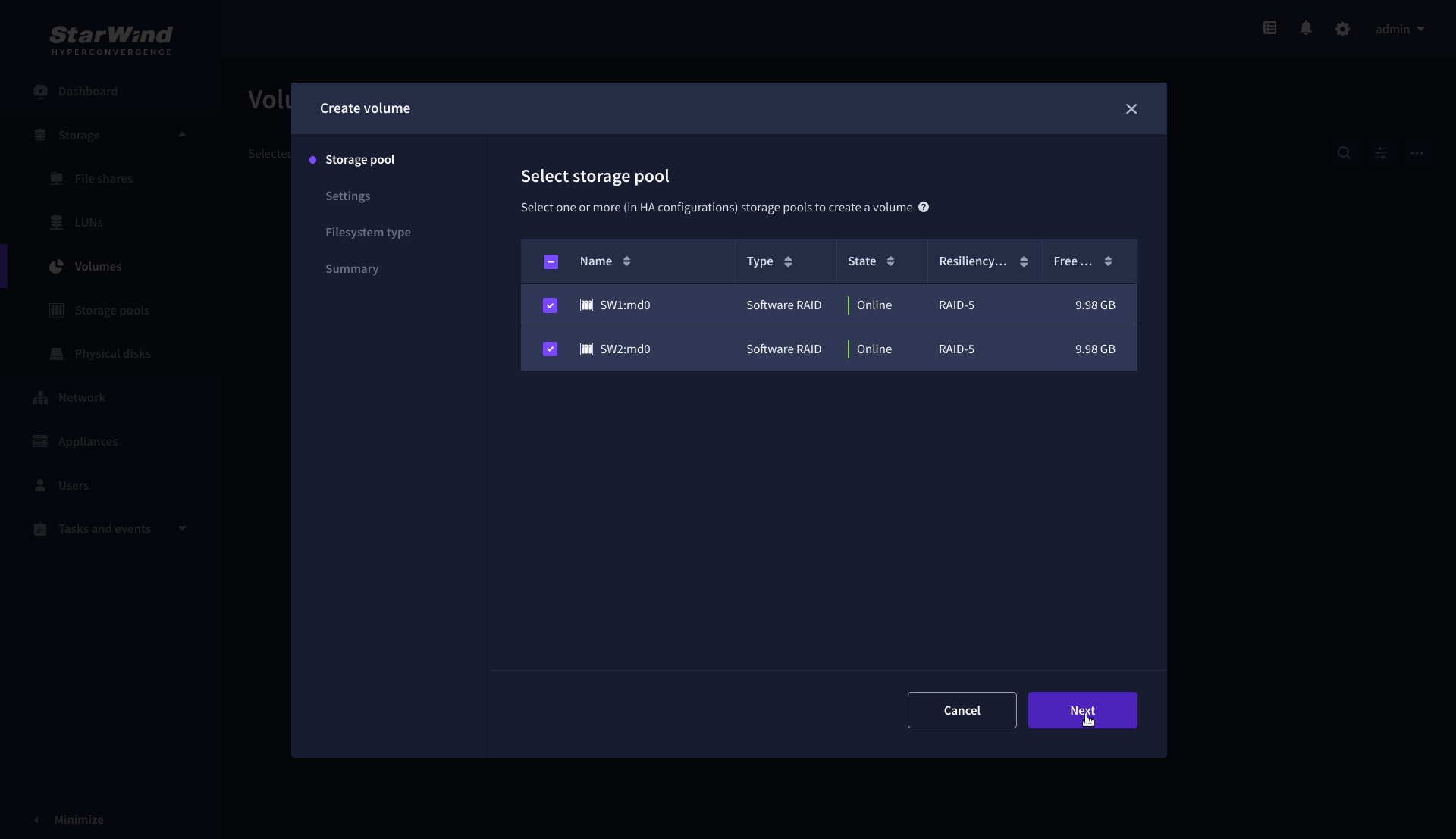
2. On the Storage pool step, select partner appliances on which to create new volumes, then click Next.
NOTE: Select 2 appliances for configuring volumes if you are deploying a two-node cluster with two-way replication, or select 3 appliances for configuring a three-node cluster with a three-way mirror.
3. On the Settings step, specify the volume name and size, then click Next.

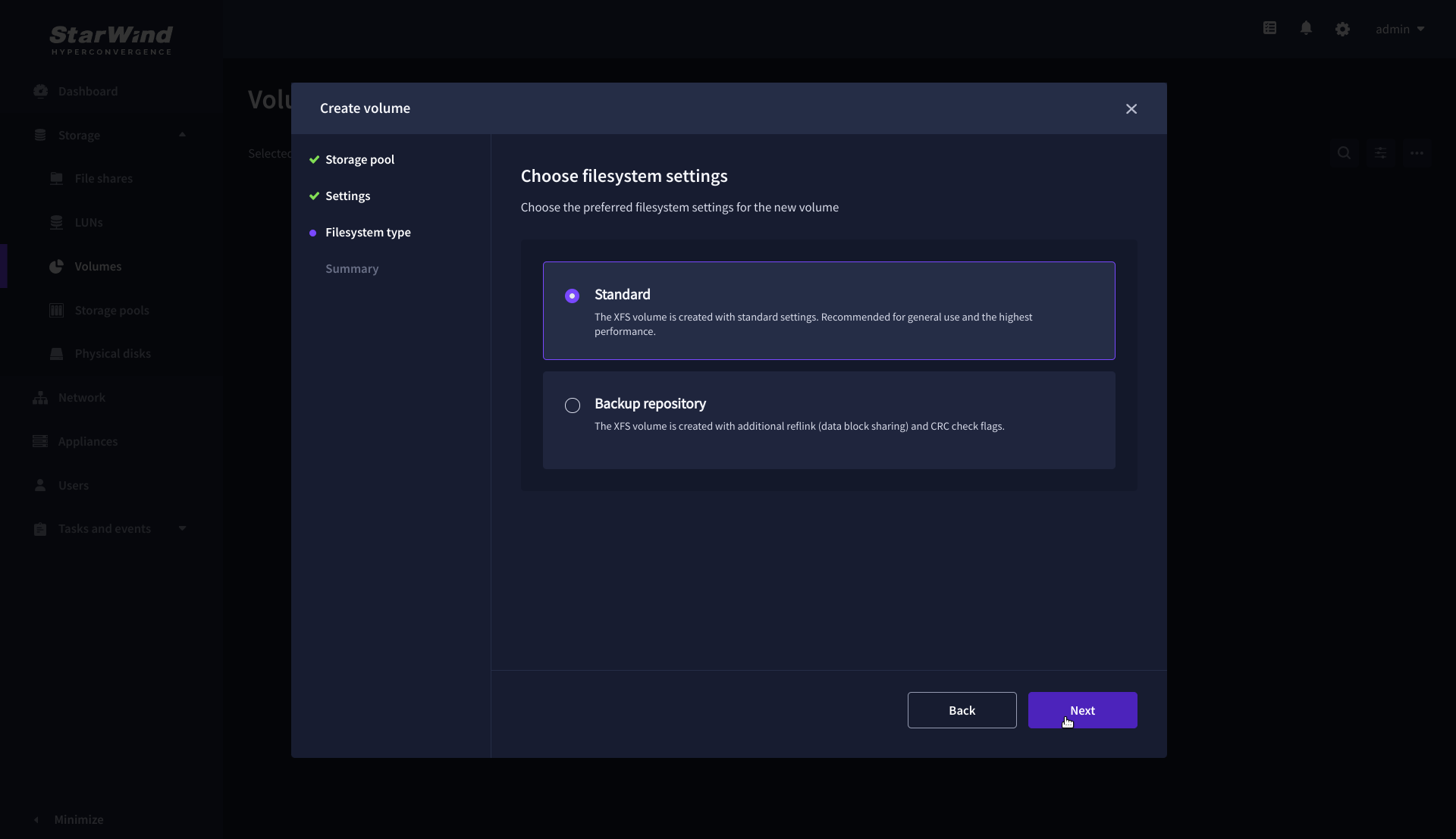
4. On the Filesystem type step, select Standard, then click Next.
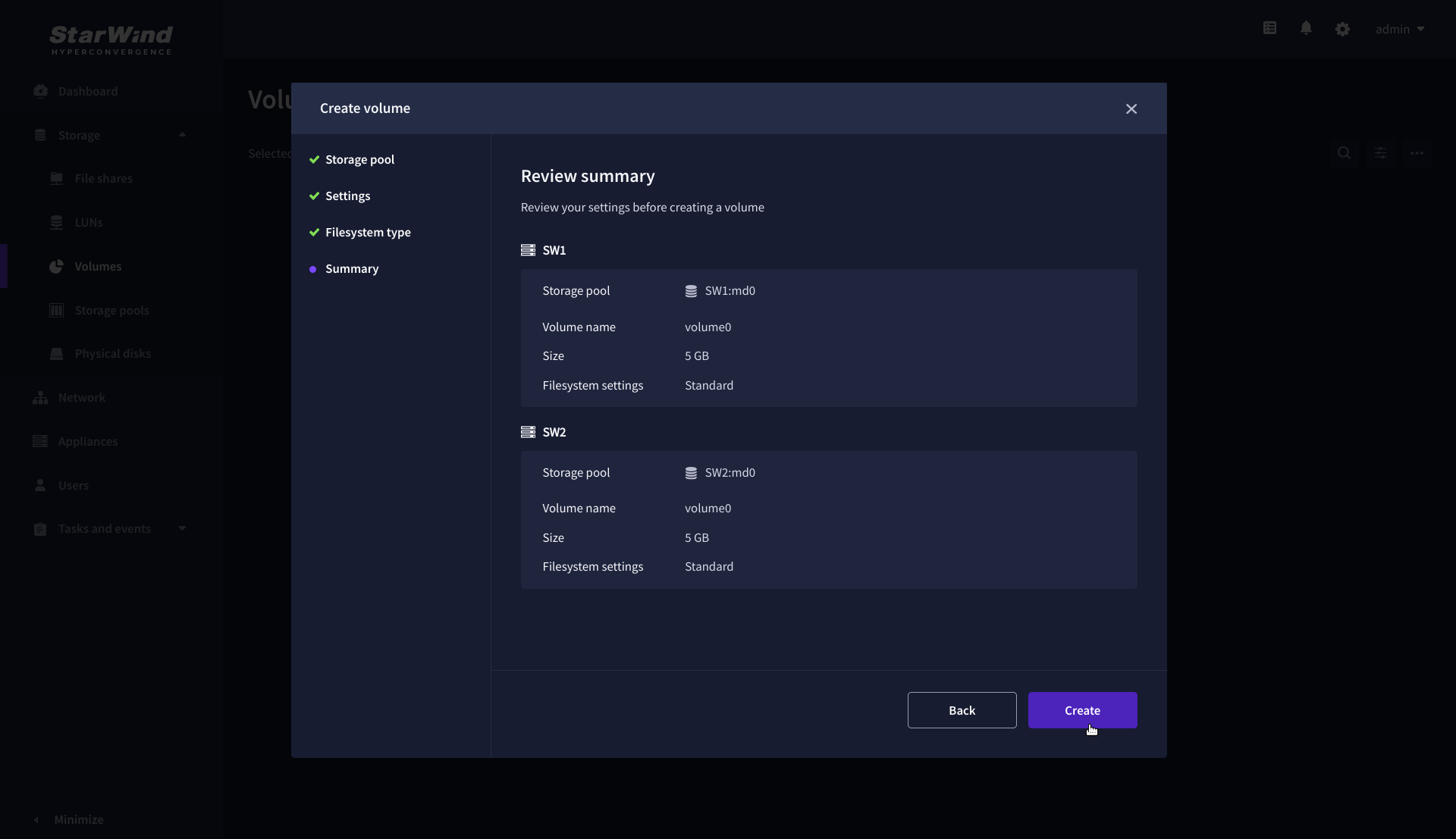
5. Review Summary and click the Create button to create the pool.
Create HA LUN using WebUI
This section describes how to create LUN in Web UI. This option is available for the setups with Commercial, Trial, and NFR licenses applied.
For setups with a Free license applied, the PowerShell script should be used to create the LUN – please follow the steps described in the section: Create StarWind HA LUNs using PowerShell
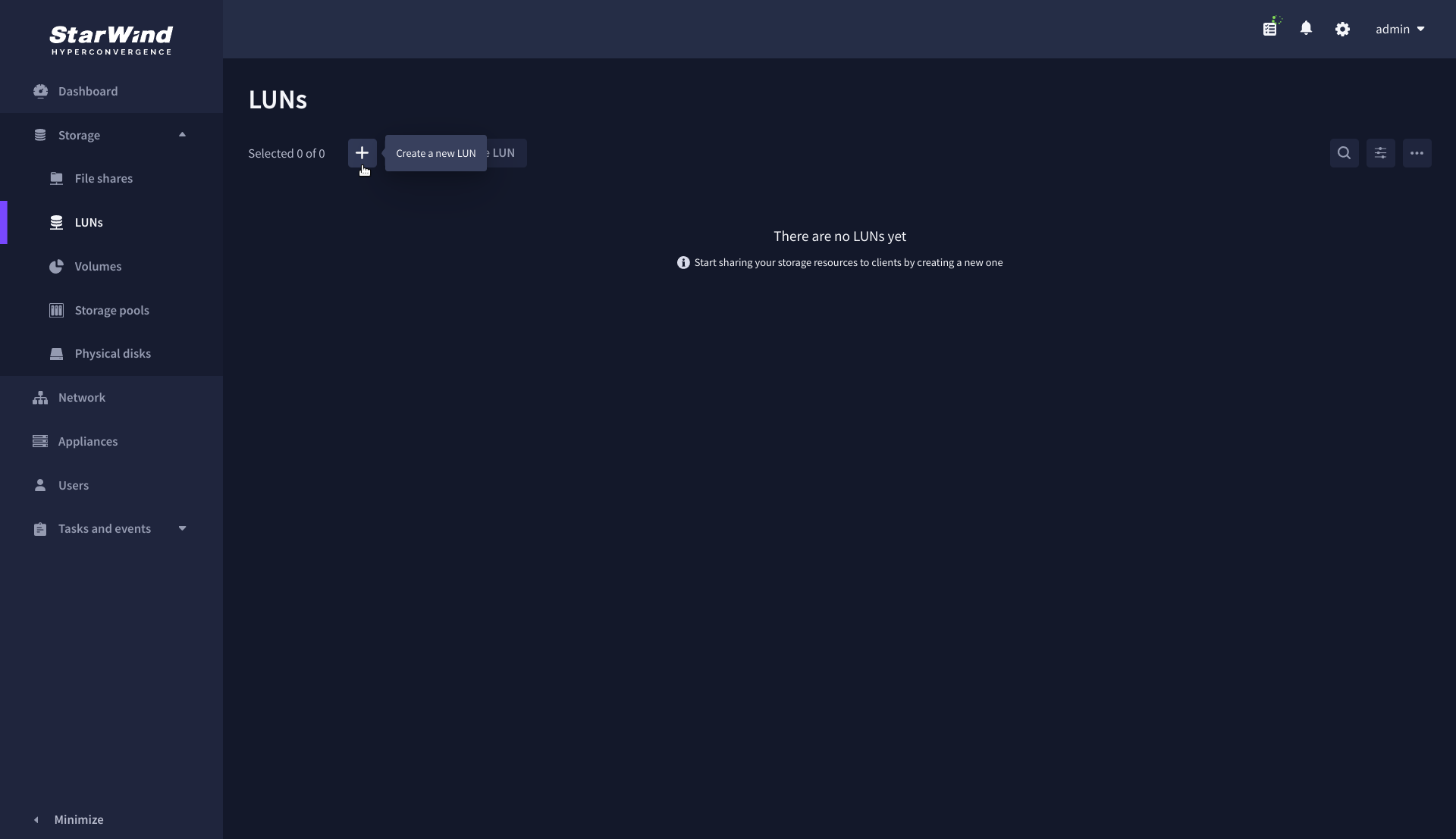
1. Navigate to the LUNs page and click the + button to open the Create LUN wizard.
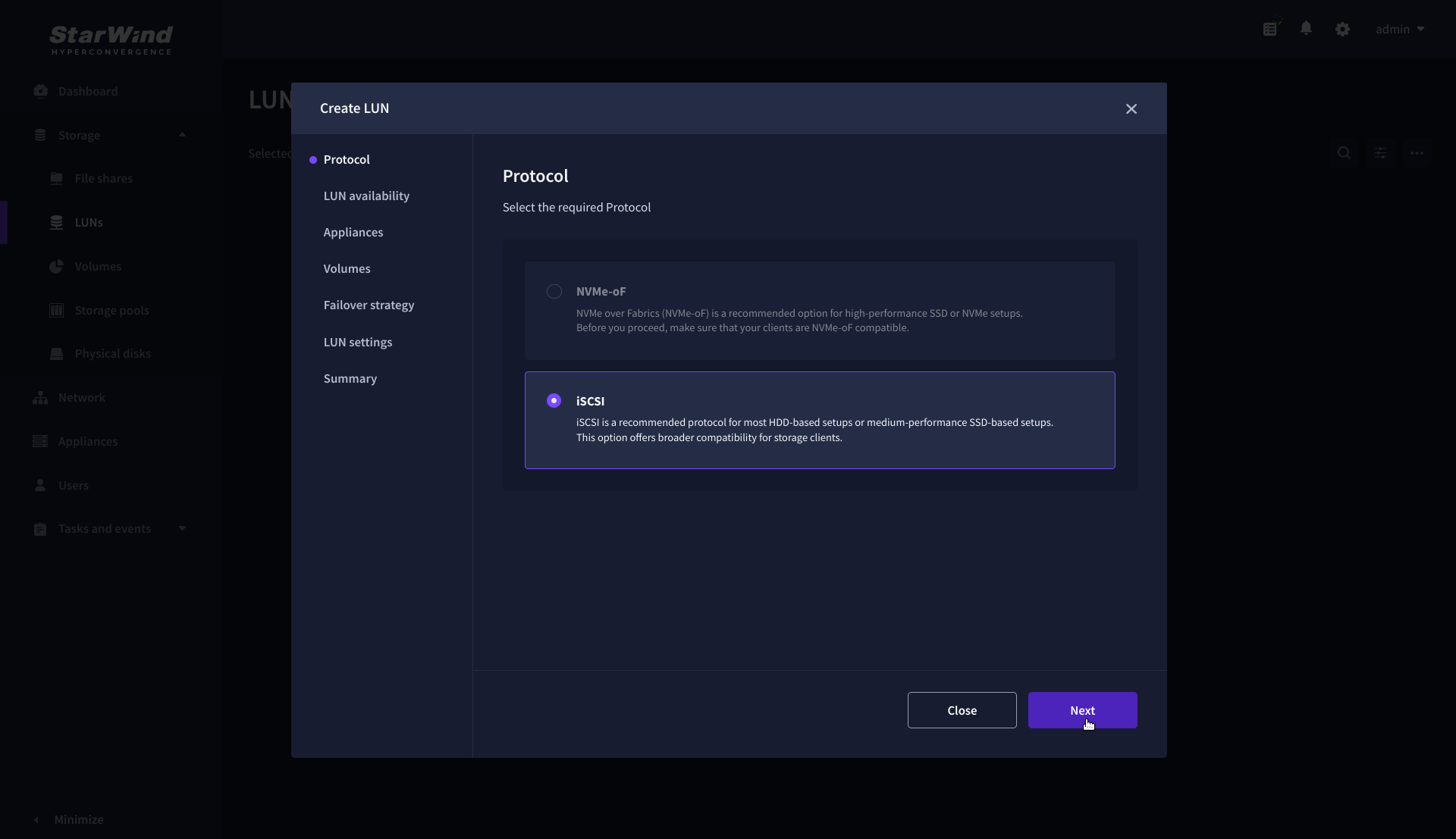
2. On the Protocols step, select the preferred storage protocol and click Next.
3. On the LUN availability step, select the High availability and click Next.
NOTE: The availability options for a LUN can be Standalone (without replication) or High Availability (with 2-way or 3-way replication), and are determined by the StarWind Virtual SAN license.
Below are the steps for creating a high-availability iSCSI LUN.
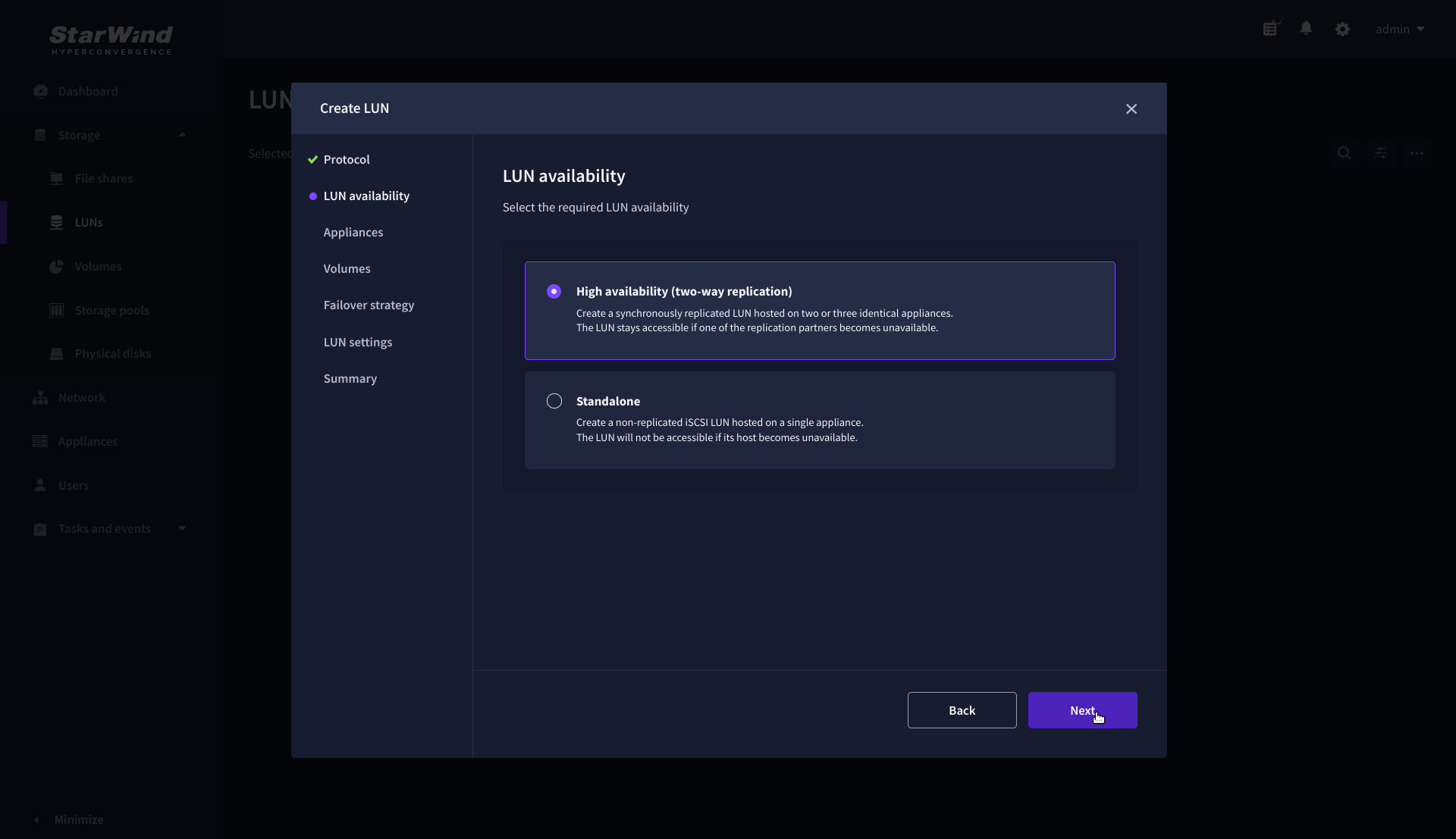
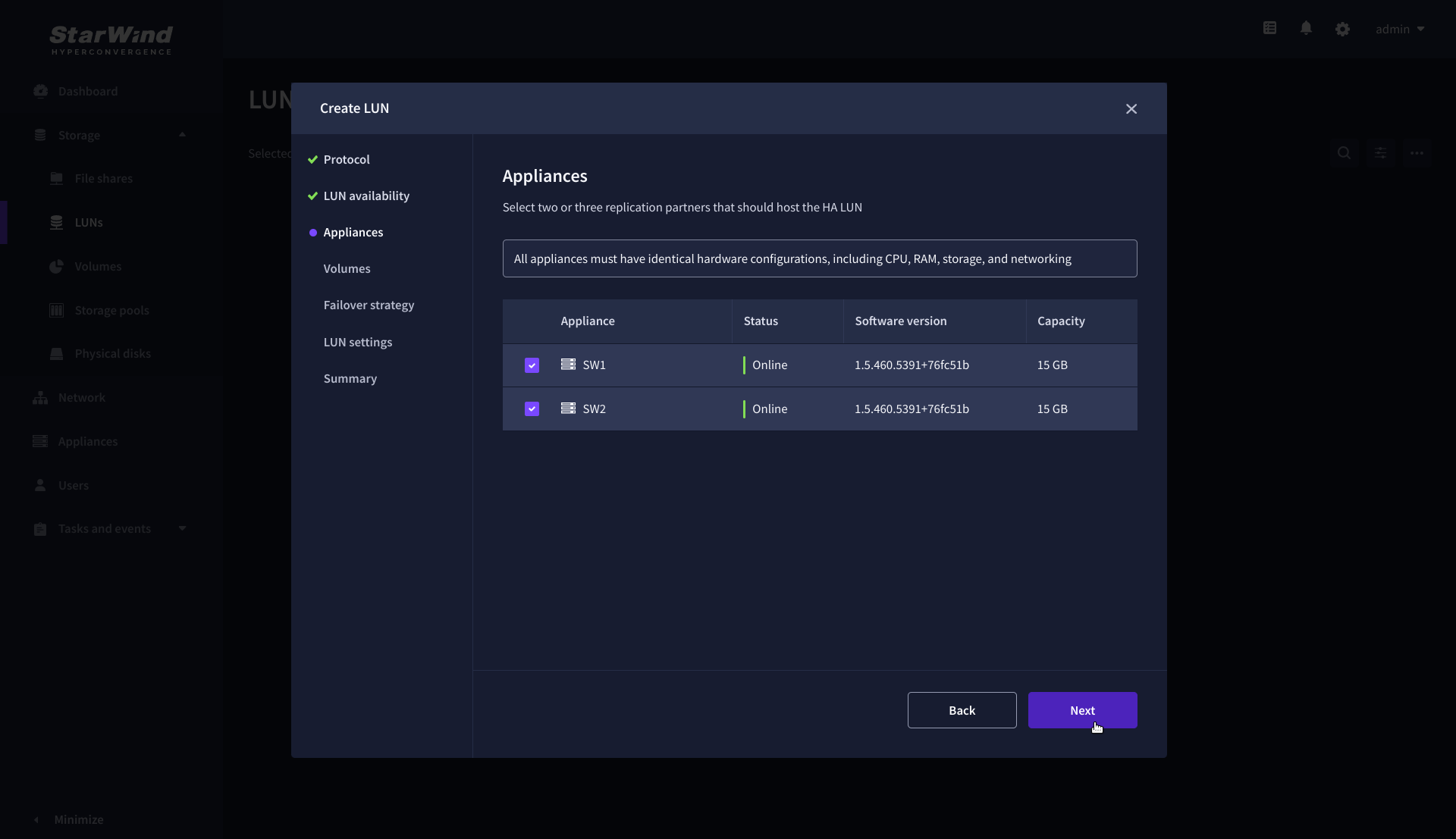
4. On the Appliances step, select partner appliances that will host new LUNs and click Next.
IMPORTANT: Selected partner appliances must have identical hardware configurations, including CPU, RAM, storage, and networking.
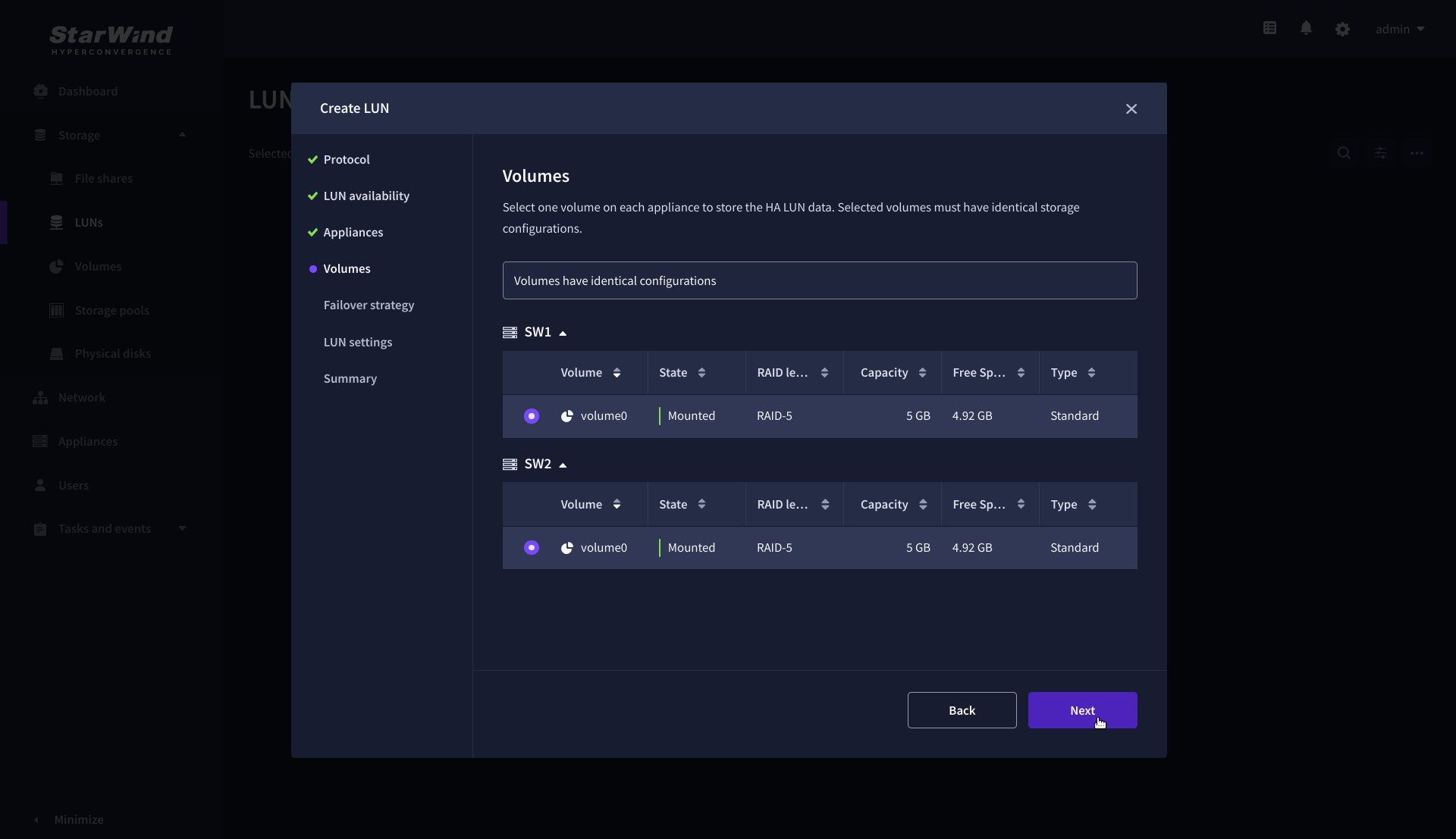
5. On the Volumes step, select the volumes for storing data on the partner appliances and click Next.
IMPORTANT: For optimal performance, the selected volumes must have identical underlying storage configurations.
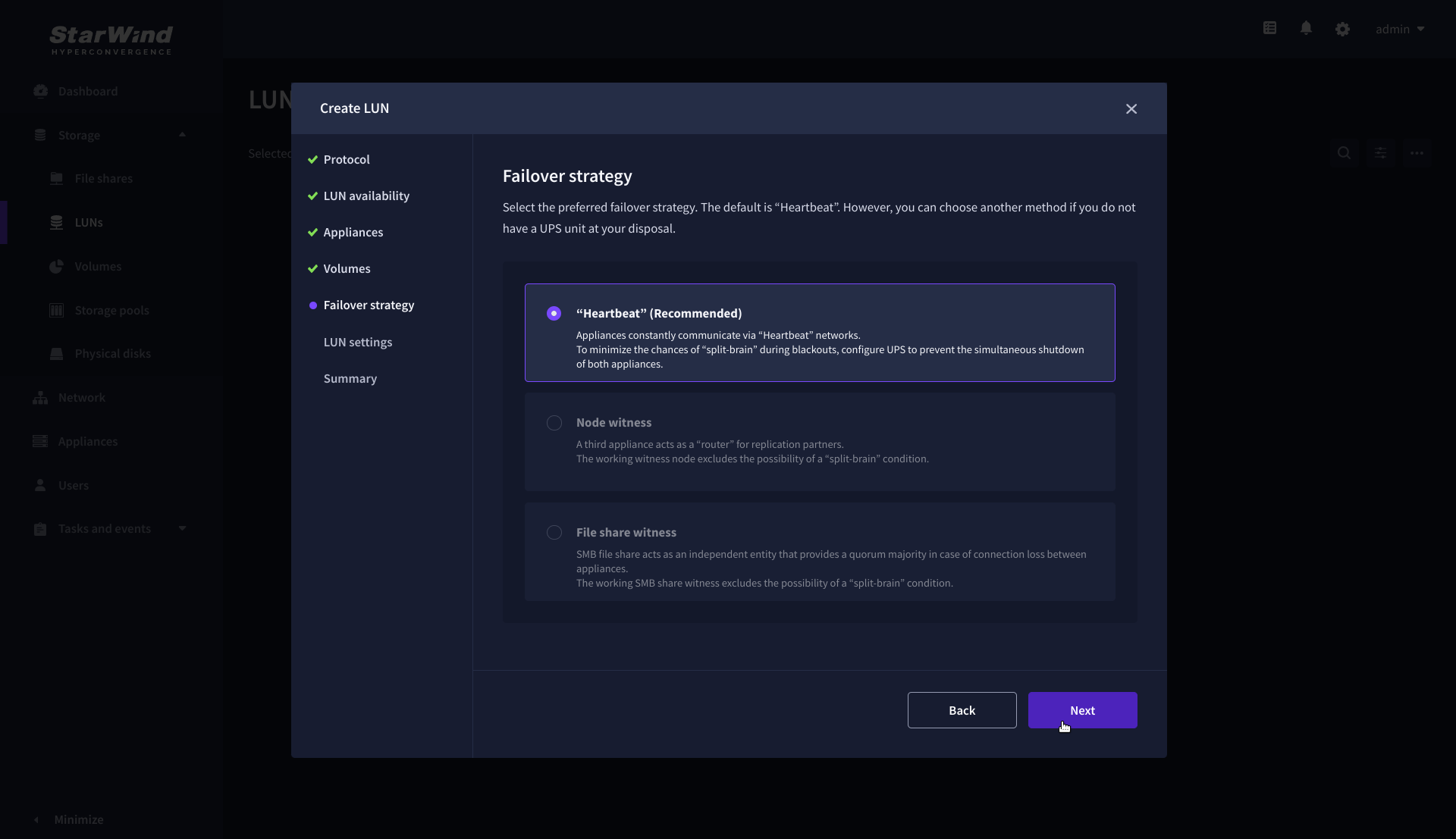
6. On the Failover strategy step, select the preferred failover strategy and click Next.
NOTE: The failover strategies for a LUN can be Heartbeat or Node Majority. In case of 2-nodes setup and None Majority failover strategy, Node witness (requires an additional third witness node), or File share witness (requires an external file share) should be configured. These options are determined by StarWind Virtual SAN license and setup configuration. Below are the steps for configuring the Heartbeat failover strategy in a two-node cluster.
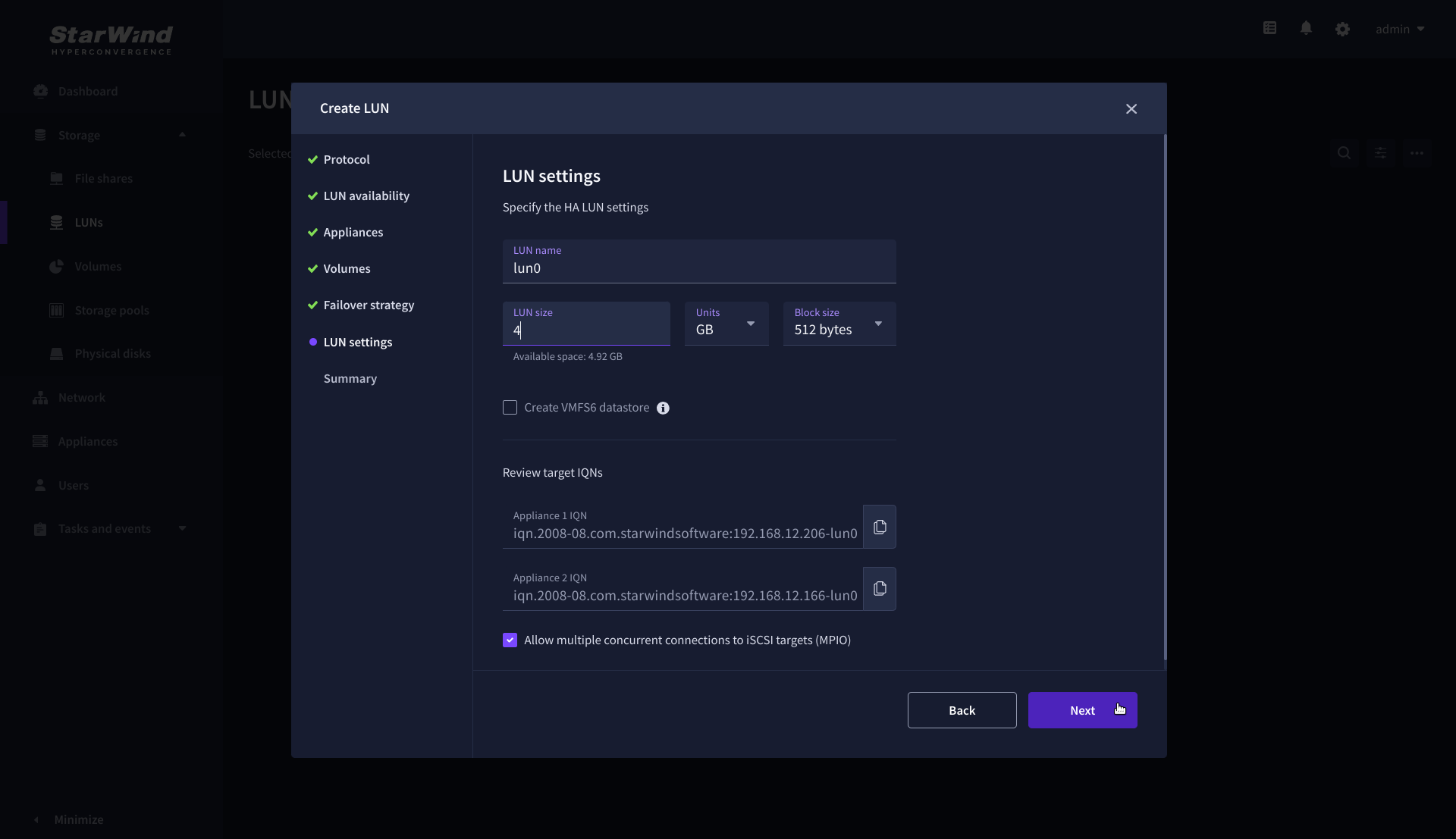
7. On the LUN settings step, specify the LUN name, size, block size, then click Next.
NOTE: For high-availability configurations, ensure that MPIO checkbox is selected.
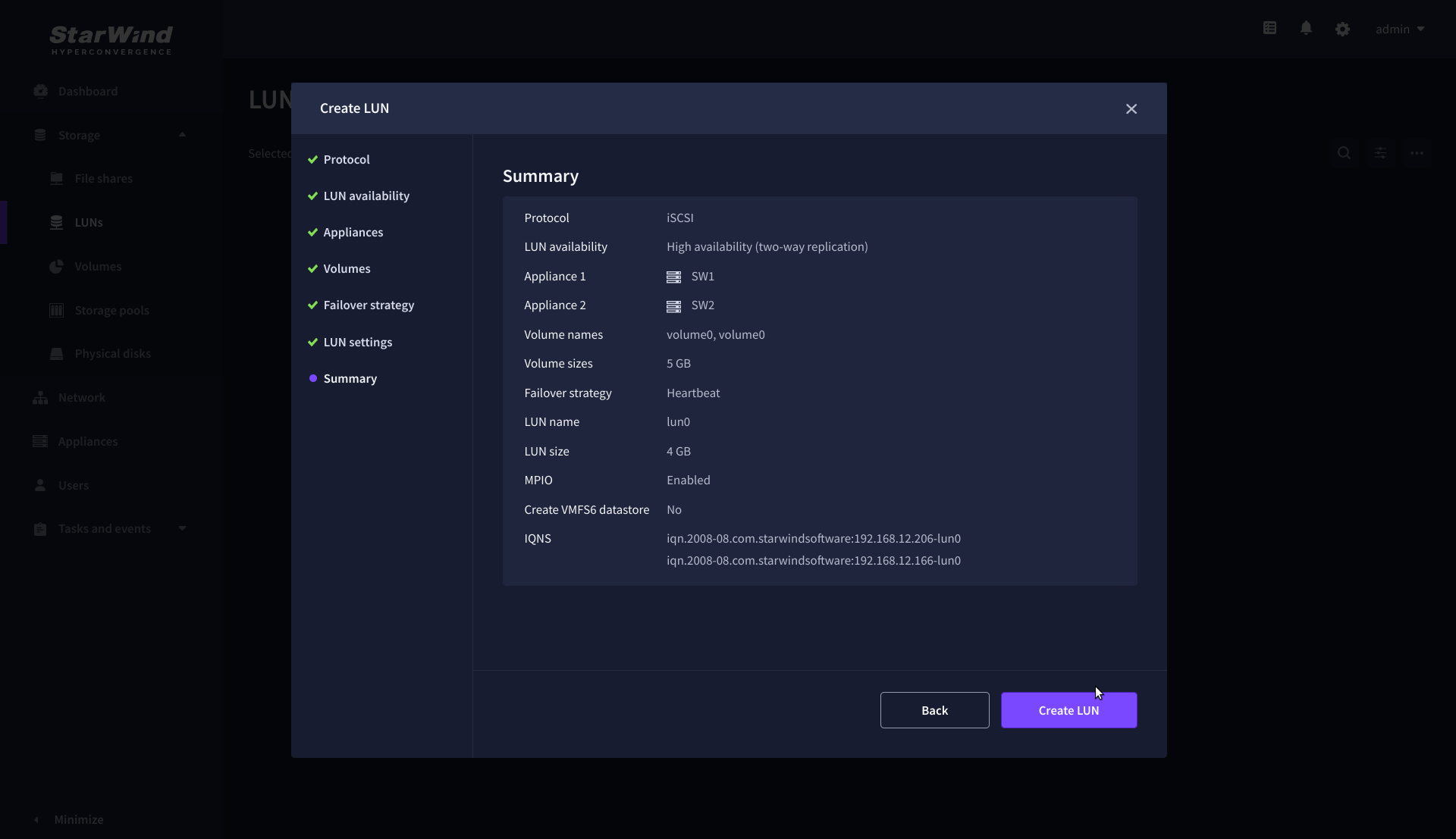
8. On the Summary step, review the LUN settings and click Create to configure new LUNs on the selected volumes.
Deploying self-hosted engine
1. Login to Oracle Linux Node, which will be used for self-hosted engine deployment, via SSH. Enable repository for the engine and install it.
dnf config-manager --enable ol8_baseos_latest
dnf install oracle-ovirt-release-45-el8
dnf install ovirt-engine
Note. Hosted engine will be deployed as a VM on a shared shared storage of the node chosen for the deployment. Second node should be added separately to OLVM Engine.
2. Remove management network from virsh.
virsh -c qemu:///system?authfile=/etc/ovirt-hosted-engine/virsh_auth.conf net-destroy bridged-mgmt
virsh -c qemu:///system?authfile=/etc/ovirt-hosted-engine/virsh_auth.conf net-undefine bridged-mgmt
3. Login to Oracle Linux node via web. Go to Networking page and choose management bridge. Click Delete.

Note. Management Network in virsh and Management Bridge must be removed before hosted engine deployment. Repeat steps 2-3 on all nodes.
4. Run the following command to install OLVM Engine.
dnf  -y install ovirt-engine-appliance --nogpgcheck
hosted-engine --deploy --4
5. Follow the installation wizard and deploy Self-Hosted engine on iSCSI storage, which was created.
Note. DNS records of the Oracle Linux Nodes and OLVM Engine should be added before engine deployment. It is required to use static IP addresses for the Oracle Linux node and OLVM Engine.
It is recommended to choose default settings during the deployment. IP address and iSCSI drive should be chosen.
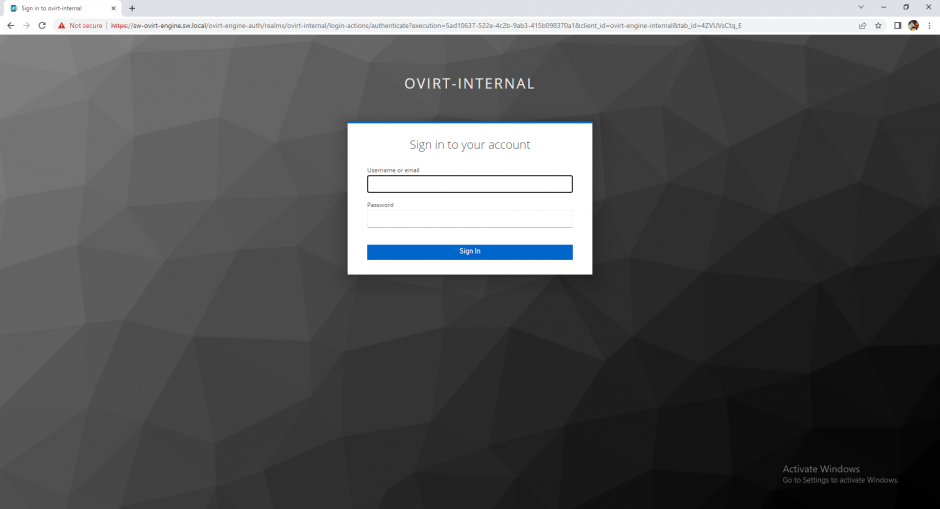
6. Login to oVirt Engine after successful installation deployment using the following credentials:
user: admin@ovirt
Password: Configured during OLVM engine deployment.
7. After deployment connect to all paths of iSCSI LUN on every node.
iscsiadm -m discovery -t st -p 172.16.10.10
iscsiadm -m node -l -T iqn.2008-08.com.starwindsoftware:cvm01-lun01
iscsiadm -m discovery -t st -p 172.16.10.20
iscsiadm -m node -l -T iqn.2008-08.com.starwindsoftware:cvm02-lun01
Adding hosts to OLVM Engine
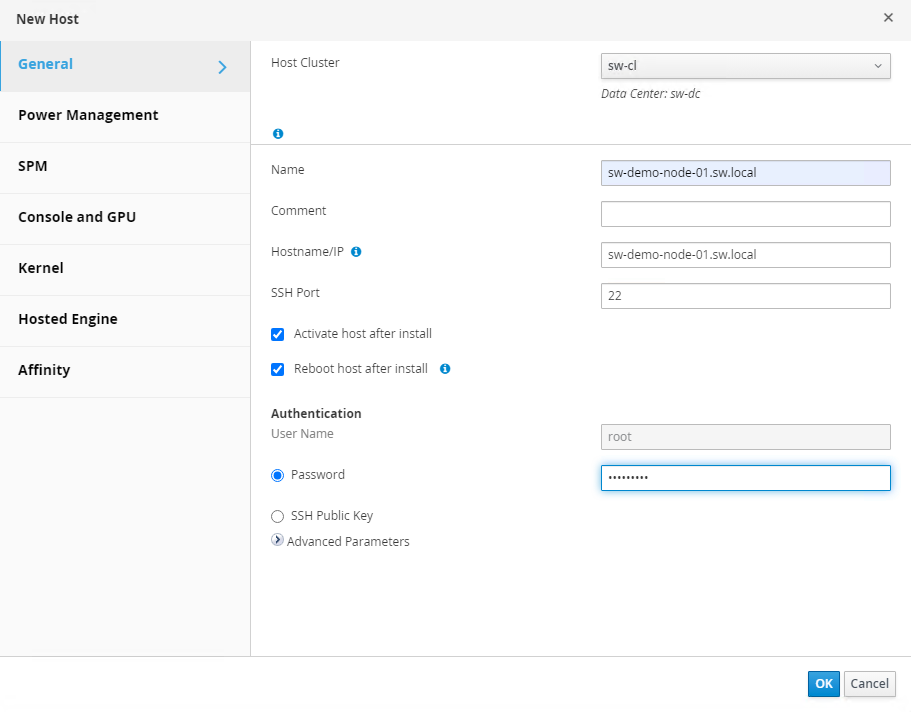
1. Login to OLVM Engine and go to Compute -> Hosts.
2. Type Name, Hostname or IP, Password of the host, which will be added. Click OK.
3. Repeat steps 1-2 for all hosts, which were not added to oVirt engine.
Defining Management Network for StarWind CVM
1. Login to the node via SSH
2. Attach Network interface to StarWind VM.
virsh -c qemu:///system?authfile=/etc/ovirt-hosted-engine/virsh_auth.conf attach-interface --domain cvm01 --type bridge --source vdsm-ovirtmgmt --target ovirtmgmt --model virtio --config –live
3. Repeat steps 1-2 on all nodes.
Provisioning StarWind HA Storage to Hosts
1. Login to Engine and open Storage -> Domain. Click New Domain.

2. Choose Storage Type – iSCSI, Host and Name of Storage Domain. Discover targets via iSCSI links, which were previously configured. Click Login All. 
3. Add LUN from each iSCSI target. Click OK.
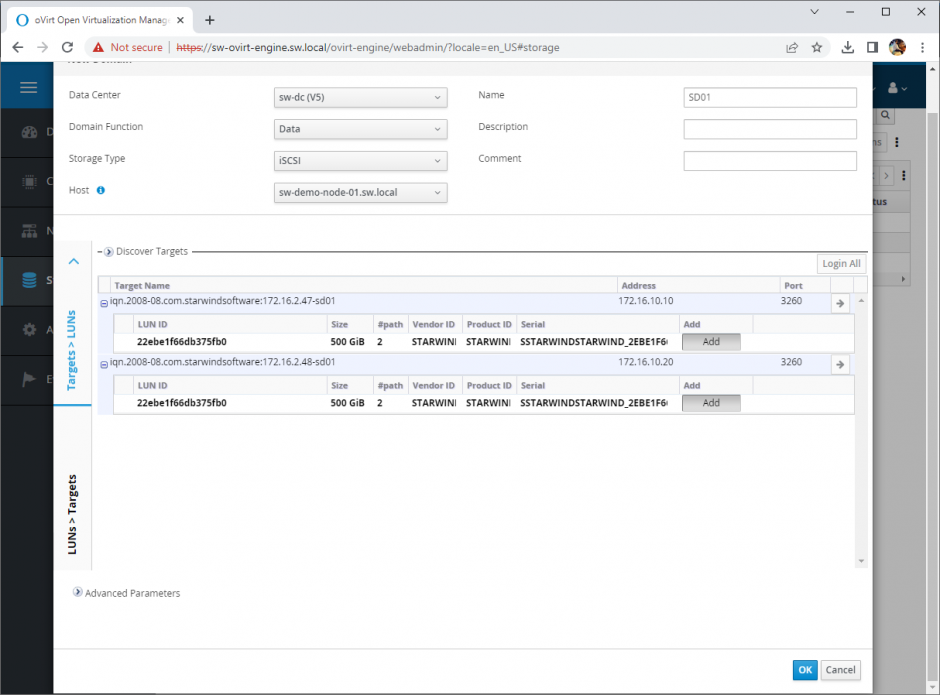
4. Storage Domain will be added to the list of Domain and can be used as a storage for VMs.

5. Login to each host and verify that multipathing policy has been applied using the following command.
multipath -ll

Conclusion
Following this guide, a StarWind Virtual HCI Appliance Free (VHCA Free) powered by Oracle Linux Virtualization Manager was deployed and configured with StarWind Virtual SAN (VSAN) running in a CVM on each host. As a result, a virtual shared storage “pool” accessible by all cluster nodes was created for storing highly available virtual machines.
