
In many VMware environments, administrators need to manage multiple vCenter Server instances simultaneously, for example, when workloads are distributed across several data centers or clusters. Historically, this was achieved through Enhanced Linked Mode (ELM), a mechanism that allows multiple vCenter Servers to be linked within a Single Sign-On (SSO) domain. ELM enables administrators to log into a single vSphere Client and access a unified management interface for all connected vCenter Servers.
In the classic ELM setup, up to 15 vCenter Server instances could be joined into one group using a shared SSO database for authentication and configuration data replication. This setup ensured unified accounts and permissions: once a user or license was configured on one vCenter, the data would automatically replicate across all vCenters within the same SSO domain. For example, roles, tags, global permissions, storage policies, and other objects created on one vCenter would automatically become available on other linked systems thanks to replication handled by the VMware Platform Services Controller (PSC) directory service. Thus, Enhanced Linked Mode greatly simplified administrators’ lives by providing a “single pane of glass” for multiple vCenters and eliminating the need to duplicate configurations on each instance.
However, the ELM approach also had several limitations. First, linked mode could only be configured during the deployment of vCenter. During installation, you had to either create a new SSO domain or join an existing one, which linked the vCenter to an already deployed instance. Adding an existing, operational vCenter to an SSO domain later was a complex task that required special cmsso utilities for configuration changes.
Second, the reliability and scalability of ELM were limited: officially, only up to 15 vCenters were supported within a single domain, and performance or stability could degrade beyond that. SSO data replication between PSC nodes occurred periodically (approximately every 30 seconds), so network disruptions or time desynchronization could cause replication issues. Any problem with the SSO domain (the VMware Directory Service) would affect all linked vCenters at once.
Additionally, older ELM setups often required external PSCs and load balancers, which made the architecture more complex. Although starting from vSphere 7.0, the PSC was integrated and ELM supported embedded configurations, the entire mechanism remained a legacy architecture. It required careful version planning during upgrades (all linked vCenters had to run compatible SSO versions) and created tight coupling between components.
VMware Cloud Foundation 9 Innovations: Unified SSO and the Retirement of ELM
With the release of VMware Cloud Foundation (VCF) 9.0, VMware fundamentally changed how vCenters are linked. VCF 9 introduces a completely new Single Sign-On architecture for all private cloud components, effectively eliminating the need for the traditional Enhanced Linked Mode to connect multiple vCenters.
In VCF 9-based environments, Enhanced Linked Mode is no longer used to combine vCenters into a single SSO domain. While ELM support remains in vCenter 9.0 for backward compatibility and upgrade scenarios, unified management of multiple vCenters within VCF 9 is now achieved differently, through VCF Operations services and vCenter grouping.
At the heart of this change is the VCF Identity Broker, a new component in VMware Cloud Foundation 9 that provides a modern, platform-wide SSO mechanism. It offers a single sign-on experience across all major administrative interfaces: the VCF Operations console, vSphere Client, NSX Manager interface, and others. In other words, once an administrator authenticates through VCF SSO, they can seamlessly switch between various cloud management tools.
This new system, based on the VCF Identity Broker (VIDB), supports integration with a wide range of external identity providers. It includes modern directories and federation systems such as Active Directory/LDAP, AD Federation Services (ADFS), Azure AD (Entra ID), Okta, Ping Identity, and any SAML 2.0–compatible providers. This allows organizations to easily connect Cloud Foundation to their corporate identity management systems and even enable multi-factor authentication.
The new SSO architecture in VCF 9 follows a federated model: instead of a shared vSphere SSO domain (as in ELM), it uses an external broker trusted by all components. As a result, there’s no longer a need to directly “link” vCenters at the directory service level, they simply share a common external Identity Provider (IdP).
It’s important to note that VCF 9 does not directly support Enhanced Linked Mode, but it no longer needs to. The unified SSO already provides centralized access to all environments through a single client. Instead of ELM, VCF now offers a simplified vCenter grouping feature that presents multiple vCenters in a unified view within the vSphere Client interface.
The decision to abandon the classic ELM model aims to simplify architecture and improve cloud management reliability. Now, vSphere components are no longer tightly bound together within a single domain; instead, they are centrally managed by VCF Operations, which distributes authentication via the broker. This decouples vCenters — a failure in one service no longer disrupts the entire chain, as could happen with ELM. Moreover, the new model removes the old scalability constraints: the vCenter grouping mechanism is designed for future growth and large-scale management within a vCenter “fleet” under Cloud Foundation control.
Broadcom explicitly recommends migrating away from ELM toward the new management mechanisms. The VCF 9 documentation advises against deploying new linked vCenter groups using ELM and suggests that during upgrades, each vCenter should be converted to standalone mode and grouped through VCF Operations instead. Functions previously provided by Enhanced Linked Mode — unified SSO, synchronized roles and tags, shared API access, and so on — are now implemented at the VCF Operations and related services level. In other words, Cloud Foundation now takes on the role of aggregating data from multiple vCenters, eliminating the need to maintain the outdated PSC/ELM mechanism.
Configuring Unified SSO (VCF Identity Broker) in Cloud Foundation 9
VMware Cloud Foundation 9 introduces a new management console — VCF Operations — which serves as the central interface for configuring all services, including the unified SSO. The first step in setting up unified sign-on is deploying the Identity Broker (VCF Identity Broker, VIDB) and connecting it to a user directory. Cloud Foundation allows this to be done in one of two modes:
- Embedded mode – the broker runs directly on the management vCenter within the VCF management domain. This option is suitable for smaller Cloud Foundation deployments (for example, a single VCF instance with one management vCenter and several workload domains) where scaling across multiple sites is not required.
- External cluster (appliance) – the broker is deployed as a separate cluster of three virtual appliances to ensure high availability. This option is designed for large-scale infrastructures: an external VIDB cluster can serve up to five VCF instances at once, unifying them into a single identity space. Using a dedicated cluster improves scalability and reliability — a failure of one node won’t disrupt the SSO service.
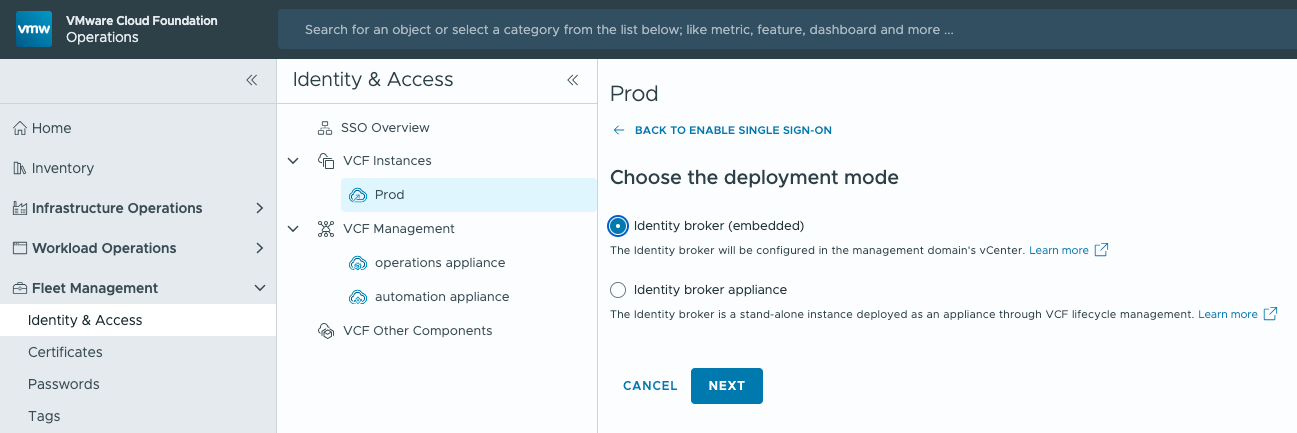
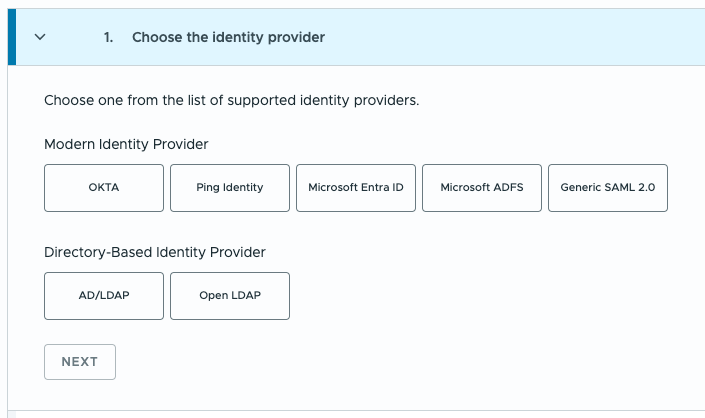
When enabling VCF SSO, the setup wizard prompts you to Choose the deployment mode and install the broker. The next step is specifying which identity provider (IdP) to use. As mentioned earlier, a wide range of options is supported — from traditional Active Directory/LDAP integration to federation via SAML 2.0 identity providers. VCF 9 expands the list of supported IdPs: in addition to previously available Okta, Microsoft Entra ID (Azure AD), and Active Directory Federation Services (ADFS), support has been added for Ping Identity and other third-party SAML providers. Each integration type has its own nuances regarding how groups and users are defined and allowed access. The product documentation describes these details thoroughly — for example, with LDAP you can select Active Directory security groups, while SAML can use SCIM or Just-In-Time provisioning. It’s important to plan ahead which groups or accounts from your corporate directory will have Cloud Foundation administrative rights and configure them properly on the IdP side.
Once the external directory connection is established and the Identity Broker is deployed, the administrator can enable unified sign-on (SSO) for Cloud Foundation components. VCF Operations greatly simplifies this process: just go to the Identity & Access section and perform Component Configuration — specify which systems should be linked to the common SSO.
For basic infrastructure components like vCenter Server and NSX Manager, enabling SSO simply means checking the boxes next to them in the VCF Operations console. You can enable SSO for multiple services at once — the configuration takes just a few minutes.
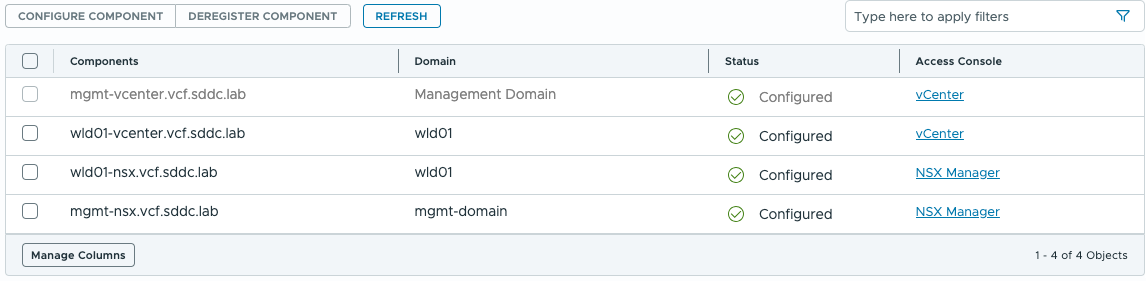
Under the hood, Cloud Foundation registers your broker as a trusted Identity Provider for vCenter, NSX, and other components as needed. Once completed, these components begin accepting federated authentication.
After successful SSO configuration, the final step is assigning roles and access rights to users from the new identity source. Previously, each vCenter operated within its own isolated SSO domain, meaning that external users had no permissions set there. Now that the Identity Broker is integrated, you need to log into each component under its local administrator account (for example, administrator@vsphere.local for vCenter) and assign the required roles to the corresponding directory users or groups.
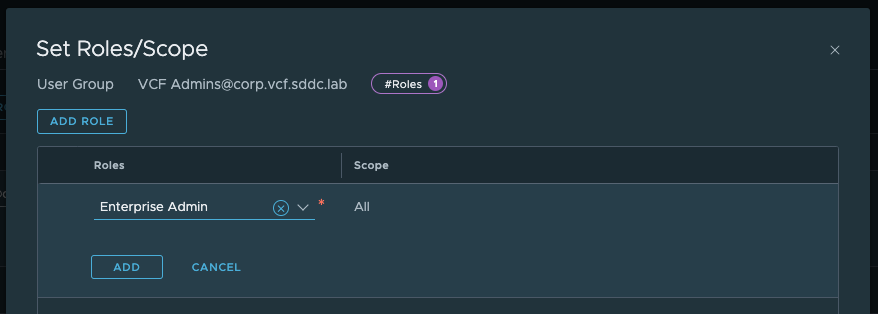
This is a one-time task. For example, you might assign your Active Directory administrators group the following roles: CloudAdmin in VCF Operations, Administrator in each vCenter, and Enterprise Admin in NSX Manager. After that, members of this group will be able to log in via unified SSO and gain administrative access to all components without using local accounts.
Tip: At this stage, it’s strongly recommended to stop using the shared admin/administrator@vsphere.local account for everyday operations. Instead, each engineer should use a personal corporate account (for example, from Active Directory) belonging to the appropriate group, with sign-in handled through the corporate IdP. This approach enhances security (you can enforce MFA and audit actions by username) and removes the need to share local admin credentials among team members.
Once SSO is configured and roles are assigned, Cloud Foundation 9 effectively provides a unified identity space. An administrator can now log into the VCF Operations console using their corporate credentials and seamlessly access the vSphere Client or NSX Manager without re-authentication.
At this point, it’s time to group the vCenter Servers themselves for more convenient management.
vCenter Server Linking in VCF 9
After configuring unified sign-on, we can now implement the new approach to “linking” vCenter Servers through VCF Operations.
In Cloud Foundation 9, VMware introduces the concept of vCenter Groups. A vCenter Group is a logical collection of two or more vCenter Server instances configured at the VCF level, allowing them to be viewed together in the vSphere Client interface. Essentially, this serves as a functional equivalent of the old Enhanced Linked Mode, but now it’s built directly into VMware Cloud Foundation, eliminating the need to manually merge SSO domains.
The vCenter grouping process is configured through the VCF Operations 9.0 console. In the Infrastructure Operations section, open the Configurations tab and select the vCenter Linking tile.
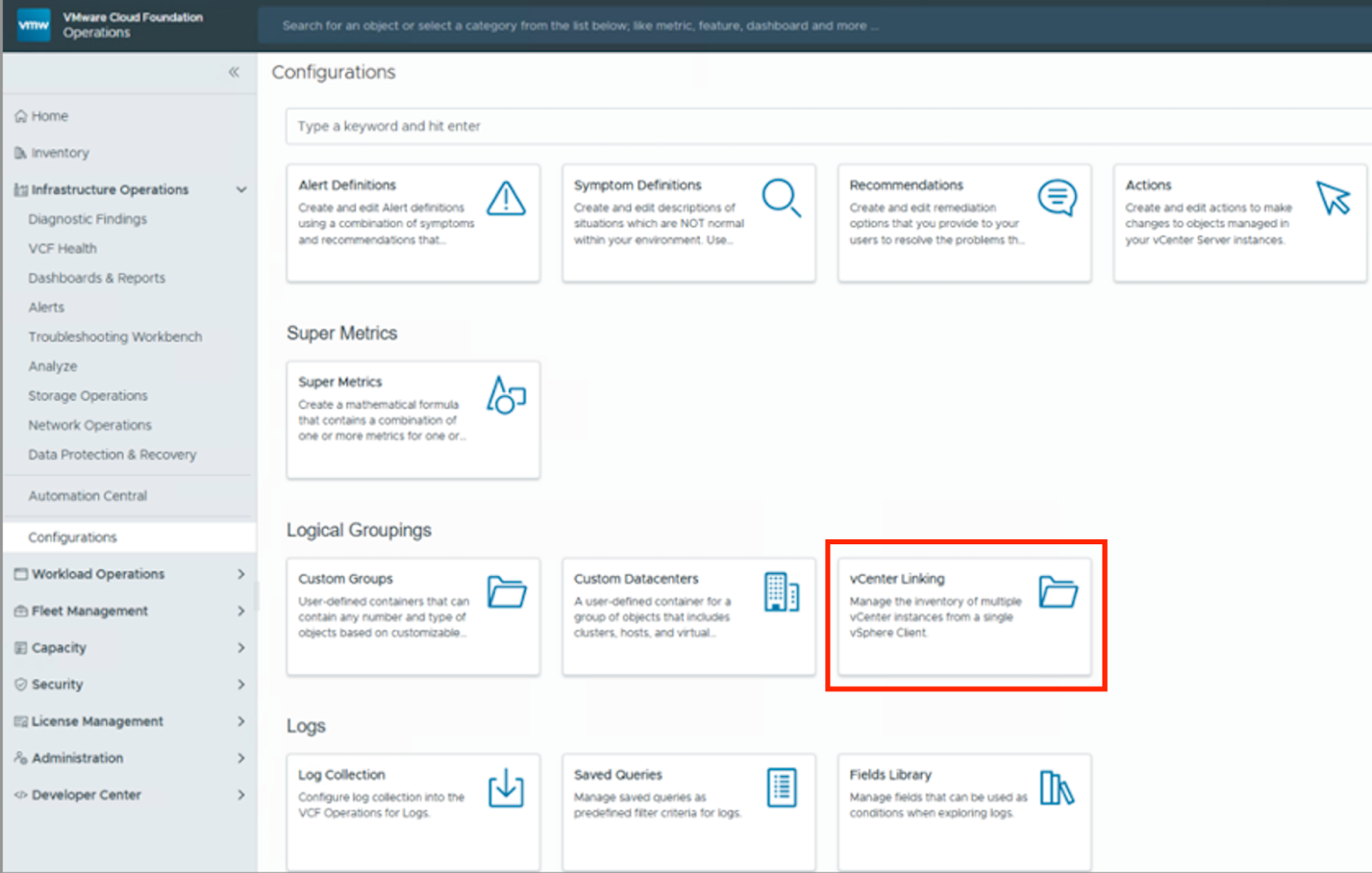
Then click Create Group to launch the setup wizard. In the wizard, simply select from the list which vCenter Servers you want to link together. All vCenters added to a single group must use the same Identity Broker configured in the previous stage, in other words, they must already be connected to VCF SSO. If not, the console will not allow them to be grouped.
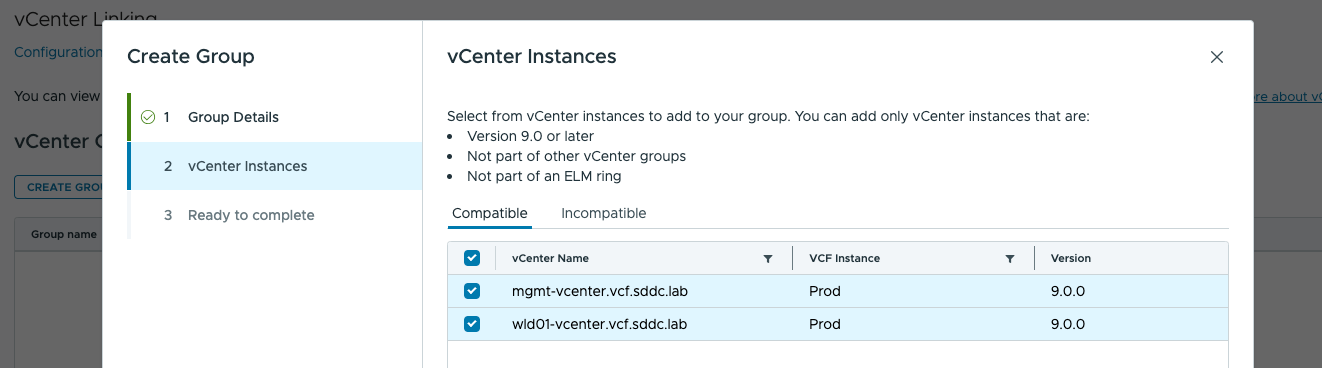
Give your group a clear, descriptive name (for example, based on the project or site), and confirm its creation. VCF Operations will automatically perform all required configuration steps in the background. Once complete, the vCenter instances in that group will be considered linked.
After creating a vCenter Group, you can verify the result. Log in to the vSphere Client using your VCF SSO credentials — that is, authenticate through your configured Identity Provider (IdP) rather than the local vsphere.local account.
Once logged in, you’ll see a familiar view: in the vSphere Client’s navigation pane, multiple vCenter Servers will now appear together in a single tree. For example, below you might see both the management vCenter (mgmt-vcenter) and a workload domain vCenter (wld01-vcenter) displayed side by side, all accessible through the same console.
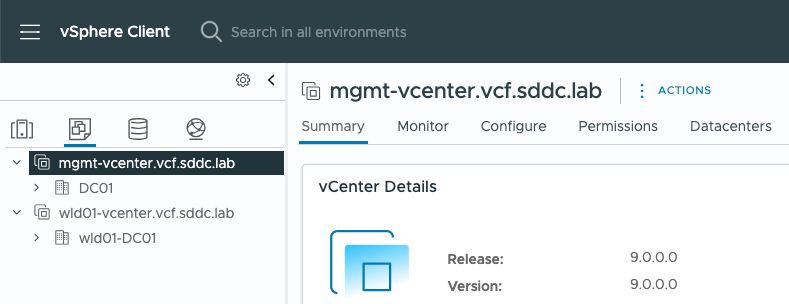
Important: If you log in with a local account of a specific vCenter (for example, administrator@vsphere.local), you won’t see the other systems, the interface will show only that individual vCenter, just as before. To use the unified, cross-vCenter view, always log in through the shared broker (federation). Also, ensure that the user or group you log in with has administrative privileges on all linked vCenters. If your account doesn’t have permissions on one of them, that vCenter either won’t appear in the list or will be visible in read-only mode. Therefore, as mentioned earlier, it’s best to assign the necessary roles to your security groups across all vCenters that are part of the group in advance.
Otherwise, the behavior of the environment when linked via VCF 9 is nearly identical to the classic ELM experience. You can browse inventory objects — clusters, hosts, virtual machines, etc. — across all vCenters, switching between them in the navigation tree. Many global vSphere operations, such as cross-vCenter VM cloning, workload migration, and unified search, remain available, just as they were under Linked Mode, thanks to the single sign-on and unified access point. However, the underlying implementation is different, so in some cases, you’ll need to explicitly select the vCenter where an operation should be performed.
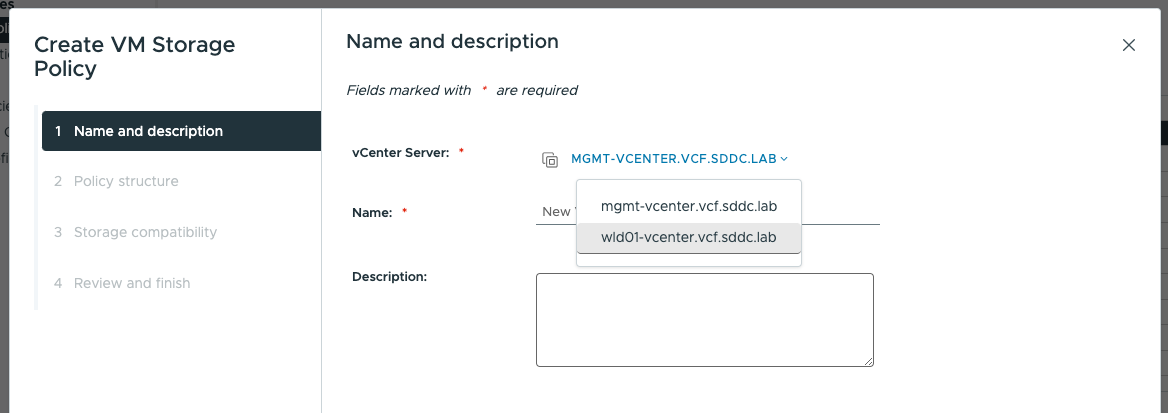
For example, when deploying a new virtual machine or creating a distributed switch, the system will first prompt you to specify which vCenter (among those available to you) should execute the operation. This makes sense, considering that each vCenter now remains an independent instance (with its own SSO domain), while VCF merely provides the aggregation layer. Think of a vCenter Group in VCF 9 as a convenient “linking layer” — it removes redundant authentication and enables multi-environment visibility, but it doesn’t merge the vCenters into a single monolithic structure.
It’s also worth noting that linking vCenters through VCF Operations is more flexible than ELM. You can define groups and their composition however you wish. In theory, it’s possible to create multiple groups made up of different subsets of vCenters — for example, tailored to specific administrative teams. However, in most VCF deployments, administrators typically create a single group containing all vCenters within a given VCF instance to get a complete view of the entire server fleet. No official limitations are specified regarding the number of groups or the number of vCenters per group — the new architecture is designed with large-scale cloud deployments in mind and supports future scalability.
Best Practices and Recommendations for Migrating from ELM
Upgrading to VMware Cloud Foundation 9 introduces new ways to simplify management but also requires careful planning when migrating existing environments that use Enhanced Linked Mode. Below are key recommendations for system engineers, implementing or upgrading to VCF 9 from earlier ELM-based setups:
- Do not use ELM in new VCF 9 deployments. When designing new Cloud Foundation 9 infrastructure, there’s no need – and no support – to link vCenter Servers, using the old Linked Mode mechanism. Instead, integrate directly with your corporate Identity Provider (IdP) and use the new grouping feature in VCF Operations. If you deploy multiple vCenter instances within VCF 9, leave them in their default, separate SSO domains – centralized authentication will be handled by the Identity Broker.
- Plan user directory integration carefully. During VCF 9 deployment, pay special attention to configuring the VCF Identity Broker. Decide whether to use the built-in or an external (dedicated) broker, depending on your environment’s scale and number of VCF instances. For large, distributed setups, it’s best to deploy a separate VIDB cluster. Prepare your Active Directory/LDAP environments or SAML accounts in advance – they’ll serve as your administrator access sources. A best practice is to create one or more AD groups (e.g., CloudAdmins or VCF-Operators) and assign them the appropriate roles in VCF Operations, vCenter, and NSX. This setup lets you centrally manage admin membership through AD without sharing passwords. Enabling federation with MFA also significantly enhances security.
- Migrate existing linked vCenters to the new model. If you’re upgrading from an ELM-based environment to Cloud Foundation 9, each vCenter must be converted to standalone mode. In practical terms, before or right after updating your vCenter to the version included in VCF 9, you must “unlink” your old ELM group. One way to do this is to run the cmsso-util unregister command on each vCenter to remove it from the shared SSO domain and create its own embedded domain (similar to a PSC convergence operation). VMware recommends using VCF Operations to re-establish vCenter grouping after the transition. Keep in mind that ELM support in vCenter 9.0 is only temporary and will be completely removed in future releases. Moving linked vCenters to separate domains now is a proactive step that eliminates legacy components and simplifies future upgrades.
- Map global ELM objects to the new environment. In older ELM setups, you may have had global roles, tags, categories, content libraries, and other entities shared across all vCenters. After separating SSO domains, these objects no longer replicate automatically. VCF 9 doesn’t yet provide built-in synchronization for tags or roles (these features are under development and may arrive in future updates). Therefore, before dismantling your ELM configuration, export the necessary settings – such as role lists and privileges (PowerCLI scripts are available for exporting/importing roles between vCenters), tag/folder data (via vSphere API), and content libraries (convert them to subscribed libraries so one vCenter serves as a source for others). After upgrading and creating vCenter groups in VCF, re-import or recreate critical global objects in each instance – or leverage VCF/Aria for centralized management. For example, Cloud Foundation 9 includes a centralized license manager: once you upload a license file in VCF Operations, it’s automatically applied across all stack components. This is even more convenient than ELM, where license replication still required manual input on one vCenter.
- Train your team on the new procedures. Transitioning to federated authentication may require updating operational procedures. Ensure all engineers know that they must now log in to all vCenters via the Cloud Foundation SSO provider (i.e., with corporate credentials), not local vCenter accounts. Administrators should also understand that certain vSphere UI actions will require selecting a specific vCenter context. The new model isn’t hard to master, but during the initial adoption phase, pay close attention to correct login behavior and permissions assignment.
- Monitor updates and known issues. Since vCenter Linking in VCF 9 is still a relatively new feature, stay up to date on patches and VMware’s known issues. For instance, discussions in Broadcom Communities mention scenarios where multiple VCF instances with a shared Identity Broker couldn’t be grouped directly – these minor issues are expected to be resolved in future updates. Always check the Product Support Notes section in Cloud Foundation 9 documentation before upgrading to avoid surprises. And, of course, maintain separate backups for each vCenter: the new Linking mechanism doesn’t replace per-instance backup needs – it only unifies their management view.
Conclusion
VMware Cloud Foundation 9 introduces a fundamentally new approach to integrating and managing multiple vCenter Server instances. Instead of the outdated Enhanced Linked Mode with its complexity and SSO-domain dependencies, VCF 9 brings a unified Identity Broker and vCenter grouping directly within VCF Operations. For system engineers, this means a simpler architecture (no external PSCs or domain linking), more flexible user directory integration, and improved security through federated access.
While ELM remains supported in vSphere 8.x/9.0 for compatibility, VMware’s direction is clear – federated SSO and centralized management will fully replace it. Cloud Foundation 9 already showcases the benefits of this shift: single sign-on across all components (VCF, vCenter, NSX, etc.), centralized license control, and unified visibility of multiple vCenters without internal complexity. Administrators gain smoother operations, streamlined permissions, and scalability without worrying about ELM’s 15-instance limit.
When implementing VCF 9, follow best practices: unlink legacy ELM setups, configure the Identity Broker, assign proper roles, and group vCenters via VCF Operations. The result will be a modern, secure, and easily managed “fleet” of vCenter Servers ready to grow with your infrastructure. VMware Cloud Foundation 9 truly delivers “one login to manage them all” – and according to early adopters, it makes daily operations noticeably simpler. It’s time to say goodbye to Enhanced Linked Mode and embrace the new “super-linked” experience in full.