
Search
Join the Technical Preview Program
See how NVMe-oF removes iSCSI
bottlenecks in your HCI
The Best Hyperconverged
Infrastructure
(HCI) for Enterprise
ROBO, SMB & Edge
The Best Virtual SAN
for Enterprise ROBO, SMB & Edge

HOW TO: Change an Azure VM Subnet

  • December 9, 2015
  • 3 min read
Cloud and Virtualization Architect and Microsoft MVP. Florent specializes in public, private, and hybrid cloud ecosystems. An MCSE in Private Cloud, he provides technical leadership in Cloud and Datacenter Management. Florent delivers high-authority insights on Azure deployments, virtualization strategy, and optimizing enterprise-scale cloud infrastructure.

In this article, I will explain to you how to change the subnet of a Virtual Machine in Azure. Following is the official documentation on the Microsoft Website this documentation.

To do this, you must use PowerShell (this is the only possibility to do this, maybe in next versions, it will be possible to do this with the GUI). As you can see, my VM has the IP address 10.0.0.4:

1

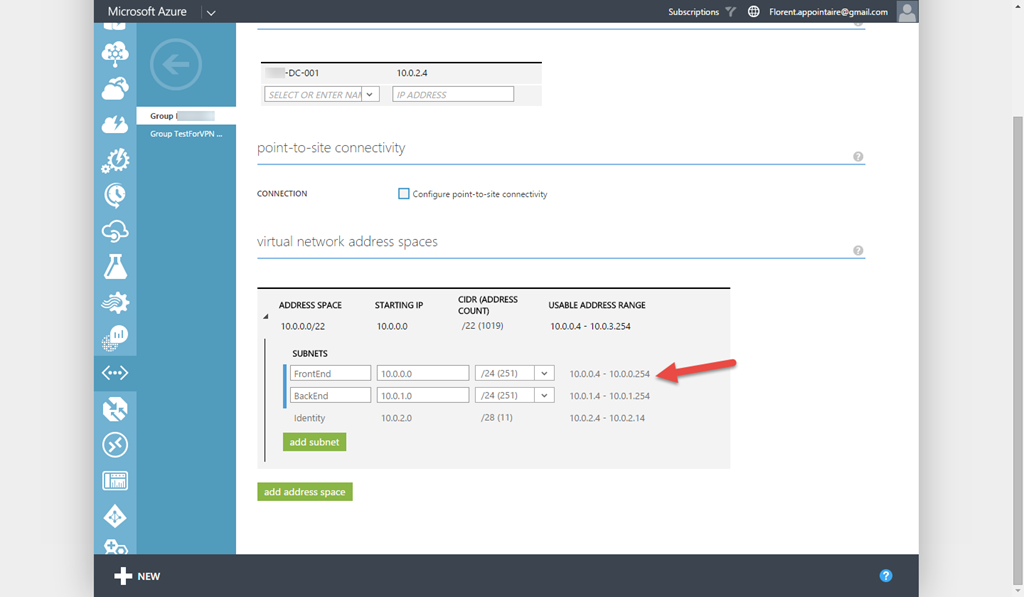
My two subnets in my network are the following:
2

The VM is actually on the FrontEnd subnet and I would like to move it to the BackEnd subnet. To do this, execute the following PowerShell command:

Get-AzureVM -Name sql-001 -ServiceName Demo | Set-AzureSubnet -SubnetNames BackEnd | Update-AzureVM

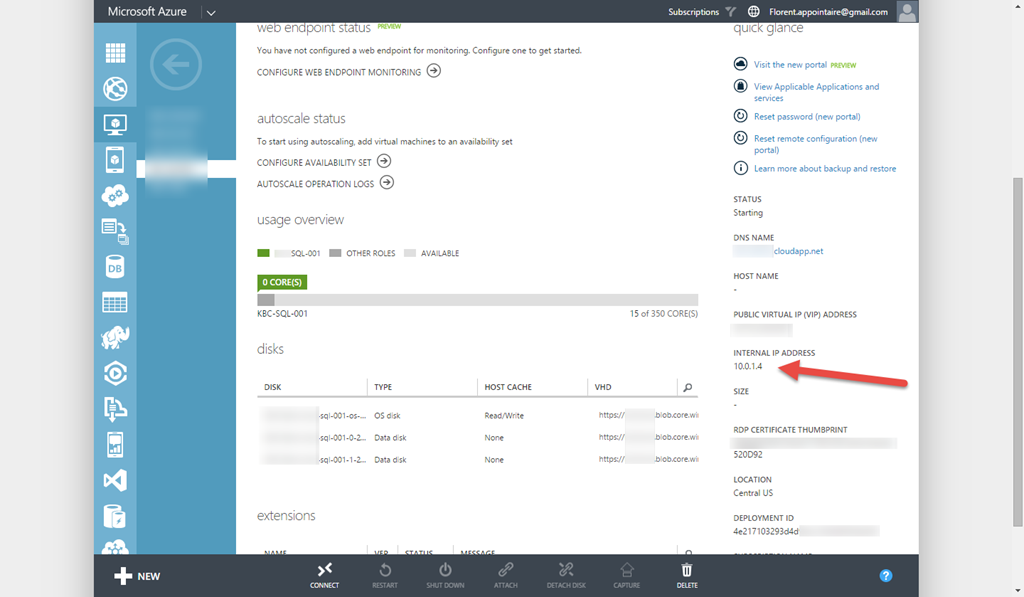
3The VM will restart after the execution of the Update-AzureVM cmdlet. When it’s done, go back to your Azure VM interface. You can see that the new IP is in my BackEnd range:
4

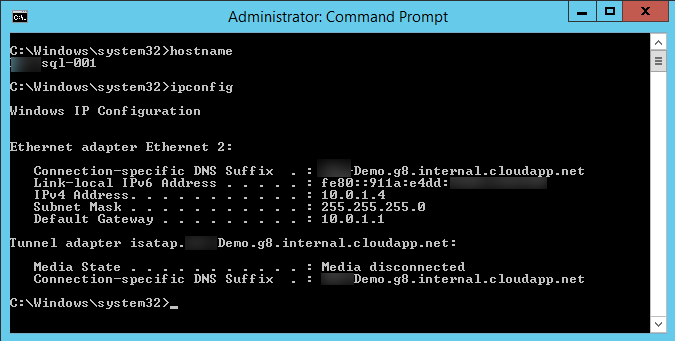
Don’t forget to change the IP in your DNS too if you don’t allow DNS Dynamic Updates. In my VM, I have now  the same IP as in Azure Portal:
5
[ratings]

Hey! Found Florent’s insights useful? Looking for a cost-effective, high-performance, and easy-to-use hyperconverged platform?
Taras Shved
Taras Shved StarWind HCI Appliance Product Manager
Look no further! StarWind HCI Appliance (HCA) is a plug-and-play solution that combines compute, storage, networking, and virtualization software into a single easy-to-use hyperconverged platform. It's designed to significantly trim your IT costs and save valuable time. Interested in learning more? Book your StarWind HCA demo now to see it in action!