For years, giving a virtual machine real GPU access on Hyper-V meant handing an entire physical card to a single VM using Discrete Device Assignment (DDA).
Windows Server 2025 changes that with GPU Partitioning, usually shortened to GPU-P. It allows a single physical GPU to be divided into multiple isolated partitions, each assigned to a different virtual machine. In this article, we will look at what GPU-P actually is, how it differs from passthrough, what hardware it demands, and how to configure it in practice.
What GPU Partitioning Actually Is
GPU Partitioning is a Hyper-V feature that lets multiple virtual machines share one physical GPU by dividing it into fractions. Each VM receives a dedicated slice of the GPU’s resources, including video memory, compute, and encode and decode capacity, rather than time-slicing the whole device or emulating it in software.
The important detail is where the isolation comes from. GPU-P is built on Single Root I/O Virtualization (SR-IOV), the same PCIe standard that has been used for years to configure network adapters into virtual functions. SR-IOV pushes the separation down into the hardware, so each partition is enforced by the device and the platform rather than by a driver in the host operating system. Each VM can only reach its own assigned fraction of the GPU, with a predictable performance envelope and a real security boundary between tenants.
To the guest operating system, the partition simply appears as a GPU. You install the vendor’s guest driver inside the VM, and applications use it the way they would use a physical card.
GPU-P Compared to Discrete Device Assignment
Discrete Device Assignment (DDA) is not going away, and it is still the right option for workloads that need full access to the physical card. The trade-offs are worth being explicit about.
| Aspect | GPU Partitioning (GPU-P) | Discrete Device Assignment (DDA) |
|---|---|---|
| Sharing model | Multiple VMs share one physical GPU | One VM owns the entire GPU |
| Density | High — several VMs per card | One VM per card |
| Typical use case | VDI, AI inference, multi-tenant graphics | Training runs, single heavy workload |
| Isolation | Hardware-enforced via SR-IOV | Full device passthrough |
| Live migration | Supported on Windows Server 2025 | Not supported, VM must be shut down |
One important note is that a physical GPU cannot operate in both modes at once. You choose either DDA or partitioning for a given card, not both.
Where It Makes Sense
Two scenarios drive most GPU-P deployments.
The first is virtual desktop infrastructure. Productivity applications, browsers, and visualisation tools all lean on GPU acceleration, and a partitioned card lets you give far more users a hardware-accelerated desktop from the same server than a passthrough model ever could.
The second is AI and machine learning inference. Inference is generally far less demanding than training, and a single accelerator can comfortably serve several models at once. Splitting a 24 GB card into four partitions of roughly 6 GB gives four separate inference workloads their own isolated slice.
Requirements
GPU-P depends on hardware capabilities, so the prerequisites are not optional and they start below the operating system.
- Host operating system: Windows Server 2025. If you intend to run GPU-P in a failover cluster with live migration, you need the Datacenter edition.
- CPU: A processor with IOMMU and DMA bit tracking support, meaning Intel VT-d or AMD-Vi. AMD EPYC 7003 (Milan) and 4th Gen Intel Xeon Scalable (Sapphire Rapids) and later support GPU-P including live migration. AMD EPYC 7002 (Rome) supports partitioning but not live migration.
- Firmware: Virtualization extensions and SR-IOV enabled in BIOS or UEFI.
- GPU: An enterprise card with SR-IOV support: NVIDIA A2, A10, A16, A40, L2, L4, L40, L40S, and RTX Pro 6000 Blackwell Server Edition, or the AMD Radeon PRO V710. Consumer cards do not support SR-IOV and cannot be partitioned.
- Drivers: Vendor GPU virtualization drivers on the host, and guest drivers inside each VM. NVIDIA deployments that need live migration require vGPU Software v18.x or later.
- Guest operating systems: Windows 10 or later, Windows 10 Enterprise multi-session, Windows Server 2019 or later, and Ubuntu 18.04, 20.04, or 22.04 LTS.
If you are clustering, add one more requirement: every node must be homogeneous. Same GPU make, same model, same partition count, and matching driver versions. Mixing vendors, or even different models from the same vendor, is unsupported.
Configuring GPU Partitioning
There are two paths. Windows Admin Center is the recommended one, particularly for clusters, because it validates homogeneity across nodes and tells you when a configuration will not work. PowerShell gives you scripting and automation, but you are responsible for applying identical settings to every node yourself.
Using Windows Admin Center
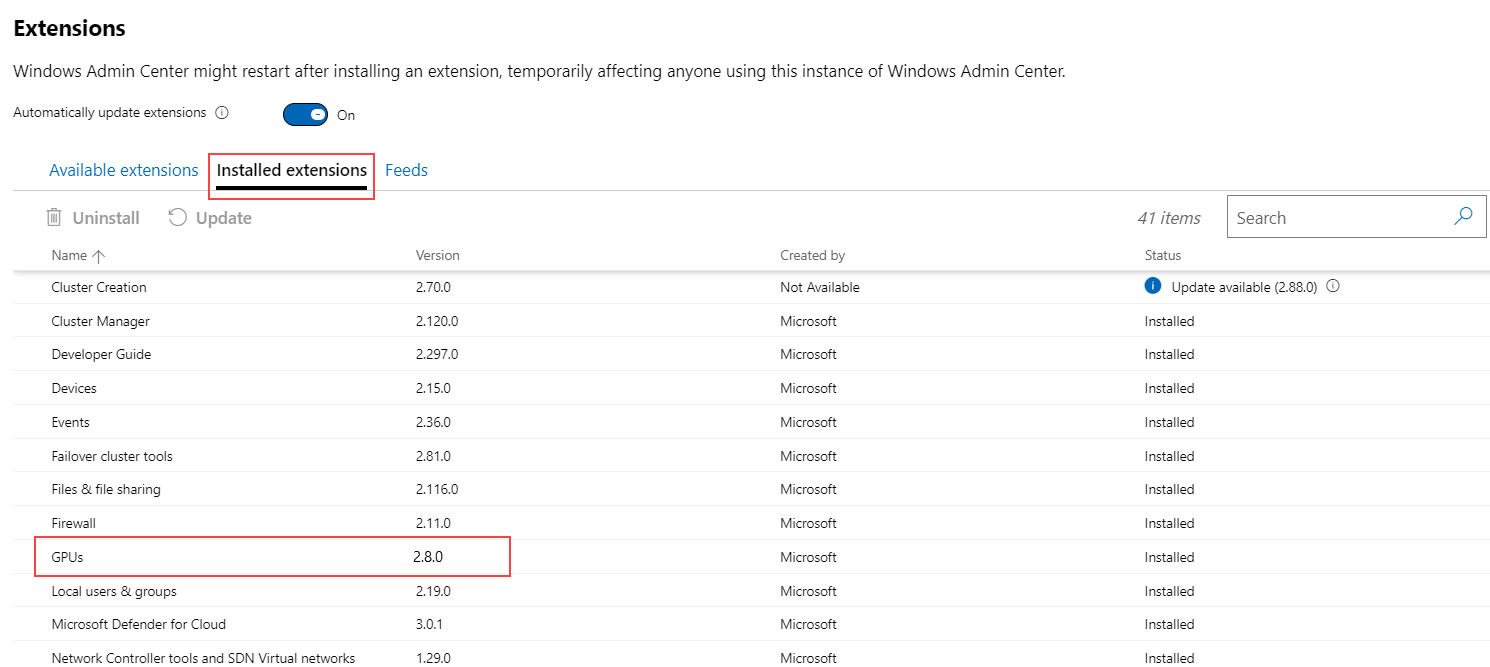
You need the GPUs extension version 2.8.0 or later.
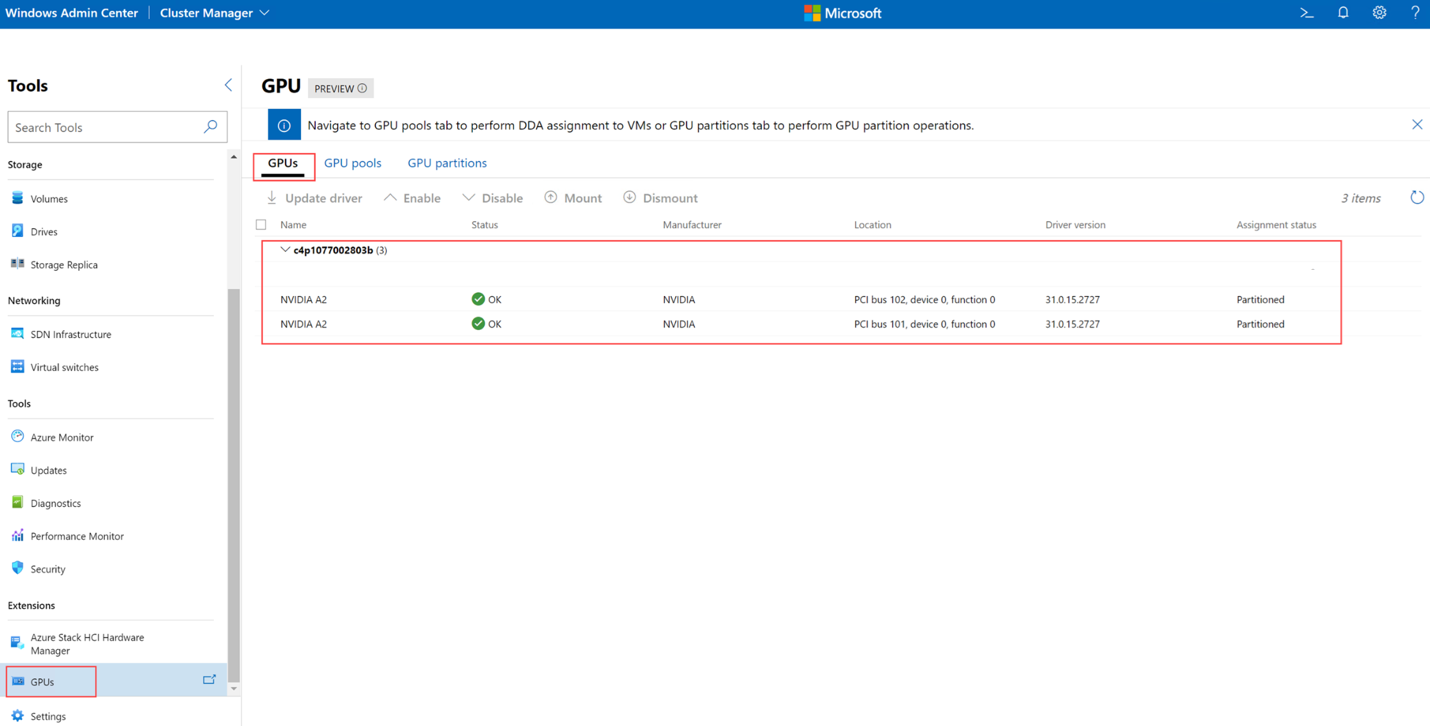
Connect to the server or cluster, then go to Settings > Extensions > GPUs and check the Assigned status column for each card. Partitioned means the GPU is ready. Paravirtualization means the partitioned driver is installed but SR-IOV has not been enabled in firmware, and Not assignable means the device cannot be used this way at all.
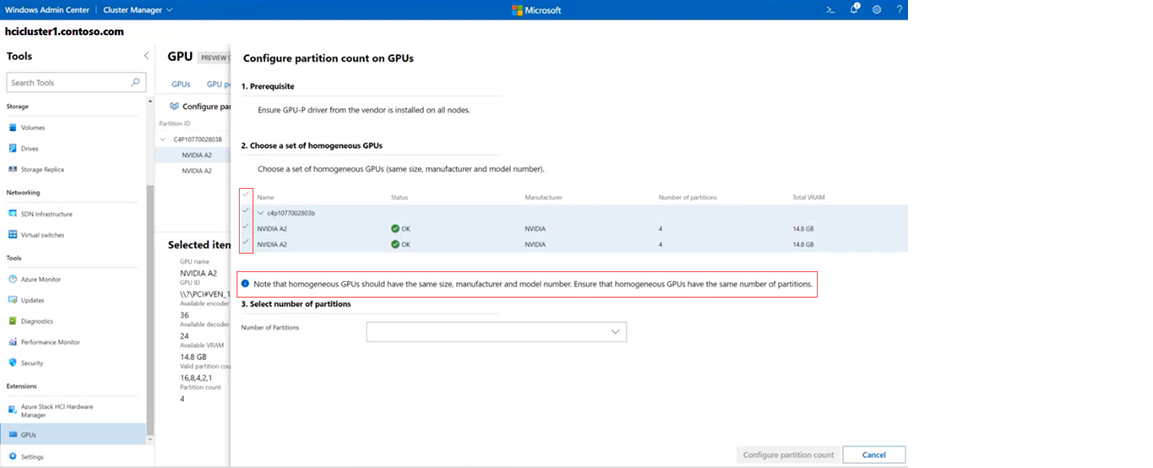
From the GPU partitions tab, use Configure partition count to divide the selected GPUs, then Assign partition to attach a partition to a VM. Windows Admin Center stops and restarts the VM for you as part of the assignment.
Using PowerShell
The same workflow in an elevated PowerShell session:
powershell
# 1. Confirm the GPU supports partitioning and see the valid partition counts
Get-VMHostPartitionableGpu | Format-List Name, ValidPartitionCounts, PartitionCount
# 2. Divide the GPU into partitions (valid counts are defined by the vendor)
Set-VMHostPartitionableGpu -Name "GPU_ID" -PartitionCount 4
# 3. Assign a partition to a virtual machine
Add-VMGpuPartitionAdapter -VMName "VM01"
# 4. Verify the assignment
Get-VMGpuPartitionAdapter -VMName "VM01" | Format-List InstancePath, PartitionId
# 5. Remove the partition when it is no longer needed
Remove-VMGpuPartitionAdapter -VMName "VM01"
Valid partition counts are predefined by the vendor, typically 1, 2, 4, 8, or 16, and VRAM per partition is calculated from that count rather than set by hand. Once the partition is attached and the VM is running, install the vendor’s guest driver inside the VM before the workload will see the device.
Some limitations that you should be aware of
- One partition per VM. A virtual machine can only hold a single GPU partition. If a workload needs more than one card’s worth of capacity, GPU-P is not the mechanism.
- The VM and its partition share a host. A partition cannot be assigned across servers.
- Live migration is slower. Hyper-V falls back to TCP/IP with compression rather than RDMA when a GPU partition is attached, because the device state is more complex to transfer. Expect higher host CPU usage and longer migration times.
- Failover is not guaranteed to keep the GPU. If a VM restarts on another node and no free partition is available there, it may come up without GPU access. Capacity planning across the cluster matters.
- Partition sizes are fixed by the vendor. You pick from a supported list, not an arbitrary number.
Summary
This guide covered what GPU Partitioning is in Windows Server 2025 Hyper-V and how to configure it and what kind of workloads that it is intended for.
GPU-P will not replace passthrough for workloads that need a full GPU card, and the one-partition-per-VM limit is a real constraint for some workloads. But for VDI and GenAI inference at the edge, it turns an expensive, underused accelerator into a resource several workloads can share.