


Blocked by TPM 2.0 or “unsupported hardware” when installing Windows 11? Our new article presents tested working bypass methods on recent Windows 11 25H2 builds with clear steps and risk notes.
Microsoft enforces TPM 2.0, Secure Boot, and CPU requirements for Windows 11, and these checks have gotten stricter with each new build. A lot of perfectly functional hardware gets blocked. If you’re running into the “unsupported hardware” wall, this guide covers the registry method to get past it – tested and working on Windows 11 build 25H2.
Before you start: check if your system actually lacks TPM, or if it’s just turned off. Most PCs built after 2015-2016 have a TPM 2.0 chip (or firmware equivalent) that might simply be disabled in BIOS. Intel calls theirs PTT (Platform Trust Technology), AMD calls it fTPM. If you can just flip a switch in BIOS/UEFI, do that instead of bypassing anything.
Why bypass at all?
Windows 11 requires TPM 2.0, 4 GB RAM, Secure Boot, and a supported CPU generation. Older PCs and most virtual machines don’t meet these checks. The registry method below tells the installer to skip them, letting you install Windows 11 on hardware that Microsoft considers unsupported.
The trade-off is real, though: without TPM 2.0, you lose hardware-backed BitLocker encryption and some Windows Hello features. You’ll also be in a gray area for updates – cumulative patches have been working fine on unsupported installs, but Microsoft doesn’t guarantee it, and major feature updates can re-check hardware requirements. Treat this as a workaround, not a permanent solution.
Official requirements vs. what you can bypass:
| Requirement | Official Spec | Bypassable? | Notes |
|---|---|---|---|
| TPM | TPM 2.0 | Yes | Registry method |
| Secure Boot | Required | Yes | Bypassed during setup |
| CPU | Supported gen only | Yes | Warning may remain |
| RAM | 4 GB minimum | Yes (limited) | Not recommended below 4 GB |
What is TPM?
TPM (Trusted Platform Module) is a dedicated security chip (or firmware module) that handles encryption keys, device integrity verification, and secure boot validation at the hardware level. Windows 11 uses TPM 2.0 for BitLocker, Credential Guard, and measured boot.
TPM 1.2 was standardized in 2003 and showed up in business PCs around 2006-2010. TPM 2.0 came in 2014, and by 2016 most new business machines shipped with it. Consumer devices caught up around 2020. If your PC is from the last decade, there’s a good chance it has TPM 2.0 somewhere in its firmware – just check your BIOS settings.
Step-by-step: registry bypass during clean install
Step 1: Prepare installation media
Download the Windows 11 ISO from Microsoft’s website and create a bootable USB. You can use Rufus for this – it’s free, and it has a built-in option to disable TPM/Secure Boot/RAM checks right when you create the USB. If you go the Rufus route, you can skip the manual registry editing below entirely.
If you prefer to use Microsoft’s Media Creation Tool or another method to make your USB, keep reading – you’ll do the bypass manually during setup.
Step 2: Boot from the USB
Insert the bootable USB, restart your PC, and boot from it. You’ll land on the language selection screen.
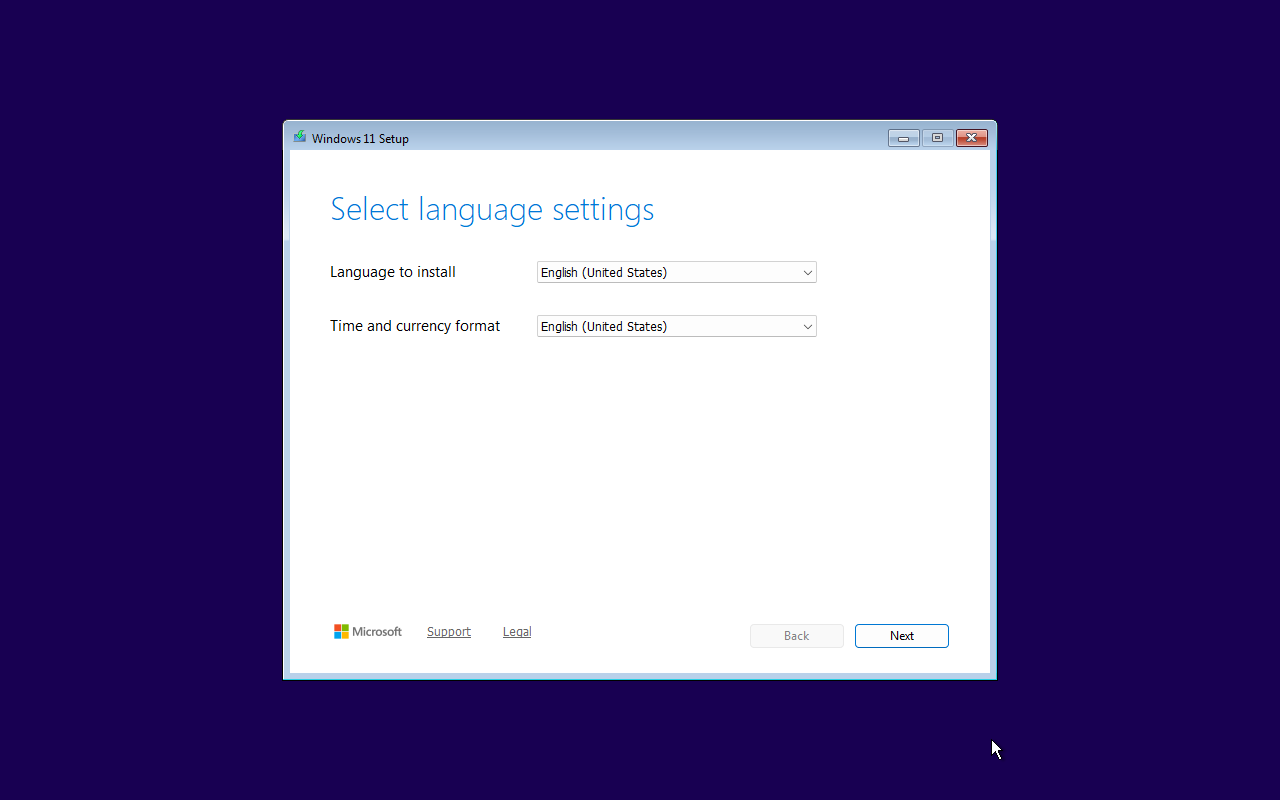
Step 3: Open Command Prompt
Press Shift + F10 to open Command Prompt.

Step 4: Open Registry Editor
Type regedit and press Enter.
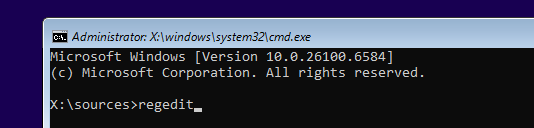
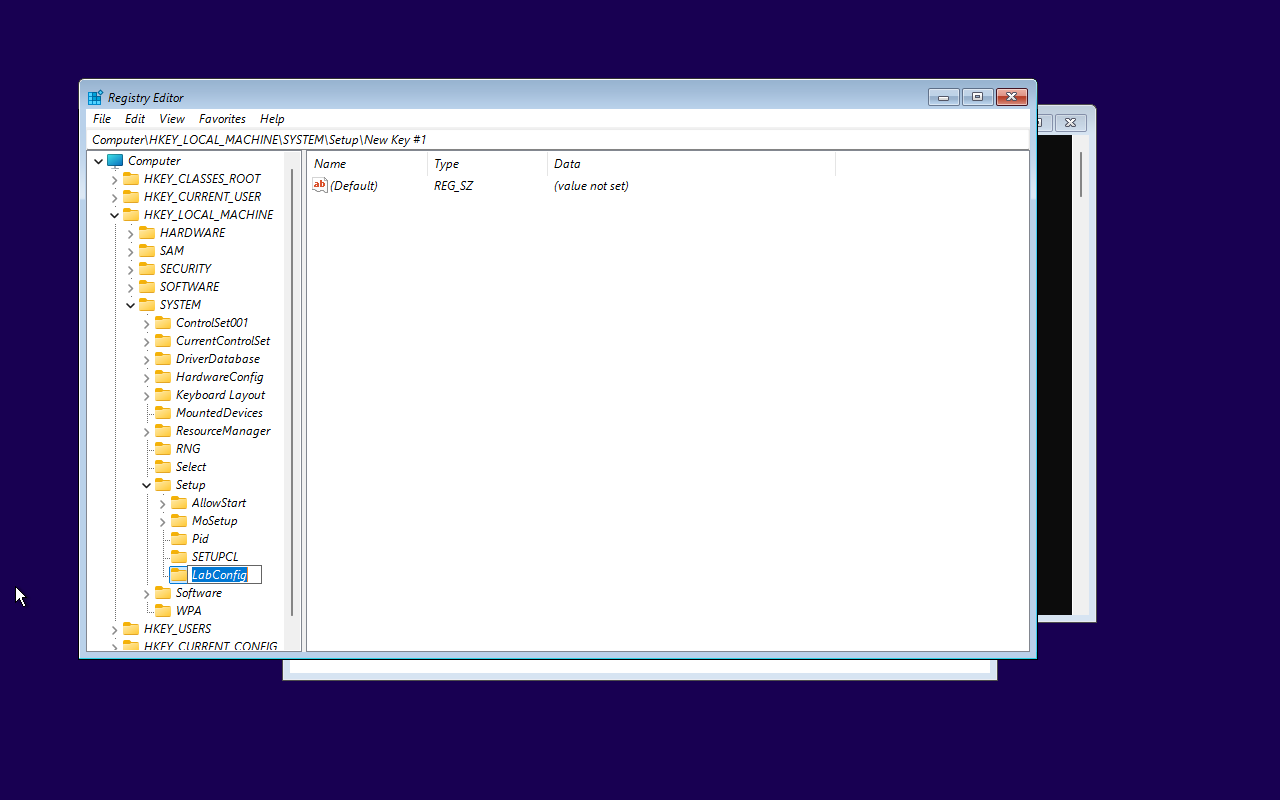
Step 5: Create the LabConfig key
1. Navigate to HKEY_LOCAL_MACHINE\SYSTEM\Setup.
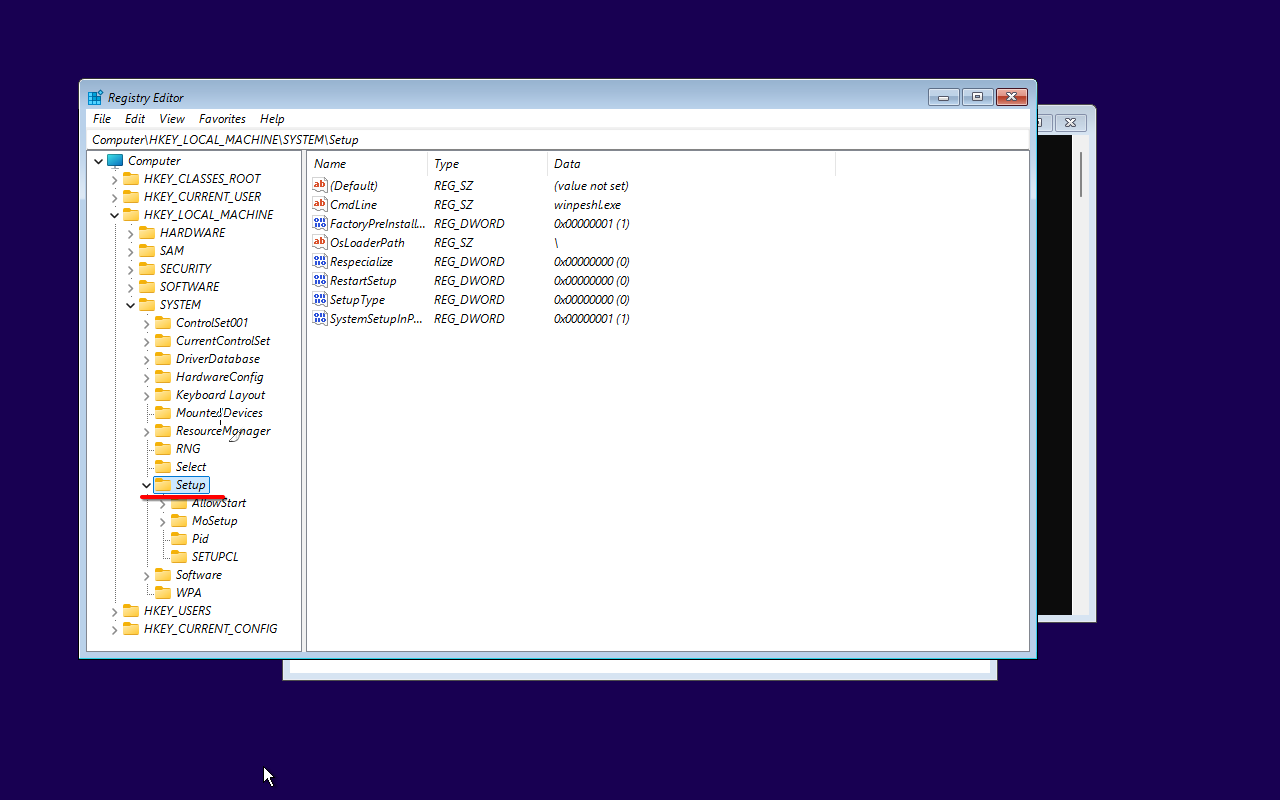
2. Right-click on Setup, select New > Key
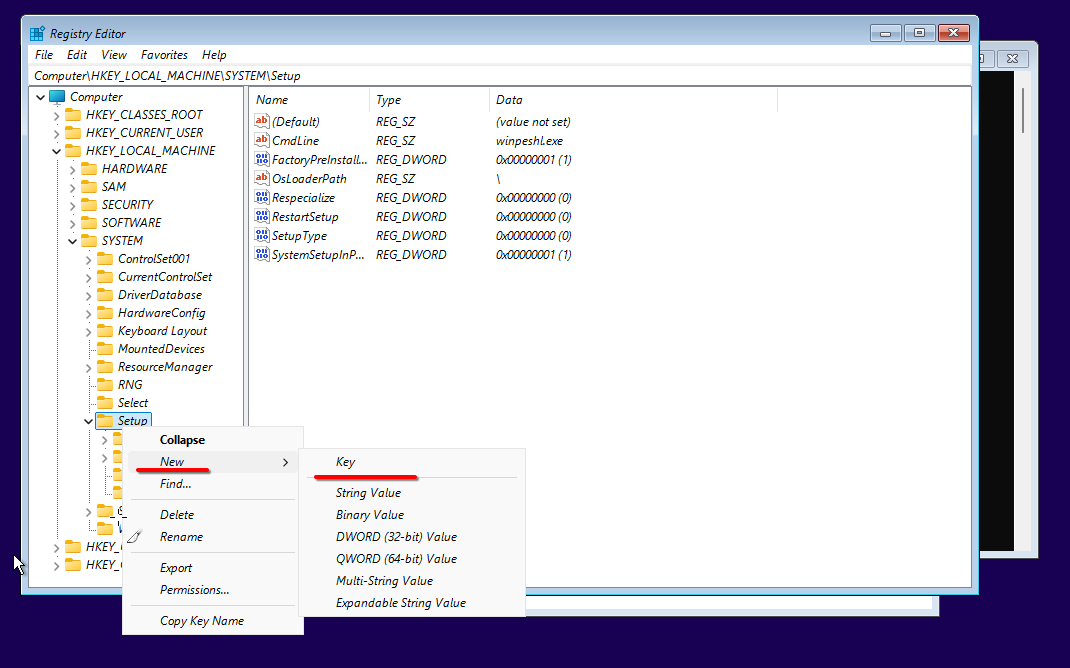
3. Name the new key: LabConfig.
Step 6: Add the bypass values
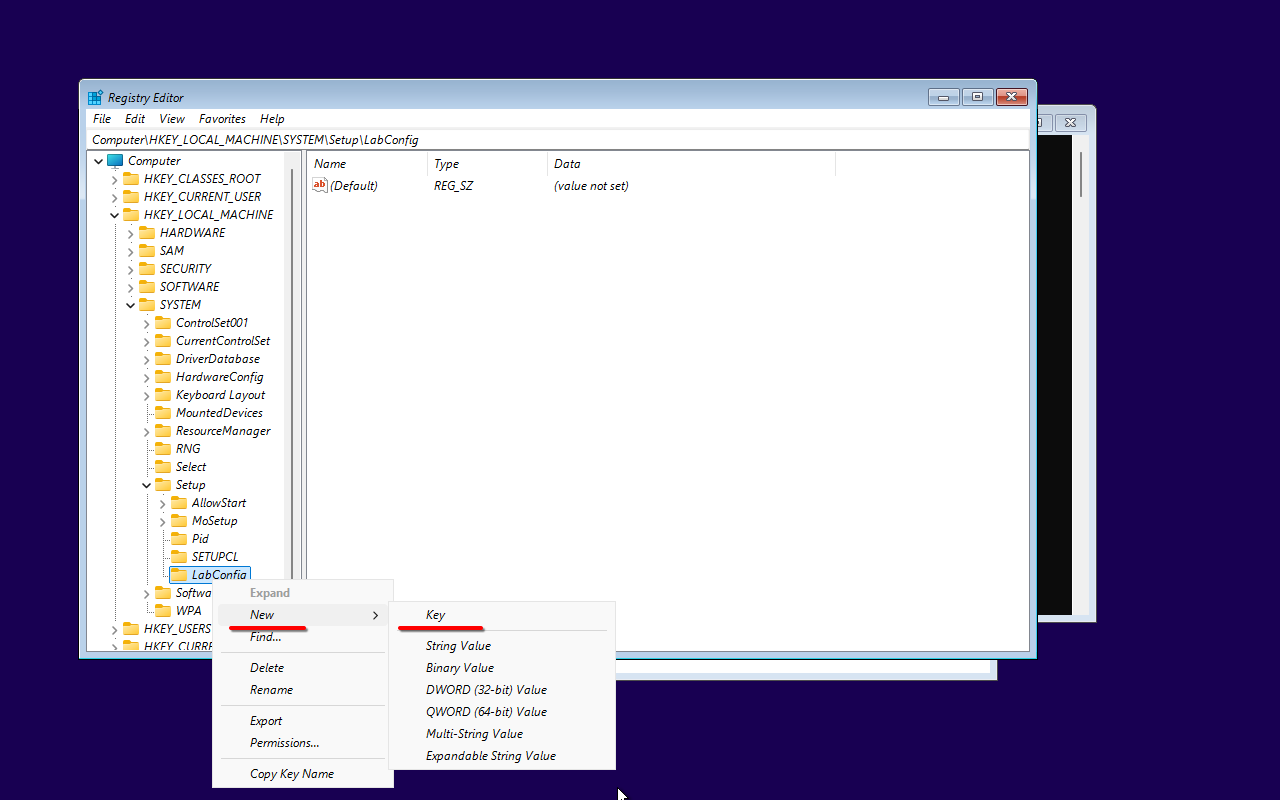
1. Inside the LabConfig key, right-click in the right pane and select New -> DWORD (32-bit) Value.
2. Name this new DWORD Value: BypassTPMCheck.
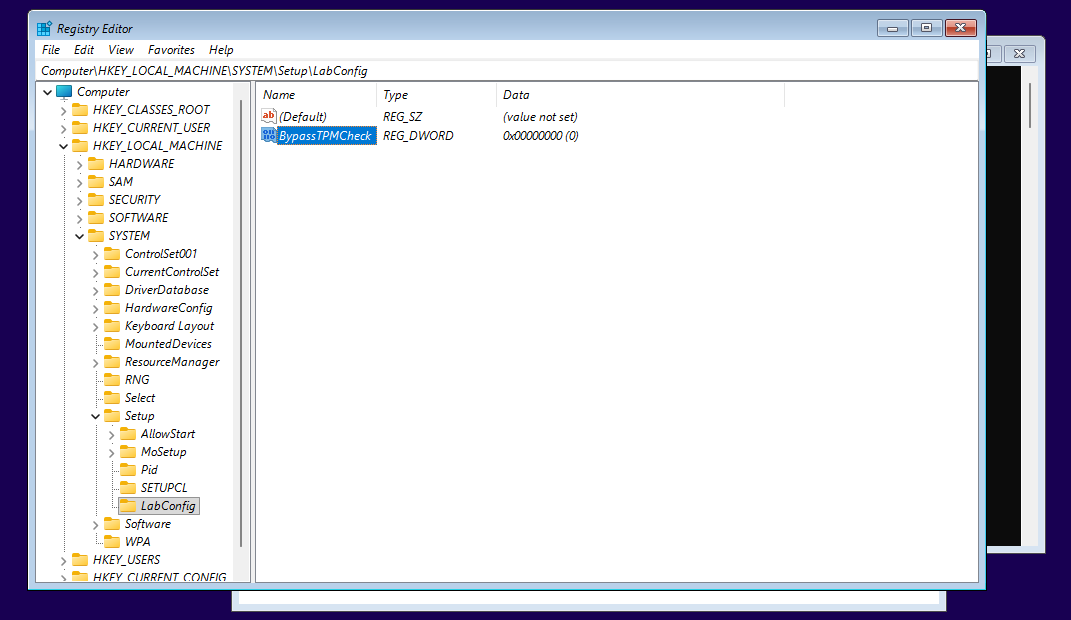
3. Right click the newly created value, click ‘Modify’, set the value to 1 and press OK.

4. Create another DWORD (32-bit) value named BypassSecureBootCheck and set it to 1.
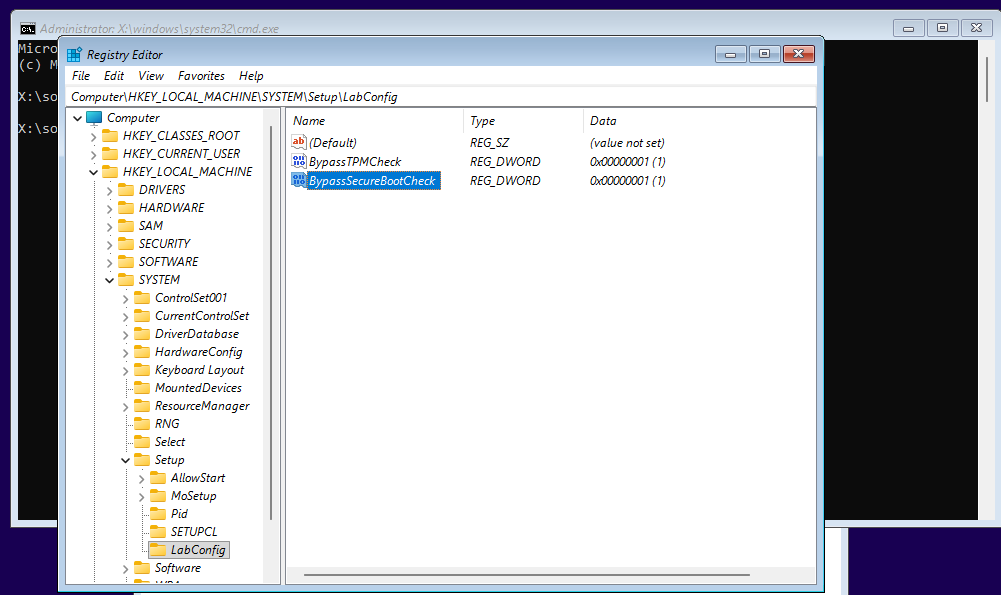
5. To bypass the RAM check, create a DWORD named BypassRAMCheck and set it to 1.
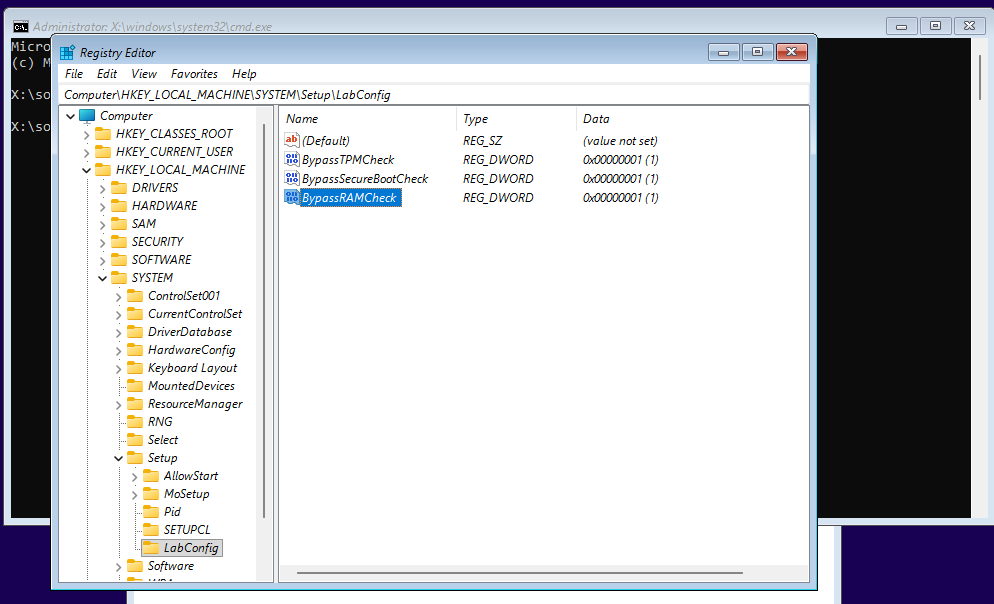
Step 7: Continue with Windows 11 Installation
Close Registry Editor and Command Prompt. Proceed with the installation normally. The hardware checks are now skipped.
Tip: If you’re upgrading (not clean installing), consider disconnecting from the internet during the entire process. Users have reported that connected upgrades on unsupported hardware sometimes fail at 70-75% of the first stage.

Alternative: use Rufus (easier)
The registry method works, but the community consensus is that Rufus is simpler and more reliable. When you create the bootable USB in Rufus, it prompts you to remove the 4 GB RAM, TPM 2.0, and Secure Boot requirements automatically. It can also skip the Microsoft account requirement and telemetry setup pages.
Download Rufus from rufus.ie, select your Windows 11 ISO, choose your USB drive, and check the bypass options when prompted. No registry editing needed.
What to expect after installation
Day-to-day use will be normal. Cumulative updates install fine. The real question marks are around major feature updates (annual releases like 24H2 to 25H2) – these may re-check hardware and could fail. Some users have successfully updated through multiple feature releases, others had to re-apply the bypass or do a clean install.
Also worth noting: no registry hack can add missing CPU instructions. If a future Windows build requires specific instruction sets (like SSE4.2 or POPCNT) that your CPU doesn’t have, it won’t boot regardless of any bypass. This is a hardware limit, not a software one.
For more on customizing Windows installations, see the StarWind guides on Windows Enablement Packages and debloating Windows 11 ISOs.
FAQs
Is bypassing TPM safe?
It works, but you’re trading away hardware-backed security features. Without TPM 2.0, BitLocker encryption is weaker and Credential Guard doesn’t work. For a home PC or lab machine, that’s usually acceptable. For anything handling sensitive data, stick with supported hardware. Back up your data before you start.
Will I keep getting updates?
Cumulative (monthly) updates work fine. Major feature updates are unpredictable – they may install, or they may block you. Microsoft’s official position is that unsupported devices aren’t entitled to updates, though in practice most people have been getting them.
Can I just enable TPM instead of bypassing it?
If your motherboard has Intel PTT or AMD fTPM, yes – enable it in BIOS and you won’t need any bypass at all. This is the best option when available.
Does this work in virtual machines?
Yes. Most hypervisors (VMware, VirtualBox, Hyper-V) let you install Windows 11 without a virtual TPM. This is actually one of the most common use cases for the bypass.
Can I go back to Windows 10?
Yes, you can reinstall Windows 10 from official Microsoft media. Note that Windows 10 mainstream support ended October 14, 2025. Extended Security Updates (ESU) are available until about October 2026, but after that, no more patches.
Is this legal?
Yes. You’re installing Windows from official Microsoft media with a valid license. Microsoft just won’t offer technical support for hardware that doesn’t meet their specs.
What about the setup.exe /product server method?
This command-line trick was popular for in-place upgrades from Windows 10, but Microsoft has disabled it in newer ISO releases. Rufus or the registry method are more reliable now.
