Search
Join the Technical Preview Program
See how NVMe-oF removes iSCSI
bottlenecks in your HCI
The Best Hyperconverged
Infrastructure
(HCI) for Enterprise
ROBO, SMB & Edge
The Best Virtual SAN
for Enterprise ROBO, SMB & Edge

Kubectl with Azure CLI

  • July 8, 2021
  • 3 min read
Cloud and Virtualization Architect and Microsoft MVP. Florent specializes in public, private, and hybrid cloud ecosystems. An MCSE in Private Cloud, he provides technical leadership in Cloud and Datacenter Management. Florent delivers high-authority insights on Azure deployments, virtualization strategy, and optimizing enterprise-scale cloud infrastructure.

A new interesting feature that has been released by Microsoft, with the aks-preview module, is the possibility to execute kubectl commands, directly from Azure CLI, without connecting to the cluster. The full documentation is available here: https://docs.microsoft.com/en-us/azure/aks/private-clusters#aks-run-command-preview

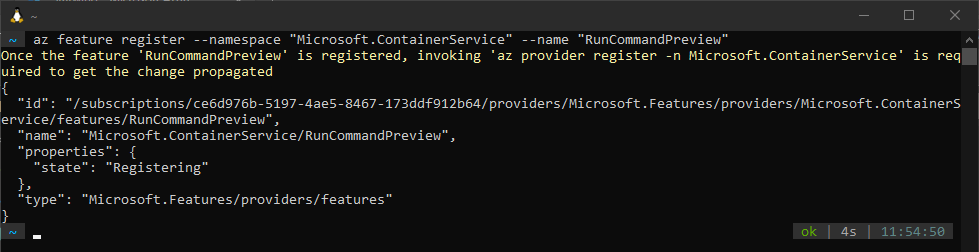
The first thing is to register the RunCommandPreview in your subscription:

az feature register --namespace "Microsoft.ContainerService" --name "RunCommandPreview"

RunCommandPreview

You can check the status of the registering, with this command:

az feature list -o table --query "[?contains(name, 'Microsoft.ContainerService/RunCommandPreview')].{Name:name,State:properties.state}"

Check the status of the registering

Check the status of the registering

When the state is Registered you need to re-register the provider ContainerService:

az provider register --namespace Microsoft.ContainerService

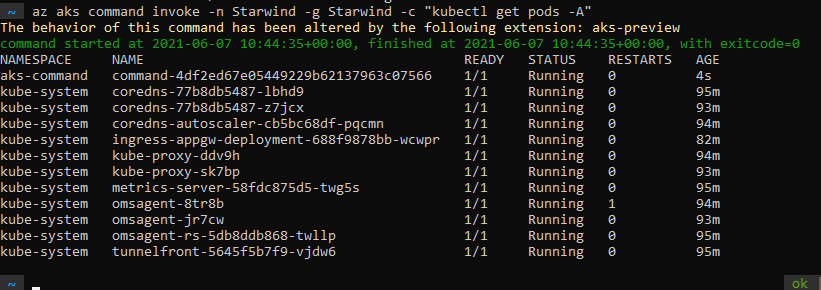
You can now execute your Kubernetes commands, with the following command:

az aks command invoke -n Starwind -g Starwind -c "kubectl get pods -A"

Execute your Kubernetes commands

You can also apply a file:

az aks command invoke -g Starwind -n Starwind -c "kubectl apply -f deployment.yaml" -f website.yaml

wp-image-16854

I can now access the webpage that I deployed from the Azure CLI:
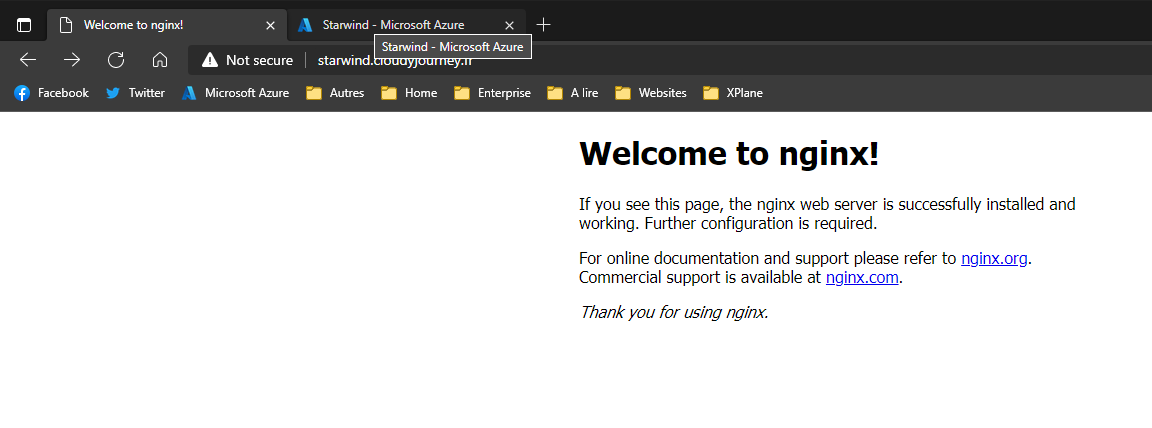
wp-image-16855

How it works? It is simple. When you execute the az aks command invoke command, a new pod is deployed in your AKS clusters, and execute the command that you passed.

At this time, this feature has some limitation like the execution with Private AKS cluster and Azure AD authentication, where it doesn’t work.

Hey! Found Florent’s article helpful? Looking to deploy a new, easy-to-manage, and cost-effective hyperconverged infrastructure?
Alex Bykovskyi
Alex Bykovskyi StarWind Virtual HCI Appliance Product Manager
Well, we can help you with this one! Building a new hyperconverged environment is a breeze with StarWind Virtual HCI Appliance (VHCA). It’s a complete hyperconverged infrastructure solution that combines hypervisor (vSphere, Hyper-V, Proxmox, or our custom version of KVM), software-defined storage (StarWind VSAN), and streamlined management tools. Interested in diving deeper into VHCA’s capabilities and features? Book your StarWind Virtual HCI Appliance demo today!