Search
Join the Technical Preview Program
See how NVMe-oF removes iSCSI
bottlenecks in your HCI
The Best Hyperconverged
Infrastructure
(HCI) for Enterprise
ROBO, SMB & Edge
The Best Virtual SAN
for Enterprise ROBO, SMB & Edge

Azure Automanage for your virtual machines

  • March 16, 2021
  • 4 min read
Cloud and Virtualization Architect and Microsoft MVP. Florent specializes in public, private, and hybrid cloud ecosystems. An MCSE in Private Cloud, he provides technical leadership in Cloud and Datacenter Management. Florent delivers high-authority insights on Azure deployments, virtualization strategy, and optimizing enterprise-scale cloud infrastructure.

Intelligently onboard services.

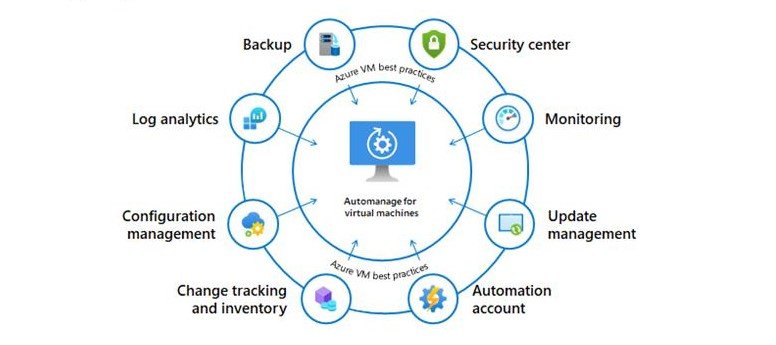
Azure Automanage is a new feature, in preview, that provide you a full automated solution to:

  • Backup your workloads
  • Update your VMs
  • Logs changes
  • Etc.

The full documentation is available here: Azure Automanage for virtual machines | Microsoft Docs

Before starting, make sure that the VM that you would like to manage are in a supported region. Otherwise, you will have an error message:

An error message

Now, search for Automanage in the portal. Select VMs that you want to add. In this demo, I’ll do the work, with a Windows Server 2019 and a Ubuntu VM:
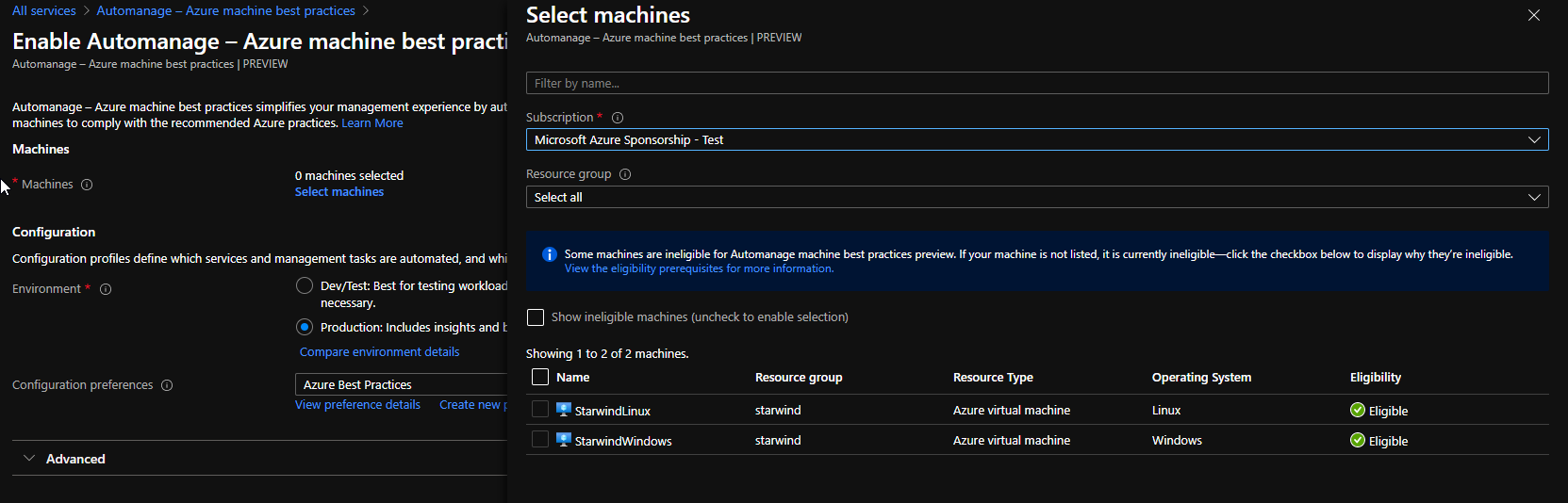
Search for Automanage in the portal

Now, you can tell if it’s a Dev environment or a Prod environment. Depending of your choice, you will have some settings that will change, like backup retention:
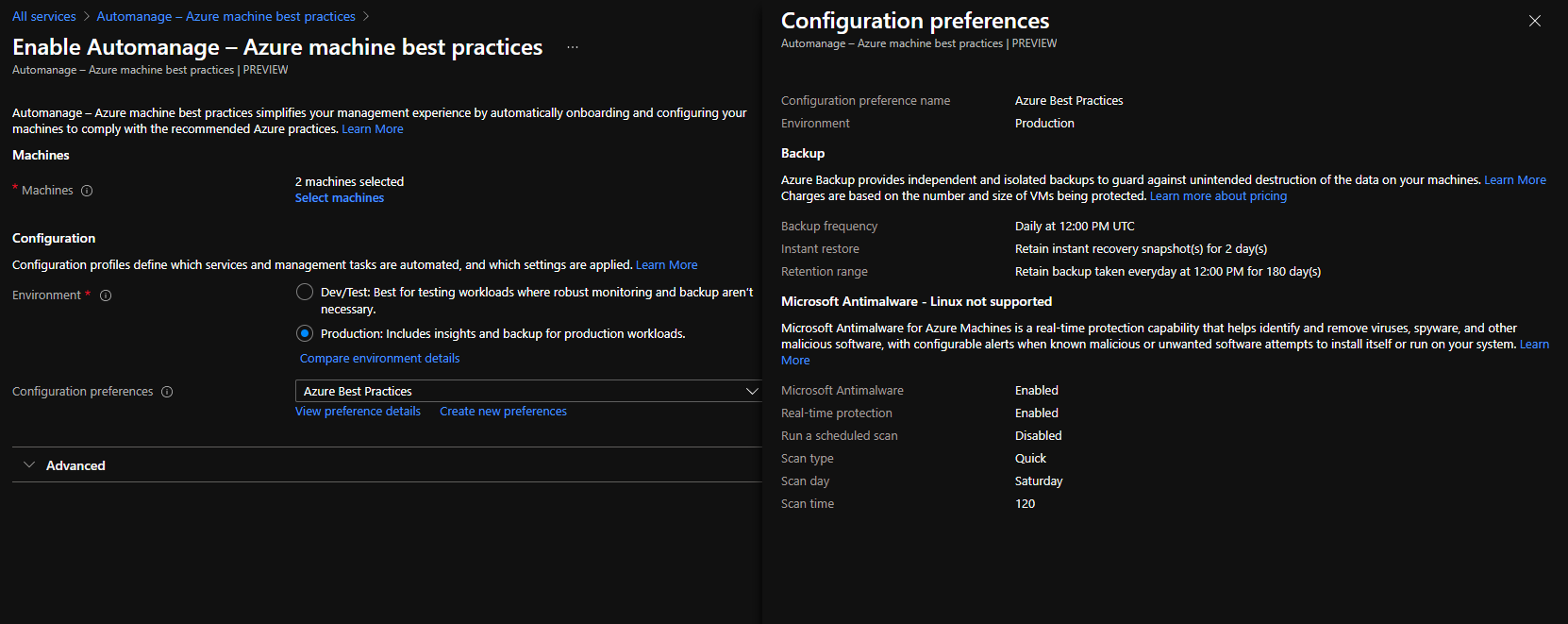
Dev environment or a Prod environment

In the advanced part, you can use an existing automanage account or create a new one. If you create a new one, be sure to be Owner of the RG because you need to give some rights to service accounts:
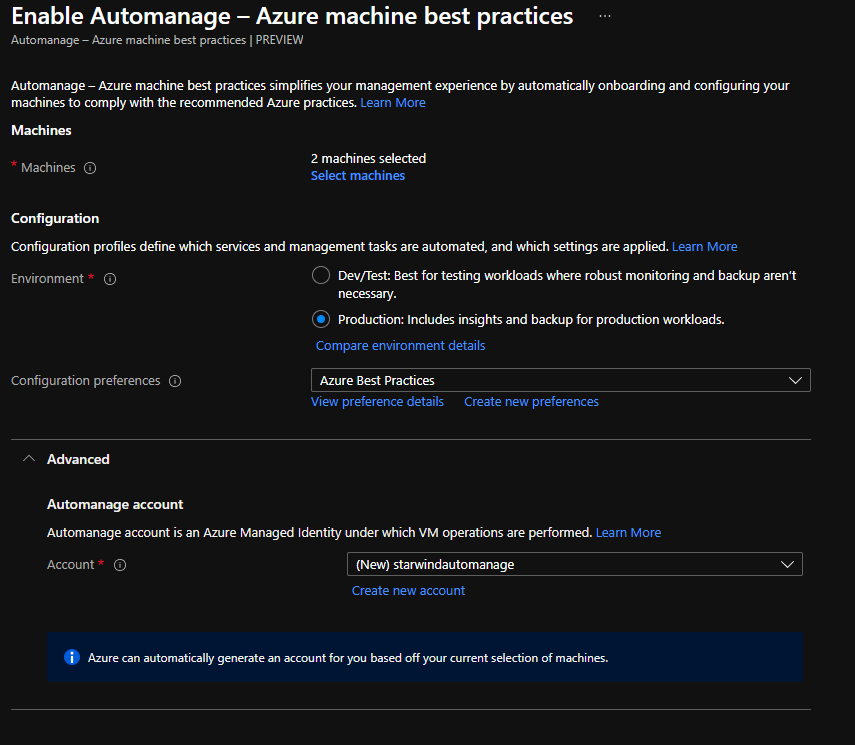
 Use an existing automanage account or create a new one

VM are currently onboarding:

VM are currently onboarding

After few minutes, VMs are onboarded:

VMs are onboarded

If you check your subscription, you will see a new resource group, with some resources, with the subscription id in the name. You will have a new Log Analytics workspace with some solutions, an Azure Automation account and a backup vault:
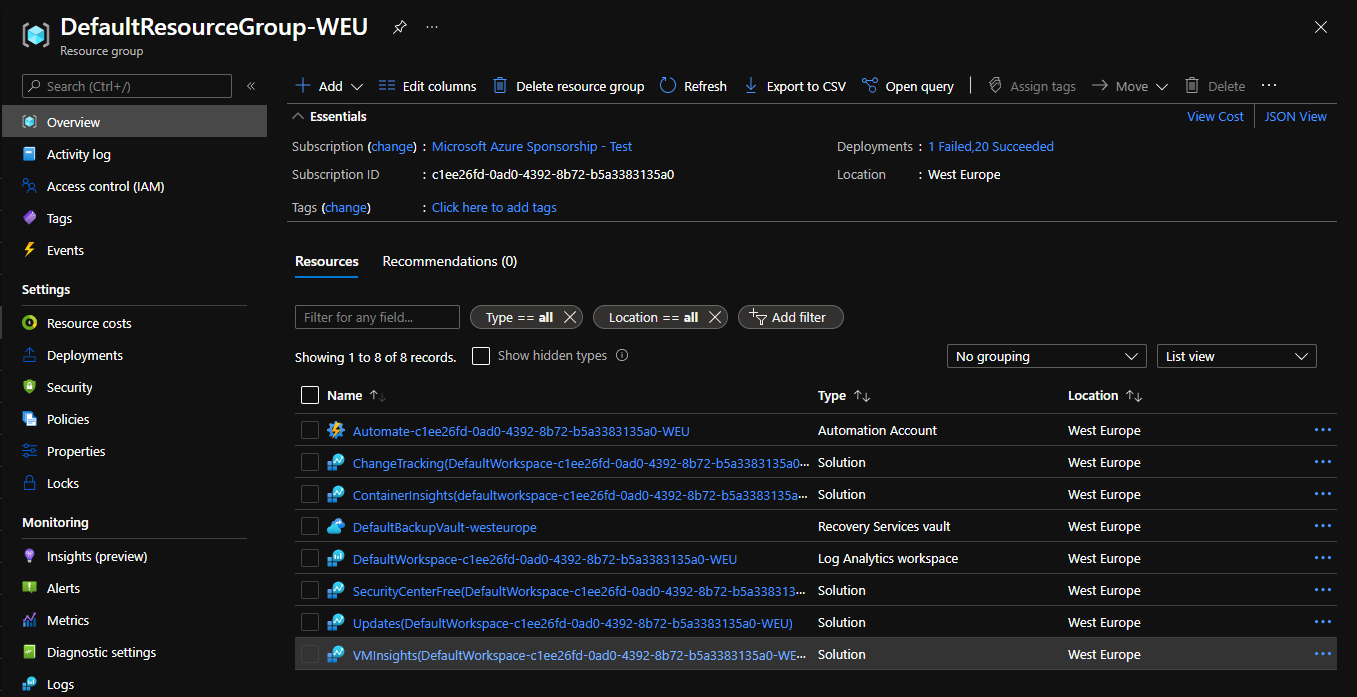
New resource group

You can see that VMs have been onboarded in the backup vault:
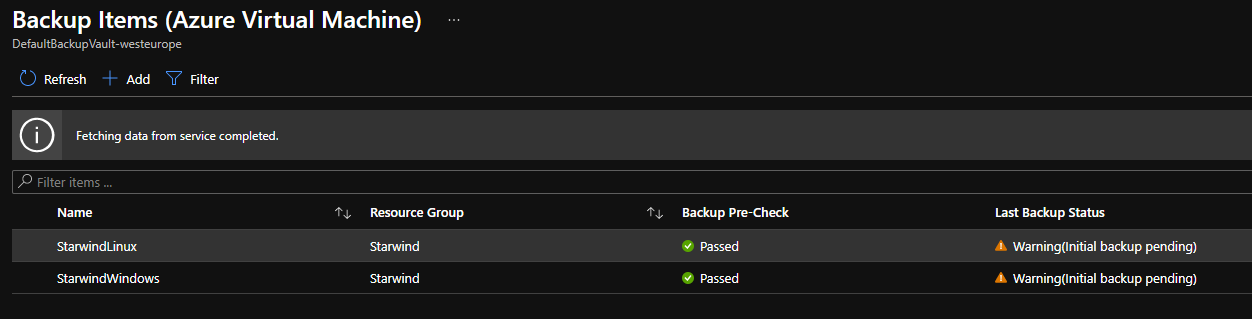
Backup items

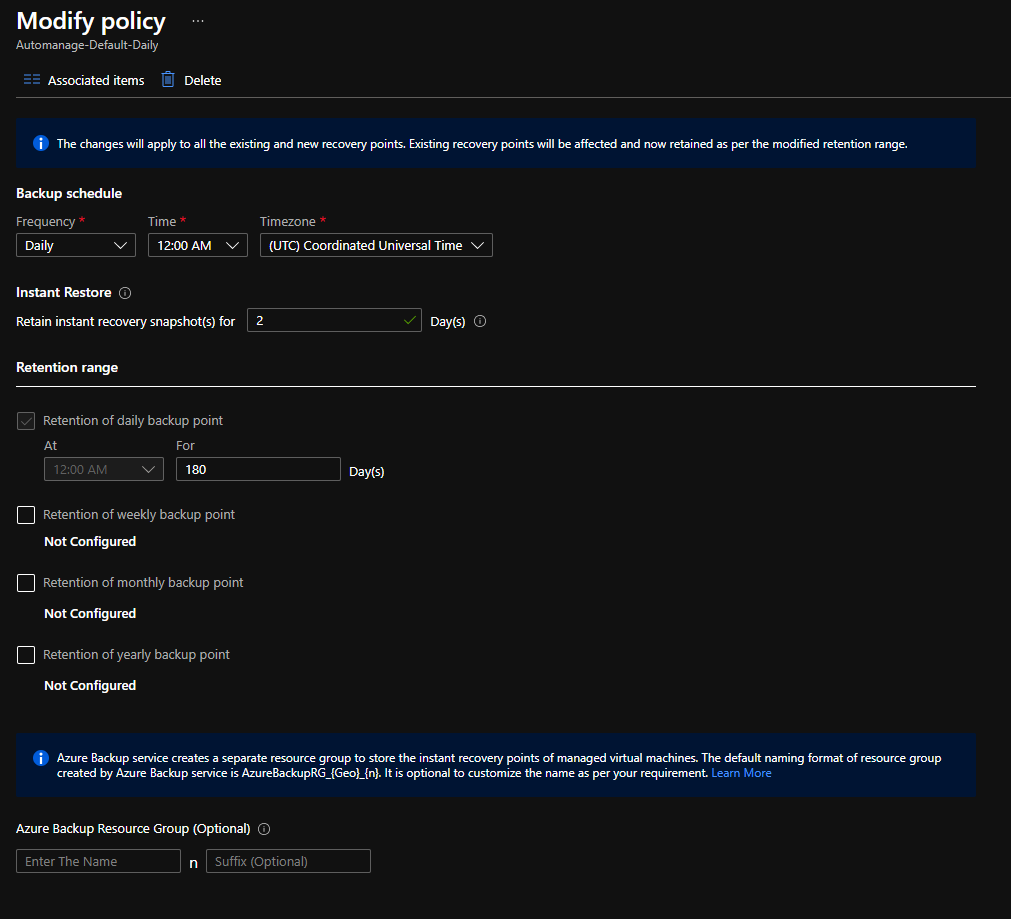
With an automanage policy:

Modify policy

If you go on the Automation account, in the Update Management part, you will see your 2 VMs, with the compliance status. For example here, 2 security updates are missing on my Windows VM:
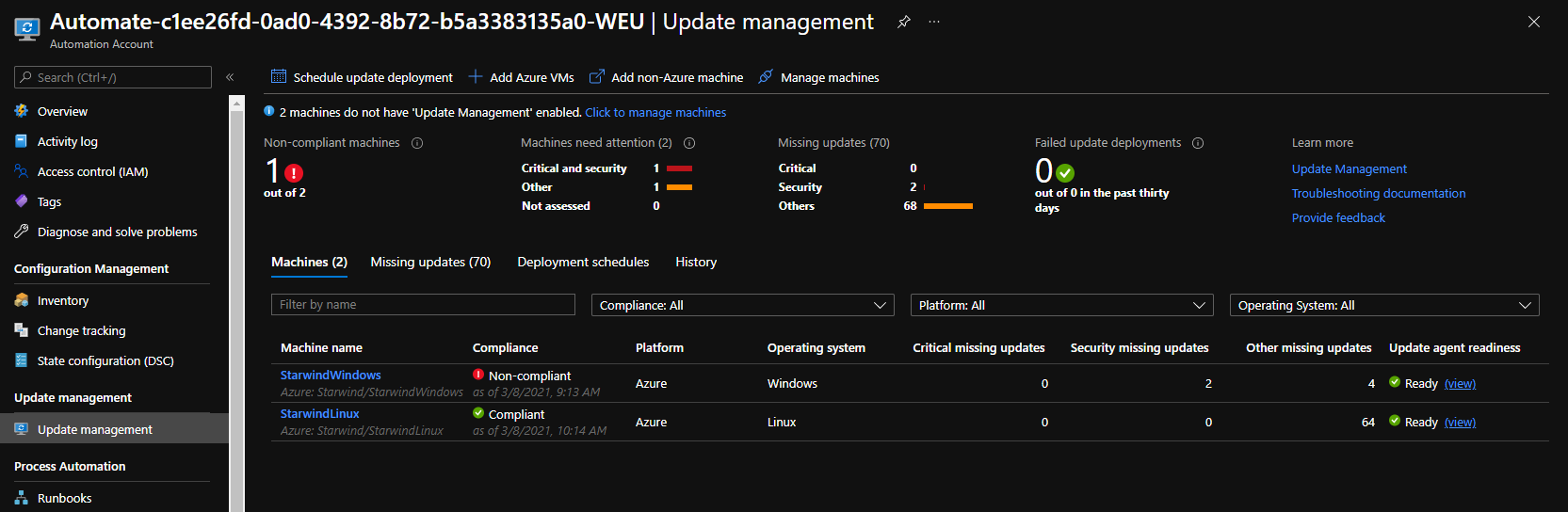
See your 2 VMs, with the compliance status

Now, on your Log Analytics workspace, you can see solutions that have been deployed:
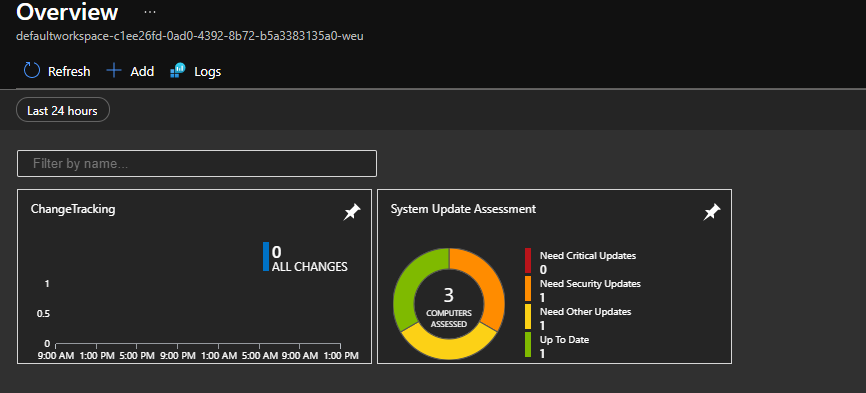
Log Analytics workspace

I can see my 2 VMs on the Updates solution. I have same information as in the Update Management in Azure Automation;
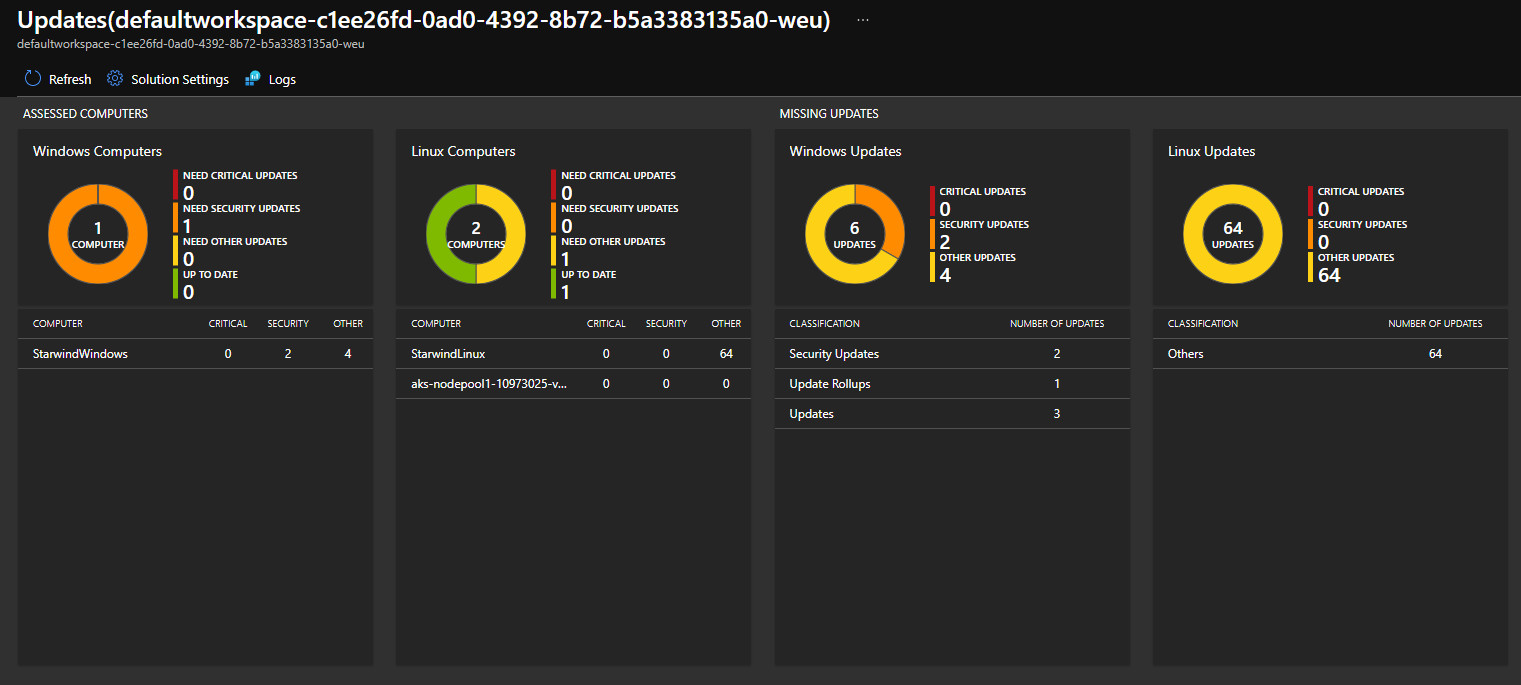
Updates solution

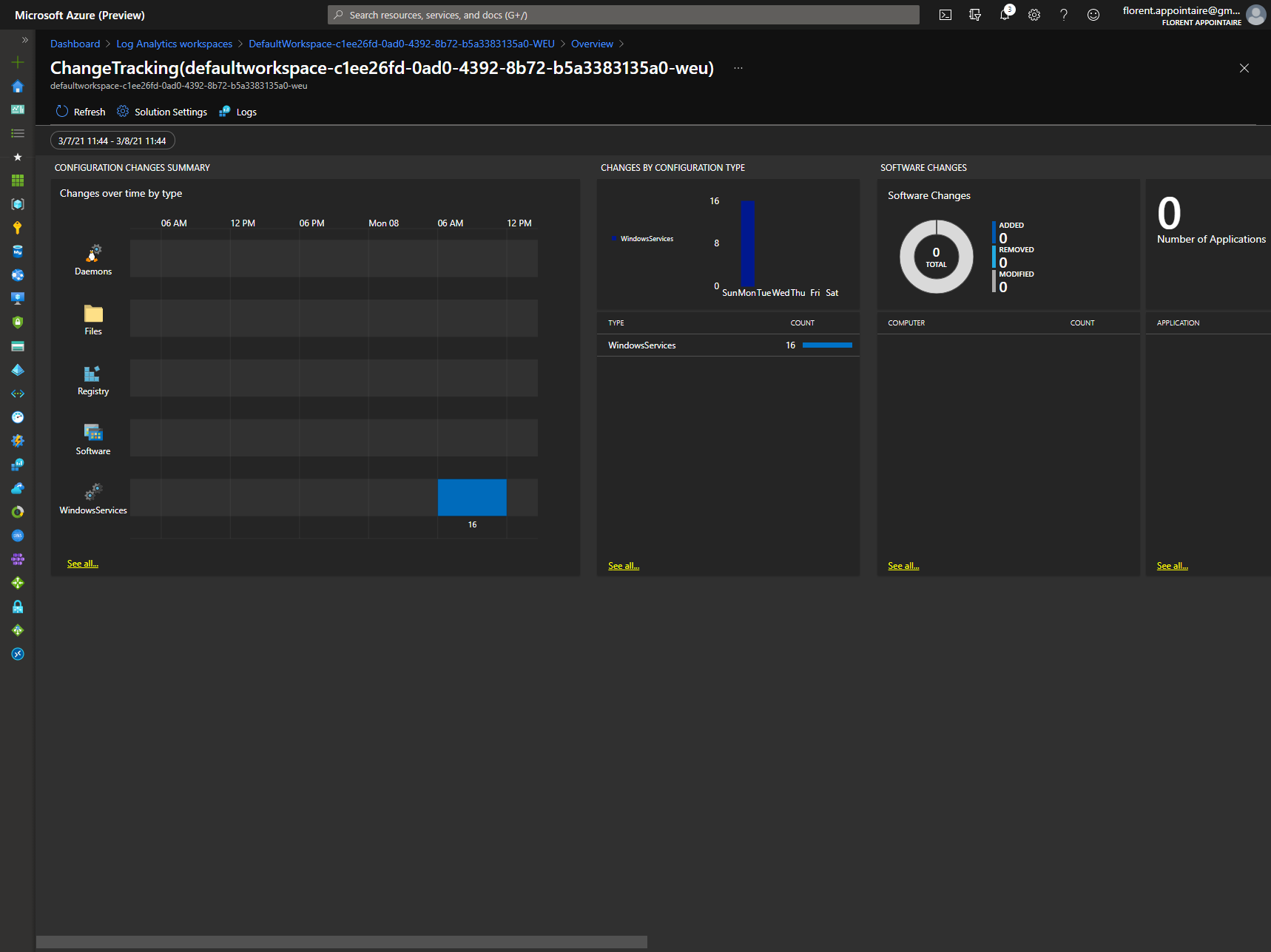
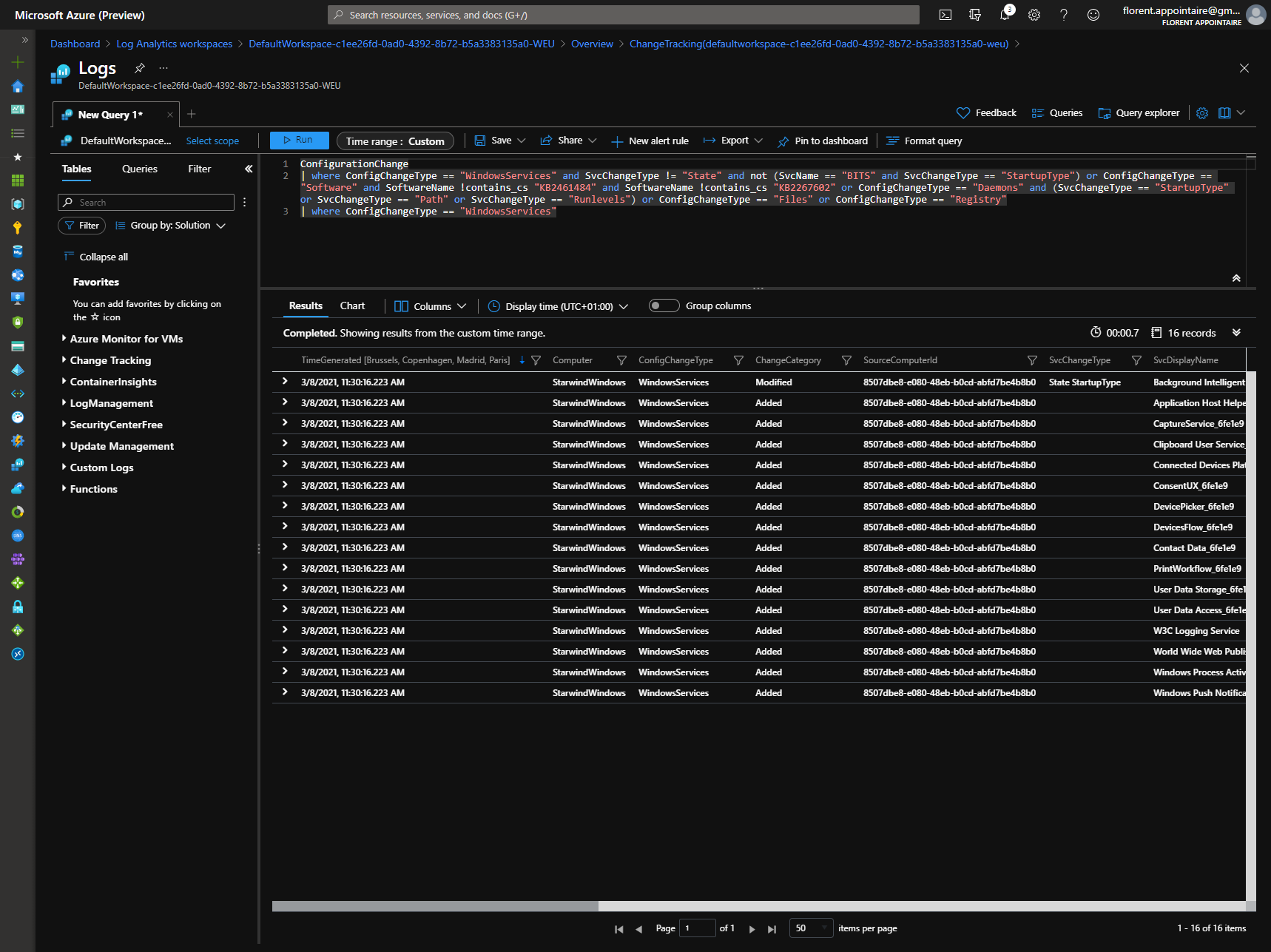
And changes on my Windows VM:

Change tracking

Logs

As you can see, it is very easy to onboard a VM, on this tool, to keep it in your standard, like all other VMs.

We will now wait for the price of this tool when it will be in GA 😊

Hey! Found Florent’s insights useful? Looking for a cost-effective, high-performance, and easy-to-use hyperconverged platform?
Taras Shved
Taras Shved StarWind HCI Appliance Product Manager
Look no further! StarWind HCI Appliance (HCA) is a plug-and-play solution that combines compute, storage, networking, and virtualization software into a single easy-to-use hyperconverged platform. It's designed to significantly trim your IT costs and save valuable time. Interested in learning more? Book your StarWind HCA demo now to see it in action!