
Sometimes you might want to get some information about Azure virtual machines. In this article, we will explore Azure Graph API to extract information about your virtual machines with a very simple PowerShell script.
More information about Graph API : https://docs.microsoft.com/en-us/azure/governance/resource-graph/overview
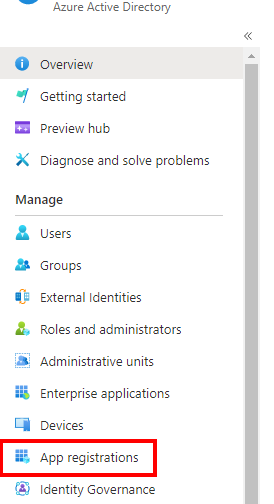
Open the Azure Portal, go to App Registrations
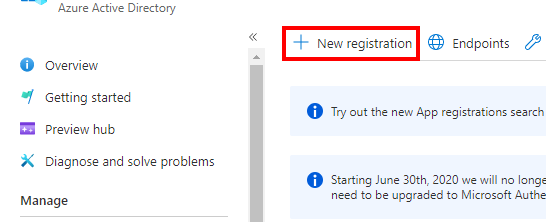
Click New Registration to create a new app
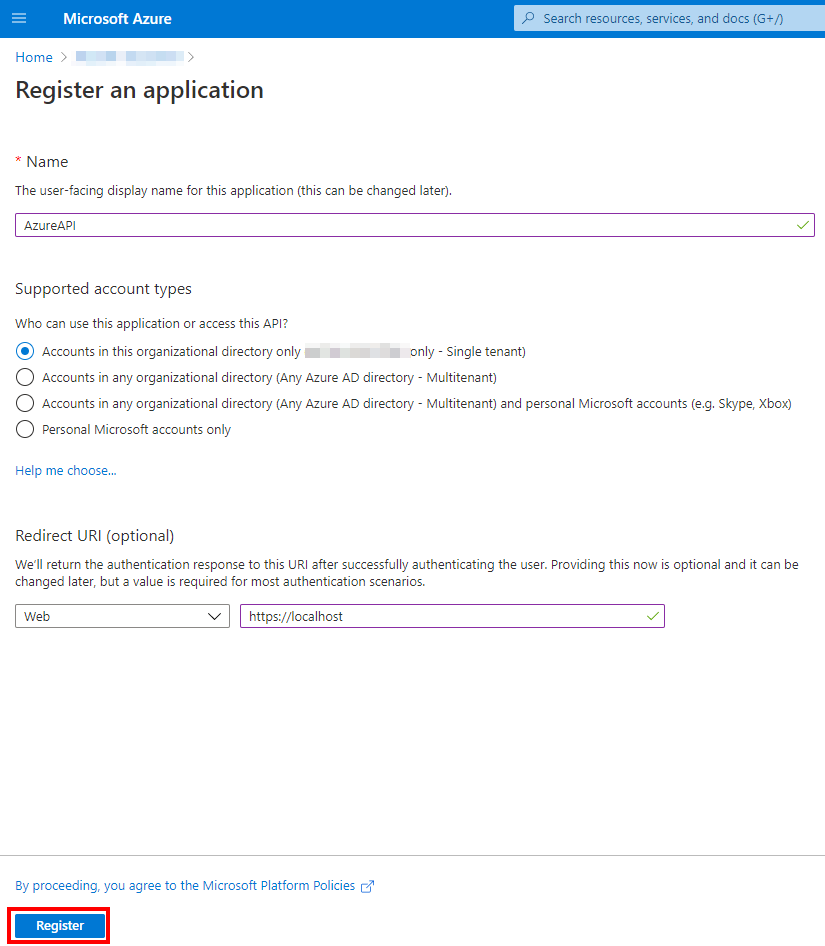
Enter a friendly name to your application. Regarding the URI, it is optional, so you can add https:///localhost
Once it is created, you will see the information on the home page. We will need to copy/paste these information later.
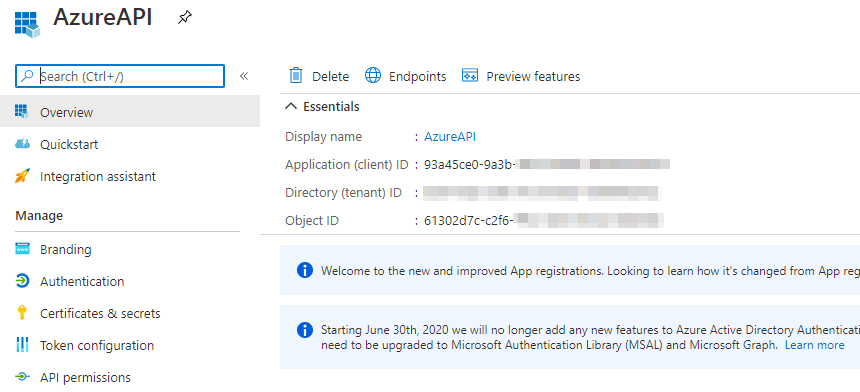
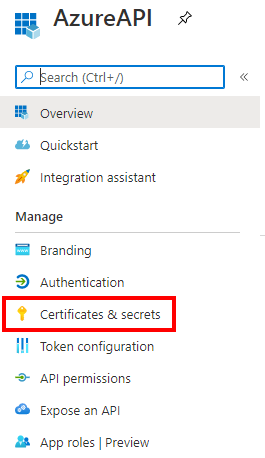
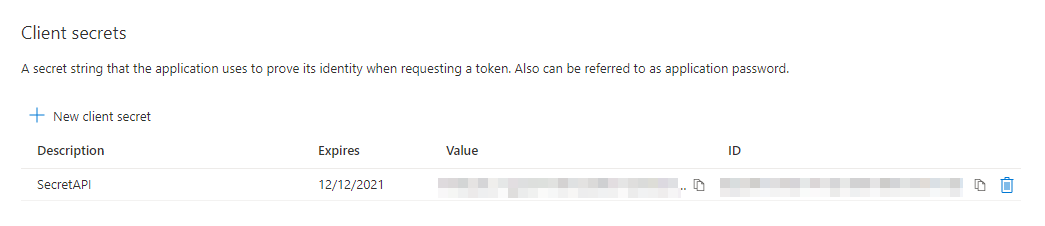
Go to Certificates & secrets to create a Client Secret that will be used to authenticate to the Azure REST API calls.
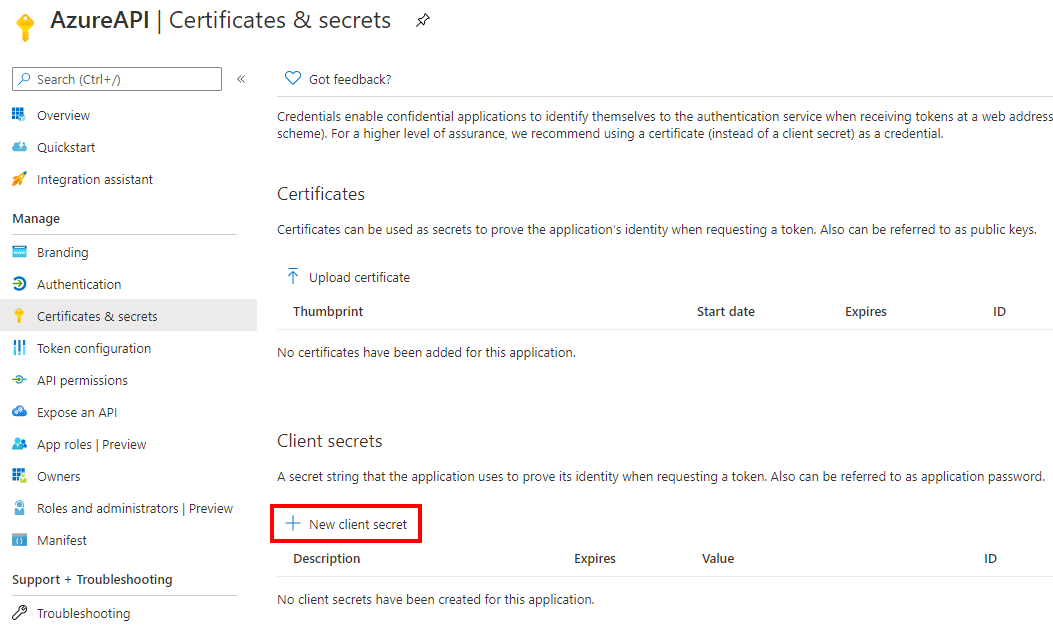
Click on New Client secret to generate the secret.
Add a description and select if you want expiration or not
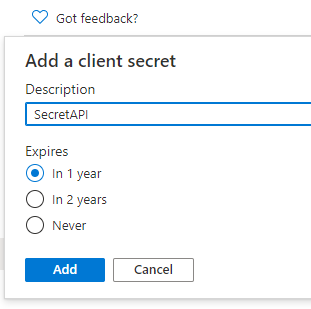
Be careful, you have to save the key somewhere as it will not be accessible after.
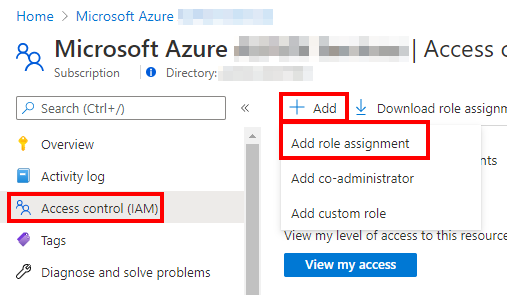
Now go to Subscription and the IAM blade. Click Add / Add role assignment
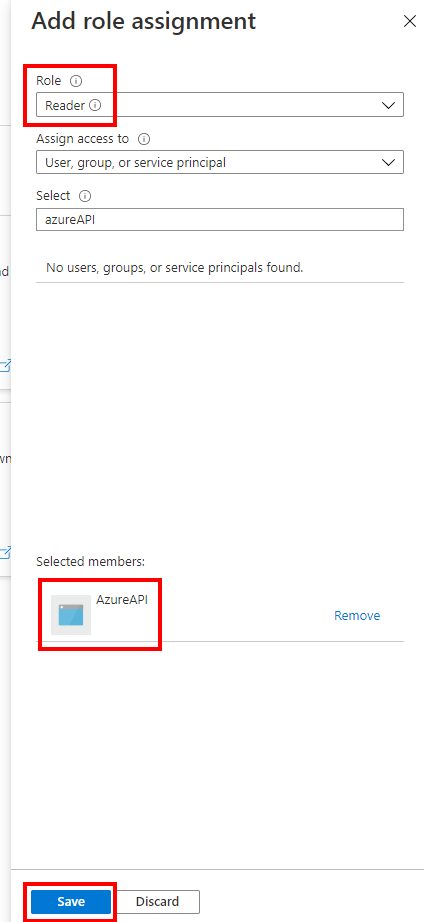
Search the App created previously and select the Reader role for your App.
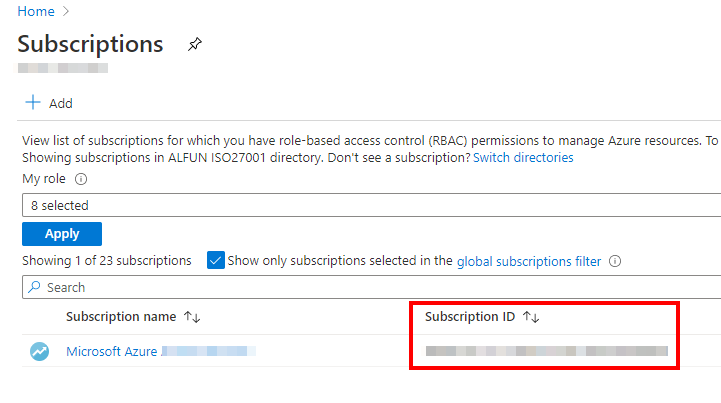
Copy/paste the subscription ID as it will be required later.
Everything is ok, so now we can use the following PowerShell script in order to query the Azure subscription.
$SubscriptionId = "zzzzzzzz-zzzz-zzzz-zzzzzzzz"

$TenantId = "yyyyyyyy-yyyy-yyyy-yyyy-yyyyyyyyyy"

$ClientId = "xxxxxxx-xxxx-xxxx-xxxx-xxxxxxxxxx"

$ClientSecret = "<client_secret>"


$Resource = "https://management.core.windows.net"

$RequestAccessTokenUri = "https://login.microsoftonline.com/$TenantId/oauth2/token"


$body = "grant_type=client_credentials&client_id=$ClientId&client_secret=$ClientSecret&resource=$Resource"


# Get Access Token

$AccessToken = Invoke-RestMethod -Method Post -Uri $RequestAccessTokenUri -Body $body -ContentType 'application/x-www-form-urlencoded'


# Get Azure Virtual Machines

$VM = "https://management.azure.com/subscriptions/$SubscriptionId/providers/Microsoft.Compute/virtualMachines?api-version=2020-12-01"


# Format Header

$Headers = @{}

$Headers.Add("Authorization","$($AccessToken.token_type) "+ " " + "$($AccessToken.access_token)")


# Invoke REST API

$VMs = Invoke-RestMethod -Method Get -Uri $VM -Headers $Headers

$VMs.value | ForEach-Object {

Write-Output $_.Name

}
This script returns information about Virtual Machines.
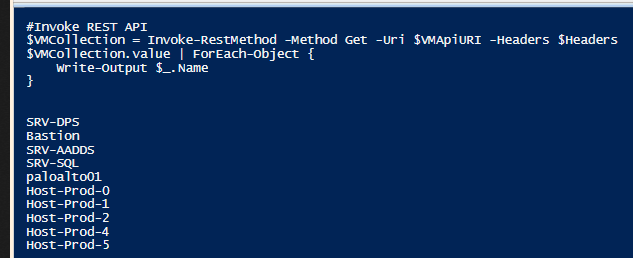
Of course, you can get information about all the Azure resources, please check the following documentation: https://docs.microsoft.com/en-us/rest/api/resources/