

StarWind x Veeam Hardened Backup Repository: Configuration Guide for Microsoft Windows Server [Hyper-V], StarWind x Veeam Hardened Backup Repository Deployed as a Controller VM using Web UI
- February 27, 2025
- 14 min read
- Download as PDF
Annotation
Relevant products
StarWind x Veeam Hardened Backup Repository (StarWind x VHBR)
Purpose
StarWind x Veeam Hardened Backup Repository (StarWind x VHBR) is a software solution that runs as a Virtual Machine on top of the Hyper-V host and turns it into a modern and robust backup repository.
This document outlines how to configure the StarWind x Veeam Hardened Backup Repository on Hyper-V host. It covers the steps on how to create a Hardened Repository and connect it to Veeam Backup & Replication for achieving backups immutability.
Audience
This technical guide is intended for storage and virtualization architects, system and backup administrators, and partners designing virtualized environments StarWind x Veeam Hardened Backup Repository.
Expected result
The end result of following this guide will be a fully configured StarWind x Veeam Hardened Backup Repository on a Hyper-V host with a Hardened Repository created and connected to Veeam Backup & Replication.
Prerequisites
StarWind x Veeam Hardened Backup Repository system requirements
Prior to installing StarWind x Veeam Hardened Backup Repository, please make sure that the system meets the requirements, which are available via the following link: https://www.starwindsoftware.com/system-requirements#svhbr
Recommended RAID settings for HDD and SSD disks: https://knowledgebase.starwindsoftware.com/guidance/recommended-raid-settings-for-hdd-and-ssd-disks/
Solution diagram
The diagrams below illustrate the network and storage configuration of the solution:

Preconfiguring Microsoft Hyper-V host
1. Deploy Windows Server on the host and install the Hyper-V role. This can be done through Server Manager (Add Roles and Features menu item).
2. Define at least 1x network interface that will be used for the Data (backup) traffic.
3. Separate external Virtual Switches should be created for the management and Data (backup) traffic. Using Hyper-V Manager open Virtual Switch Manager and create an external Virtual Switch.
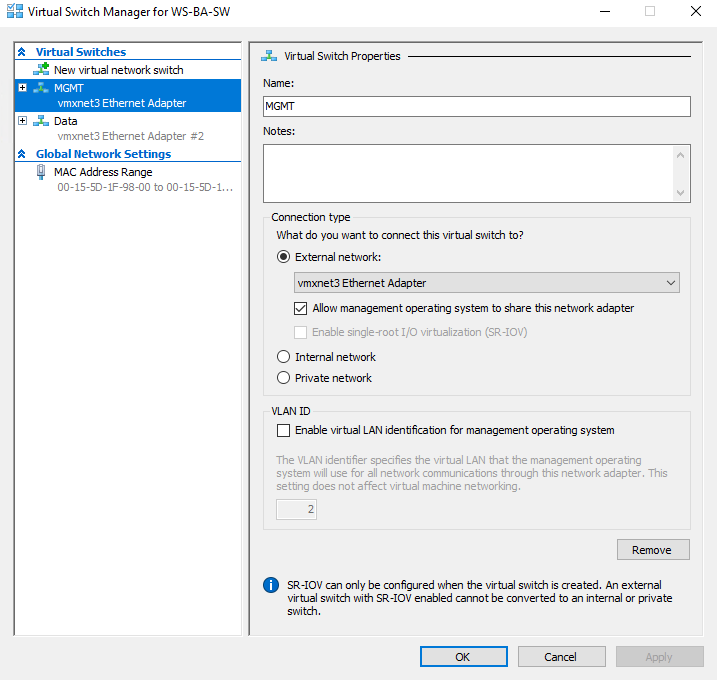
4. Configure and set the IP address on each virtual switch interface. In this document, 172.16.30.x subnet is used for Data (backup) traffic.
NOTE: In case NIC supports SR-IOV, enable it for the best performance. An additional internal switch is required for iSCSI Connection. Contact support for additional details.
5. Set MTU size to 9014 on Data interface.
Deploying StarWind x Veeam Hardened Backup Repository
1. Download StarWind x Veeam Hardened Backup Repository zip archive: https://www.starwindsoftware.com/resource-library/veeam-hardened-backup-repository/#download
2. Extract the virtual machine files.
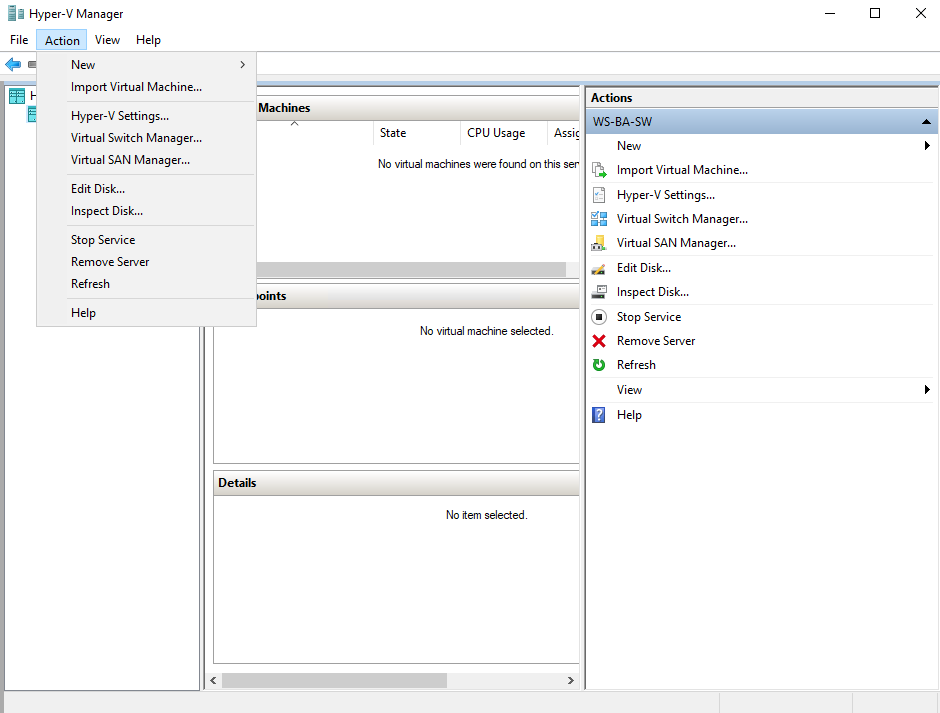
3. Deploy the control virtual machine to the Microsoft Hyper-V Server using the “Import Virtual Machine” wizard in Hyper-V Manager.
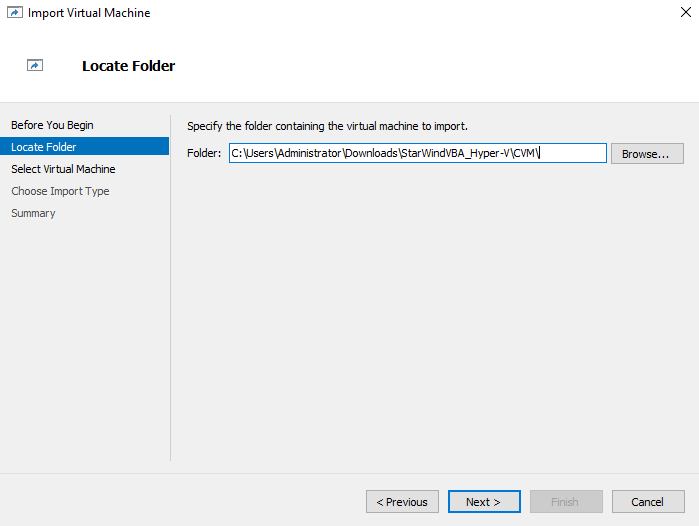
4. On the second page of the wizard, point to the location of the VM template. Select the VM folder and click Next.
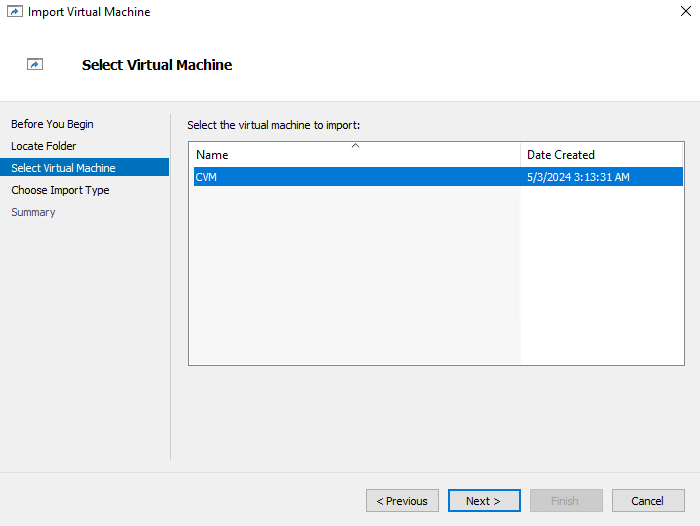
5. Click Next on the “Select Virtual Machine” step.
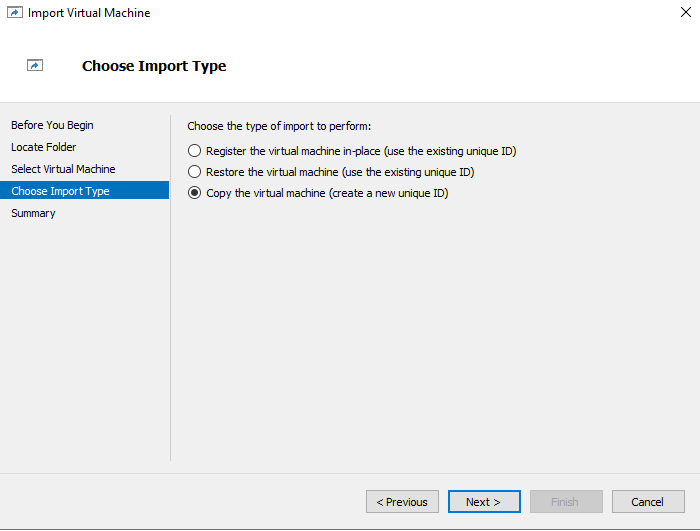
6. Select the “Copy the virtual machine” import type and click Next.
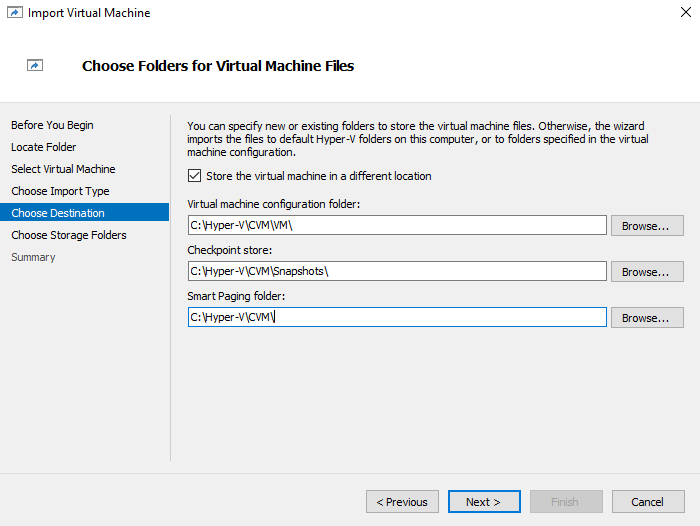
7. Specify new or existing folders to store virtual machine files, such as configuration, snapshots and smart paging. Click Next.
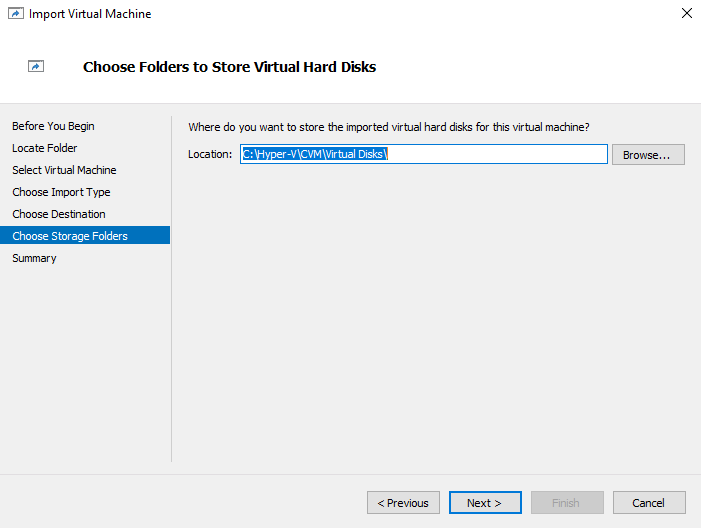
8. Specify new or existing folder to store virtual machine virtual disk files. Click Next.
9. After this, the “VM import” wizard will validate the network. The default naming for management virtual switch is “Management vSwitch”. If existing virtual switch has a different name, specify corresponding network connections. Click Next.
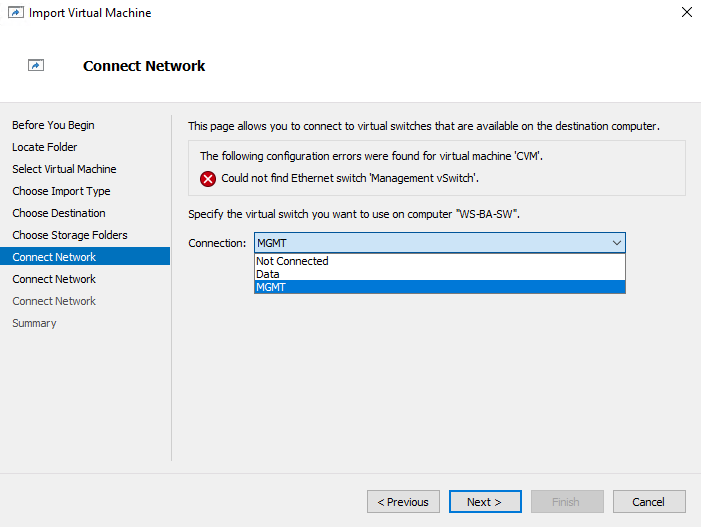
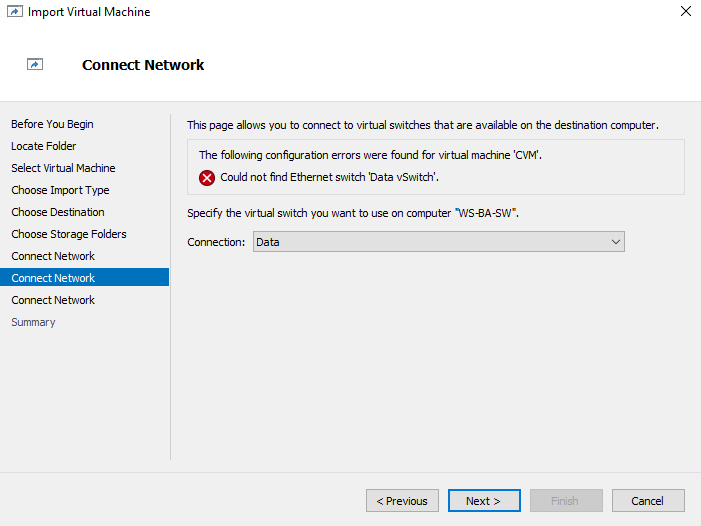
10. Perform the same for the Data (backup) traffic network. The default naming for Data virtual switch is “Data vSwitch”. If existing virtual switch has a different name, specify corresponding network connections. Click Next.
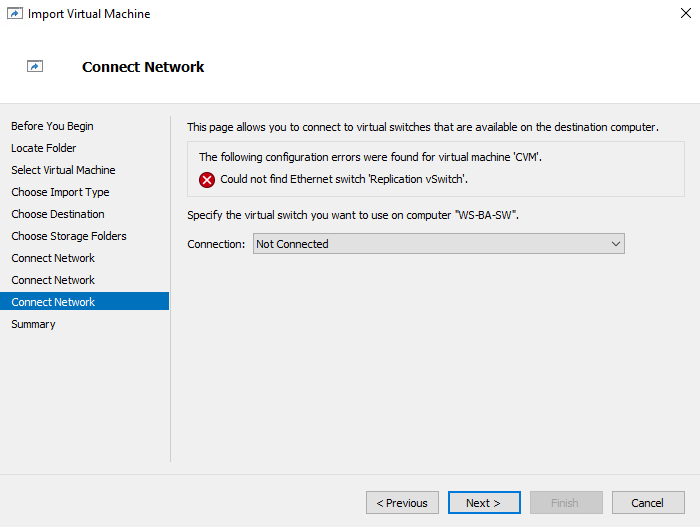
11. The replication network is not required for StarWind x Veeam Hardened Backup Repository. Leave the Connection as “Not Connected”. Click Next.
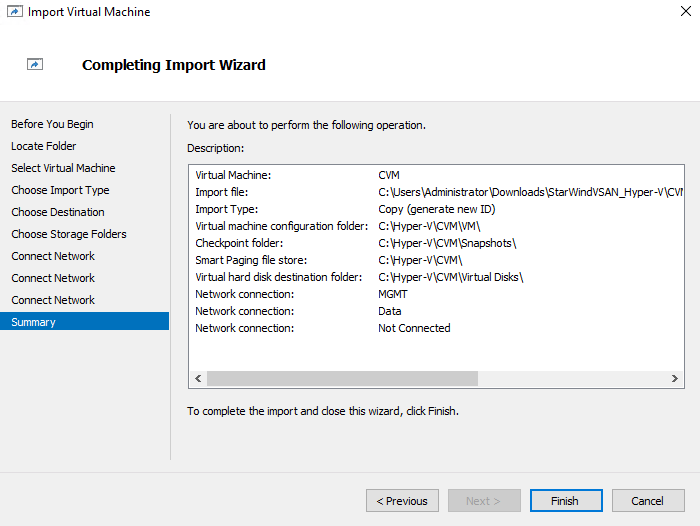
12. Review the import configuration summary and click Finish to complete the import.
13. Once the import is complete, navigate to Hyper-V Manager, select the recently imported StarWind x Veeam Hardened Backup Repository Controller Virtual Machine (CVM) and click “Settings…”.
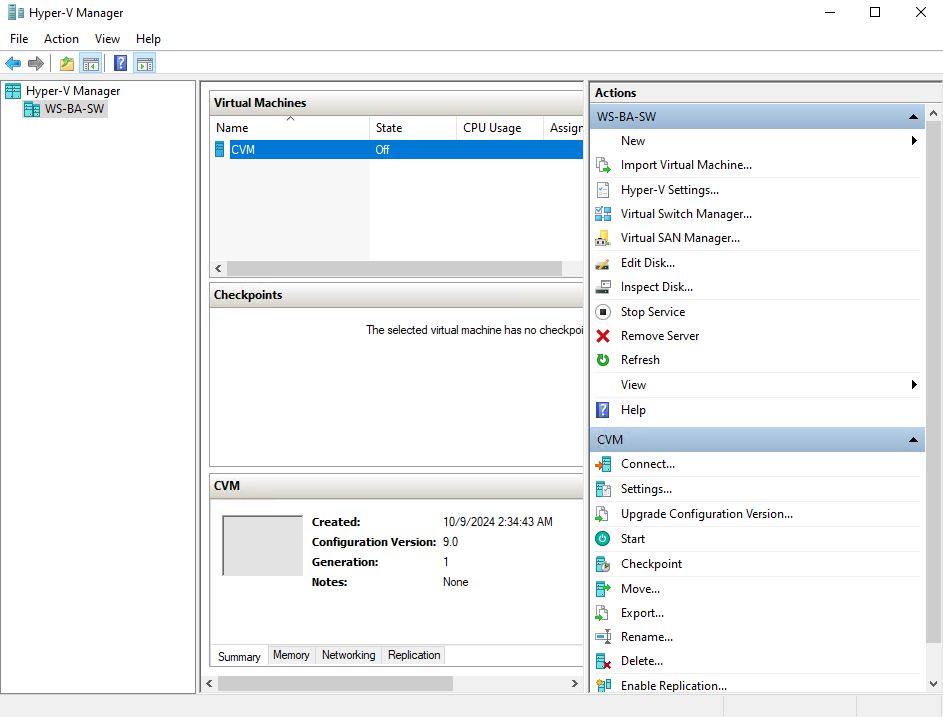
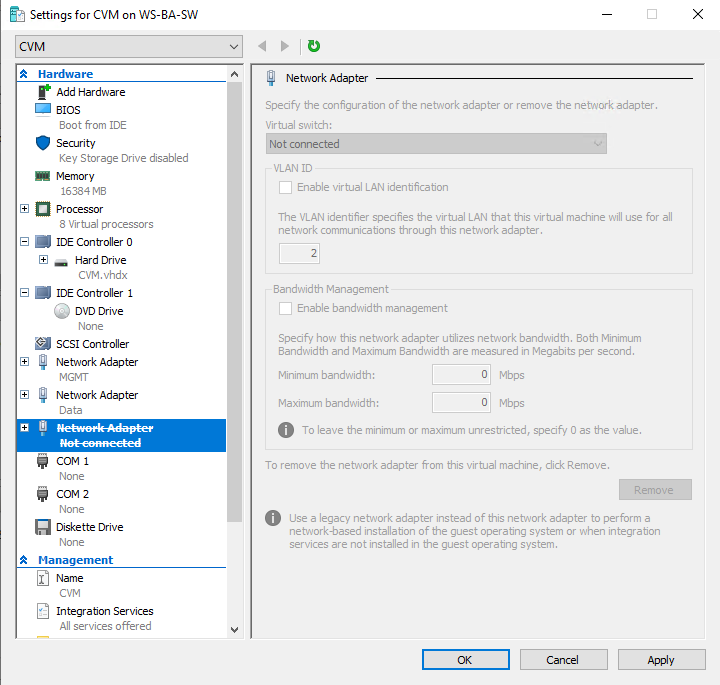
14. Select the Network adapter (Replication) that is in the “Not connected” state and click Remove.
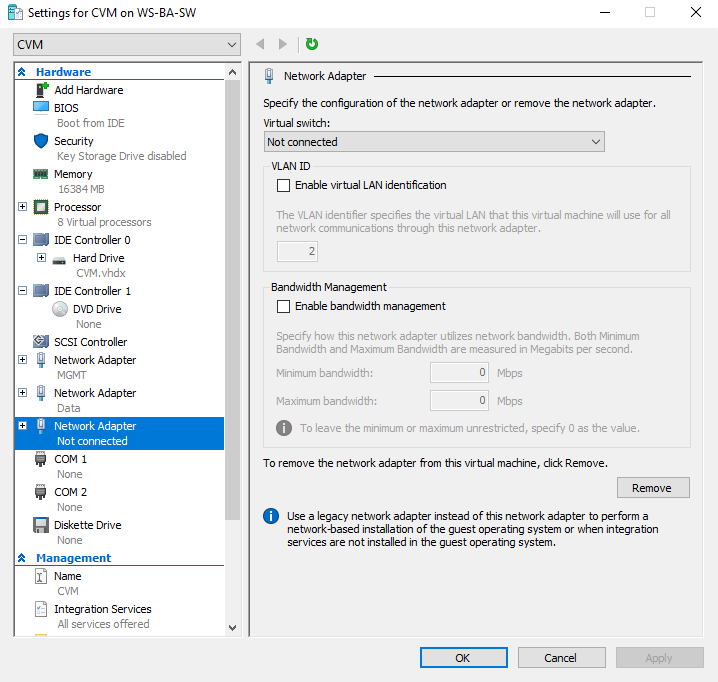
15. After this, Click Apply. Then click OK.
Initial Configuration Wizard
1. Start StarWind x Veeam Hardened Backup Repository CVM.
Launch VM console to see the VM boot process and get the IPv4 address of the Management network interface.
NOTE: in case VM has no IPv4 address obtained from a DHCP server, use the Text-based User Interface (TUI) to set up a Management network.
2. Default credentials for TUI: user/rds123RDS
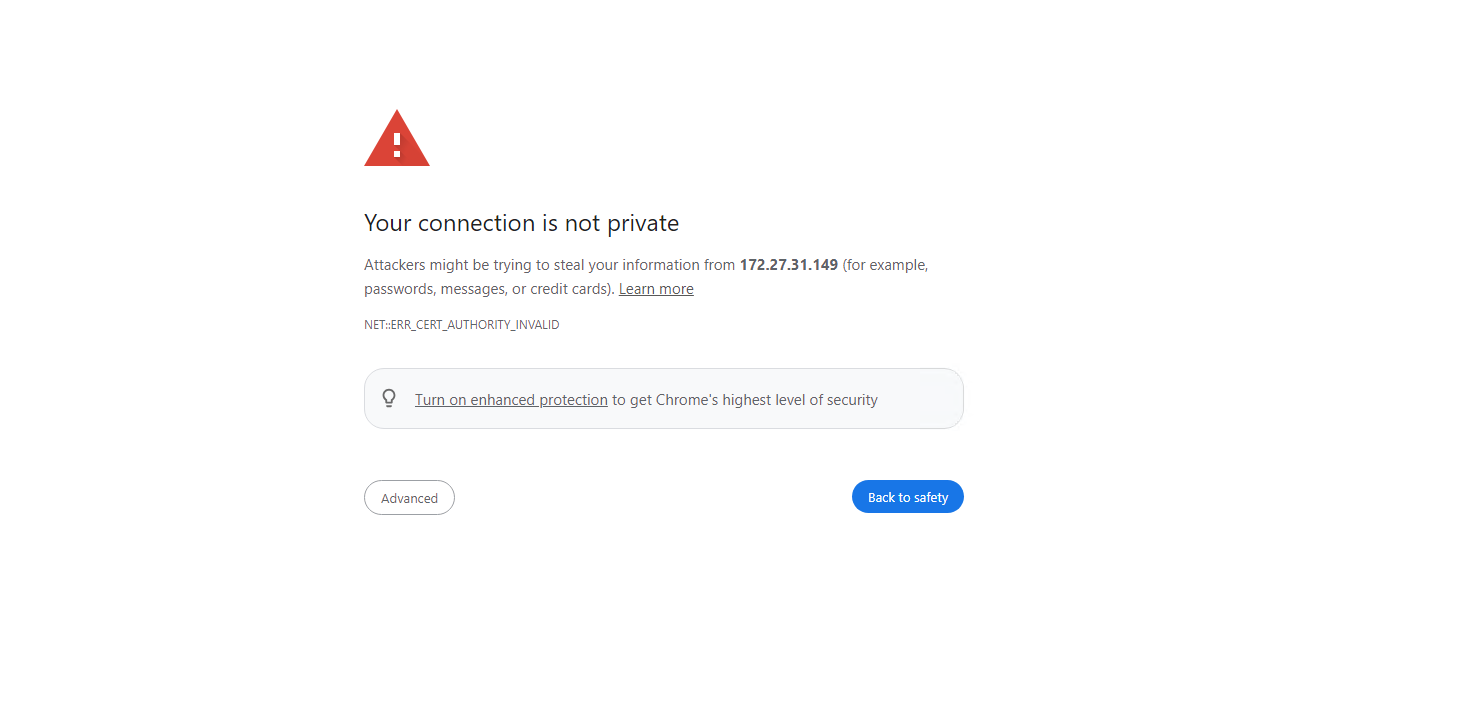
3. Using the web browser, open a new tab and enter the VM IPv4 address to open Web Interface. Click “Advanced” and then “Continue to…”
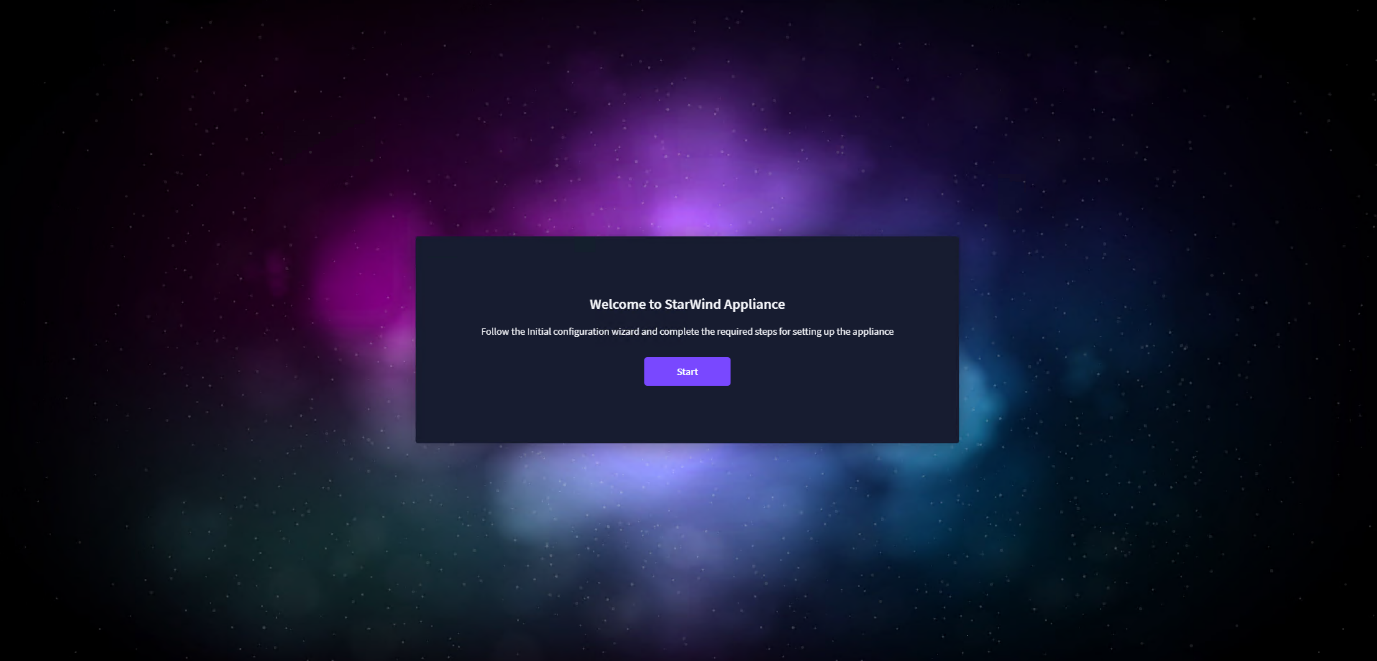
4. StarWind x Veeam Hardened Backup Repository web UI welcomes you, and the “Initial Configuration” wizard will guide you through the deployment process.
5. In the following step, upload the license file.

6. Read and accept the End User License Agreement to proceed.
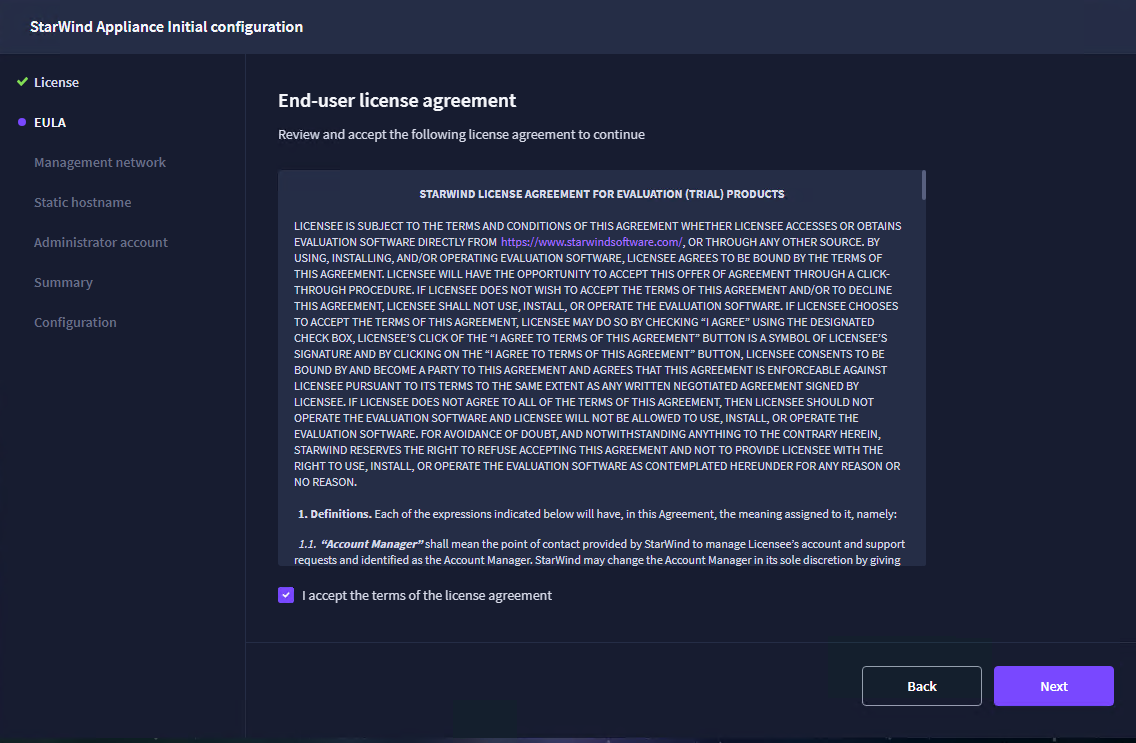
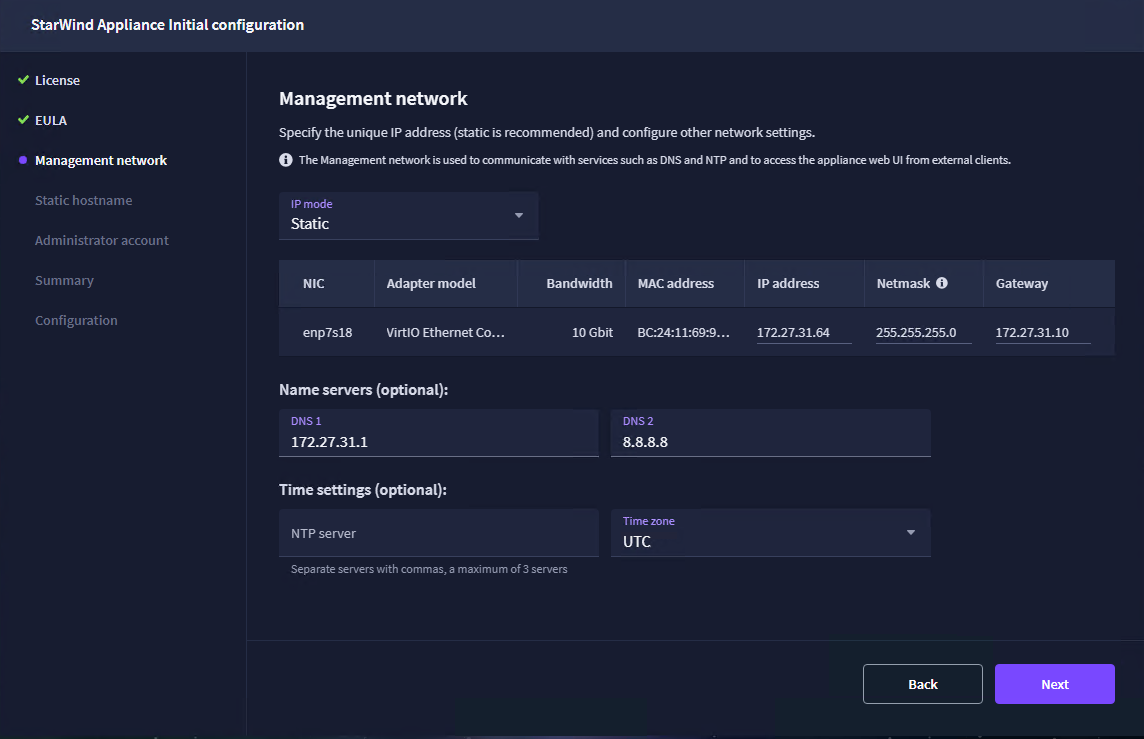
7. Review or edit the Network settings and click Next.
NOTE: Static network settings are recommended for the configuration.
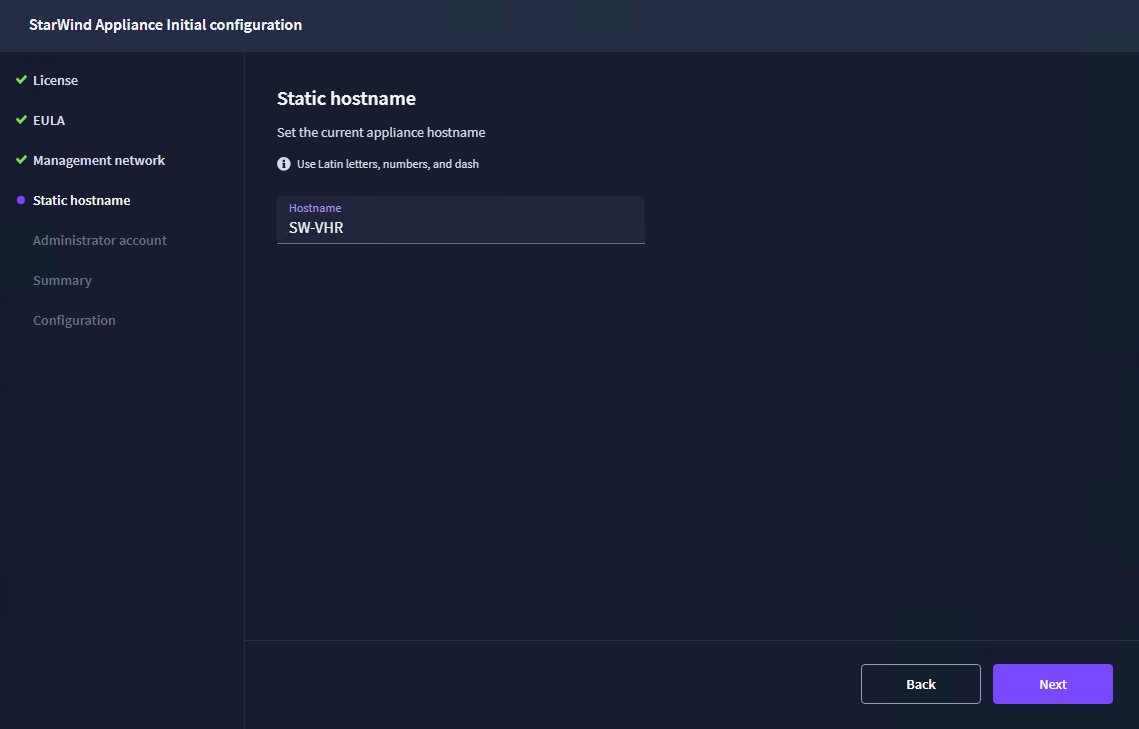
8. Specify the hostname for the virtual machine and click Next.
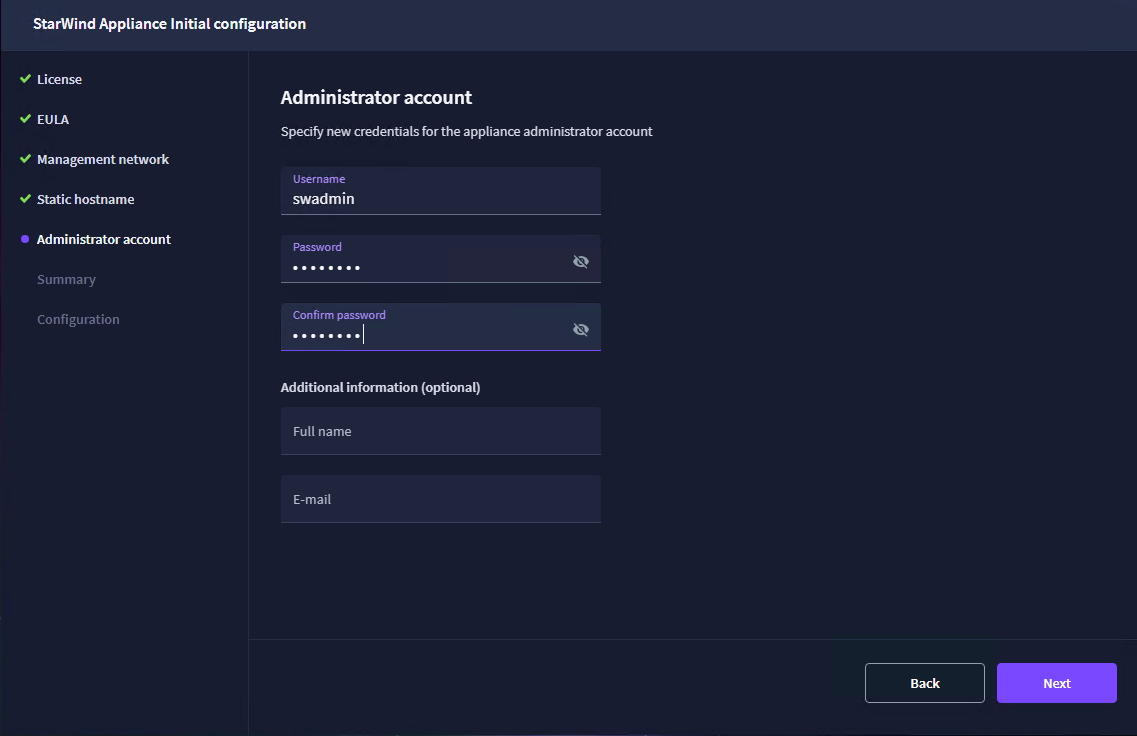
9. Create an administrator account. Click Next.
10. Review your settings selection before setting up StarWind x Veeam Hardened Backup Repository.
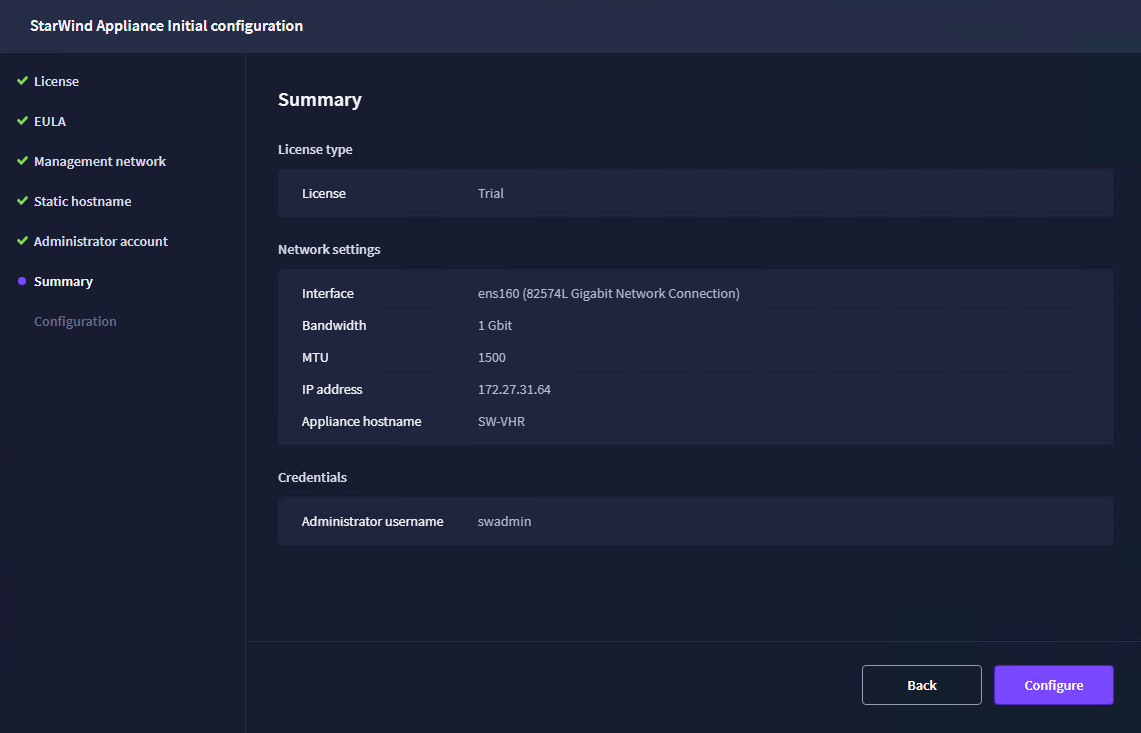
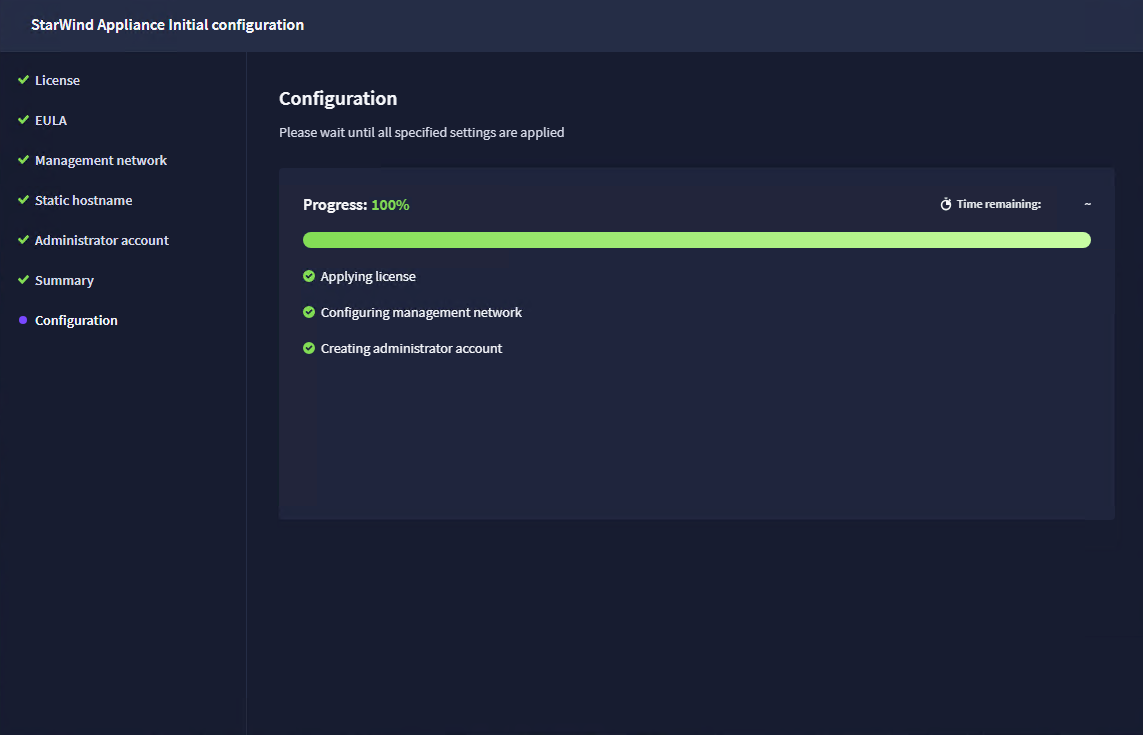
11. Please standby until the Initial Configuration Wizard configures StarWind x Veeam Hardened Backup Repository for you.
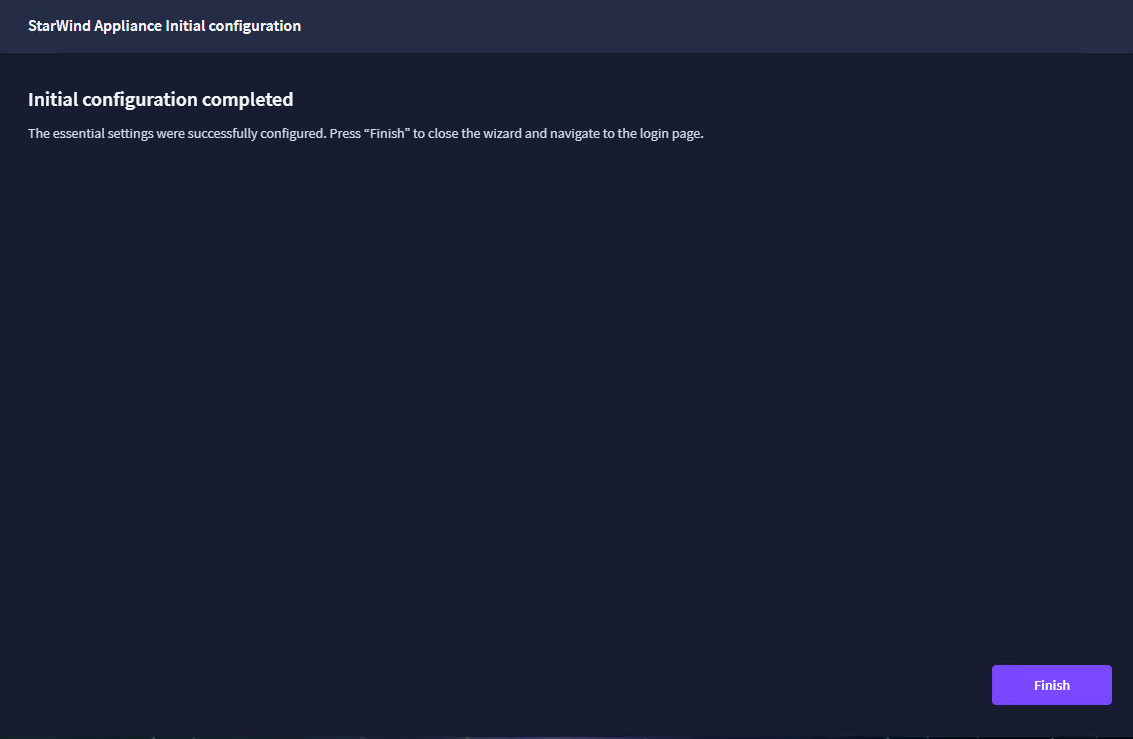
12. The appliance is set and ready. Click Finish to proceed to the Login page.
Configure networking
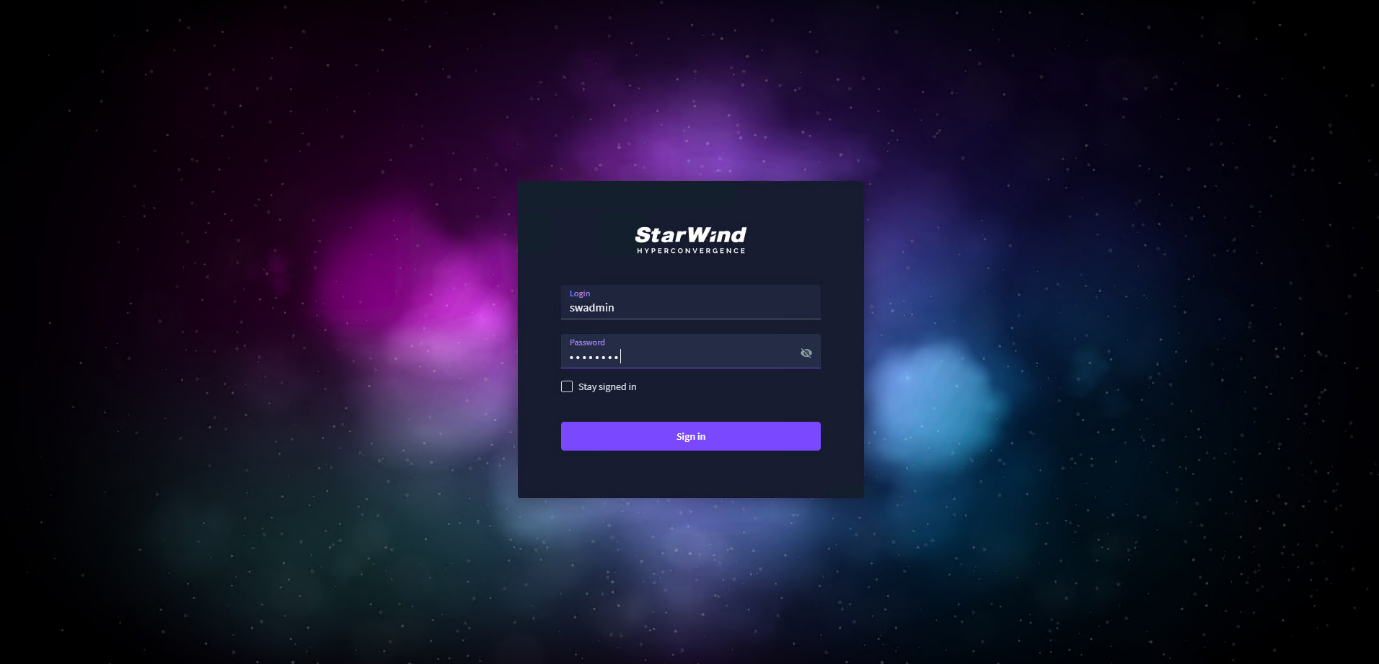
1. Log in to the CVM WEB UI using the username and password specified during the initial configuration.
2. Navigate to the Network tab, select the network adapter that will be used for Data (Backup) traffic, and click the Edit icon.
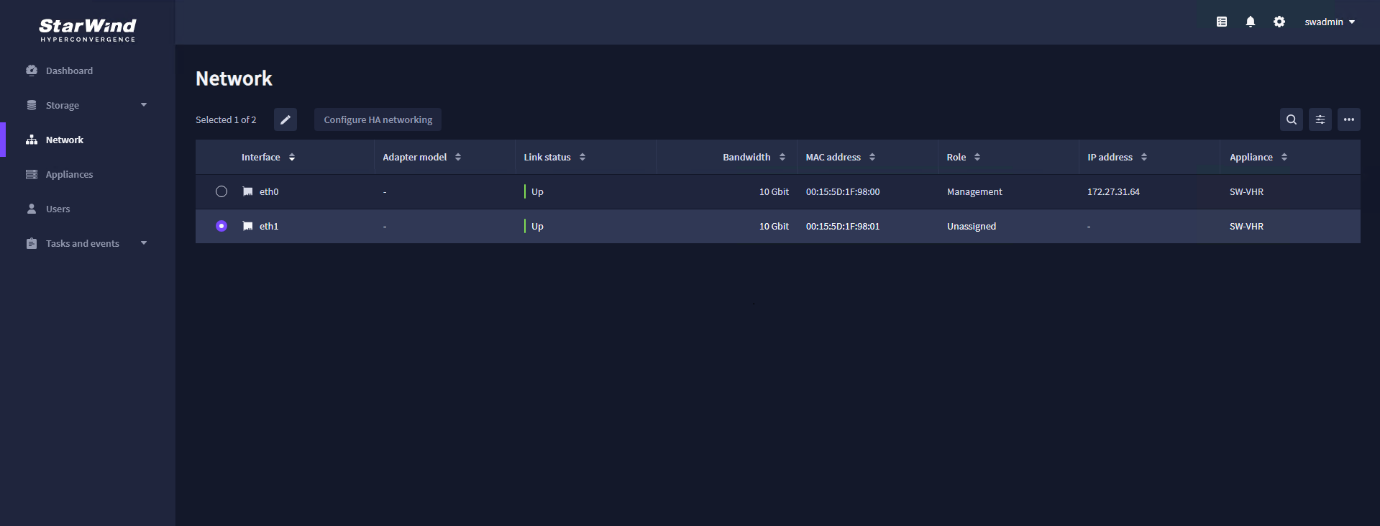
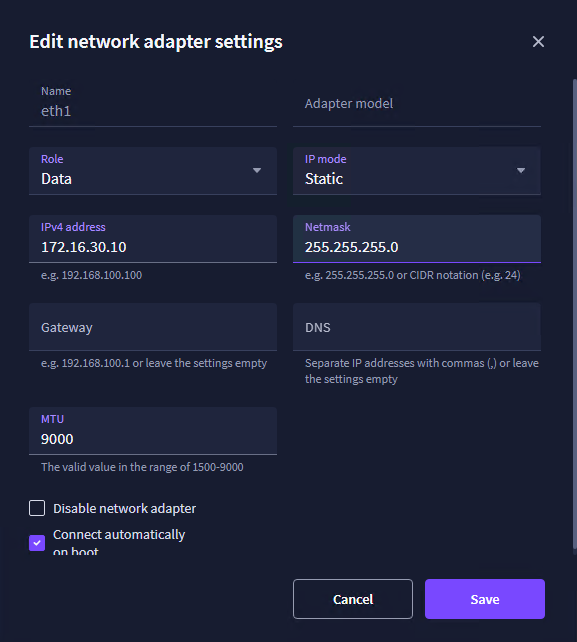
3. If the network adapter status is “Down”, uncheck the “Disable network adapter” checkbox. Make sure that the “Connect automatically on boot” checkbox is enabled and MTU is set to 9000 Assign the Data role to the network adapter, and specify the IPv4 address and network mask. Click Save.
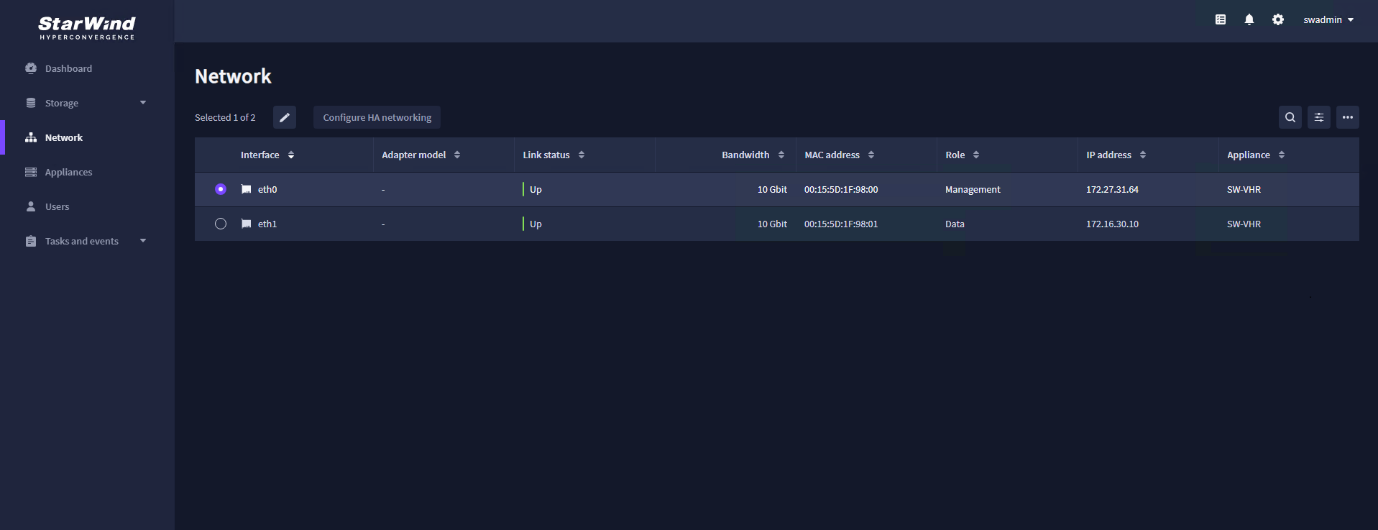
4. You should see the newly assigned “Data” role and IP address to the network adapter.
Add physical disks
Attach physical storage to StarWind x Veeam Hardened Backup Repository Controller VM:
- Ensure that all physical drives are connected through an HBA or RAID controller.
- Add HBA, RAID controllers, or NVMe SSD drives to StarWind CVM via a passthrough device or add a virtual disk.
Learn more about storage provisioning guidelines in the KB article.
NOTE. In this guide, NVMe drives are passed through to StarWind x Veeam Hardened Backup Repository CVM as an example.
Create Storage Pool
1. Navigate to the Storage tab, select Physical disks and click Rescan.
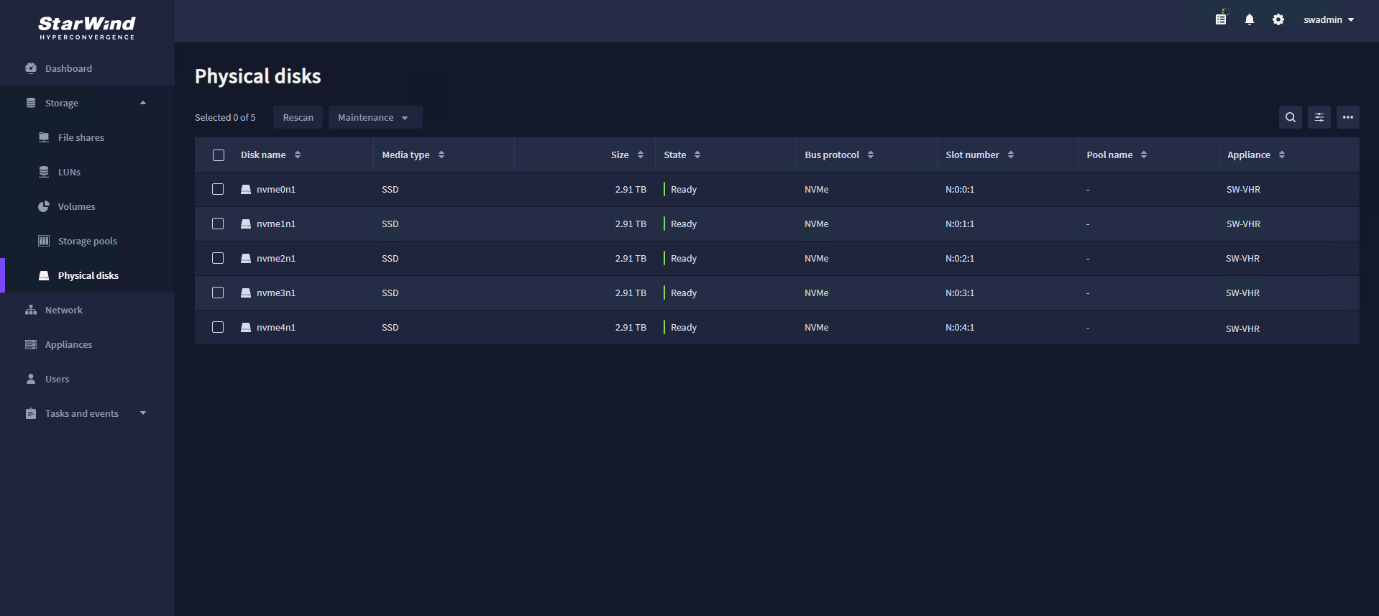
NOTE: StarWind x Veeam Hardened Backup Repository can use storage from a hardware RAID or create a Linux Software RAID or ZFS storage pools from the drives connected to an HBA controller. This guide uses Linux Software RAID as an example.
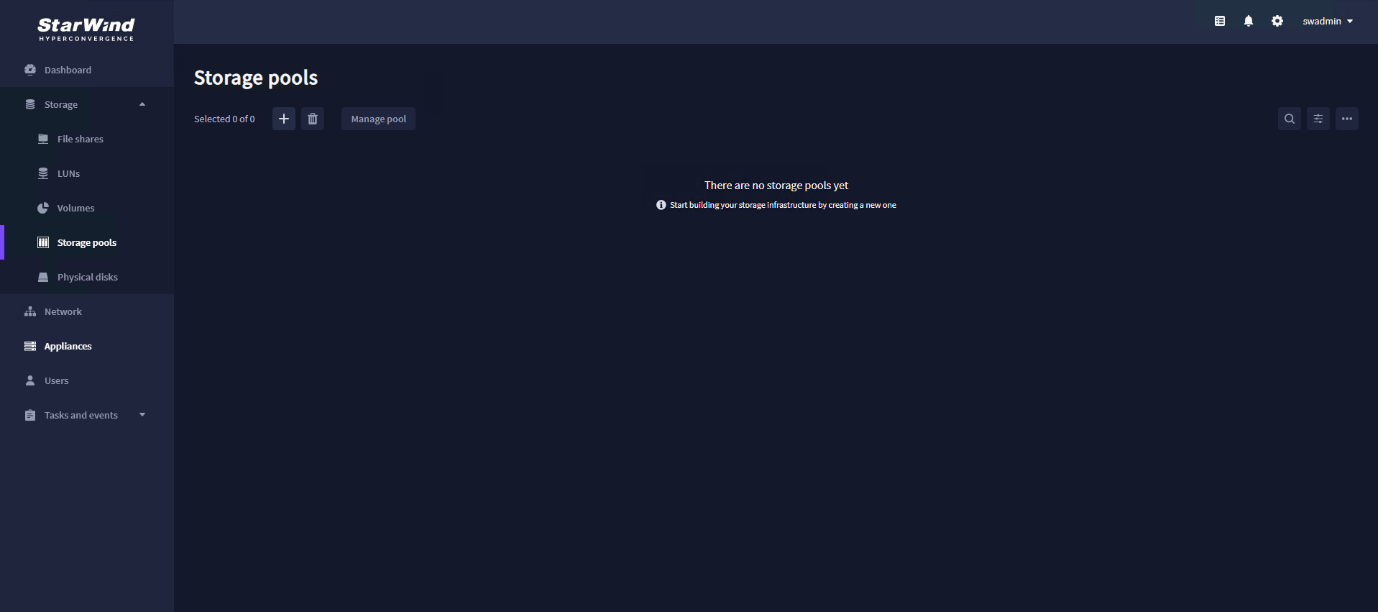
2. In the Storage tab, navigate to the Storage pools and click the “+” sign.
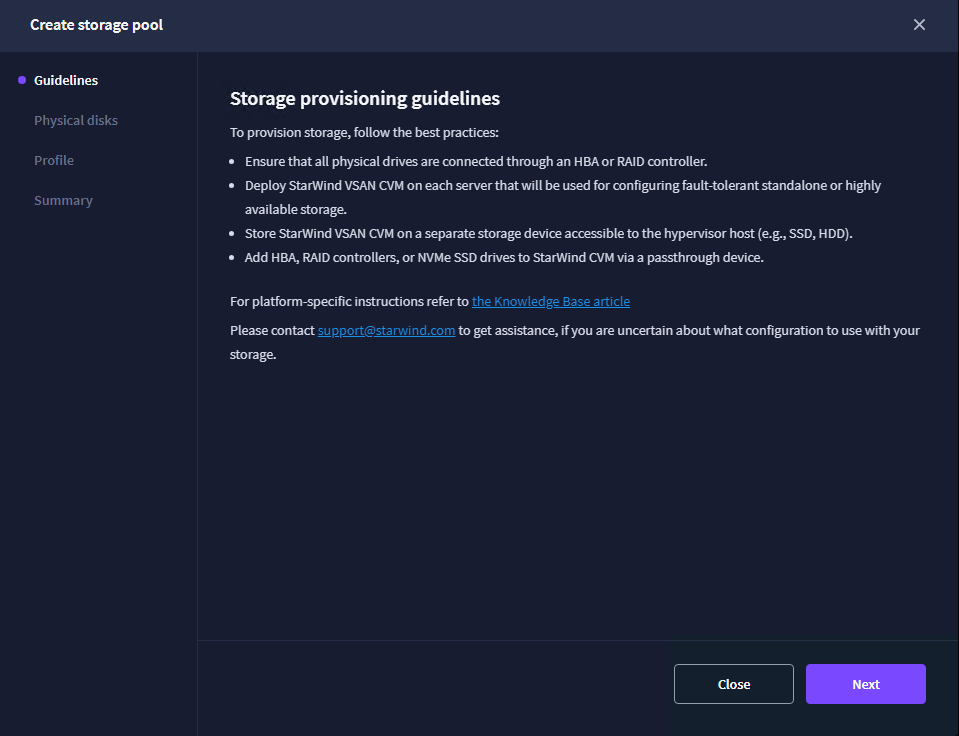
3. Verify the prerequisites and click Next.
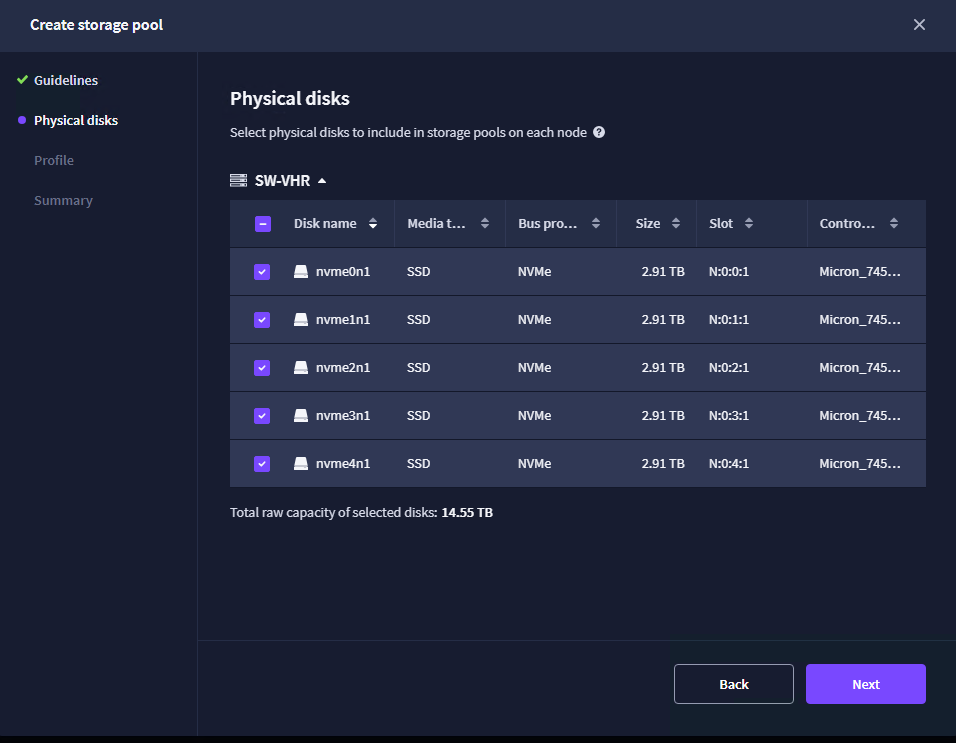
4. Select the drives to create a Linux Software RAID and click Next.
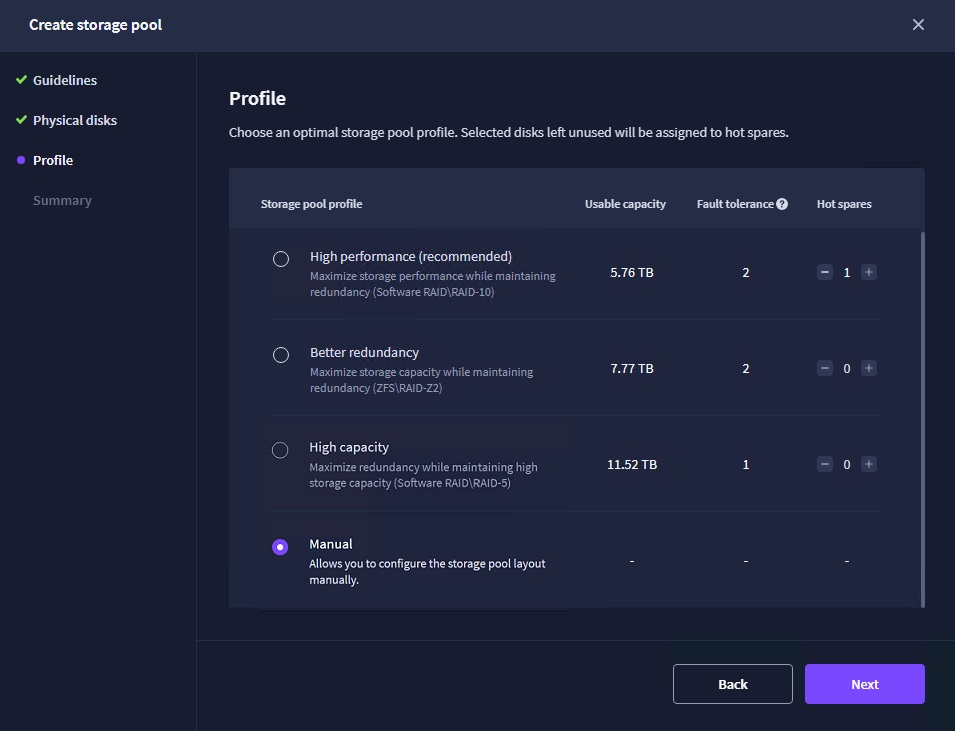
5. Select one of the preconfigured storage profiles or create a redundancy layout for the new storage pool manually according to your redundancy, capacity, and performance requirements. Software RAID-6 is highly recommended. To configure it, select Manual and click Next.
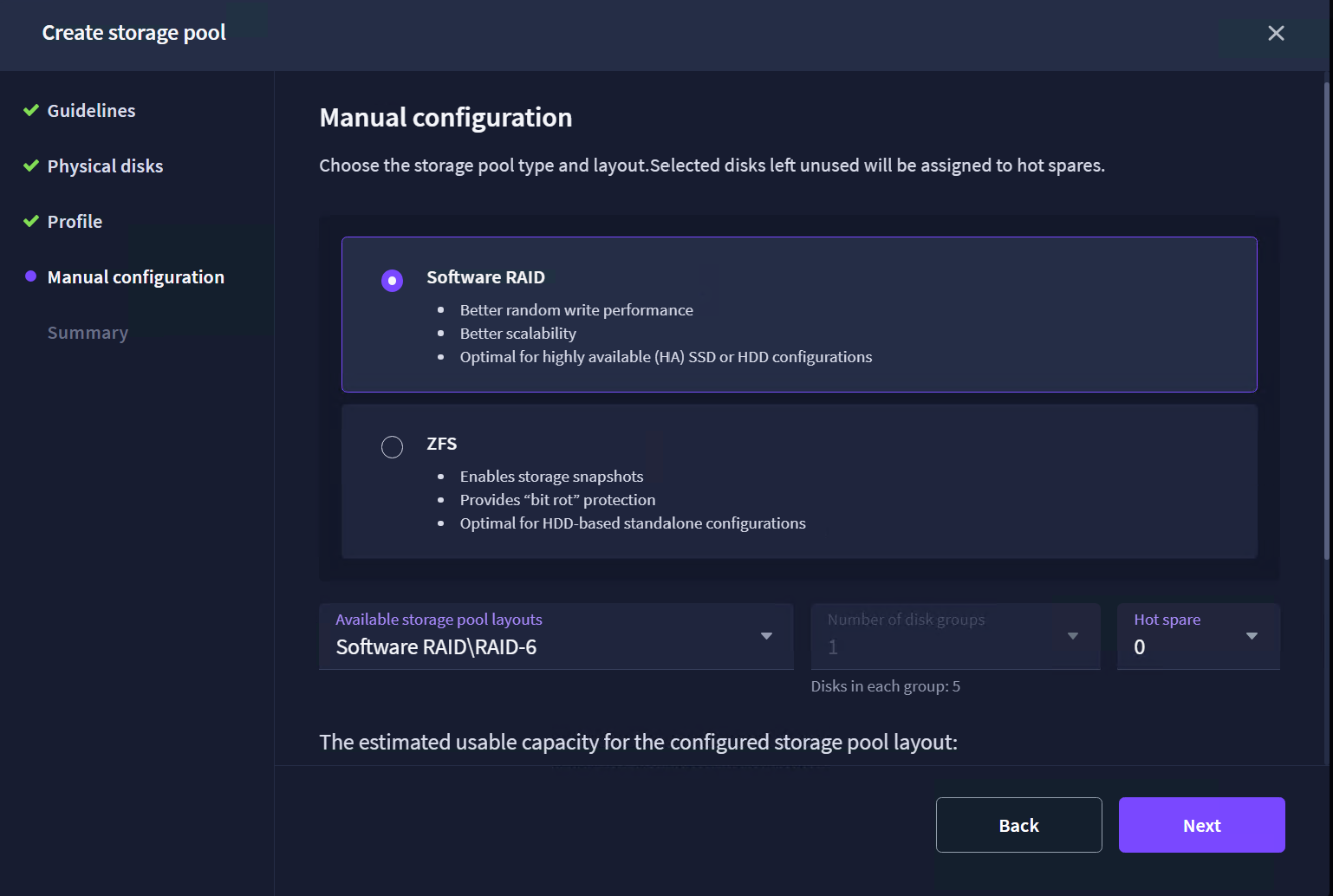
6. Select Software RAID and then select Software RAID\RAID-6 from the Available storage pool layouts. Click Next.
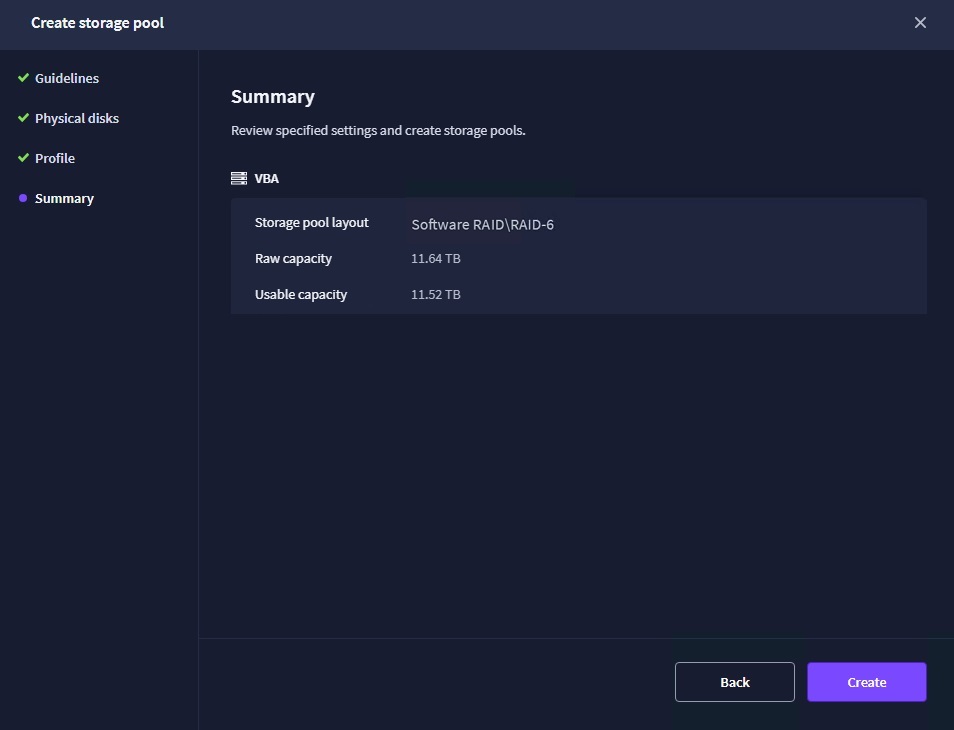
7. Review “Summary” and click the “Create” button to create the storage pool.
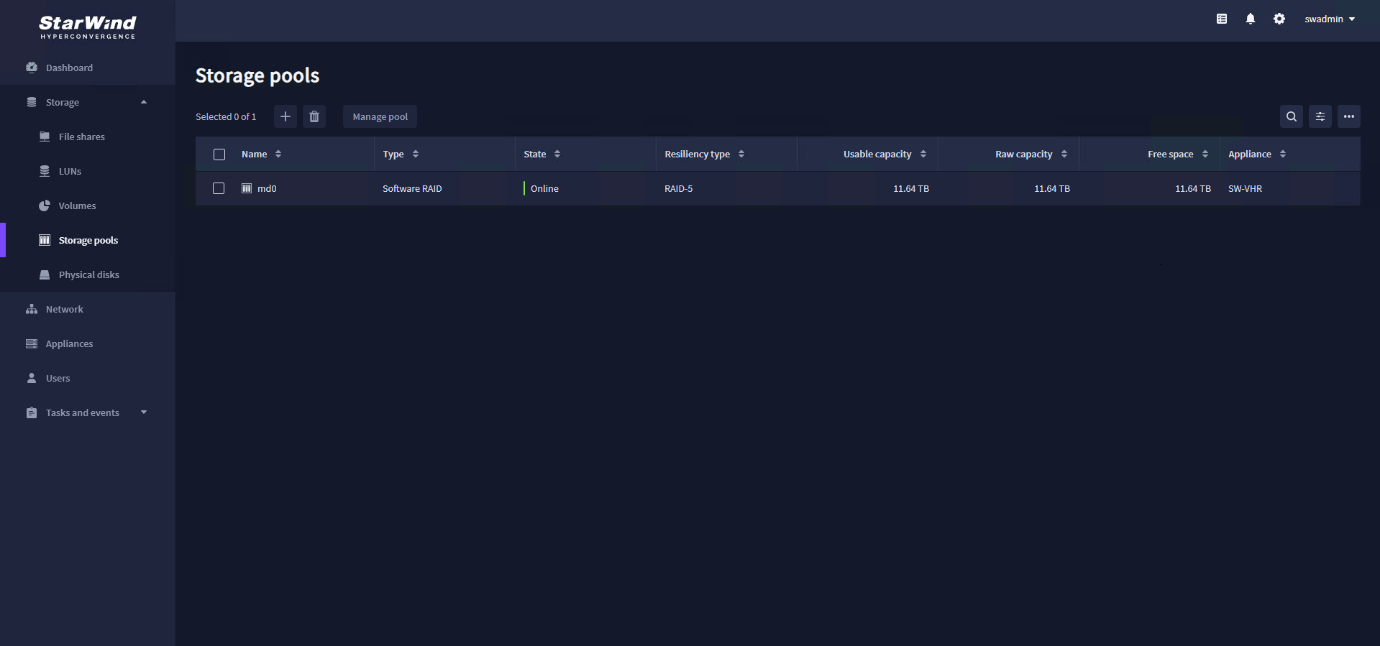
8. Wait until the Linux Software RAID synchronization process is fully complete and its state changes to Online.
Create Backup Repository
StarWind x Veeam Hardened Backup Repository supports the creation of only hardened backup repository and non-hardened backup repository (direct attach Linux repository) for use with Veeam Backup & Replication.
NOTE. Hardened Repository ensures immutability only when used with Veeam Backup & Replication.
Hardened Repository for Veeam Backup & Replication
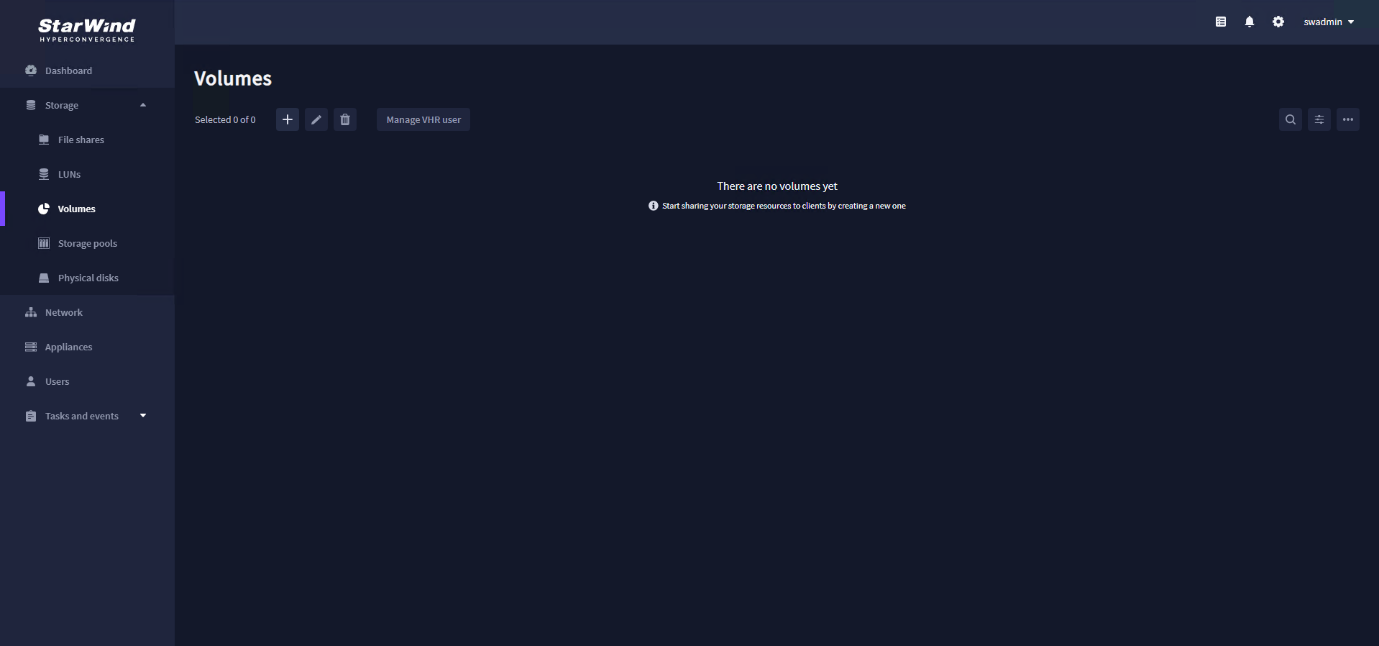
1. Navigate to the “Volumes” tab and click the “+” button to open the “Create volume” wizard.
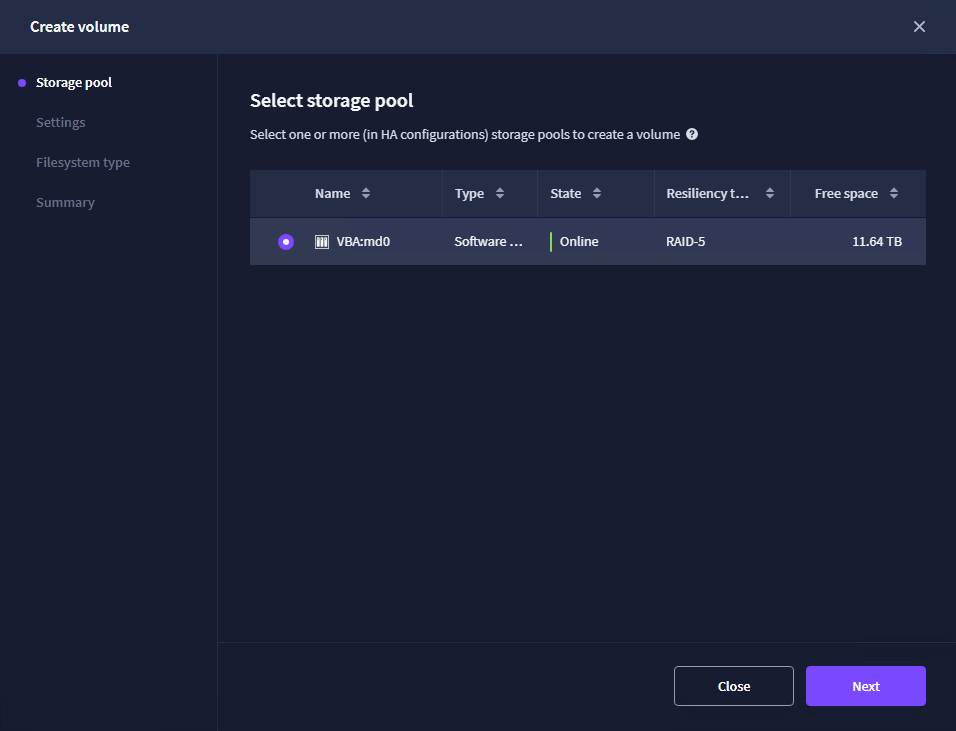
2. Select the storage pool that will be used for a new volume and click Next.
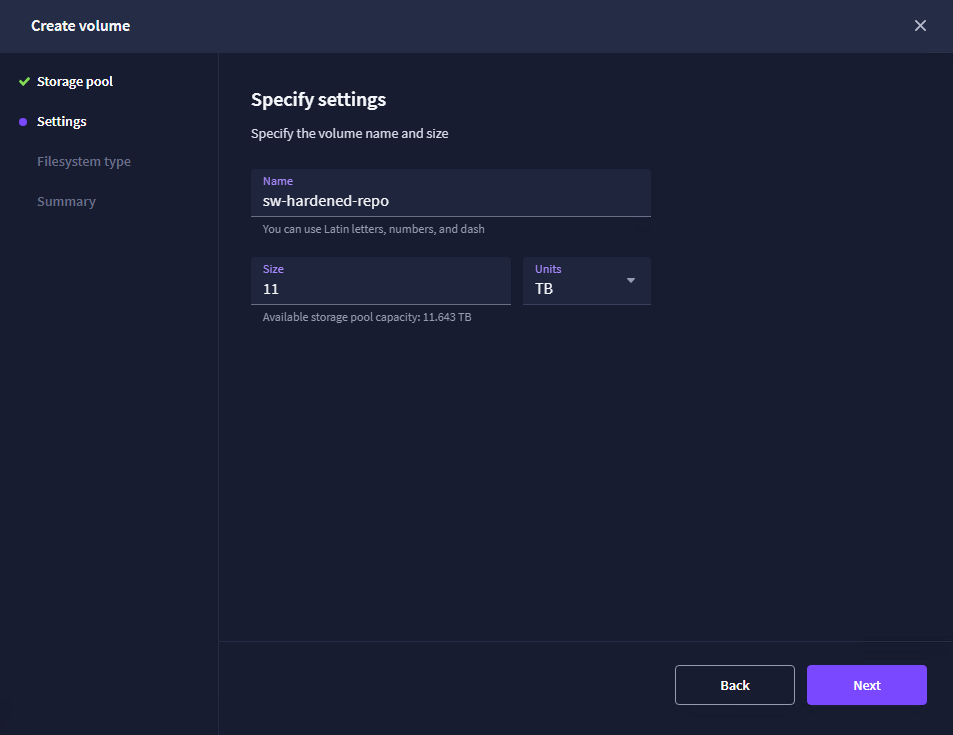
3. Specify the volume name and capacity. Click Next.
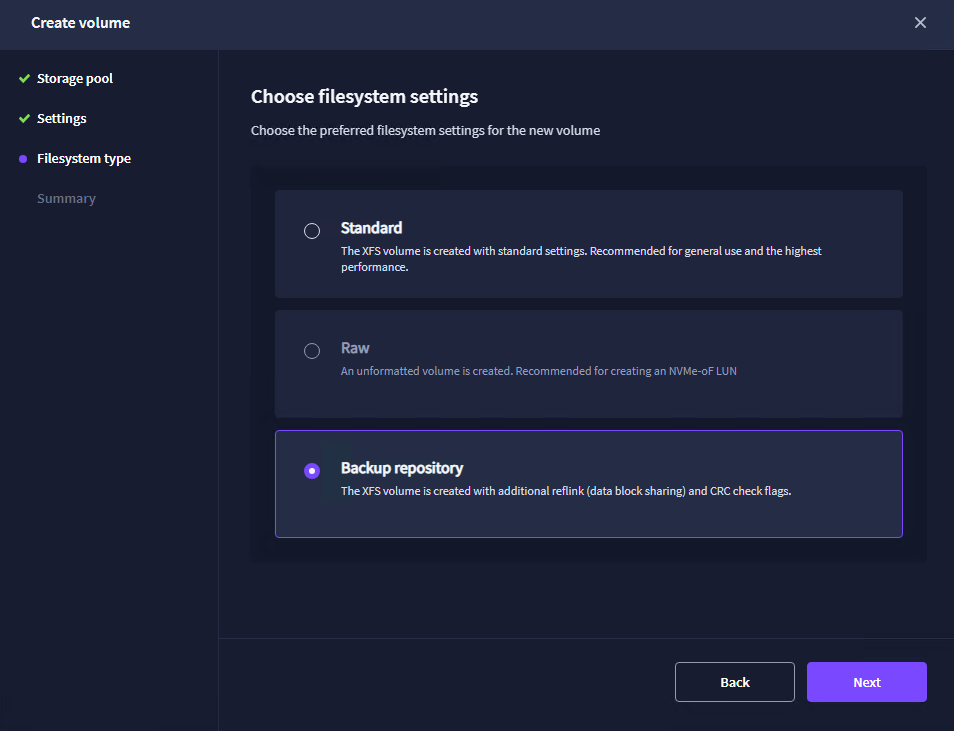
4. Select the “Backup repository” volume type and click Next. Backup repository volume type has been specifically designed for use with Veeam Backup & Replication.
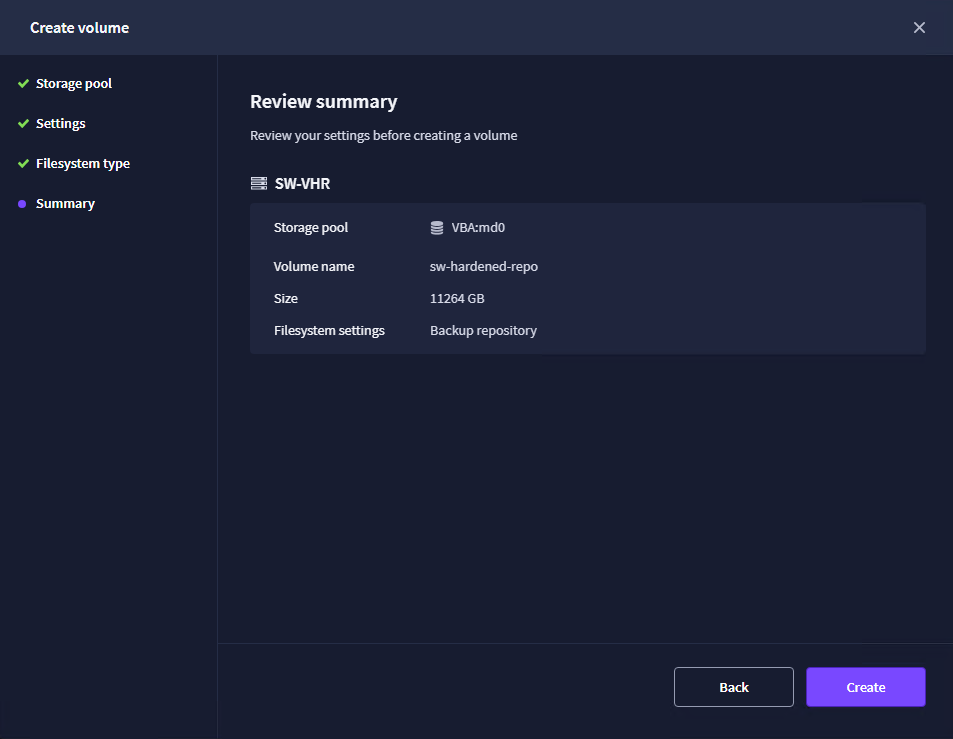
5. Review Summary and click Create.
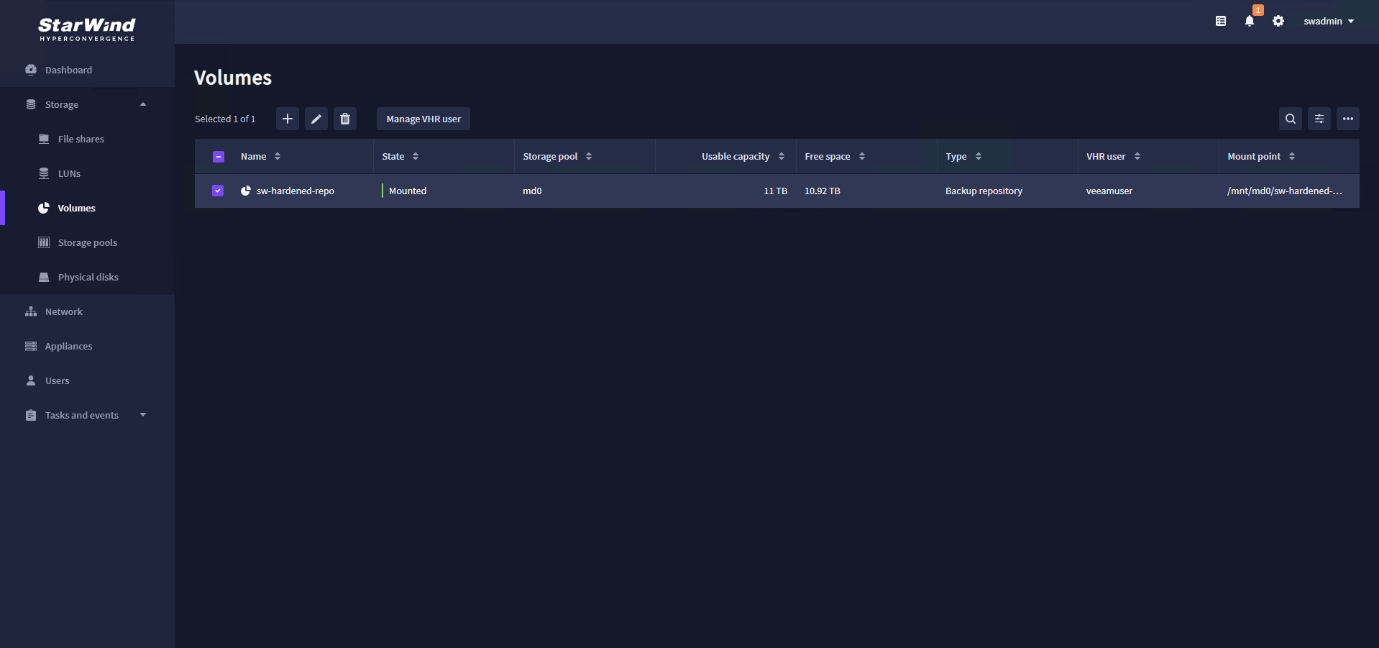
6. Select the recently created Volume and click “Manage VHR user”. This will create a dedicated Veeam Hardened Repository user with limited permissions for the selected volume.
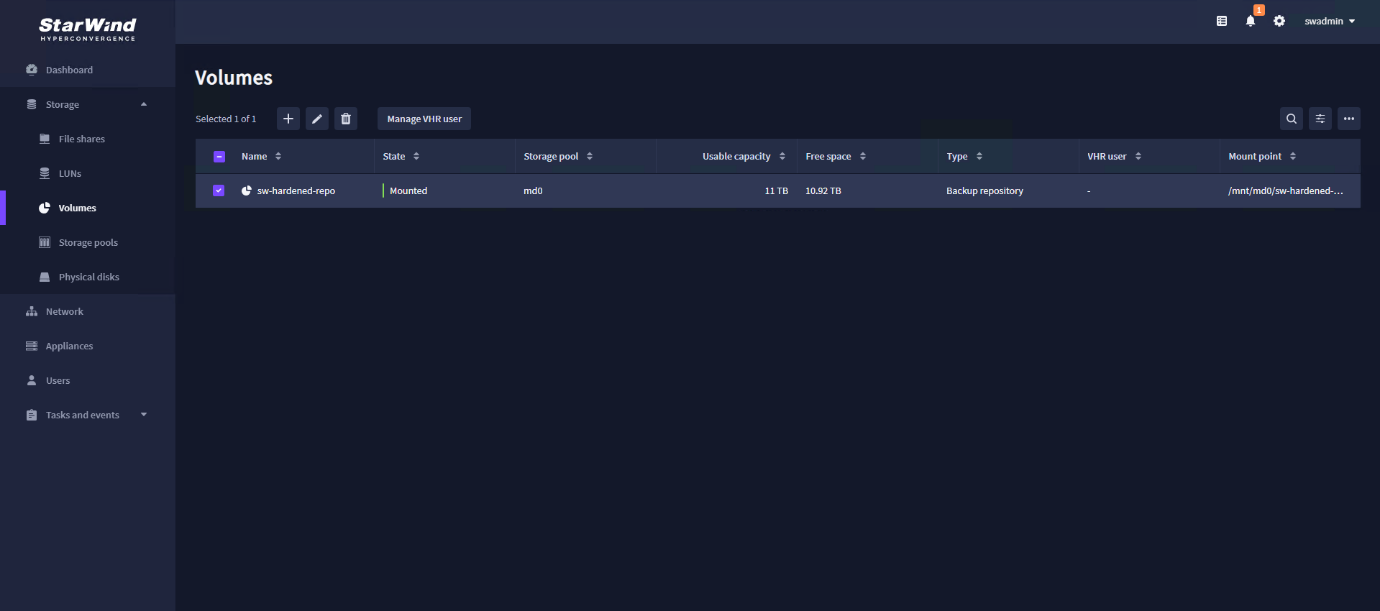
NOTE. If Hardened Repository is not required, you can skip the further steps of creating a VHR user. The backup repository can be then added to Veeam Backup & Replication as a Direct Attached Linux storage to benefit from faster Veeam transport Service.
7. Click the “+” sign to create a new VHR user.
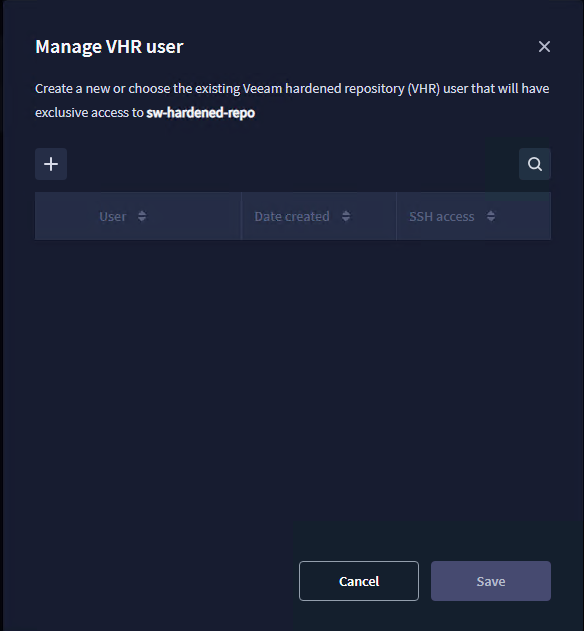
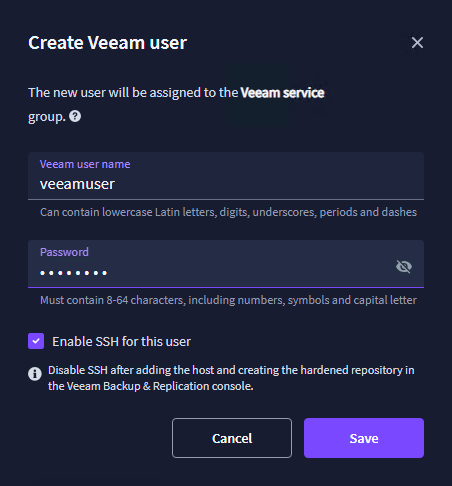
8. Specify the user name and password. Make sure to enable SSH access for VHR user. Click Save.
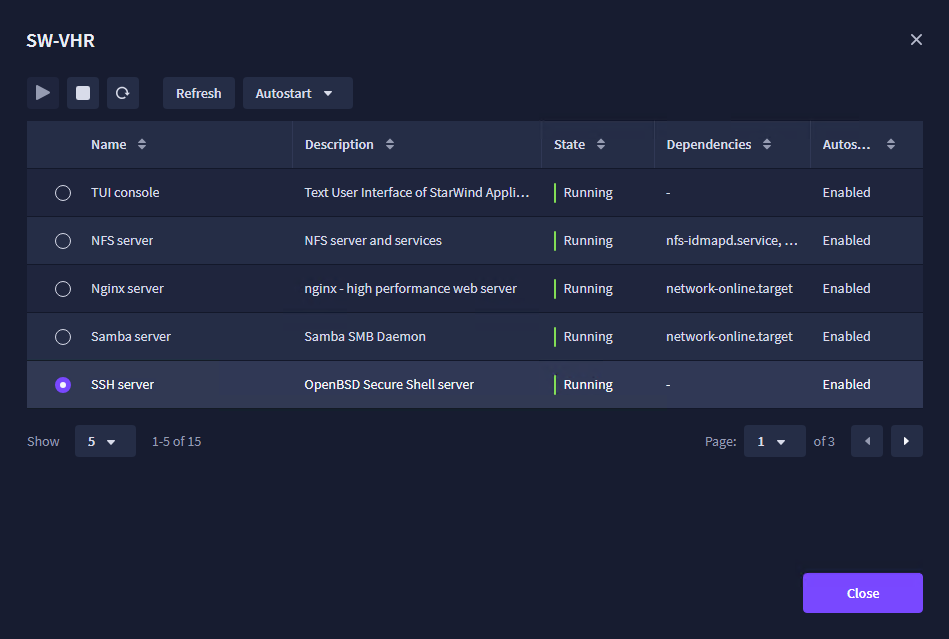
9. Make sure that SSH service is started an running in StarWind x Veeam Hardened Backup Repository CVM, For this, click the “settings icon”, navigate to “Services” and start SSH server.
10. The recently created VHR user has been assigned to the volume.
Adding Hardened Repository to Veeam Backup & Replication
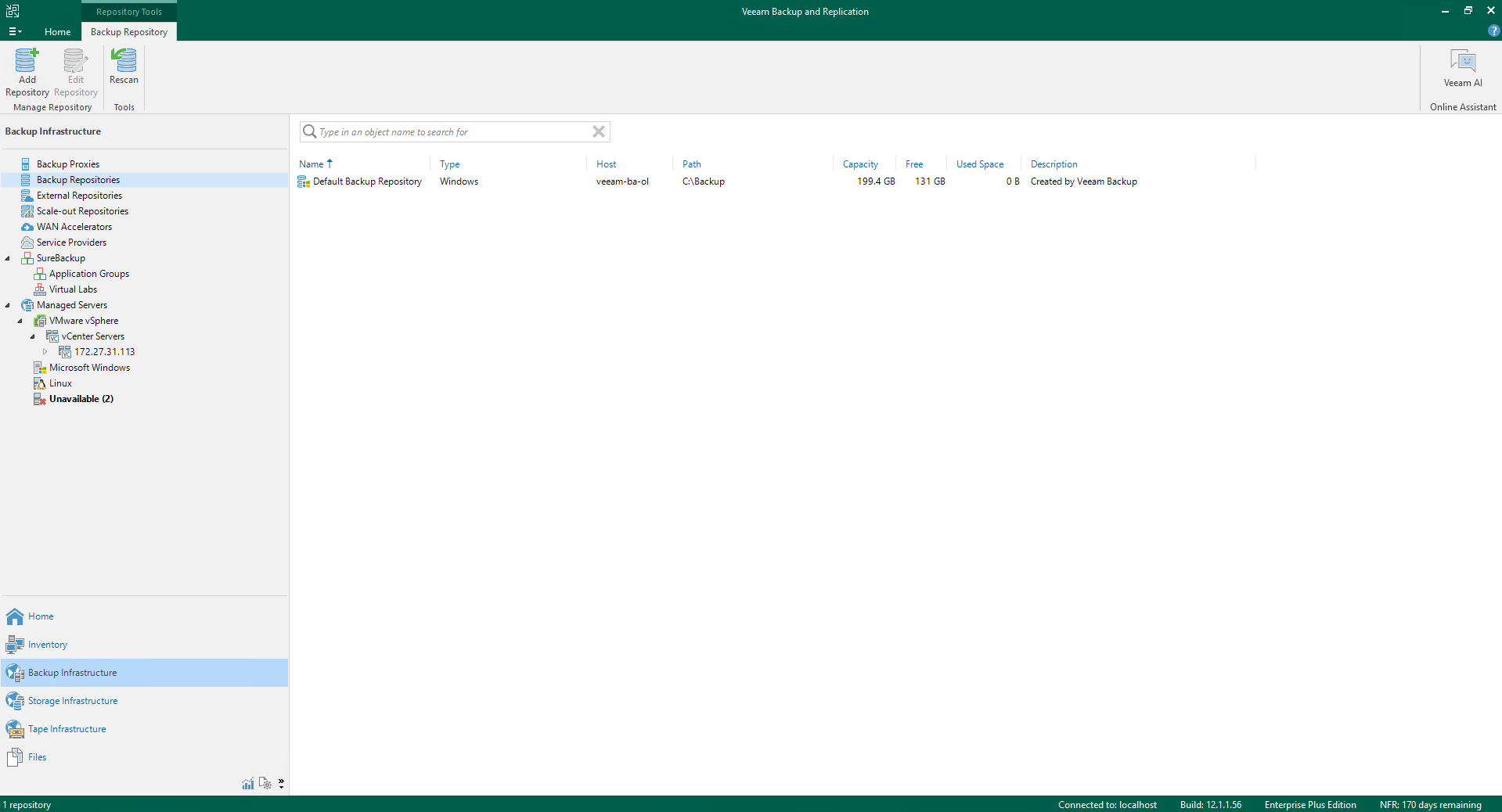
1. Open the Veeam Backup and Replication console, navigate to “Backup Infrastructure”, and select “Backup Repositories”.
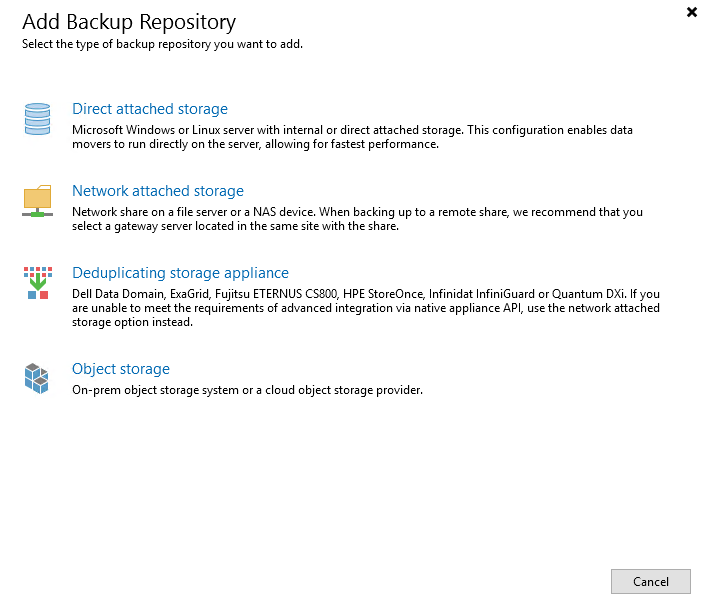
2. Click “Add Repository” and select “Direct attached storage”.
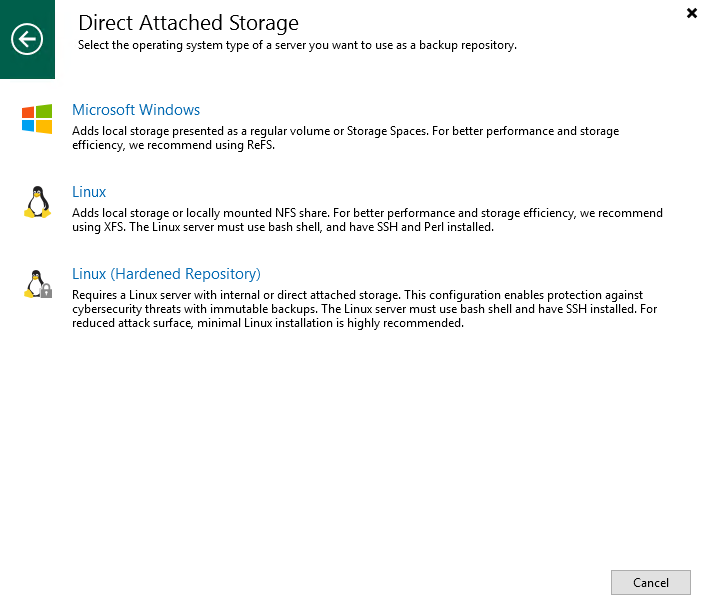
3. Select “Linux (Hardened Repository)”.
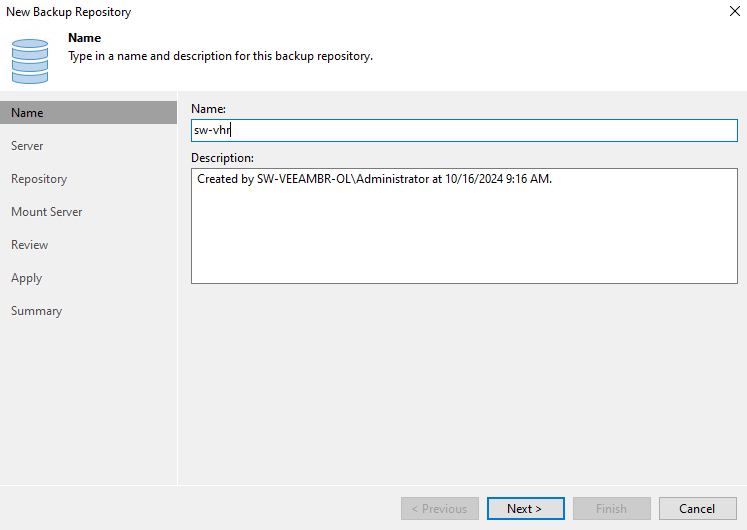
4. In the “New Backup Repository” wizard, specify the name and description for the new repository and click “Next”.
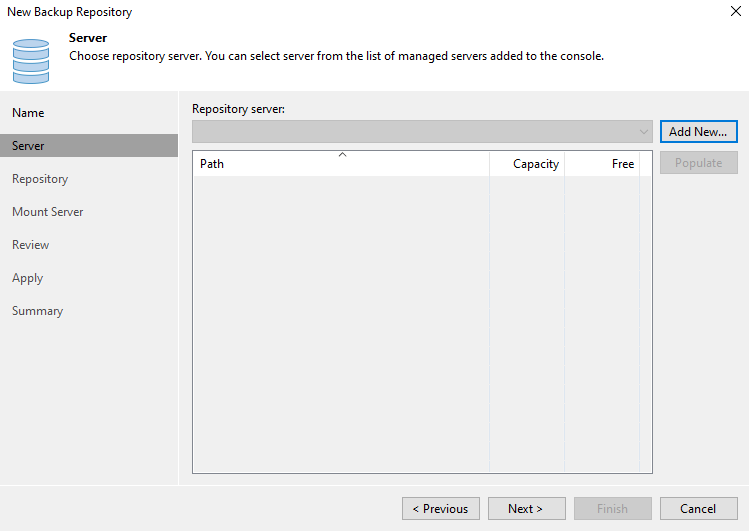
5. Click “Add New…”.
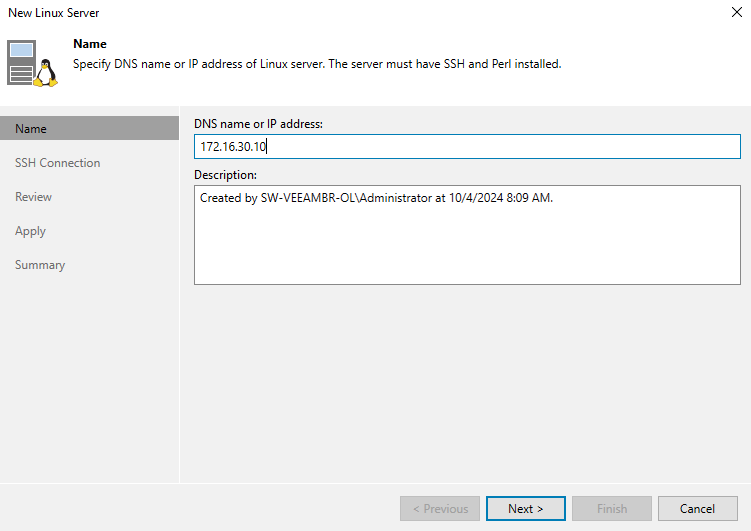
6. In the “New Linux Server” wizard, specify the IP address of the backup traffic network interface (Data) on StarWind x Veeam Hardened Backup Repository CVM and click “Next”.
NOTE: You can add a backup repository using the management IP address of StarWind x Veeam Hardened Backup Repository CVM or DNS name. It is recommended to add the backup traffic network (Data) to Veeam preferred Networks after the addition of backup repository in case a separate dedicated backup (Data) network is present: https://helpcenter.veeam.com/docs/backup/vsphere/select_backup_network.html?ver=120
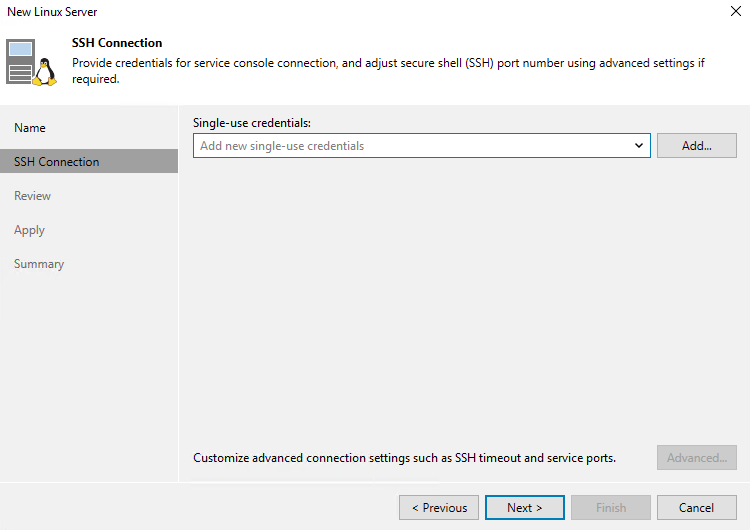
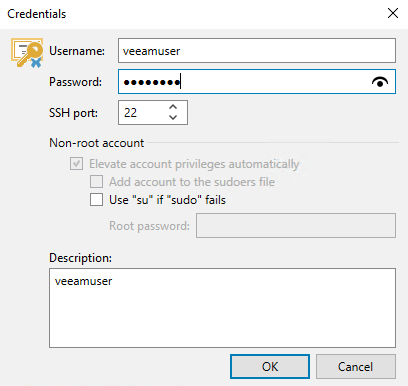
7. Click “Add…” to add the VHR user account created previously that will be used for single-use credentials.
8. Specify the VHR user account credentials and click “OK”. Specify Advanced settings if required and then click “Next”.
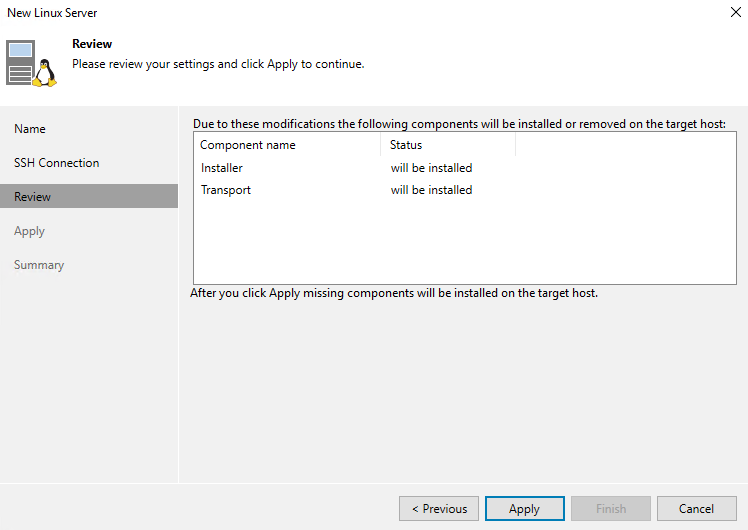
9. Review the components that will be installed and click “Apply”.
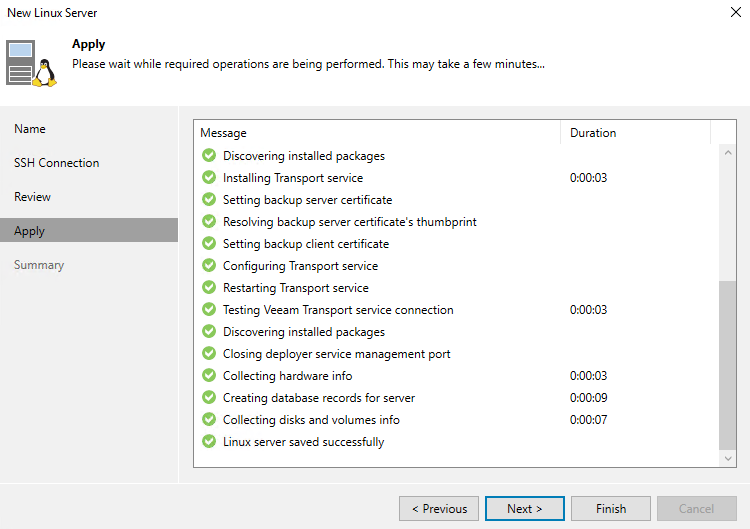
10. Wait until the installation is complete and click “Next”.
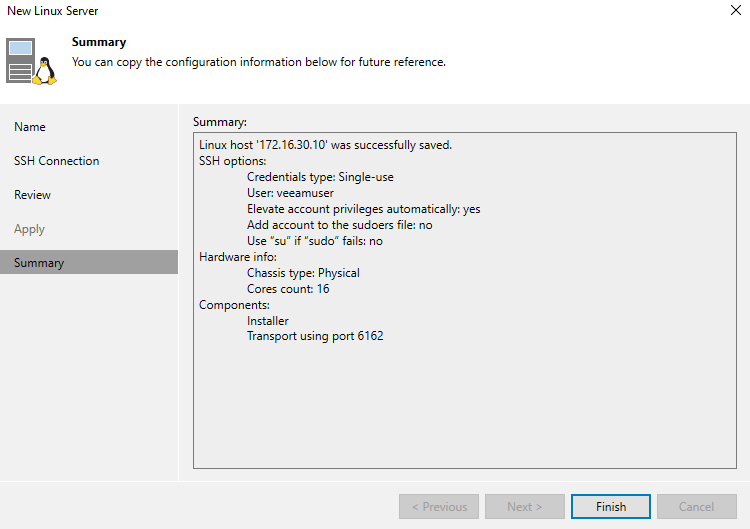
11. Review the summary and click “Finish”.
12. In the “New Backup Repository” wizard, select the newly added StarWind x Veeam Hardened Backup Repository server and click “Populate”. Select the Backup repository volume created in StarWind x Veeam Hardened Backup Repository and click “Next”
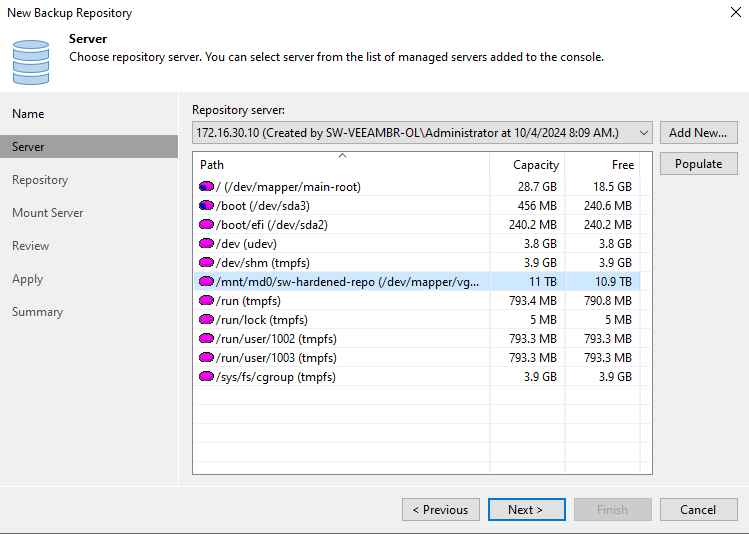
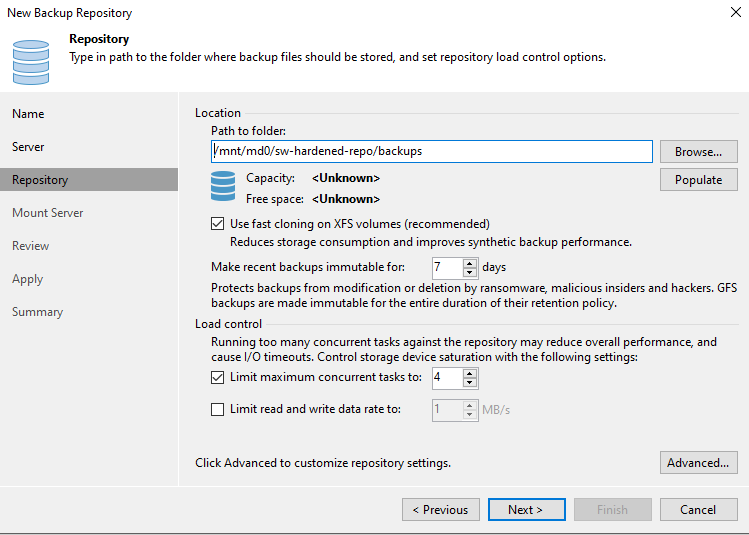
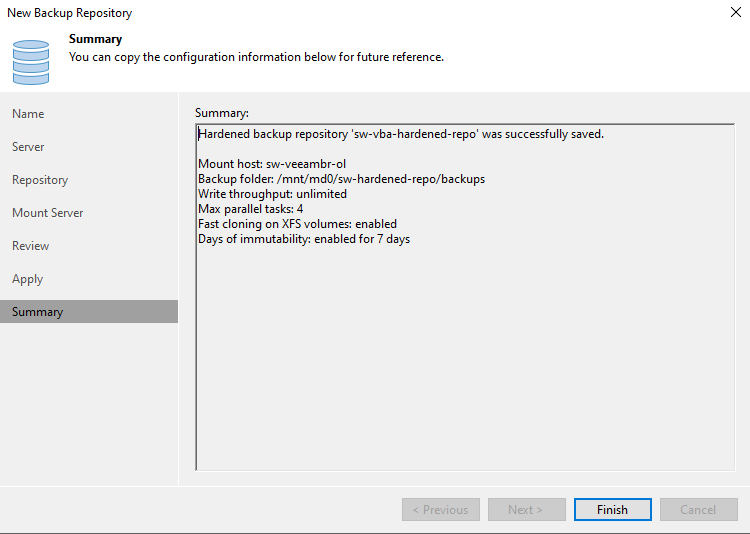
13. Make sure that the “Use fast cloning on XFS volumes” setting is enabled and specify the required retention period for immutability as well as other settings if required. Click “Next”.
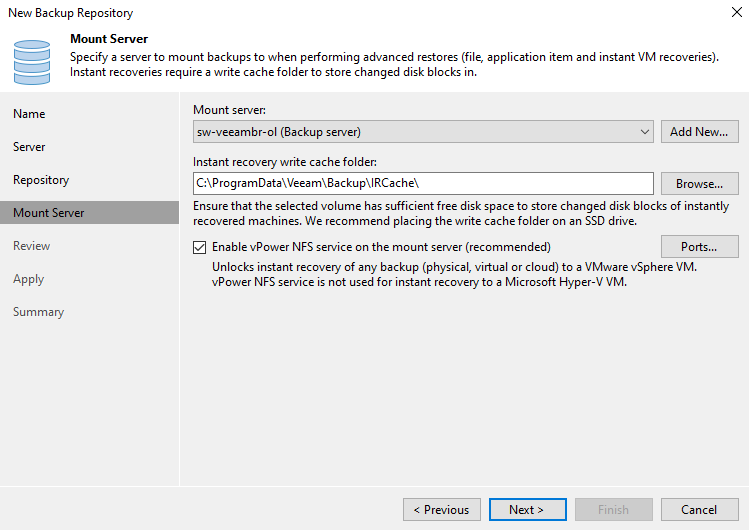
14. Select the Mount server and instant-recovery write cache folder. Specify additional Ports settings if required.
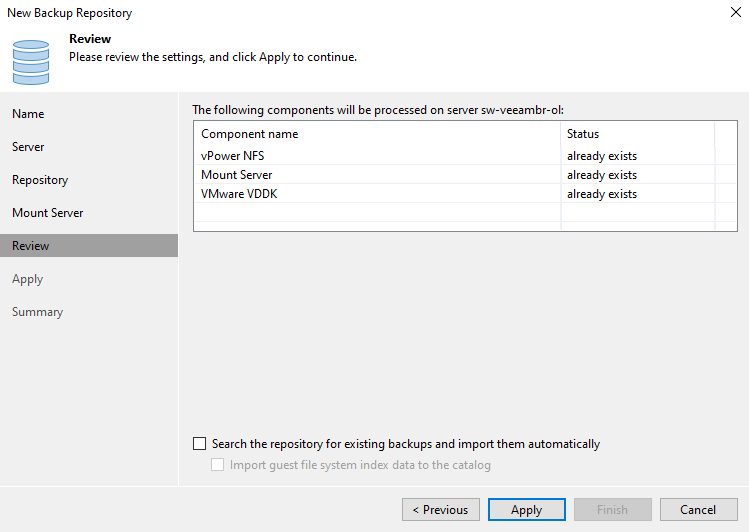
15. Review the settings and components that will be installed and click “Apply”.
16. Wait until the backup repository is created and click “Next”.
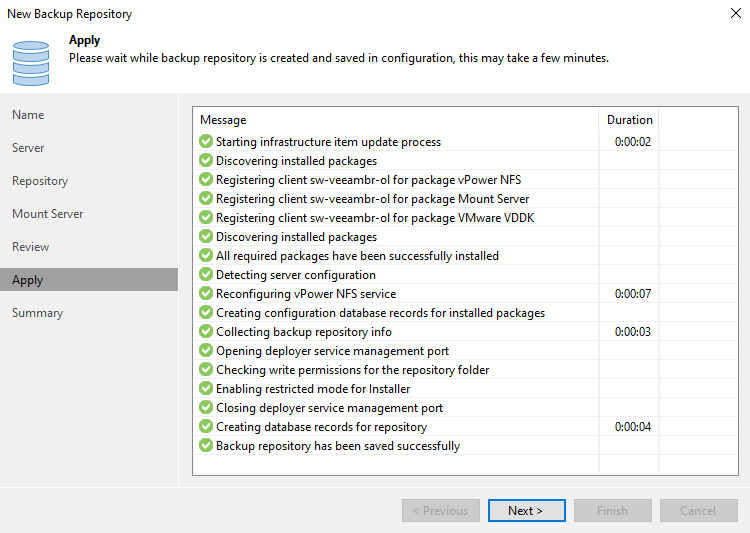
17. Review the summary and click “Finish”.
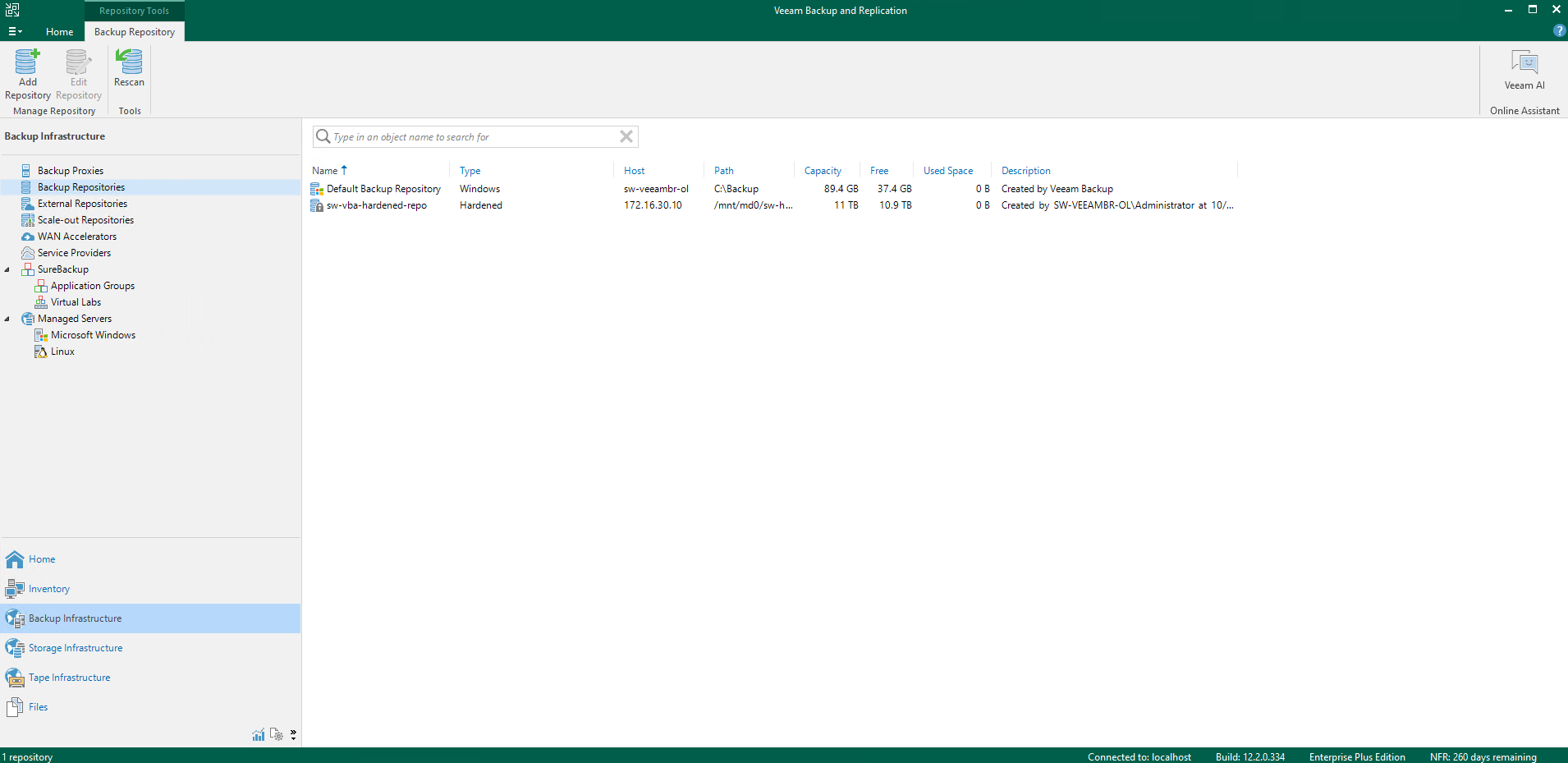
18. Veeam prompts whether you want to change the configuration backup location to the newly added repository. Select the preferred option according to your requirements.
19. Hardened Repository has been successfully added to Veeam Backup & Replication.
20. Navigate back to the “Volumes” tab in StarWind x Veeam Hardened Backup Repository CVM WEB UI, select the Backup repository volume and click “Manage VHR user”.
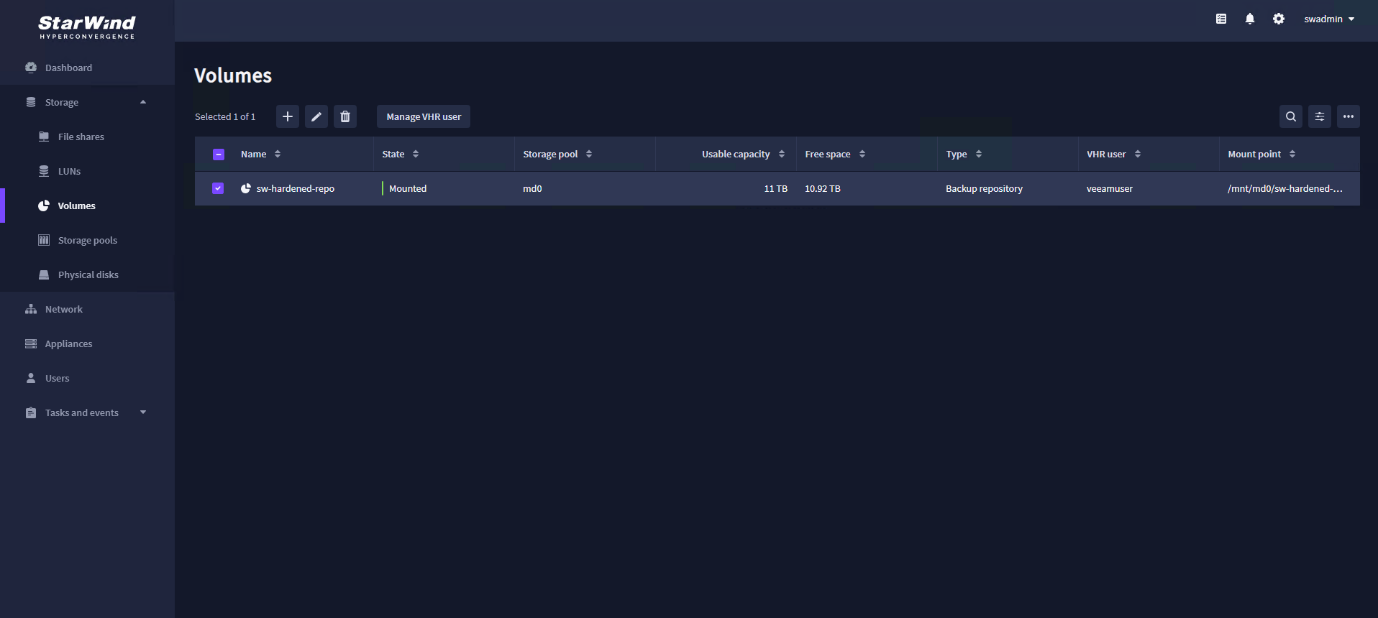
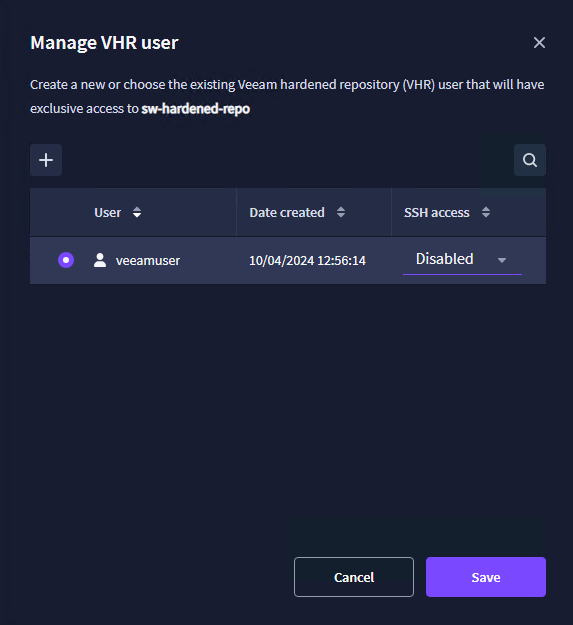
21. Change SSH access to “Disabled” to secure the StarWind Appliance from potential local threats such as credentials theft. Click “Save”.
Conclusion
Following this guide, Veeam Hardened Linux Repository has been configured in StarWind x Veeam Hardened Backup Repository installed on a Microsoft Hyper-V host and added to Veeam Backup & Replication.
