

Creating a Windows Server 2012 R2 Failover Cluster using StarWind Virtual SAN
- April 17, 2014
- 19 min read

Step-by-Step Guide to Building a Windows Server 2012 R2 Failover Cluster Using StarWind Virtual SAN V8
If you don’t know StarWind Virtual SAN® product and you are using clusters that require a shared storage (not only Windows products), I highly recommend that you take a look at this platform. StarWind Virtual SAN software allows you to create your own shared storage platform without any additional hardware.
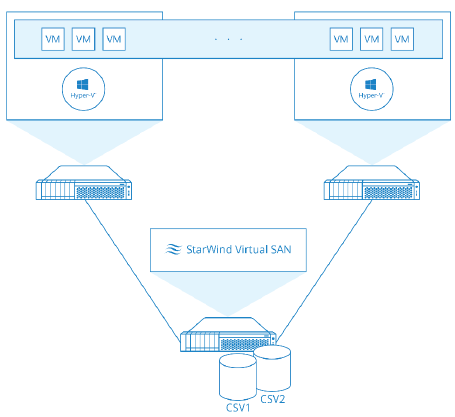
I created a post a while ago called “Five Easy Steps to Configure Windows Server 2008 R2 Failover Cluster using StarWind Virtual SAN”, which explained how a Failover Cluster can be easily configured with StarWind Virtual SAN. There have been changes in the latest releases of Windows Server, and StarWind Virtual SAN has a brand new upgrade with Version 8, so I thought it would be a good idea to explain those changes in a new article.
As in my previous post, this article will show you a simple step-by-step process to get a failover cluster for Windows Server 2012 R2 up and running without an expensive shared storage platform. The steps are:
1. Review and complete pre-requisites for the environment.
2. Install StarWind Virtual SAN software.
3. Configure and create LUNs using StarWind Virtual SAN.
4. Install Failover Cluster feature and run cluster validation.
5. Create Windows Server 2012 R2 Failover Cluster.
1. Review and Complete Pre-Requisites for the Environment
Windows Server 2012 has introduced changes into failover cluster scenarios that are important improvements, and fortunately, the basic requirements for Failover Cluster have not changed.
Requirements for Windows Server 2012 R2 Failover Cluster
• Two or more compatible servers: You need hardware that is compatible. It is highly recommended that you use the same types of hardware to create a cluster. Microsoft requires the hardware to meet the criteria for the “Certified for Windows Server 2012 logo”. The information can be found in the Windows Server catalog.
• A shared storage: You can use StarWind Virtual SAN software.
• [Optional] Three network cards on each server: one public network (from which we usually access Active Directory), a private network for heartbeat between servers and a network dedicated to iSCSI storage communication. This is an optional requirement because using one network card is possible but not suitable in most environments.
• All hosts must be members of Active Directory domains: To install and configure a cluster we don’t need a Domain Admin account, but we do need a Domain account that is included in the local Administrators of each host.
Here are two important points about changes in requirements introduced by Windows Server 2012:
• We can set up Failover Clusters on all Windows Server 2012 and Windows Server 2012 R2 editions, including Core installations. Previously, the Enterprise or Datacenter Edition were necessary on Windows Server 2008 R2.
• The concept Active Directory-detached Cluster appears in Windows Server 2012. This means that a Failover Cluster does not require a Computer object in the Active Directory as the access is performed by a registration in DNS. But the cluster nodes must be joined to an Active Directory.
Requirements for StarWind Virtual SAN Software
Here are the requirements for installing the component which will be in charge of receiving the iSCSI connections:
• Windows Server 2008 R2 or Windows Server 2012
• Intel Xeon E5620 (or higher)
• 4 GB (or higher) of RAM
• 10 GB of disk space for StarWind application data and log files
• Storage available for iSCSI LUNs
• SATA/SAS/SSD drive based arrays supported.
• Software based arrays are not supported in iSCSI
• 1 Gigabit Ethernet or 10 Gigabit Ethernet
• iSCSI ports open between hosts and StarWind Virtual SAN Server. The iSCSI ports are 3260 and 3261 for the management console.
General Recommendations for the Environment
There are several Microsoft and StarWind recommendations we have to follow to get the best results. Keep in mind that each scenario could require different recommendations.
To mention some of the general recommendations:
• NIC Teaming for adapters, excluding iSCSI. Windows Server 2012 significantly improved performance and supportability of network adapters teaming, and it is highly recommended that you use this option for improved performance and high availability. But avoid configuring teaming on iSCSI network adapters!
Microsoft provides a detailed document about handling NIC teaming in Windows Server 2012 (read Windows Server 2012 NIC Teaming (LBFO) Deployment and Management and NIC Teaming Overview).
• Multi-path for iSCSI network adapters. iSCSI network adapters work better with MPIO than with NIC teaming because throughput can increase with MPIO, and with NIC teaming the adapter throughput is not usually improved. Using MPIO is the recommendation with round-robin.
• Isolate network traffic on the Failover Cluster. It is almost mandatory that we separate iSCSI traffic from other networks, and it is highly recommended that other traffic is isolated including Live Migration in Hyper-V clusters, management networks, public networks, and Hyper-V replica traffic (if this feature is enabled in Windows Server 2012).
• Drivers and firmware updated. Most hardware vendors will require all drivers and firmware components to be updated to the latest version prior to starting a new configuration such as a Failover Cluster. Keep in mind that having different drivers or firmware in a Failover Cluster will cause the validation tool to fail and the cluster won’t be supported by Microsoft.
• Leave one LUN empty for future validations. The Failover Cluster Validation Tool is a great resource to retrieve status information about the health of individual cluster components, and we can run the tool whenever we want without causing disruption. To have a full Storage Validation, it is necessary to have at least one LUN in the cluster that is not in use.
For more information about best practice, see the following link StarWind High Availability Best Practices.
One important new feature introduced by StarWind Virtual SAN V8 is the Log-Structured File System (LSFS). LSFS is a specialized file system that stores multiple files of virtual devices and ensures high performance during writing operations with a random access pattern. This file system solves the problem of slow disk operation and it writes data at the speed that can be achieved by the underlying storage during sequential writes.
LSFS is currently on trial in v8, so use it carefully and validate your cluster services in a lab scenario if you are going to deploy LSFS.
2. Install StarWind Virtual SAN Software
After we have checked the requirements, we can install StarWind Virtual SAN V8 software, which can be downloaded in trial mode. This is the simplest step.

In this step, the Microsoft iSCSI service will be required to add to the server and the driver for the software.

After the installation, we can access our console, and the next step is to configure the storage pool.
Select the path for the hard drive where you are going to store LUNs for your shared storage scenario.

3. Configure and create LUNs in StarWind Virtual SAN
Once the program has been installed, we can manage it from the console, where the options are quite intuitive.

The following configuration section is in two parts:
1) Hosting iSCSI LUNs with StarWind Virtual SAN and 2) configuring the iSCSI initiator on each Windows Server 2012 R2 host in the cluster.
Hosting iSCSI LUNs with StarWind Virtual SAN
Here are the basic steps for configuring StarWind iSCSI to start hosting LUNs for our cluster. The initial task is to add the host:
3.1 Select the “Connect” option for the local server.
3.2 With the host added, we can create storage that will be published through iSCSI. Right-click the server and select “Add target” and a new wizard will appear.
3.3 Select the “Target alias” from which we’ll identify the LUN we are about to create and configure to be able to cluster. The name below will show how we can identify this target in our iSCSI clients. Click “Next” and then “Create”.

3.4 With our target created, we can create devices or LUNs in that target. Click “Add Device”.
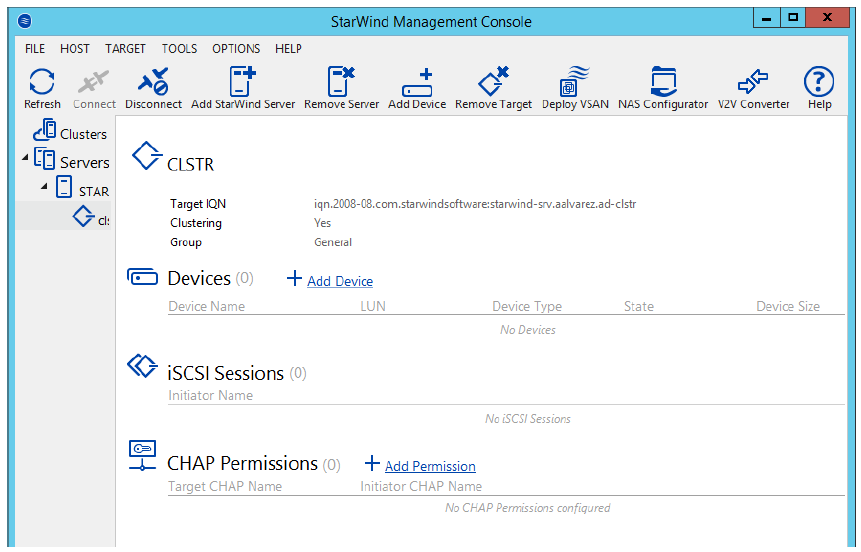
3.5 Select “Hard Disk Device”.

3.6 Select “Virtual Disk”. One of the other possibilities to use is “Physical Disk”, with which we can select a hard drive and work in a ‘pass-through’ model.

“RAM Disk” is the other choice, a very interesting option with which we can use a block of RAM to be treated as a hard drive or, in this case, as LUN. Because the speed of RAM is much faster than most other kinds of storage, files on a RAM disk can be accessed more quickly. However, because the storage is actually in RAM, it is volatile memory and will be lost when the computer powers off.
3.7 In the next step, we can select the disk location and size. In my case, I’m using E:\ drive and 1GB.

3.8 Since this is a virtual disk, we can select thick-provisioned (space is allocated in advance) or thin-provisioned (space is allocated as required). Thick-provisioned can be a little faster than thin-provisioned for some applications.
The LSFS options available in this case are “Deduplication enabled” (procedure to save space since only unique data is stored, and duplicated data is stored as links) and “Auto defragmentation” (helps to make space reclaim when old data is overwritten or snapshots are deleted).

3.9 In this step, we can select if we are going to use disk caching to improve performance for read and writes on this disk. The first opportunity we have works with the memory cache, from which we can select write-back (asynchronous, better performance but presents a risk of inconsistencies), write-through (synchronous, slow performance but no risk of data inconsistency) or no caching at all.
Using caching can significantly increase the performance of some applications, particularly databases, that perform large amounts of disk I/O. High-speed caсhing operates on the principle that server memory is faster than disk memory. The memory cache stores data that is likely to be required by applications. If a program turns to the disk for data, a first search is made for the relevant block in the cache. If the block is found in the cache, then the program uses it, otherwise the data from the disk is loaded into a new block of memory cache.
3.10 StarWind v8 adds a new layer to caching using L2 cache. This type of cache is represented in a virtual file that will be placed in SSD drives for high-performance. In this step, we can create an L2 cache file with which we can also select “write-back” or “write-through caching”.

3.11 We need to select a path for the L2 cache file.

3.12 Click on “Finish” and the device will be ready to be used.
3.13 In my case, I’ve created a second device in the same target.

Configure Windows Server 2012 R2 iSCSI Initiator
Each host must have access to the file that has been created in order to be able to create a Failover Cluster. On each host execute the following steps:
3.12 Access “Administrative Tools”, “iSCSI Initiator”.
You will get a notification saying “Microsoft iSCSI service is not running”. Click “Yes” to start the service.
3.13 Type the IP address used for the target host, your iSCSI server, in the “Target” pane to receive the connections. Remember to use the IP address dedicated to iSCSI connections. If the StarWind Virtual SAN server has a public connection, you can use it, but the traffic will be directed using that network adapter.
3.14 Click “Quick Connect” to be authorized by the host to use these files.

Once connected you can access “Disk Management” to verify you can use these files as storage attached to the operating system.

3.15 As a final step, using the first host in the cluster, put the storage file “Online” and select “Initialize Disk”. Since these are treated as normal hard disks, the process for initializing a LUN is no different than initializing a physical and local hard drive in the server.
Now, let’s take a look at the Failover Cluster feature.
4. Install Failover Cluster feature and Run Cluster Validation
Prior to configuring the cluster, we need to enable the Failover Cluster feature on all hosts in the cluster. It is also advisable to run the verification tool provided by Microsoft to validate the consistency and compatibility of our scenario.
4.1 In “Server Manager”, access the option “Add Roles and Features”.
4.2 Start the wizard. Do not add any role in “Server Roles”. In “Features” enable the “Failover Clustering” option.

4.2 Once installed, access the console from “Administrative Tools”. Within the console, click “Validate a Configuration”.

4.3 In the new wizard, we are going to add the hosts that will represent the Failover Cluster in order to validate the configuration. Type in the server’s FQDN names or browse for their names. Click “Next”.

4.4 Select “Run all tests (recommended)” and click “Next”.

4.5 In the following screen is a list of all the tests that will be executed. Take note that the storage tests will take some time. Click “Next”.
If you have carried out all the tasks outlined earlier, then the tests will be completed successfully. In my case, the report generated a warning but the configuration was still supported for clustering.
The warning report provides explanatory information. In my scenario, the “Network” section generated a warning “Node <1> is reachable from Node <2> by only one pair of network interfaces. It is possible that this network path is a single point of failure for communication within the cluster. Please verify that this single path is highly available or consider adding additional networks to the cluster”. This is not a critical error and can easily be solved by adding at least one new adapter in the cluster configuration.

4.6 Click the option “Create the cluster now using the validated nodes”. This will start as soon as you click “Finish”.
5. Create Windows Server 2012 R2 Failover Cluster
By this stage, we have completed all the requirements and validated our configuration successfully. In the next simple steps, we are going to configure our Windows Server 2012 R2 Failover Cluster.
5.1 In the Failover Cluster console, select the option “Create a cluster”.
5.2 A similar wizard will appear as in the validation tool. The first thing to do is to add the servers we would like to cluster. Click “Next”.
5.3 In this step, we have to select the cluster name and the IP address assigned. Remember that in a cluster, all machines are represented by one name and one IP.

5.4 In the summary page click “Next”.

After a few seconds, the cluster will be created and we can also see the report for the process.
Now in the Failover Cluster console we’ll get a full description of the cluster that has been created, including the nodes involved and the storage, networks and events related to the cluster.
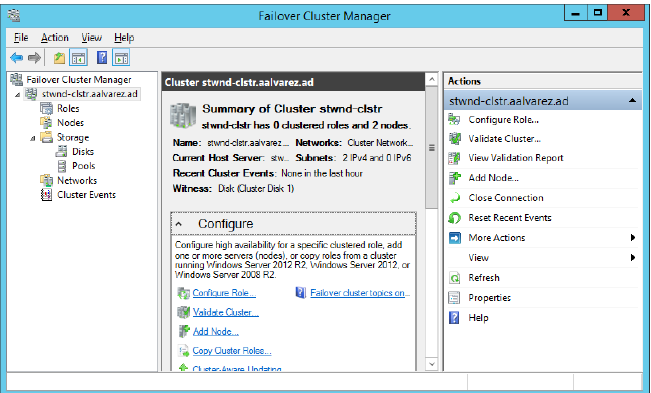
The default option for a two-node cluster is to use a disk as a witness to help us manage the cluster quorum. This is a disk we usually assign the letter “Q:\” and it stores a small amount of information about the cluster configuration. Its main purpose is for cluster voting.
To perform a backup for the Failover Cluster configuration, we need to back up the Q:\ drive alone. Note that this does not back up the services configured in the Failover Cluster.
Cluster voting is used to determine which nodes and services will remain online in case of a disconnection. For example, if a node is disconnected from the cluster and from the shared storage, the remaining node has one ‘vote’ and the quorum disk has another ‘vote’, which together determine that the cluster and its services will remain online.
This voting is used as a default option but can be modified in the Failover Cluster console. Modifying it depends on and is recommended for the following scenarios: in a scenario with an odd number of nodes, cluster voting will be required to provide a ‘Node Majority’ quorum; for a cluster stretched across different geographical locations, it is advisable to use an even number of nodes but using a file share as a witness in a third site.
For more information about quorums in Windows Failover clusters, read the following Microsoft TechNet article: Configure and Manage the Quorum in a Windows Server 2012 Failover Cluster.
