Introduction
A couple of days ago, I decided to re-distribute VM resource shares. I basically wanted several VMs to get some more resources without compromising their latency. For that purpose, I played around with Storage I/O Control parameters a bit. And, you know, I decided to look at things more globally. Actually, here’s how I decided to take a deeper dive into I/O filtering. In this article, I’m going to talk about the VMware vSphere APIs for I/O Filtering (VAIO) framework that gives direct access to the VM I/O stream. I’ll show how to enable those filters, how they work, and why you might want them in production.
Quick spoiler: VAIO is the sanctioned way to intercept VM I/O for things like continuous data protection (CDP), caching, and other per-VM data services. It’s cleanly integrated with vCenter, plays nicely with lifecycle management, and doesn’t require weird kernel hacks like in the old days.
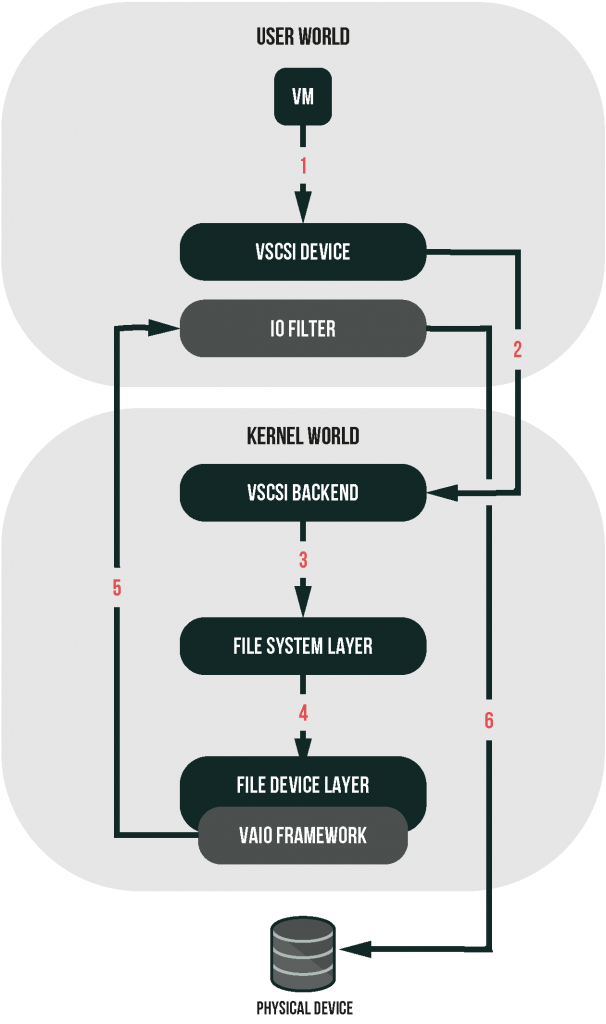
What I/O filters are and how they work
Introduced back in the vSphere 6.x era, VAIO lets vendors (and VMware itself) safely hook into the vSCSI path to inspect or modify I/O on a per-VM or per-VMDK basis – independent of your underlying storage (local, SAN, vSAN, NFS, vVols, etc.). The big win is consistency: the filter lives in ESXi, so it sees the same I/O regardless of where bits land. Early use cases were caching and replication; these days you mostly see it in replication/CDP and data protection products.
High-level I/O path with an I/O filter enabled:
- VM issues an I/O → vSCSI layer catches it.
- The IOFilter inspects/acts (e.g., journals the write for CDP) at the vSCSI layer.
- I/O proceeds to the file system/device layers and on to the physical device.
- Policy decides which disks are filtered – per-VMDK granularity is normal.
If you’ve seen VMware docs talk about “worlds,” that’s just ESXi terminology for execution contexts (userworld vs. vmkernel). VAIO has user-space components coordinating with vmkernel modules; the data path interception point is at the vSCSI level, not inside your guest. That’s the important bit: the guest doesn’t know, and storage topology doesn’t matter.
Sync vs. async replication with an I/O filter:
- Async/CDP: typically low overhead; writes are acknowledged locally and streamed out with low lag.
- Sync: an extra round-trip before ACK, so you’ll see additional latency whenever the replication link adds delay.
Where you’ll actually use VAIO today:
- CDP/replication (Veeam CDP, Veritas, NAKIVO, etc.)
- Caching/acceleration (less common now but supported by the framework)
- Specialized data services from vendors packaged as VIBs and managed centrally in vCenter.
Creating and configuring I/O Filter
You don’t “turn on VAIO” globally; you install a vendor’s I/O filter on a cluster, then reference it in VM Storage Policies and apply those to VMs or individual disks. This keeps the blast radius small and intent explicit.
Prereqs and notes that save time:
Cluster-level install: Filters are installed per cluster and pushed to each host.
Lifecycle Manager (vLCM) images: if you use images (recommended), make sure the filter component is part of the desired image so compliance doesn’t rip it out later.
Maintenance impact: Most filters install with rolling maintenance. Some steps may require maintenance mode per host; plan accordingly.
Step 1 – Install the I/O filter on the cluster
In your vendor’s UI/plug-in or from vCenter (depends on product), select the cluster and choose Install I/O Filter. Let it push the VIBs across hosts and wait for completion. Status shows in Recent Tasks; expect a short host sync per node.
Step 2 – Create a VM Storage Policy that references the filter
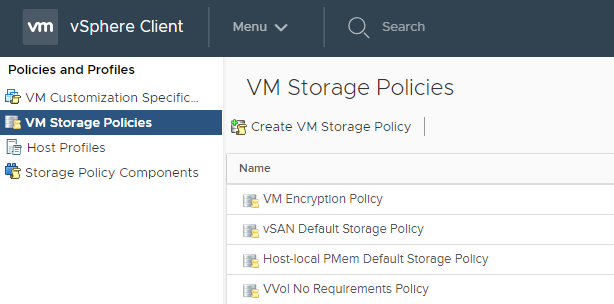
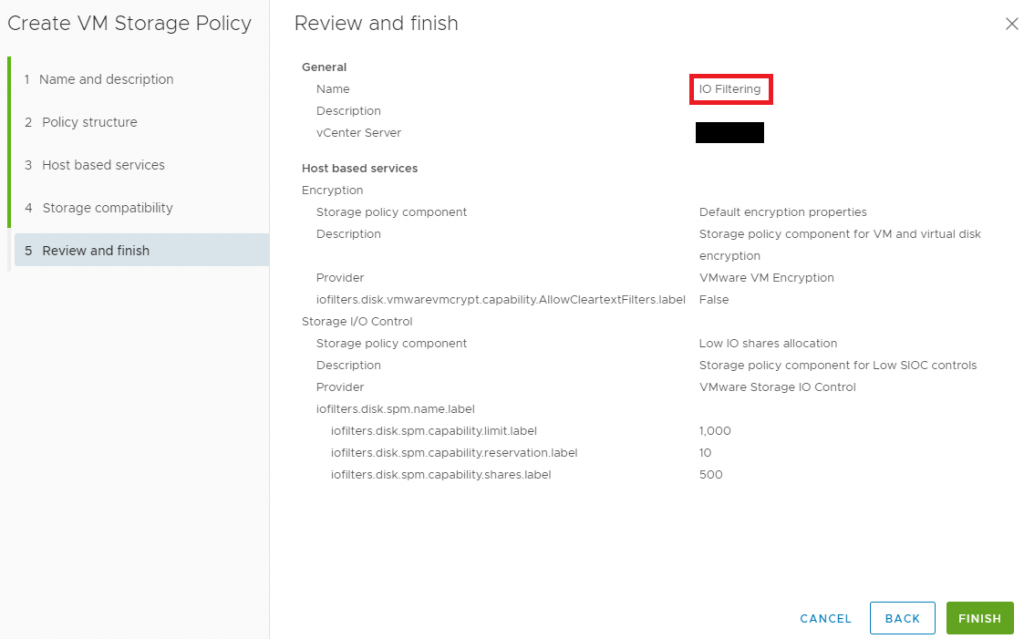
Policies and Profiles → VM Storage Policies → Create. In the Rule-Set section, pick the vendor’s I/O Filter capability and set required parameters (e.g., protection group, RPO/CDP stream, cache mode). Save the policy; it’ll show up like any other storage policy.
Step 3 – Apply the policy to a VM (or a specific disk)
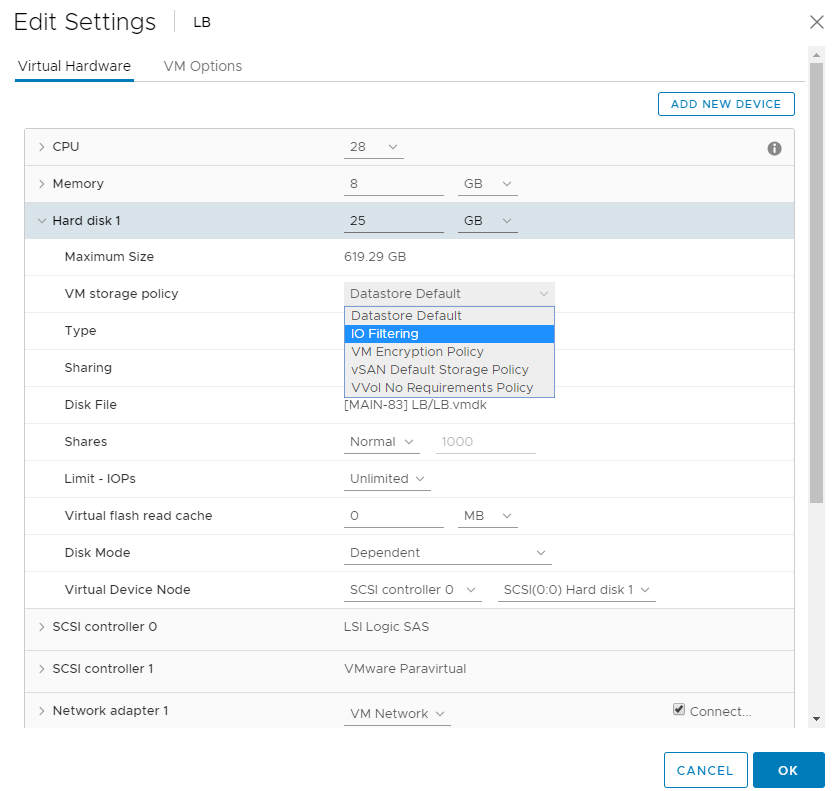
Edit the VM and set the VM Storage Policy. Apply to the whole VM or per-disk (handy when only the database disk needs CDP). Power-cycle impact depends on the vendor and setting; many filters hook in live, but always check product notes.
Troubleshooting install
If a host refuses the component, vendors usually provide a host-level VIB you can apply while in maintenance mode, then retry orchestration from vCenter. Also keep an eye on compliance if you’re using vLCM images. If the filter isn’t part of the image, the next remediation will flag it as drift and may remove it.
Encryption
The common misconception is that third-party encryption comes via I/O filters. In reality, vSphere Virtual Machine Encryption is built-in and doesn’t require a vendor add-on. It uses a key provider (Native Key Provider on vCenter or an external KMS) to manage keys; ESXi handles the actual crypto. Under the hood, VMware implemented VM Encryption using the same IOFilter framework, but it’s VMware’s filter, not a vendor package.
What this means for design:
- You can encrypt VMs (and vMotion) without installing any vendor VAIO package.
- With Native Key Provider, you don’t need an external KMS for many use cases; external KMS is still recommended for stronger separation.
- Encrypted data looks opaque to your array, so array-level dedupe/compress won’t help much. Plan capacity accordingly.
Where the policy fits:
You’ll see VM Encryption options in VM Storage Policies alongside other rule-sets. You can combine encryption with I/O filter policies per VMDK, but understand the order of operations and what your vendor supports when both are present.
Storage I/O Control
Storage I/O Control (SIOC) is still the throttle that stops a single noisy VM from hogging a datastore. It monitors latency; when a threshold is crossed, it enforces the shares/limits you’ve defined so the bully gets less and your critical workloads don’t starve.
How I use SIOC with VAIO setups:
Datastore clusters + SIOC: still useful for avoiding worst-case contention.
Shares, not just limits: shares let you express relative importance (e.g., prod DB > test VM).
Don’t forget the threshold: default is fine to start, but tune it if your array/vSAN latency profile differs.
Conclusion
That’s VAIO in practical terms: a clean, supported way to hook per-VM I/O for services that actually matter (replication/CDP, caching, and certain protection workflows) without kernel side effects or storage-specific duct tape. The workflow is straightforward: install the filter on the cluster, express intent in a VM Storage Policy, and apply it exactly where needed. Bake the component into your vLCM image so compliance keeps it in place.
A few parting notes I keep on a sticky:
- Be deliberate about which VMDKs get filtered. Don’t journal temp disks.
- Test failover/failback with the actual product you’re deploying; the devil’s always in the workflows.
- If you encrypt VMs, assume array-level dedupe/compress won’t save much. Size storage accordingly.
- SIOC still earns its keep while it’s supported, use it and keep an alternative plan on your radar.