


The “Virtual machine disks consolidation is needed” status means VMware tried to clean up snapshots but left delta files behind. If you ignore it, those files will keep growing, slow the VM, waste datastore space, and can break your backups.
In this guide, we’ll explain why this warning appears, what to watch out for, and how to fix it quickly.
What Is Virtual Machine Disk Consolidation?
Virtual Machine Disk Consolidation is the process of merging snapshot delta files back into the main virtual disk (VMDK) and removing leftover redo logs. In plain terms, it cleans up after snapshots so the VM runs on a single, consistent disk instead of juggling multiple temporary files.

Here’s how it works:
When you take a snapshot, VMware locks the base disk and redirects all new changes to a delta disk. If snapshots stick around for days or weeks, these delta files keep growing and can seriously slow down the VM. Consolidation brings everything back together by committing those changes into the base disk and deleting the extra files.
VMware allows up to 32 snapshots in one chain, but in practice, even a few large snapshots can hurt performance and eat up datastore space. That’s why consolidation (or timely snapshot cleanup) is a routine part of keeping virtual machines healthy.
Why Do You See the “Virtual Machine Consolidation Needed Status”?
The “Virtual machine consolidation needed status” is basically VMware’s way of saying: “I tried to clean up your snapshots, but something went wrong.” It usually pops up after a snapshot delete or commit fails, leaving extra delta files on the datastore.
The most common reasons include:
- Incomplete or failed snapshot deletion. If “Delete” or “Delete All” doesn’t finish correctly, leftover .vmdk or .log files remain, and VMware can’t merge them into the base disk.
Case in point: an admin tried deleting a snapshot during peak hours, but the task timed out, leaving orphaned delta files and triggering the warning.
- Not enough free datastore space. Consolidation requires working space. If the datastore is nearly full (less than ~1 GB free), VMware can’t finish the merge, and the delta files stay put.
Case in point: a VM with a 200 GB snapshot couldn’t consolidate because the datastore had only 500 MB free, forcing the admin to migrate another VM off the datastore before retrying.
- Storage performance or timeout issues. Large or long-lived snapshots can overwhelm slow or busy storage, causing the consolidation task to time out and fail.
Case in point: a SQL VM was left running on a snapshot for three weeks; when the admin finally tried to delete it, the storage array couldn’t handle the I/O and consolidation stalled.
- Locked or in-use files. Backup software is a frequent culprit here. If a backup job crashes or leaves the VM’s disk mounted elsewhere, the snapshot file stays locked and consolidation won’t proceed.
Case in point: after a failed Veeam backup, the proxy VM still had the disk mounted in hot-add mode, blocking consolidation until the lock was cleared.
- Too many snapshots in the chain. VMware technically allows up to 32 snapshots, but in practice even fewer can cause trouble. The longer the chain, the higher the risk of errors during cleanup.
Case in point: One admin found a dev VM with 12 snapshots in a chain. Consolidation failed halfway through, and they had to clean up snapshots step by step instead of using Delete All.
- vCenter or ESXi communication glitches. If vCenter loses its connection to the host mid-task, the snapshot commit may not complete, and you’ll see a consolidation warning even though no active snapshots appear in Snapshot Manager.
Case in point: during a vCenter patch, several snapshot deletions hung. After the vCenter service was restored, the VMs all showed consolidation needed despite having no visible snapshots.
So, this status means VMware has snapshot data that hasn’t been fully merged into the base disk. It’s a signal that you need to step in and consolidate manually to get the VM back to a clean, stable state.
How to Check Consolidation Status in VMware
Before fixing the issue, you need to confirm whether a VM really requires consolidation. VMware provides several ways to check:
vSphere Client (UI check)
Open the VM in the vSphere Client and look at the Summary tab. If consolidation is needed, you’ll see a yellow banner with the message “Virtual machine disks consolidation is needed.”
Snapshot menu option
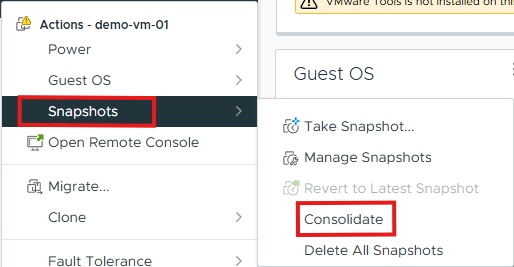
Right-click the VM, go to Snapshots, and check the Consolidate option. If it’s available (not greyed out), the VM has leftover delta files waiting to be merged.
PowerCLI check
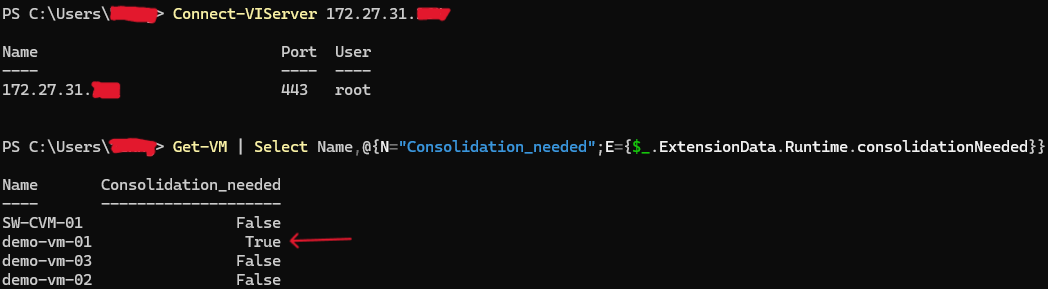
In larger environments, use PowerCLI to scan for affected VMs:
Get-VM | Where-Object {$_.ExtensionData.Runtime.ConsolidationNeeded -eq $true}
Datastore inspection
Browse the VM’s folder on the datastore. Files named *-00000n.vmdk indicate delta disks. If they exist but Snapshot Manager shows no snapshots, consolidation is needed.
How to Fix the “Virtual Machine Consolidation Needed” Status
If you see the “Virtual machine disks consolidation is needed” warning, follow these steps to fix it. Start with the simplest method and move down the list if the issue persists:
1. Run Consolidate from vSphere Client
- Right-click the VM → Snapshots → Consolidate.
- Confirm the action.
- Monitor progress in the Recent Tasks pane.
- When finished, the warning should disappear.

2. Check and delete snapshots manually
- Open Snapshot Manager for the VM.
- If snapshots are listed, delete any that are no longer needed.
- Use Delete All if you want to commit everything at once.
- If no snapshots are visible but consolidation is still needed, take a new snapshot and then delete all snapshots – this often clears hidden delta files.

3. Free up datastore space
- Check if the datastore has at least 1-2 GB free (more for large snapshots).
- If it’s almost full, move or delete unused files, expand the datastore, or migrate the VM to a datastore with more free space.
- Retry consolidation once space is available.
4. Release locked files
- Make sure no backup jobs are still running for this VM.
- Check if a backup proxy VM still has the disk mounted; detach it if necessary.
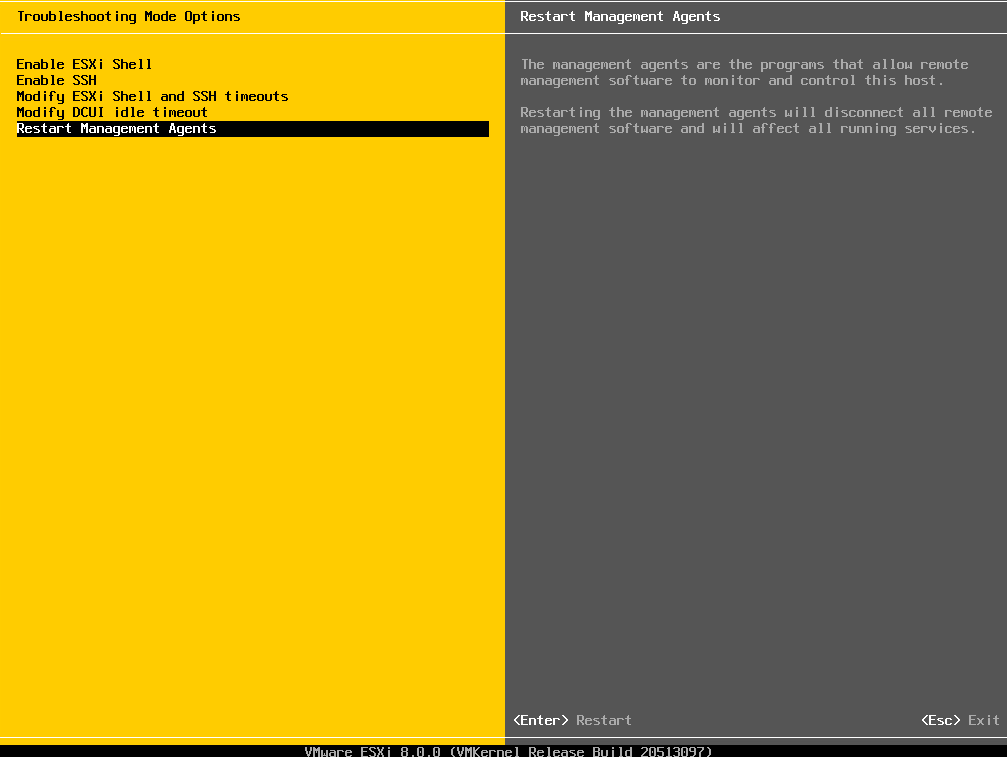
- If nothing is obvious, restart the management agents on the ESXi host (services.sh restart via SSH or DCUI).
- After that, try consolidation again.
5. Use PowerCLI to force consolidation
- Run the command:
(Get-VM -Name "VM_Name").ExtensionData.ConsolidateVMDisks()
- Or consolidate all affected VMs:
Get-VM | Where-Object {$_.ExtensionData.Runtime.ConsolidationNeeded} | ForEach-Object {$_.ExtensionData.ConsolidateVMDisks_Task()}

6. Contact VMware support if all else fails
- If consolidation continues to fail (for example, due to a broken snapshot chain), VMware support can provide advanced fixes like editing VMDK descriptors or using low-level tools.
Best Practices to Prevent Consolidation Errors
While snapshot consolidation issues are fixable, it’s best to avoid getting into this situation in the first place. Here are some best practices to help prevent consolidation-needed errors and snapshot-related problems:
| Best Practice | Why It Matters |
|---|---|
| Limit snapshot use | Keep no more than 2-3 snapshots at once and don’t leave them open longer than 72 hours. Long chains or large snapshots slow VMs and make consolidation risky. |
| Maintain datastore free space | Aim for at least 20-30% free space. Consolidation and snapshots both need working room; a full datastore almost guarantees errors. |
| Monitor snapshot growth | Use vCenter alarms or PowerCLI scripts to catch snapshots that are too large or too old before they become a problem. |
| Automate snapshot cleanup | If you rely on snapshots for backups or testing, schedule automatic cleanup tasks so old ones don’t pile up. |
| Don’t treat snapshots as backups | Snapshots are temporary, not a backup strategy. Relying on them for rollback can lead to huge delta files and broken consolidation. |
| Keep hosts and tools updated | ESXi and vCenter updates often fix snapshot-related bugs. Updated VMware Tools improve quiesced snapshots and reduce errors. |
By following these practices, limiting snapshot length, monitoring space and snapshot usage, and using snapshots appropriately, you can largely avoid the dreaded consolidation needed warning. Snapshots will remain a helpful tool rather than a source of emergencies.
Conclusion
The “virtual machine consolidation needed status” simply means snapshot data hasn’t been fully merged into the base disk. If you ignore it, the VM may slow down, backups can fail, and datastore space might run out. But don’t panic, in most cases it’s a quick fix with a consolidation task or snapshot cleanup. By managing snapshots wisely, keeping datastore space under control, and monitoring your environment, you’ll prevent most consolidation problems before they appear.
People Also Ask
- What is the process of VM consolidation?
It merges snapshot delta files back into the base VMDK and removes leftover redo logs. - How long does VM consolidation take?
Anywhere from a few minutes to several hours, depending on snapshot size and storage speed. - How do I fix a disk consolidation issue in VMware?
Run Snapshots → Consolidate in vSphere, or use PowerCLI if the UI fails. - Why is virtual machine disk consolidation needed?
To clean up snapshots, free datastore space, and keep the VM running on a single up-to-date disk. - What happens if you don’t consolidate snapshots?
Delta files keep growing, slowing the VM, blocking backups, and risking datastore exhaustion. - Consolidation vs delete snapshot: what’s the difference?
Delete snapshot commits a specific snapshot; consolidation removes leftover delta files not shown in Snapshot Manager. - Can you stop VM consolidation once it starts?
No, the process must finish; stopping it can corrupt the VM’s disk.
