


Need a simple way to back up a Windows laptop or workstation? Veeam Agent for Windows (Free) delivers full system backups and reliable recovery to USB or local storage. Find out all the details in our latest guide.
Veeam Agent for Windows is one of the easiest ways to protect data on individual laptops or desktops. With ransomware and viruses all around it is a reassuring to know that you can easily rewind back your whole laptop/desktop system to the known configuration before the attack/problem and do not lose anything. I use it on my principal Workstation all the time. I mostly use it for storing the whole configuration with all the applications installed, email accounts configured, bookmarks and lastly… also hardware drivers! (NICs, GPUs, Chipsets…)
While I know that I can configure some of the backups more granular way and use cloud storage sync for file-level backups, I’m sure and certain that I can restore the whole system back in time with all configured. And it is a huge time saver in case something goes wrong.
Protection of workstations is critical, especially for users who operate outside traditional corporate networks but still needs to save their data and their configuration.
Veeam Agent for Microsoft Windows offers a reliable solution for Windows-based physical endpoints.
NOTE: Know that there are also agents for Linux or MacOS, but to keep my article reasonable size, I only write about the Windows version here.
The free edition stands out as a fully functional, no-cost option for standalone backups of single computers, making it ideal for home users, freelancers, or small setups needing simple, local protection.
Veeam has recently updated their flagship product Veeam Backup and Replication (VBR) 13 and with this, all the agents got an update as well. So, whether you’re using VBR or not, you can download the free agent or the VBR Community Edition at no cost.
Veeam Agent for Windows v.13.0.1 is the latest version, and it has up to 2x faster backups, smaller incremental file level backups and other improvements.
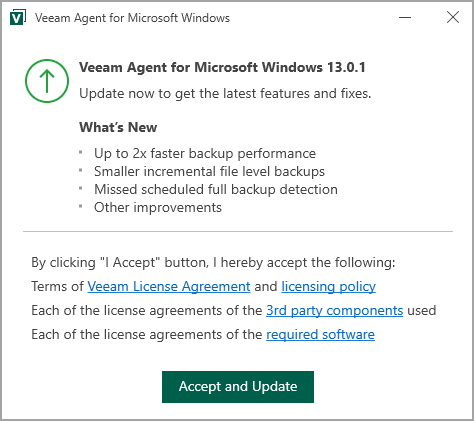
Veeam agent for Windows standalone edition
This article explores the free edition’s requirements, supported systems, and architecture. It compares standalone and managed operation modes and highlights practical use cases for small businesses leveraging paid editions to extend protection across mobile workforces.
System Requirements and Supported Operating Systems
Veeam Agent for Windows (latest version 13.0.1 as of late 2025) has modest hardware requirements, ensuring compatibility with most modern workstations and laptops.
Hardware specifications include:
- x86-64 processor
- At least 2 GB RAM (more recommended for large volumes)
- 250 MB disk space for installation
- Support for BIOS or UEFI firmware
- Network connectivity requires only 1 Mbps or faster, with tolerance for high-latency links – useful for remote users.
The agent supports specific file systems and storage:
- NTFS
- ReFS (volumes ≤64 TB, but not for boot partitions)
- FAT32/exFAT for removable media
It works with Microsoft BitLocker-encrypted drives and 512-byte or 4 KB sector disks.
Software prerequisites install automatically:
- ASP.NET Core Runtime 8.0
- .NET Desktop Runtime 8.0
- Veeam OpenSSL3 FIPS Provider
The product embeds an SQLite database engine for local configuration storage.
Supported operating systems (64-bit only) cover client and server editions:
- Microsoft Windows 11 (22H2 through 25H2)
- Windows 10 GA Channel 22H2 and LTSC channels (2015–2021)
- Windows Server 2025, 2022, 2019, 2016, and 2012 R2 (including Essentials editions)
The free edition targets desktops, laptops, and tablets, including remote or cloud-hosted instances. Server Core and failover clusters require management by Veeam Backup & Replication (VBR), unavailable in free standalone mode.
Architecture of the Standalone Solution
- Veeam Agent for Windows uses a lightweight, one-service architecture that minimizes overhead on protected computers. After installation, it deploys key components:
- Veeam Installer Service – Handles setup and upgrades.
- Veeam Agent for Microsoft Windows Service – Core engine for backup, restore, and scheduling.
- Veeam Transport Service – Manages data transfer to targets.
Locally, the agent stores all configuration, job settings, and session history in an embedded SQLite database. This file-based database requires no external server, enabling fully standalone operation. SQLite’s simplicity ensures low resource use and high reliability for single-machine scenarios.
Backup jobs support:
- Entire computer (image-based)
- Volume-level
- File-level options
The agent creates synthetic full backups by merging increments into active fulls, reducing storage needs without frequent full runs. Targets include local drives, external USB/eSATA HDDs/SSDs, network shares (SMB), or (in newer versions) direct object storage.
For USB drive backups – the primary free use case, users configure jobs to detect removable media automatically or target specific drives. This allows portable, offline backups compliant with 3-2-1 rule basics (multiple copies on different media).
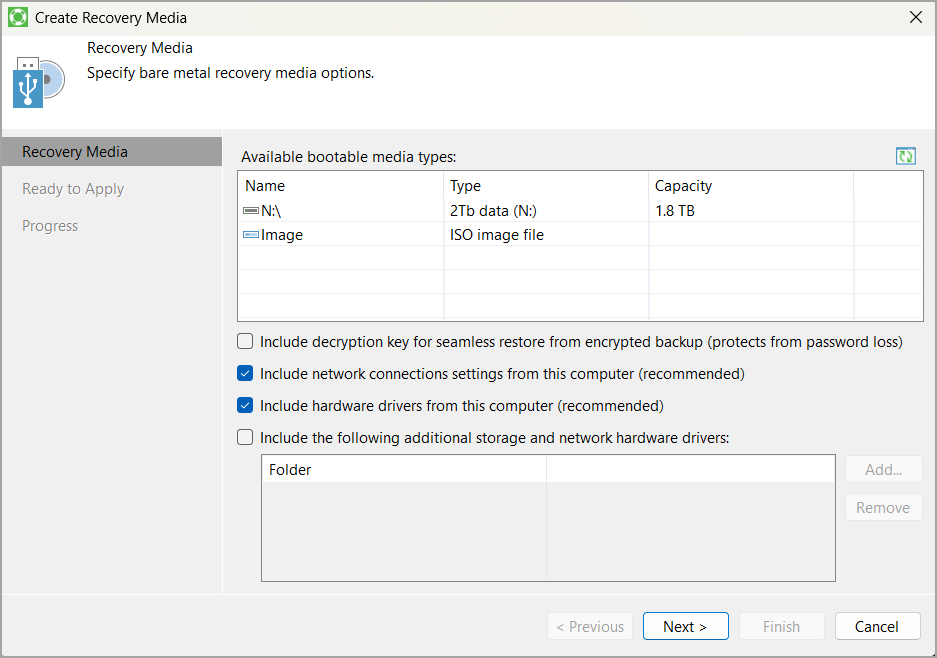
Recovery options include bootable media creation (USB, ISO, CD/DVD), bare-metal restore, file-level recovery, and direct export to Azure/AWS. The free edition excludes advanced features like application-aware processing for databases but suffices for system volumes and files.
Built-in tool to create bootable USB stick necessary to boot into a recovery environment. (otherwise, the system cannot recover back-in-time to itself). You need to boot via USB stick and then “erase” the corrupted system by clean backup. I hope you know what I mean.
Standalone vs. Managed Operation Modes
Veeam Agent for Windows operates in two modes, with significant differences in management, scalability, and licensing.
Standalone mode (default and only option for the free edition) runs the agent independently on the protected computer. Users configure jobs, schedules, and targets via the local GUI or command-line. Administration, monitoring, and restores occur locally. It supports integration with a VBR repository as a target but without central control.
Managed mode requires a paid license (Workstation or Server edition) and control by Veeam Backup & Replication or Veeam Service Provider Console. Administrators deploy agents centrally, push protection policies, monitor compliance, and orchestrate restores from a single console. Protected computers can enter read-only mode, preventing local job changes while allowing manual backups or file restores.
The free edition locks to standalone mode with community support only. Paid editions unlock managed mode and extras like enhanced encryption, application-aware processing, and centralized licensing.
Use Cases for Small Businesses with Paid Editions
Small businesses with 5–50 employees, especially mobile sales teams, benefit from paid Veeam Agent licenses for flexible yet controlled protection.
Scenario 1: Decentralized local backups with USB SSDs
Sales representatives travel frequently and rarely connect to the corporate network. Equip each laptop with a paid Workstation license in standalone mode. Employees run backups themselves by plugging in a personal USB SSD (e.g., 2 TB portable drive). Jobs configure for entire-system or file-level backups to the removable drive, with encryption and synthetic fulls. This is helpful for users without IT intervention, ensuring data protection during travel. The business avoids central infrastructure costs while enforcing policies like retention (e.g., 14 restore points).
Scenario 2: Centralized management with opportunistic network backups
Deploy agents in managed mode, linked to an on-premises VBR server (or Community Edition for up to 10 instances). Laptops back up automatically upon VPN or office network connection, sending data to a central repository (e.g., NAS or hardened repository). VBR applies protection policies – schedules, encryption, immutability – and creates secondary backup copies to cloud object storage (e.g., AWS S3 Glacier) or offsite drives. This achieves full 3-2-1 compliance: primary on laptop, secondary in central repo, tertiary offsite/immutable. IT monitors compliance centrally, pushes updates, and performs restores if devices are lost.
Combining modes – standalone for remote reliability, managed for connected compliance – offers hybrid protection. Paid features like built-in cache handle intermittent connectivity, queuing changes until network availability.
Links:
Final Words
The free edition of Veeam Agent for Windows delivers a powerful, zero-cost solution for standalone backups of individual laptops and workstations, especially to external USB drives. Its lightweight SQLite-based architecture, broad OS support, and flexible recovery make it ideal for personal or ad-hoc use. If you need more functionality, or support, it’s easy to “transform” the free version into supported version by installing a license. No need to reinstall.
For small businesses, paid editions (Veeam Essentials) extend this foundation with managed mode, enabling centralized control and true 3-2-1 strategies across mobile fleets. Whether empowering users with portable SSDs or automating network backups, Veeam provides scalable, reliable endpoint protection
Veeam Backup & Replication (VBR) Community Edition (FREE version) can be used by small and medium businesses (SMBs) to protect up to 10 workloads. This edition allows protection of up to 10 virtual machines (VMs) or other workloads, regardless of whether they are on VMware or Hyper-V platforms, and supports both virtual and physical workloads.
The Community Edition provides most of the core features of the Standard edition for these 10 instances, including backup, replication, and granular recovery options without complexity. However, it is important to note that using the Community Edition in a client environment for service provision may violate the license terms. Use the “Veeam Data Platform Essentials” instead. Plus, you’ll get Veeam’s support in case something goes wrong.
