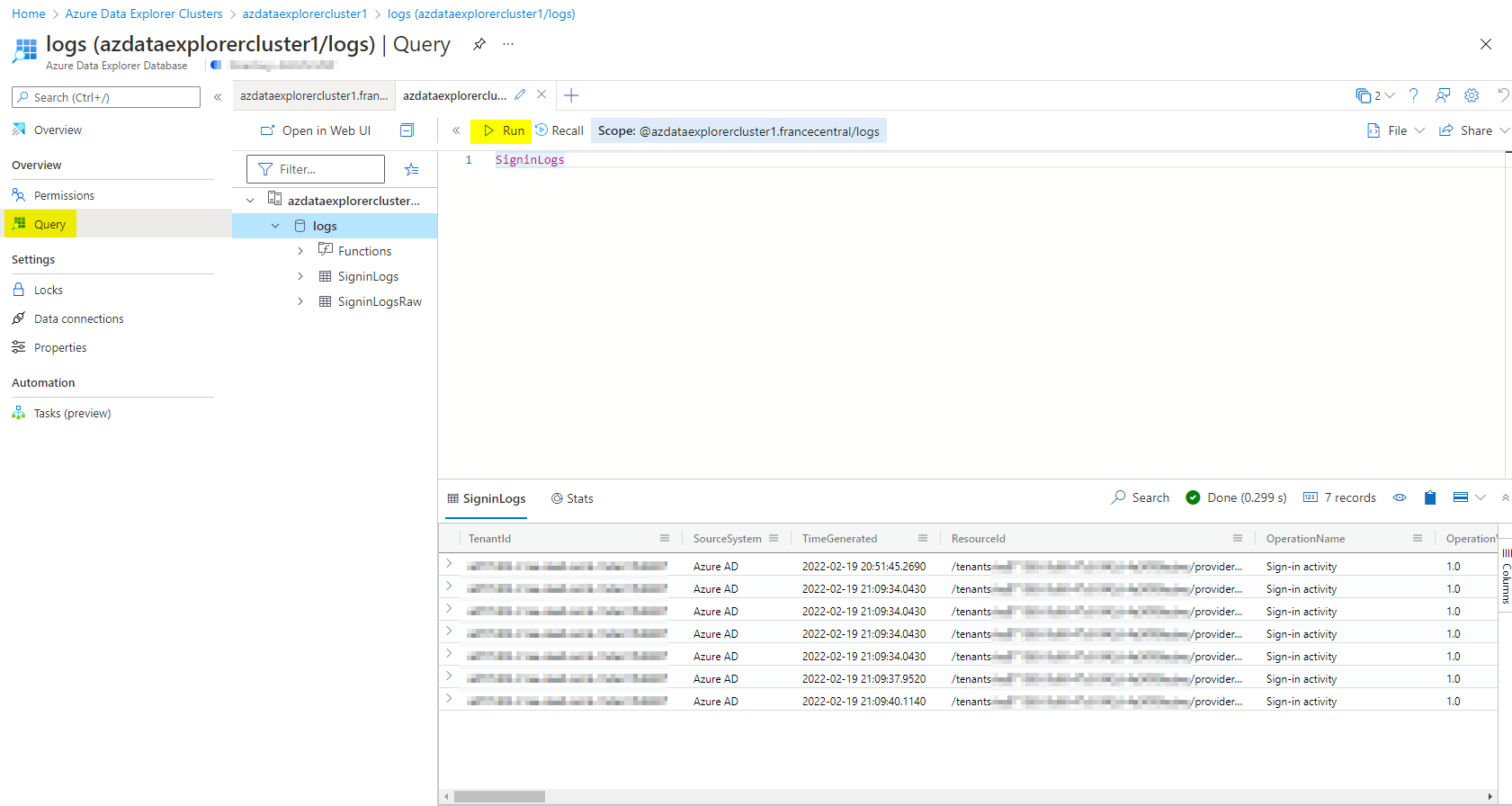
In this article, I will explain how to export your data from Log Analytics to Azure Data Explorer. The retention in Microsoft Sentinel is typically 3-12 months retention for your SOC users. Then, all data will be sent to Azure Data Explorer and be retained for longer term. Azure Data Explorer is cheaper than Microsoft Sentinel.
Using Azure Data Explorer is useful when you want to query logs with Kusto Query Language (KQL) to search the data. On top of that, you can use the same queries in Azure Log Analytics and Azure Data Explorer.
Getting Started
Open the Azure portal and go to Azure Data Explorer to create the ADX cluster :
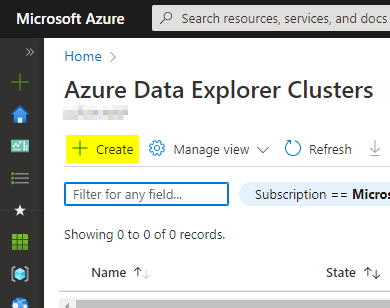
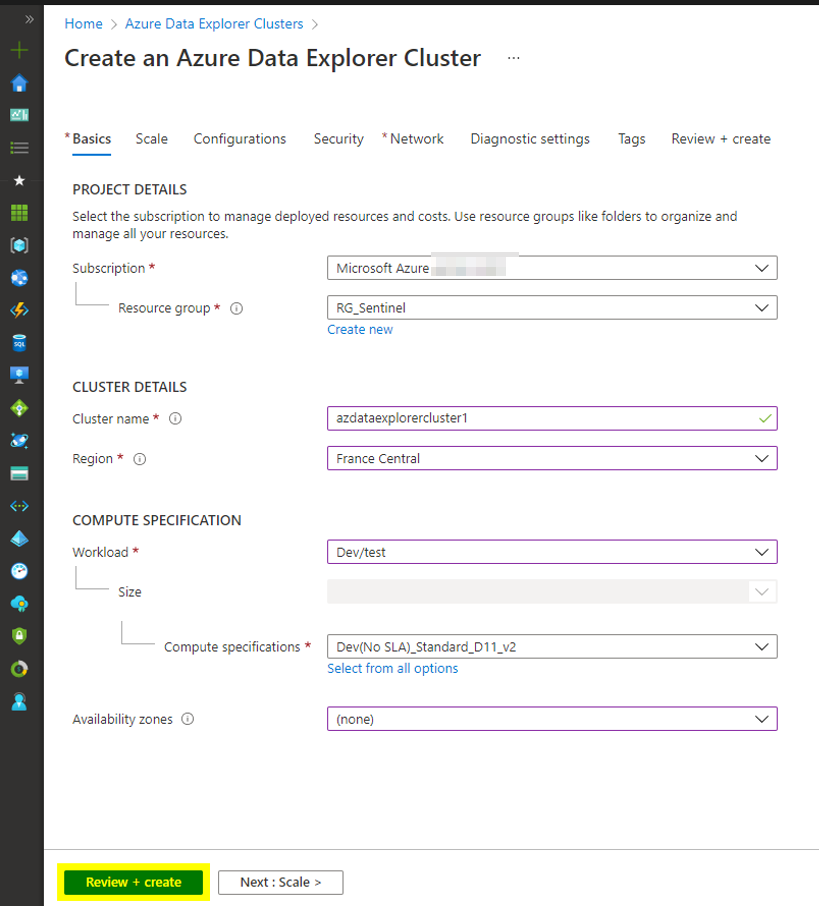
Enter the cluster name and click Create
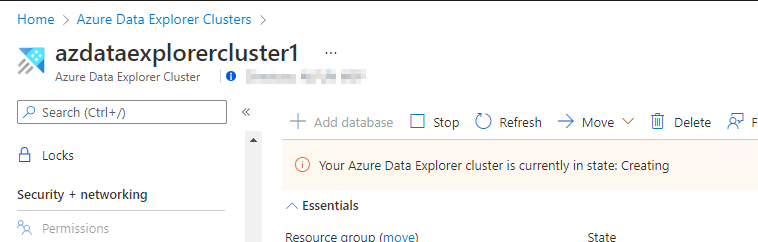
Wait until the creation is done
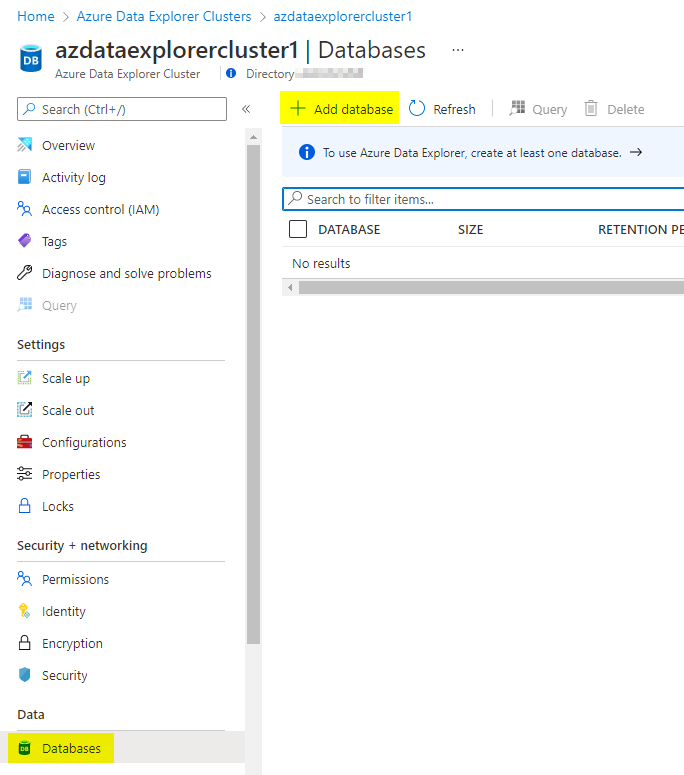
Next, you can create the database, click Add Database
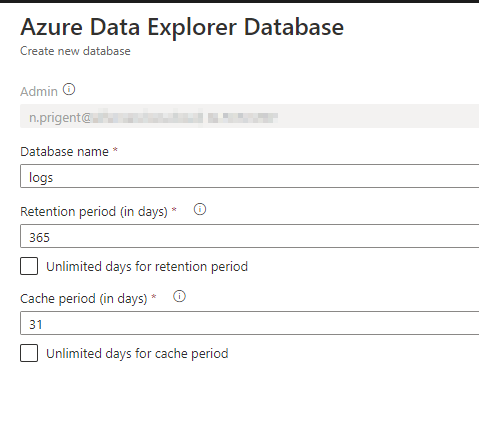
Enter the database name and the retention period (in days)
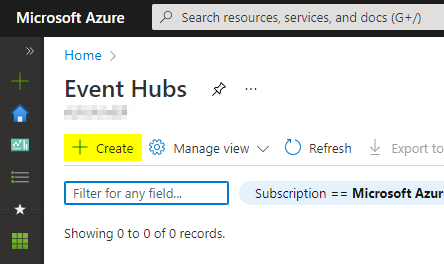
Now, we will create the Event Hub, search for Event Hubs and click Create
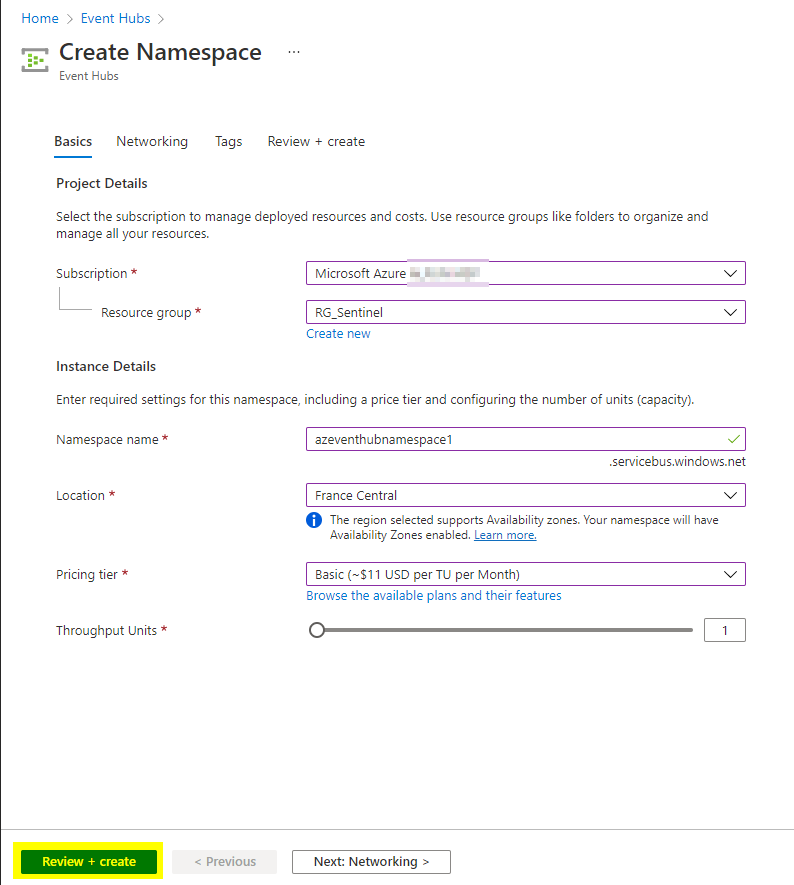
Enter the namespace name and click Create
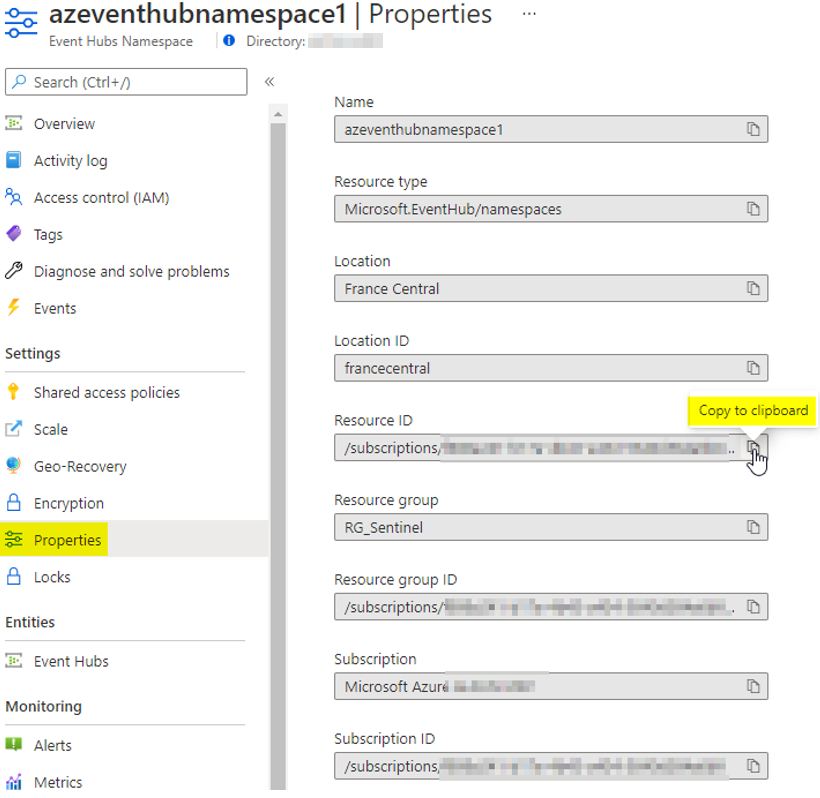
Then, copy the resource ID, you will need it later
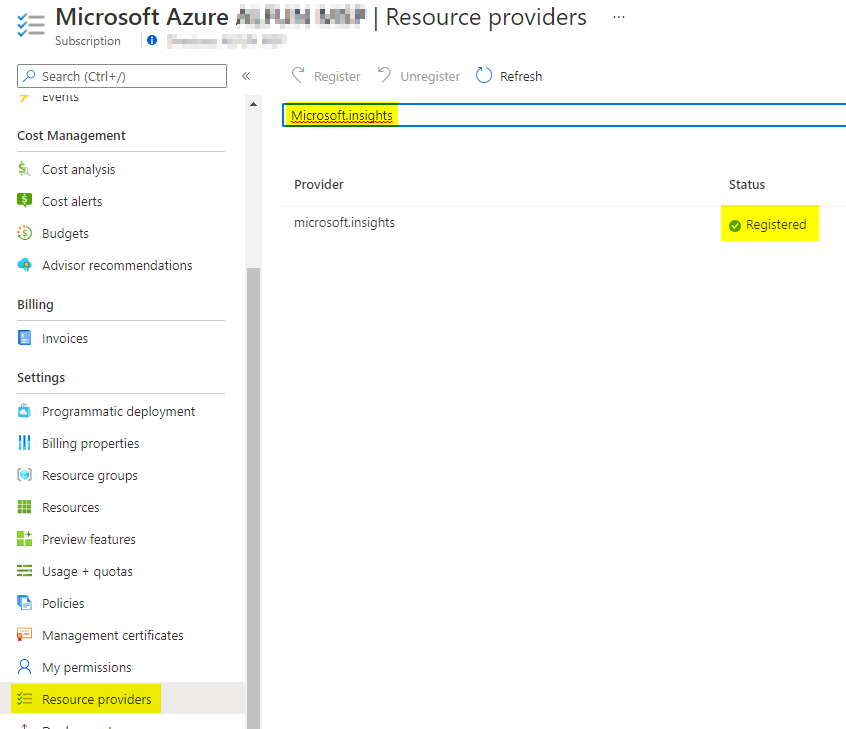
Now we need to configure the data export in Azure Sentinel’s Log Analytics workspace. First, we need to enable the resource providers called Microsoft.insights
You can use the following command:
Register-AzResourceProvider -ProviderNamespace Microsoft.insights
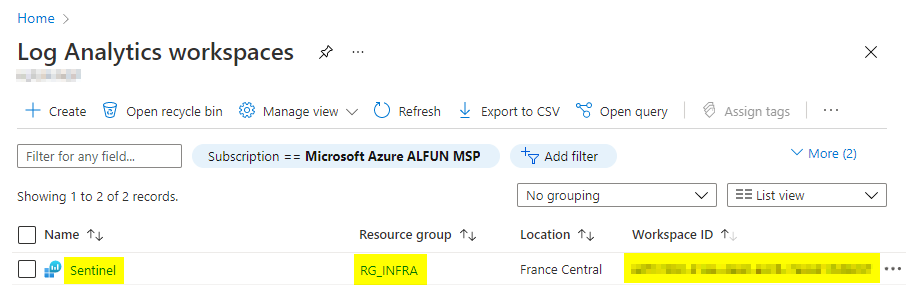
Then, go to the Log Analytics workspace and copy the name, the resource group and the workspace ID.
Open the Cloud Shell from the Azure portal and copy/paste the following commands:
$eventHubsNamespacesResourceId = '/subscriptions/<subscription_ID>/resourceGroups/RG_Sentinel/providers/Microsoft.EventHub/namespaces/<eventhubnamespace>'
az monitor log-analytics workspace data-export create --resource-group RG_INFRA --workspace-name Sentinel --name toEventHub --tables SigninLogs SecurityAlert --destination $eventHubsNamespacesResourceId
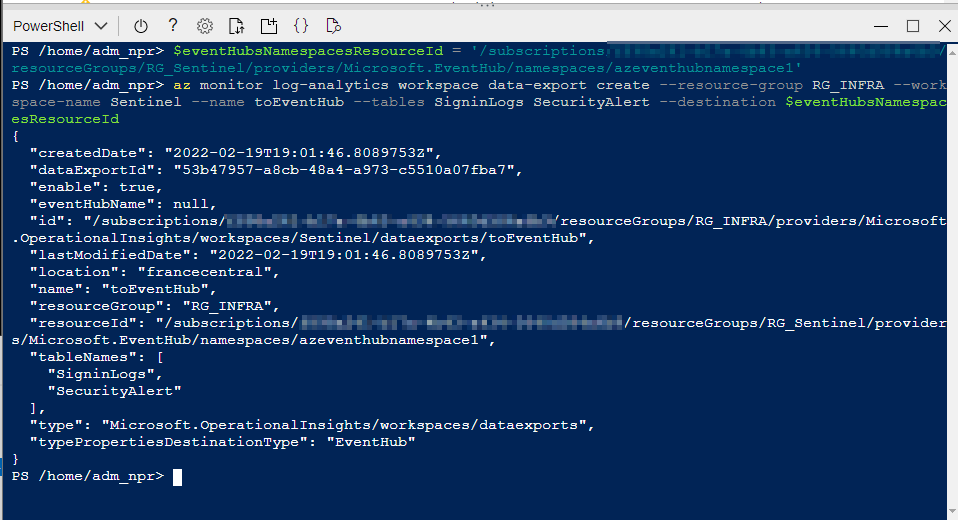
You can adjust the tables you want to export in the previous command.
Now we need to create table mapping. I used this script to simplify the process https://github.com/javiersoriano/sentinel-scripts/blob/main/ADX/Create-TableInADX.ps1
Open the Azure portal, click Cloud Shell. Then, click Upload/Download files
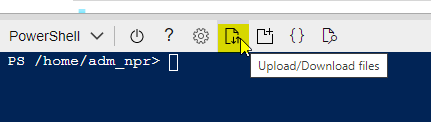
Upload the previous script
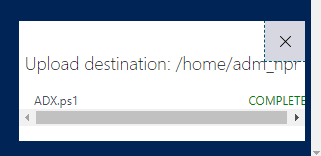
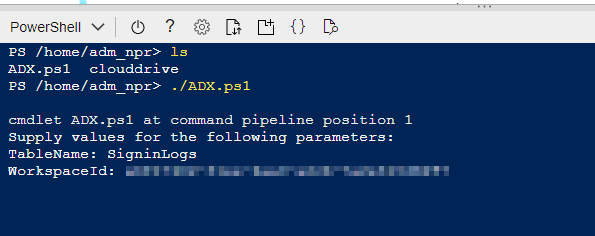
Then, you just need to run the script and enter the table + the workspace ID
The script will output the commands to populate the ADX databse
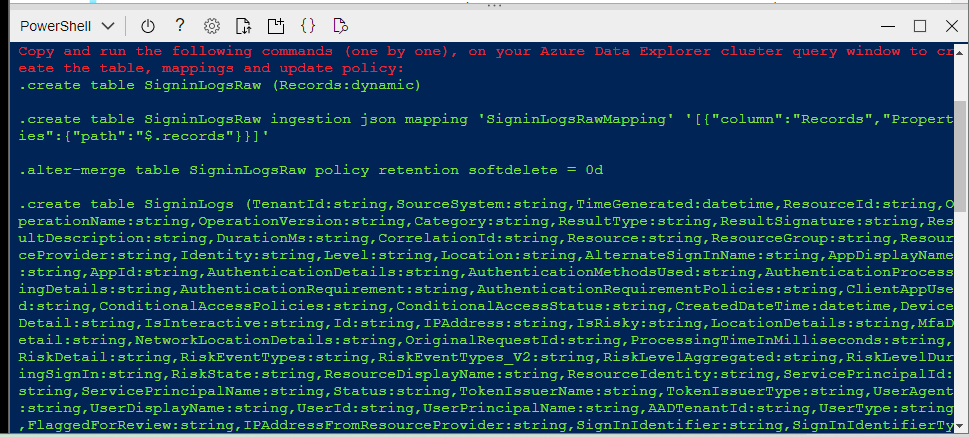
Copy/paste these commands and go back to ADX cluster, Databases and choose Query. Paste the commands and click Run
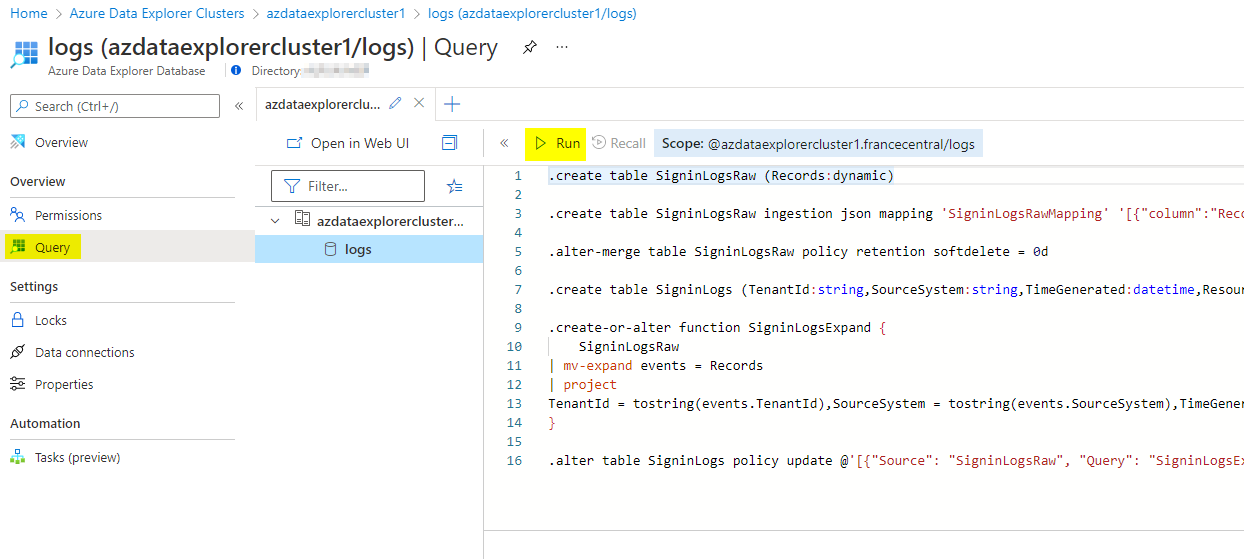
The tables will be populated
Create a new data ingestion connection in ADX from Event Hub
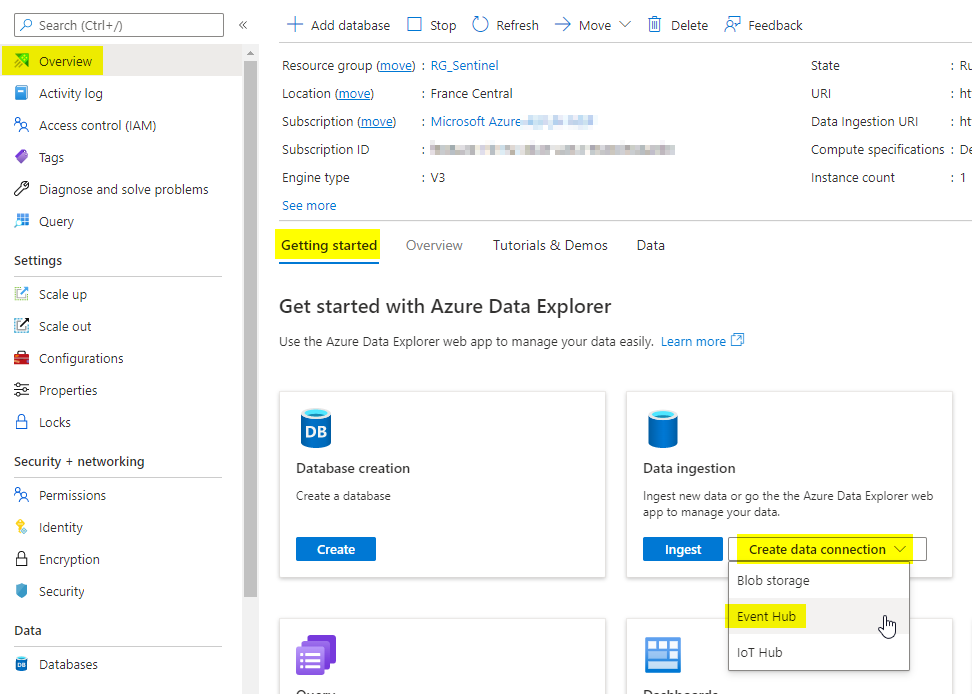
You may need to wait few minutes before creating the connection because It may take some time to appear in the following event hub field
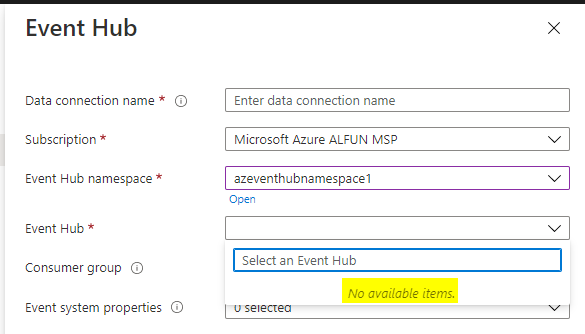
Once it is updated, you should have “am-signinlogs” event hub available.
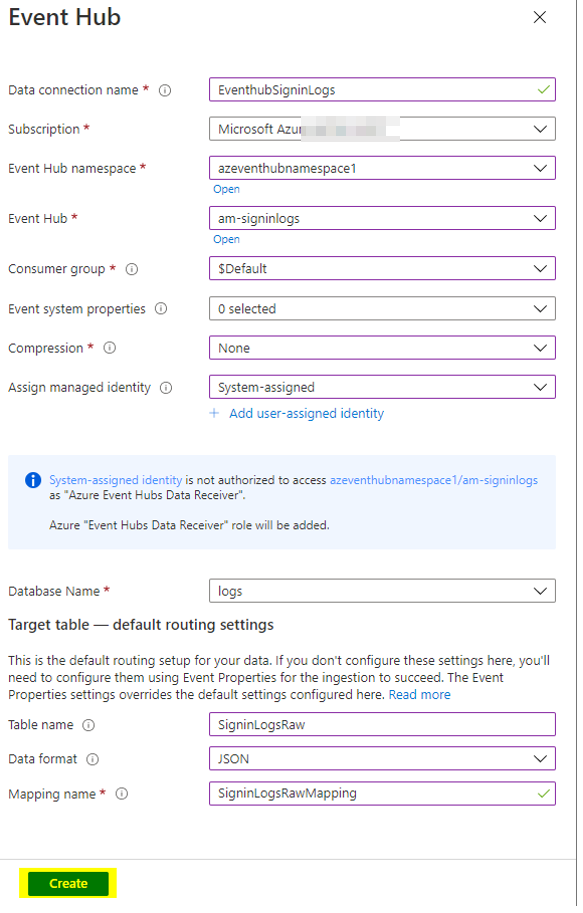
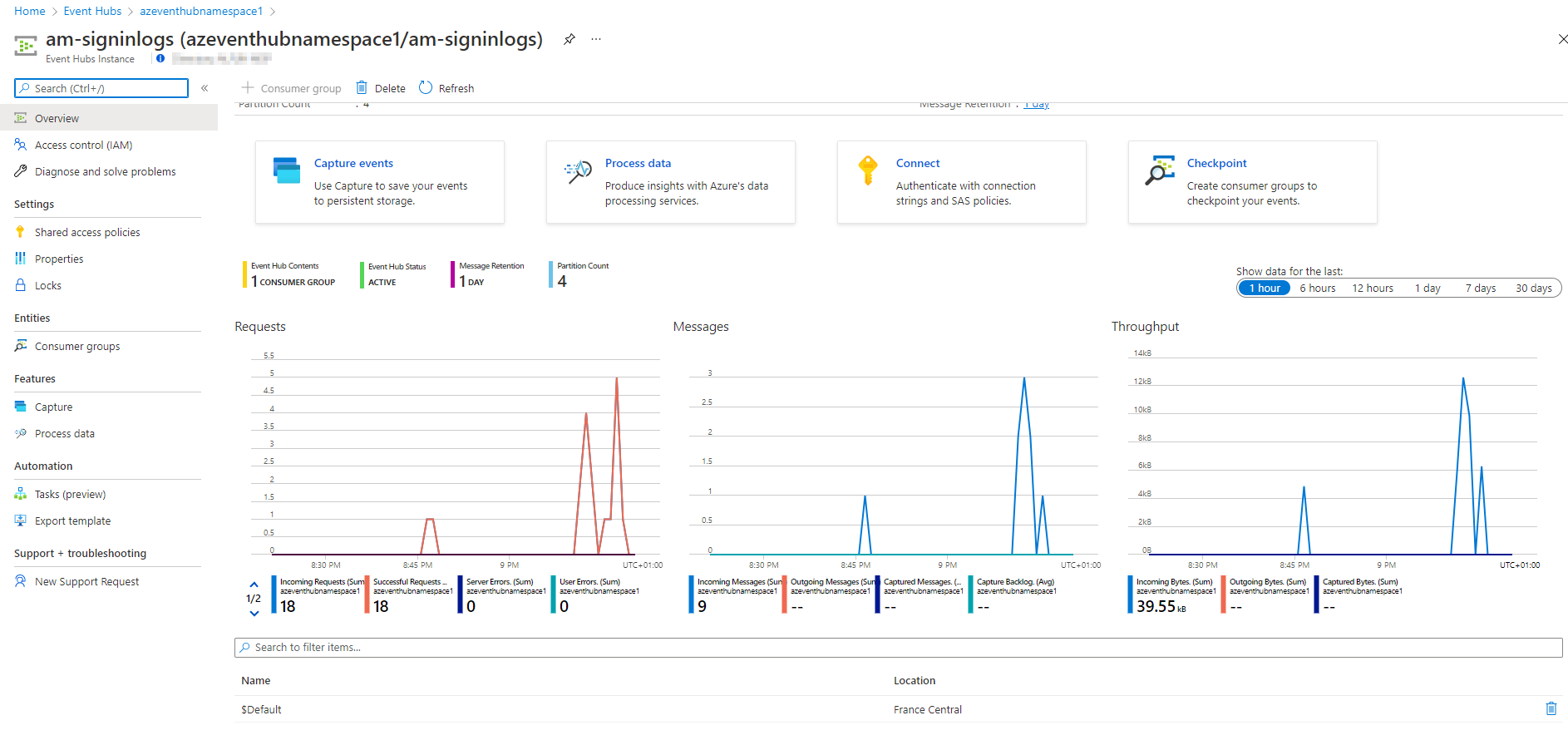
Wait a few minutes and you should see incoming and outgoing message
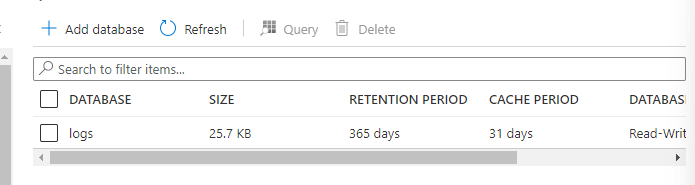
You can see the size of the database which should normally grow up
To finish, we can query data directly in Azure Data Explorer instead of Azure Log Analytics