


Forgetting the root password for a VMware vCenter Server Appliance (vCSA) or finding that it has expired is a common scenario. With default settings, the vCSA root password expires after 90 days, so it’s not unusual to eventually lose access if it isn’t updated regularly. Thankfully, vCSA (which runs on VMware’s Photon OS) provides a straightforward way to reset the root password, even if you can’t log in. The procedure involves rebooting the vCenter VM and entering a single-user recovery mode via the GNU GRUB boot loader. Rebooting the vCenter appliance will not shut down any of your running virtual machines; it only impacts vCenter’s management functions (cluster services like DRS, HA, vMotion will be unavailable during the reboot). In this guide we’ll walk through the steps to reset a forgotten or expired root password on vCSA 8.0 U3c. We’ll also highlight best practices, such as taking a VM snapshot beforehand, to ensure you can safely recover in case of any issues.
Step-by-Step Password Reset Procedure
Take a Snapshot / Backup First
Before making any changes, take a snapshot of the vCenter Server Appliance VM (or ensure you have a current backup). This snapshot will allow you to roll back if something goes wrong, so do not skip this step. Taking a snapshot is easily done by right-clicking the vCSA VM in vSphere, choosing Snapshots > Take Snapshot, and confirming. If the vCSA VM is running on an ESXi host managed by that same vCenter, you should connect directly to the ESXi host (via the host’s web UI or vSphere Client) to perform the snapshot and reset operations. This is because you will be restarting the vCenter VM itself, which would disrupt managing it through vCenter temporarily.
Access the vCSA Console via ESXi
Next, log in to the ESXi host that is running your vCenter Server Appliance VM and open the console for the vCSA VM. Using the ESXi web interface is convenient for this: navigate to the host, find the vCSA VM, and click Launch Web Console (or Open Console). This will pop open a console window where you can see the VM’s boot screen. (If the vCSA is hosted in a vSphere cluster, you can also use the vSphere Client to open the console, but make sure you’re connected to the host directly if vCenter is inaccessible.)
Reboot the vCenter Server Appliance VM
With the console window open, perform a graceful reboot of the vCSA VM. For example, right-click the vCSA VM in the host UI and choose Guest OS > Restart, or use the Reset option if a normal restart doesn’t work. You can also send a reboot command from the console if you have access. Confirm that the VM begins restarting. (Reminder: restarting the vCenter VM will temporarily make vCenter services unavailable, but it will not power off any of your running VMs on the hosts.)

Interrupt Boot to Enter GRUB Menu
Now, watch the VM console closely as it boots up. Immediately when you see the VMware Photon OS boot screen (the GNU GRUB loader), press the E key on your keyboard to enter the GRUB edit mode. The Photon OS boot loader screen may flash by quickly, so be prepared to press E as soon as the “Photon OS” splash or GRUB menu appears. Press E at this screen to open the GRUB boot editor. If you miss the timing, just reboot the VM again and try again. This will open the GNU GRUB editor, where we can modify the boot parameters.
Edit the GRUB Boot Parameters
In the GNU GRUB edit screen, find the line that starts with the word linux – this is the Linux kernel boot line. Using the arrow keys, scroll to the end of that linux line (after all the text that’s already there, which may include photonlinux kernel parameters). Now add a space at the end of the line, and then type rw init=/bin/bash. This snippet instructs the appliance to mount the root filesystem in read-write mode (rw) and to drop into the /bin/bash shell instead of a normal startup, effectively entering single-user mode for recovery.
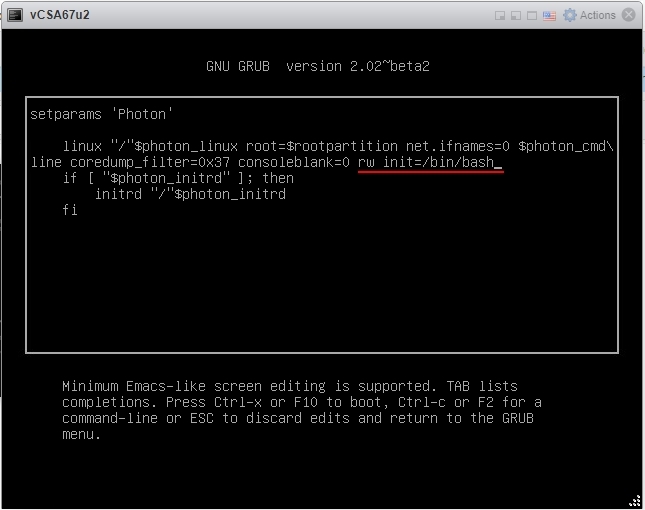
This change will make the appliance boot into a single-user root shell for password recovery. Once you have added rw init=/bin/bash to the end of the line, press F10 (or Ctrl+X) to continue booting with this modified configuration. The system will now proceed to boot using the new parameter. After a brief moment, the vCenter appliance will load into a root shell in single-user mode. You’ll see a command prompt and you are automatically logged in as the root user without needing a password.

Remount the Filesystem with Write Access
At the root shell prompt (ending in #), the filesystem may still be in read-only mode by default. To ensure you can make changes, run the following command to remount the root filesystem as read-write:
mount -o remount,rw /
Press Enter after typing this. This command re-mounts the root (/) filesystem with write permissions, allowing you to edit system files and reset the password. You should not see any error; if the command succeeds, it will simply return to the prompt (now with write access enabled).

(If Needed) Unlock the Root Account
If the root account was locked out due to too many failed login attempts (for example, you tried the wrong password too many times), you should clear that lock now before changing the password.
For vCSA 8.0 U2 or newer (Photon OS 4 and above, which includes vCSA 8.0 U3c), use the faillock utility to reset the failure count. Enter:
/usr/sbin/faillock --user root –reset
For older versions of vCenter (vCSA 7.x or early 8.0 releases), use the older pam_tally2 utility instead:
pam_tally2 --user=root –reset
These commands will reset any account lockouts for the root user. If you’re following this guide on vCSA 8.0 U3, the first command (faillock) is the correct one to use (the pam_tally2 tool was deprecated in the newer Photon OS version). If the root account wasn’t locked, running these commands does no harm. It will just ensure the root account is unlocked and ready for a new password.
Reset the Root Password
Now you can change the actual root password. At the prompt, type the command passwd and press Enter. You will be prompted to enter a new root password, and then prompted to confirm it by typing it again. Choose a strong password (per your organization’s policy) that you won’t forget, and enter it twice. If the two entries match, the password will be updated successfully. You should see a message indicating that the password was changed (for example, “password updated successfully”). If you get an error or mismatch, run passwd again. (Note: the characters you type for the new password won’t be visible on the screen.)
Reboot the Appliance Normally
Now that the root password is set, you need to reboot the vCSA VM back into normal mode. First, unmount the filesystem by running:
umount /
(Yes, the command is spelled umount without an “n” after the “u”.) This ensures the filesystem is clean before reboot. Next, reboot the appliance by running:
reboot -f
The system will immediately restart (the -f flag forces an immediate reboot). Allow the vCenter Server Appliance to boot up normally. This time it will boot in the usual multi-user mode.
Verify and Clean Up
After the vCSA finishes booting, verify that you can log in with the new root password. For example, you can access the vCenter Server Appliance Management Interface (VAMI) by navigating to https://<vcenter-ip>:5480 in a web browser and logging in as root with the new password. You could also test an SSH login or console login as root. If the login succeeds and vCenter services are running properly, the password reset is confirmed. Finally, go back and delete the snapshot you took earlier (assuming everything is working). Keeping an old snapshot of vCenter is not recommended, as running long-term from a snapshot can cause other issues. So once you’re confident in the fix, remove that snapshot to return to normal operations.
Conclusion
Resetting the vCenter Server Appliance root password in vSphere is a manageable process, as long as you follow the steps carefully and take precautions like backing up or snapping the VM beforehand. Going forward, to avoid being locked out by an expired password, consider adjusting the root password expiration policy. For instance, you can disable root password expiration (or set a longer interval) if your security guidelines allow it. This can be done easily from the VAMI web interface under Administration > Password Expiration, by setting “Password expires” to No, or via the command line using the chage tool for fine-grained control. Be sure to still maintain good password practices (use a strong, unique password and store it securely).
By keeping your vCSA credentials in check and following VMware’s best practices, you can prevent future lockouts. If you do find yourself in this situation again, you now have an up-to-date procedure to safely reset the vCenter Appliance root password. Good luck with your vSphere environment, and happy virtualizing!
