

Search
Join the Technical Preview Program
See how NVMe-oF removes iSCSI
bottlenecks in your HCI
The Best Hyperconverged
Infrastructure
(HCI) for Enterprise
ROBO, SMB & Edge
The Best Virtual SAN
for Enterprise ROBO, SMB & Edge

Protect Your Azure WebApp With a Free Certificate

  • November 14, 2019
  • 3 min read
Cloud and Virtualization Architect and Microsoft MVP. Florent specializes in public, private, and hybrid cloud ecosystems. An MCSE in Private Cloud, he provides technical leadership in Cloud and Datacenter Management. Florent delivers high-authority insights on Azure deployments, virtualization strategy, and optimizing enterprise-scale cloud infrastructure.

Azure WebApp

During Microsoft Ignite 2019, Microsoft, using the Public Preview mode, released the capability to protect your Azure Web App (your website) with a public trusted certificate. The full announcement is available here: https://azure.microsoft.com/en-us/updates/secure-your-custom-domains-at-no-cost-with-app-service-managed-certificates-preview/

At this time, naked domains are not supported yet. You can only add www.florentappointaire.cloud or website.florentappointaire.cloud for example, but not florentappointaire.cloud.

Before you start, make sure that the domain that you want to protect is registered in your Azure WebApp:
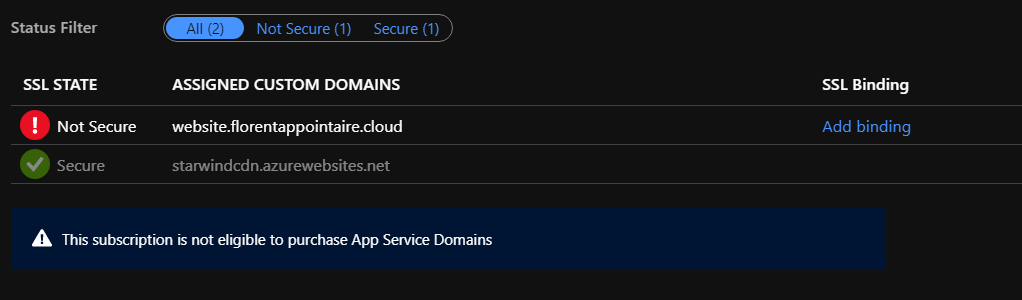
Azure WebApp

To begin with, go to your Azure WebApp, in TLS/SSL Settings > Private Key Certificates (.pfx) and click on Create App Service Managed Certificate. Select the domain that you want to protect, and click on Create:
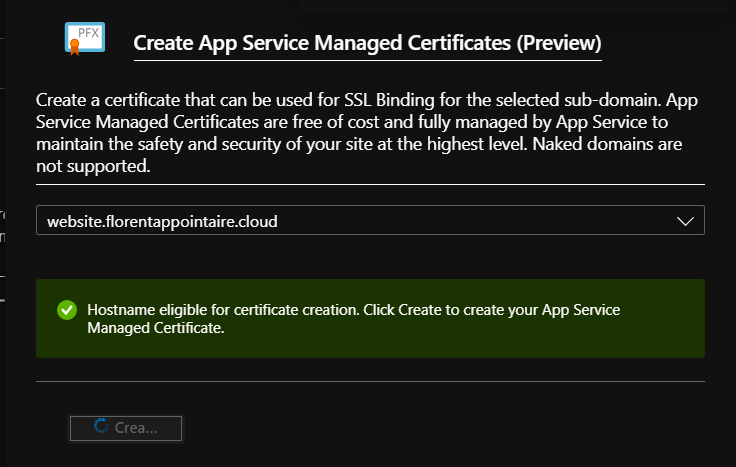
App Service Managed Certificate

After a few seconds, the domain certificate will be created:
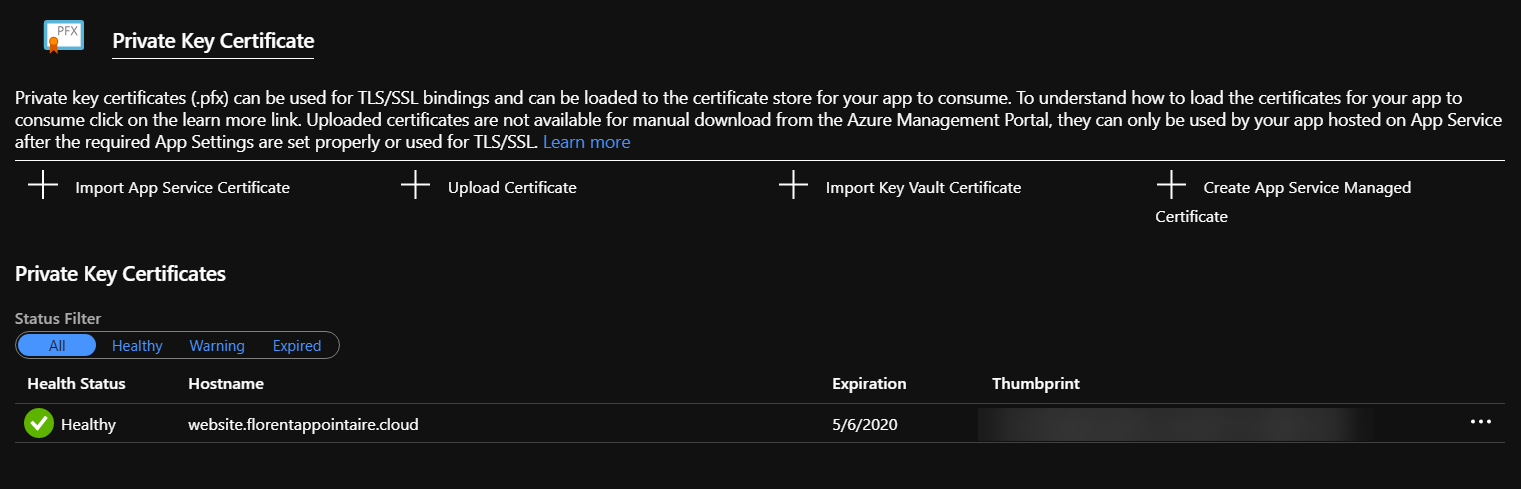
Domain certificate has been created

Note that the certificate is valid for a period of 6 months.

Go to the Bindings tab and create a new SSL binding for your website with the newly created certificate:
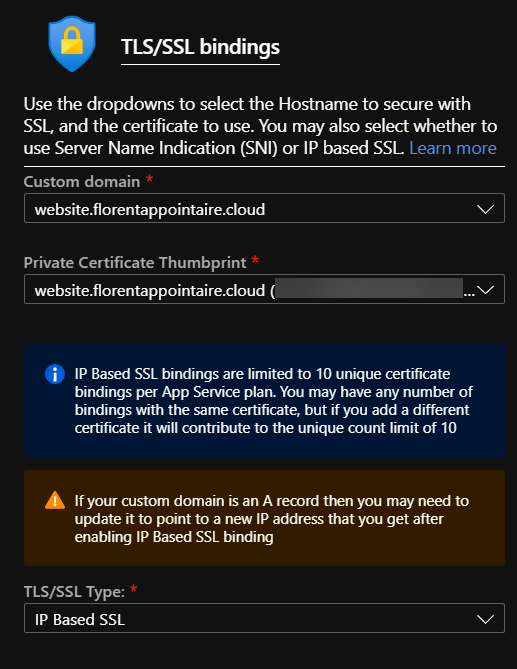
Bindings tab

After a few seconds, the binding will be added:

The binding is added

You can now browse your website in HTTPS with a valid certificate:

Browse your website

And if you want to force the HTTPS now, to redirect automatically HTTP to HTTPS, go to Custom Domains and switch HTTPS Only to On:
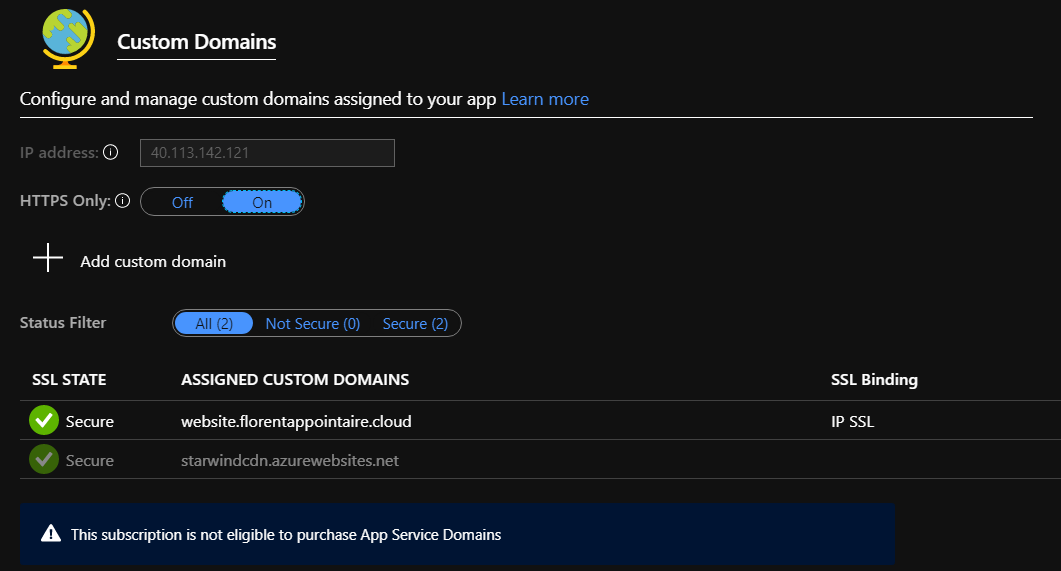
Custom Domains

Don’t hesitate to protect your websites now 😊

Hey! Found Florent’s insights useful? Looking for a cost-effective, high-performance, and easy-to-use hyperconverged platform?
Taras Shved
Taras Shved StarWind HCI Appliance Product Manager
Look no further! StarWind HCI Appliance (HCA) is a plug-and-play solution that combines compute, storage, networking, and virtualization software into a single easy-to-use hyperconverged platform. It's designed to significantly trim your IT costs and save valuable time. Interested in learning more? Book your StarWind HCA demo now to see it in action!