


If you run a datacenter with Windows Servers, Hyper-V clusters, storage arrays, or even a few Linux hosts for specialized workloads, PowerShell is the backbone of your automation. Microsoft just released PowerShell 7.6 on March 18, 2026 – the latest Long Term Support (LTS) release built on .NET 10 LTS. This one is built for production stability, with three years of support ahead, which is exactly what we need when scripts must run flawlessly 24/7 without constant patching.
I’ve been testing early previews in my lab (mixed Windows Server 2022/2025 and Ubuntu hosts), and the reliability gains plus a handful of practical enhancements make this a worthwhile upgrade for any infrastructure admin. No revolutionary new cmdlets that will rewrite your entire toolkit, but dozens of fixes and tweaks that reduce friction in daily tasks like inventory collection, DSC configuration, parallel job execution, and quick diagnostics. Let’s break it down technically, then cover the install/upgrade process step by step.
Why PowerShell 7.6 Matters in the Datacenter
First, the foundation: PowerShell 7.6 sits on .NET 10 LTS, bringing better performance, security alignment, and cross-platform consistency. It installs side-by-side with Windows PowerShell 5.1 (you still launch the old one with powershell.exe and the new with pwsh). This means zero disruption to existing 5.1-dependent tools while you modernize.
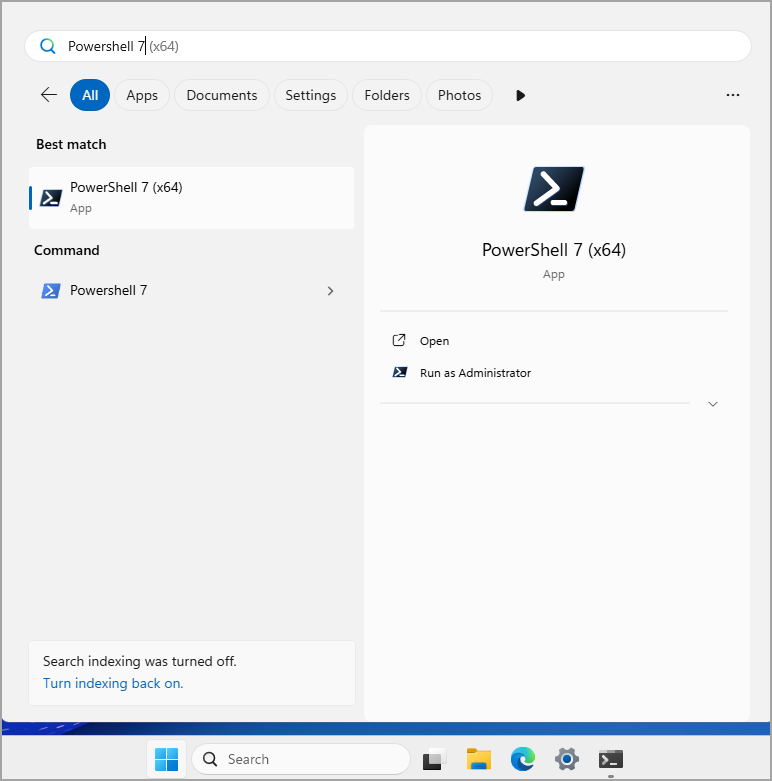
Reliability was the big focus in this release. The team fixed long-standing engine and module issues uncovered during the preview cycle. For datacenter use, that translates to fewer random crashes when running large-scale scripts against hundreds of servers, better interactive shell behavior in remote sessions, and cleaner logging (it now respects the NO_COLOR environment variable to keep your automated log files tidy).
Key Improvements Worth Noting
Tab completion consistency
Previous versions could be hit-or-miss depending on context. Now it’s rock-solid across providers:
- Array property completion works instantly ($servers = @(“srv01″,”srv02”); $servers. → Tab gives Count, Length, etc.).
- Command result properties complete after assignment ($procs = Get-Process; $procs.).
- Registry, Certificate, and Environment providers suggest subkeys/values properly.
- Paths with spaces, quotes, or UNC shares complete without hiccups.
In practice, when you’re quickly building a script at the console to query 500 VMs or cycle through registry policies, this saves minutes and prevents silly typos.
Faster collection handling
New aliases PSForEach() and PSWhere() point to the intrinsic methods. They’re noticeably quicker than ForEach-Object or Where-Object on large datasets – perfect for datacenter inventory or performance counter processing:
powershell

$allVMs = Get-VM

$highMem = $allVMs.PSWhere({$_.MemoryGB -gt 64})
New and improved parameters
- Get-Clipboard -Delimiter ‘,’ – Copy a comma-separated list of server names from your monitoring dashboard, pipe straight to Test-Connection or Invoke-Command. Simple but incredibly handy for ad-hoc troubleshooting.
- Get-Command -ExcludeModule – Great for cleaning up legacy module noise (e.g., exclude old AzureRM while you migrate to Az).
- Join-Path -ChildPath now accepts string arrays natively, so you can build deep paths in one go without extra parameters.
- Start-Process -Wait polls more efficiently – less CPU waste when waiting on installers or backup jobs.
- Register-ArgumentCompleter -NativeFallback for better native command support.
Diagnostic upgrades
Invoke-WebRequest and Invoke-RestMethod now show full HTTP headers in -Verbose and request/response bodies in -Debug. When you’re debugging REST calls to your storage arrays, monitoring APIs, or Azure Arc agents, you no longer need external tools as often.Module refreshes
- PSReadLine 2.4.5 fixes history recall crashes and improves syntax highlighting (cmdlets vs parameters).
- Microsoft.PowerShell.PSResourceGet 1.2.0 handles modern repositories (including internal NuGet v3 feeds and container registries) more reliably – critical if you distribute custom DSC resources or private modules across the datacenter.
- ThreadJob is now officially Microsoft.PowerShell.ThreadJob. Lightweight thread-based background jobs with live object retention and -ThrottleLimit support. Ideal for parallel health checks or patching scripts without the overhead of full Start-Job processes. Update any old ThreadJob\Start-ThreadJob calls or you’ll see deprecation warnings.
Other quality-of-life bits
- Out-GridView uses a secure custom implementation (no more deprecated BinaryFormatter issues).
- BigInteger literals accept commas for readability ([bigint]’1,234,567,890′).
- Error codes display in both hex and decimal (0x80070005 anyone?).
- Several previously experimental features are now stable: typo suggestions, Windows-native tilde expansion (notepad ~\Documents\config.txt), and easy error redirection to variables (2> Variable:err).
DSC note
The built-in profile DSC resource now accepts null content, giving more flexibility in configuration management.
Breaking Changes – Test Before Production
Only a few, but worth checking:
- Join-Path -ChildPath type change to string[] – positional parameter scripts may need adjustment.
- WildcardPattern.Escape() now properly escapes lone backticks.
- Old ThreadJob module-qualified calls require the new namespace.
Run your critical scripts in a lab first – most will work unchanged.
How to Install or Upgrade on Windows Server (and Beyond)
Always start by checking what you have:
powershell

$PSVersionTable.PSVersion
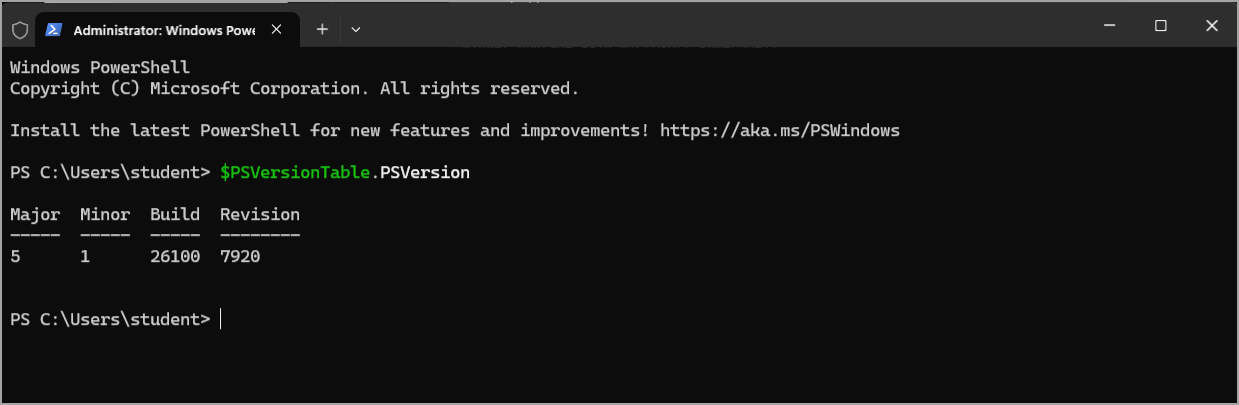
Option 1 – Winget (Windows 10/11 or Server with winget installed)
Fastest for most environments:
powershell

winget install --id Microsoft.PowerShell
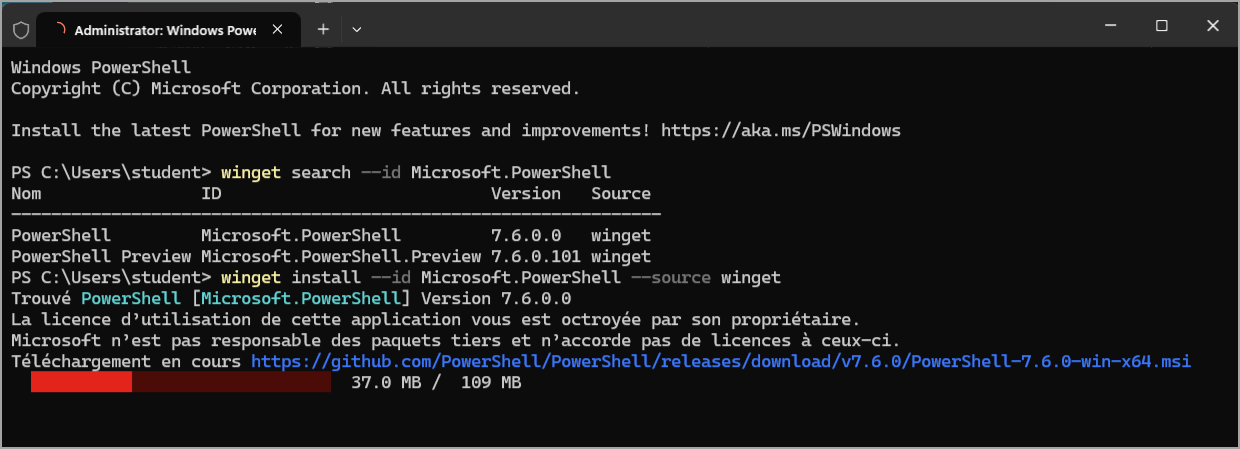
For upgrade:
powershell

winget upgrade --id Microsoft.PowerShell
Takes 1-2 minutes, preserves profiles and modules.
Option 2 – MSI for Windows Server (recommended for air-gapped or enterprise uniformity)
Download PowerShell-7.6.0-win-x64.msi (or x86) from the official GitHub releases page.
Run as Administrator:
powershell

msiexec.exe /package PowerShell-7.6.0-win-x64.msi /quiet ENABLE_MU=1
The ENABLE_MU=1 flag enables Microsoft Update for future patches.
Or execute directly the MSI when logged in as an admin.
Optional: ADD_EXPLORER_CONTEXT_MENU_OPENPOWERSHELL=1 for right-click “Open PowerShell here”.
After install, you will, however, still see the old PowerShell 5.x when you start command prompt or so. The new PowerShell 7.6 is installed side-by-side on the system.
Note from Microsoft’s FAQ:
But I installed PowerShell 7, why am I still seeing this message?
Because you ran Windows PowerShell instead of PowerShell 7. PowerShell 7 and Windows PowerShell 5.1 are separate products. PowerShell 7 doesn’t replace Windows PowerShell 5.1. PowerShell 7 installs side-by-side. You can run either version.
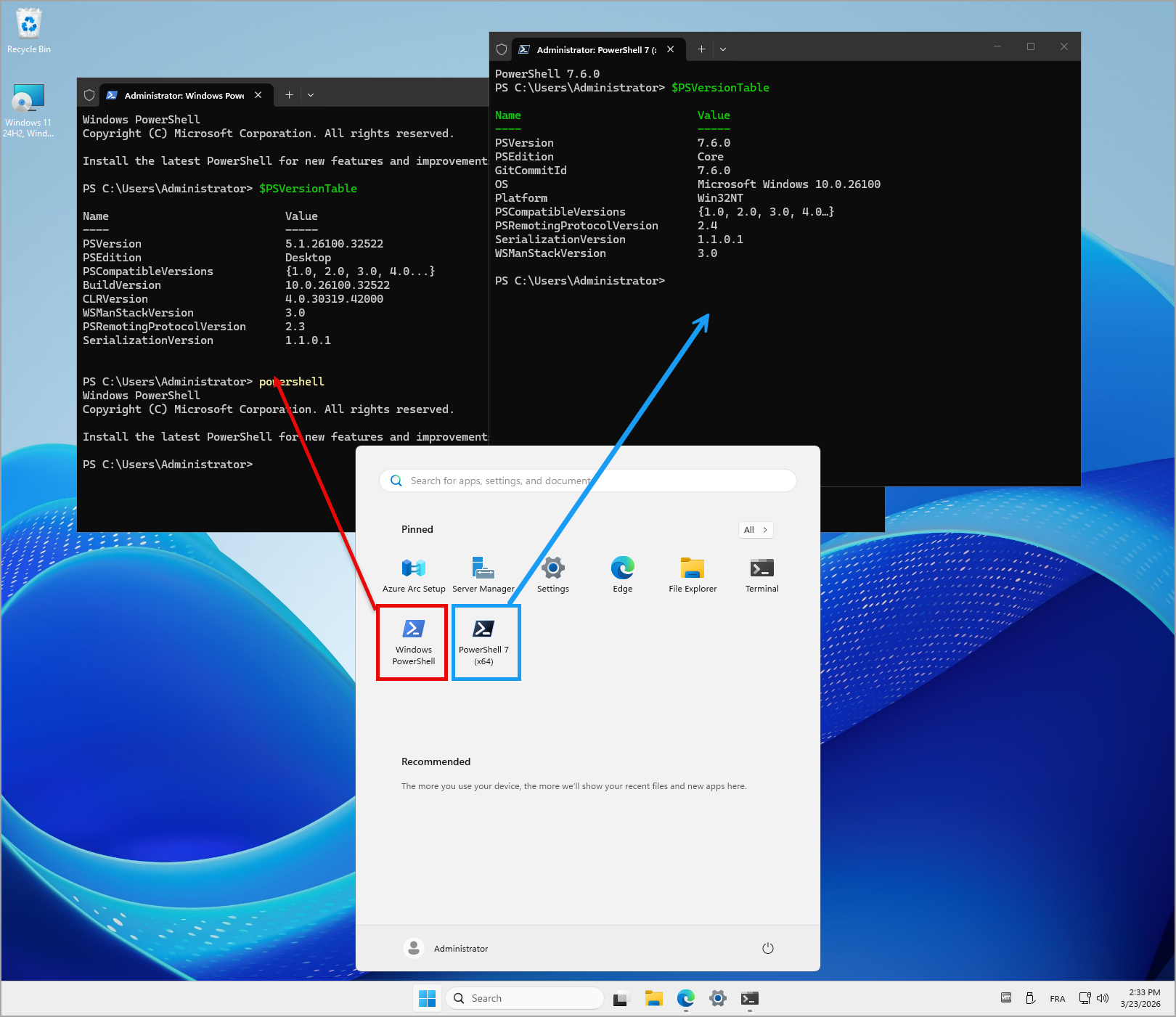
Linux hosts (Ubuntu, RHEL, Debian)
Use the matching .deb/.rpm or .tar.gz packages. Verify SHA256 hashes before deployment – essential in secure datacenters.
After installation, open a fresh pwsh session and verify:
powershell

$PSVersionTable
Final Words
PowerShell 7.6 isn’t flashy, but it’s exactly what a datacenter admin needs: rock-solid reliability, smarter tab completion, lighter parallel jobs, and cleaner module management. With LTS support and .NET 10 underneath, it’s production-ready today.
I’ve already pushed it to a few non-critical hosts and will roll it out cluster-wide after full script validation. If you manage infrastructure at scale, this upgrade will pay for itself in reduced troubleshooting time alone.
FAQ
What is PowerShell 7.6?
PowerShell 7.6 is an LTS release of PowerShell built on .NET 10 LTS, aimed at stable production use across Windows, Linux, and macOS.
Does PowerShell 7.6 replace Windows PowerShell 5.1?
No. PowerShell 7.6 installs side by side with Windows PowerShell 5.1. Use pwsh to start PowerShell 7.6 and powershell.exe for Windows PowerShell 5.1.
Why should datacenter admins upgrade to PowerShell 7.6?
It brings better reliability, improved tab completion, faster collection handling, updated modules, cleaner diagnostics, and LTS support.
How do I install PowerShell 7.6 on Windows Server?
You can install it with winget or use the official MSI package for controlled server deployments.
Can I run my old PowerShell scripts on PowerShell 7.6?
Most scripts should work, but critical automation should be tested first, especially scripts using Join-Path, ThreadJob, or older module-qualified calls.
Is PowerShell 7.6 good for Linux hosts?
Yes. PowerShell 7.6 supports Linux and can be installed using .deb, .rpm, or .tar.gz packages depending on the distribution.
