


Introduction
One of the most common challenges system administrators face is the sudden “Low Disk Space” warning on a production virtual machine (VM). In both development-heavy environments and specialized workloads, running out of storage can bring productivity to a halt.
Traditionally, resizing a virtual disk meant scheduling maintenance windows, shutting down the VM, and manually adjusting partitions – a process that is time-consuming, disruptive, and often leads to costly service interruptions. However, with Hyper-V’s modern architecture and the VHDX format, the era of downtime for disk expansion is over.
In this guide, we help you to extend your disk size in Hyper-V without powering off the virtual machine.
Prerequisites for Live Resizing
Before you begin, make sure that:
- You have access to Hyper-V Manager on the host.
- The hard disk is in VHDX format (not the older VHD format). VHDX supports live resizing up to 64 TB, whereas the VHD format requires the VM to be powered off.
- There are no checkpoints. You must delete or merge them before resizing.
- NIUBI Partition Editor (Free Edition) is already installed inside the VM. You can download and install it from here.
Step 1: Expanding the Virtual Disk (Host Side)
The first step is to expand the virtual disk on the host side.
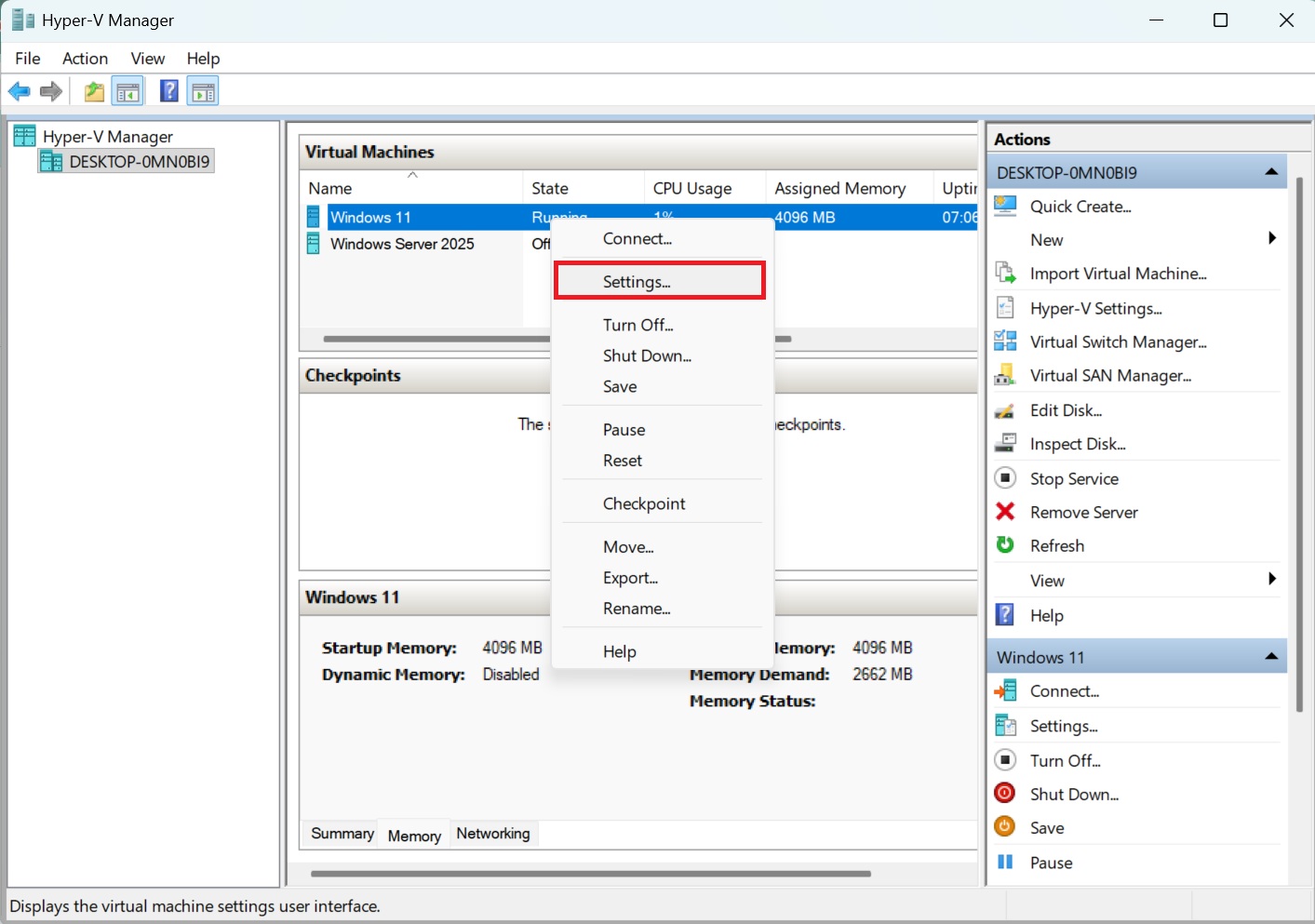
1. Open Hyper-V Manager and right-click your desired VM (in this example, Windows 11).
2. From the menu, select Settings.
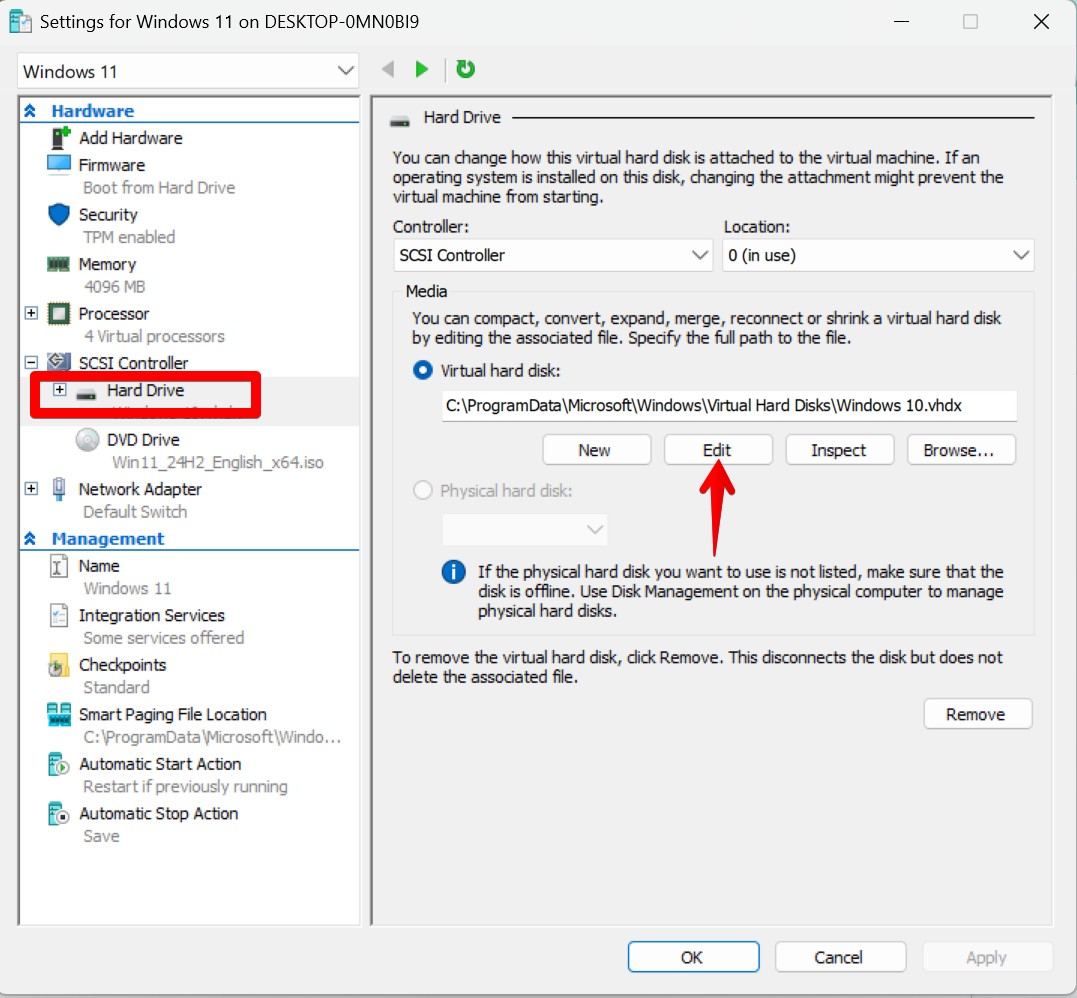
3. Choose the hard drive from the left pane. Under Virtual hard disk, click Edit.
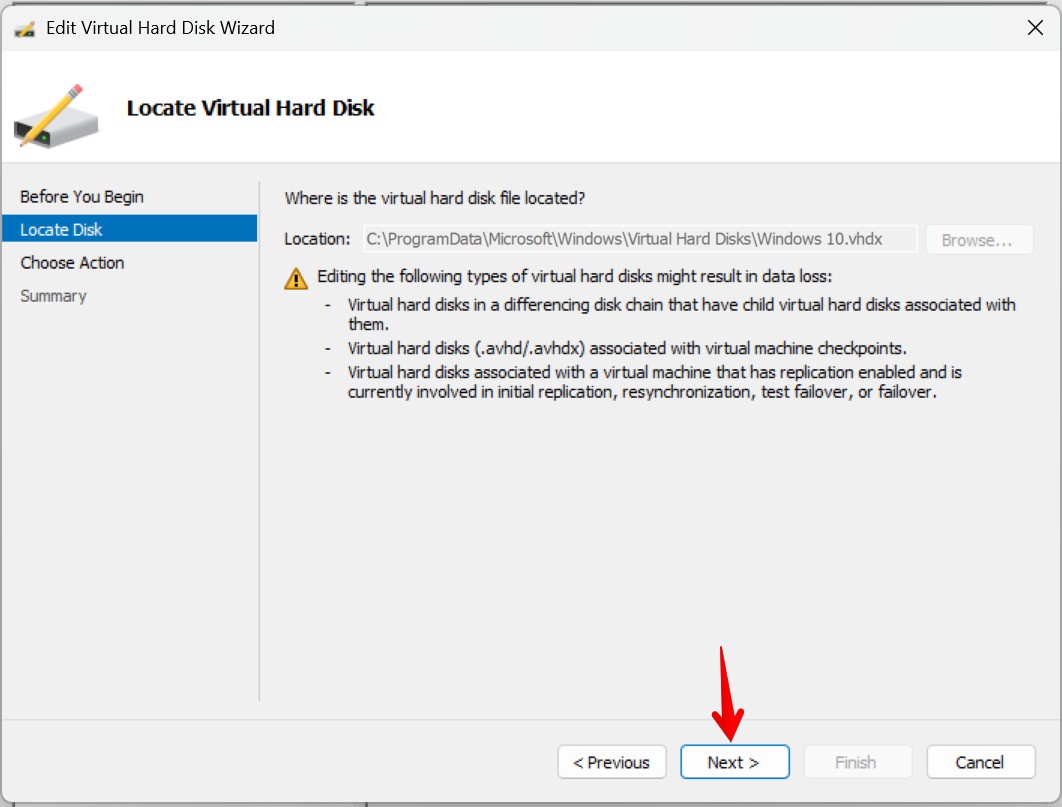
4. Click Next and follow the step-by-step wizard.
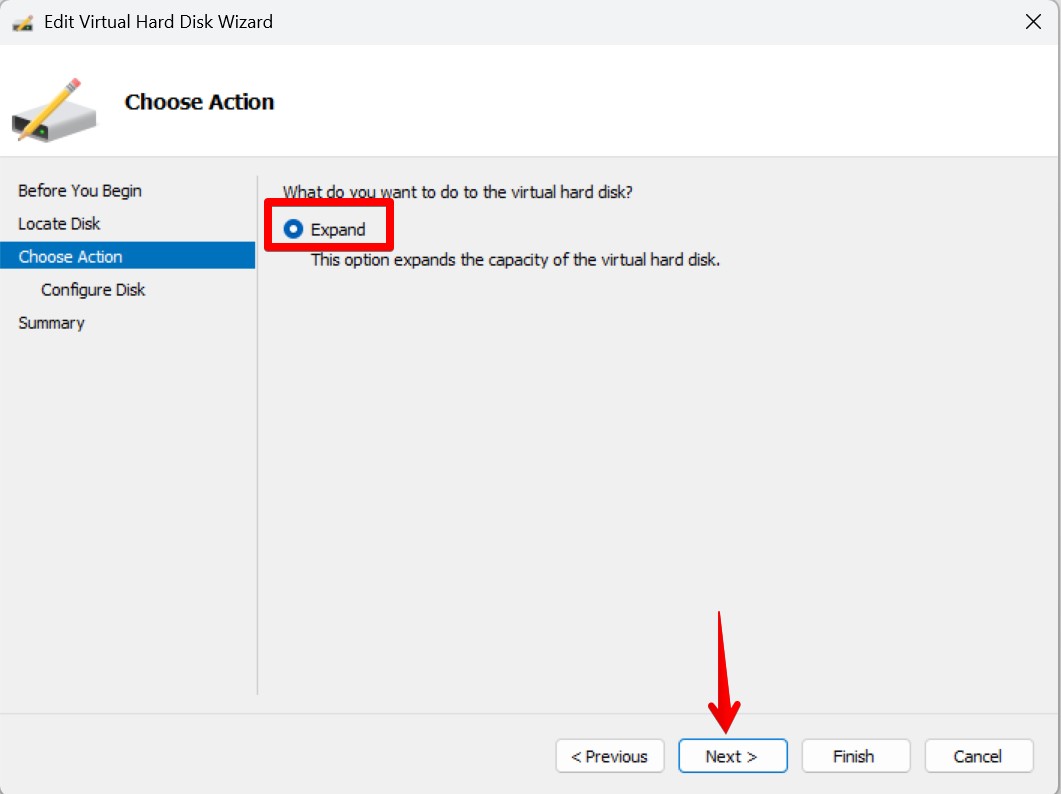
5. Select the Expand option and click Next.
6. Enter the new disk size (in GB) and click Next.
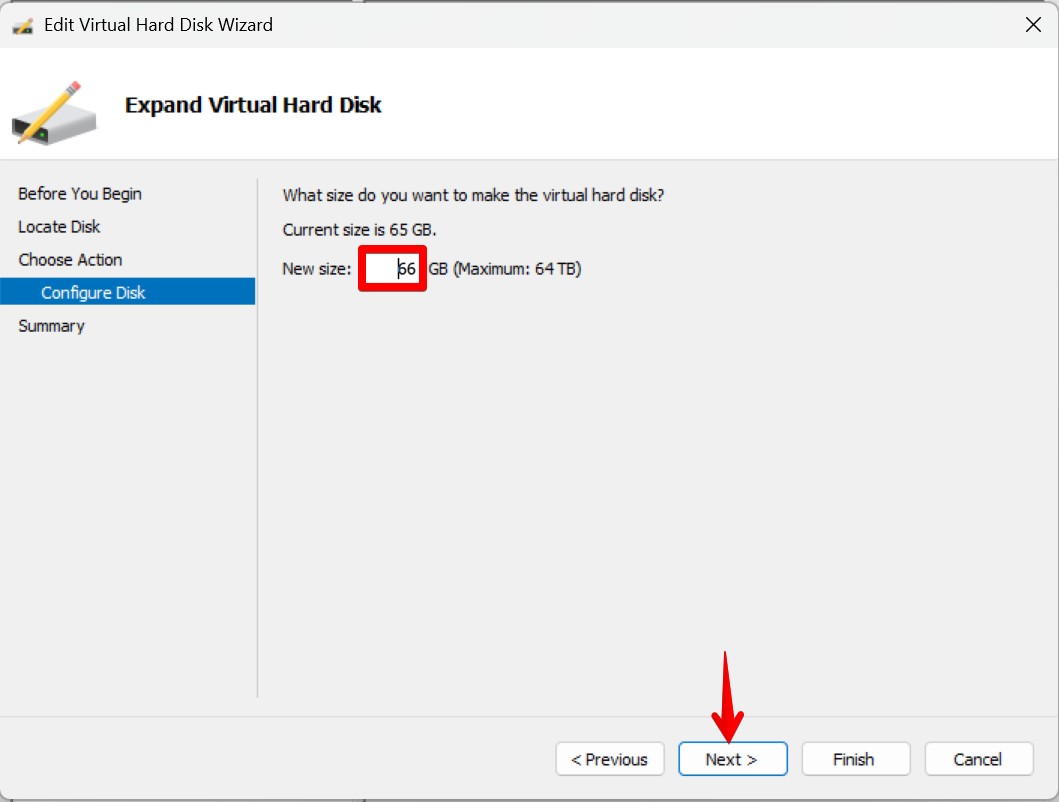
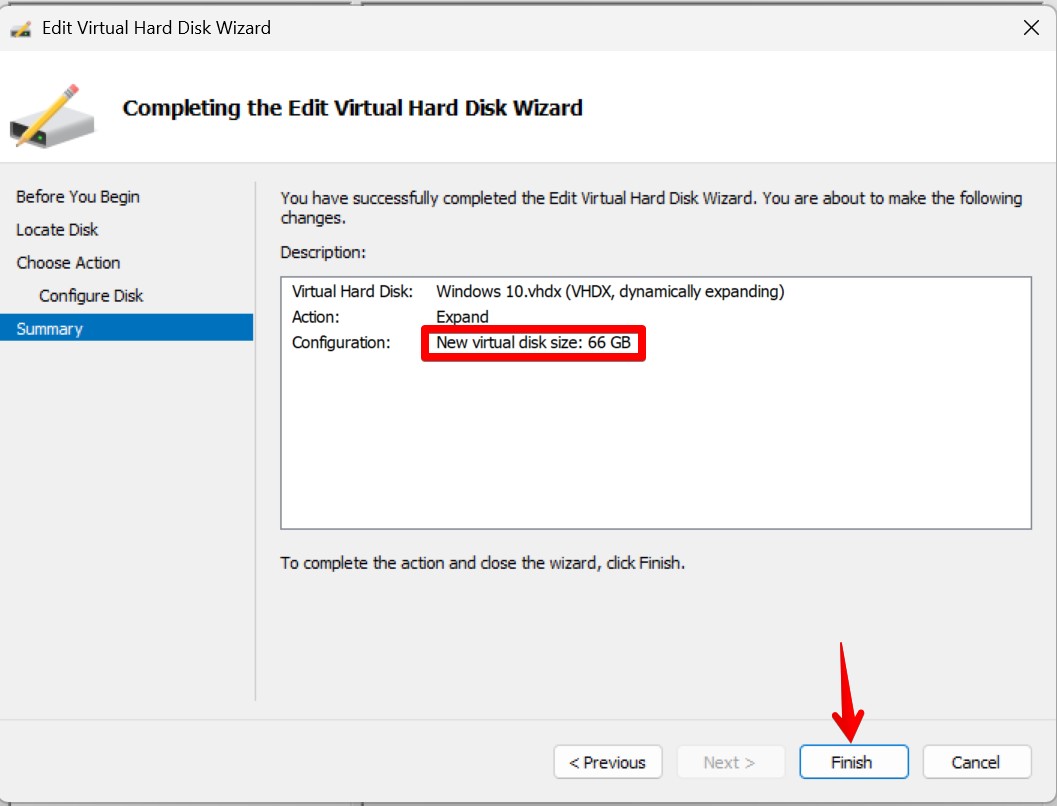
7. You have now successfully expanded the virtual hard disk on the host side. Click Finish to close the wizard.
8. An unallocated space corresponding to the newly added size will appear inside Disk Management in the VM.
Step 2: The “Extend Volume Greyed Out” Hurdle
The next step is to extend the disk volume from inside the VM using Windows Disk Management. In some cases, another partition – such as the Recovery Partition – is located between the C: drive and the unallocated space.
When this happens, the built-in Disk Management tool cannot extend the volume, and the Extend Volume option will be greyed out.
To resolve this issue, you need a third-party partition manager. One such free tool is NIUBI Partition Editor, which allows you to move the Recovery Partition to the end of the disk layout, placing the C: drive and unallocated space next to each other.
Step 3: Moving the Recovery Partition (The Fix)
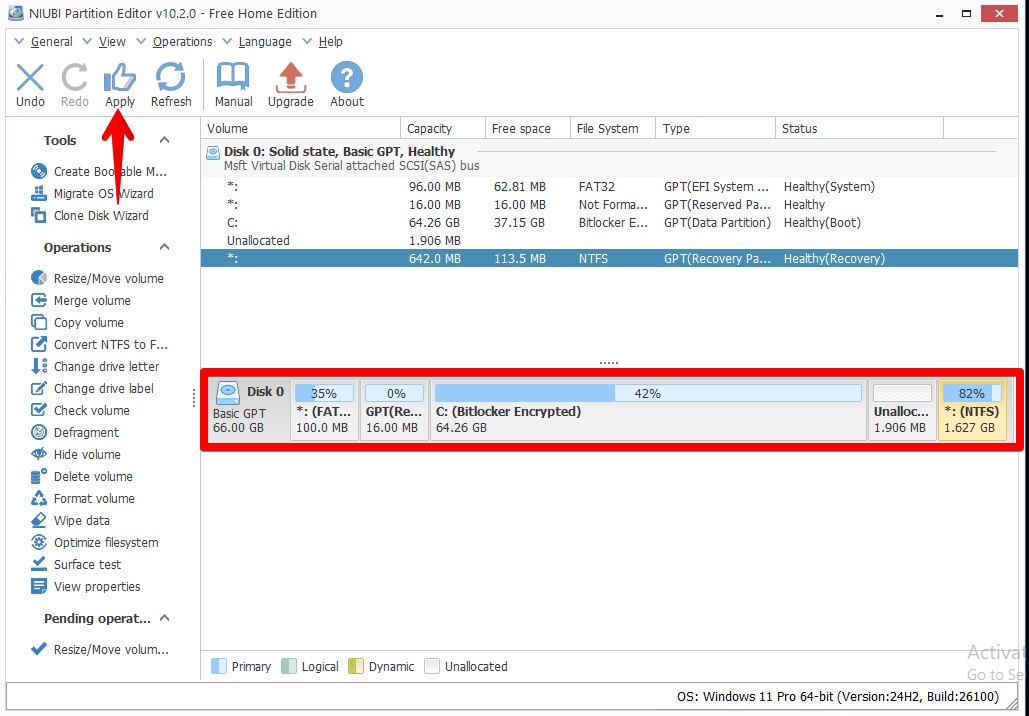
Inside the VM, open NIUBI Partition Editor. You will see the complete layout of your disk and notice the Recovery Partition positioned between the C: drive and unallocated space.
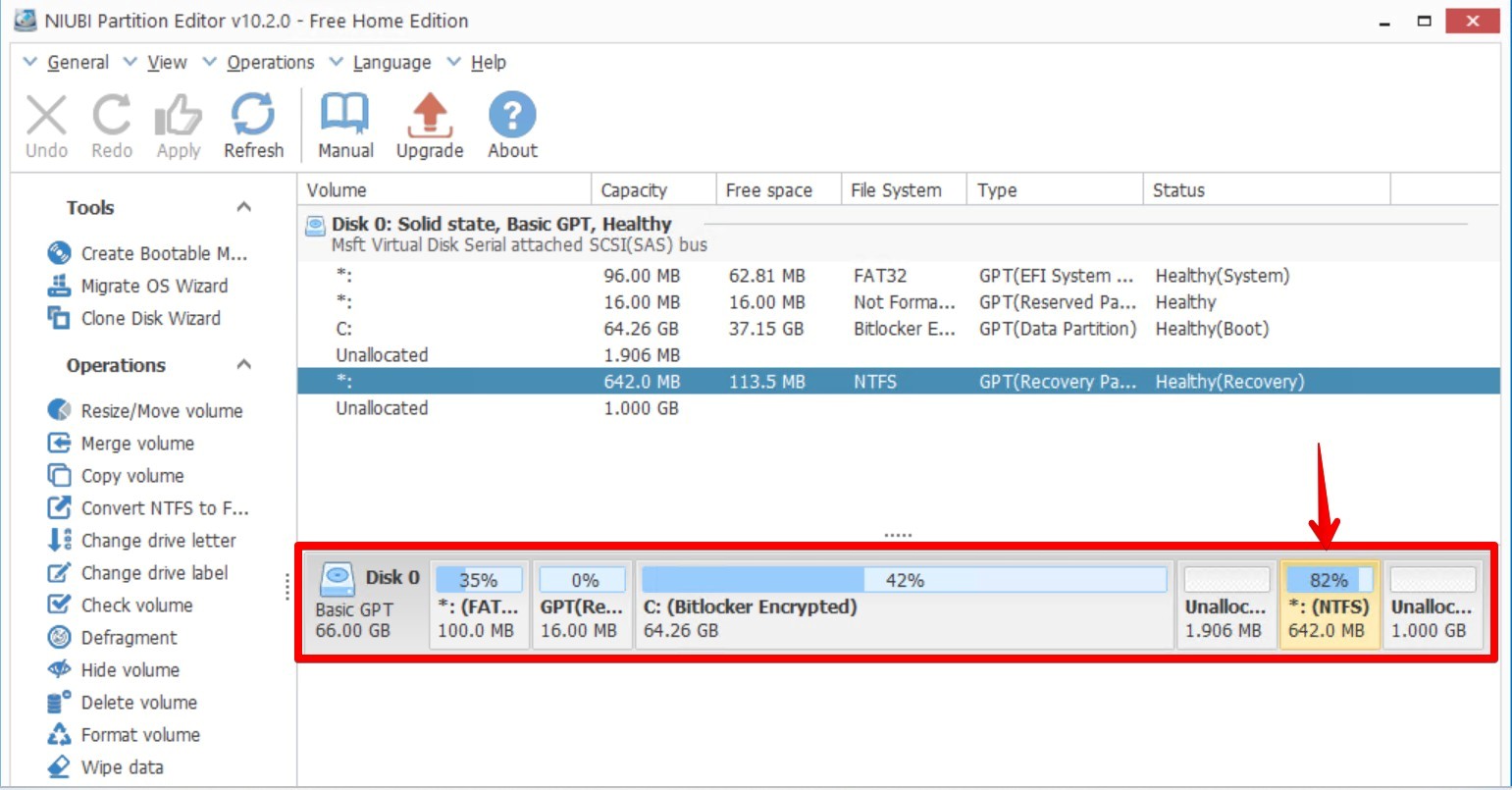
Right-click the Recovery Partition and select Resize/Move Volume. Drag the Recovery Partition to the right side.
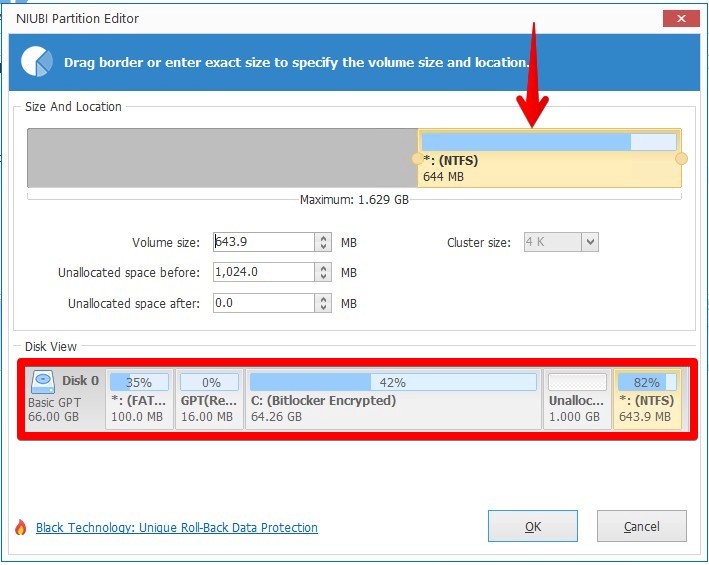
Now, unallocated space will be next to the C: drive. Click OK and close the window.
In the NIUBI Partition Editor main window, click Apply, then OK to confirm the operation and apply the changes.
Step 4: Finalizing the Extension Inside Windows 11
At this point, the disk has already been expanded in Hyper-V (Step 1), and the Recovery Partition has been moved to the end of the disk. The C: drive and unallocated space are now adjacent. The final step is to extend the disk size inside the VM.
Inside the VM, open Disk Management. You should see a black bar labeled Unallocated next to the C: drive.
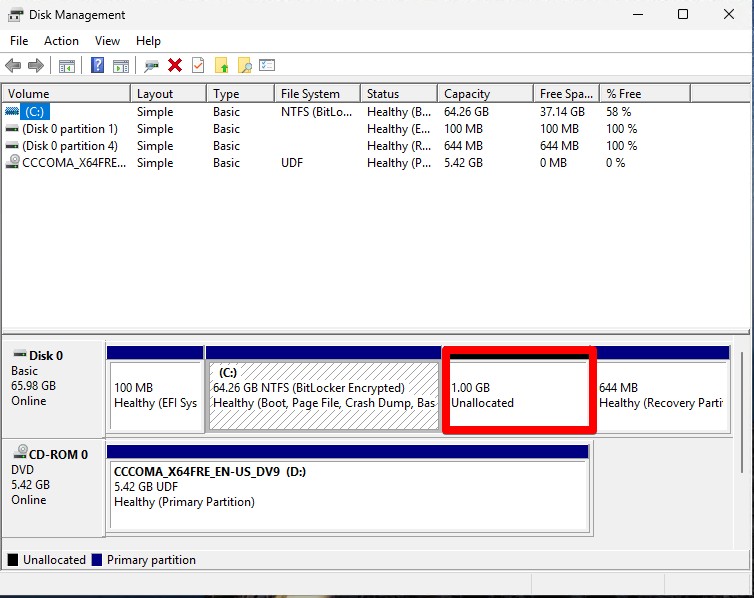
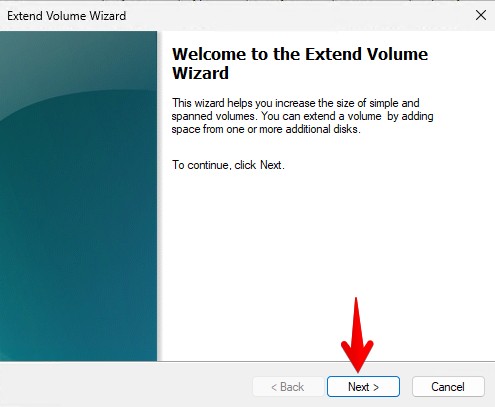
Right-click the C: drive and select Extend Volume. Follow the wizard, add all available unallocated space, then click Next and Finish.
You can confirm the new disk size by opening the C: drive properties.
Conclusion
In this article, we have shown you how to extend disk space in Hyper-V without powering off a virtual machine. The process is straightforward and consists of two main stages: expanding the virtual disk in Hyper-V Manager and then extending the volume inside the VM.
However, when another partition, such as a Recovery Partition, exists between the C: drive and unallocated space, it becomes a blocker. In this case, you need to use a third-party tool like NIUBI Partition Editor to move the partition to the end of the disk layout before extending the volume in Disk Management.
We hope you found this guide useful. Good luck!
