
The main advantage of Azure Stack HCI compared to other hyperconverged solutions in the market is the ease of hybrid cloud implementation. Among available hybrid cloud features, you can monitor your Azure Stack HCI solution from Azure Monitor. The monitoring can be enabled quickly through Windows Admin Center. Some rules are built-in, but you can create your one rule if you wish. Notifications can be sent through SMS or E-mail. In this topic I will show you how to enable Azure Monitor through Windows Admin Center.
Requirements
To follow this topic, you need:
- A running Azure Stack HCI cluster (based on Windows Server 2016/2019 or Azure Stack HCI OS preview)
- A running Windows Admin Center 2009
- An Azure tenant
Enable Azure Monitor for Azure Stack HCI
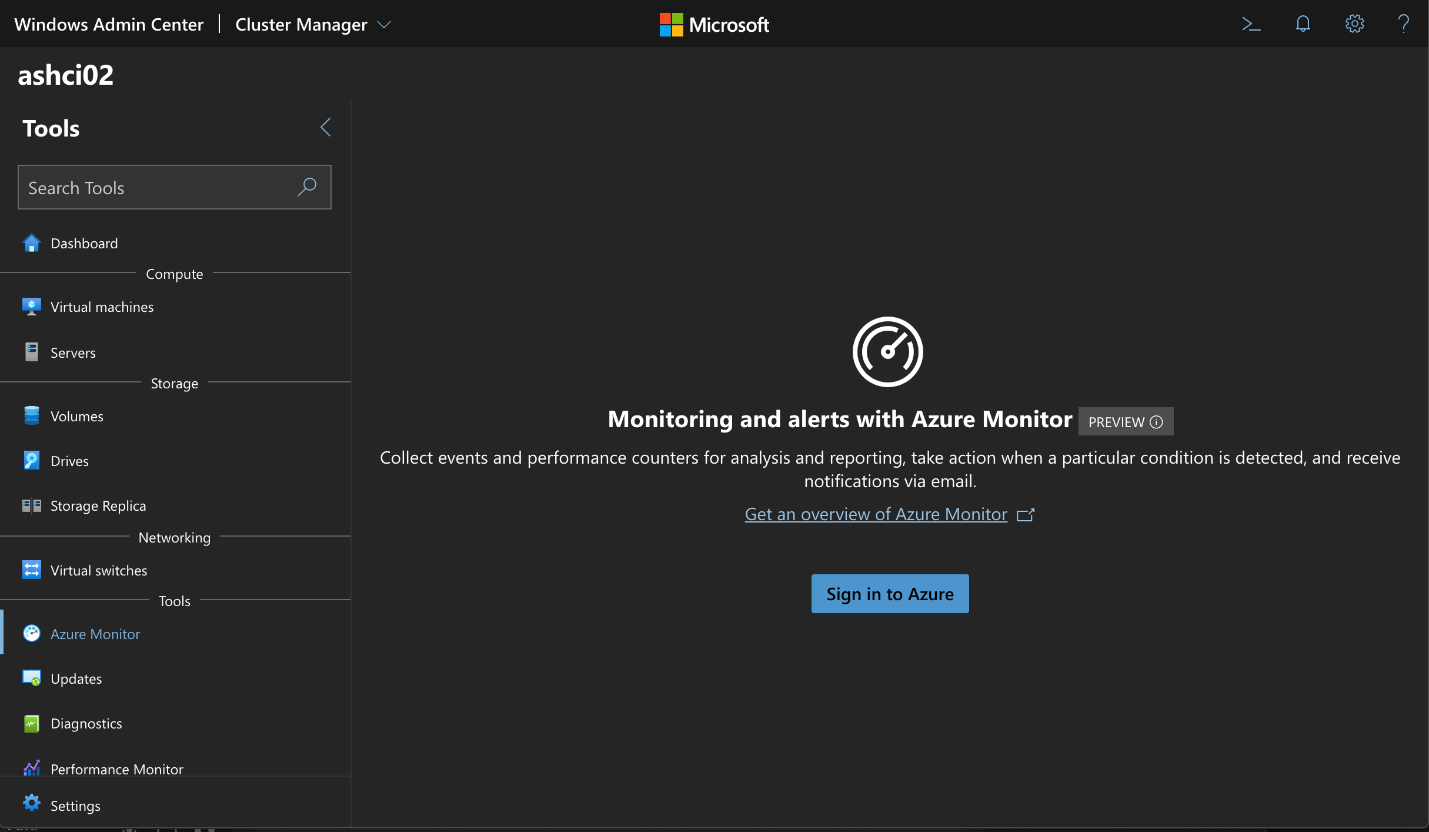
In Windows Admin Center, select an Azure Stack HCI and navigate to Azure Monitor below Tools category. If you are not signed into Microsoft Azure, click on Sign in to Azure and specify your credentials.
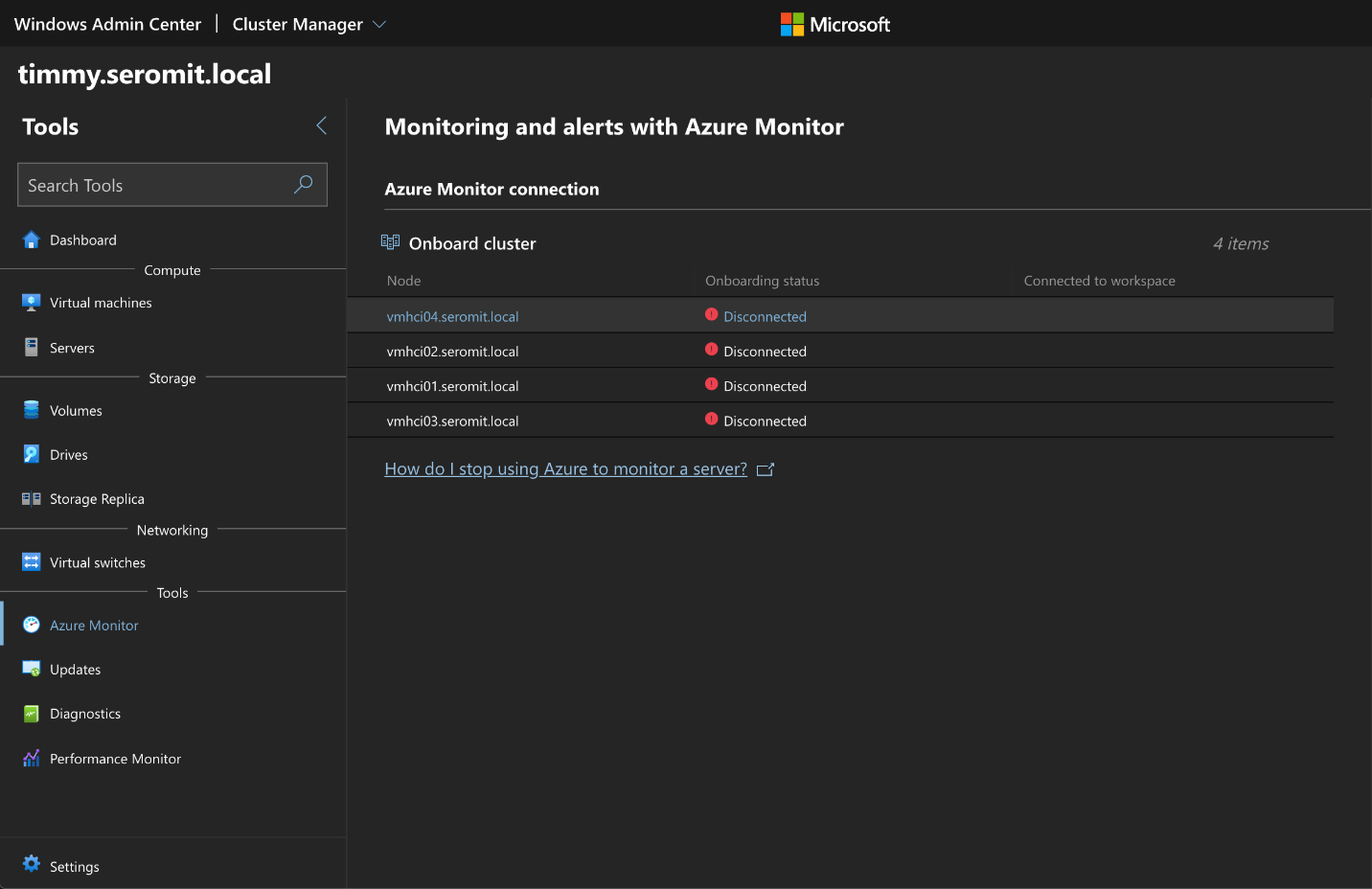
Then click on Onboard cluster. This action will install MMA agent and connect your server to an existing log analytics workspace. If you don’t have a log analytics workspace in your Azure tenant, the wizard will create one for you.
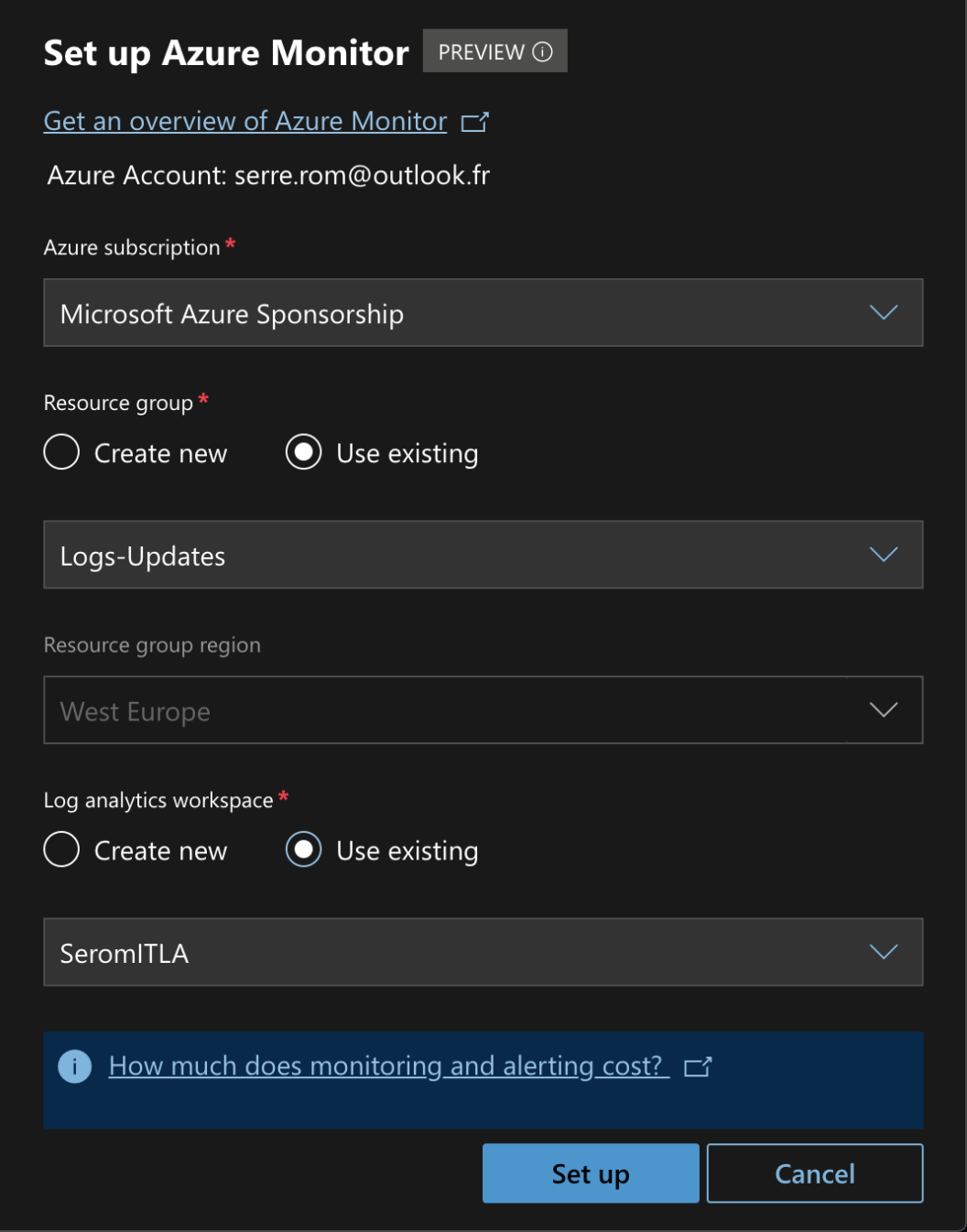
When you have clicked on Onboard servers, the following blade show up on the right. From there you can select your existing log analytics workspace to connect Azure Stack HCI to.
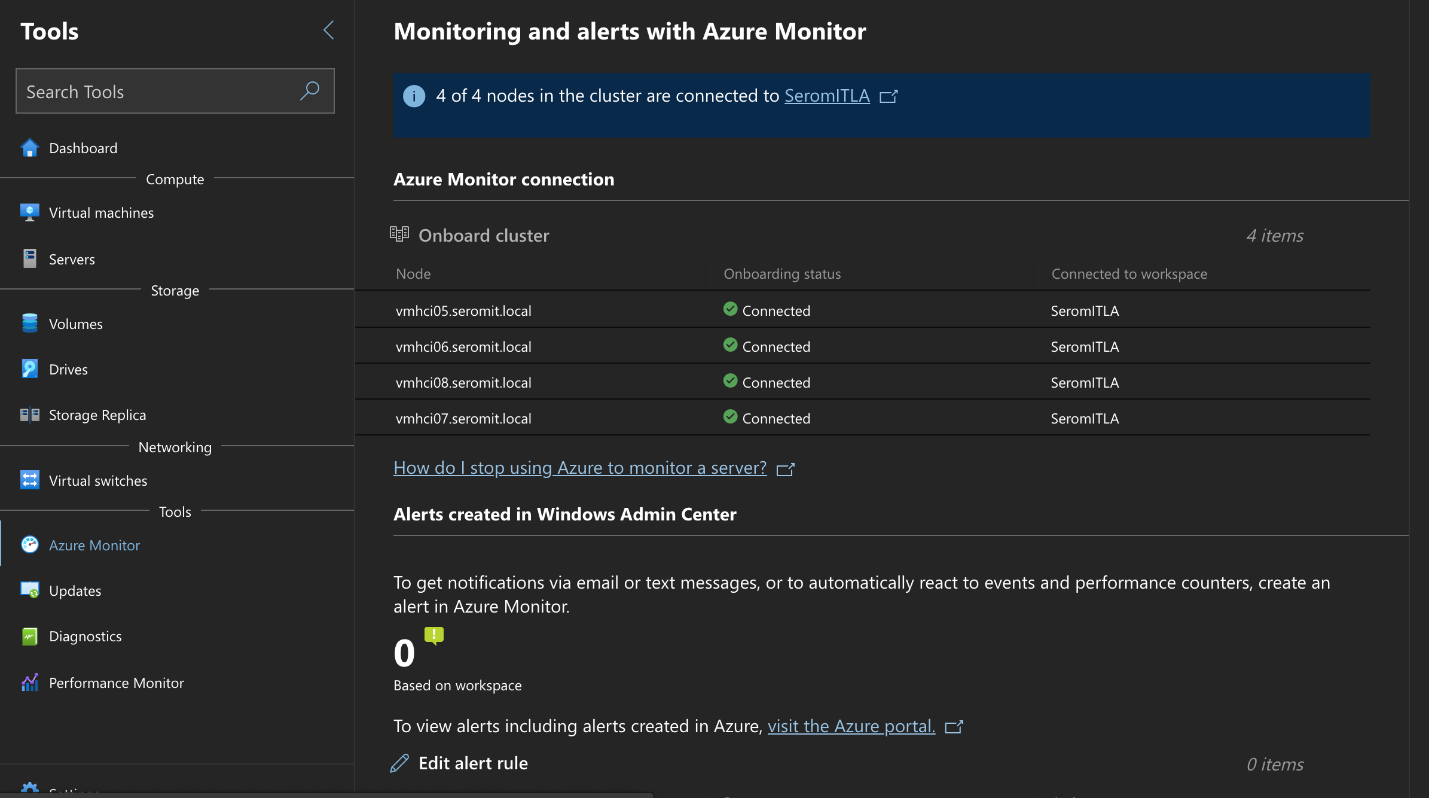
Once the nodes are connected, you should see onboarding status to Connected. Then click on Edit alert rules.
Next you can select all rules available and an action to send notification. If you don’t have an existing action group, you can create a new one from there.
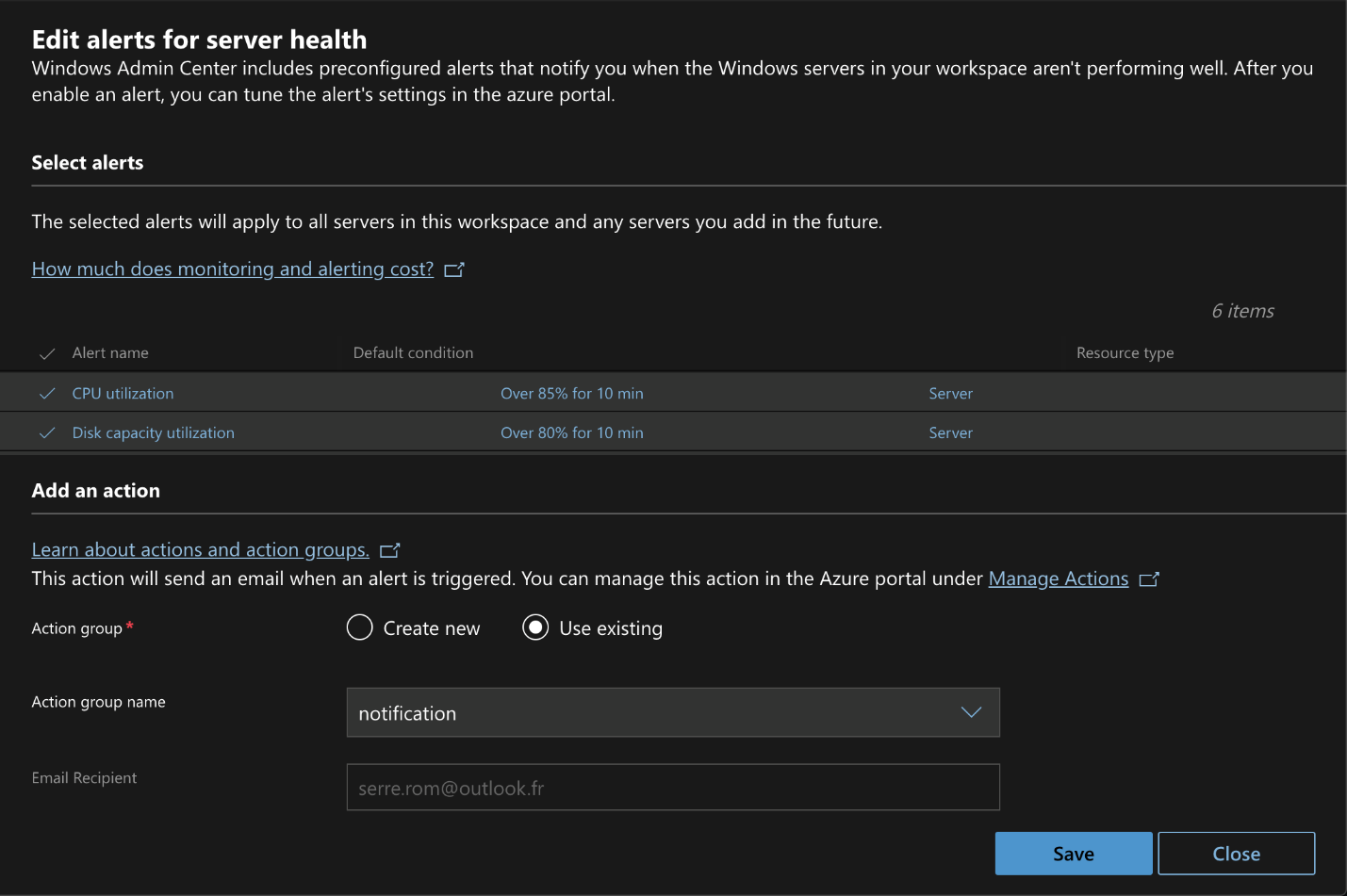
Once you click on Save, the rules are enabled.
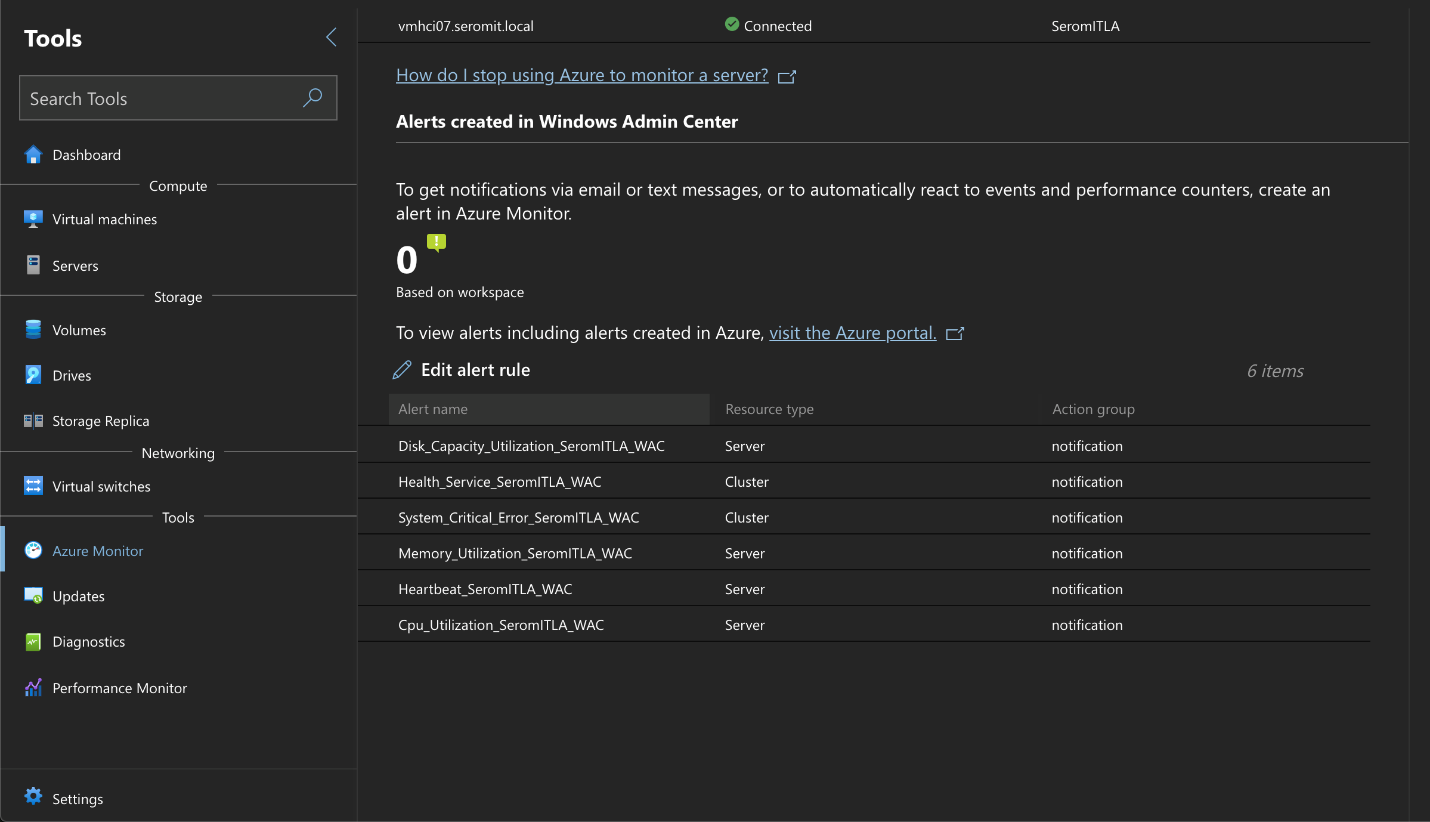
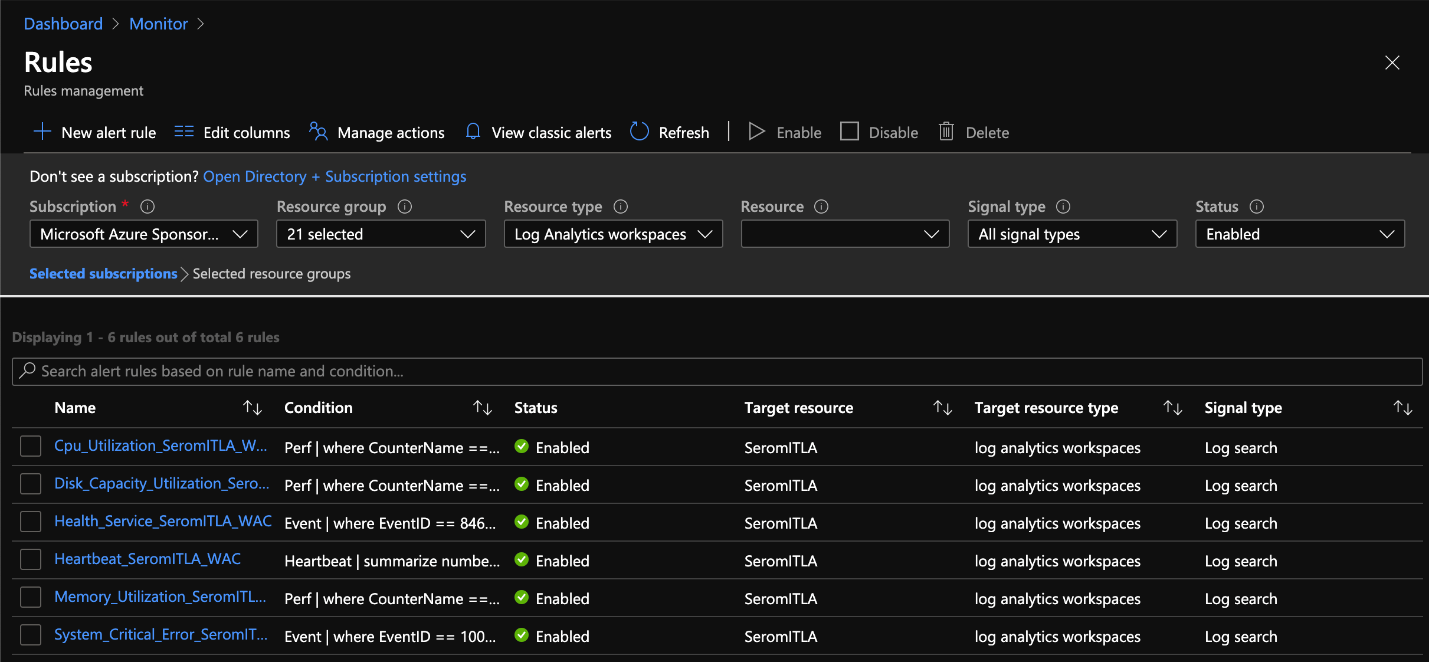
If you connect to Azure Portal and you open Azure Monitor, you should see the same rules enabled. If you need additional rules, you can create them here.
Conclusion
As you have seen in this topic, you can create monitoring rules quickly. Thanks to Windows Admin Center, Azure Monitor is nearly built-in for Azure Stack HCI. When Azure Stack HCI OS will be released, the Azure Monitor configuration will be available through Azure Stack HCI blade in Azure Portal.