


After seeing how to deploy Windows Virtual Desktop, in session mode, we will see how to deploy applications.
Using the basic image, I only have the basic applications to publish. If you want to deploy custom applications, you will need to create an image and use it as a base image for your deployment.
To publish an application, you must first create a group, with the following commands:
$brokerurl = "https://rdbroker.wvd.microsoft.com" Add-RdsAccount -DeploymentUrl $brokerurl New-RdsAppGroup FlorentAppointaire FLOAPP-WVD "RemoteApp Application Group" -ResourceType "RemoteApp" Get-RdsAppGroup FlorentAppointaire FLOAPP-WVD |
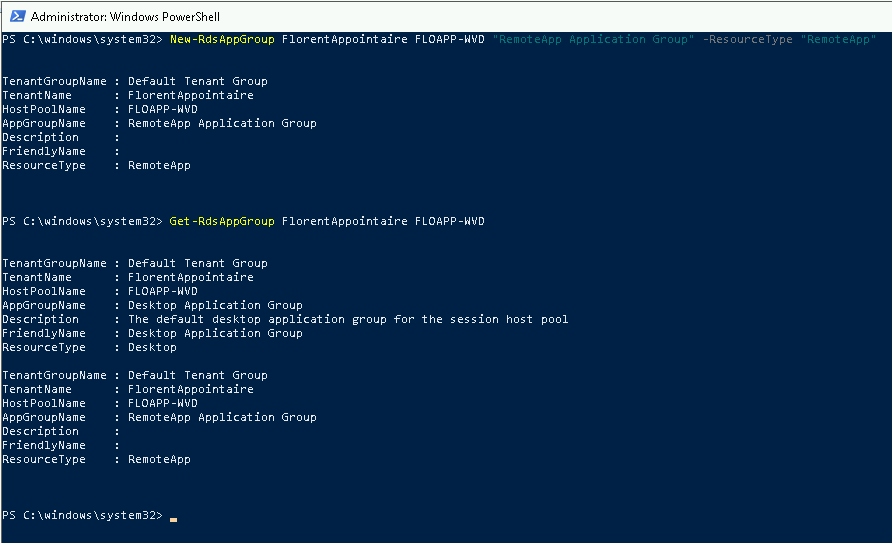
You can then retrieve the applications that can be published, with the following command:
Get-RdsStartMenuApp FlorentAppointaire FLOAPP-WVD "RemoteApp Application Group" |
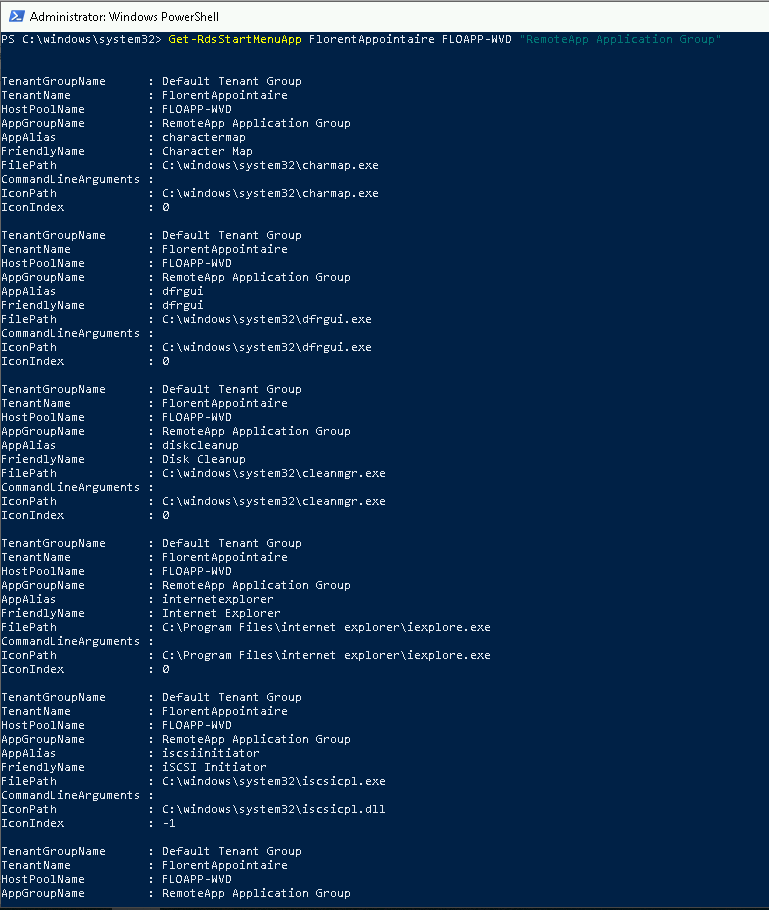
To publish an application or applications, use the following commands:
New-RdsRemoteApp FlorentAppointaire FLOAPP-WVD "RemoteApp Application Group" -Name "Internet Explorer" -AppAlias "internetexplorer" New-RdsRemoteApp FlorentAppointaire FLOAPP-WVD "RemoteApp Application Group" -Name "Task Manager" -AppAlias "taskmanager" New-RdsRemoteApp FlorentAppointaire FLOAPP-WVD "RemoteApp Application Group" -Name "Paint" -AppAlias "paint" New-RdsRemoteApp FlorentAppointaire FLOAPP-WVD "RemoteApp Application Group" -Name "Wordpad" -AppAlias "wordpad" |
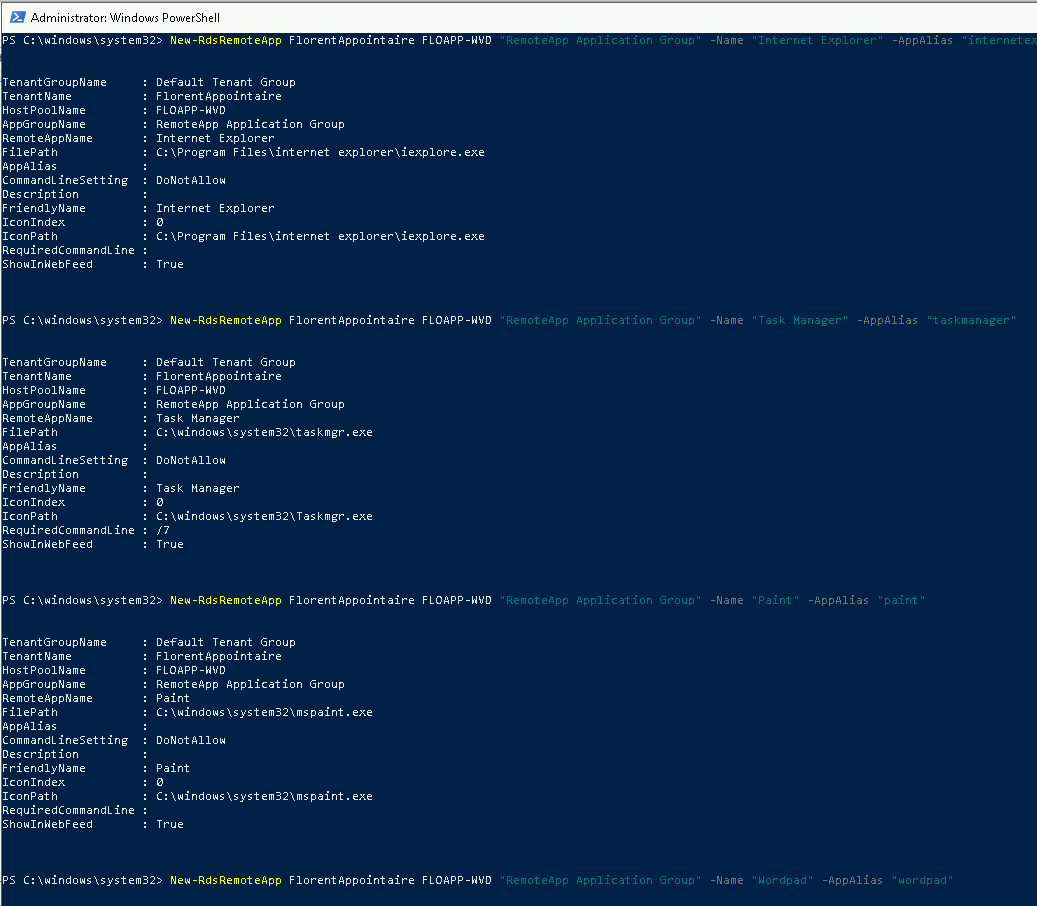
You can verify that the applications have been published:
Get-RdsRemoteApp FlorentAppointaire FLOAPP-WVD "RemoteApp Application Group" |
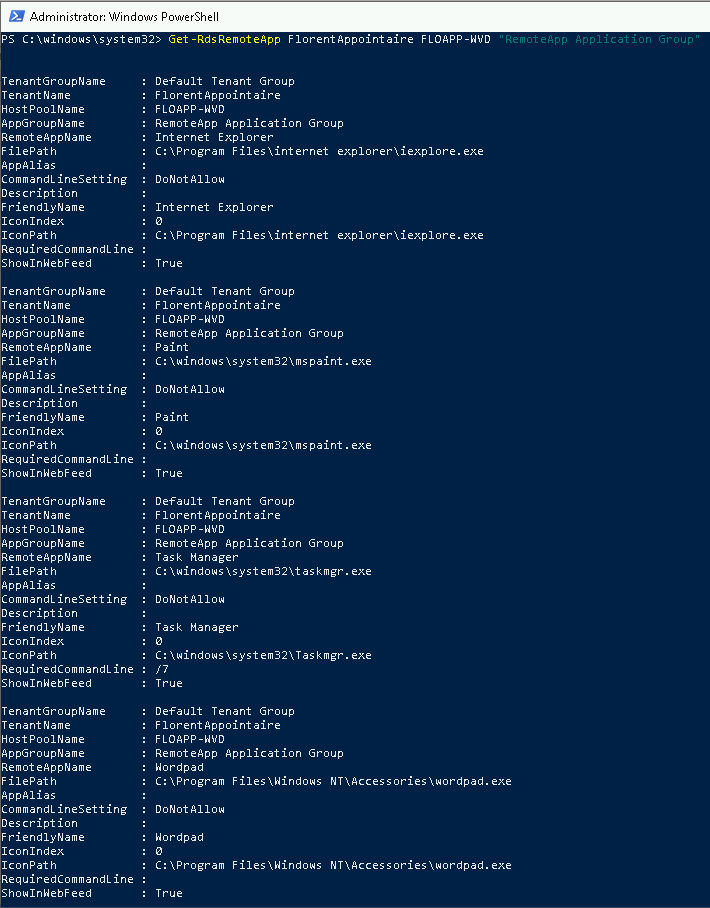
You must then assign this group to a user. Be careful, for the moment, a user can be assigned to a single group and this user must not have MFA:
Add-RdsAppGroupUser FlorentAppointaire FLOAPP-WVD "RemoteApp Application Group" -UserPrincipalName florent.appointaire@florentappointaire.cloud |

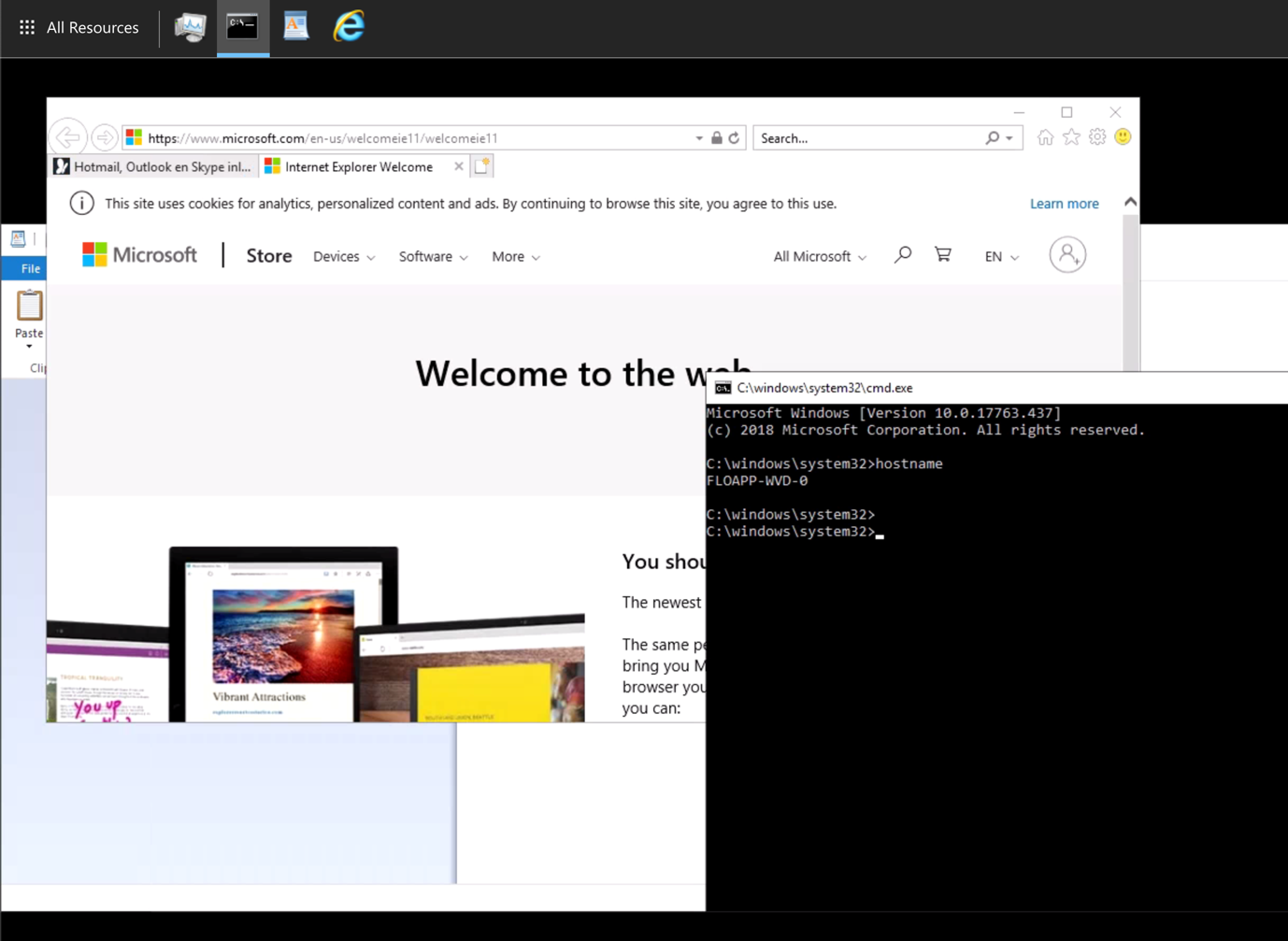
By logging in with this user, you can see that applications have been published on the portal:

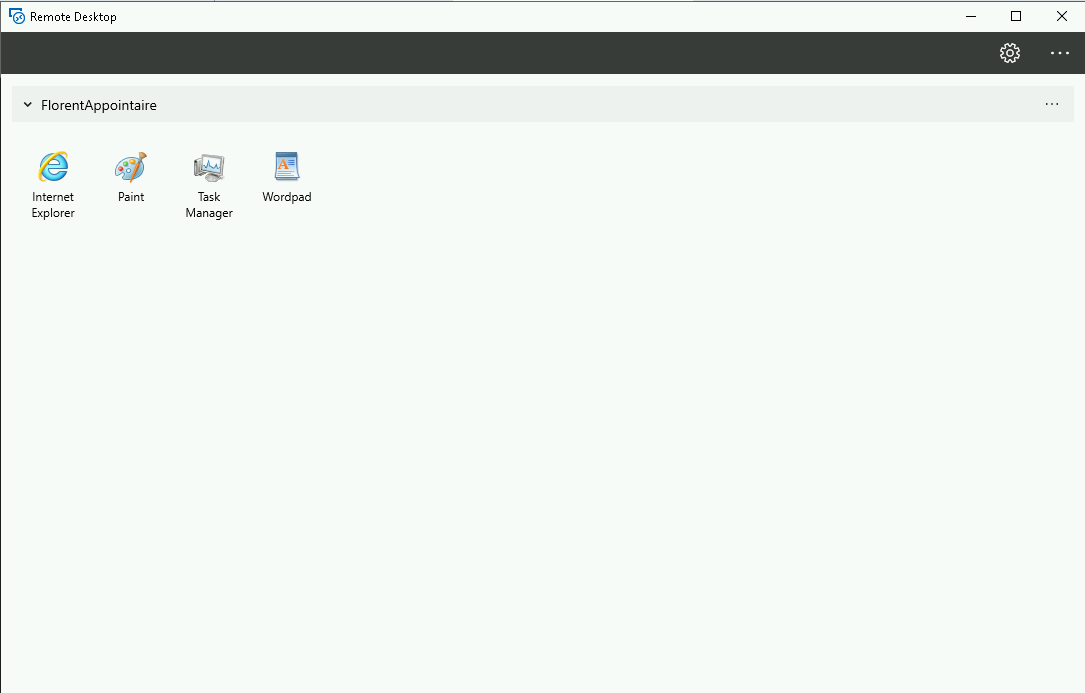
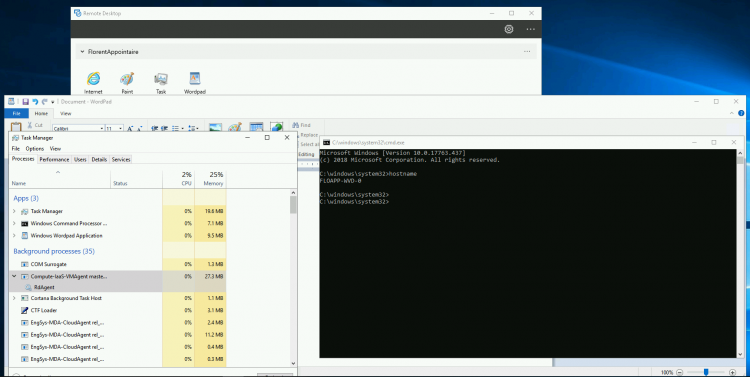
Or from the application:
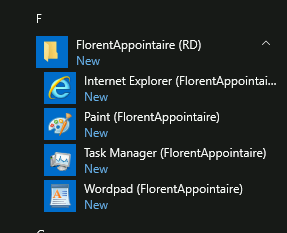
Note that shortcuts appeared in the start menu of your Windows:
Windows Virtual Desktop is still in Preview, so some features are missing. However, in a near future, WVD should be a serious competitor to Citrix on Azure.
