


After my first two articles about deploying resources in Azure and using a keyvault to store passwords, we’ll see how to execute commands directly when deploying the resource.
To make VM configuration, you can for example use tools like Ansible, DSC, etc. With Terraform, you can use Provisioners: https://www.terraform.io/docs/provisioners/index.html
Some examples are available here: https://github.com/terraform-providers/terraform-provider-azurerm/tree/master/examples/virtual-machines/provisioners/windows
To get started, create a Files folder with 2 files inside, FirstLogonCommands.xml and winrm.ps1. These 2 files will run at the first launch of the machine, to configure the WinRM, to connect remotely via the Provider.
Then modify the file 1-virtual-machine.tf and modify the section os_profile_windows_config by adding the winrm part:
winrm {

protocol = "http"

}

# Auto-Login's required to configure WinRM

additional_unattend_config {

pass = "oobeSystem"

component = "Microsoft-Windows-Shell-Setup"

setting_name = "AutoLogon"

content = "<AutoLogon><Password><Value>${var.admin_password}</Value></Password><Enabled>true</Enabled><LogonCount>1</LogonCount><Username>${var.admin_username}</Username></AutoLogon>"

}

additional_unattend_config {

pass = "oobeSystem"

component = "Microsoft-Windows-Shell-Setup"

setting_name = "FirstLogonCommands"

content = "${file("./files/FirstLogonCommands.xml")}"

}
|
Then you must add the remote-exec provisioner to remotely execute a script or commands. Here in PowerShell I will install the Server Web role:
provisioner "remote-exec" {

connection {

host = "${azurerm_public_ip.windows_pip.ip_address}"

type = "winrm"

port = 5985

https = false

timeout = "5m"

user = "${var.admin_username}"

password = "${var.admin_password}"

}

inline = [

"powershell.exe -ExecutionPolicy Unrestricted -Command {Install-WindowsFeature -name Web-Server -IncludeManagementTools}",

]

}
|
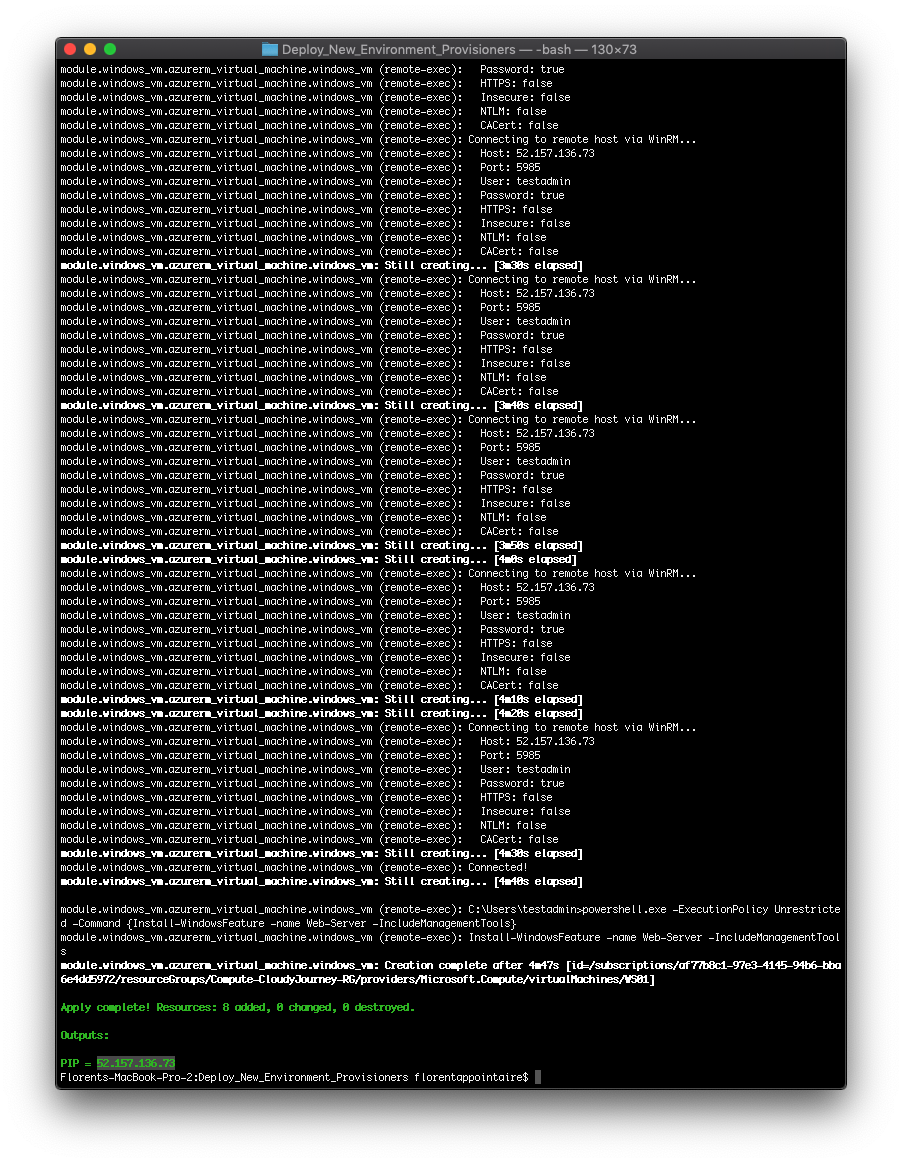
Run your Terraform, and once the VM is deployed, the startup scripts run, the provider is able to connect and run the PowerShell command:
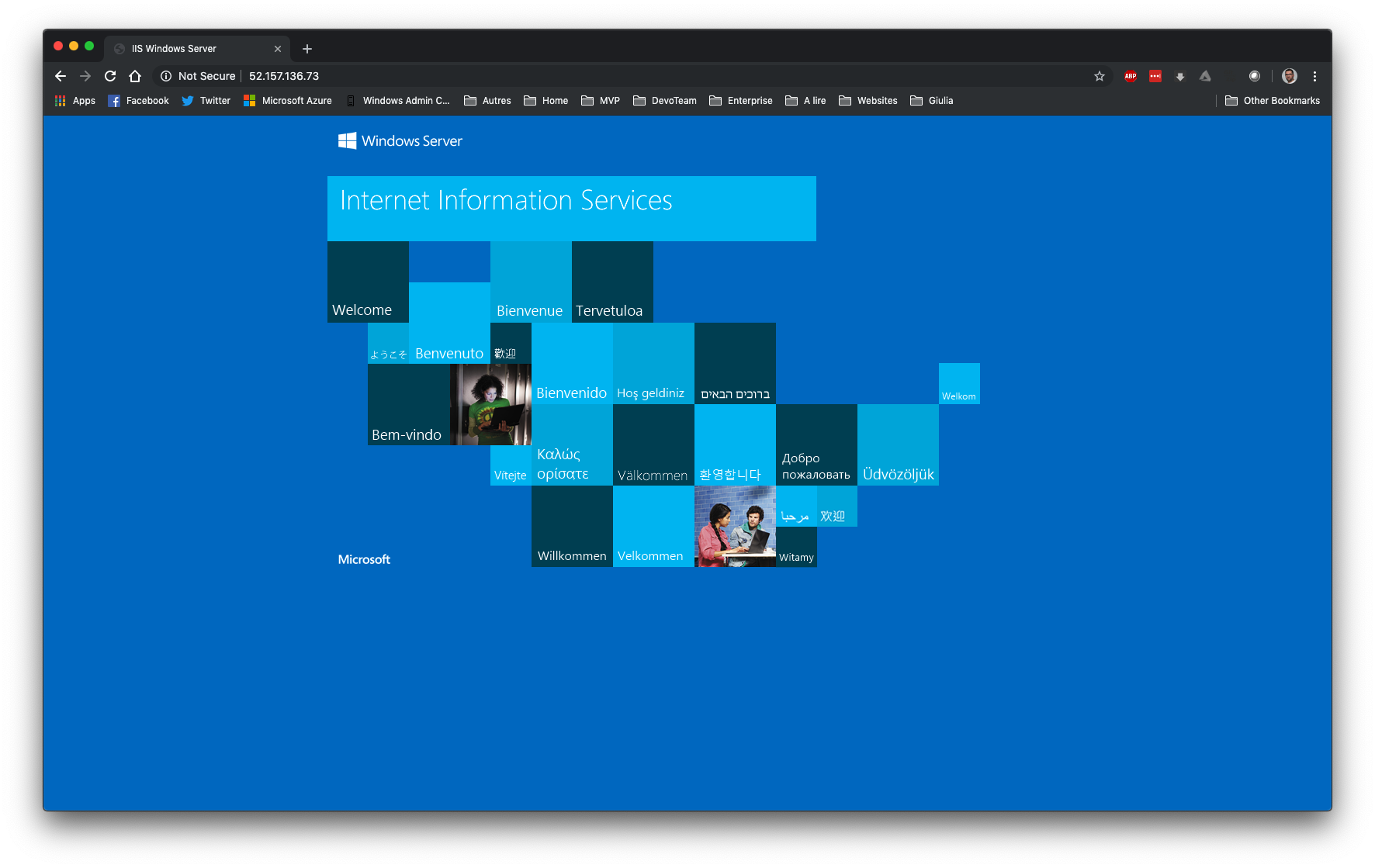
If you access the IP of the Terraform output, you should see your IIS web server:
The complete code is here:
https://github.com/Flodu31/Terraform/tree/master/Deploy_New_Environment_Provisioners
That’s the end of these few articles on Terraform, if you have any questions, do not hesitate 🙂
