Search
Join the Technical Preview Program
See how NVMe-oF removes iSCSI
bottlenecks in your HCI
The Best Hyperconverged
Infrastructure
(HCI) for Enterprise
ROBO, SMB & Edge
The Best Virtual SAN
for Enterprise ROBO, SMB & Edge

[Azure] Call an Azure Function webhook from an automated Flow and a SharePoint list

  • January 15, 2019
  • 4 min read
Cloud and Virtualization Architect and Microsoft MVP. Florent specializes in public, private, and hybrid cloud ecosystems. An MCSE in Private Cloud, he provides technical leadership in Cloud and Datacenter Management. Florent delivers high-authority insights on Azure deployments, virtualization strategy, and optimizing enterprise-scale cloud infrastructure.


SharePoint Logo

Now that we’ve an Azure Function that works correctly, we will connect to a SharePoint Online site, and, in Site contents, create a list, to manage automation of our process :
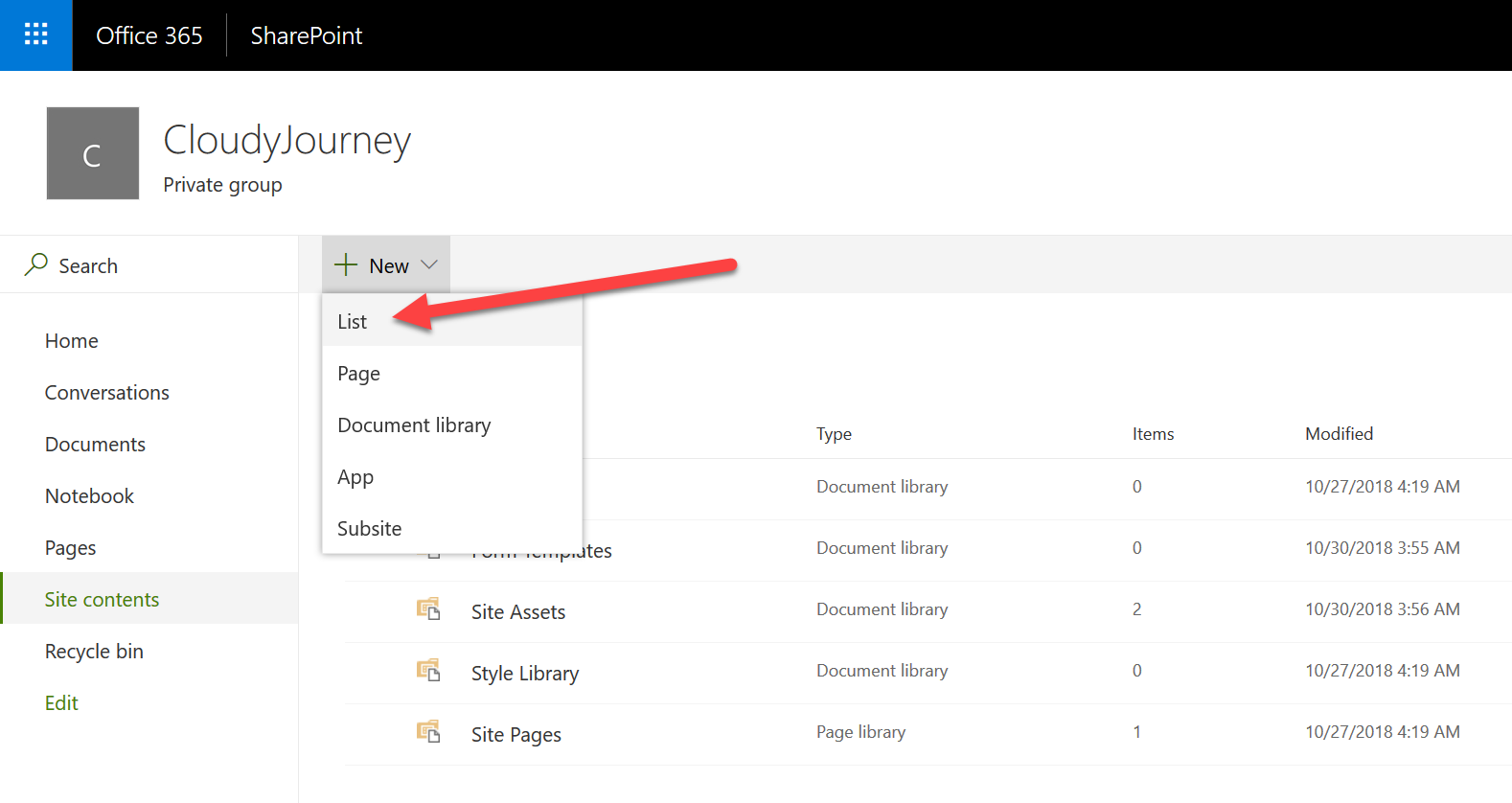
SharePoint Online site - New List

Give a name and a description to this list. You can choose to show it in the lateral panel or not :
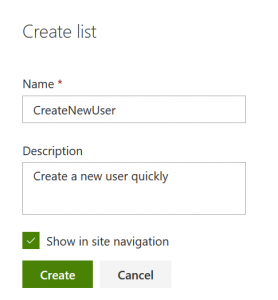
SharePoint Online site - Create List

Modify the Title column, with the new name LastName and add a new column, with type Single line of text :
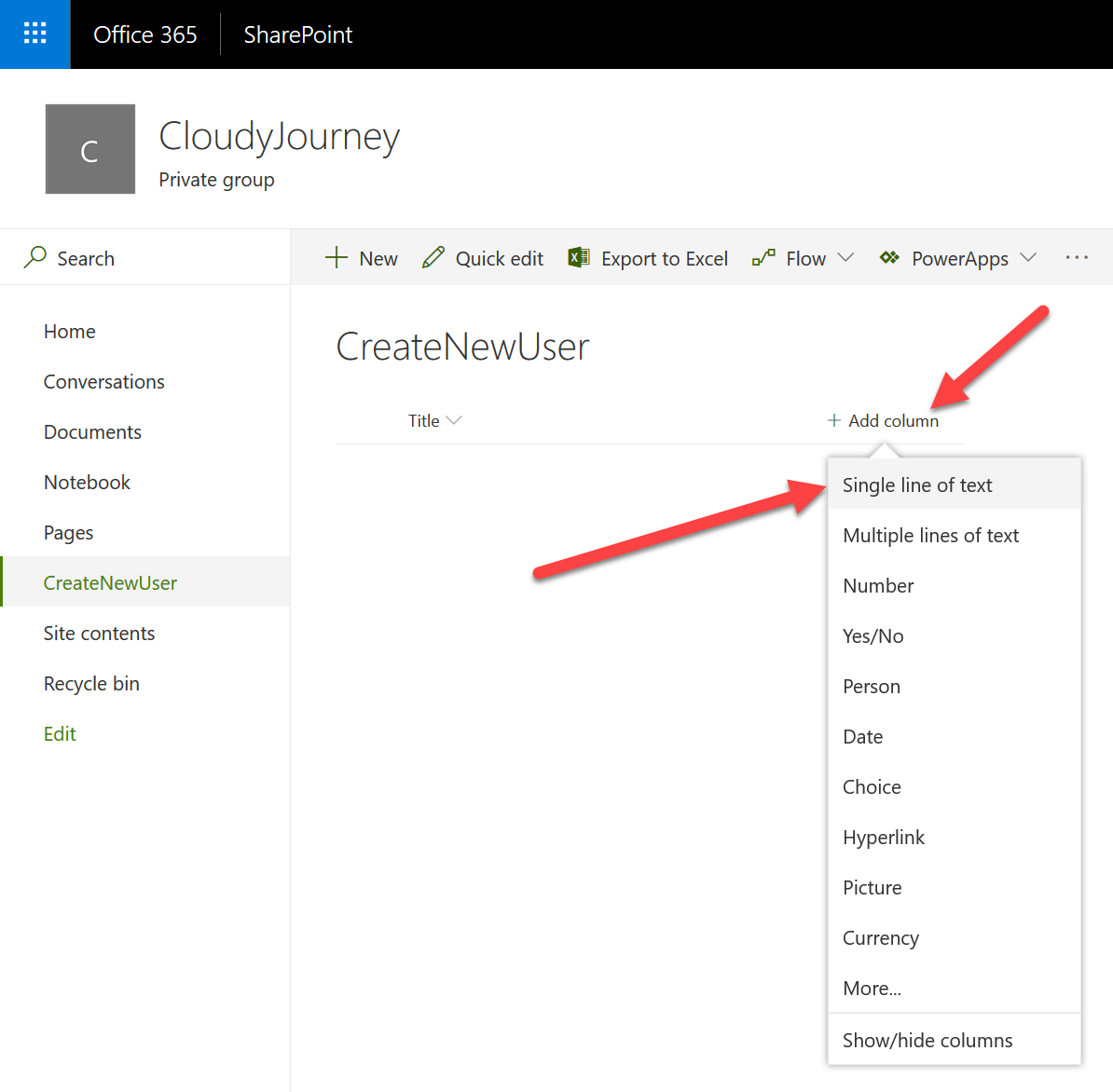
SharePoint Online site - Create New User - Add column

Give it a name, Firstname and don’t forget to say that this column must contains information before being published :

SharePoint Online site - Create a column

Now that we’ve our 2 columns, we’ll use Flow to automate the call to our webhook. Click on Flow > Create a flow :
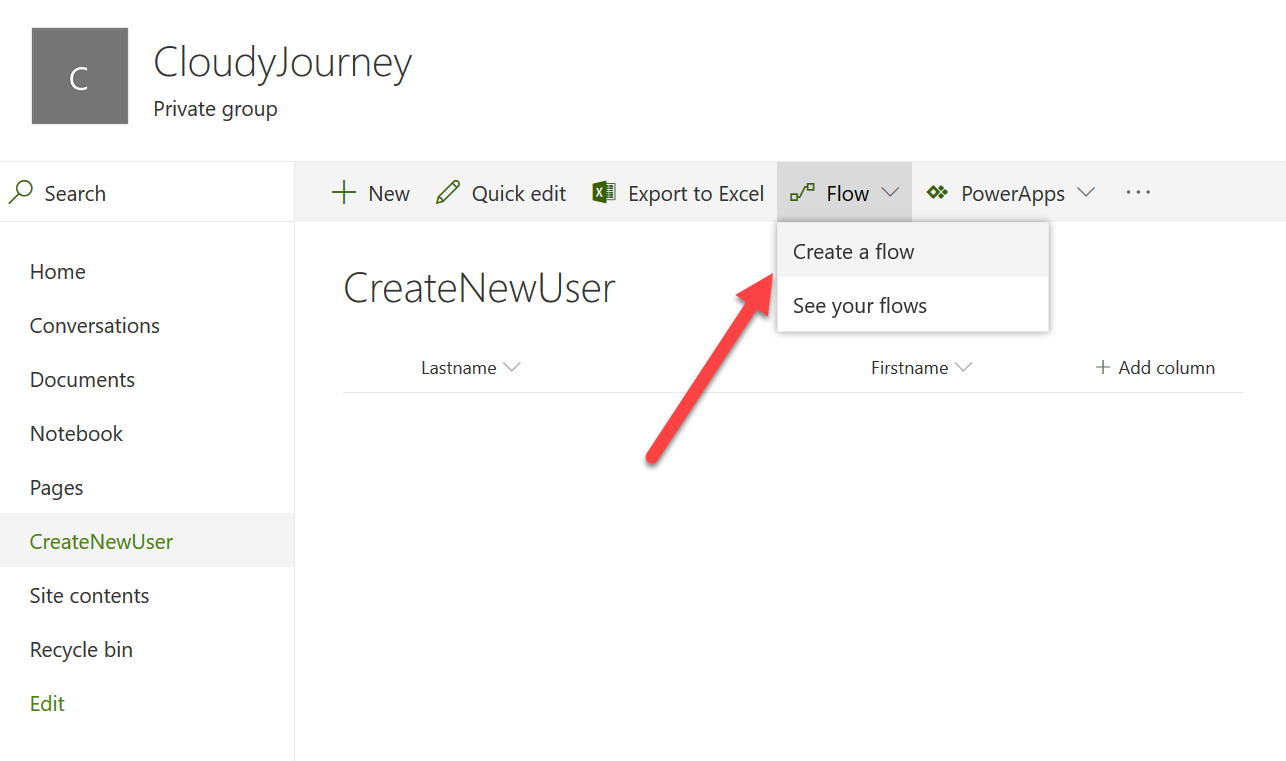
SharePoint Online site - Cloud Journey

Choose the flow Start approval when a new item is added :
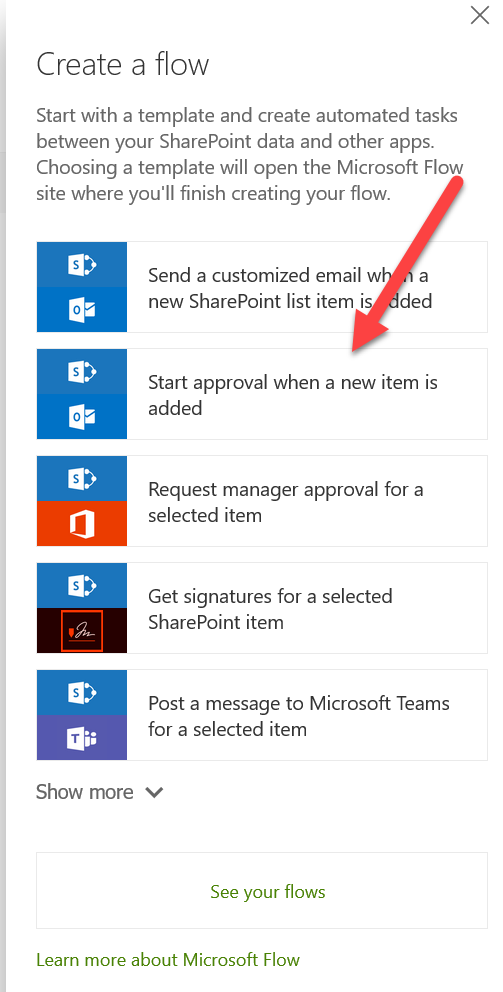
SharePoint Online site - Create a flow

A new window will appear, on the Flow dedicated website. Click on Continue :
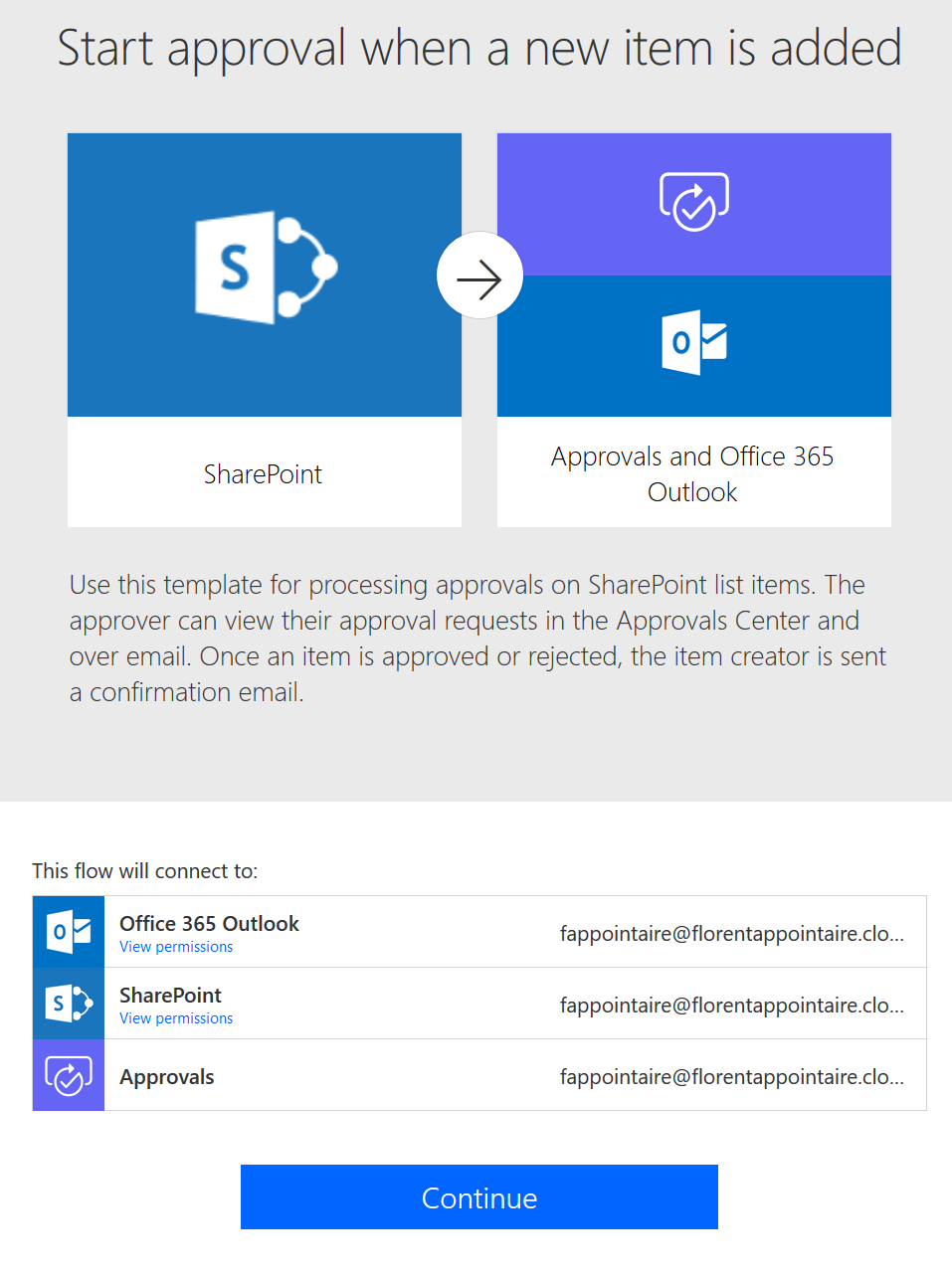
SharePoint Online site - Start Approval

Here, we will remove the approbation. Remove all items, except the first one, and add a new item, with type HTTP. Configure the method to POST, give the URI that you get from your Azure Function, and in the body, add the JSON that we used during tests, by replacing values by SharePoint items Firstname and Lastname :
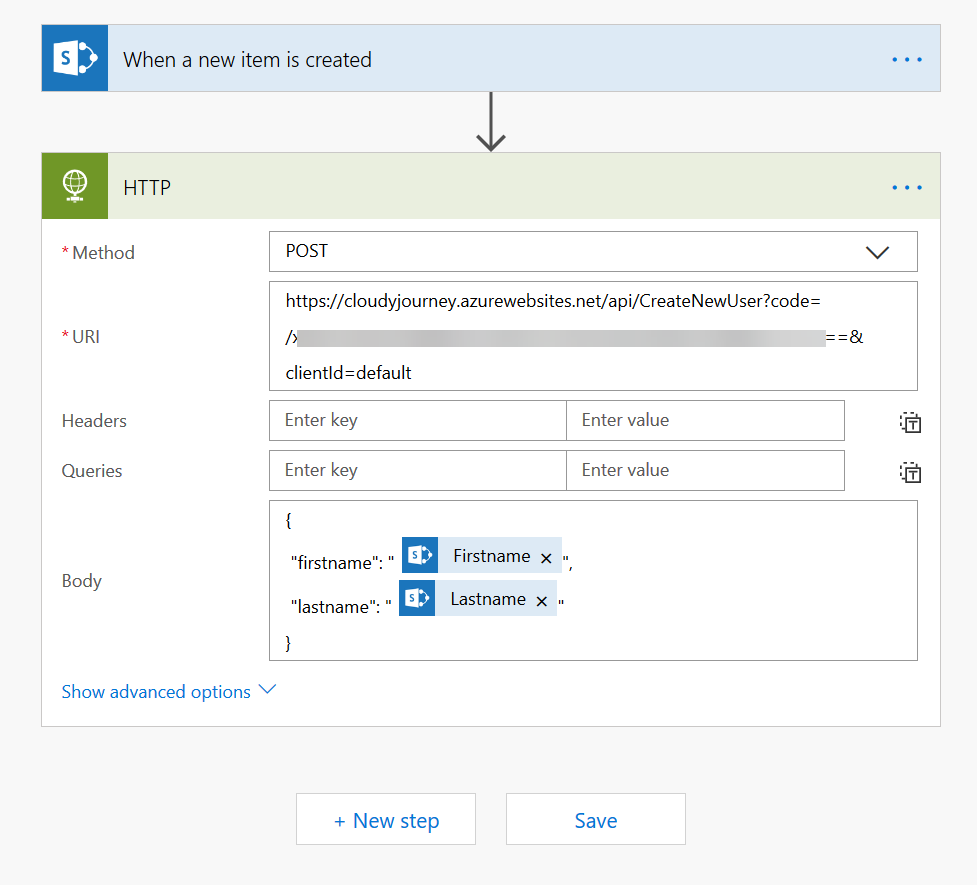
SharePoint Online site - When a new item is created

Save it, go back to your SharePoint list and click on New. Provide a first name and a last name to create a new user :
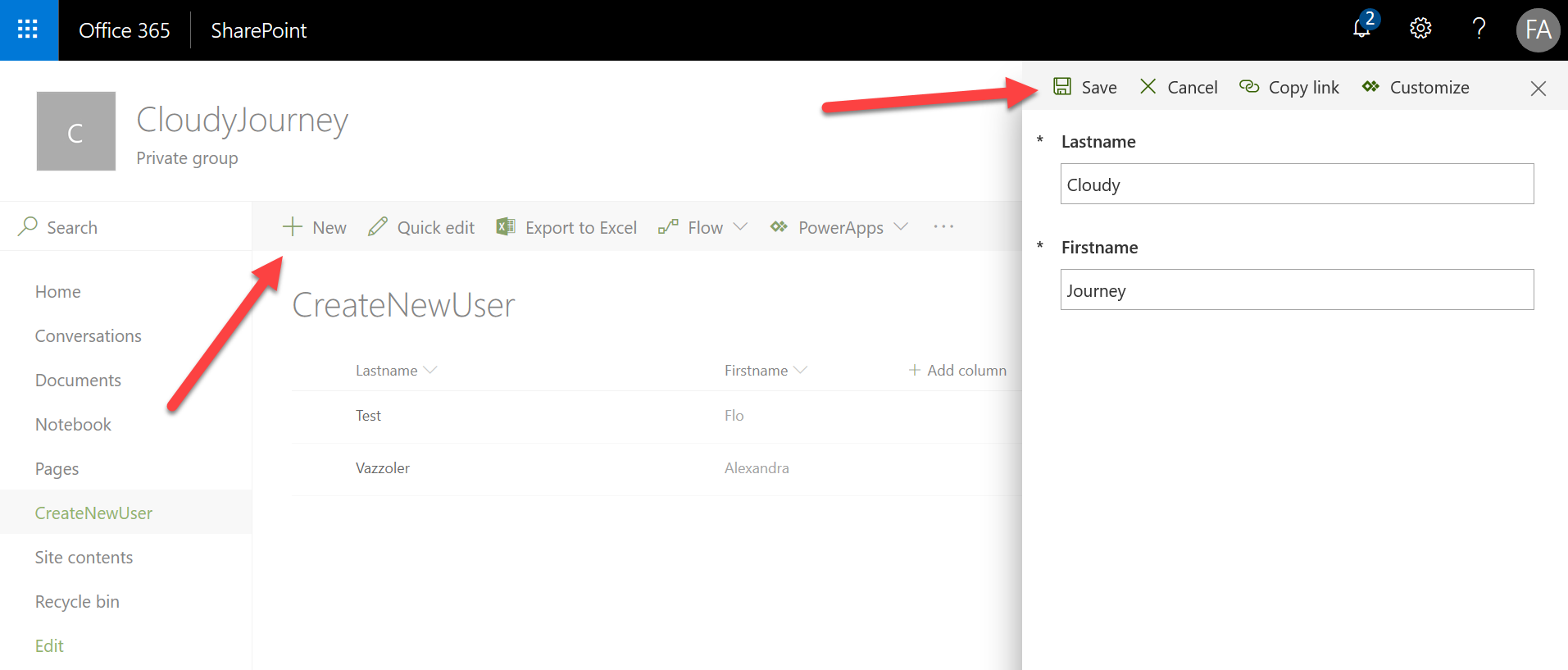
SharePoint Online site - CloudJorney - Save

The user has been added to the list, it will normally start the Flow :
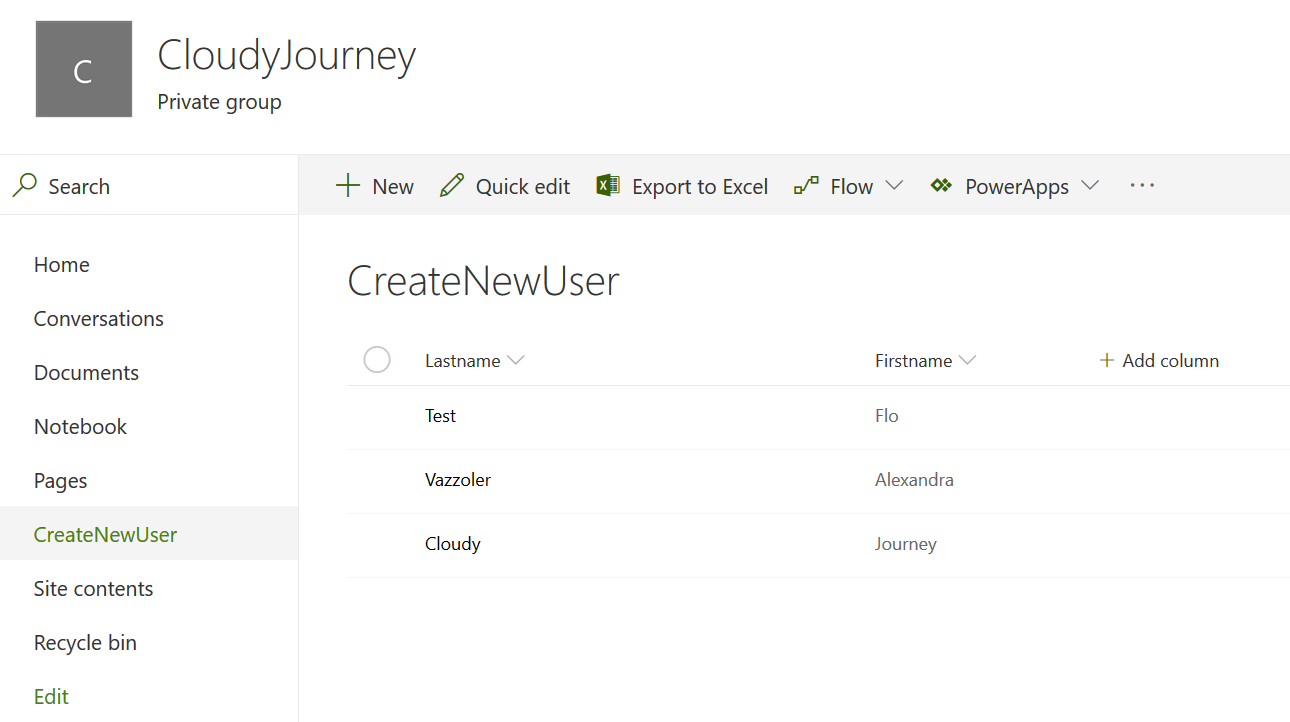
SharePoint Online site - CloudJorney - Create New User

After few seconds, the Flow job is finished. You can click on it to have more details :
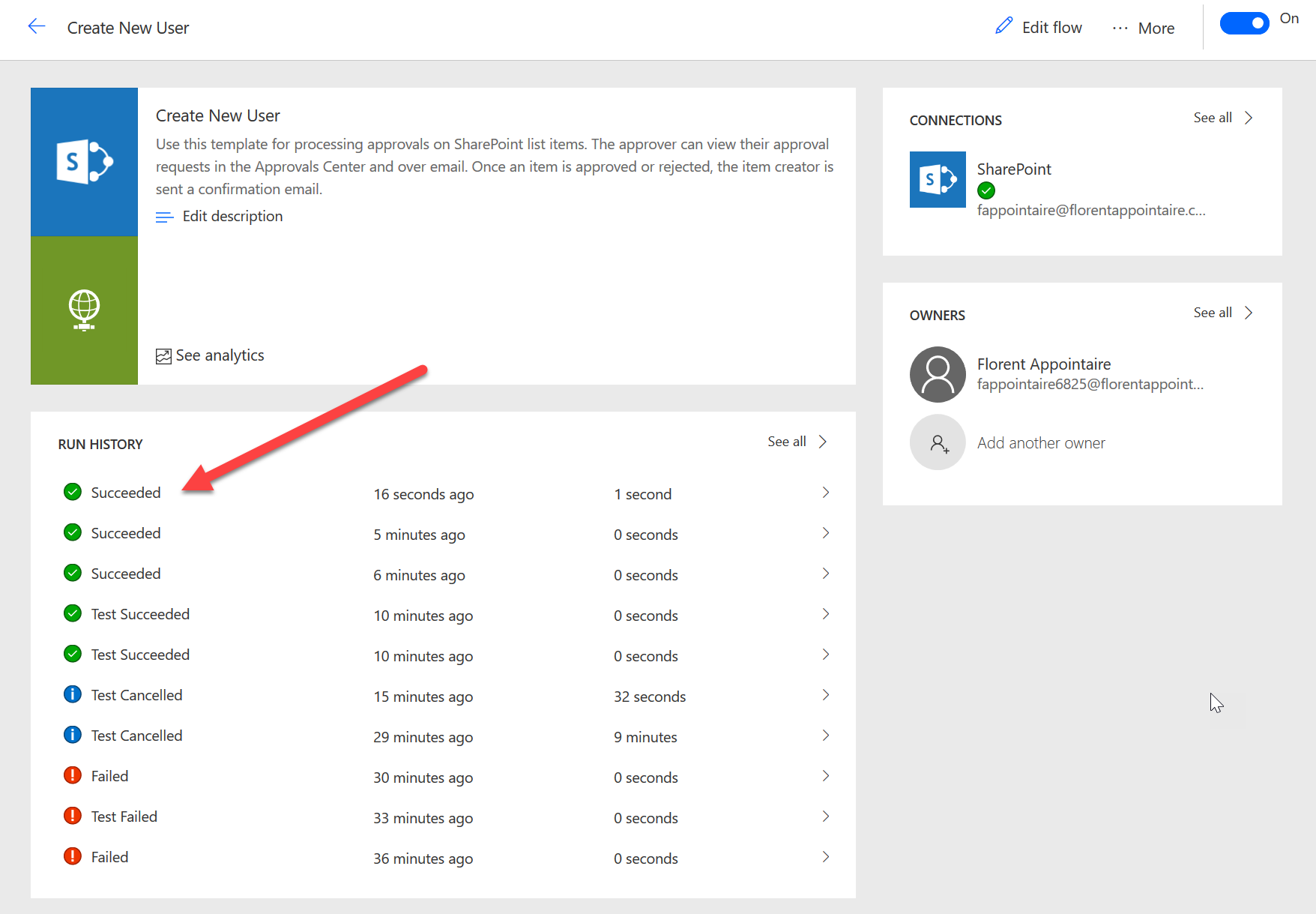
SharePoint Online site - CloudJorney - Create New User - Succeeded

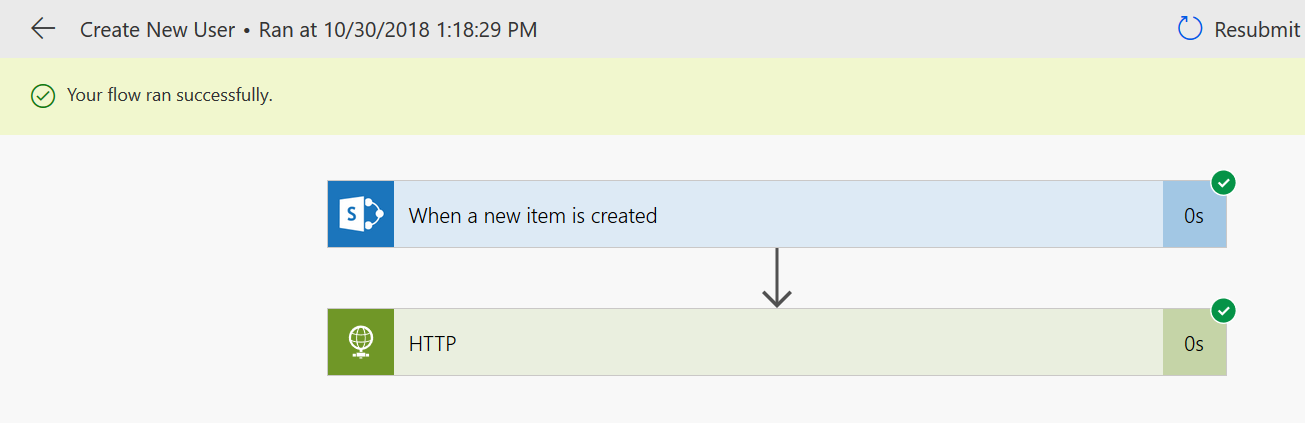
SharePoint Online site - CloudJorney - Create New User - Flow ran successfully

And my user has been created correctly :
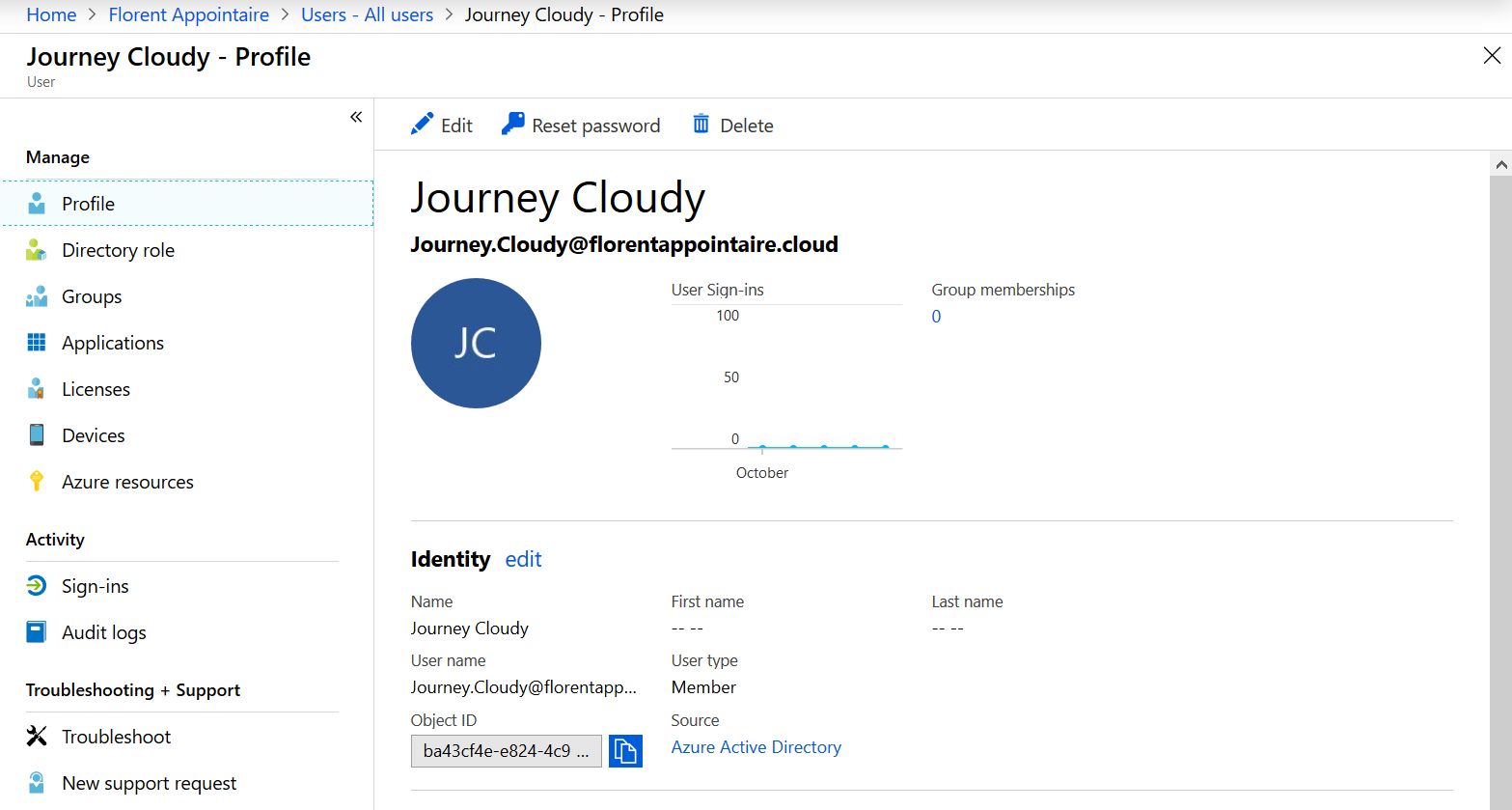
SharePoint Online site - CloudJorney - Profile

In the last part, we will see how to create a « User Friendly » application for our HR team, for example, that will do the on boarding of new employees 😊

 

Hey! Found Florent’s insights useful? Looking for a cost-effective, high-performance, and easy-to-use hyperconverged platform?
Taras Shved
Taras Shved StarWind HCI Appliance Product Manager
Look no further! StarWind HCI Appliance (HCA) is a plug-and-play solution that combines compute, storage, networking, and virtualization software into a single easy-to-use hyperconverged platform. It's designed to significantly trim your IT costs and save valuable time. Interested in learning more? Book your StarWind HCA demo now to see it in action!