
Search
Join the Technical Preview Program
See how NVMe-oF removes iSCSI
bottlenecks in your HCI
The Best Hyperconverged
Infrastructure
(HCI) for Enterprise
ROBO, SMB & Edge
The Best Virtual SAN
for Enterprise ROBO, SMB & Edge

[Azure] Backup your SQL Server databases

  • September 11, 2018
  • 4 min read
Cloud and Virtualization Architect and Microsoft MVP. Florent specializes in public, private, and hybrid cloud ecosystems. An MCSE in Private Cloud, he provides technical leadership in Cloud and Datacenter Management. Florent delivers high-authority insights on Azure deployments, virtualization strategy, and optimizing enterprise-scale cloud infrastructure.

https://i1.wp.com/cloudyjourney.fr/wp-content/uploads/2018/01/ASRLogo.png?ssl=1

Microsoft released a few weeks ago a new feature, to backup your SQL Server databases, directly from Azure Backup. You’ll be able to find more information about prerequisites and limitations here : https://docs.microsoft.com/en-us/azure/backup/backup-azure-sql-database

Backup

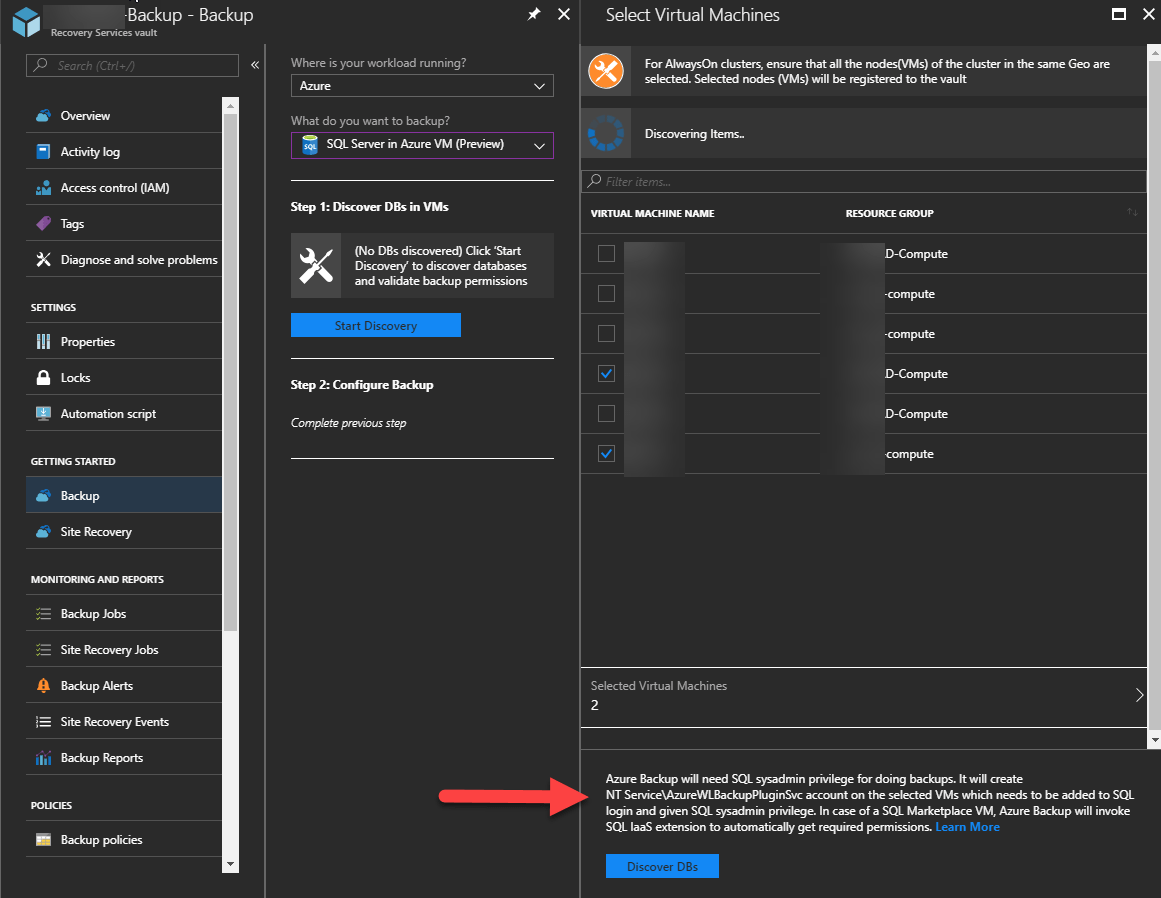
To start, open your vault, and choose SQL Server in Azure VM instead of Virtual Machines. As you can see, because VMs are deployed manually and not through the marketplace, I need to do manually some actions. Select a VM that contains a SQL Server :
https://i1.wp.com/cloudyjourney.fr/wp-content/uploads/2018/08/AzureSQL01.png?ssl=1

An extension will be deployed on each VM, to access databases :

https://i0.wp.com/cloudyjourney.fr/wp-content/uploads/2018/08/AzureSQL03.png?resize=1024%2C148&ssl=1

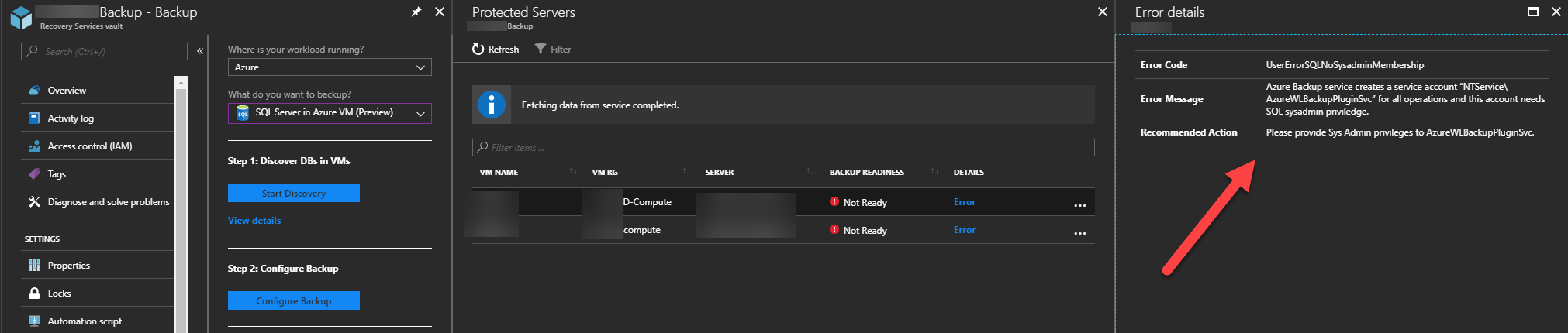
An error message will appear, to give you the instruction to add sysadmin rights, on instances that you want to backup, to the account created during the installation of the extension, NT Service\AzureWLBackupPluginSvc:
https://i1.wp.com/cloudyjourney.fr/wp-content/uploads/2018/08/AzureSQL02.png?ssl=1

Error Code : UserErrorSQLNoSysadminMembership
Error Message : Azure Backup service creates a service account “NT Service\AzureWLBackupPluginSvc” for all operations and this account needs SQL sysadmin priviledge.
Recommended Action : Please provide SysAdmin privileges to AzureWLBackupPluginSvc.
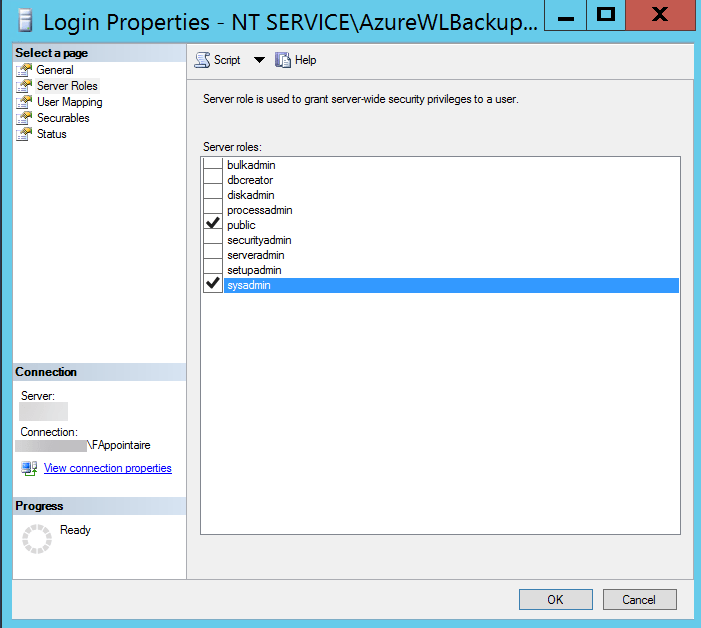
https://i0.wp.com/cloudyjourney.fr/wp-content/uploads/2018/08/AzureSQL04.png?ssl=1

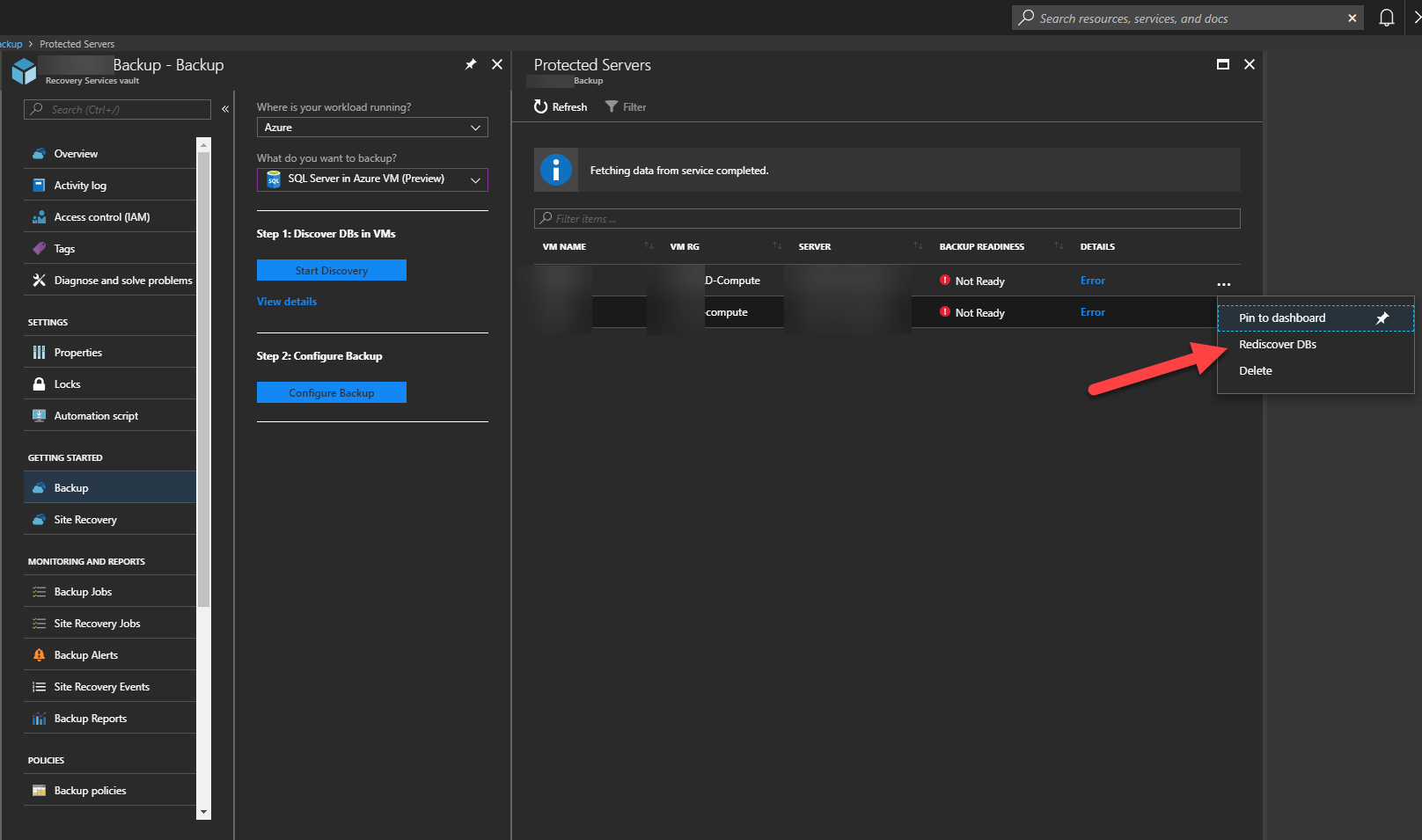
When it’s done, relaunch the scan of instances to discover databases :
https://i1.wp.com/cloudyjourney.fr/wp-content/uploads/2018/08/AzureSQL05.png?ssl=1

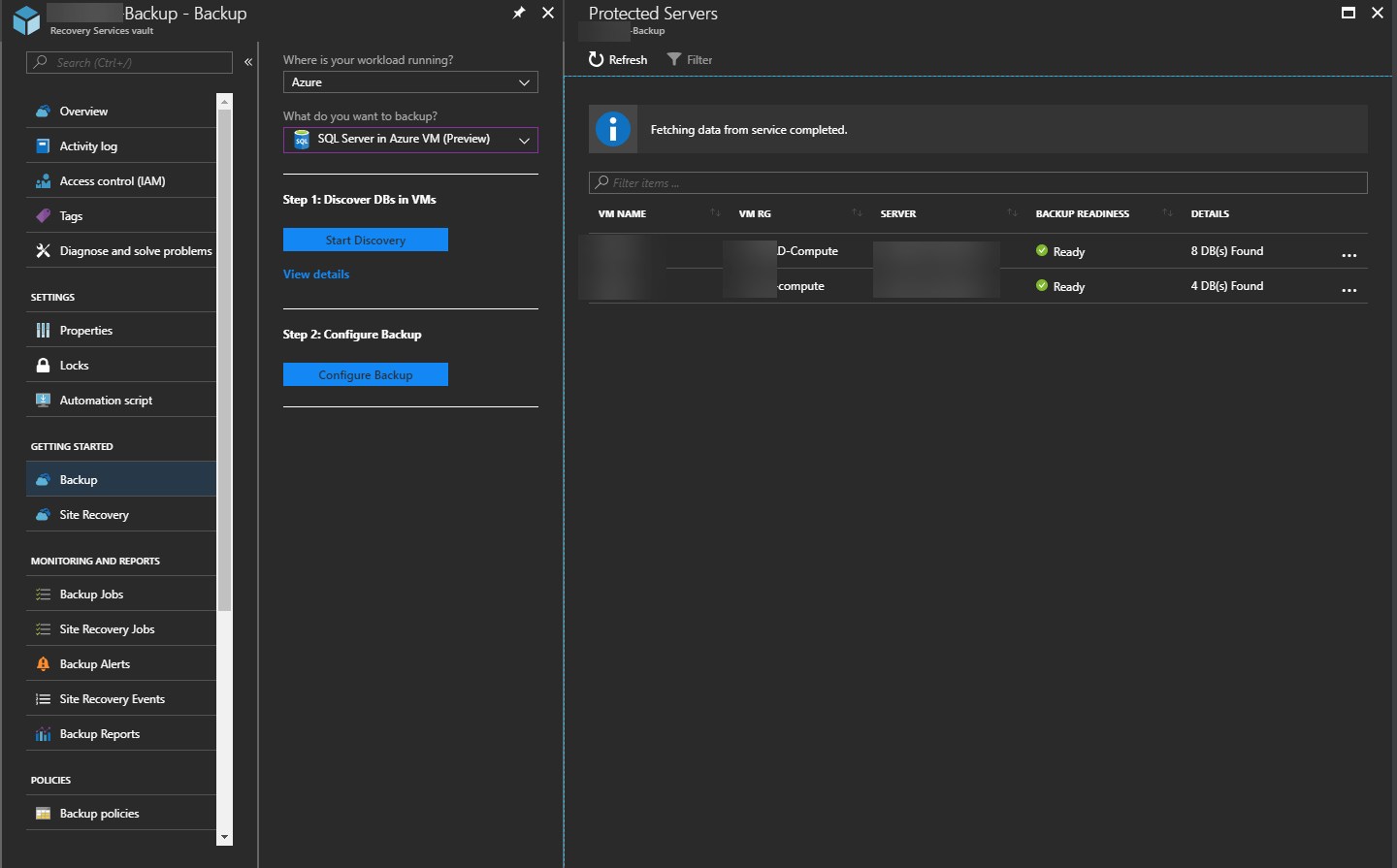
Databases have been discovered correctly :
https://i1.wp.com/cloudyjourney.fr/wp-content/uploads/2018/08/AzureSQL06.png?ssl=1

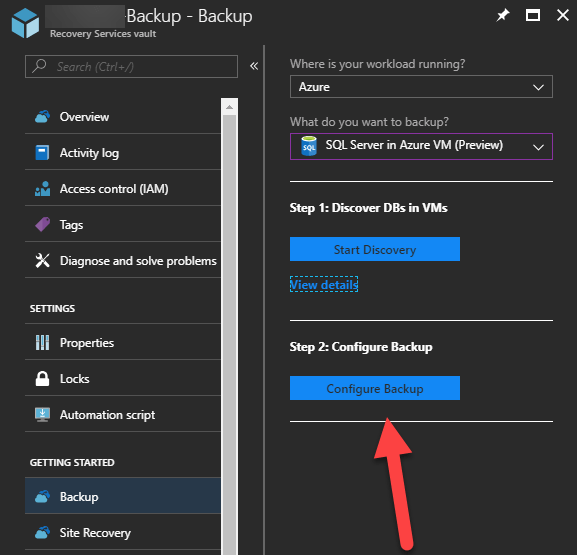
Click now on Configure Backup :

https://i2.wp.com/cloudyjourney.fr/wp-content/uploads/2018/08/AzureSQL07.png?ssl=1

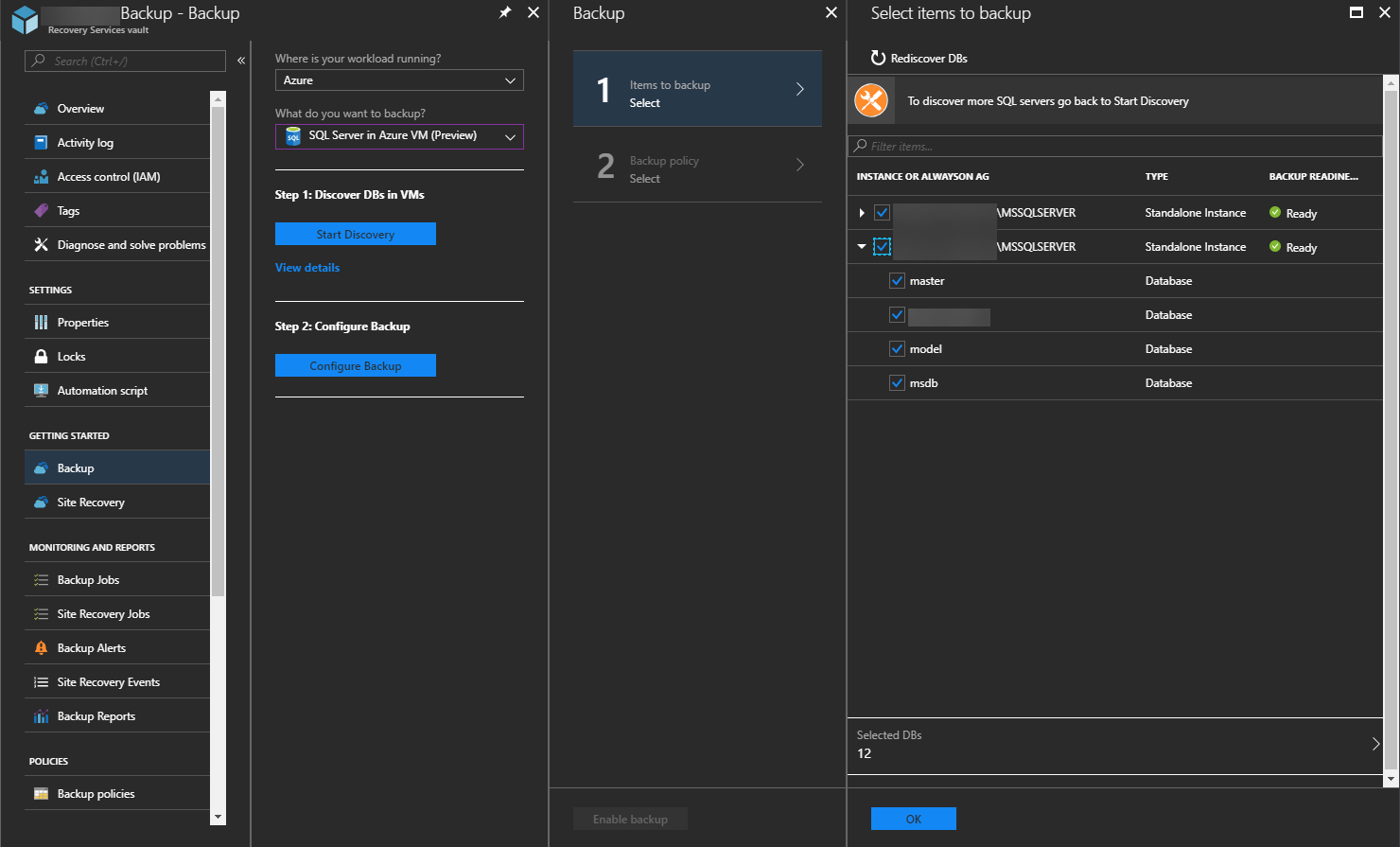
And choose databases to backup :

https://i1.wp.com/cloudyjourney.fr/wp-content/uploads/2018/08/AzureSQL08.png?ssl=1

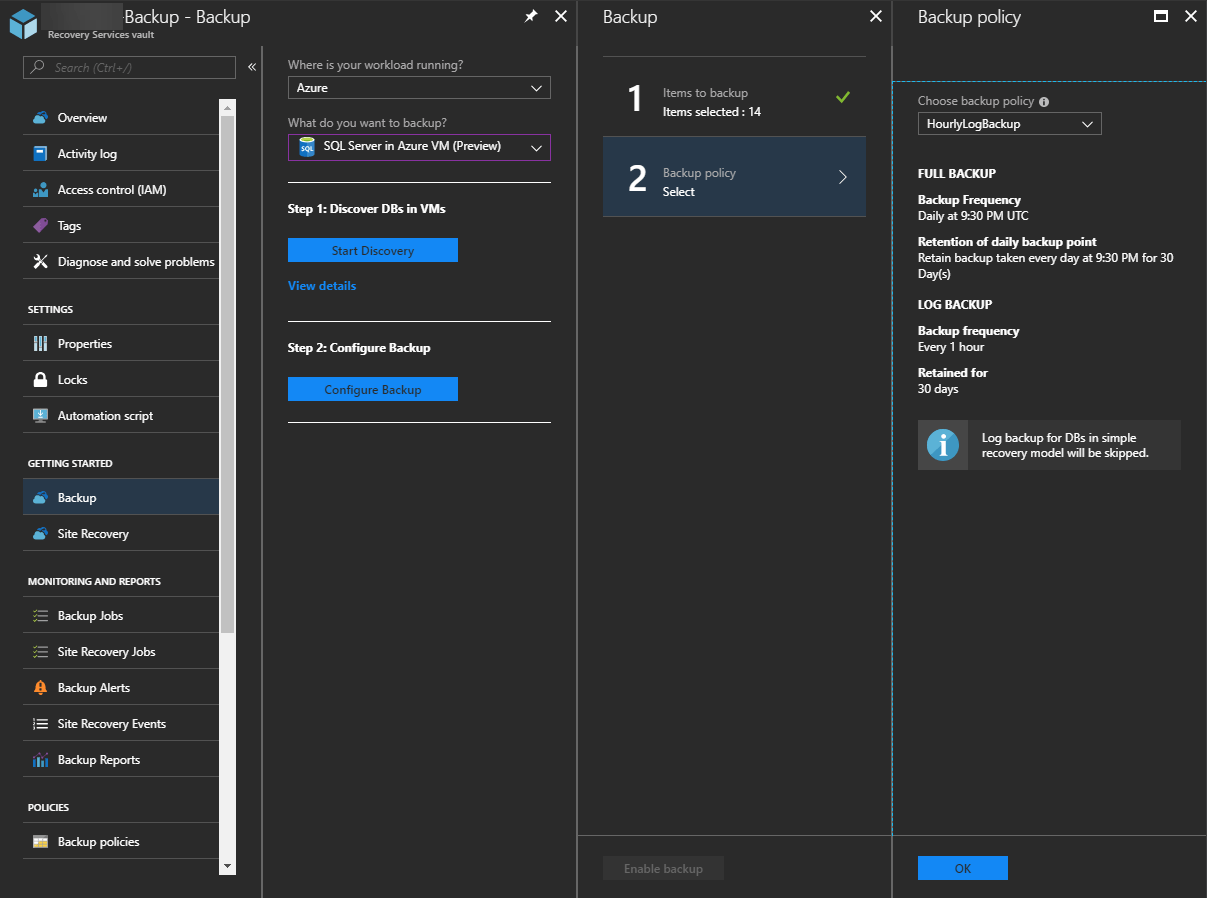
Choose a policy to backup logs :

https://i1.wp.com/cloudyjourney.fr/wp-content/uploads/2018/08/AzureSQL09.png?ssl=1

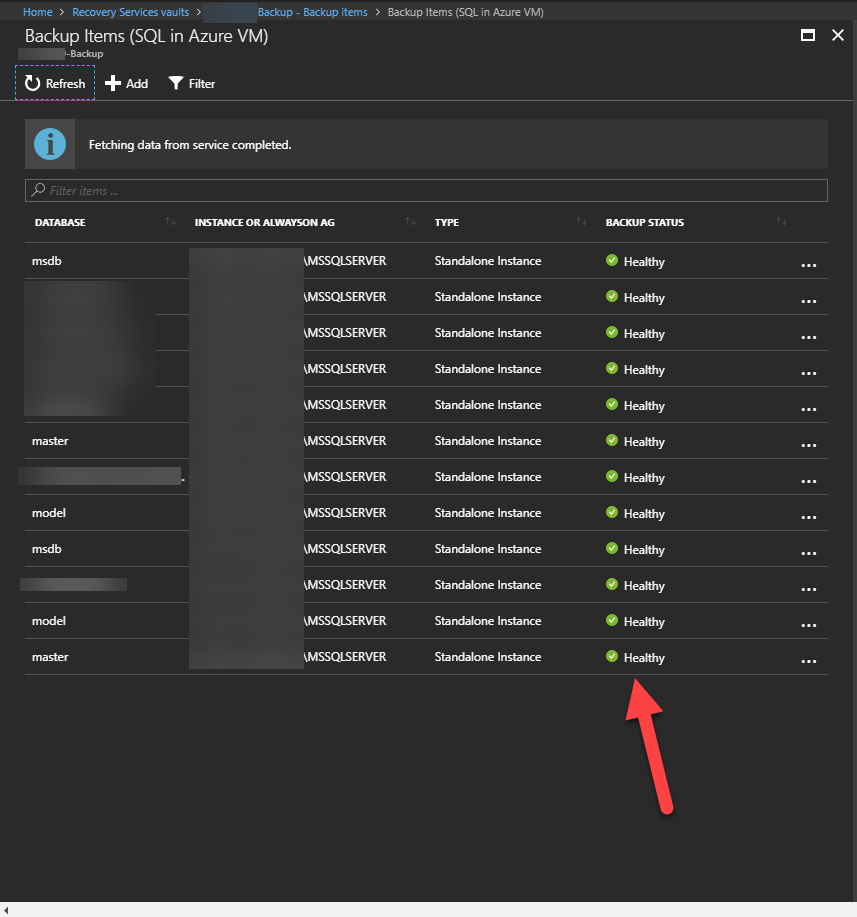
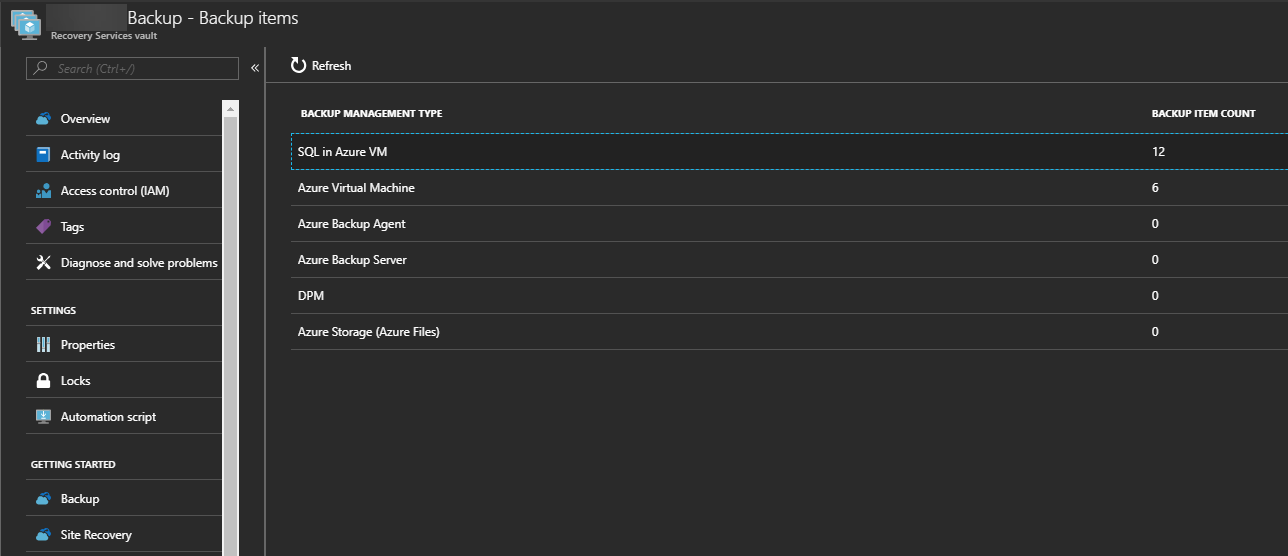
Our databases have been added to the backup successfully. Click on it to access them :
https://i0.wp.com/cloudyjourney.fr/wp-content/uploads/2018/08/AzureSQL10.png?ssl=1

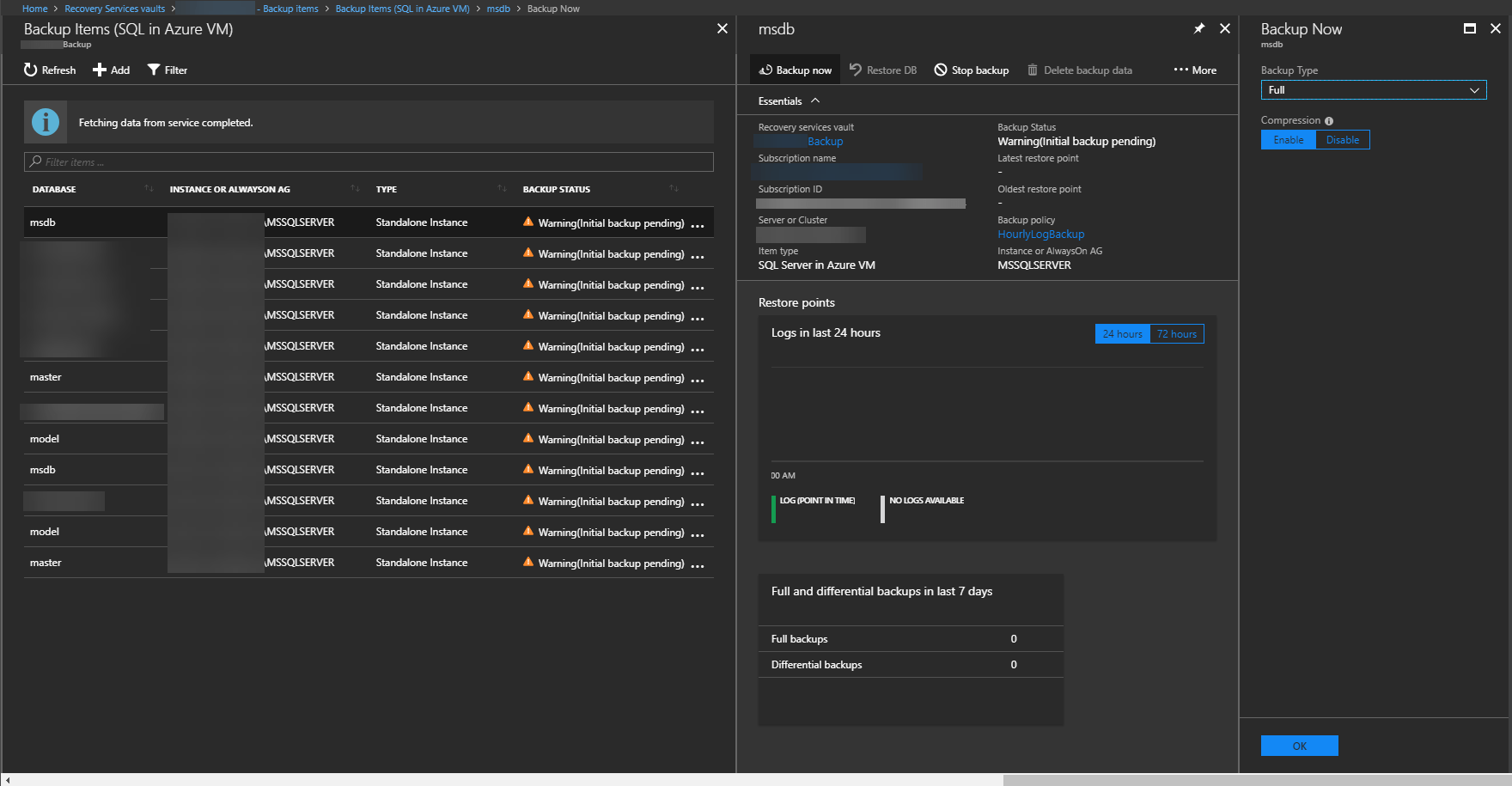
Choose a database and start a Full backup :
https://i0.wp.com/cloudyjourney.fr/wp-content/uploads/2018/08/AzureSQL11.png?ssl=1

All full backups worked correctly :

https://i1.wp.com/cloudyjourney.fr/wp-content/uploads/2018/08/AzureSQL12.png?ssl=1


Restore

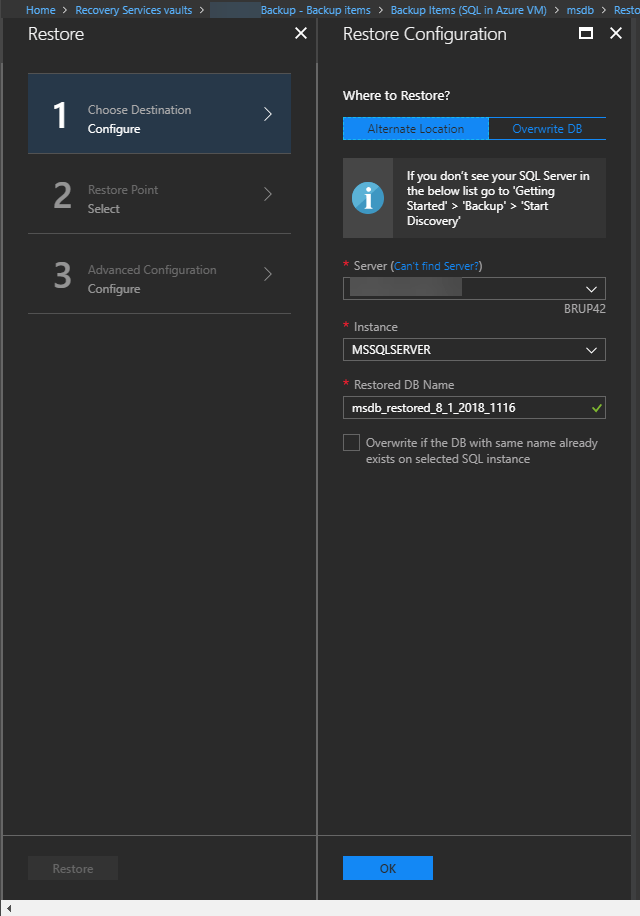
To restore a database, go on the database that you want to restore, and click on Restore. You can create a new database based on the backup, et replace the current database :
https://i2.wp.com/cloudyjourney.fr/wp-content/uploads/2018/08/AzureSQL13.png?ssl=1

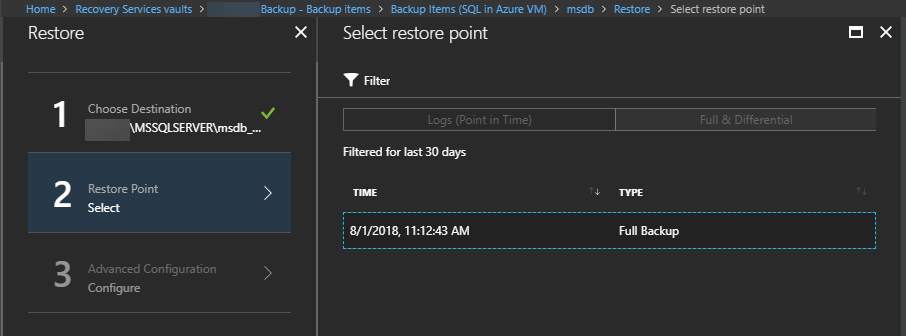
Select a restore point :

https://i2.wp.com/cloudyjourney.fr/wp-content/uploads/2018/08/AzureSQL14.png?ssl=1

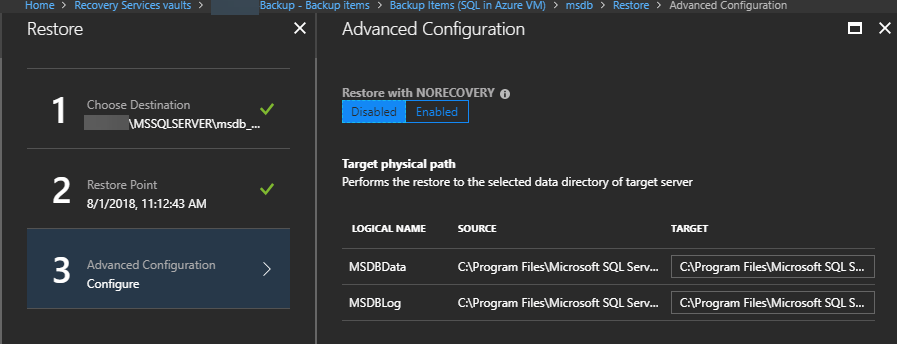
And where to restore this database :

https://i1.wp.com/cloudyjourney.fr/wp-content/uploads/2018/08/AzureSQL15.png?ssl=1

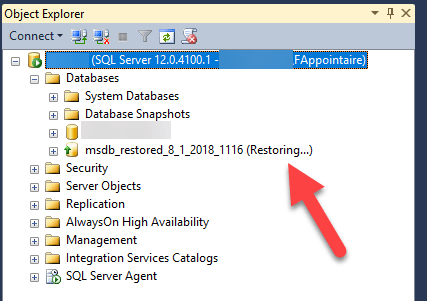
Restore of the database is in progress :
https://i1.wp.com/cloudyjourney.fr/wp-content/uploads/2018/08/AzureSQL16.png?ssl=1

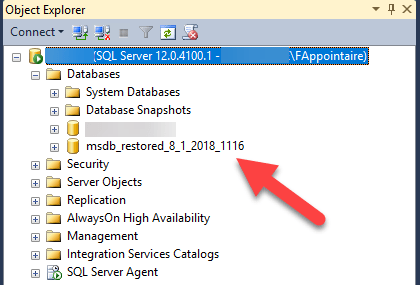
The database has been restored correctly :
https://i0.wp.com/cloudyjourney.fr/wp-content/uploads/2018/08/AzureSQL17.png?ssl=1

This new functionality is very interesting and is working smoothly for a preview. Adding of other databases types like Oracle, MySQL, PostGre, etc. could be very interesting.

 

Hey! Found Florent’s article helpful? Looking to deploy a new, easy-to-manage, and cost-effective hyperconverged infrastructure?
Alex Bykovskyi
Alex Bykovskyi StarWind Virtual HCI Appliance Product Manager
Well, we can help you with this one! Building a new hyperconverged environment is a breeze with StarWind Virtual HCI Appliance (VHCA). It’s a complete hyperconverged infrastructure solution that combines hypervisor (vSphere, Hyper-V, Proxmox, or our custom version of KVM), software-defined storage (StarWind VSAN), and streamlined management tools. Interested in diving deeper into VHCA’s capabilities and features? Book your StarWind Virtual HCI Appliance demo today!