
Windows 10 has been the reliable workhorse for millions of users since 2015. On October 14, 2025, Microsoft officially ended support. So if you did not opt for Extended Security Updates (ESU) which saves you until October 13, 2026, you have no more free security updates, no feature improvements, and no official technical help. Your PC will still boot and run, but it will become an increasingly attractive target for malware, ransomware, and other threats.
As someone who has been tinkering with hardware, virtualization, and operating systems for years, I’ve seen this cycle many times for older versions of Windows. Today I want to give you practical options – especially for home users and small businesses running perfectly usable older machines.
Option 1: Stay on Windows 10 with Extended Security Updates (ESU)
Microsoft offers a one-year Extended Security Updates program until October 13, 2026. This is not a full support extension – just critical security patches.
For home users / consumers: Enroll via Settings > Update & Security > Windows Update. Options include free if you sync settings with Windows Backup, redeem Microsoft Rewards points, or pay a one-time fee (around $30 USD equivalent).
For small businesses with domain-joined or managed machines, check commercial ESU options through volume licensing – these tend to be more structured and potentially costlier.
My take: This buys you one year of breathing room. It’s a good bridge if you need time to plan migration or hardware refresh. After 2026, you’re on your own unless Microsoft extends it again. Details about W10 ESU at Microsoft here.
Option 2: Force Windows 11 on Unsupported Hardware with Rufus
If you want to use W 11 on older PC (unsupported), know that you can. Many older PCs (pre-8th gen Intel, no TPM 2.0, etc.) are blocked from official Windows 11 upgrades. Rufus – the fantastic open-source tool – makes it easy.
Note: I have also written a post about Fly OOB utility which is another great tool that allows you to avoid the ISO downloads and modification. In fact, you don’t need no modified ISOs you’re scared to download. Just two official Microsoft files + one tiny portable app → modern Windows 11 on your old machine – Check our post Windows 11 on ANY Old PC in 2025: FlyOOBE 2.0 Makes It Easy. FlyOOBE 2.0 is the nicest thing anyone has done for older computers in a decade.
With Rufus, you’ll need to download the latest Windows 11 ISO from Microsoft, run Rufus, select the ISO, and in the options bypass TPM, Secure Boot, RAM, and CPU checks. Create the USB and boot up your system to install/upgrade to Windows 11.
Rufus is flexible. It creates modified Windows 11 installation media that bypasses the TPM/Secure Boot/CPU checks, and you can use it in two main ways:
1. In-place upgrade (keep your files, apps, and settings)
This is the most convenient option for most home users and small businesses.
- Create the bootable USB with Rufus (select the bypass options).
- While still running Windows 10, insert the USB, open it, and run setup.exe.
- During the setup wizard, you should see the option to “Keep personal files and apps”.
This works like a normal Windows 10 → 11 upgrade but on unsupported hardware. Many users successfully do this without losing anything. It’s the path I usually recommend first if your current Windows 10 installation is stable and not too cluttered. You can still debloat your Windows 11 afterwards with Windows ISO Debloater.
2. Clean install (fresh start)
You boot from the Rufus USB and wipe the drive (or a partition). This is cleaner long-term – especially on older hardware – because it removes years of accumulated junk, drivers, and registry clutter. However, you’ll need to reinstall your programs and restore your data from backup.
My practical advice (in the spirit of my blog):
- If your PC is working fine today → try the in-place upgrade first. It’s faster and less disruptive.
- If the machine feels slow, has random issues, or you’re moving from HDD to SSD → go for the clean install. The difference in snappiness can be noticeable.
Important notes:
- Always back up important data before any upgrade (OneDrive, external drive, or NAS).
- You can also perform an image-level backup (use Free Veeam Agent for Windows) and save the whole system to a file stored on an external USB drive.
- After installation (especially in-place), Windows Update should still work on unsupported hardware for now, though Microsoft can change this in the future.
- Test performance after the upgrade. On borderline old hardware, even the in-place version of Windows 11 can feel a bit heavier than Windows 10.
The reality check on performance: On older hardware, Windows 11 often feels noticeably heavier than Windows 10. Higher idle RAM usage, more background processes, more active services, and a more demanding UI can make the system sluggish – especially on 8 GB RAM machines, mechanical HDDs, or older CPUs. Fans spin up more, battery life drops, and everyday tasks feel less snappy. Test thoroughly (dual-boot or VM) before committing. For small businesses, weigh security gains against productivity hits.
Option 3: Switch to Linux – The Smart Long-Term Play for Old Hardware
Linux has matured tremendously and often breathes new life into older PCs.
Why Linux shines here:
- Lightweight distributions run beautifully on hardware that struggles with modern Windows.
- Years of security updates, free, no forced upgrades.
- Excellent for browsing, documents, media, and many business tasks.
Recommendations:
- Linux Mint Cinnamon or Ubuntu – Most Windows-like for beginners.
- Linux Mint XFCE or Xubuntu – For low-spec machines.
- Pop!_OS or Fedora – Strong hardware support.
- Or Deepin Linux or Winux (looks like Windows tbh).
For small businesses: Non-critical machines (kiosks, admin stations) migrate well. Test line-of-business software; use web versions or VMs for anything Windows-only.
Office and Outlook on Linux: The Big Question for Home Users and SMBs
This is often the make-or-break point when considering Linux. Many home users and small businesses rely on Microsoft Office files and Outlook for email, calendars, contacts, and collaboration. More often than not, years and years of emails are usually archived in large PST files stored locally on each Workstation (hopefully those important files are backed up?).
For general Office work: LibreOffice is the star. It’s free, handles .docx, .xlsx, and .pptx files very well for most needs, and comes pre-installed on many distros. OnlyOffice is another strong contender – especially its desktop version – with a cleaner, more Microsoft-like interface and excellent collaboration features in the paid/self-hosted versions. For simple needs, the web versions of Microsoft 365 work fine in any Linux browser.
LibreOffice is the most prominent completely free, open-source European desktop office suite, offering strong compatibility with Microsoft formats but lacking built-in cloud collaboration.
For browser-based, real-time collaborative suites, CryptPad (France) and Drime (France) are the top low-cost options, with CryptPad offering a robust free tier for encrypted document editing and Drime providing affordable plans starting at €2.39 per month for comprehensive cloud storage and team features.
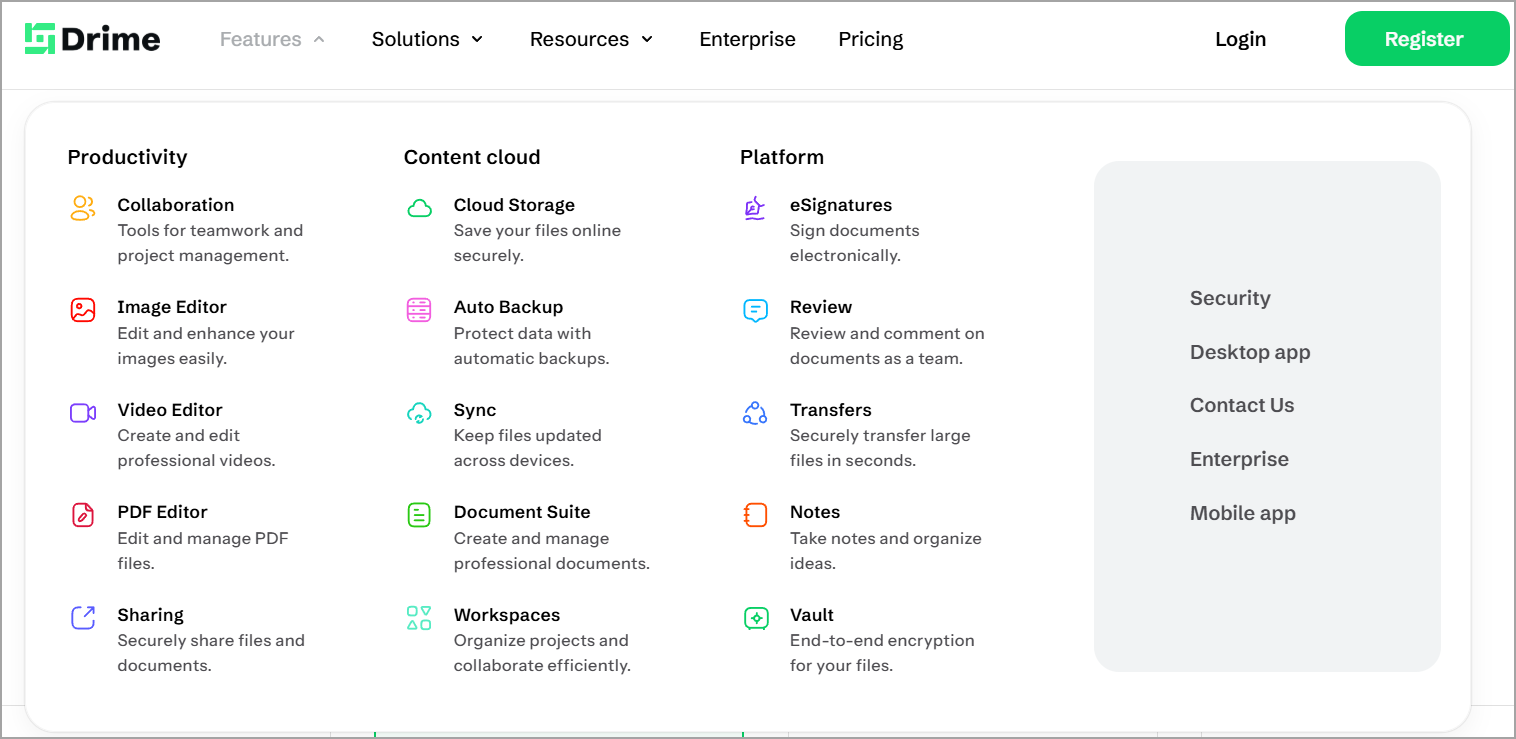
Staying in the Microsoft 365 collaborative ecosystem: You don’t have to abandon M365 entirely. The full web apps (Word, Excel, Teams, etc.) run smoothly on Linux via Chrome, Firefox, or Edge.
Many users create Progressive Web Apps (PWAs) or use tools like Web Apps in Linux Mint to make them feel more like desktop programs. This keeps real-time collaboration, shared calendars, and OneDrive intact without installing anything heavy. The main limitations are slightly fewer advanced features compared to native desktop apps and the need for a reliable internet connection.
Outlook replacements:
- Thunderbird (free, from Mozilla) is the go-to for most Linux users. It handles multiple accounts, calendars (via add-ons), and tasks well. With the OWL add-on (paid), it integrates nicely with Exchange/Outlook.com accounts.
- Evolution is another solid choice, especially if you need deeper Microsoft Exchange support.
- For a modern look, try Mailspring.
These aren’t perfect 1:1 clones of Outlook’s full feature set (especially complex rules or shared mailboxes in larger setups), but they cover 80-90% of what most home users and small businesses actually need.
What about old PST archive files? Outlook’s proprietary PST format isn’t directly readable everywhere, but Linux has good tools. The easiest graphical way is Evolution – it has a built-in PST importer.
Evolution is the only client on Linux that fully supports Microsoft exchange and Google out of the box without any plugins.
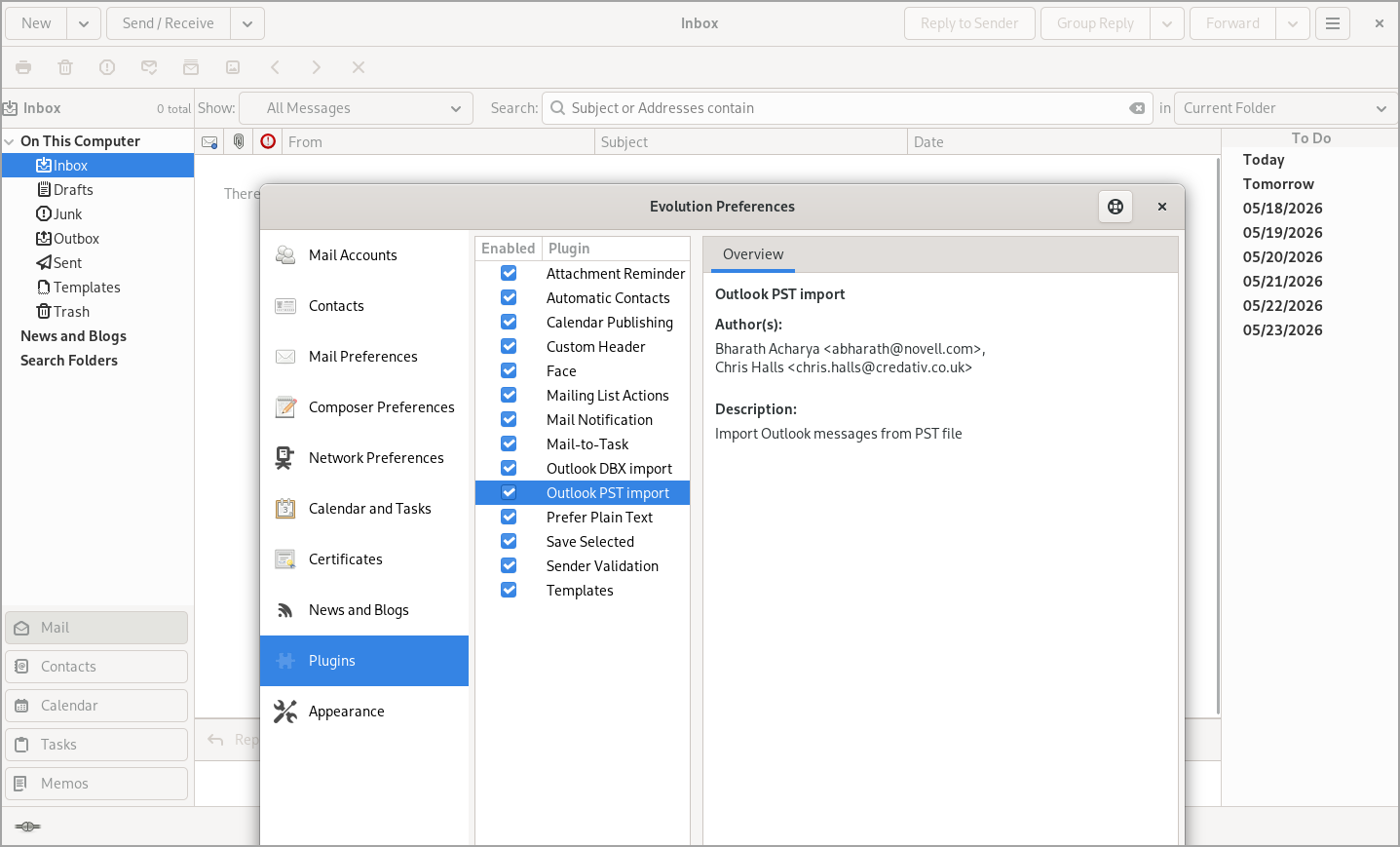
Command-line users can install pst-utils (contains readpst) to export emails to standard mbox format for import into Thunderbird or other clients. This works reliably for archived emails, contacts, and calendars in most cases.
Cheaper collaborative alternatives to full M365:
- OnlyOffice (Community Edition free for small teams) or self-hosted Nextcloud with office apps.
- Google Workspace — Affordable and excellent real-time collaboration.
- Zoho Workplace — Often cheaper than Microsoft for small businesses with strong email and docs.
For many small businesses, a mix works best: LibreOffice/OnlyOffice for local work + M365 web or a lighter cloud suite for collaboration. Test your key workflows first – most people adapt quickly.
If you care about data, privacy and
What to Do with Your Old Hardware – Practical Decisions
- Still good daily driver? → Linux first, or Windows 10 + ESU for one year.
- Needs specific Windows software? → Windows 11 via Rufus (test performance) or isolated Windows 10 machine.
- Really ancient? → Repurpose as NAS, media server, or lightweight Linux desktop.
- Business critical? → Plan a hardware refresh where compliance demands it.
Final Words
Don’t panic-buy new hardware. Many 2015–2020 machines still have life left. Windows 10 ESU gives breathing room, Rufus unlocks Windows 11 (with caveats), but Linux often delivers the best performance and longevity – especially when paired with LibreOffice, Thunderbird/Evolution Email clients, and selective use of M365 web apps.
Evaluate your real needs (Office compatibility, email archives, collaboration), test in a live USB session, and choose what keeps you secure and productive without unnecessary cost.
Linux OS got much better than 10 years ago. While 10 – 15 years ago the integrations were sometimes with rough edges, things got smooth over time with apps that are usable, clean and can replace Microsoft’s tools for a fraction of the cost. We live in a world where you can save money on unnecessary paid licenses. Think of it!
FAQ
What happens after Windows 10 end of support?
Your PC will still work, but it no longer gets regular security updates, feature updates, or technical support from Microsoft unless you enroll in ESU.
Can I keep using Windows 10 safely?
Yes, but only as a temporary option. ESU can buy more time, but it does not add new features or full technical support.
Can I install Windows 11 on unsupported hardware?
Yes, tools like Rufus can bypass some Windows 11 hardware checks, but performance and future update behavior should be tested first.
Is Linux a good option for old PCs?
For many older machines, yes. Lightweight Linux distributions can be faster than modern Windows and still cover browsing, office work, media, and basic business tasks.
Should small businesses replace old Windows 10 PCs?
Not always. Non-critical machines may be upgraded, moved to Linux, or repurposed. Business-critical devices should be reviewed for security, compliance, software needs, and performance.