In the latest Windows Server update released in December, Microsoft introduced native NVMe support. Previously, NVMe storage (and other storage devices in Windows) has been handled using the SCSI-based storage stack, which has several limitations.
In this article, we explain what the new native NVMe support actually means, how it differs from previous Windows Server storage driver implementations, and what has changed in the Windows storage stack. We will also walk through how native NVMe support can be enabled and examine the practical impact on key workloads such as Storage Spaces Direct (S2D), SQL Server, and other disk-intensive applications, including potential performance implications.
It is also important to point out that while this feature is currently supported in Windows Server, it can also be enabled on Windows 11. However, the native NVMe driver is not BypassIO-compatible at this time.
The Windows Storage Stack
In Windows, storage is handled by many different components. One of the most critical components is the storage port driver.
What Is a Storage Port Driver?
A storage port driver is a core component in the Windows storage stack that acts as an abstraction layer between different storage class drivers (such as disk, tape, or even DVD) and the underlying storage hardware. Its primary purpose is to hide hardware-specific details of the host bus adapter (HBA), allowing class drivers to operate consistently across different storage technologies.
In Windows, the storage port driver receives I/O requests in the form of SCSI Request Blocks (SRBs) from class or filter drivers and forwards them to a hardware-specific Storport miniport driver, which handles direct communication with the HBA. The port driver also manages synchronization and access to the storage bus, ensuring that multiple devices and drivers can operate safely and efficiently.
NVMe via SCSI – The Legacy Approach
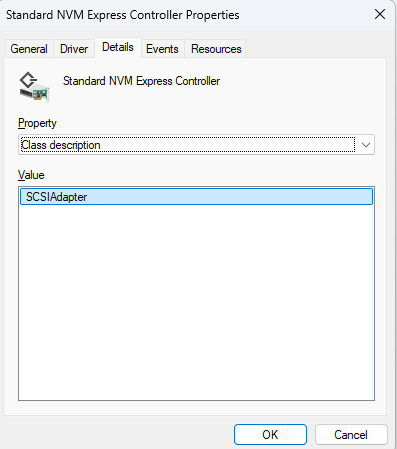
Until now, NVMe devices in Windows Server and Windows 11 have relied on the SCSI storage port driver, because there was no native NVMe storage port driver available. This meant that all NVMe commands were translated into SCSI commands, which introduced additional processing overhead and increased latency.
NOTE: You can read more about NVMe-to-SCSI translation here.
Why SCSI Translation Is a Bottleneck
Another challenge is that modern NVMe storage is significantly faster than legacy disk technologies. High-end NVMe SSDs can deliver millions of IOPS, but traditional SCSI-based protocols were designed for spinning disks and rely on a single, limited command queue.
NVMe was built specifically for flash storage and removes this bottleneck by supporting up to 64,000 parallel queues, each capable of handling tens of thousands of commands. This design enables far greater parallelism, lower latency, and improved scalability.
What Changed in Windows Server 2025?
So what changed? With the release of October’s latest cumulative update for Windows Server 2025, Microsoft introduced native NVMe drivers using an opt-in model. This means the feature is not enabled by default, but the capability is now available in the operating system.
How to Enable Native NVMe Support
Because this feature is opt-in, manual configuration is required to activate the new NVMe storage port driver.
IMPORTANT NOTE: This feature has shown issues on systems with data deduplication enabled. If you rely on deduplication, it is recommended to wait for a future release until the feature matures.
Step 1 – Install the Latest Cumulative Update
Install the 2510-B Latest Cumulative Update for Windows Server 2025.
Step 2 – Enable the Feature Flag in the Registry
Run the following command to enable native NVMe support:
reg add HKEY_LOCAL_MACHINE\SYSTEM\CurrentControlSet\Policies\Microsoft\FeatureManagement\Overrides /v 1176759950 /t REG_DWORD /d 1 /f
You should also add the following registry keys to ensure that the storage class driver functions correctly if the system boots into Safe Mode:
reg add "HKLM\SYSTEM\CurrentControlSet\Control\SafeBoot\Network\{75416E63-5912-4DFA-AE8F-3EFACCAFFB14}" /ve /d "Storage Disks" /f

reg add "HKLM\SYSTEM\CurrentControlSet\Control\SafeBoot\Minimal\{75416E63-5912-4DFA-AE8F-3EFACCAFFB14}" /ve /d "Storage Disks" /f
Rollback NOTE: If you need to revert to the legacy SCSI-based approach, simply delete the feature flag:
reg delete HKEY_LOCAL_MACHINE\SYSTEM\CurrentControlSet\Policies\Microsoft\FeatureManagement\Overrides /v 1176759950 /f
Step 3 – Restart the Server
Restart the server.
After reboot, the nvmedisk.inf driver will be loaded, and NVMe disks will appear in Device Manager under Storage devices.

Verifying NVMe Driver Usage
You can also verify that NVMe drivers are active using the following PowerShell script:
Get-PnpDevice | Where-Object { $_.FriendlyName -match "NVMe" -or $_.InstanceId -match "NVMe" } | Select-Object Status, Class, FriendlyName, InstanceId | Format-Table -AutoSize
Important: This feature has no effect if you are using vendor-specific NVMe drivers. Many hardware vendors provide their own NVMe drivers, and native NVMe support only applies when using Microsoft’s inbox storage drivers.
H2: Important Considerations Before Production Use
Because this feature is currently opt-in, it should be treated as pre-production-ready for most environments. Thorough testing is strongly recommended across all relevant workloads.
Performance Validation with DiskSpd
To validate performance improvements, you can use Microsoft’s DiskSpd benchmarking tool, which you can find here.
Example test command:
diskspd.exe -b4k -r -Su -t8 -L -o32 -W10 -d30
Parameter Breakdown
- -b4k
Block size of 4 KB per I/O operation. This simulates small, random I/O typical for databases, OS workloads, and many application logs.
- -r
Random I/O access pattern. Instead of sequential reads/writes, DiskSpd will access blocks randomly across the target.
- -S
Disables software caching (bypasses the OS cache). Ensures I/O goes directly to the storage device, giving a more accurate view of raw disk performance.
- -u
Uses unbuffered I/O. This further enforces direct disk access without filesystem caching effects.
- -t8
Uses 8 threads per target file. Increases concurrency and helps simulate multi-threaded workloads.
- -L
Measures and reports latency statistics. This includes average, min/max, and percentile latencies.
- -o32
Queue depth of 32 outstanding I/O requests per thread. This stresses the storage system and is especially relevant for NVMe disks.
- -W10
Warm-up time of 10 seconds. DiskSpd runs the test but does not collect metrics during this period, allowing caches and queues to stabilize.
- -d30
Test duration of 30 seconds (excluding warm-up). Metrics are collected during this time window.
Known Issues and Workload Impact
While early benchmarks show impressive performance gains, this feature must be validated against real-world workloads such as:
- SQL Server
- File Servers
- Storage Spaces Direct (S2D)
- Backup applications
- Cluster Shared Volumes (CSV)
So be sure to test this properly before enabling it for production.
Multiple users have also reported issues when data deduplication is enabled on volumes using the new NVMe driver. This is another reason to proceed cautiously.
Summary
The latest Windows Server 2025 update introduces native NVMe storage support, representing a significant advancement in Windows storage performance. Instead of translating NVMe commands through the old, slow SCSI-based driver, Windows now uses a direct NVMe driver. This change removes a significant bottleneck, allowing flash storage to deliver its true potential with much higher performance and lower latency.
The feature is currently opt-in, requiring a registry tweak and a restart. However, thorough testing is essential before using it in production environments.
This native NVMe support is just the beginning, as it represents the first element of a new storage stack introduced by Microsoft, indicating that more features are expected to be built upon this foundation over time.