


Hey VMware admins! VMware vSphere 9.0, launched in 2025, brings us Virtual Hardware Version 22, an update for virtual machines (VMs) running on ESXi 9.0 and later. This version is built for modern workloads—think AI, machine learning, or heavy-duty databases. Whether you’re managing a sprawling data center or a small virtual environment, Version 22 packs some upgrades.
In this post, I’ll break down what Virtual Hardware Version 22 offers, explain what VMware Virtual Hardware Versions are all about, and highlight the components they expose to VMs. Plus, I’ve got a handy table at the end listing versions from newest to oldest, showing what’s new in each. At the end we’ll also talk about licensing and Host client changes. Let’s dive in!
What Is VMware Virtual Hardware Versions?
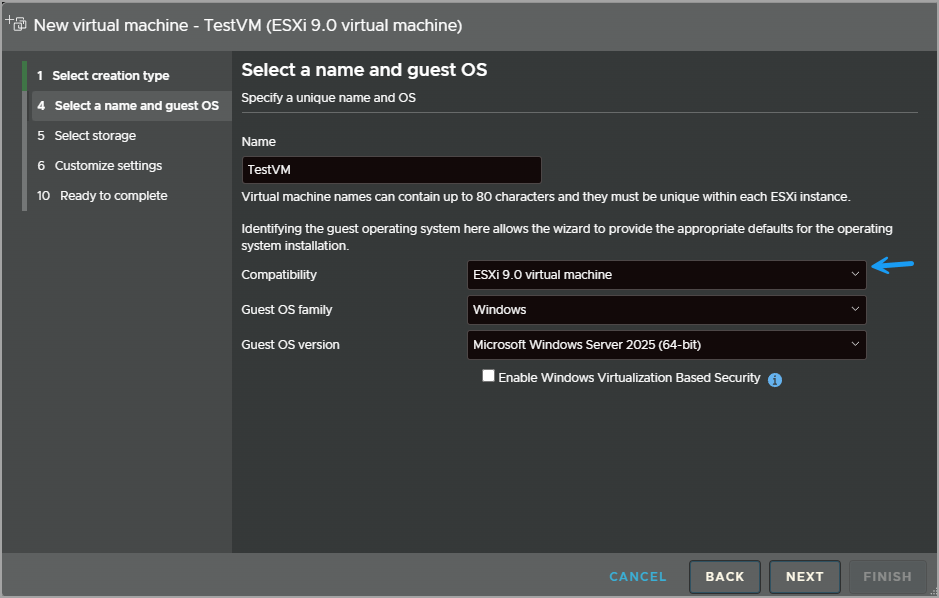
If you’ve been around VMware for a while, you know Virtual Hardware Versions are the backbone of VM configuration. They define the virtual hardware a VM can use—CPUs, memory, storage controllers, network adapters, you name it. Each version ties to a specific ESXi and vSphere release, setting the stage for what features and performance your VM can tap into. When you spin up a new VM or upgrade an existing one, you pick a compatibility level (like “ESXi 9.0 and later”), which maps to a hardware version (Version 22 for vSphere 9.0). This choice locks in the VM’s capabilities and ensures it runs on compatible hosts.
Why does this matter? Here’s the deal:
Compatibility: Newer versions need newer ESXi hosts. You gain cutting-edge features but lose the ability to run on older hosts.
Performance: Higher versions leverage modern hardware emulation for better efficiency.
Features: Each jump introduces new goodies, like beefier resource limits or advanced storage options.
Upgrading to a newer version can supercharge your VMs, but it’s not a one-size-fits-all decision. You’ll need to check host compatibility and guest OS support to avoid headaches. I always recommend testing upgrades in a lab first—better safe than sorry!
Virtual Hardware Version 22: The Highlights
Virtual Hardware Version 22, rolled out with vSphere 9.0 and ESXi 9.0, is all about powering next-gen workloads. Based on VMware’s official docs, here’s what’s new and why it’s worth your attention:
NVMe Controller: Version 22 uses NVMe 1.3c as the default controller for Windows Server 2022, Windows 11, and newer guest OSes. This means faster storage performance for your VMs.
You can add up to 4 NVMe controllers, each supporting 15 devices—perfect for storage-heavy apps.
PCI Passthrough: Supports up to 128 PCI passthrough devices. Need GPUs for AI or specialized network gear? This has you covered.
Massive CPU and Memory Limits: Offers up to 768 virtual CPUs and a whopping 24 TB of RAM. Whether it’s a monster database or an AI training cluster, Version 22 can handle it.
Big VMs: VMs with over 128 logical processors require UEFI firmware, so plan accordingly.
Graphics and USB Upgrades: Delivers Direct3D 11.0 and OpenGL 4.0 with the VMware WDDM driver for Windows guests, great for visualization or VDI setups.
Includes a USB 3.x controller by default, with an optional USB 2.0 controller (UHCI for USB 1.x, EHCI for USB 2.0) for older peripherals.
UEFI or BIOS is chosen based on the guest OS, but for OSes that support both, you can switch firmware before installing the OS—no need to start from scratch.
No more Parallel Ports: Parallel ports are gone in Version 22, reflecting their obsolescence. Serial ports stick around, with up to 32 per VM, configurable for physical, file, or network connections.
Nested Virtualization Support: You can run nested hypervisors like Microsoft Hyper-V for Virtualization-Based Security (not multiple VMs). Check VMware KB article 2009916 for the fine print.
Version 22 is the latest version, but it is only available on ESXi 9.0, so after some testing, you might be able to upgrade.
Components Exposed by Virtual Hardware Versions
So, what’s under the hood of a Virtual Hardware Version? It’s all about the virtual components that mimic physical hardware, giving your VM a consistent environment. Here’s the lineup:
- CPU: Defines virtual CPUs, cores per socket, and hardware-assisted virtualization (Intel VT-x, AMD-V).
- Memory: Sets max RAM and features like memory hot-add.
- Storage Controllers: Includes SCSI (PVSCSI, LSI Logic), SATA, and NVMe, with different device limits.
- Network Adapters: VMXNET3, E1000, with extras like SR-IOV or Uniform Passthrough.
- Graphics: Direct3D, OpenGL, and vSGA for shared GPU acceleration.
- USB Controllers: USB 1.x, 2.0, or 3.x for connecting peripherals.
- Firmware: BIOS or UEFI, impacting boot and OS compatibility.
- Other Devices: Serial ports, PCI passthrough, virtual TPM, and more.
Newer versions like 22 bring modern components (hello, NVMe 1.3c!) and drop outdated ones (like parallel ports) to keep up with today’s tech.
Upgrading to Version 22: Some Tips
Ready to upgrade to Version 22? It’s tempting, but hold your horses—here’s what to consider:
- Host Compatibility: You need ESXi 9.0 or later. Older hosts won’t cut it.
- Guest OS Support: Check if your OS supports NVMe 1.3c or UEFI firmware.
- VMware Tools: Update to the latest version to keep things smooth.
- Backup and Test: Snapshot your VMs and test upgrades in a lab. Upgrading is a one-way street unless you restore a backup.
If your environment includes older hosts, you might stick with a lower version for flexibility. Plan smart to avoid downtime!
What’s New in Each Version of Virtual Hardware?
Below is a table listing Virtual Hardware Versions from newest (22) to oldest, with a column highlighting what’s new in each, based on VMware’s documentation. It’s designed to help you see the evolution of features at a glance.

VMware Tools v13
When you’ll start using ESXi 9.0, you’ll want VMware Tools 13. The latest release aligned obviously with vSphere 9.0. This driver and utility suite optimizes VM performance, enabling seamless integration with ESXi hosts. VMware Tools 13 enhances network and storage drivers for NVMe 1.3c, improves graphics rendering for Direct3D 11.0, and ensures compatibility with Windows Server 2025 and Windows 11 guests.
It’s also critical for features like time sync and VM snapshots. When using Version 22 of virtual hardware, make sure to have/install/update to VMware Tools 13 to keep your VMs at their best performance.
ESXi 9.0 Host client changes
VMware Host client has a new version in ESXi 9.0. In fact, the VMware Host Client version aligns with the VCF unified version format (9.0.0.0), replacing the previous, less clear versioning, such as 2.18.0. But there are also other changes, such as changes to the license management or FC NVIP functionality.

Quote:
The license management functionality has been removed, and you no longer license VMware Host Client manually. Starting with VCF 9.0, product components are licensed automatically after you license the vCenter instance connected to the component.
The Fiber Channel NVIP functionality has been removed, starting with ESX 9.0 and later hosts
In fact, starting with version 9 of ESXi/vSphere, the product components are licensed automatically after you license the host vCenter instance connected to the component. You no longer license VMware Host Client manually.
Actually, License keys are no longer used. To license your environment, you purchase a term-based subscription for a product, with a specified capacity. A license is an object that entitles you to use the products that you purchased subscriptions for. A license can span multiple subscriptions or, when you split the default license, a license can be a portion of a subscription.
Source:
Broadcom vSphere 9.0 Admin guide
Final Words
Virtual Hardware Version 22, launched with vSphere 9.0 and ESXi 9.0, is the latest one for modern workloads, from NVMe 1.3c storage to great PCI passthrough capabilities. Understanding Virtual Hardware Versions helps you make smart choices for your VMs, balancing performance and compatibility. The table above gives you a quick look at what’s new in each version, starting with the latest. Ready to upgrade? Double-check your hosts and OS support, and test thoroughly.
