


vSphere has had a feature called host profiles in the past. Host profiles has started back with vSphere 4.0 then improving them up to 8.0 U2 (Tech Preview) where the direct configuration edits were introduced rather than relying on JSON files only.
The 8.0 U3 has brought a major update allowing Configuration Profiles to support baseline-based clusters, making them more versatile. Since then, host profiles stay the legacy feature and Configuration profiles are the way to go.
However, even now, VMware continues to work on Configuration Profiles with as a goal for full automation and broader compatibility. If you were using host profiles in the past but not switched to Configuration profiles yet, here are some tips which you might find useful.
vSphere configuration profiles are the way to make sure that all your hosts within your clusters are configured the same way and you don’t have a configuration drift.
Limitations of Configuration profiles
Before you jump in and start using this feature, you should know that there are also some limitations.
- You can’t enable vSphere Configuration Profiles if NSX is also enabled for the cluster.
- You can’t enable this feature with cluster equipped with Data Processing Units (DPU).
- If you want to use (or are using) vDS, you must be on 8.0U3 on all hosts in your cluster and also vCenter server must be on 8.0 U3.
- Baseline-based clusters are now supported, but some advanced networking features may still require manual intervention.
- Once you activate Configuration profiles, those cannot be deactivated later.
- You must have a vSphere Enterprise Plus license to use this feature.
Note: During first cluster creation, you should Enable vSphere Configuration Profiles During Cluster Creation.
Quote:
When you enable vSphere Configuration Profiles during the cluster creation operation, the cluster is created with an empty configuration. To create a desired cluster configuration, you must add at least one host to the cluster that you manage with baselines. Then you must select a reference host from which the configuration schema and the configuration settings are extracted and imported to the cluster as the desired cluster configuration. The reference host must be part of the cluster managed with baselines and must be of version 8.0 Update 3 and later.
And you can read there that:
Managing the configuration at cluster level using vSphere Configuration Profiles, ensures that all hosts in the cluster have the same settings, and eliminates the need for configuring the hosts manually, which enables smooth and easy operation at scale.
And that’s what you need, right?
Here are Steps to Transition from Host profiles to Configuration profiles
Verify Compatibility
- Make sure that your vCenter Server and ESXi hosts are running vSphere 8.0 Update 3 or later.
- If your cluster uses vSphere Distributed Switch (vDS), confirm that all hosts are on vSphere 8.0 U3.
- NSX-enabled clusters are not yet supported.
Prepare Your Cluster
- If your cluster is managed with baselines, you do not have to convert it to image-based lifecycle management. There is a webpage which will walks you through the process of transition to using vSphere Configuration profiles.
- Make sure all hosts in the cluster are compliant with the image before proceeding.
- Create a reference host configuration first, then extract Configuration from this Reference Host.
Navigate to Cluster > Configure > Configuration in the vSphere Client.
Select Extract from Reference Host to generate a JSON-based configuration file.
Import and Validate Configuration
Go to Cluster > Configure > Desired State > Configuration > Settings > Import.
Validate the configuration and ensure it applies correctly across all hosts.
Enable Configuration Profiles
Run a pre-check to confirm the configuration can be applied.
Enable Configuration Profiles and remediate the cluster against the new configuration.
If you creating new cluster, you can continue to use baselines and chose configuration profiles.

You should then select a reference host from which vSphere will extracts settings.
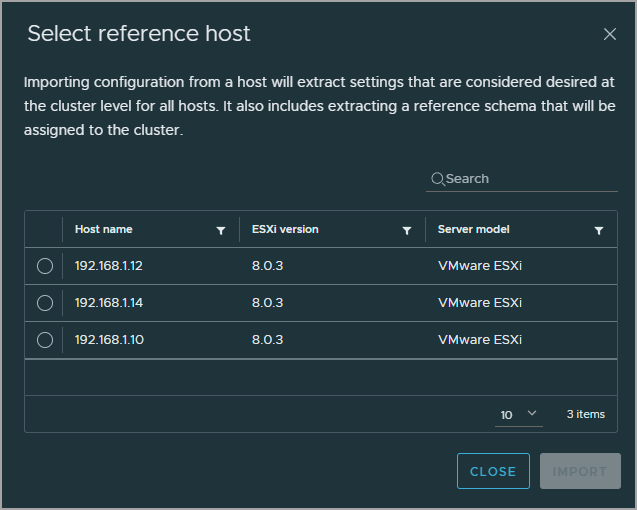
After importing, you should see the settings, and be able to edit the draft before applying to the cluster.

vSphere Configuration Profiles is enabled for the cluster and the cluster is remediated against the configuration you set up during this operation. That’s the operation we wanted to achieve. Now, when you go to configuration to view and edit the cluster configuration settings, you can do so.
You can cancel the transition at any stage of the workflow or later, if you did not discard the changes that you made during the transition workflow, you can resume the transition and use the configuration imported before canceling the transition operation.
If you want to start the whole process a new, discard all your changes. When you discard your changes, the imported configuration is also deleted.
The cluster is using vSphere Configuration Profiles to manage the configuration of its hosts. All hosts in the cluster are compliant with the desired configuration you set up during the transitioning operation.
In order to view the settings, just go to Configure > Desired state > Configuration > Settings > then choose the menu which you wish to edit/view.

And this is it. Once you have those setting right, you can remediate a cluster against the desired or draft configuration to make all hosts that are non-compliant, to become compliant with the configuration for your cluster.
Make sure to verify your privileges – here are the Required Privileges for Using vSphere Configuration Profiles.
Final Words
vSphere Configuration profiles are modern ways to manage clusters, especially larger clusters. VMware now provides guidelines which allows you to transition from legacy management tools (host profiles) to using vSphere configuration profiles.
If you’re working as a vSphere admin and have large clusters, vSphere configuration profiles will save you time and make your cluster settings equal according to the reference host settings, which is, in many cases, principal problem of misconfigurations and performance problems. vSphere configuration profiles shall be further improved with the next release of VMware vSphere.
