


The ESXi command-line interface (CLI) remains one of the most powerful tools for VMware administrators. While the vSphere Client GUI is user-friendly for day-to-day operations, many advanced troubleshooting and automation tasks are easier or only possible via the CLI. VMware’s ESXCLI command set is essentially a “Swiss Army knife” for vSphere, letting you run a wide range of system administration commands on ESXi hosts. In this article, we’ll make the topic more engaging by not only listing cool ESXCLI and shell commands, but also explaining why they’re useful and adding extra insights. Whether you’re an automation engineer or a vSphere admin, these commands (tested on VMware ESXi 8.0 Update 3) will help you manage hosts and VMs more efficiently. Let’s dive in!
Why the CLI Is Still Important in VMware vSphere
Don’t overlook the CLI – it can do things the GUI sometimes can’t, and it’s scriptable for automation. In practice, we often toggle low-level network settings, tail log files, or force-stop stuck VMs via an SSH session to an ESXi host. The ESXi shell provides a Linux-like environment (built on BusyBox) with full support for ESXCLI, meaning many familiar Unix commands are available. In short, the CLI is a powerful troubleshooting and automation tool for vSphere.
It’s worth noting that when VMware transitioned from the old ESX architecture (which had a Service Console) to the lean ESXi hypervisor, they shifted towards remote and shell-based management tools. VMware’s vSphere CLI (vCLI) package was introduced to allow running commands against ESXi hosts remotely, replicating many functions of the old console. Over time, VMware consolidated on ESXCLI as the unified command-line framework. In fact, as of vSphere 7, the separate vSphere CLI package (which included legacy vicfg- and esxcfg- commands) has been deprecated in favor of API-driven tools and ESXCLI. Today, ESXCLI is the go-to CLI toolset for host management. (The older esxcfg-* commands still exist on ESXi for now, but VMware considers them deprecated and recommends using the ESXCLI equivalents.)
Another advantage of ESXCLI is that it’s flexible in how you use it. You can run ESXCLI commands directly in an ESXi host’s shell (locally or via SSH), or execute them remotely from an administration machine. For example, VMware provides a vCLI installer and PowerCLI (a PowerShell module) that let you call ESXCLI against hosts from your PC. This means you could automate tasks across multiple hosts by scripting ESXCLI calls – extremely handy for automation engineers looking to integrate vSphere management into their workflows.
Useful ESXi Shell Commands to Know
Before we get into specific ESXCLI commands, remember that the ESXi shell supports many standard Linux/Unix commands. These form the foundation for working directly on the host. Here are some basic shell commands you’ll use frequently:
- help – Shows a brief summary of how to use a command. For example, running somecommand –help (or -?) prints usage info. This is an indispensable quick reference for any CLI tool.

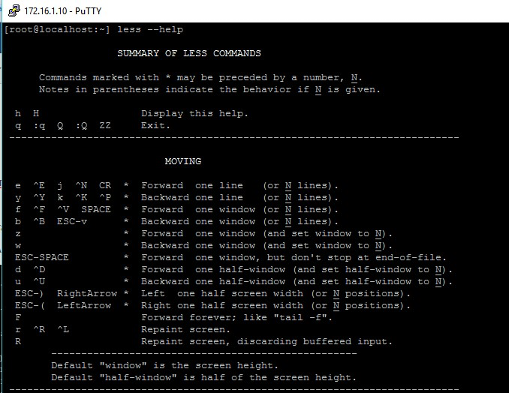
less – A pager for viewing long output one screen at a time. Pipe any lengthy output into less (e.g. grep foo /var/log/syslog | less) to scroll through it page by page. Press q to quit the pager.
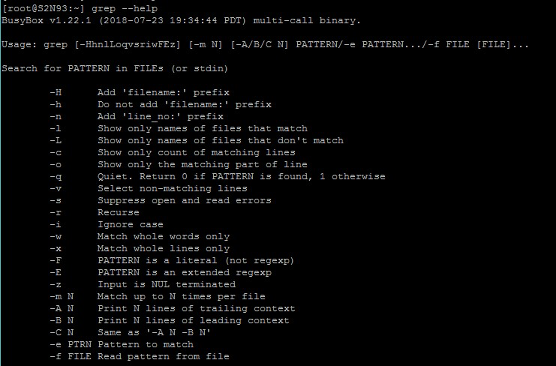
- grep – Searches or filters text. For example, grep “pattern” /path/to/file finds lines containing “pattern”. Useful flags include -i (ignore case) and -A <n> (show <n> lines after each match) to provide context.
- more – Another pager (older than less). For example, somecommand | more will paginate output. Unlike less, the more command only allows forward scrolling (no backward scroll).
- Piping (|) – Not a command per se, but remember you can pipe commands into grep, less, or more to combine tools. For instance, esxcli hardware pci list | grep -i ethernet would filter the PCI device list for “ethernet” entries.
Some other everyday shell commands on ESXi include cd (change directory), ls (list directory contents), mkdir (create directory), mv (move/rename files), cp (copy files), find (search for files), cat (display file contents), and ps (list processes). These behave just like in any Linux environment. For example, ls -lah will list files with human-readable sizes, and find / -name vmkernel.log searches the entire filesystem for the file vmkernel.log. Being comfortable with these basics makes navigation and troubleshooting in the ESXi shell much easier.
One unique ESXi shell command to know is dcui, which launches the Direct Console User Interface. This is the text-based menu you see on the server’s monitor when working locally. If you SSH into a host and run dcui, it will pop up that console menu in your terminal (to exit the DCUI, press Ctrl+C).
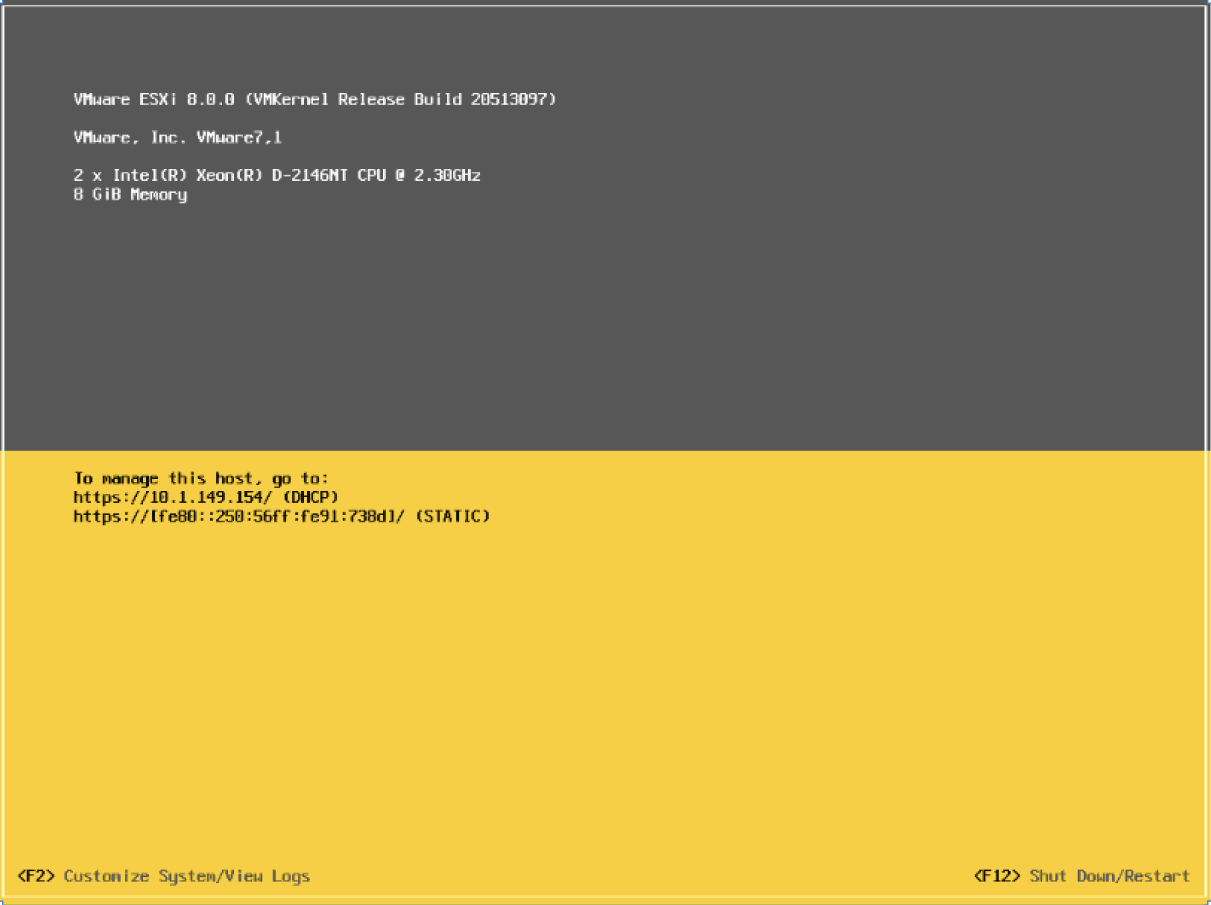
This trick is useful if you need to change a management IP or DNS settings from the console remotely, for example. The screenshot below shows what the DCUI looks like when launched via SSH. The DCUI provides a simple menu for basic configuration and troubleshooting of an ESXi host (e.g. network setup, viewing logs, restarting management agents). Launching it from a remote session can save you a trip to the server room when physical access isn’t convenient.
Discovering ESXCLI Commands and Namespaces
VMware ESXCLI is organized into namespaces (groups of related commands). If you’re ever unsure what commands are available, there are a couple of ways to discover them. First, you can run esxcli esxcli command list | more – this will list all available ESXCLI commands on the host, page by page. It’s a comprehensive list (and quite long), but it shows the full hierarchy of namespaces and commands.

An easier way to get a high-level overview is to use the –help flag on the main esxcli command. Running esxcli –help will display all the top-level namespaces and a brief description of each. For example, you’ll see namespaces like hardware (for hardware info), network (for networking configuration), storage (for storage management), system (for host system tasks), vm (for virtual machine processes), vsan (for vSAN management), and so on. The image below shows a snippet of this help output with some of the namespaces listed. As you can see, ESXCLI covers most areas of host management. You can drill down further by typing a namespace to see its sub-commands (for instance, try esxcli network –help to see network-related subcommands). With this in mind, let’s explore some of the most useful ESXCLI commands and what they do.
Essential ESXCLI Commands for Routine Host Tasks
Now we get to the real meat: common ESXCLI (and related) commands that are extremely handy for day-to-day ESXi host administration. We’ve grouped them by category for clarity. All of the commands below are confirmed to work on VMware ESXi 8.0 (including Update 3) and most also apply to ESXi 7.x. These cover everything from checking hardware status to managing network configuration.
Host System Management
- Host Reboot/Shutdown: reboot – Immediately reboots the ESXi host via shell (equivalent to clicking Restart). poweroff – Shuts down and powers off the host. Use these with caution, as there is no confirmation prompt! (They’re basically CLI shortcuts for gracefully rebooting or cutting power.)
- Check ESXi Version: esxcli system version get – Displays the exact ESXi version and build number installed on the host. This is useful for confirming you’re on a specific update/patch level (for example, it might output “VMware ESXi 8.0 Update 3 (build XXXXXXXX)”). An alternative is the Unix command uname -a, which prints the VMkernel release info including build and date.
- Host Hardware Info: esxcli hardware platform get – Shows basic hardware details about the host, such as the manufacturer, model, BIOS version, and service tag/serial number. This is a quick way to verify the physical server identity and model without rebooting into BIOS. There are also specific hardware commands like esxcli hardware cpu list (lists CPU details) or esxcli hardware memory get (shows memory info), although those might not be used as frequently.
- System Time Management: esxcli hardware clock get – Displays the current system clock (hardware RTC) time on the host. If you need to set the host’s hardware clock (usually ESXi syncs time via NTP, but in isolated cases you might set it manually), you can use esxcli hardware clock set –year <YYYY> –month <MM> –day <DD> –hour <HH> –minute <MM> –second <SS>. Keeping an accurate clock is important for logs and time-sensitive operations.
- List Running Processes: ps – As mentioned earlier, the standard ps command will list active processes on the host. While not specific to ESXCLI, it’s useful if you need to find a rogue process. For instance, ps | grep vmx can show the processes associated with running VMs (each VM’s VMX process).
Hardware and Performance Monitoring
- List PCI Devices: esxcli hardware pci list – Lists all PCI/PCIe devices in the host with detail. This includes vendor/model IDs, device names, and driver info for each device. It’s great for identifying NICs, HBAs, RAID controllers, etc. For a quicker summary, the classic lspci -v command works too, although esxcli hardware pci list gives more structured output.
- Real-Time Performance Stats: esxtop – Think of this as ESXi’s version of the Linux top command, but even more powerful for hypervisor stats. Running esxtop launches an interactive text-based performance monitor. You can press keys to switch views: C (CPU), M (memory), N (network), D (disk adapters), U (disk devices), V (VMs), etc. Within each view, you can see live metrics like CPU usage, RAM consumption, network throughput, and storage IOPS at the host or VM level. Press h inside esxtop for help on controls, and q to quit. This tool is invaluable for troubleshooting performance issues on an ESXi host.
- VMkernel Error Codes: vmkerrcode -l – Ever see an error in ESXi logs like “VMK_ACQUIRE_FAILED: 0xbad001” and wonder what it means? The vmkerrcode -l command will list VMware VMkernel error codes and their descriptions. It’s basically a reference list of error values. You can pipe it to grep <code> to find a specific code. This is useful for decoding cryptic error messages when debugging host issues.
Network Configuration and Troubleshooting
- Physical NICs Status: esxcli network nic list – Lists all physical NICs (vmnic0, vmnic1, etc.) on the host along with their link status, speed/duplex, driver name, and firmware version. This is the modern replacement for the old esxcfg-nics -l command. Use this to quickly see if a NIC is up/down, at 1Gb or 10Gb, and which driver/module it’s using (important when verifying compatibility or debugging network problems).
- vSwitch and Portgroup Info: For standard vSwitches, esxcli network vswitch standard list shows all vSwitches, their Port Groups, and the physical NIC uplinks associated with each. This replaces the deprecated esxcfg-vswitch -l command. It’s helpful to review how your virtual networks are organized on a standalone host (note: if you’re using Distributed vSwitches, those are managed via vCenter instead).
- VMkernel Interfaces (vmknics): esxcli network ip interface list – Displays all VMkernel interfaces on the host (vmk0, vmk1, etc.), including their IP addresses, MTU, and up/down status. This is useful to verify management, vMotion, or storage network interfaces and their configurations. Similarly, esxcli network ip dns server list will show the DNS servers the host is configured to use.
- Open Connections: esxcli network ip connection list – Lists all active network connections (TCP/UDP) from the host, along with source/destination IPs and ports. Essentially, it’s like a netstat output. This can reveal if your host is communicating with a vCenter server, NTP servers, etc., and can help in troubleshooting connectivity or firewall issues (for example, verifying that the host has an established connection to vCenter on port 443).
Storage Management
- Storage Adapters: esxcli storage core adapter list – Shows all storage adapters on the host (like FC HBAs, iSCSI adapters, NVMe controllers) along with their driver, link status, and transport type. Use this to confirm your host sees the expected HBAs or to get the HBA model/driver info for troubleshooting.
- Datastores and Filesystems: esxcli storage filesystem list – Lists all datastores (VMFS volumes and others) known to the host, with their UUIDs, mount points, and capacity/free space. It’s a quick way to cross-check that all datastores are mounted and to identify their identifiers.
- VMFS Extents: If you have datastores that span multiple extents (disks/LUNs), esxcli storage vmfs extent list will break down each datastore’s extents. This is more of a specialized command, but it helps verify which LUNs make up a datastore and that multi-extent datastores are configured properly.
- List Installed VIBs: esxcli software vib list – Lists all VIBs (VMware Installation Bundles, essentially drivers or packages) installed on the host. This is useful after installing a third-party driver or a patch to confirm it’s present and see its version. You can also use esxcli software profile get to see the overall ESXi image profile name and version (which includes all VIBs). Managing VIBs (adding or removing) can also be done via esxcli software vib install/remove, though those require the host to be in maintenance mode.
- Pro Tip: All the above ESXCLI commands have corresponding help text and additional options. If you’re ever unsure, append –help to the command (for example, esxcli network nic list –help) to see available flags or sub-options. VMware’s official ESXCLI documentation is also a great reference for deeper details.
Services and Configuration
- List Services: esxcli system services list – Shows all services (daemons) on the host, whether they’re running, and their startup policy. This includes services like SSH (TSM-SSH), NTP (ntpd), vCenter Agent (vpxa), Hostd, etc. Use this to verify if a service is stopped or to check if it’s set to start automatically. For example, if vCenter cannot communicate with a host, you might check here to see if hostd or vpxa is running. (To start/stop services you would use /etc/init.d/service-name start|stop or the Services menu in DCUI.)
- Software Profile and Updates: The esxcli software namespace has commands to manage host updates and image profiles. We mentioned vib list and profile get above. You can also use esxcli software profile update or esxcli software vib update to patch or upgrade a host offline. This is beyond the scope of this article, but worth noting for those managing ESXi updates without vCenter – ESXCLI is your friend for applying patches in standalone environments.
Finally, keep in mind that most of these ESXCLI commands were designed to replace older tools. VMware wants admins to use ESXCLI moving forward, as it’s more uniform and scriptable. The legacy esxcfg- and vicfg- commands (from the old vSphere CLI) are deprecated and no longer being updated. So, learning ESXCLI not only helps today, but “future-proofs” your skills for administering ESXi hosts.
CLI Commands for Managing VMs on an ESXi Host
Managing the ESXi host is only half the story – what if you need to control virtual machines via the command line? Perhaps vCenter is down, or you’re scripting power operations. The ESXi shell provides two main ways to work with VMs: the vim-cmd utility and esxcli vm namespace. Here are some common VM management commands:
- List VMs on the Host: vim-cmd vmsvc/getallvms – Displays all VMs registered on the host, including each VM’s VMID (a numeric identifier), name, file path, guest OS, and VM hardware version. You’ll need the VMID for many other commands.
- Check Power State: vim-cmd vmsvc/power.getstate <VMID> – Shows whether the specified VM is powered on or off. It’s a quick status check.
- Power On/Off a VM: vim-cmd vmsvc/power.on <VMID> will boot up the VM. Conversely, vim-cmd vmsvc/power.off <VMID> performs a hard power-off (equivalent to pulling the power cord; the guest OS is not gracefully shut down). There’s also power.reset <VMID> for an immediate reboot (power cycle). Use these with caution, as they don’t ask for confirmation.
- Graceful Shutdown/Reboot: If the VM has VMware Tools running, you can invoke a graceful OS shutdown with vim-cmd vmsvc/power.shutdown <VMID> or a graceful reboot with vim-cmd vmsvc/power.reboot <VMID>. These send a signal to the guest OS (much like clicking Shut Down from vSphere Client). They are safer for the guest OS because they allow it to close applications properly.
- VM Summary Info: vim-cmd vmsvc/get.summary <VMID> – Shows a summary of the VM’s configuration and runtime stats. This includes details like how many vCPUs and vRAM the VM has, the datastore path of the VM’s files, uptime, as well as current consumed CPU/memory. It’s useful for a quick info dump on a VM without using the GUI.
- List Running VM Processes: esxcli vm process list – This is an ESXCLI way to list VMs that are currently running on the host. It will list each running VM’s Display Name, World ID (a numeric process ID in the VMkernel), UUID, and path. It’s similar to vim-cmd vmsvc/getallvms but only shows powered-on VMs and gives the World ID, which is needed for the next command…
- Force Stop a Stuck VM: esxcli vm process kill -t <type> -w <WorldID> – This command is extremely useful when a VM is unresponsive and normal shutdown won’t work. It kills the VM’s process on the host. You must specify the World ID (from esxcli vm process list) and a kill type: soft, hard, or force. soft asks the guest OS to shut down (similar to ACPI power button press), hard immediately stops the VM process (like powering off the VM abruptly), and force is like yanking the power cord (use force only if the other methods fail). This is the CLI way to terminate a hung VM that won’t die via the GUI. Many VMware admins can recall times when a VM was frozen and esxcli vm process kill saved the day by forcing it off when vSphere Client options were grayed out.
- Registering a VM: vim-cmd solo/registervm /vmfs/volumes/<Datastore>/<VM Folder>/<VMName>.vmx – If you have an existing VM’s files on a datastore that isn’t in inventory (for example, you manually copied a VM or removed it from inventory), this command will register the VMX file back into the host’s inventory. After running it, the VM will get a new VMID and show up in the inventory (you might then need to Add to Inventory in vCenter if applicable).
- Unregistering a VM: vim-cmd vmsvc/unregistervm <VMID> – This removes the VM from the host’s inventory without deleting any of its files. Essentially, it’s the CLI equivalent of right-clicking a VM and choosing Remove from Inventory. You might do this if a VM is orphaned or you need to re-register it later.
Using these VM management commands, you can fully control the life cycle of virtual machines from the host’s console. This is especially valuable in scenarios where the GUI is unavailable or when writing scripts. For example, if vCenter is down, you can SSH to each host and still power VMs on/off or adjust settings via CLI. Or if you’re automating lab deployments, you might script the creation and registration of VMs using CLI commands. In short, vim-cmd and esxcli vm commands give you hypervisor-level power over VMs from a simple terminal window.
Conclusion
We’ve covered a lot of ground! The commands above are by no means exhaustive, but they represent a “bare minimum” toolbox for everyday ESXi administration. With these in hand, you can inspect host hardware, storage, and networking; manage services; reboot or shut down hosts; and handle virtual machines all from the command line. Mastering the CLI can dramatically speed up troubleshooting and unlock automation opportunities that are cumbersome or impossible through the GUI alone.
To get the most out of these commands, practice them in a test environment. Before long, you’ll be comfortable jumping into an ESXi shell to diagnose problems or script routine tasks. VMware continues to maintain and update ESXCLI with each vSphere release (for instance, vSphere 8 added new namespaces for NVMe and vSAN management), so learning these skills will stay relevant in the future. In the world of virtualization, a little CLI knowledge goes a long way in making an admin’s life easier.
