
Losing the ESXi root password happens more often than anyone likes to admit. If you still have vCenter access, recovery is usually straightforward. If you do not, things get more complicated, but not always hopeless.
VMware officially supports two options: reset the password via vCenter or reinstall ESXi. Reinstalling works, but it is rarely what you want in a production environment.
Below are 4 practical recovery methods, with clear limits and risks called out for each one.
This 2026 update includes important notes for ESXi 7, 8, and 9.
The two real-world scenarios
In practice, almost every case falls into one of these:
- You lost the root password, but the host is still managed by vCenter.
- You lost the password on a standalone host with no vCenter access.
The first case is routine. The second is where things get risky.
Method 1: Change the password via vCenter (Host Profiles)
Important:
This method works on ESXi 7, 8, and 9, but requires Enterprise Plus licensing. Standard, Essentials, and Free editions cannot use it.
If the host is connected to vCenter, this is the cleanest option.
Resetting the password using Host Profiles
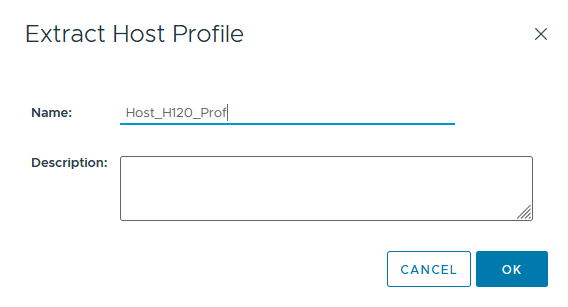
1. In VMware vCenter, right click the selected host and click Extract Host Profile menu item.

2. Specify the profile name and add a description if needed.
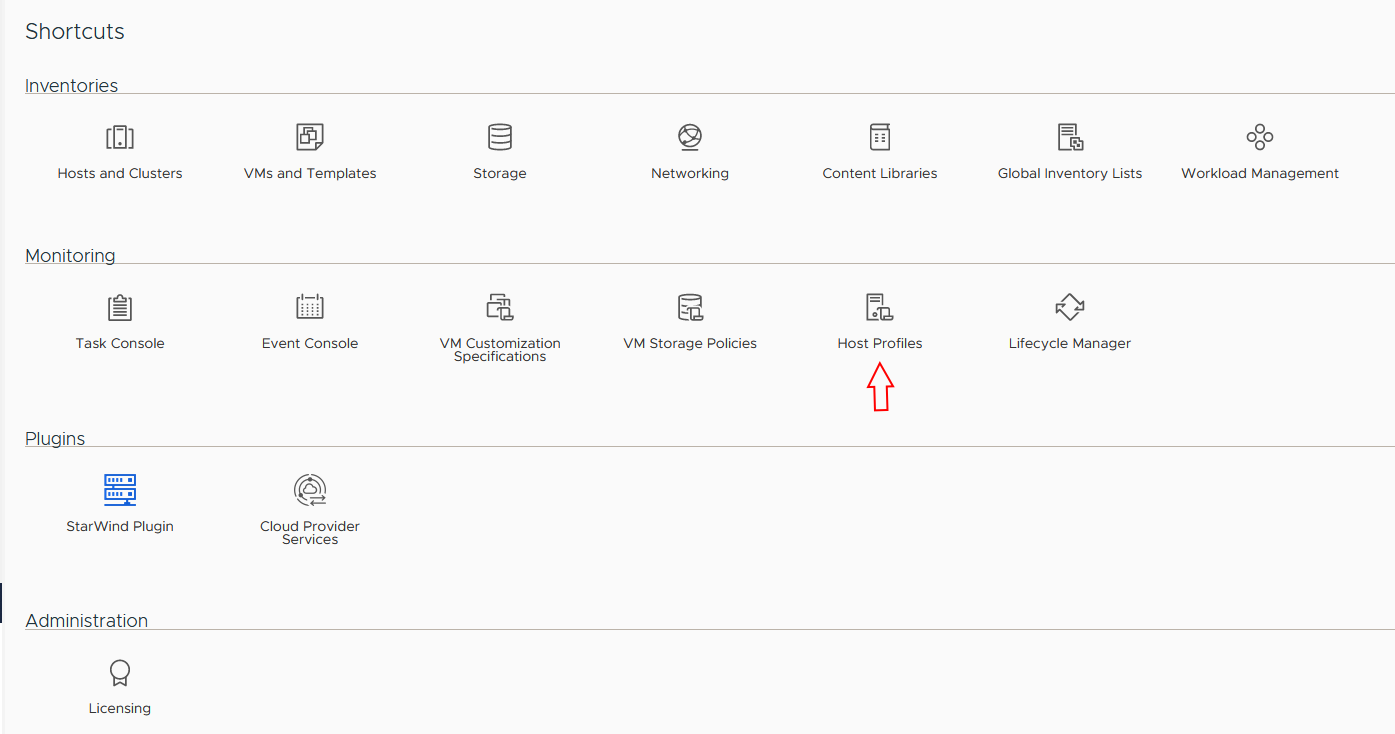
3. Navigate to Shortcuts and open the Host Profiles view in vCenter.
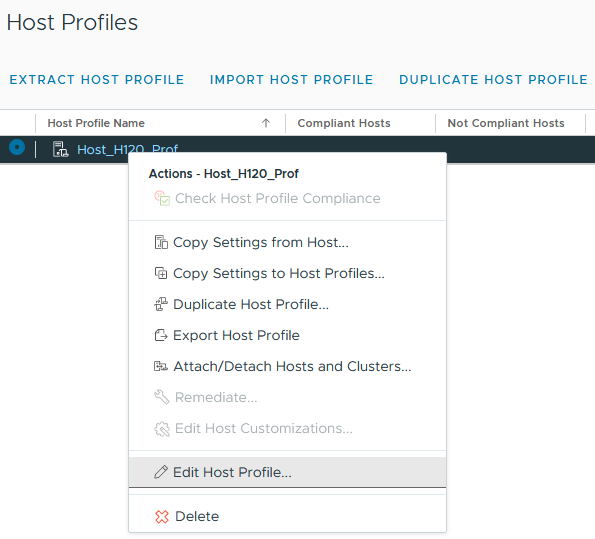
4. Right-click the host profile and select Edit Host Profile.
5. Set and confirm the new root password in the profile.
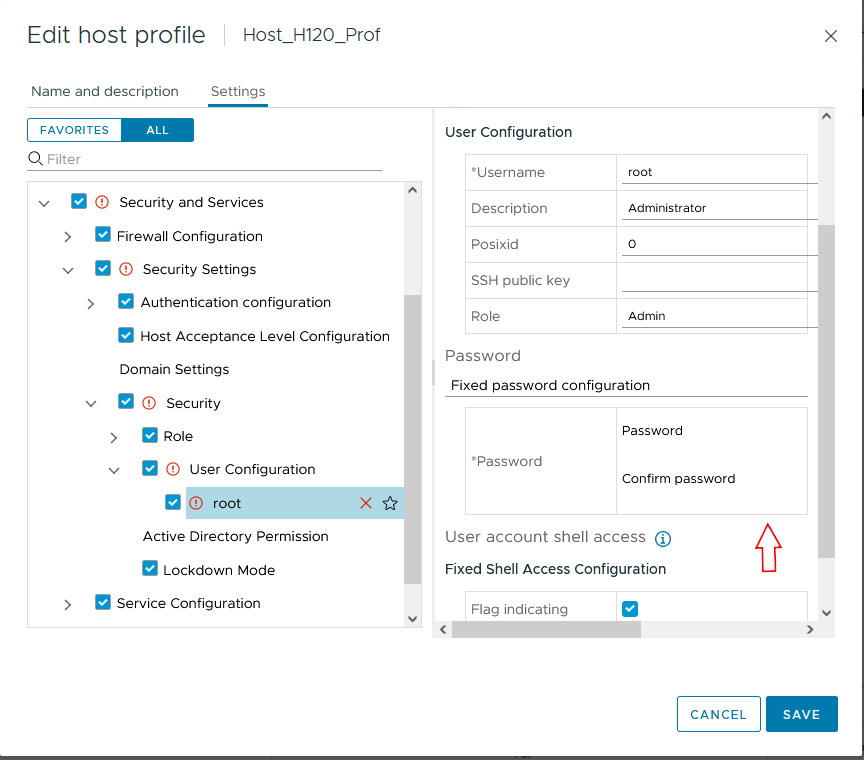
6. Save the profile changes.
Good job, you have changed the password! Let’s now attach this profile to the host to apply settings.
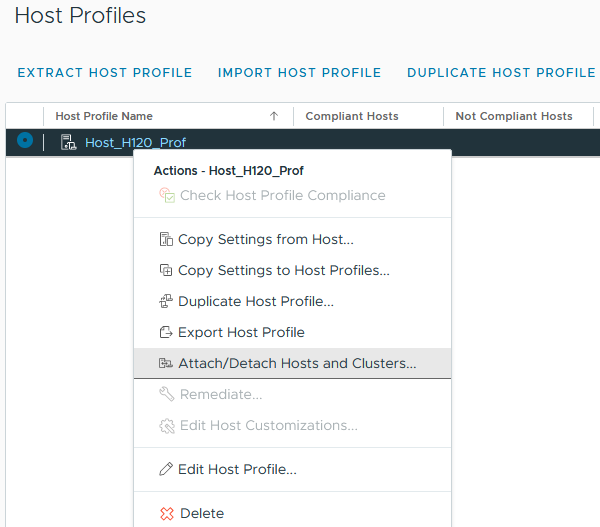
7. Right click host profile and select “Attach/Detach Hosts and Clusters”.
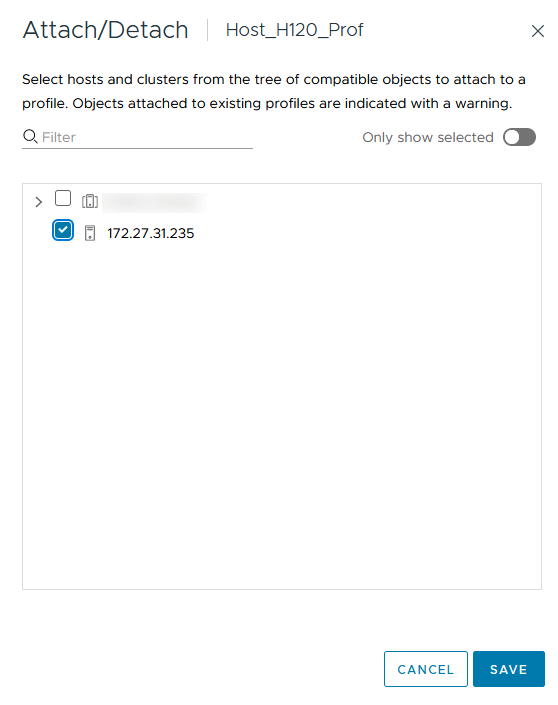
8. In the Attach/Detach Hosts and Clusters dialog, select the host where you’d like to change the password. By the way, you can attach your profile with a newly created root password to multiple hosts if needed.
9. Right after adding the host, you can play around with the network settings, if you need to. Otherwise, you can just click Finish to have the settings applied.

10. Put the host into maintenance mode. (Otherwise, you won’t be able to apply any settings at all).
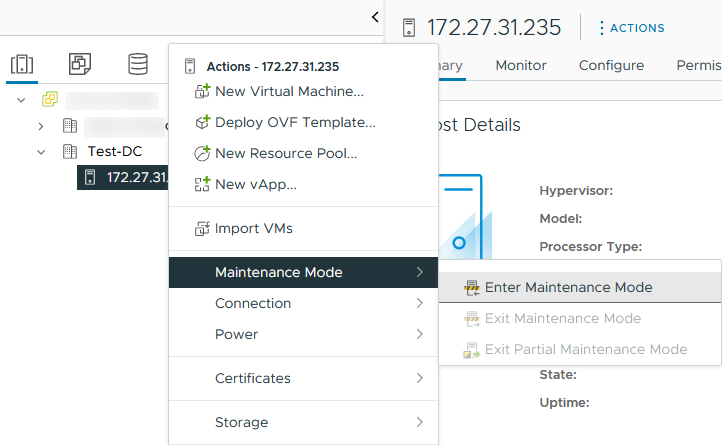
Confirm putting the selected host (or hosts) into maintenance mode. Note that you need to migrate your VMs unless you can shut them down for a while. In my case, there are no mission-critical VMs on the host, so I’ve just powered them off beforehand.
11. Go back to the Host Profiles tab, right-click the Host Profile and press Remediate.
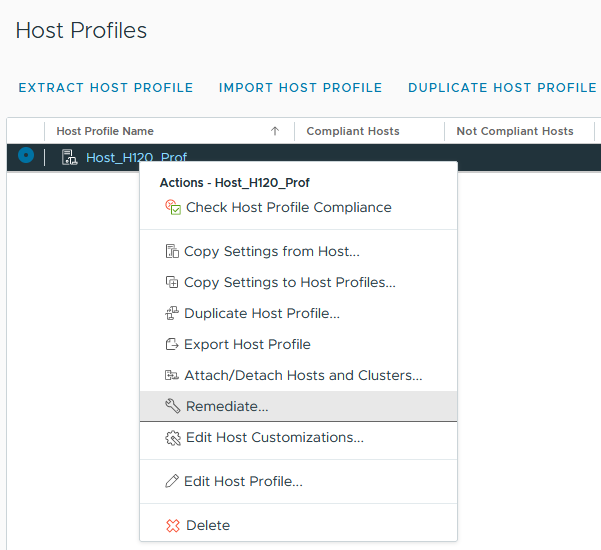
12. Select the required host and press Remediate.
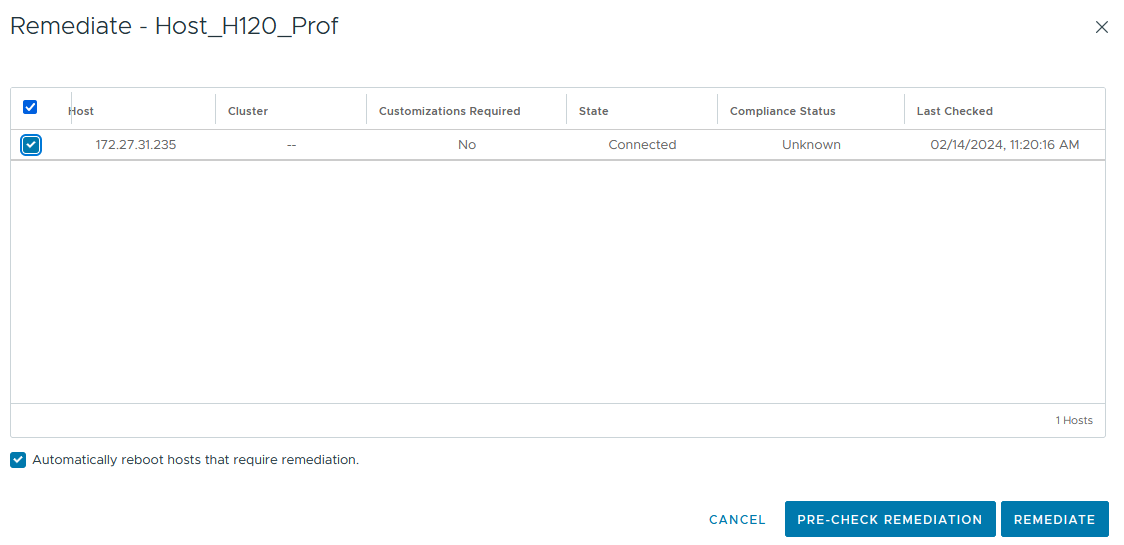
13. After the host reboots, exit maintenance mode.
Now, let’s check whether the password reset was successful. For that purpose, log in to the ESXi host via the Web Console, or CLI using the new password. I hope it works!
Method 2: Reset the password using Active Directory and vCenter
Important: This method will only work if the ESXi host is connected and healthy in vCenter. If it’s disconnected, this method will not work.
If the host can be joined to Active Directory, domain credentials can be used to regain access and reset the root password.
Here’s how you do that.
Resetting root access via Active Directory
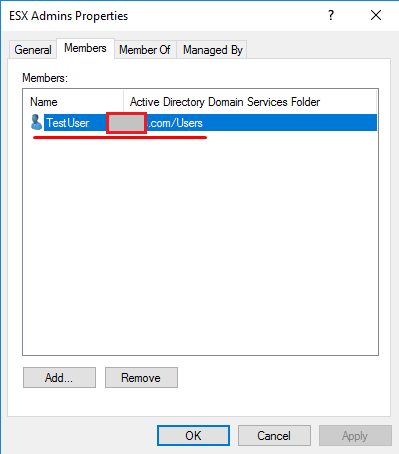
1. Go to Active Directory Users and Computers on the domain controller and create a new Security Group called ESX Admins. Make sure to use exactly that name for the group.
2. Add a new user to ESX Admins group that will be used to reset the password. You can choose any existing user or create a new one. I decided to create a new one named TestUser.
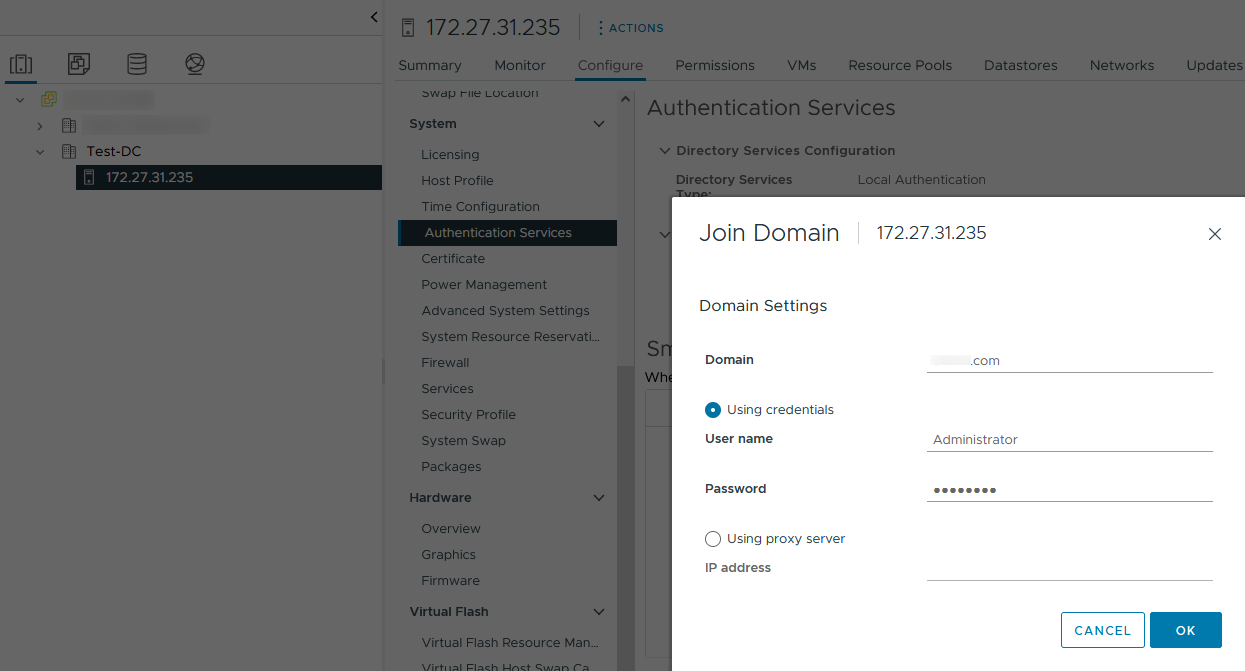
3. Join the ESXi host with forgotten password to the domain.
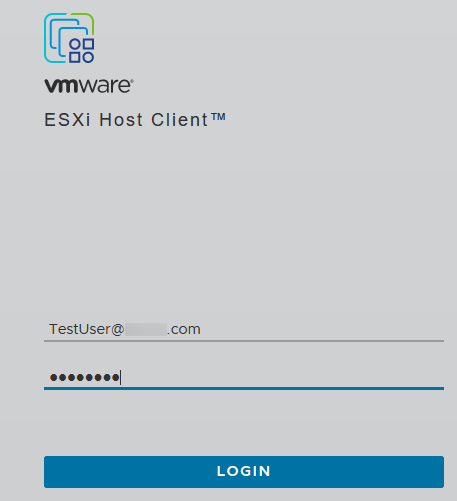
4. Next, log in to ESXi host with TestUser domain credentials. You can use both formats: user@domain or domain\user.
5. Once you’ve logged in to ESXi host, navigate to the Security & Users tab and edit the root user setting up the new password.
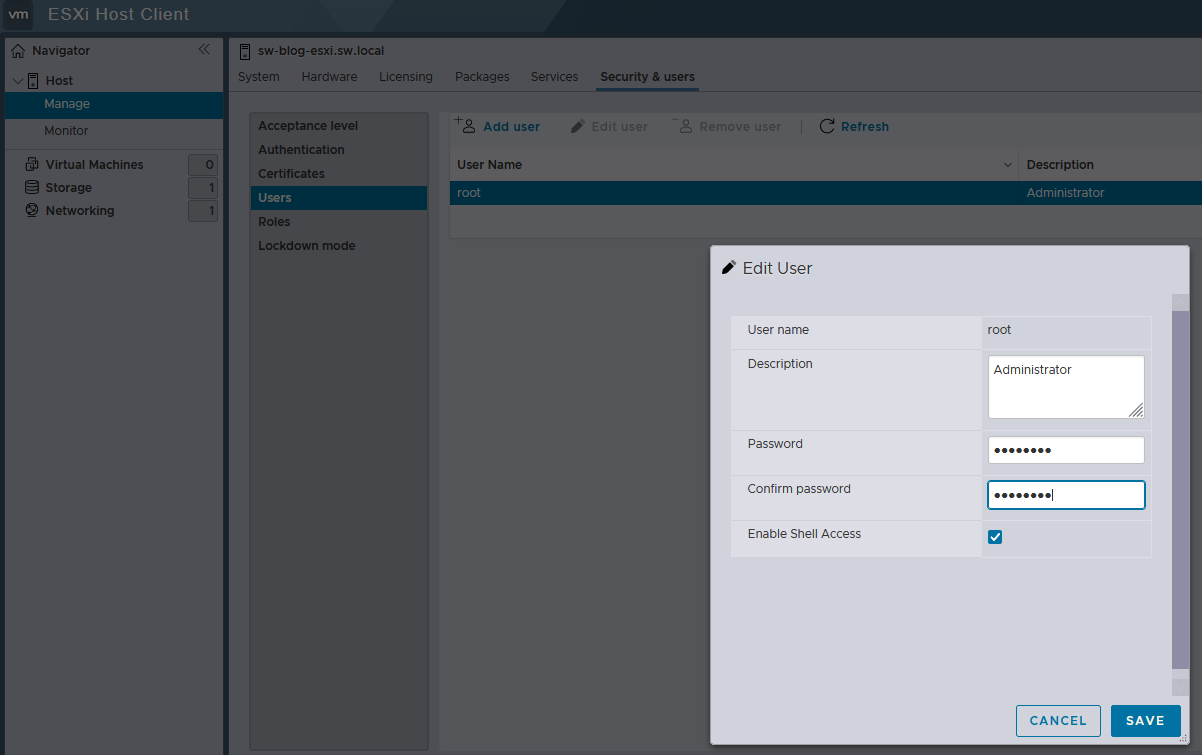
Don’t forget to remove the host from the domain if you do not need it to stay there.
6. Reboot the host to apply changes.
Note that changing the password with vCenter is pretty easy, but VMware does not recommend it for some reason I don’t know.
Method 3: Reset the root password on a standalone ESXi host (shadow file edit)
Important note: This method works only on ESXi 6.7 and earlier. It does not work on ESXi 7, 8, or 9. due to VMware changes in where passwords are stored and how they are handled. I decided to keep this method for those who are still running ESXi 6.7 and lower.
This is a last-resort option and requires full host downtime. If you screw-up here, you can break the host leading to ESXi re-install.
Editing the shadow file
1) Shut down all virtual machines.
2) Boot the host from a Linux live image. I used Ubuntu GNOME for this article. Find out how to create a bootable CD and download Ubuntu GNOME here. You also need Rufus or something similar to write the boot CD image on a flash drive.
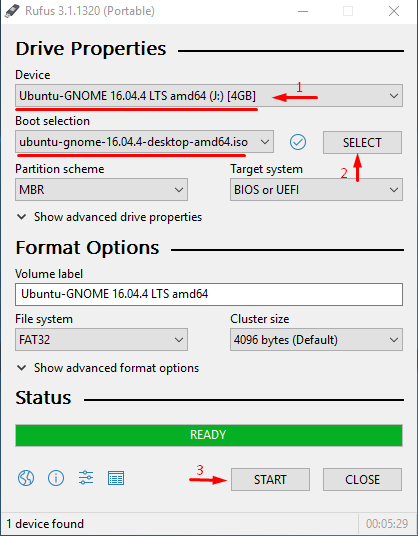
So, you need to boot from the flash disk, mount the required ESXi datastore, unpack the archive, and edit the file containing the passwords. Next, you upload the file back into the original directory, and, after rebooting the host, you can access it without the password.
What is the “shadow” file?
For security reasons, ESXi keeps passwords encrypted in a file. According to unofficial sources, this file is called “shadow”. You can find it in one of the boot volumes in the /etc directory.
Before the host boots, /etc is stored in the local.tgz archive. Here’s the path:
state.tgz => local.tgz => /etc.
Here’s how the disk is formatted in ESXi 6.0 and later:
| Volume name | What is it for? | Volume size in my case |
|---|---|---|
| /dev/sda1 | Starts the system | 4 MB |
| /dev/sda2: /scratch: | System volume that is created while installing ESXi on disks over 5 GB | 4 GB |
| /dev/sda3: VMFS datastore: | Represents the remaining disk space | |
| /dev/sda5: /bootbank: | The ESXi image | 250 MB |
| /dev/sda6: /altrbootbank: | The older system version image. You’ll see it as an empty volume if you have never updated the system | 250 MB |
| /dev/sda7: vmkDiagnostic (the first volume) | Keeps the core dump | 110 MB |
| /dev/sda8: /store | VMware Tools image | 286 MB |
| /dev/sda9: vmkDiagnostic (the second volume) | Keeps all the information related to vSAN diagnostics. You can observe this volume only in datastores over 8 GB | 2.5 GB |
Among all these volumes, we only need /bootbank, as it contains the ESXi archive. This is where the “shadow” file resides.
Chasing the “shadow”
1. So, let’s boot the host from the flash disk first and start the terminal. Then switch to root and identify the ESXi disk:
sudo su

fdisk -l | grep /dev/sda
2. Confirm /bootbank in the output. It should be the 250 MB /dev/sda5 volume.

3. Mount the bootbank partition:
mkdir /mnt/sda5

mount /dev/sda5 /mnt/sda5
…and extract the archives:
mkdir /temp

tar -xf /mnt/sda5/state.tgz -C /temp/

tar -xf /temp/local.tgz -C /temp/
4. Open the /temp/etc/shadow file. Use vi to open the file:
# vi /temp/etc/shadow
The encrypted password value is the string between the first pair of double colons (::) near the “root” user name. Since the password is encrypted, its value in your file will differ from what is shown on my screenshot.

7. To reset the password, remove the encrypted value between the first pair of double colons for the root user and save the file.
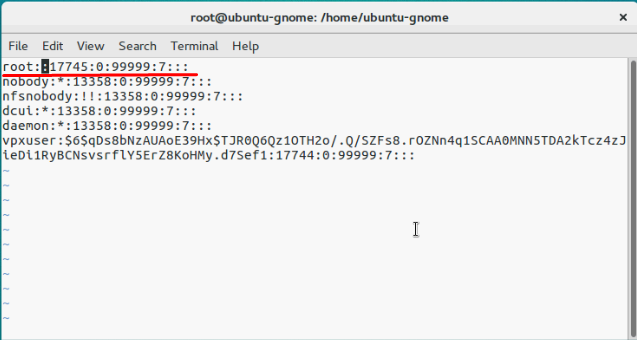
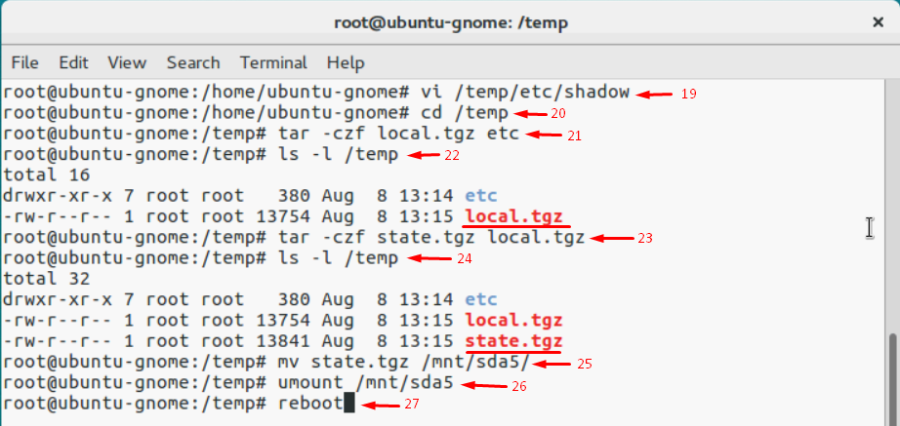
8. Repack the archives and restore state.tgz to /bootbank:
cd /temp

tar -czf local.tgz etc

tar -czf state.tgz local.tgz

mv state.tgz /mnt/sda5/
9. Unmount the /sda5 disk and reboot the host:
umount /mnt/sda5

reboot
Just in case, here are all the commands you need to execute step by step:
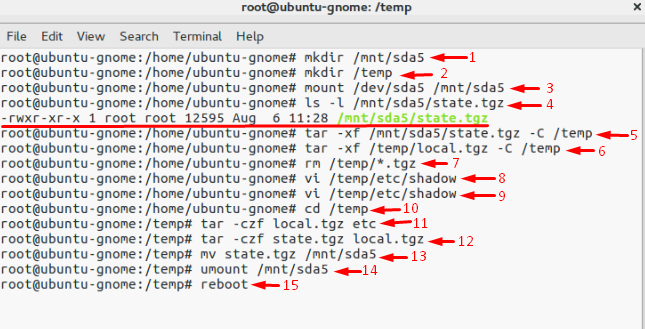
10. Navigate to ESXi DCUI – System Customization by pressing F2 after the reboot.
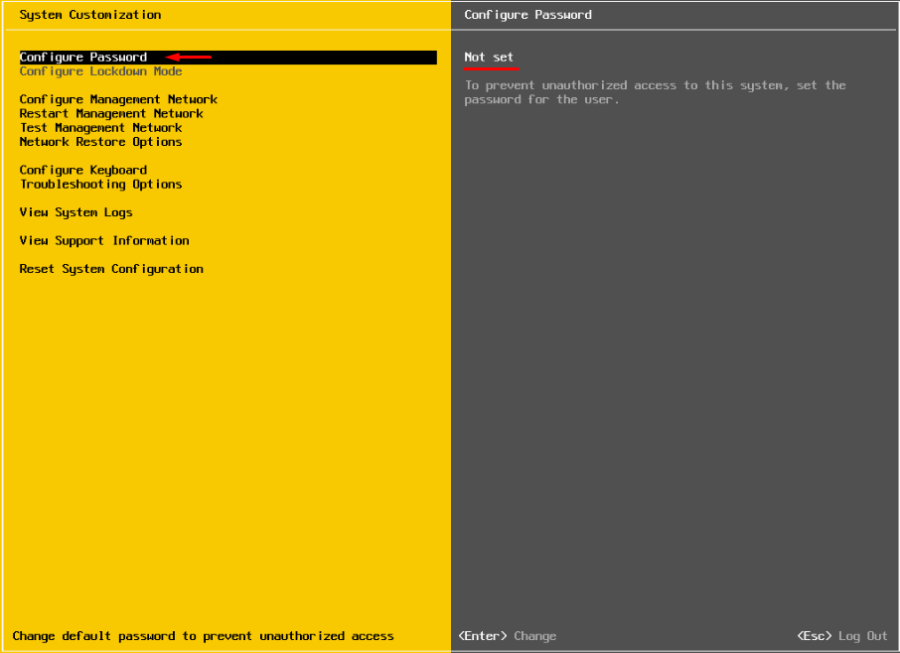
11. Now, select Configure Password and specify the new password in the corresponding dialog.

That’s it! This time, make sure to store the root password securely and do not forget it.
Method 4: Replace the shadow file with one from another host
This is a variation of the previous method. Instead of editing shadow, you copy it from another host with a known root password.
Replacing the shadow file
To retrieve the file from the working host, use WinSCP. The utility is available here. The advantage is that you can copy the file without shutting down the source host.
1. Copy /etc/shadow from a working ESXi host using WinSCP.
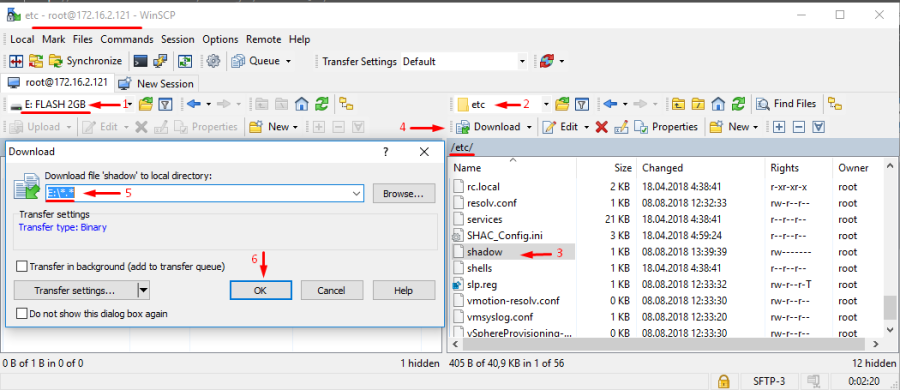
2. Boot the locked host from a Linux live image, elevate to root, and mount the ESXi disk with the bootbank partition, as well as the external media with the copied file:
sudo su

mkdir /mnt/sda5

mkdir /mnt/sdb1

mount /dev/sda5 /mnt/sda5

mount /dev/sdb1 /mnt/sdb1
3. Now, create the temporary volume for working with archives:
mkdir /temp

tar -xf /mnt/sda5/state.tgz -C /temp/

tar -xf /temp/local.tgz -C /temp/
4. Create the volume where you are going to keep the state.tgz backup, just in case something goes wrong:
mkdir /mnt/sdb1/save
5. Find the necessary file in the archive:
ls -l /mnt/sda5/state.tgz
6. Copy the archive:
cp /mnt/sda5/state.tgz /mnt/sdb1/save
7. Run the following command to double-check whether the file has been copied:
ls -l /mnt/sdb1/save
8. Extract state.tgz:
tar -xf /mnt/sda5/state.tgz –C /temp/
9. Find the temp file:
ls –l /temp
10. Extract local.tgz:
tar -xf /temp/local.tgz –C /temp/
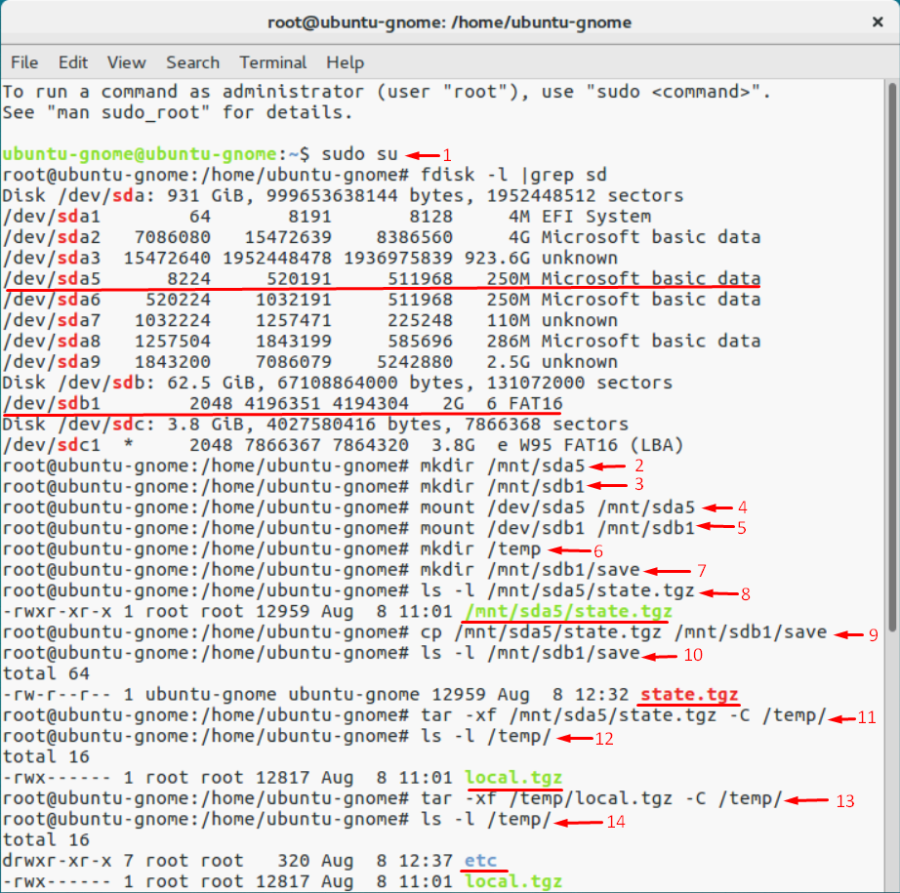
11. Now, delete the local.tgz volume to ensure that it won’t be included in the new archive by accident:
rm /temp/local.tgz
12. Find “shadow” in the /etc directory:
ls -l /temp/etc
13. Replace shadow with the one from the host with a known root password:
cp /mnt/sdb1/shadow /temp/etc
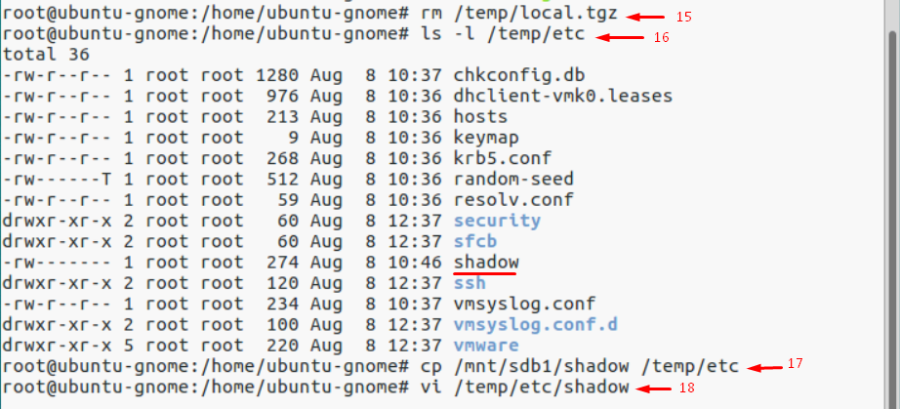
14. Now, open the file and review the saved credentials:
vi /temp/etc/shadow
15. Navigate to the /temp directory:
cd /temp
16. Archive the /etc directory:
tar -czf local.tgz etc
17. Now, create the state.tgz volume:
tar -czf state.tgz local.tgz
18. Move the archive to the working ESXi directory:
mv state.tgz /mnt/sda5/
19. Unmount the sda5 directory:
umount /mnt/sda5
20. Reboot the host:
reboot
If the host starts acting weird after reboot, there’s still a copy of the initial state.tgz. You can mount both /sda5 and /sdb1 and restore it using the following command:
cp /mnt/sdb1/save/state.tgz /mnt/sda5/
Conclusion
Today, we’ve explored four ways to reset an ESXi host root password. The first method is the easiest and works well if you have vCenter installed, but it requires an Enterprise Plus license.
If there’s no vCenter and you are running ESXi 6.7 or lower, you can try the last two methods. However, keep in mind that editing shadow files is risky and may permanently break the system, especially the last method.
Use password managers to avoid losing critical passwords and prioritize officially supported VMware methods, even if that ultimately means reinstalling the OS.