


Managing distributed desktop environments is hard. Hybrid work models, more and more security threats, and increasing demands for application performance are putting real pressure on IT teams to deliver secure and smooth user experiences.
Gartner reported in 2023 that roughly 74% of organizations have adopted hybrid work models. That shift forces IT teams to rethink how users access corporate resources.
In short, Virtual Desktop Infrastructure (VDI) is the core component of remote/hybrid work strategy: it hosts desktop environments on backend servers instead of local hardware, streaming them securely to remote workers. It drastically simplifies IT management and secures corporate data, provided your storage and network architecture can handle the load.
In this guide, you will find a practical breakdown of how VDI works, where it fits, where it doesn’t, and how to implement it effectively.
What is VDI (Virtual Desktop Infrastructure)?
Virtual Desktop Infrastructure (VDI) is a form of desktop virtualization that makes desktops and applications available as an on-demand service. Using VDI, organizations deploy virtual machines that can be accessed from anywhere using devices such as laptops, smartphones, and tablets connected to the internet. It eliminates the need for the company to provide employees with physical machines and worry about their repairs, replacements, or keeping hardware relevant for today’s applications.
Some organizations rely on VDI to run conventional desktop workloads on centralized servers. This enables businesses to support remote workers and provides controlled access to partners and contractors. In this way, business apps and data are well protected, while employees don’t have to worry about mixing corporate and personal data.
How does VDI work?
To understand VDI, it is useful to break it down into its functional layers.
It comes as no surprise that a hypervisor is required for VDI to function. It abstracts physical hardware resources and distributes them to virtual machines. Each virtual machine represents a desktop environment assigned to a user or session.
When a user connects, a connection broker authenticates the request and assigns the appropriate virtual desktop. The user then interacts with that desktop through a remote display protocol, which streams the interface in real time to the endpoint device. Common protocols include RDP, PCoIP, or Blast Extreme, depending on the platform in use.
Data can reside either inside the virtual machine (in persistent environments) or in centralized storage systems (in non-persistent environments), depending on how the deployment is designed.
From an administrative perspective, VDI centralizes patching, updates, security policies, and application management, allowing IT teams to maintain consistency across all desktops without interacting with individual endpoints.
Persistent vs. non-persistent VDI deployments
VDI environments are typically deployed in two models.
Persistent desktops behave like traditional personal computers. Here, the user is assigned a standardized virtual desktop upon logging in for the first time. Whenever they log in subsequently, they are connected to the same desktop with all their changes and progress saved in the virtual operating system image. This is particularly beneficial for users with complex digital workflows, as they can easily track their changes and maintain their personalized settings.
Non-persistent desktops, in contrast, reset after each session. End users are connected to a randomized virtual desktop each time they log in. Changes are not saved between sessions. This is also beneficial in the sense that IT admins don’t have to maintain numerous customized OS images. Therefore, less storage is used, which reduces cost and simplifies VDI provisioning.
In other words, persistent desktops behave like “your own PC,” while non-persistent desktops behave more like a shared workstation that resets after use.
The short table below lets you compare both models side by side and see the practical trade-offs.
| Persistent VDI | Non-persistent VDI | |
|---|---|---|
| Pros | Better customization and personalization
Straightforward for the end-user |
Easier image and desktop management
Less storage required Rapid provisioning |
| Cons | Challenging image management
Higher storage requirements |
Limited personalization and flexibility |
VDI Architecture
The connection flow starts when the user logs in via a client or browser, at which point the connection broker authenticates the request and assigns a virtual desktop that is then streamed in real time to the user device while user inputs are sent back to the VM. This round-trip happens continuously while the session is active. Network quality directly affects user experience. Bad connection? Bad experience.
Performance issues often emerge in specific areas. Latency is a common challenge for remote users connecting over long distances. Storage performance limits can impact login times and application responsiveness. CPU and memory contention occur when too many virtual desktops compete for the same physical resources. Weak internet connections introduce session instability. Large user profiles slow down login and synchronization processes.
Sizing storage and compute resources could be incredibly hard, and you really want to avoid either under- or over-provisioning). In practice, it’s mostly the storage IOPS that catch people off guard, GPU, RAM, CPU are comparatively more predictible in most cases. TLDR: If users complain that VDI feels slow, the root cause is usually one of those underlying bottlenecks.
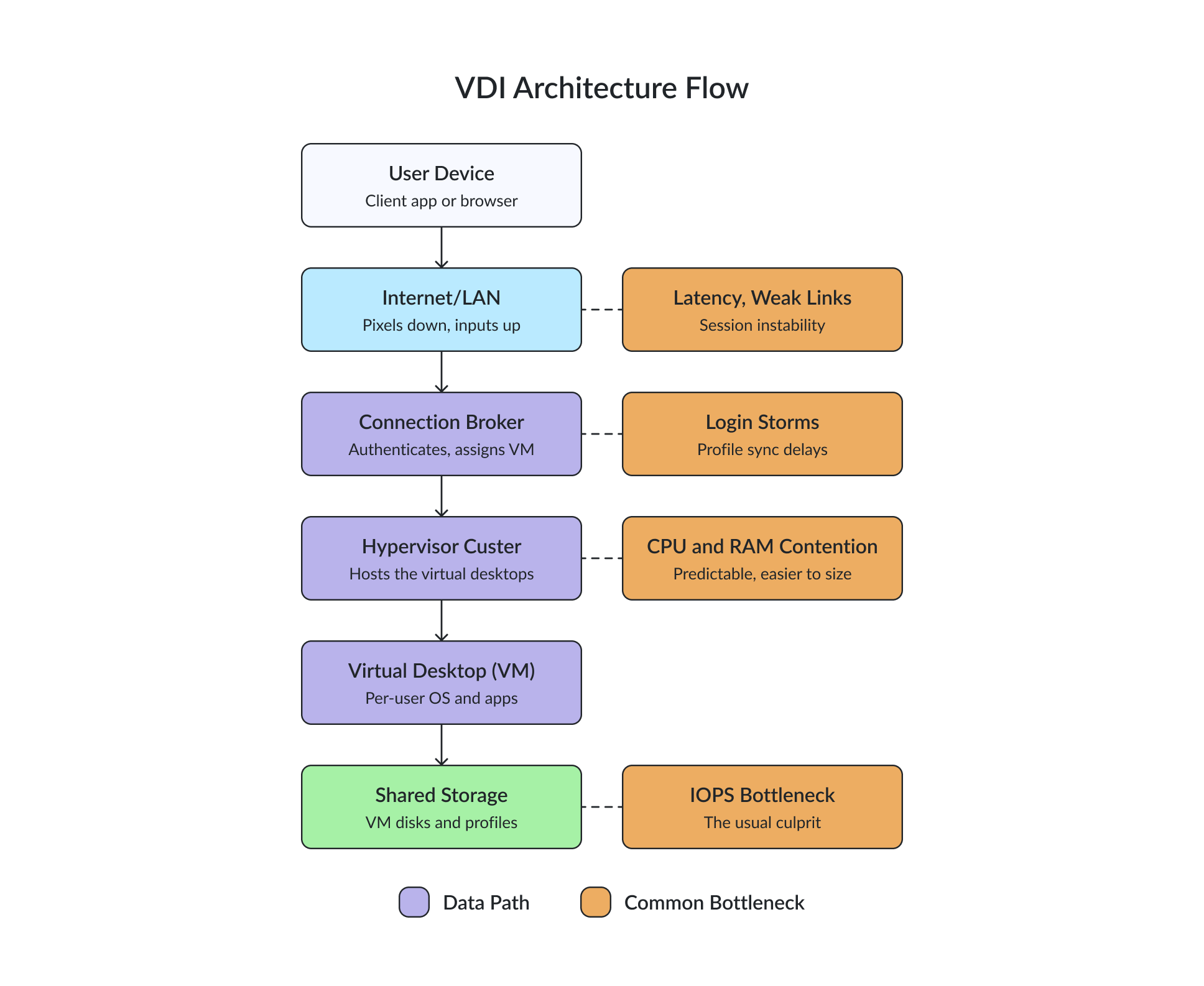
If you are evaluating performance issues, this diagram is a good mental model – problems usually sit somewhere along this path.
What are the benefits and limitations of VDI?
There are numerous benefits enterprises can gain from implementing VDI, including user mobility, flexibility, and centralized security management. At the same time, VDI shifts a significant portion of complexity from endpoints to the backend infrastructure, which introduces its own set of challenges. Let’s look at both sides.
If you are considering VDI, this trade-off – simpler endpoints, more demanding infrastructure – is the key idea to keep in mind.
Benefits of VDI
• Centralized desktop management: VDI allows IT administrators to manage all desktop environments from a single location. Updates, patches, and application deployments can be rolled out consistently across all virtual desktops, reducing configuration drift and simplifying ongoing maintenance. You fix an issue once, not dozens or hundreds of times across individual machines.
• Enhanced security: When an employee’s device is lost or stolen, the risk of a data breach significantly increases because sensitive information is stored there. VDI solves this problem because all sensitive information and apps are kept in the company’s data center or in the cloud. Additionally, it becomes easier to implement stringent security measures, such as data encryption, access controls, and regular backups, in a centralized and controlled manner.
• Flexible remote access: Users can access their desktops from virtually any location and device. This ensures continuity of work and removes dependency on a specific physical machine, which is particularly important in hybrid and remote work scenarios.
• Device independence: VDI supports a wide range of endpoint devices, enabling Bring Your Own Device (BYOD) strategies without compromising control over corporate environments.
• Scalability and resource optimization: Virtual desktops can be provisioned or decommissioned as needed. Resources such as CPU, memory, and storage can be allocated dynamically, allowing organizations to better match infrastructure usage with actual demand. This becomes especially relevant in environments with fluctuating workloads, such as seasonal staffing or project-based teams.
Most of these benefits come from one core idea – centralization. The same principle that simplifies management is also what introduces the main trade-offs.
Limitations of VDI
Despite its advantages, VDI is highly dependent on infrastructure quality and careful planning. The limitations are not always obvious at the start but tend to surface under real workloads. In other words, VDI usually works well in a lab and gets tested in production.
Performance is one of the first areas where issues appear. If resources are not properly allocated, users may experience latency, slow application response, or delayed logins. Storage performance, in particular, plays a critical role, especially during peak hours such as login storms.
VDI also introduces a strong dependency on backend systems. If key components such as the hypervisor cluster, connection broker, or storage layer fail, users may lose access to their desktops entirely. Unlike traditional environments, downtime in VDI can affect many users at once, not just a single workstation. This “all eggs in one basket” effect is why high availability is not optional in VDI but becomes a critical part of the baseline design.
Application compatibility is another consideration. Not all applications are designed to run efficiently in virtualized environments. In some cases, they require adjustments, upgrades, or alternative deployment methods.
Operational overhead should not be underestimated either. Backup strategies for VDI environments are more complex due to the number of virtual machines and the need to balance performance with data protection. Similarly, both users and IT staff may require additional training, particularly when transitioning from traditional desktops.
Security, while improved at the endpoint level, becomes centralized. This makes the VDI infrastructure itself a high-value target. A breach or misconfiguration at this level can have a broader impact, which means security policies and access controls must be enforced consistently and rigorously. You can reduce many small risks at the edge, but concentrate risk in the core infrastructure.
Finally, as with any remote access model, VDI depends on stable network connectivity. Poor internet performance can degrade the user experience or interrupt sessions entirely.
VDI use cases
The implementation of VDI should not be done for its own sake. In practice, it only delivers value when it is aligned with how people actually work. The more precisely you map VDI to user roles and environments, the more predictable the outcome will be.
A good way to look at VDI use cases is to move from the environment or role to the actual problem being solved, and then to a real example.
One of the most common scenarios is remote and hybrid work environments. Here, VDI solves the problem of secure access to corporate resources without relying on managed endpoints. Instead of configuring every laptop individually, you provide users with a consistent desktop they can access from anywhere. For example, a distributed finance team can securely access internal systems from home without exposing sensitive data to local devices.
Closely related is Bring Your Own Device. In this case, VDI removes the need to control the physical device itself. You manage the desktop centrally, while users connect from personal laptops or tablets. This is particularly useful if you want to reduce endpoint management overhead without compromising security.
Another well-established scenario is task-based or shift work environments, such as call centers or public workstations. Here, non-persistent VDI simplifies operations. Users log in, complete their tasks, and log out, with no need to maintain personalized environments. For example, a call center agent starts a shift, connects to a ready-to-use desktop with the required tools, and logs off at the end – no cleanup required.
In education, VDI addresses consistency and control across shared devices. Students can access the same set of applications whether they are on campus or remote, while administrators can reset environments between sessions. For instance, a university lab can assign a fresh desktop to each student without manually reconfiguring physical machines.
In healthcare, the priority shifts to secure and immediate access to sensitive data. VDI allows medical staff to move between devices while maintaining access to patient records and applications. A doctor can switch workstations during a shift and resume work instantly, with the correct permissions and data already available.
For software development and testing, VDI provides isolated, reproducible environments. Instead of maintaining multiple physical setups, you can spin up clean desktops for testing, then discard them. This reduces configuration drift and simplifies collaboration between teams.
VDI is also used in graphics-intensive workloads, where centralized GPU resources can be shared across multiple users. Designers or engineers can work on demanding applications without needing high-end local hardware, as long as the backend infrastructure is properly sized.
In manufacturing and field operations, VDI supports users who do not sit at a desk all day but still need occasional access to systems. Engineers or technicians can connect from different locations on the factory floor, access their tools, and move on without being tied to a specific device.
Finally, VDI is often chosen in highly regulated industries, where data control is non-negotiable. By keeping data in the data center, you reduce exposure and simplify compliance with regulatory requirements.
If you want to see how this works in practice, you can look at a real-world deployment example here.
If you are evaluating VDI, start with your users. The success of the project depends less on features and more on how well the environment matches actual work patterns.
VDI vs. RDS vs. DaaS vs. Virtual Machines (VMs)
These technologies are managed differently and require different levels of effort to operate.
VDI gives you the highest level of control. You manage the infrastructure, define how desktops are provisioned, and decide how resources are allocated. Each user receives a dedicated virtual desktop. You’re responsible for designing, deploying, and maintaining the entire environment.
RDS takes a different approach. Multiple users share the same operating system instance. It’s more resource-efficient and easier to manage at scale. If something goes wrong at the OS level, it affects all users connected to that system.
DaaS moves infrastructure management to a service provider. You consume desktops as a service on a subscription basis. This reduces the burden on your internal team but limits how much control you have over the underlying environment.
Virtual machines provide isolated compute environments. They don’t include the orchestration, user management, or desktop delivery mechanisms that define VDI. VMs are what VDI is built on.
The table below summarizes these differences, so you can quickly map each model to your requirements.
| Feature | VDI | RDS | DaaS | VM |
|---|---|---|---|---|
| Delivery model | On-premises or hybrid | On-premises | Cloud-based | On-premises or cloud |
| Desktop type | Dedicated per user | Shared sessions | Dedicated or Shared | Any (not user-facing by default) |
| Management model | Fully managed by internal IT | Centrally managed (shared OS) | Managed by provider | Fully manual / self-managed |
| Control level | High | Medium | Limited | High (but unstructured) |
| Resource usage | High (per-user allocation) | Low (shared resources) | Moderate (provider-optimized) | Depends on the workload |
| Personalization | High | Low | High (dedicated) / Low (shared) | High |
| Isolation | High | Low | High (dedicated) / Medium (shared) | High |
| Team effort | High (design, deploy, maintain) | Moderate | Low | High (no orchestration) |
| CapEx | High (infrastructure investment) | Medium (upfront hardware, but less resources needed) | Low (subscription-based) | High (upfront hardware) or Medium (subscription-based for clouds) |
| OpEx | Moderate to high | Moderate | Predictable (monthly fees) | Variable |
| Scalability | Moderate (planning required) | Moderate | High (on-demand provisioning) | Depends on setup |
| Deployment speed | Slower (architecture-driven) | Faster | Fastest | Varies |
| Best for | Secure, controlled, high-performance desktops | Standardized, task-based workloads | Fast rollout, remote workforce | General compute and testing |
| Based on | Virtual machines + orchestration layer | Windows Server sessions | Virtual Machines (provider-managed) | Hypervisor |
When VDI is a bad fit
VDI isn’t always the right answer. Sometimes it’s overkill. If you’re working with a very small team and don’t have dedicated IT resources, VDI is difficult to justify. The infrastructure requires planning, monitoring, and ongoing maintenance. Without the capacity to manage it properly, the operational overhead outweighs the benefits.
You shouldn’t use it if your workloads are highly sensitive to latency. Applications that depend on real-time interaction or heavy graphical processing suffer if the network isn’t optimized. Local execution provides a better user experience in these cases.
If your users rely on a limited set of standardized applications, session-based solutions like RDS deliver the same outcome with fewer resources.
How VDI supports digital workspaces
VDI fits naturally into the concept of a digital workspace, where all tools, applications, and data are brought together into a single, consistent user experience.
In this case, the virtual desktop becomes the core of that workspace. You can provide users with a familiar desktop environment that is accessible from any device, while integrating it with other services such as SaaS applications, identity management, and collaboration tools.
This approach allows you to standardize how users interact with systems without tying them to a specific device or location. A user logs in, accesses their workspace, and continues working in the same environment regardless of where they are or what device they are using. VDI acts as the execution layer of the digital workspace – the place where applications run.
Steps on how to implement VDI
Implementing a virtual desktop infrastructure can be a complex process, depending on the size of your organization and its specific requirements. Here is a step-by-step guide for successful VDI implementation:
- Define your goals: The very first thing is to identify the problems you are trying to solve with VDI, such as facilitating remote work, improving desktop management, enhancing security, and more. This will form the foundation of your implementation plan.
- Assess your current users and infrastructure: Once the goals have been defined, it is vital to evaluate your existing network, server, and storage infrastructure to ensure it can support VDI. Also, review the current desktop and application environment to understand the requirements for the virtual desktops. Based on the assessment, upgrade your network, server, and storage infrastructure as necessary. Consider each user’s performance needs. Different setups are required for users with graphics-intensive apps versus those who are not running resource-intensive workloads.
- Test your VDI environment: Before rolling out VDI to all users, perform extensive testing to ensure everything works as expected.
- Train users and IT staff: Ensure that all users are adequately trained. Users need to know how to navigate the virtual desktops, while IT administrators need to understand how to manage and troubleshoot the VDI environment.
- Roll out your VDI environment: Start deploying virtual desktops to users in stages. Begin with a small group to catch and fix any issues that pass the testing phase. Then, you can roll it out to the entire organization.
- Monitor and optimize: Once the VDI has been deployed to all users, ongoing monitoring and optimization are necessary. This is crucial to ensure its health and performance because feedback from users and performance data will be used to optimize the VDI.
You should always remember that VDI can not be considered as a “set and forget” solution. Instead, it requires ongoing tuning.
Conclusion
To conclude, virtual desktop infrastructure is an effective solution for organizations that need secure, flexible, and centrally managed desktop environments. It is particularly relevant in hybrid work scenarios and regulated industries where control over data and access is critical.
At the same time, its success depends less on the technology itself and more on how well it is aligned with your users, workloads, and infrastructure capabilities.
While implementation can be complex, a well-designed VDI environment delivers predictable performance, simplified management, and improved security. If those are your priorities, VDI is worth serious consideration.
FAQ
What does VDI stand for?
VDI stands for Virtual Desktop Infrastructure. It is a technology that delivers desktop environments from centralized servers to end users.
What is an example of a VDI?
A company hosting Windows desktops in its data center and allowing employees to access them remotely from laptops or thin clients.
When should a company use VDI?
You should consider VDI when you need centralized control, secure remote access, and consistent desktop environments across users.
Is VDI cloud-based or on-premises?
VDI is traditionally deployed on-premises, but it can also be implemented in hybrid or cloud environments depending on your infrastructure strategy.
How does StarWind support VDI environments?
StarWind supports VDI by providing high-performance, low-latency storage and hyperconverged infrastructure that addresses the most common VDI bottlenecks – storage IOPS, availability, and failover. Solutions such as StarWind Virtual SAN (VSAN) and StarWind HCI Appliance (HCA) help you build resilient VDI clusters with built-in redundancy, ensuring that desktop workloads remain available even if a node fails. This directly improves user experience and reduces the risk of downtime across the environment.
