


Windows 11 is the default client OS in most enterprise environments by now, and the Windows 10 EOL push has finished pulling the remaining holdouts across. Most of that migration happens cleanly. The thing that still trips up engineers is putting Windows 11 into a vSphere VM and watching the installer refuse to continue.
Windows 11 wants Secure Boot, TPM 2.0, UEFI firmware, and a modern VM hardware level. None of these are exotic, but they’re not on by default for a VM that you cloned from a Windows 10 template a few years ago. This article walks through what’s actually required, what the vSphere workflow looks like today (vSphere 7 U2 onwards), and a few of the changes in vSphere 8 that the old guides don’t cover.
Windows 11 installation requirements
Microsoft moved the floor for Windows 11 toward hardware-backed security. If the device, virtual or physical, doesn’t meet the baseline, the installer will block you before it copies any files.
Microsoft’s own minimums:
- CPU: 1 GHz or faster with 2 or more cores on a compatible 64-bit processor or System on a Chip (SoC)
- RAM: 4 GB
- Storage: 64 GB or larger storage device (Note: See below under “More information on storage space to keep Windows 11 up-to-date (https://www.microsoft.com/en-us/windows/windows-11-specifications?r=1#table5” for more details)
- System firmware: UEFI, Secure Boot capable. Check here (https://support.microsoft.com/windows/windows-11-and-secure-boot-a8ff1202-c0d9-42f5-940f-843abef64fad ) for information on how your PC might be able to meet this requirement.
- TPM: Trusted Platform Module (TPM) version 2.0. Check here (https://support.microsoft.com/windows/enable-tpm-2-0-on-your-pc-1fd5a332-360d-4f46-a1e7-ae6b0c90645c) for instructions on how your PC might be enabled to meet this requirement.
- Graphics card: Compatible with DirectX 12 or later with WDDM 2.0 driver
Inside a VM, those same items need to be present virtually. The Microsoft list translates cleanly except for one box that historically caused most of the trouble: TPM 2.0.
A TPM is a small dedicated security chip (or, on newer CPUs, a firmware module) that stores keys, certificates, and integrity measurements in a place that’s hard to tamper with. Windows 11 leans on it for BitLocker, Credential Guard, Secure Boot validation, and measured boot. Microsoft now treats TPM 2.0 as a baseline rather than a nice-to-have.
VMware has shipped TPM support since the ESXi 5.x days, but that was TPM 1.2 and the API surface was limited to a handful of specific use cases. vSphere 6.7 added Virtual TPM 2.0 device (vTPM) for Windows 10, Windows Server 2016, and later guests. The vTPM is a software representation of a TPM 2.0 chip that lives in the VM. If you’ve got a physical TPM 2.0 in a host running ESXi older than 6.7, the host will not pick it up; if you’re on vSphere 6.7 or later, the security stack will not work with a legacy TPM 1.2 module on the host.
To deploy Windows 11 in VMware vSphere, you should run VMware vSphere 6.7 or later, although vSphere 7.x and 8.x are strongly recommended for current production deployments and long-term platform support.
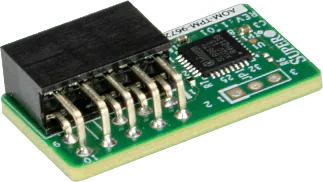
Below is an image of a Supermicro TPM add-in card.
Prerequisites for creating a VM with a vTPM device
Before adding a vTPM to a guest, vSphere needs a few things in place:
- A key provider configured in vCenter – either an external KMS or the vSphere Native Key Provider (NKP)
- A supported guest OS – Windows 7 / Server 2008 and later for Windows, or a supported Linux distribution
- ESXi 6.7+ for Windows vTPM, ESXi 7.0 U2+ for Linux vTPM
- The VM must boot with EFI firmware (not legacy BIOS)
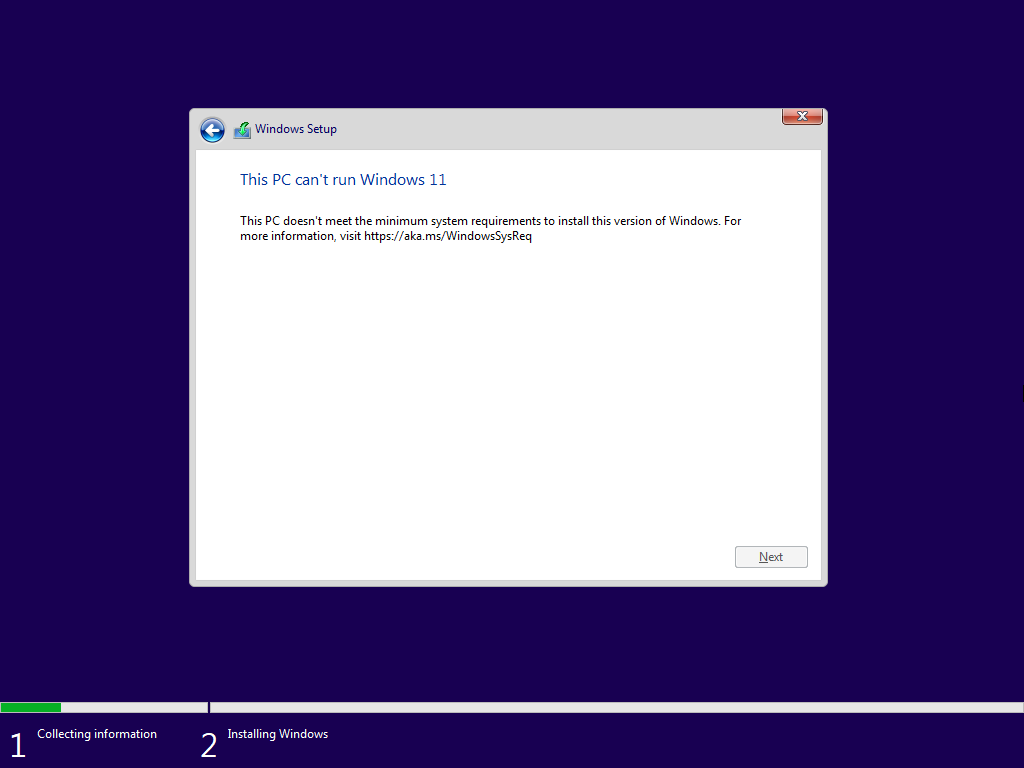
If any of these are missing and you try to install Windows 11 anyway, installer responds with the screen below.
Once the prerequisites are in place, the actual workflow is short:
- Add a key provider (NKP is the easy path)
- Create a new VM with encryption enabled on the disk
- Add a Trusted Platform Module device to the VM
Adding a key provider
Before you can encrypt virtual machine disks, you need to add a key provider. VMware vSphere 7.0 Update 2 introduced the vSphere Native Key Provider (NKP), allowing administrators to manage encryption keys directly within vCenter Server without requiring an external Key Management Server (KMS).
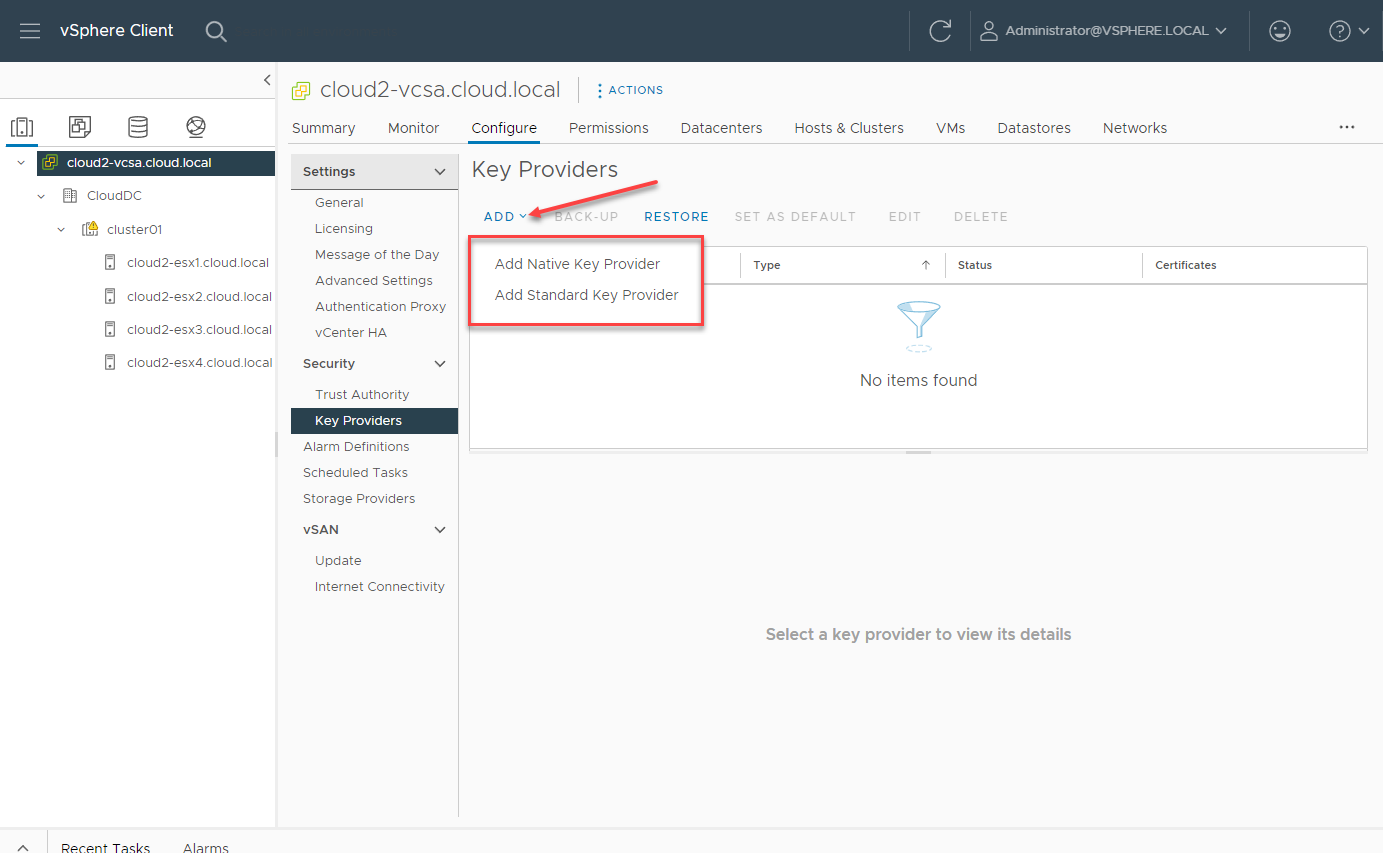
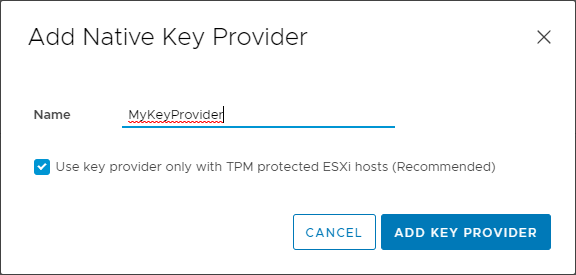
Here, I have selected “Add Native Key Provider.” The configuration is simple. You assign a name to the key provider and click “Add Key Provider.”
After adding the Native Key Provider, you need to back up the key provider before it becomes active. Click the Back Up button.
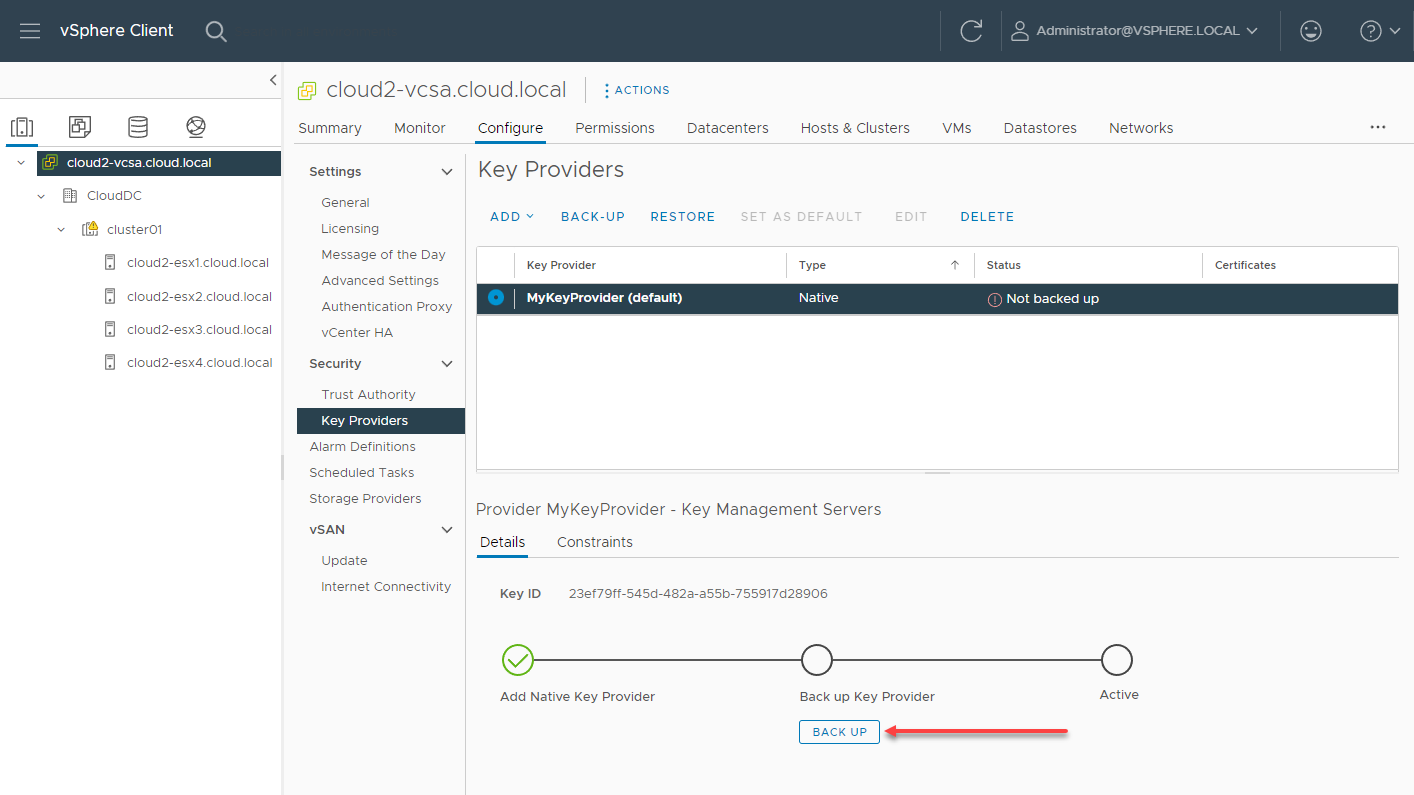
You will then be prompted to optionally protect the backup with a password. After selecting a password configuration, the backup key downloads in the browser as a .p12 file.

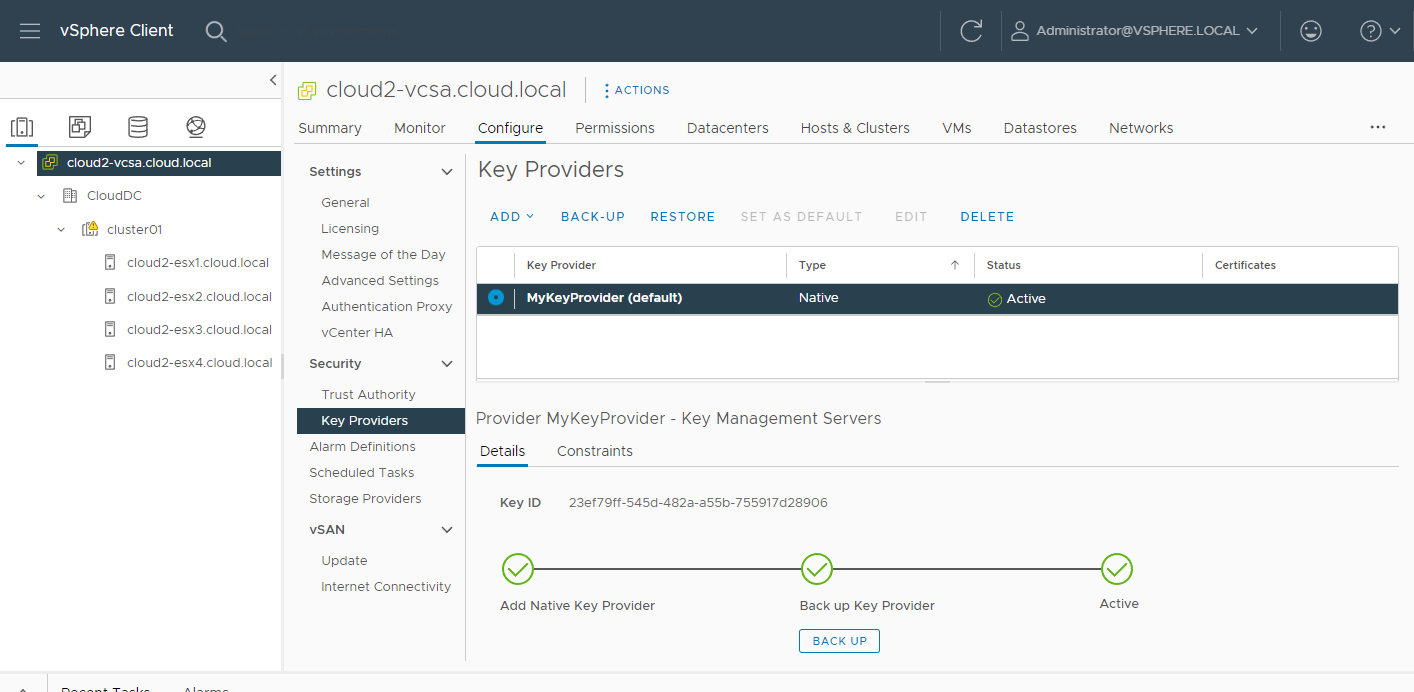
Once the backup operation completes successfully, the Native Key Provider becomes active and can be used for VM encryption operations, including vTPM-enabled virtual machines.
What’s changed in recent vSphere releases
A few things have moved around since the original Windows 11 deployment guides were written. Most older recommendations are still correct, but two changes in particular are worth knowing about.
First, NKP itself. In older vSphere, you needed an external KMS to use vTPM at all. After 7.0 U2, vCenter can do it on its own. For the majority of Windows 11 deployments, that’s the only key-management decision you need to make. External KMS still has its place when there’s a compliance requirement that mandates centralized key custody or HSM-backed storage.
Second, TPM 1.2 support is gone in vSphere 8. Older servers that worked happily on a TPM 1.2 module under vSphere 6.7 or 7 won’t satisfy the modern security stack after upgrade. vSphere 8 expects TPM 2.0 with UEFI and Secure Boot. This bites homelab users and anyone running gear that predate ~2016 most often.
A side note that’s caused some confusion: vSphere 7 U2 also added a separate feature called Secure ESXi Configuration, which uses the host’s TPM to seal the ESXi configuration itself. That feature is not the same as vTPM for guests, but the configuration commands look similar enough that people mix them up. If you’re hardening the ESXi host’s own config, these are the relevant commands:
# check current ESXi config-encryption mode
esxcli system settings encryption get

# enable TPM-sealed config encryption on the host
esxcli system settings encryption set --mode=TPM

# require Secure Boot at the host level
esxcli system settings encryption set --require-secure-boot=true

# list the recovery key (back it up - critical before HW changes)
esxcli system settings encryption recovery list
Important: none of those commands are required to install Windows 11 in a vTPM-enabled VM. They harden the ESXi host, not the guest. If you’re only here to varify Windows 11 works inside a VM, you can skip the esxcli step entirely.
The GUI still shows attestation status, host TPM health, and Secure Boot state in the host summary in vSphere 8, so you don’t have to live in the shell. Full procedure is in Broadcom’s Manage a Secure ESXi Configuration KB.
Creating the VM with an encrypted disk
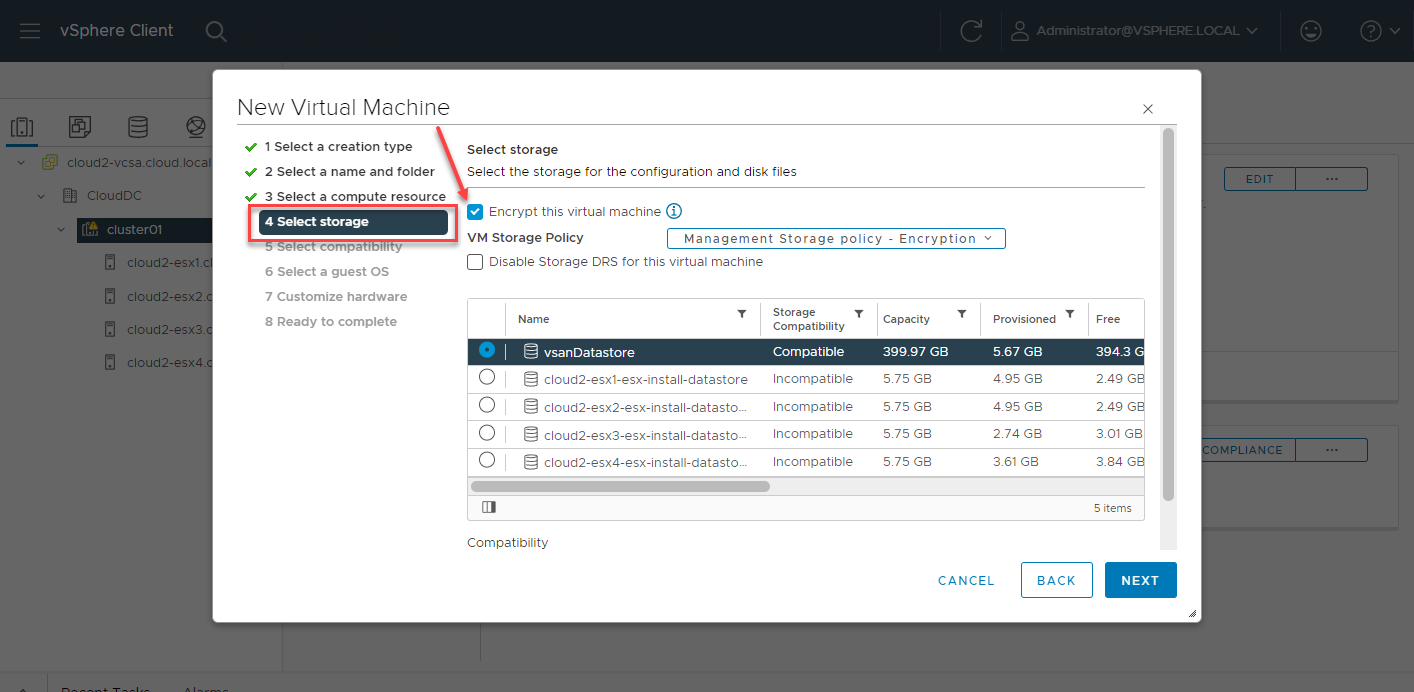
Now, to install Windows 11 in a VMware vSphere virtual machine, we need to pay attention to a few areas of the New Virtual Machine wizard. The first configuration we need to change is in step 4 Select storage. On the Select storage screen, select a datastore and check the checkbox next to Encrypt this virtual machine.
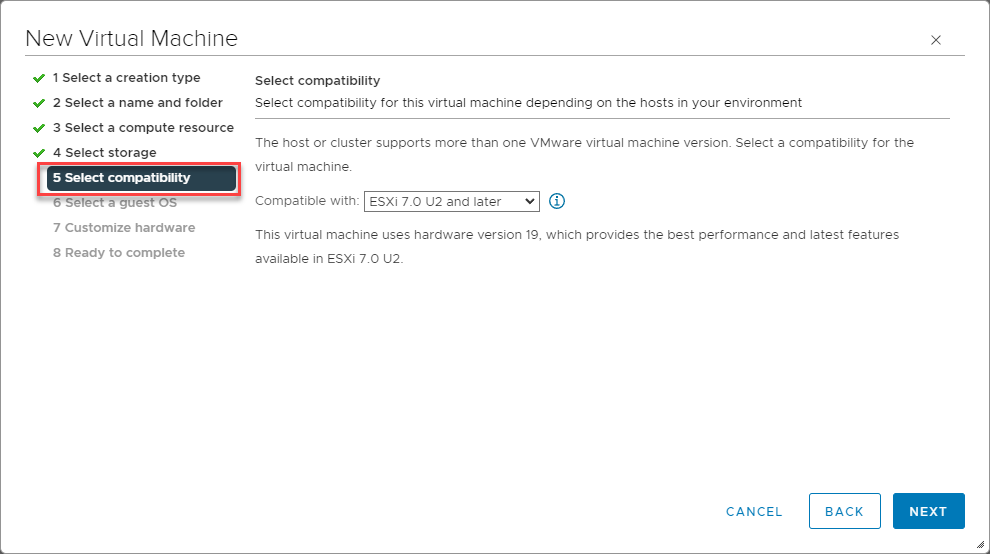
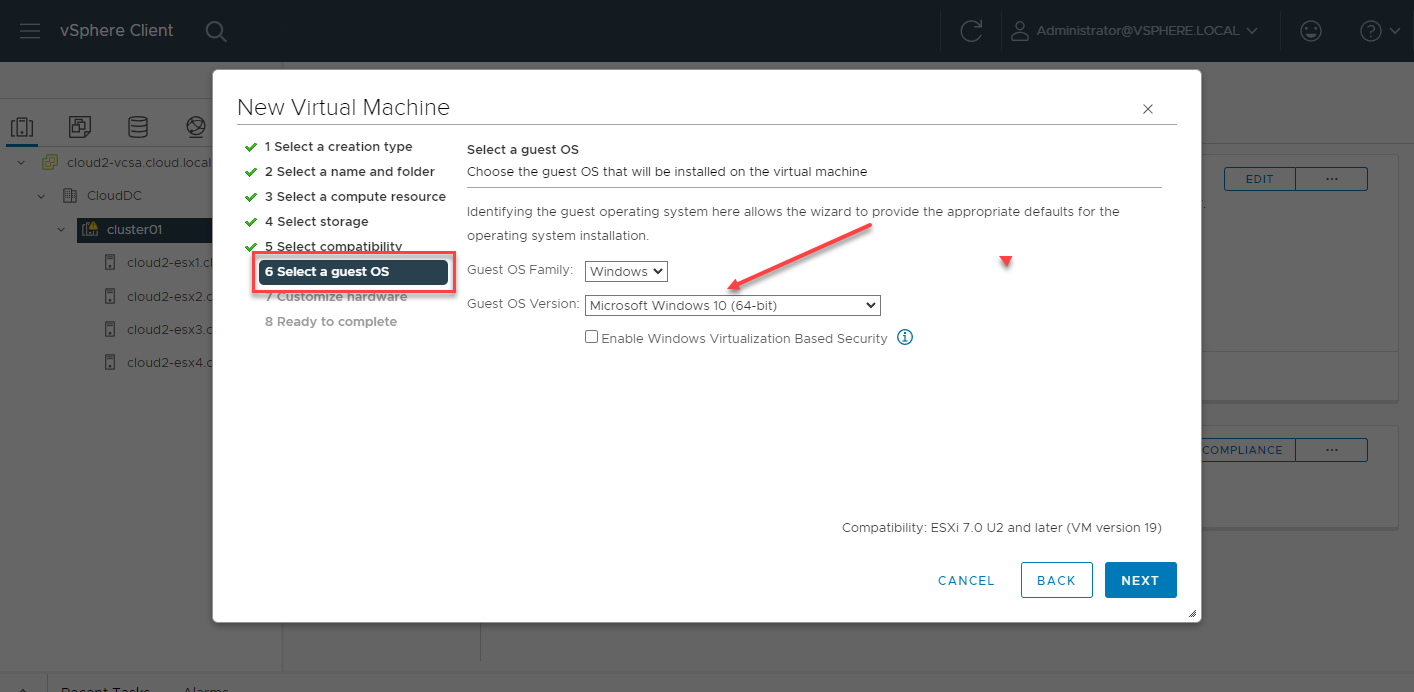
On the Select compatibility step, set the hardware version to ESXi 6.7 or later. The vTPM device requires that level or higher. For anything going into production, pick the highest level your cluster supports, typically 7.x or 8.x.
Older vSphere builds didn’t have a Windows 11 entry in the Guest OS Version dropdown. Current vSphere 8 builds include it. If you’re on slightly older 7.x build and the option isn’t there, choose Windows 10 (64-bit). Installation works the same way, you just lose some of the cosmetic defaults VMware ships with the newer profile.
Adding the vTPM device
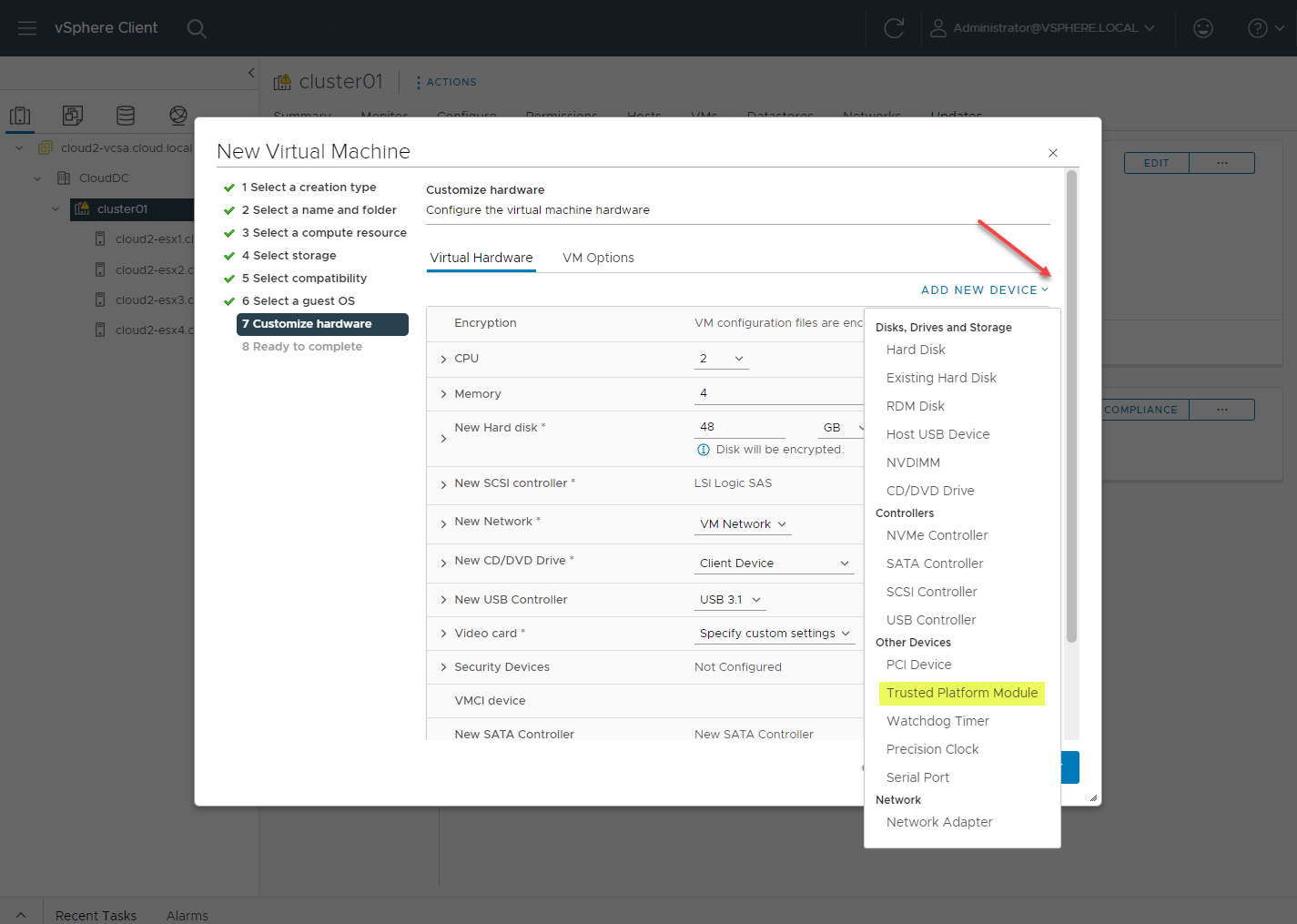
The final configuration step required to make the VM compatible with Windows 11 is adding the Trusted Platform Module device. To do this, click the Add New Device dropdown on the 7 Customize hardware screen and select Trusted Platform Module.
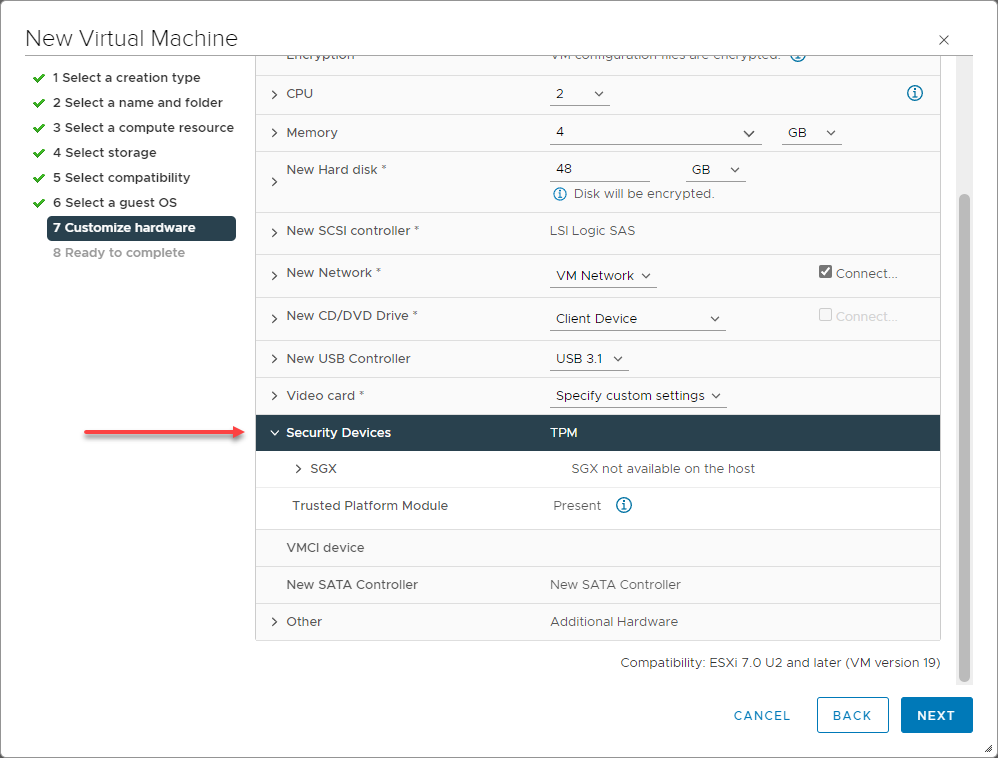
After adding the vTPM device, you will see it in the VM hardware list as a Security Device.
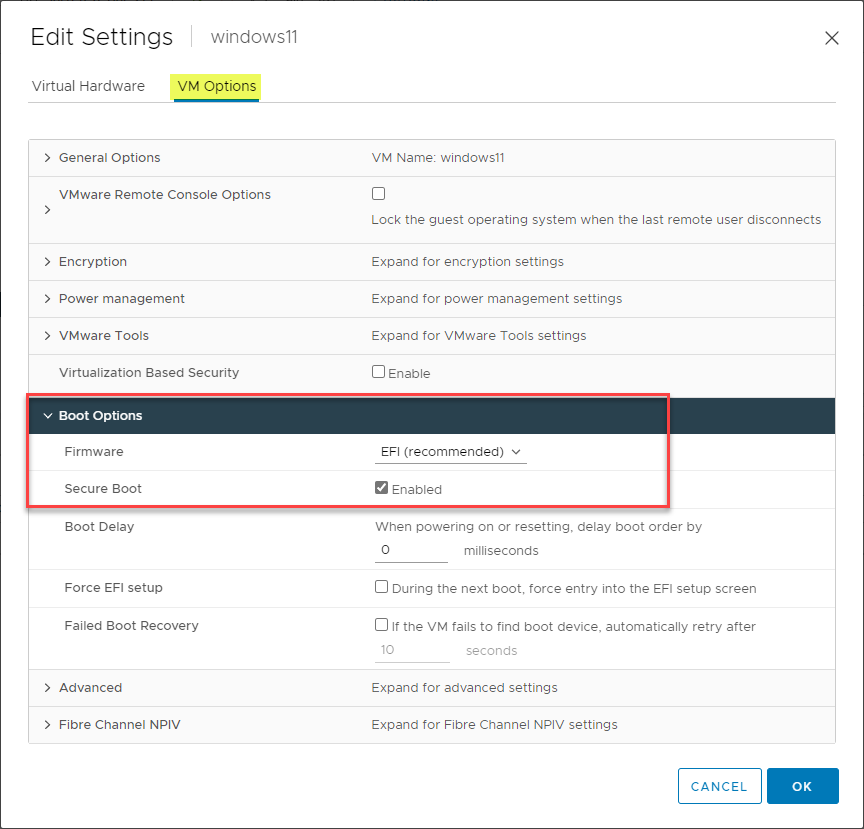
Before you click power on, check that the VM is set to EFI firmware and Secure Boot is enabled. Recent vSphere releases set both automatically when you pick a Windows 10 or Windows 11 guest profile, but it’s worth confirming – this is the single most common reason the Windows 11 installer still throws the requirements error after everything else looks right.
Finish the wizard, mount the Windows 11 ISO, and start the install. If TPM, Secure Boot, EFI, and encryption are all in order, the requirements check passes without comment. If you still get “This PC can’t run Windows 11,” go back through the hardware screen – 9 times out of 10 it’s the TPM device that didn’t get saved, or the firmware silently fell back to BIOS.
FAQ
Do I need an external KMS?
Not usually. For Windows 11 vTPM and standard VM encryption, NKP is enough and simpler to run. External KMS is mainly for environments where compliance or audit policy requires keys to live outside vCenter, or where you already operate a central key infrastructure.
Does vTPM require a physical TPM in the ESXi host?
No. The host’s physical TPM is used for host attestation and boot integrity, not for vTPM. vTPM functionality only depends on the key provider. That said, TPM 2.0 on the host is still strongly recommended for production – you want host attestation for the bigger security story.
Can I add vTPM without enabling VM encryption?
Yes. When you add a vTPM, vSphere automatically encrypts the parts of the VM that hold TPM state, but full VM Encryption (which encrypts the VMDKs) stays optional. Most secure deployments turn both on, but they are separate features.
How much performance does VM encryption cost?
Less than it used to. On current hardware with AES-NI acceleration, typical overhead lands in the 2-5% range for most workloads. I/O-heavy workloads on slower storage will see more; CPU-bound workloads tend to barely notice.
Does adding a vTPM fully encrypt the VM?
No, only the parts that need protection for the TPM to be meaningful (NVRAM, swap, the VM config). The virtual disks themselves are not encrypted unless you turn on full VM Encryption explicitly.
Wrapping up
Windows 11 raised the security floor and the rest of the industry is following. TPM 2.0, Secure Boot, and encryption-by-default aren’t optional anymore, in physical hardware or in VMs.
In vSphere the deployment isn’t hard once you’ve done it once. You need a key provider (NKP for almost everyone), an encrypted VM with EFI and Secure Boot, and a vTPM device attached before first boot. NKP and the improved Windows 11 guest profile in vSphere 8 cut most of the friction the original 2021 guides described.
The combination of vTPM, Secure Boot, and VM encryption gives Windows 11 the same hardware-rooted trust chain it gets on bare metal. For most enterprise estates that is exactly the point.
