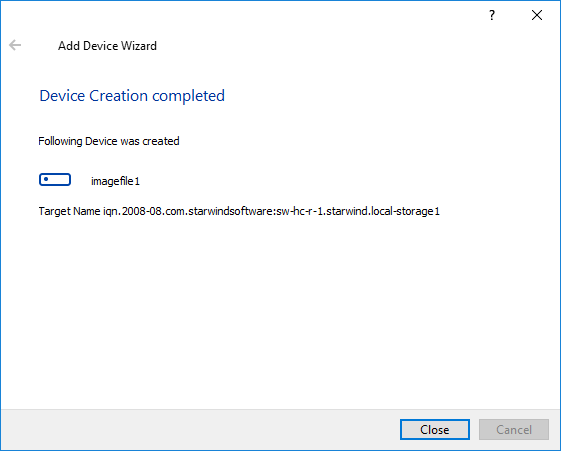
To import an image file device over an IP network:
1. Open Add Device Wizard in one of the following ways:
- Right-click a StarWind server and select Add Device (advanced) from the shortcut menu.
- Select a StarWind server and click the Add Device (advanced) button on the toolbar.
2. As Add Device Wizard appears, follow the instructions to complete the creation of a new Image or LSFS device.
3. Select Hard disk device as a device type to be created.
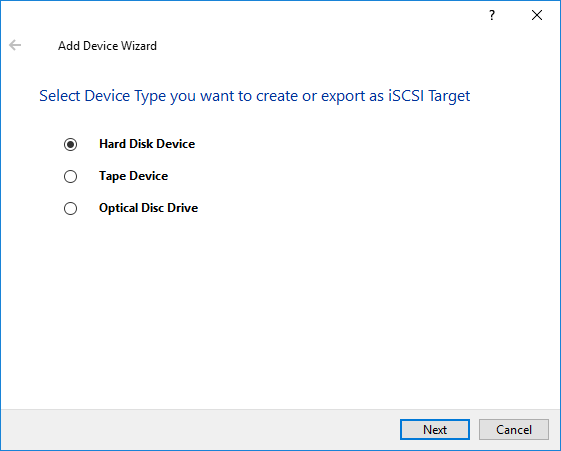
4. Click Next to continue.
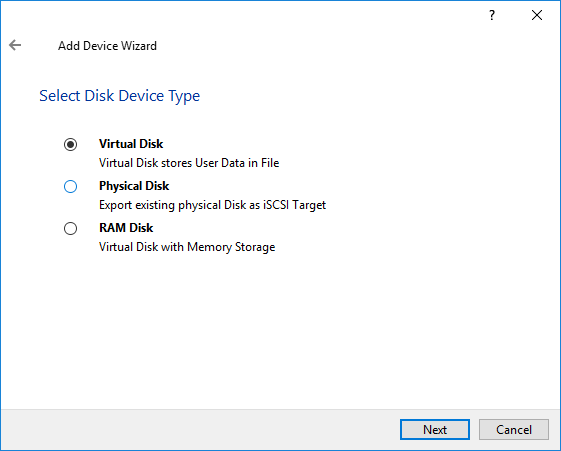
6. Click Next to continue.
7. Specify the virtual disk location and create a new file if needed.
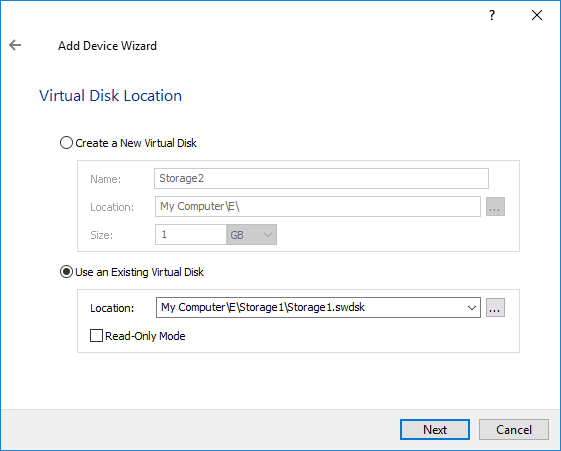
8. Click Next to continue.
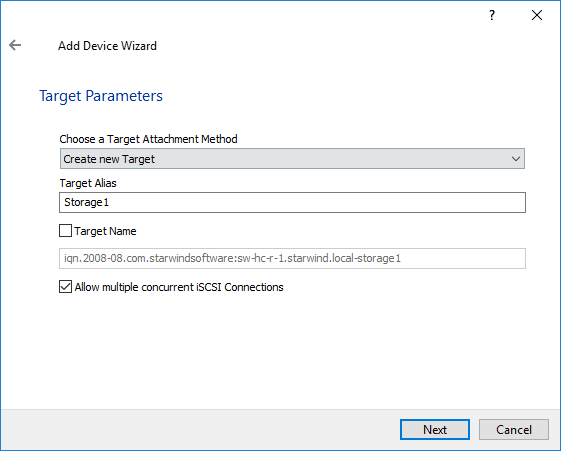
9. Specify target parameters.
Select the method of target attachment and fill in the Target Alias text field.
Select the Target Name checkbox to enter a custom name of a target. Otherwise, the name is generated automatically in accordance with the specified target alias and click Next.
Note: Specifying a reasonable name and alias simplifies navigation through the available iSCSI targets.
Select the Allow multiple concurrent iSCSI Connections checkbox if you want to enable several clients to connect simultaneously to the target.
10. Click Next to continue.
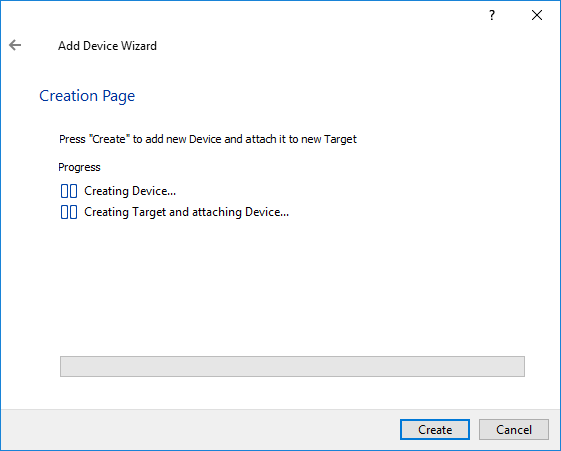
11. Click Create to add a new device and attach it to the target.
17. Click Close to close the wizard.