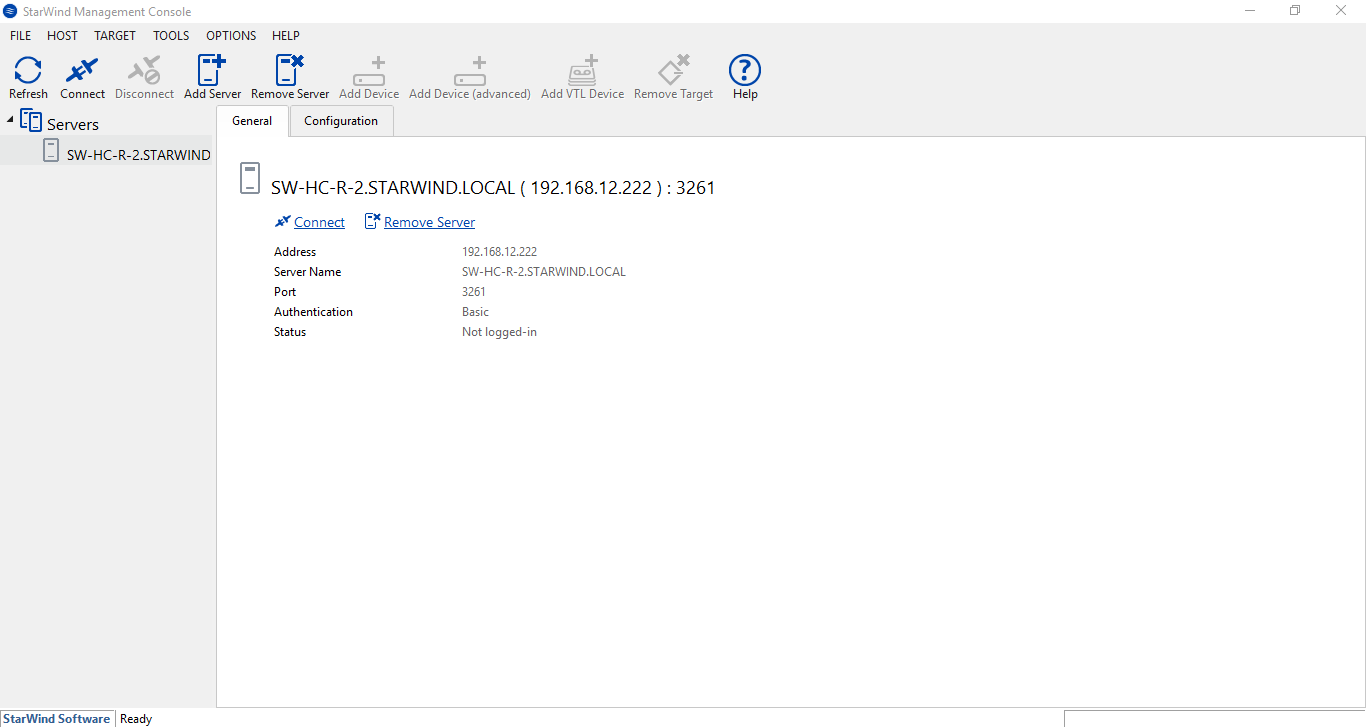
To add a StarWind server:
1. Open the Add New StarWind Server dialog box in one of the following ways:
- Click Add Server on the toolbar.
- Right-click the Servers item of the Console tree and select Add Server from the shortcut menu.
- Select the StarWind Servers item and click Add StarWind Server in the main Console area.
- Click Host from the menu bar and select Add StarWind Host.
2. Fill in the Host field with an IP address or DNS name of the host you want to connect to. Specify a localhost if you want to export targets on a local computer.
Note: The host you are going to connect to has to run StarWind Service.
Enter a port for management communications (3261 is set by default) in the relevant text field.
Click Scan StarWind servers to check all available servers in your network. You can also select the IP Range checkbox and set a range of IP addresses that will be scanned for available StarWind severs.
Note: You may add connections to several hosts running StarWind Service to manage iSCSI targets on each of the specified hosts.
3. Go to the Authentication tab to select an appropriate authentication method.
StarWind Service supports 3 authentication methods:
- Anonymous authentication does not require any authentication.
Note: It is not recommended to use anonymous authentication method unless you are absolutely confident in the network security.
- Basic authentication (default) requires inputting a username and password.
Note: If you use neither anonymous connection nor CHAP authentication, it is prompted to provide the username and password to establish a connection. The default username is root and the default password is starwind. You can change them anytime in the Authentication Parameters dialog box (see StarWind Service Management Interface for more information).
- CHAP authentication enables CHAP support for StarWind management connection. CHAP (Challenge Handshake Authentication Protocol) is used to define which client servers have an access to volumes on the SAN).
Note: For more information about CHAP, visit http://technet.microsoft.com/en-us/library/cc957983.aspx or read the CHAP Permission Tab of the Management Console section.
To enable mutual authentication, select the Mutual CHAP authentication checkbox.
Note: It is recommended to enable the Use secure channel encryption checkbox if you are using public Internet channels for data transfer. Enabling this option improves security.
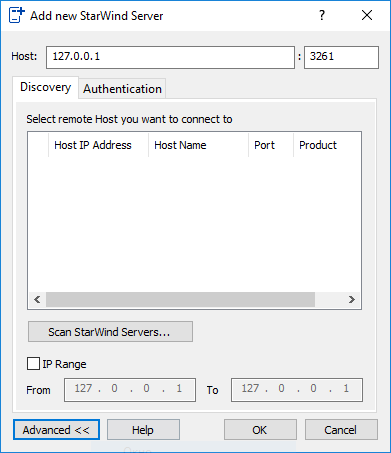
4. Click OK to add a new connection to StarWind Management Console.